


Many people want to experience OpenClaw what makes it so powerful, but not everyone has itcomputeror also want to be at/incell phoneGive it a try. Although in the past there were already methods that could Android Installing it was complicated, making it quite difficult for most people. The good news is that GitHub now has a one-click installation method — you just need to download the APK file from the open-source project openclaw-termux. Below, we’ll show you how to do it.
Learn how to easily install OpenClaw on Android with one tap, so you can run Openclaw on your phone too
Before you start, I should remind you that OpenClaw doesn’t run as smoothly on Android as it does on PC, so be prepared for that.
Although OpenClaw’s AI model can connect to the cloud, running OpenClaw is still quite demanding on phone hardware. Many operations may take several seconds to complete, and even chatting with the AI requires waiting 5-15 seconds for each response, so the overall experience isn’t great.
Also, since it requires manually installing APK files, if security is a concern for you, it’s best to avoid using it.
Go to openclaw-termux to download the APK file
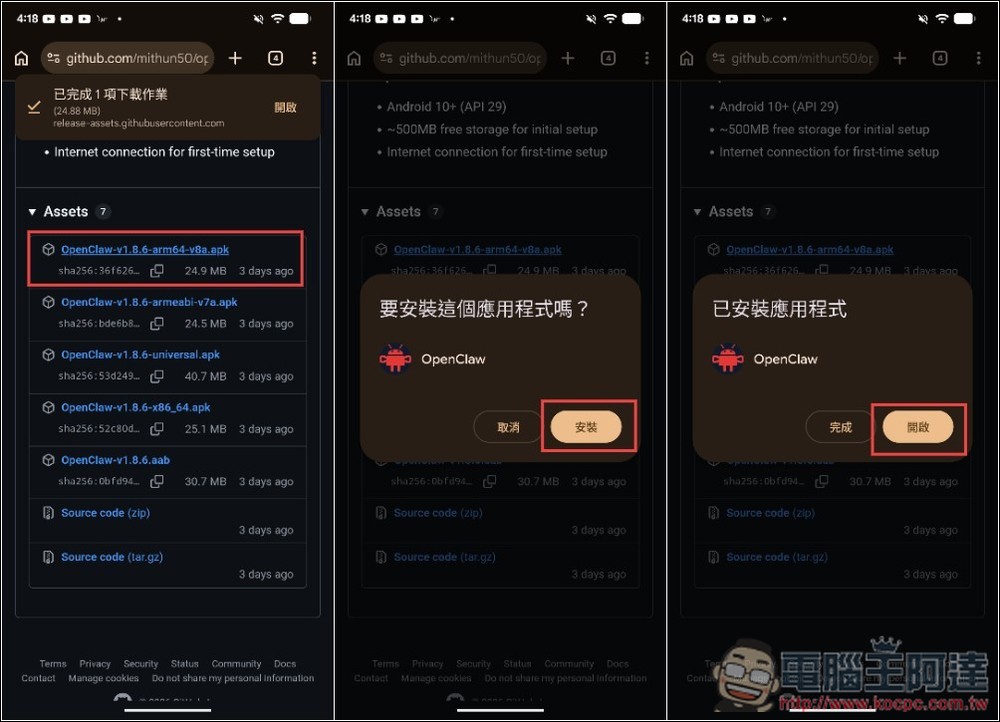
Follow the link above to go to the openclaw-termux download page, then download the arm64 APK file. After downloading, open it and select Install to install and launch it.
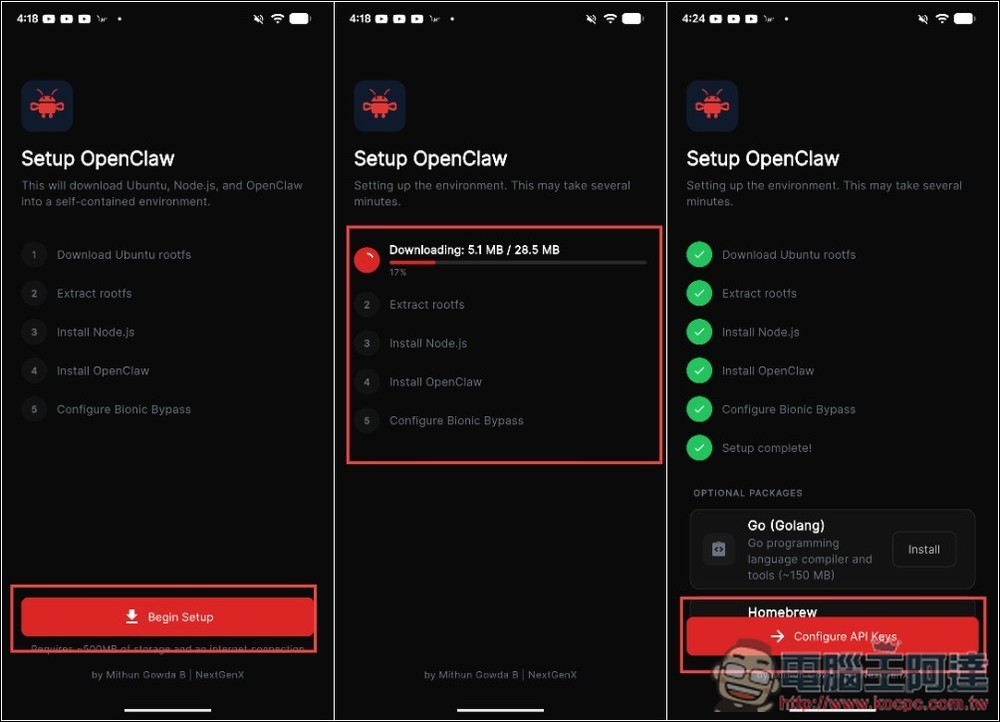
Once you’re on the main screen, you can start installing OpenClaw. Click Begin Setup below and wait for everything on screen to finish. This may take anywhere from a few minutes to a couple of tens of minutes, so just leave it running. Once everything is installed, click Configure API Keys:
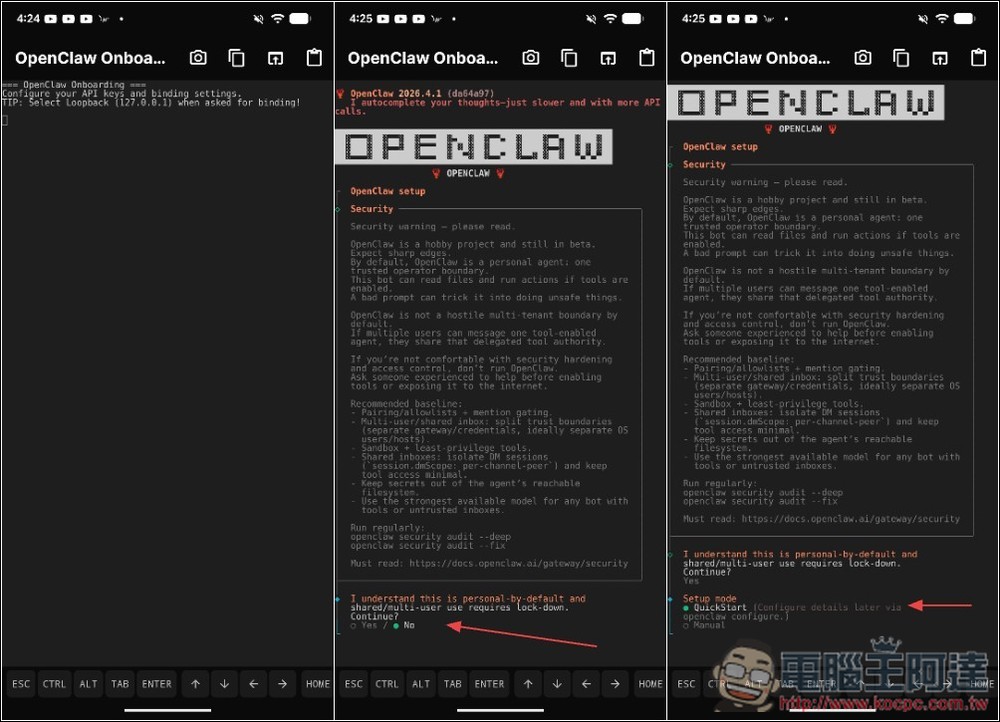
Next, you’ll see the familiar OpenClaw setup screen. Use the buttons at the bottom of the screen to navigate—select Yes for the first option and QuickStart for the second.
Choose the AI service you want to use. I’m using OpenRouter’s free API and setting it up the way we introduced before. NVIDIA’s Latest Nemotron 3 Super Free Model:
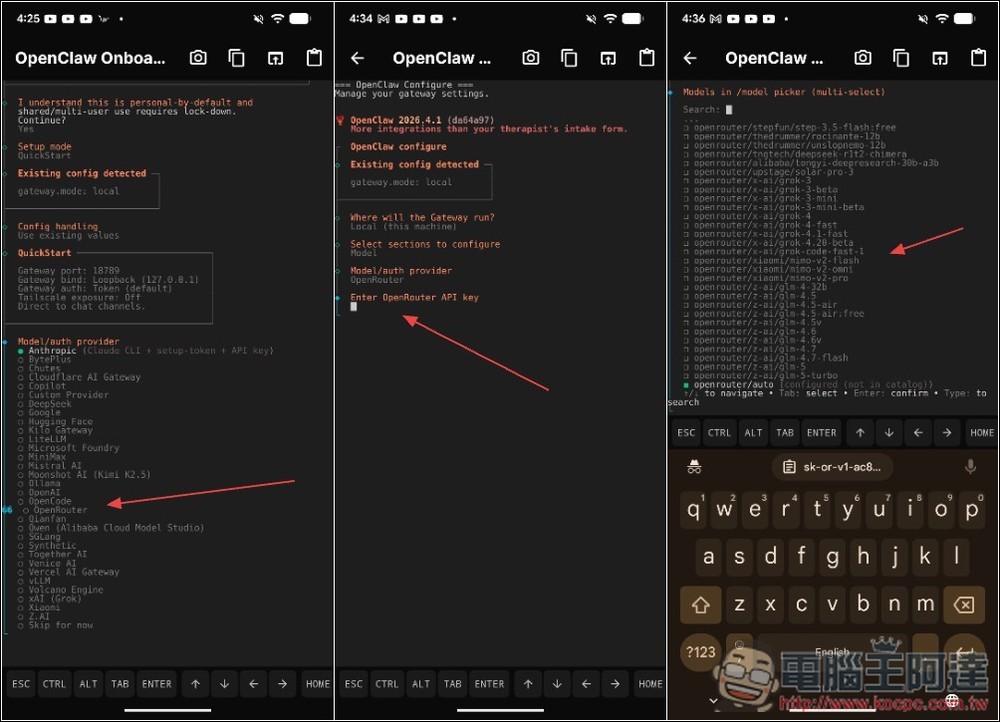
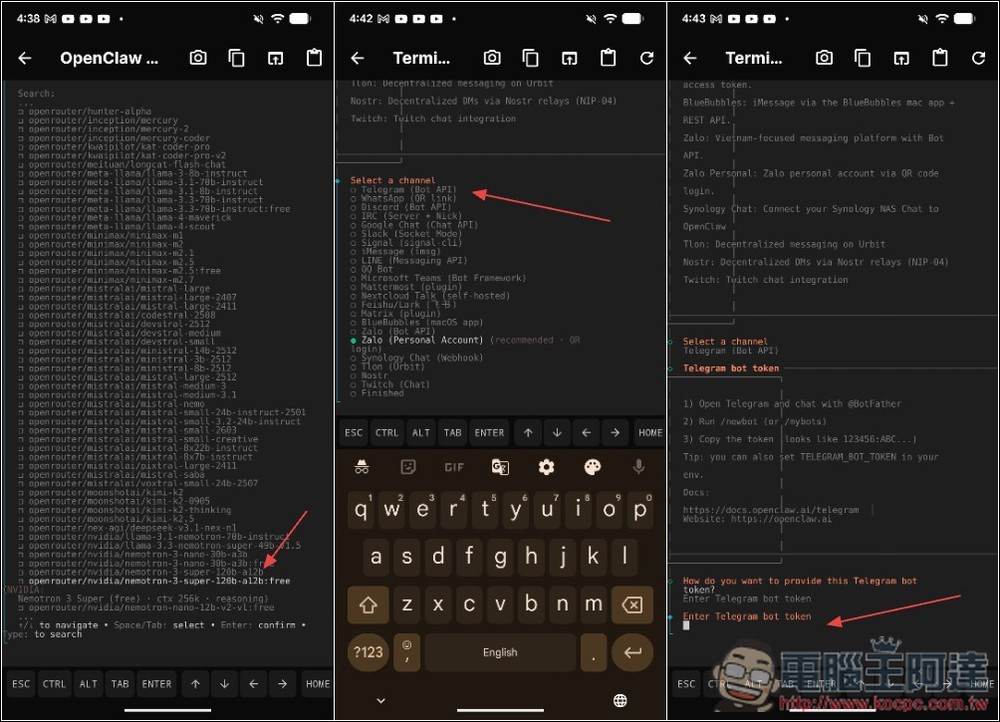
After setting up the model, the next step is whether you want to integrate with messaging apps. This step can also be configured later. Let’s first experience how OpenClaw runs on Android:
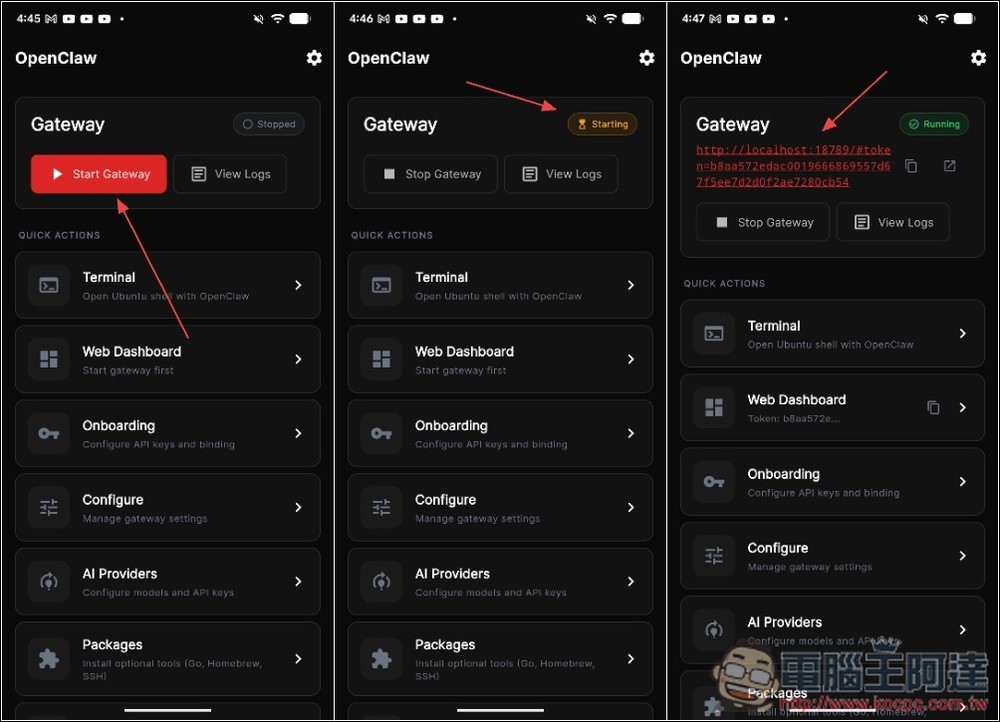
Next, press the back button to return to the main menu. You will see the “Start Gateway” button at the top—click it. The top right corner will then display “Starting” to indicate it’s initializing. Once it changes to “Running,” the Gateway URL will appear. Enabling also takes some time, so please wait patiently:
Go back to your mobile browser, paste the URL and navigate to it, and you’ll be taken to OpenClaw’s chat interface and control dashboard, where you can start chatting with OpenClaw:
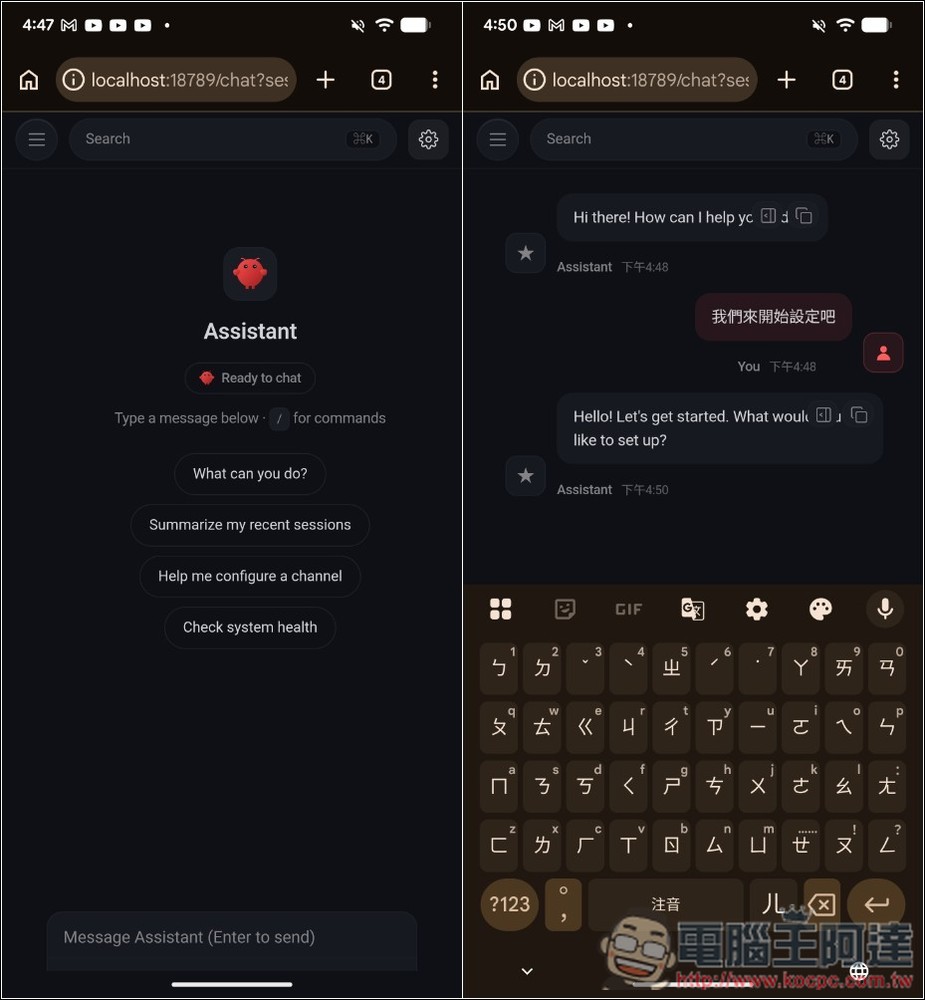
The mobile version of OpenClaw works the same way as the desktop version. If you want to learn more tips and tricks, check out the tutorial video Ada filmed earlier:
Source: KOCPC Chinese