


This time Google launched Gemma 4 The series features native Agent capabilities, for users who OpenClaw or other AI Anyone who gets their hands on an agent tool will naturally want to test how well it works. However, although these are open-source models, not everyone has the right computer hardware to run the 26B and 31B parameter versions smoothly. The good news is that the Gemini API actually offers both models for free, with up to 3,000 calls per day, which is more than enough for basic usage and doesn’t require a credit card. Below, I’ll show you how to get started.
How to obtain Gemini API and Gemma 4 usage quota documentation
The Gemini API is accessed through Google AI Studio. Anyone with a Google account can create an API Key for free, and no credit card information is required, meaning you don’t have to worry about being overcharged.
To supplementBelow is how to set up a Google account without entering a credit card. If yours already has a credit card on file and you’re worried about exceeding usage and getting charged, you can use a Google sub-account to sign up.
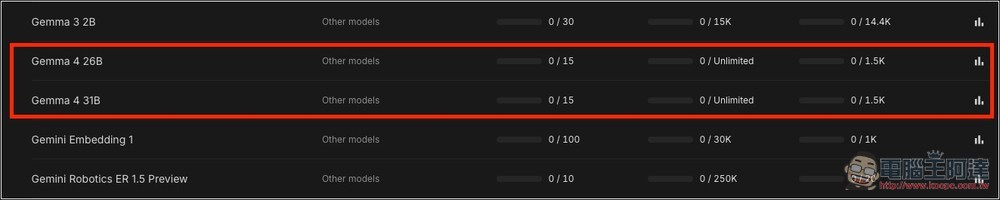
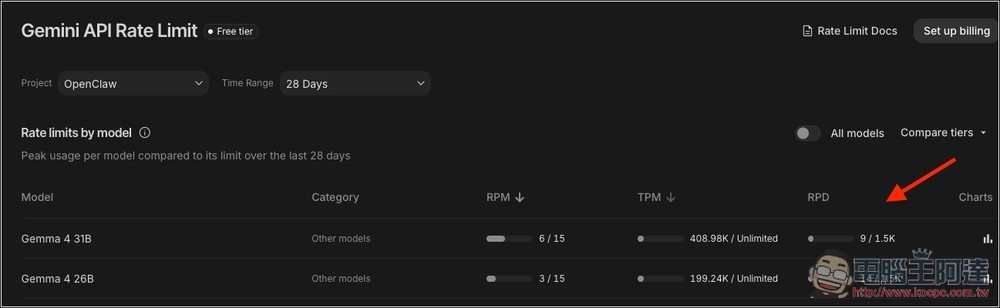
First, let’s look at Gemma 4’s usage count, Google AI Studio In the API Key settings, there is a Rate Limit On this page, you can view the usage for each model, including Gemma 4 26B and Gemma 4 31B. On the left, RPM (requests per minute) is 15, TPM is Unlimited (tokens per minute), and RPD (total requests per day) is 1.5K, meaning 1,500 requests. Combined, 26B and 31B have 3,000 requests.
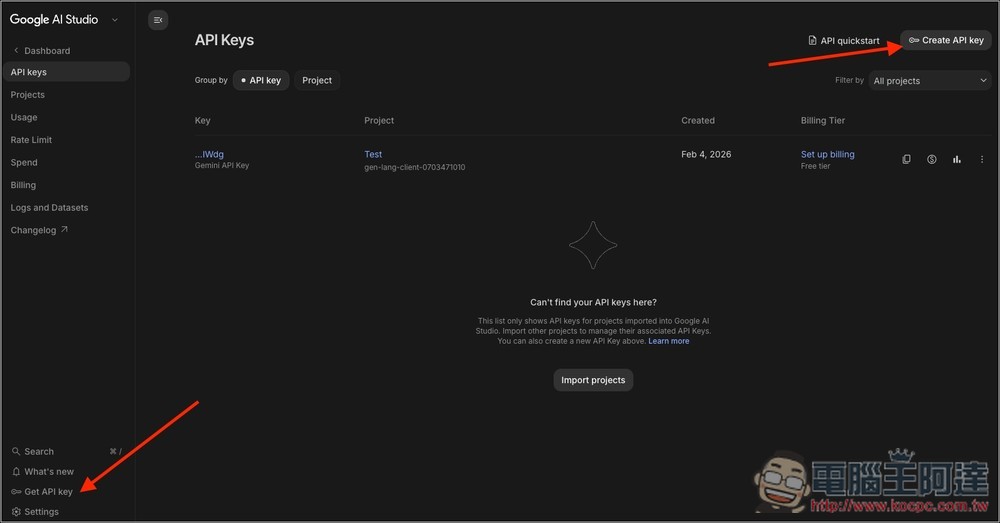
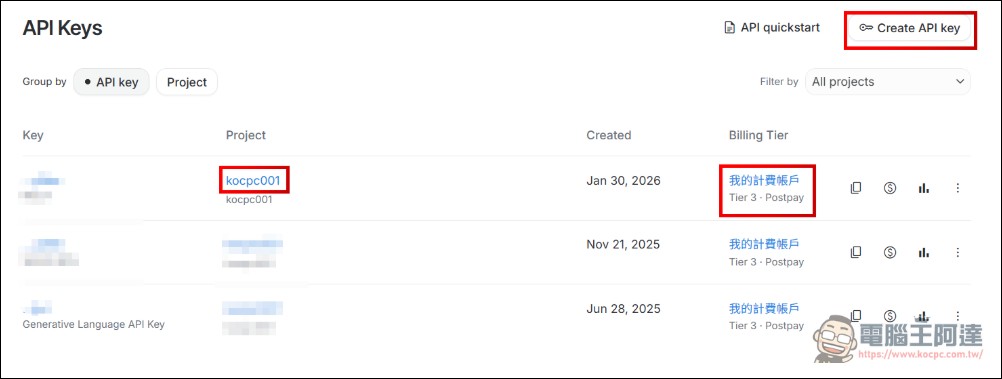
Getting an API Key is also very simple. If you haven’t linked a credit card to your Google AI Studio yet, creating an API Key directly will be under the Free Tier. Go to the API keys page, then click “Create API Key” in the upper right corner:
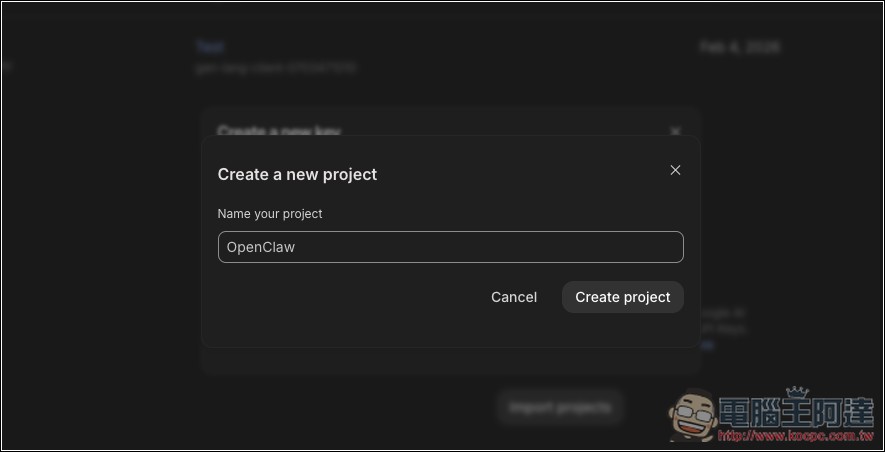
Enter project name:
Press Create to create:
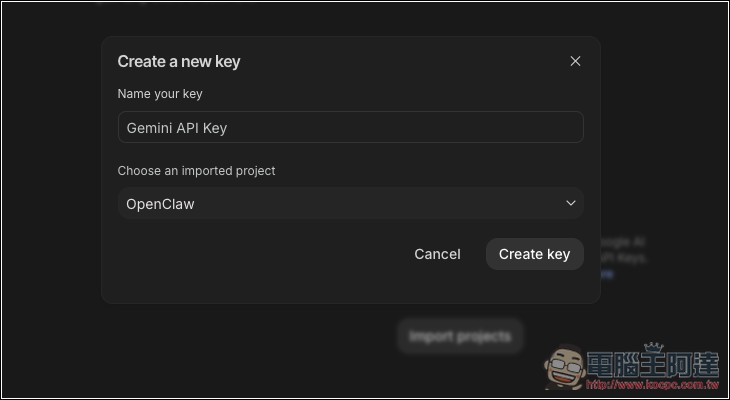
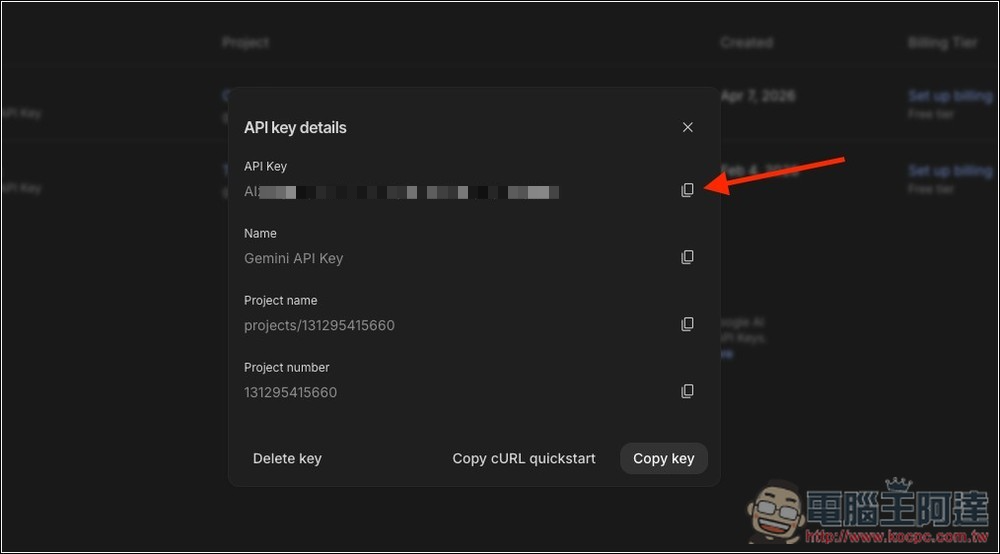
Then you can get an API Key, and you don’t need to fill in any credit card information during the process. Even if you use it up completely, it will just go into Cool Down. Generally speaking, you’ll get new free quota the next day.
Differences and Setup between Free and Paid API Keys
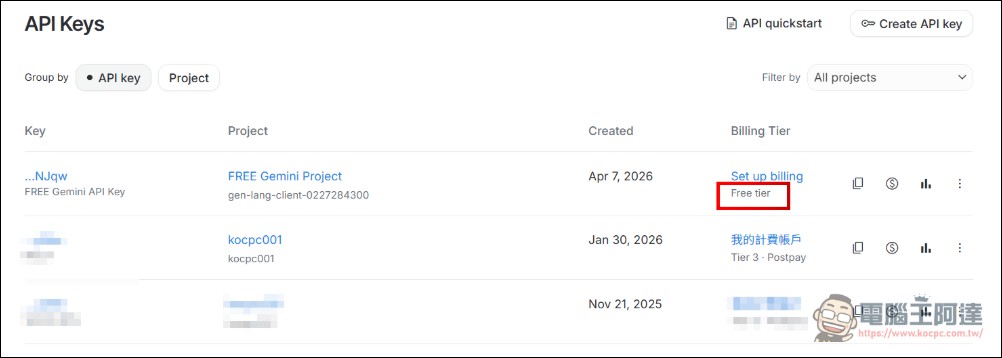
But if you’ve already linked a credit card and generated an API Key for image generation or used it with third-party CLI tools, there are a few potential pitfalls worth noting here. If your account already has a project with a linked credit card and has created a paid API Key (like kocpc001, which is your custom project name), you should notice that your Billing Tier has different levels. While the API Key you obtained in this project does come with a free quota,Once you exceed the free usage limit, charges will start to apply.This is a pitfall that many people overlook and end up getting charged for. If you just want to test free API services, here’s how to do it.How do I create another project that will never have charges deducted API KEY: First, you need to create an API KEY as well (top right):
Next, name it. To differentiate, I use FREE Gemini API Keys, then select Project -> Create Project:
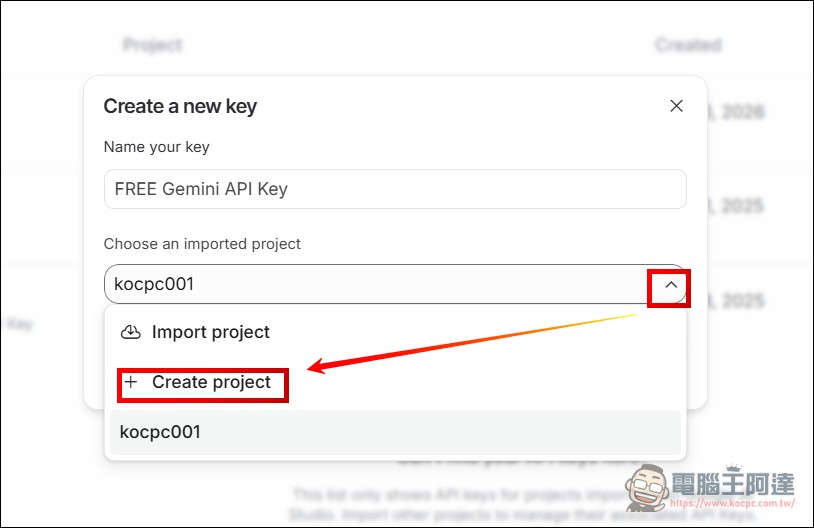
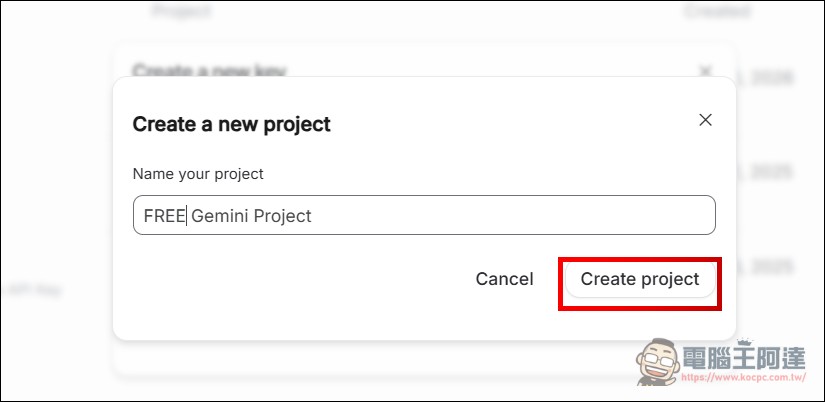
I’ll name the project “FREE Gemini Project” (call it whatever you want, as long as it’s distinguishable), then create the project:
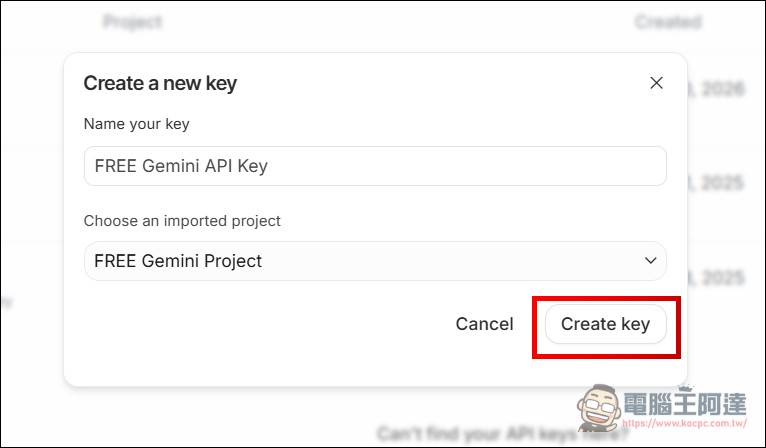
Next, create a Key—this API key is the one that won’t cause accidental charges. Click Copy Code and it’s ready to use:
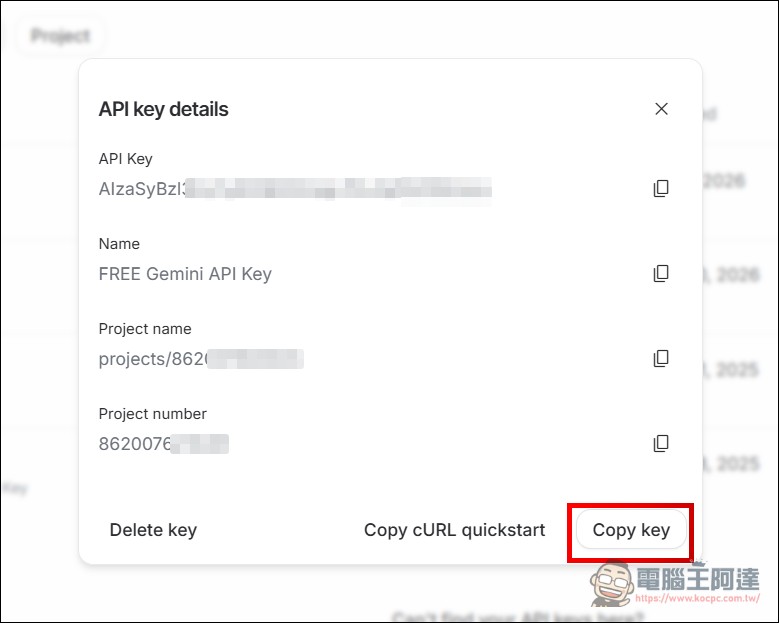
The simplest way to tell them apart is in the API Keys list – the one you just created will show “Free tier”, and when the free quota runs out it will just cool down, while the other keys are still on a billing account and won’t charge you (unless you clicked on Set up billing). If you don’t understand what I’m talking about above, just create a separate account without a credit card attached – no need to overcomplicate things:
After obtaining your API Key, you can use it in your preferred AI tools, or directly in Google AI Studio. Below, I’ll demonstrate how to integrate it with OpenClaw.
However, I should note that Gemma 4 is not yet listed in OpenClaw’s built-in Google provider documentation, so you’ll need to manually register the model in openclaw.json. I’ll also show you how to do that next.
How to call the Gemma 4 model via the Gemini API in OpenClaw
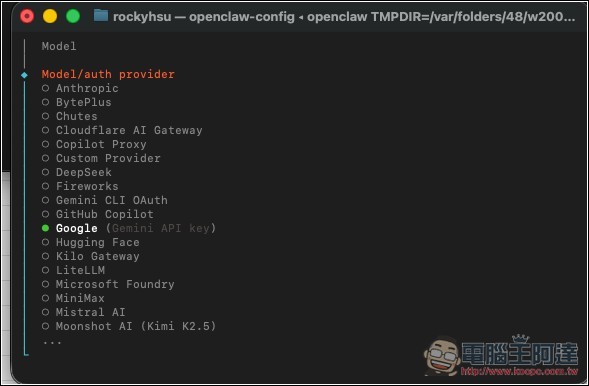
First, go to the Model Provider settings and select Google (Gemini API Key):
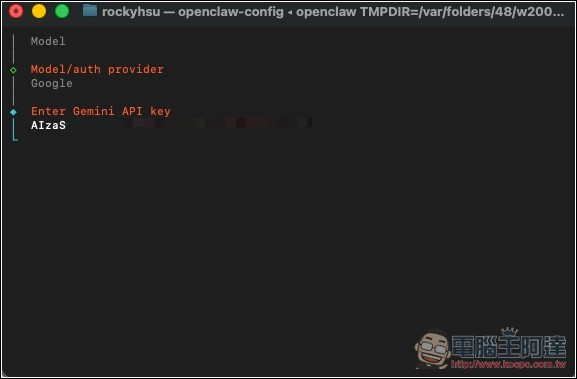
Enter the Gemini API Key you just obtained:
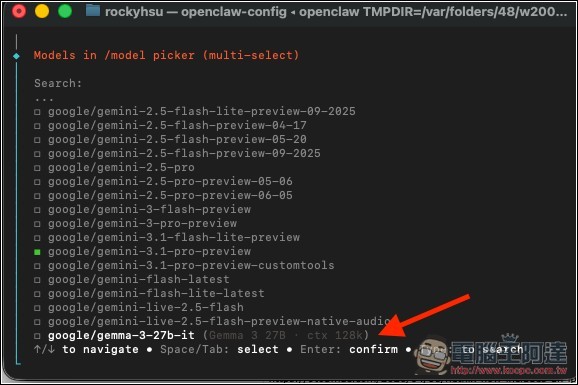
In the model list, Gemma only has Gemma-3-27b-it available. You can select this one first, or pick any one for now. The main thing is to set up the Gemini API first:
Next, please open the openclaw.json file, which you can access through the configuration in the OpenClaw admin panel. Then, under models, fill in the relevant information for the Google model. Below, I will directly provide the information for both the Gemma 4 26B and Gemma 4 31B models:
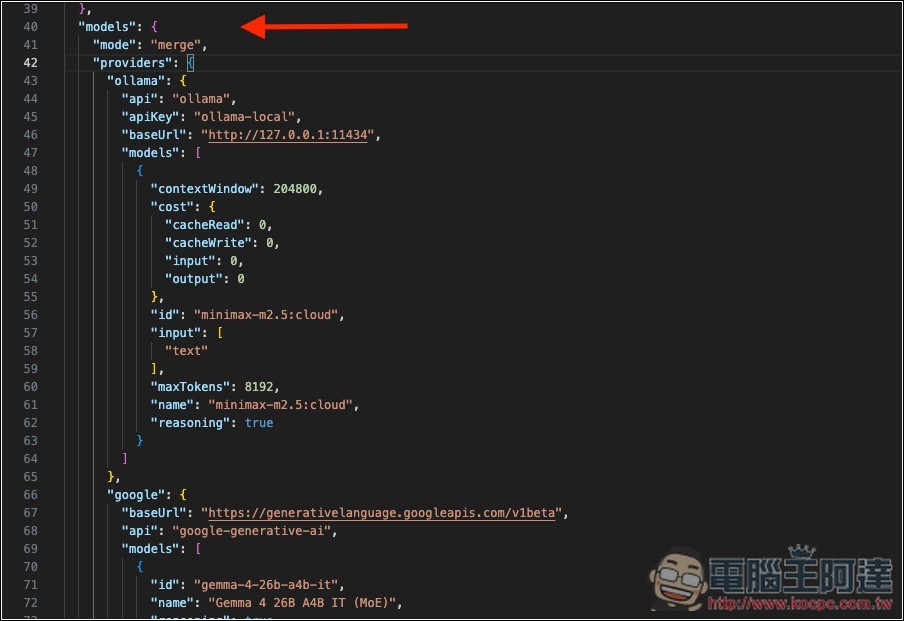
Gemma 4 26B’s model name is gemma-4-26b-a4b-it, and Gemma 4 31B is gemma-4-31b-it:
"google": {
"baseUrl": "https://generativelanguage.googleapis.com/v1beta",
"api": "google-generative-ai",
"models": [
{
"id": "gemma-4-26b-a4b-it",
"name": "Gemma 4 26B A4B IT (MoE)",
"reasoning": true,
"input": [
"text",
"image"
],
"contextWindow": 262144,
"maxTokens": 131072
},
{
"id": "gemma-4-31b-it",
"name": "Gemma 4 31B IT (Dense)",
"reasoning": true,
"input": [
"text",
"image"
],
"contextWindow": 262144,
"maxTokens": 131072
}
]
}
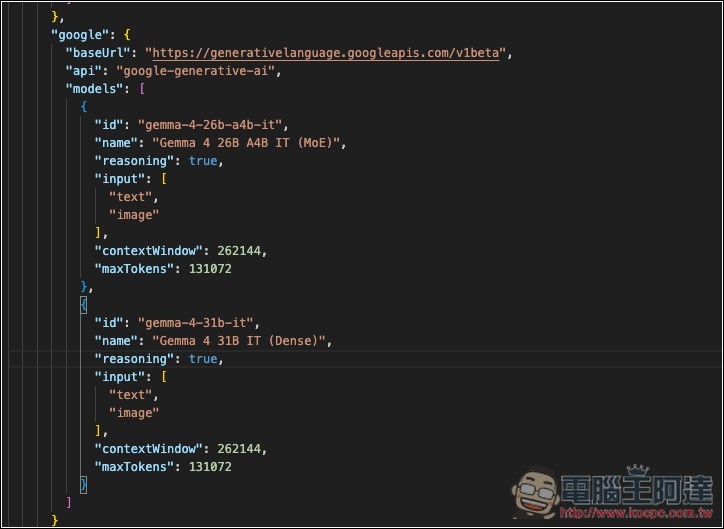
After inputting, save, then enter the following command in the terminal to verify and restart:
openclaw config validate
openclaw gateway restart
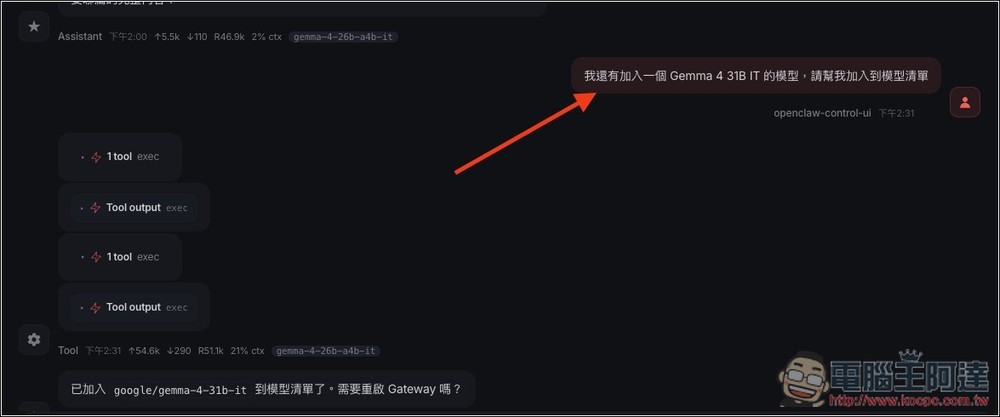
Gateway restart completed. Asked Openclaw to help add Gemma 4 to the model list in the OpenClaw admin panel.
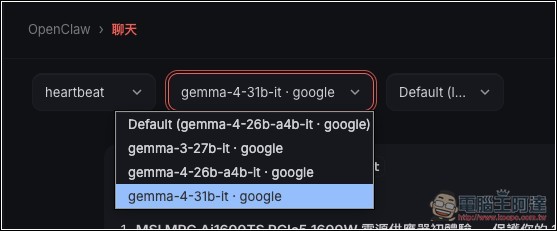
After restarting Gateway again, the model list now shows Gemma 4 26B and 31B.
Tested Successfully:
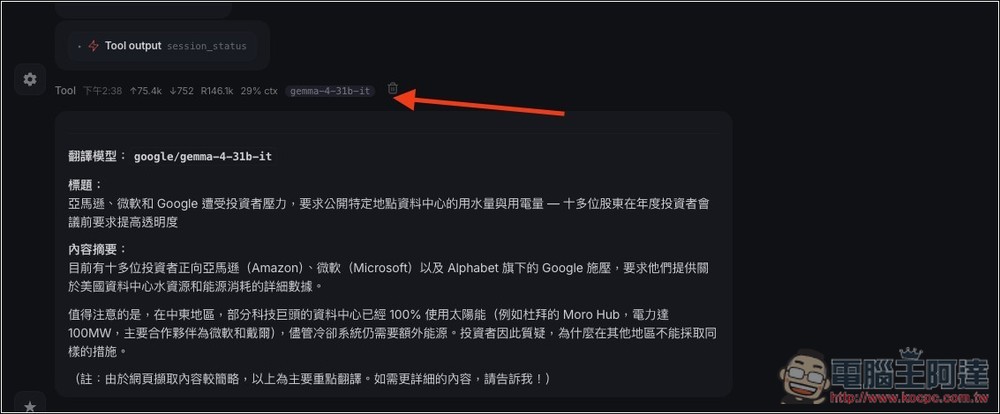
During use, you can return to the Rate Limit screen at any time to check your remaining usage:
Source: KOCPC Chinese