


AI Agents like OpenClaw and Hermes are trending lately, but some people are on the fence about whether to use them—some have security concerns, while others worry about burning through tokens. As a result, many are now exploring the possibility of running these AI Agents locally. Today, AMD published a detailed guide on their official blog, showing step by step how to run Nous Research’s open-source AI Agent “Hermes Agent” locally on Windows systems equipped with Ryzen AI Max+ processors or Radeon AI PRO graphics cards, using WSL2 and LM Studio. This is a valuable resource for anyone looking to deploy AI Agents locally for various reasons.

Why Hermes Agent?
Hermes Agent, developed by Nous Research, is an open-source (MIT licensed), fully autonomous AI agent. Unlike typical chatbots, Hermes has a “self-improvement” capability—it automatically builds skills from task execution experience, continuously optimizes these skills during use, searches through its past conversation records, and builds deep understanding models of users across sessions. For those who aren’t familiar, you can watch Ada’s tutorial video at the end of the article.
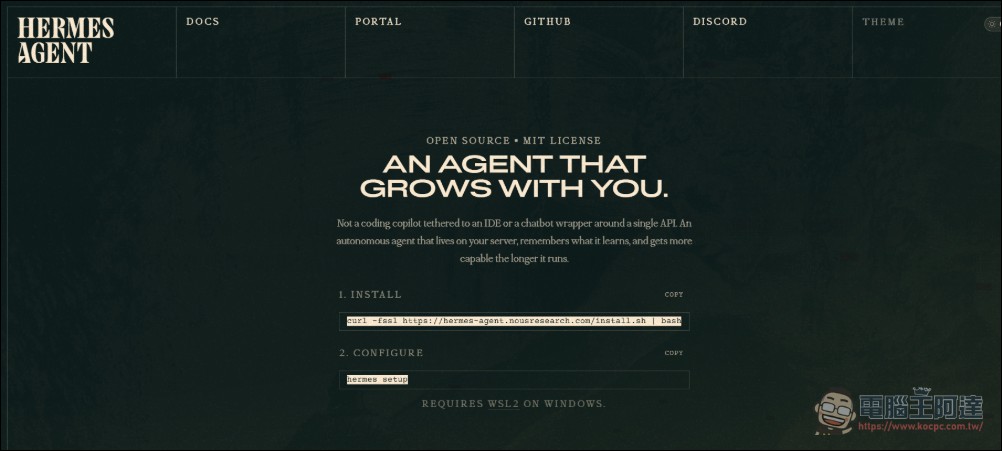
This Agent supports multiple LLM providers (OpenRouter, Nous Portal, Hugging Face, OpenAI, etc.), enabling multi-platform interaction via Telegram, Discord, Slack, WhatsApp, and more. It also includes a built-in scheduled task runner that can execute automated tasks like daily reports and backups unattended.
Local Hardware Recommendations: Ryzen AI Max+ and Radeon AI PRO
Previously, most resources for this were based on Nvidia platforms. This tutorial focuses on AMD’s ecosystem with their own processors and Radeon graphics cards, helping AMD users avoid many detours. AMD positions the Ryzen AI Max+ processor and Radeon AI PRO graphics card as the ideal hardware platform for “Always-on AI Agent systems.” The Ryzen AI Max+ series uses Zen 5 architecture, with the top-tier 395 model featuring 16 cores and 32 threads, a built-in integrated graphics chip with RDNA 3.5 architecture (up to 40 compute units), and an NPU with XDNA 2 architecture, providing approximately 50 TOPS of AI computing power.
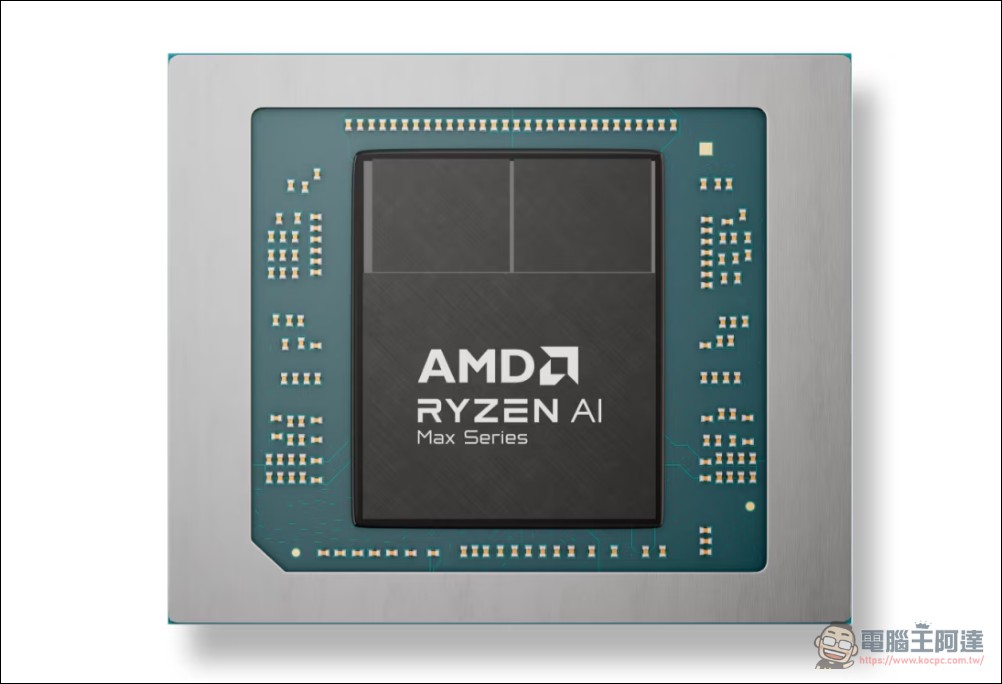
The Radeon AI PRO 9700 graphics card is equipped with 32GB of GDDR7 memory, designed specifically for workstations and AI inference scenarios. For agent workloads requiring the execution of large language models, ample video memory is essential: the 32GB capacity can accommodate larger models while maintaining reasonable inference speeds.
AMD specifically emphasized that these “always-on” systems require hardware capable of continuously running AI workloads locally, allowing users to delegate tasks and enabling agents to execute autonomously. The architectures of Ryzen AI Max+ and Radeon AI PRO are precisely designed to meet these parallel, multi-agent computing demands.
Recommended Model and Deployment Architecture: LM Studio + WSL2 + Qwen 3.6 35B A3B
According to AMD’s official guide, Qwen3.6 35B A3B is recommended as the underlying language model for Hermes Agent. This is a Mixture-of-Experts (MoE) architecture model with 35B total parameters, but only 3B parameters are activated per inference, which can significantly reduce computational requirements.
The model has 256 expert modules, with each inference activating 8 routed experts plus 1 shared expert, supporting a context length of up to 262,144 tokens. This “large total parameters, small active parameters” design enables running high-quality models on consumer-grade hardware, making it ideal for locally deployed AI agent scenarios.
The core architecture of this complete deployment solution is the “LM Studio + WSL2” combination. LM Studio is a free local AI inference application that handles downloading and serving the Qwen3.6 35B A3B model within the Windows environment. The Hermes Agent runs in the Ubuntu environment under WSL2 (Windows Subsystem for Linux), connecting to LM Studio’s API service over the local area network. LM Studio handles model serving across the WSL2 boundary, allowing users to let Hermes Agent directly utilize local GPU computing power without the complexity of configuring GPU passthrough in the Linux environment.
We have excerpted the steps here. For those interested in learning more, visit AMD. Official Blog View:
1. Download 1. Download LM Studio
2. Launch LM Studio and, when prompted to download a model, click “Skip for now.”
3. Check “Developer Mode” and “Start LLM service at login”
4. Click the ‘Model Search’ icon, which features a robot and a magnifying glass
5. On the left, select “Qwen3.6 35B A3B”, then click “Download” on the right. Wait for the download to complete.
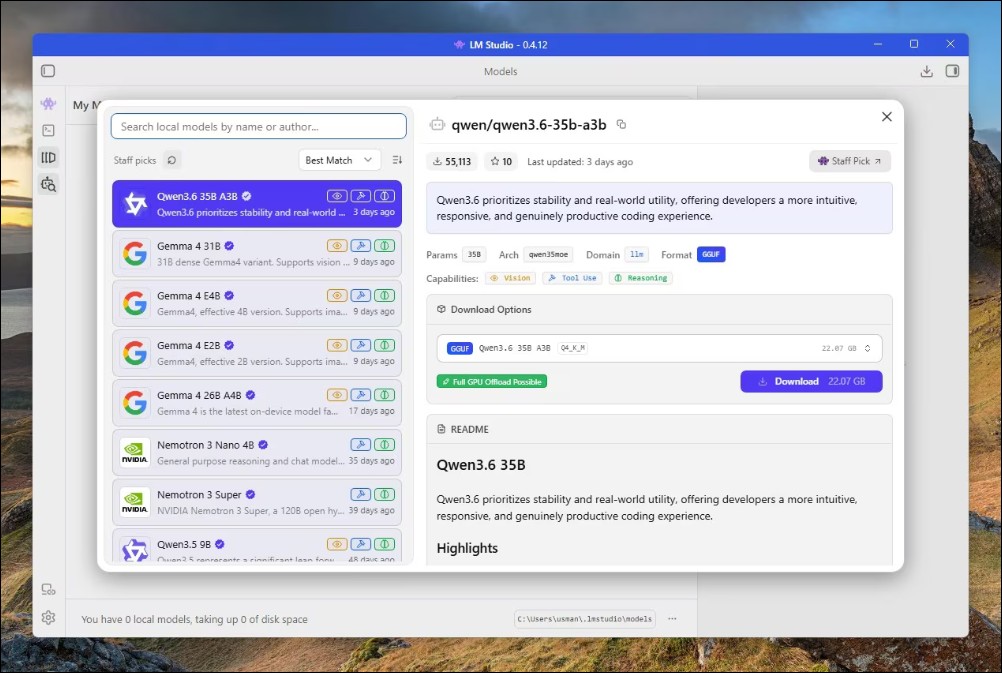
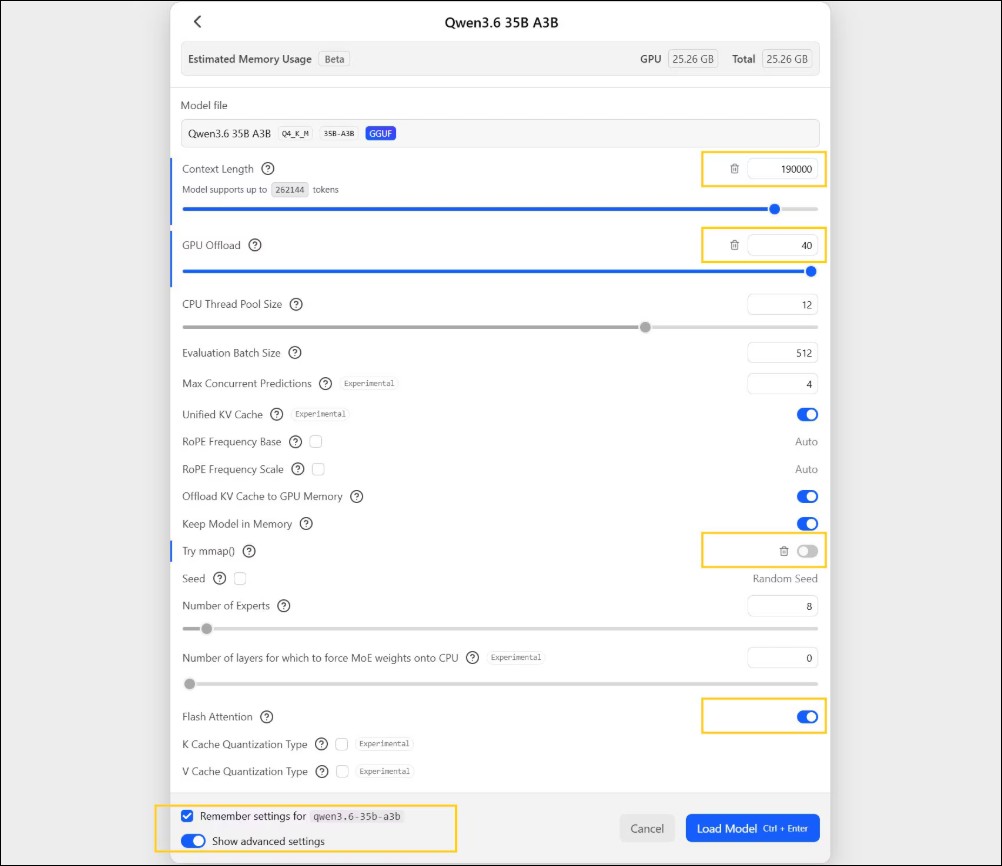
6. Press Ctrl + L to bring up the model selection interface. Check “Manually select loaded model parameters,” then click LLM to show loading options. Check “Remember settings” and “Show advanced settings.”
7. Set the following parameters: Context: 190000, GPU Offload: Max, uncheck “Try mmap”, Flash Attention: On, Remember settings: On.
8. Press Ctrl + 2 to jump to the Developer tab.
9. Press the switch in front of “Status: Stopped” to start the server.
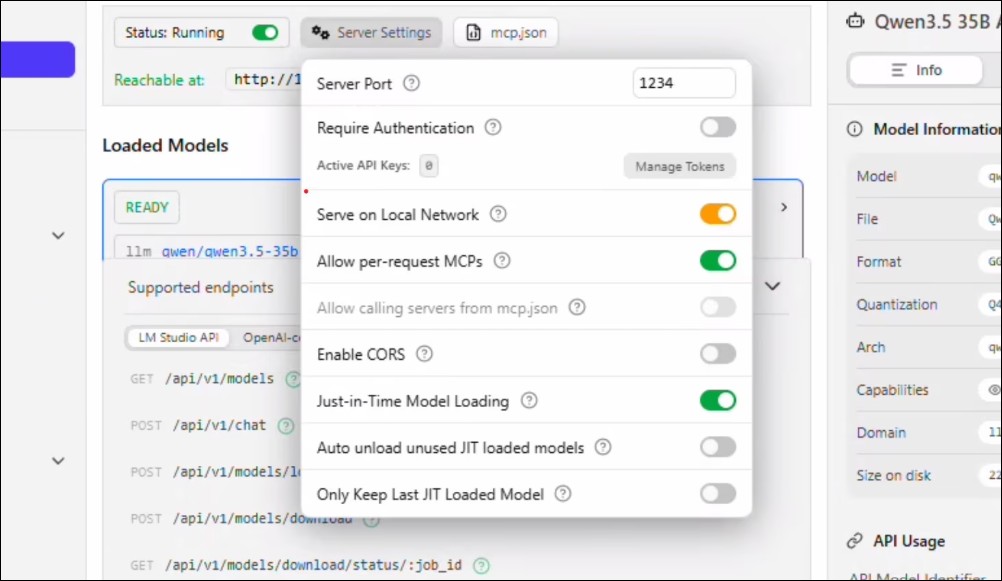
10. Click “Server Settings” and make the following settings: Check “Allow serving on local network”. The system will then request authorization. Uncheck “Automatically unload unused JIT-loaded models” and “Only keep the last JIT-loaded model”. Click anywhere to close this dialog.
11. Click “Load Model”. Select Qwen 35B A3B. The parameters we set above should auto-fill. Then click “Load”.
12. The model should be loaded by now, and you will see the “READY” status.
13. Keep this window open and continue with the operation.
Install WSL2 and Hermes Agent
14. Open PowerShell as Administrator, then install WSL and the corresponding distribution (the system may prompt you to restart). If you have already installed a distribution but want to reinstall it, you can run “wsl –unregister ubuntu-24.04”:
15. Set the username and password, then run it (the system may prompt for a password (sudo) and ask you to confirm whether to continue):
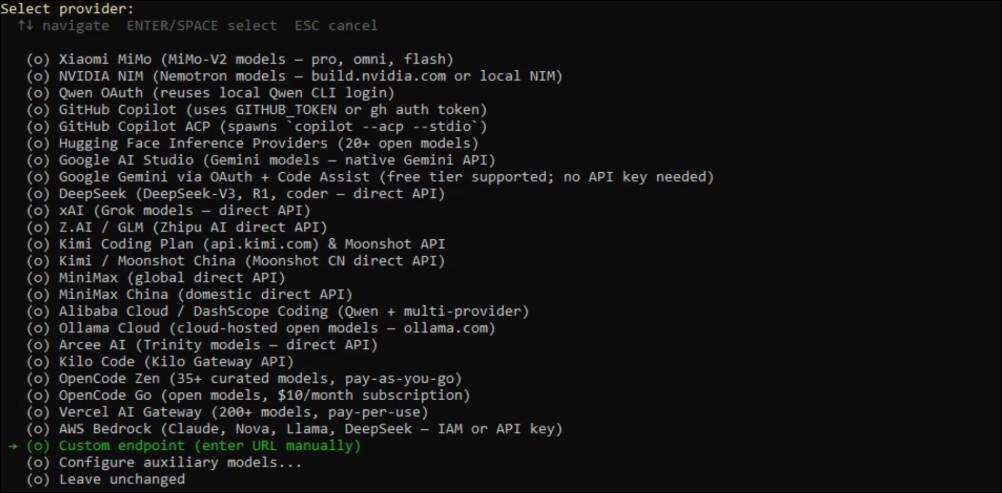
16. Select “Quick Settings” and set the provider to “Custom Endpoint”.
17. Copy the local server address from LM Studio’s “API Usage” and add “/v1” at the end.
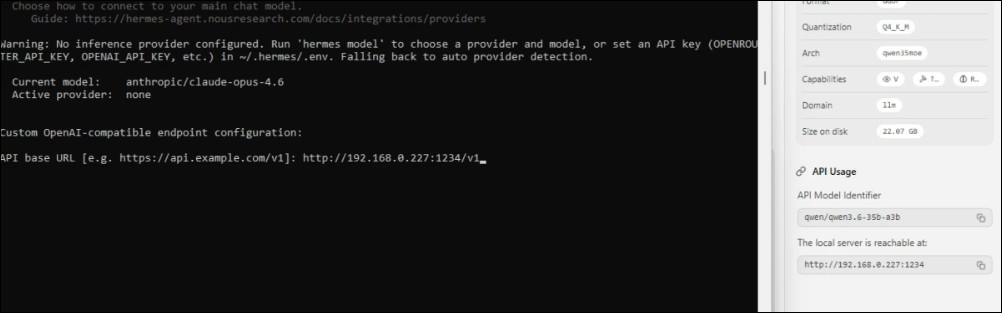
18. Password: just enter “lmstudio”.
19. Leave the context length blank; the system will detect it automatically.
20. Give it a name, like “LM Studio”.
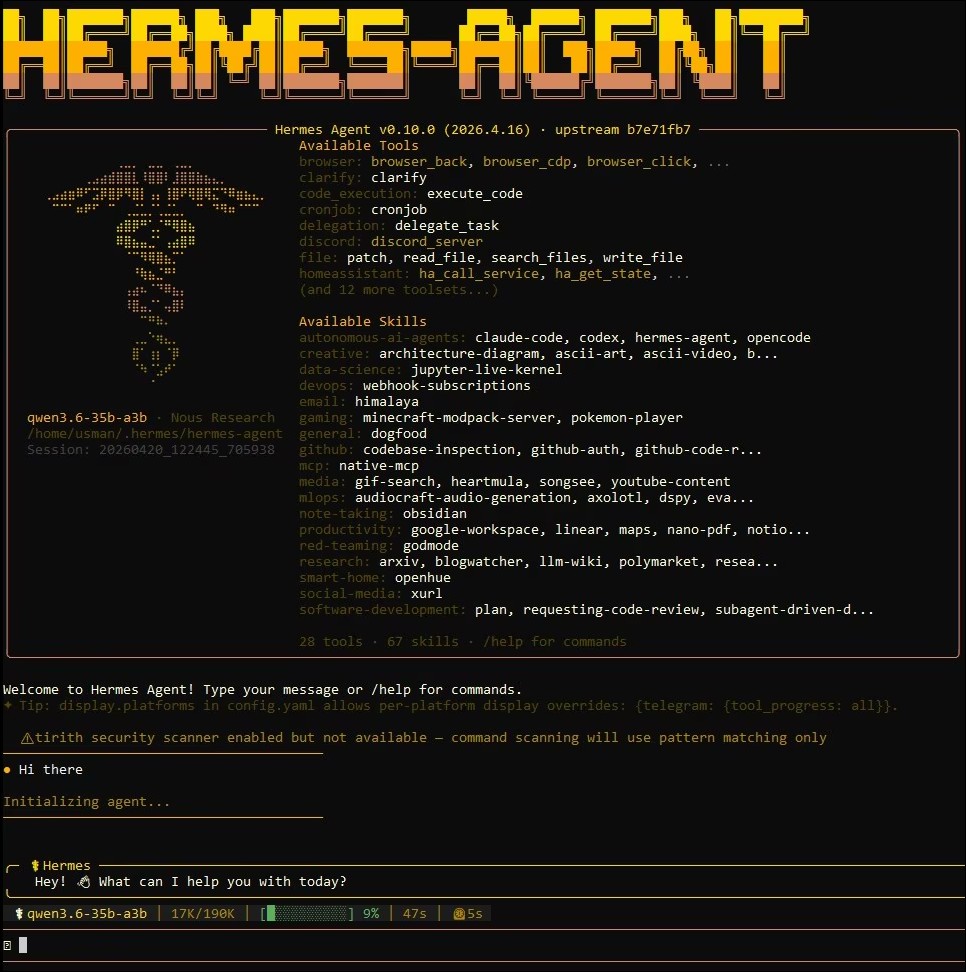
21. If needed, just set up any messaging platform and you’re all set!
Safety Alert: Risks of Autonomous AI
AMD included a fairly stringent disclaimer in the article. It clearly states: “Hermes is a highly autonomous AI Agent, and granting any AI Agent system access permissions may cause AI to act in unpredictable ways, resulting in unforeseen consequences.”
AMD recommends that users take four protective measures: running the Agent in an isolated clean PC or virtual machine, avoiding granting access permissions to personal primary accounts, carefully reviewing enabled skills or extensions, and ensuring that access interfaces are properly protected. These reminders reflect that security remains an important consideration as autonomous AI Agents move toward consumer-grade applications. Additionally, while local models are usable, there is still a gap in intelligence compared to cloud models, so it is recommended to pair this with a Coding Plan for better performance.
Source: KOCPC Chinese