


Windows offers users an experience that is completely different from the past; it includes many hidden features that are often overlooked, mainly because they are buried under layers of menus or have names that are easily misunderstood, making them difficult to discover. In fact, there are many accessibility tools that, although originally designed for users with special needs, are also very helpful for general users.
Make the most of these Windows accessibility tools to work more efficiently
Accessibility features make it easier for users to use their computers, and even general users can take advantage of them to complete everyday tasks more quickly. In this guide, we’ll share some of the best Windows accessibility tools you should try on your computer.
Make Your Mouse Cursor More Visible
When you’re in the middle of using your computer and want to take a break, you might naturally close your laptop or put it into sleep mode. However, when you return to your desk to resume work, you often can’t find the mouse cursor. Strangely, even after booting up the computer and using a wireless mouse, the cursor still doesn’t appear. To solve this problem, there’s a feature you can enable that inverts the color of your mouse cursor, allowing you to spot it immediately. This feature automatically adjusts the cursor’s color in real time based on the background. For example, if the background is dark, the cursor turns light, and vice versa. This feature helps you locate the mouse cursor, especially when the desktop or software background is cluttered.
To enable this feature, follow these steps:
- Open the Windows Settings app.
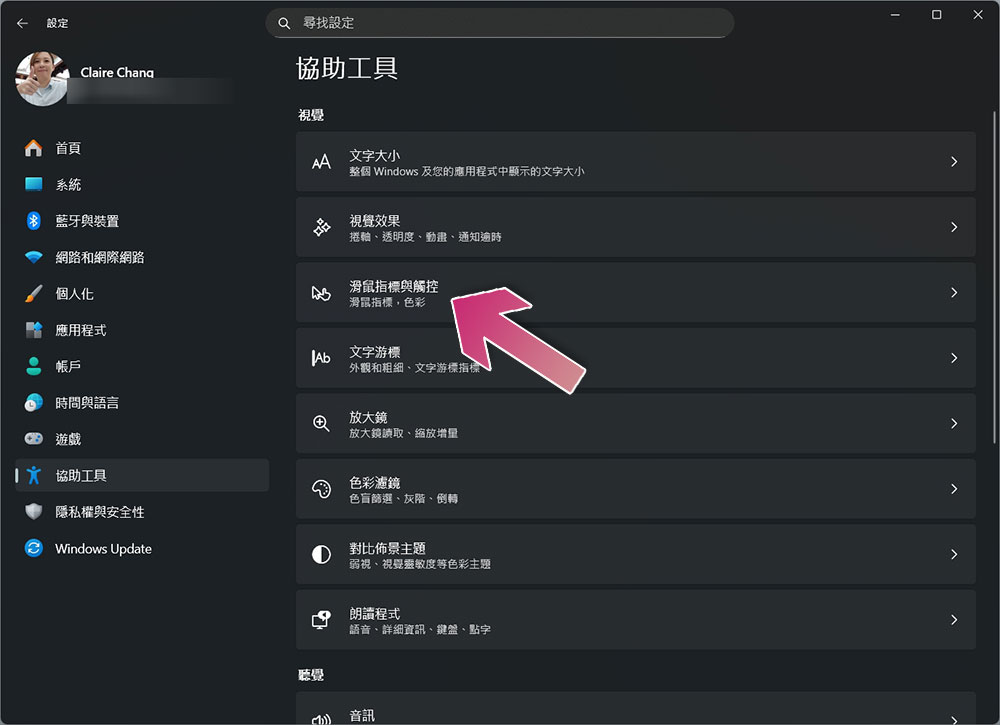
- Click “Accessibility.”
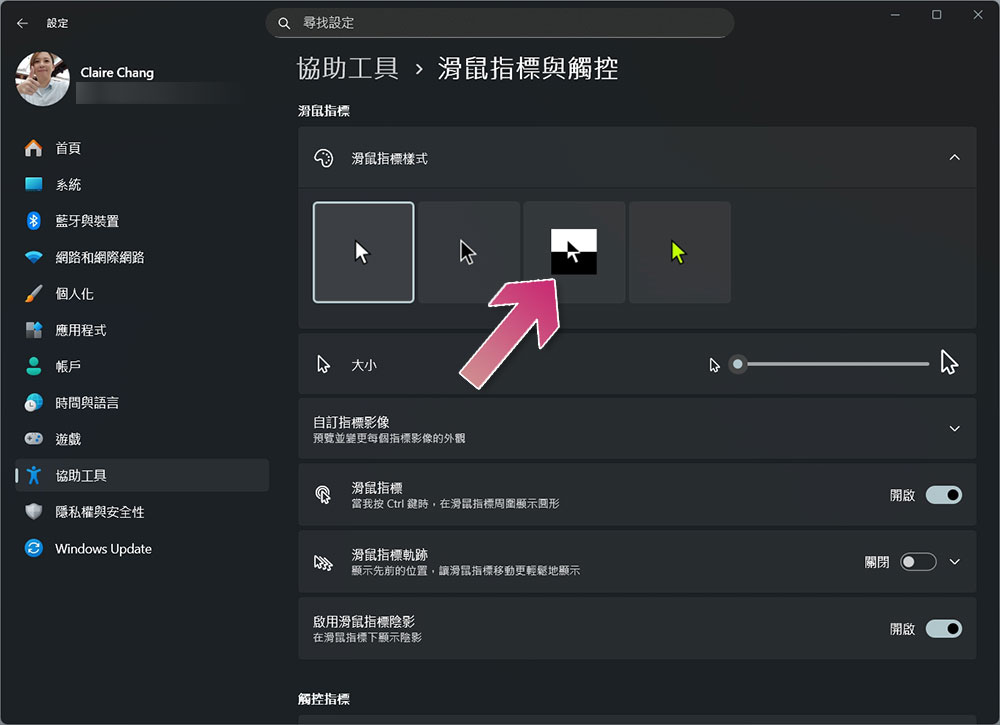
- Select “Mouse Pointer and Touch.”
- Select the “Inverted” option under “Mouse Pointer Styles.”
A single earbud paired with mono audio
Many people wear a single earbud while working, which allows them to listen to music while remaining aware of their surroundings. However, the sound quality with a single earbud is usually not very good, especially when listening to surround sound or Dolby Atmos. To solve this problem, you can enable the mono audio setting, which combines the audio from both channels into a single channel.
- Open the Settings app.
- Click “Accessibility.”
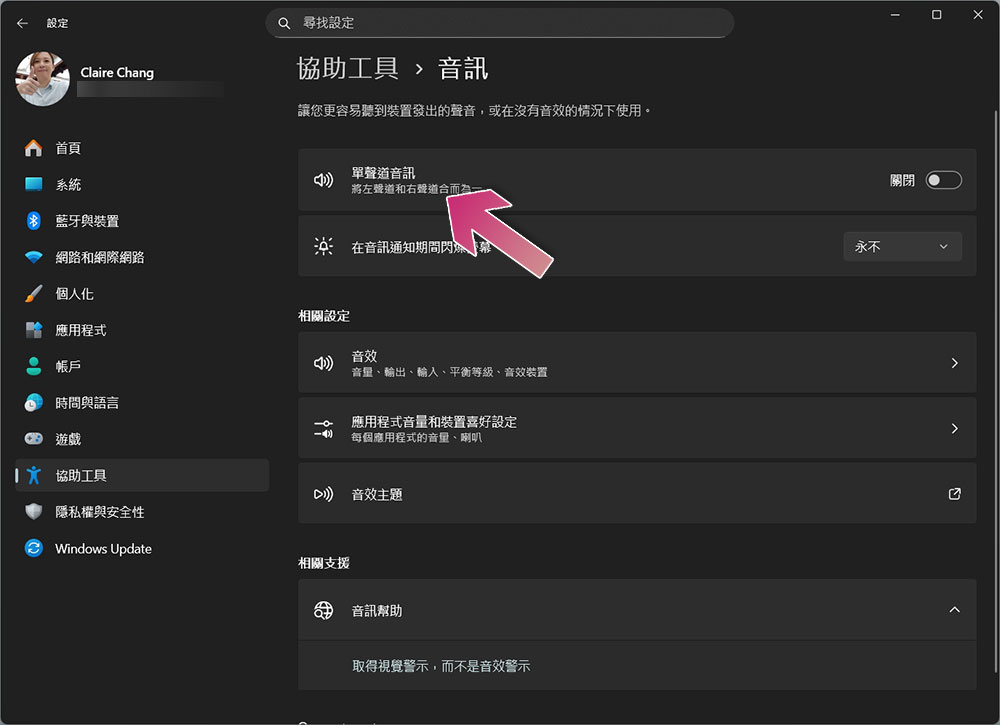
- Select “Audio” and turn on “Mono Audio.” If you decide to wear both earbuds at the same time, be sure to turn this switch off.
Quickly Close the Dialog Box
As a heavy Windows user, you can use various keyboard shortcuts to get things done, but most users are still accustomed to moving the cursor with the mouse to select options. It’s really exhausting when you’re bombarded with a series of dialog boxes and have to click “Yes” to continue. Fortunately, Microsoft has developed an accessibility tool that can select default options in Windows dialog boxes, saving you time and eliminating the need for manual input.
- Open the Windows Settings app.
- Click “Accessibility.”
- Select “Mouse.”
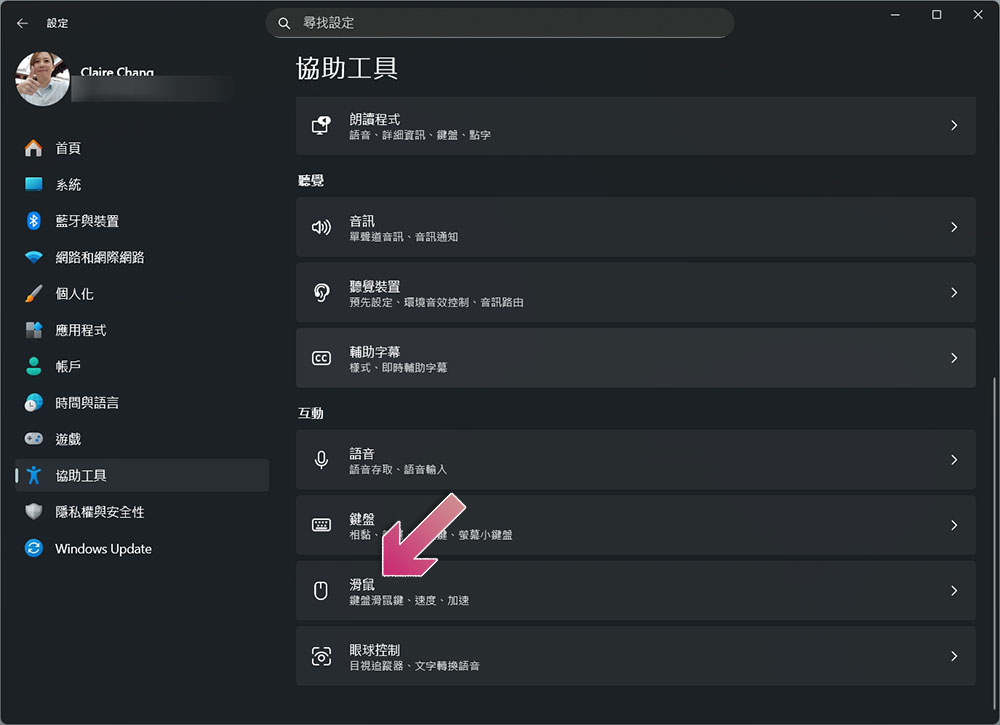
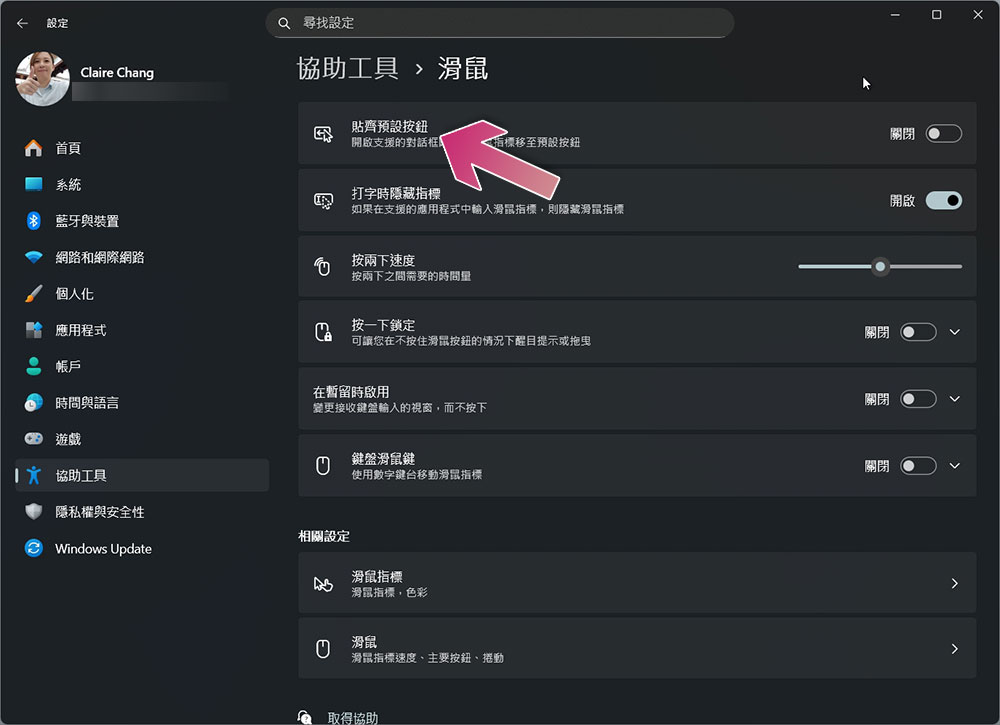
- Enable the “Align to Default Button” option. When this option is enabled, the mouse cursor will automatically move to the default option, but this feature is limited to Windows’ built-in dialog boxes and does not work in third-party dialog boxes. Additionally, although the cursor will automatically move to the default option, you must still click “Continue” or close the dialog box.
Seamless switching between two windows
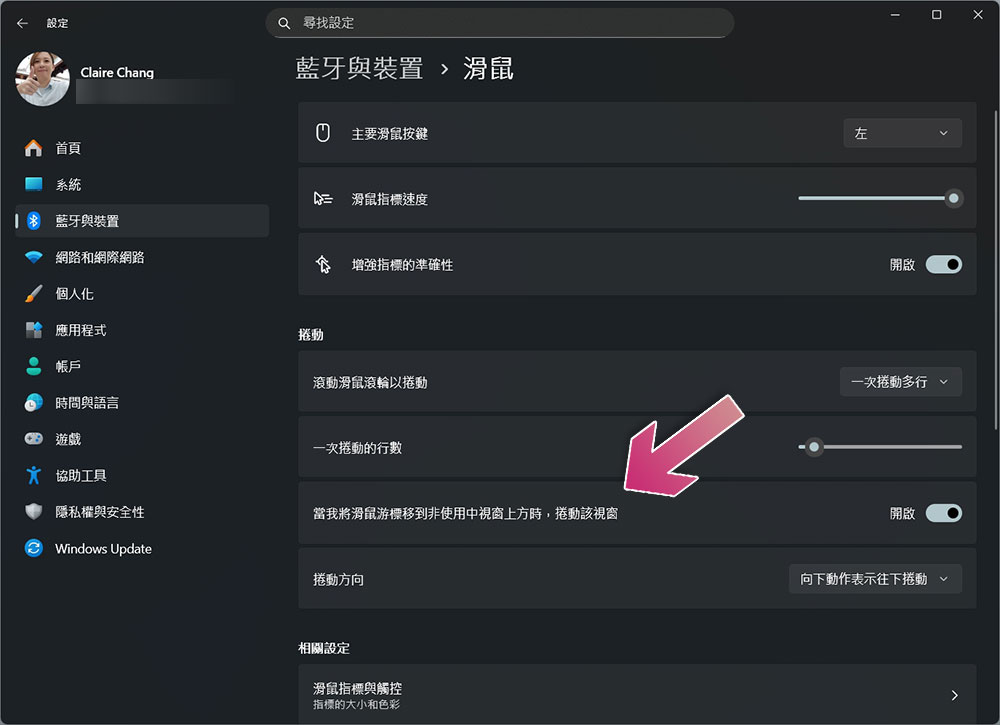
When you need to do a lot of research, you often have to open many tabs and frequently work with two tabs side by side. However, to switch to another window, you have to click on it. There’s a utility that lets you switch focus simply by moving your mouse over the window. This means that as long as your mouse cursor hovers over an inactive window, the feature will automatically activate. Although this is simple, the seamless switching experience you’ll notice will be appreciated by anyone who frequently works with multiple open tabs.
- Open the Windows Settings app.
- Click “Accessibility.”
- Select “Mouse Pointer and Touch.”
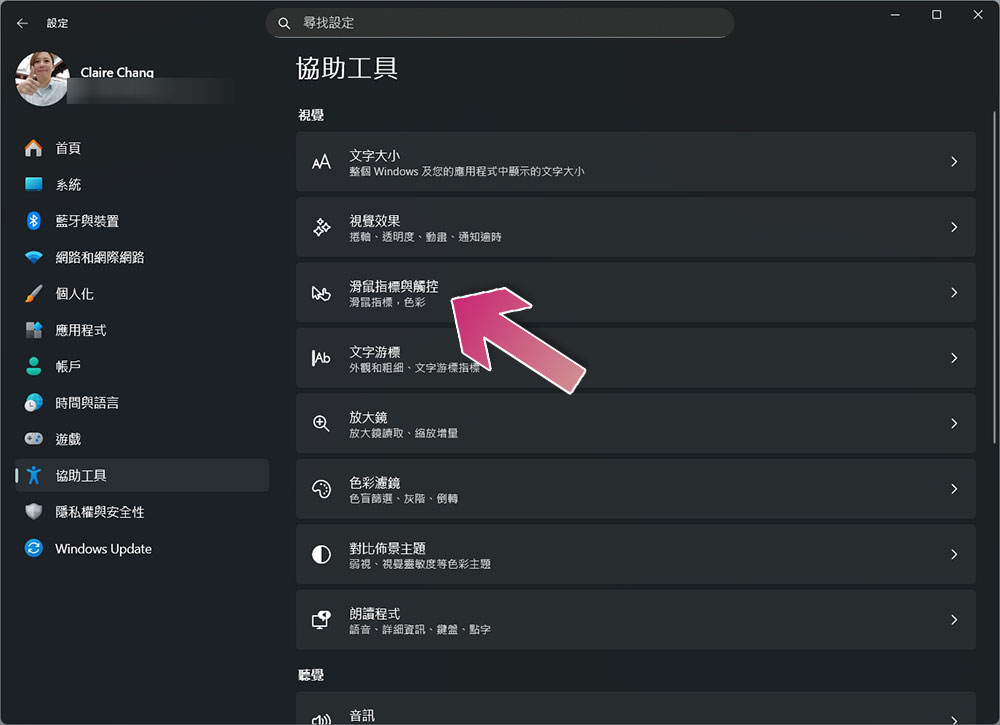
- Next, select “Mouse.”
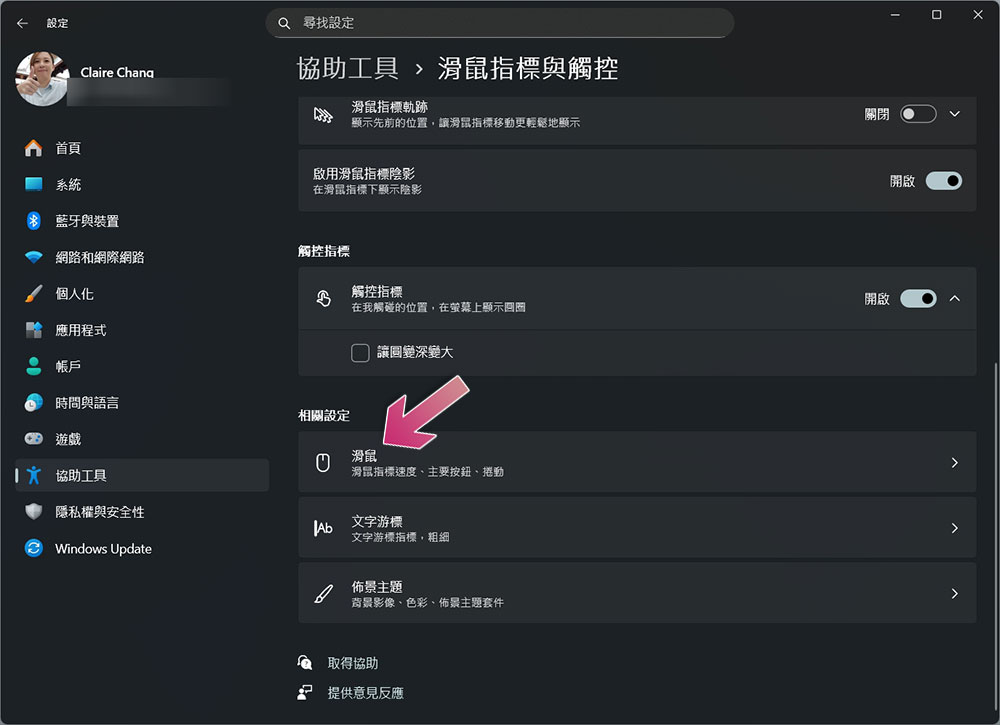
- Turn on the toggle for “Scroll the window when I move the mouse pointer over an inactive window.”
Improving Cursor Accuracy
For those working in design, it’s crucial to understand just how important pixel-perfect precision is—you must ensure that every pixel meets your standards. However, achieving perfect, pixel-by-pixel control with a mouse can be quite difficult, so you can use some mouse assistance features to improve cursor accuracy.
- Open the Windows Settings app.
- Click “Accessibility.”
- Select “Mouse Pointer and Touch.”
- Next, select “Mouse.”
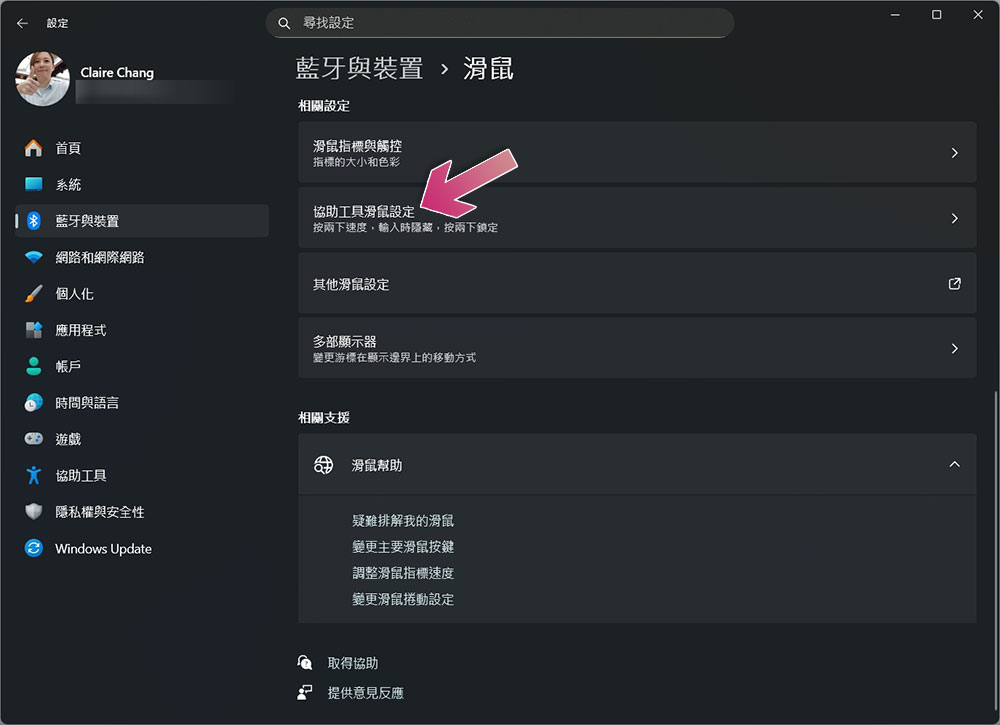
- Click “Accessibility Mouse Settings.”
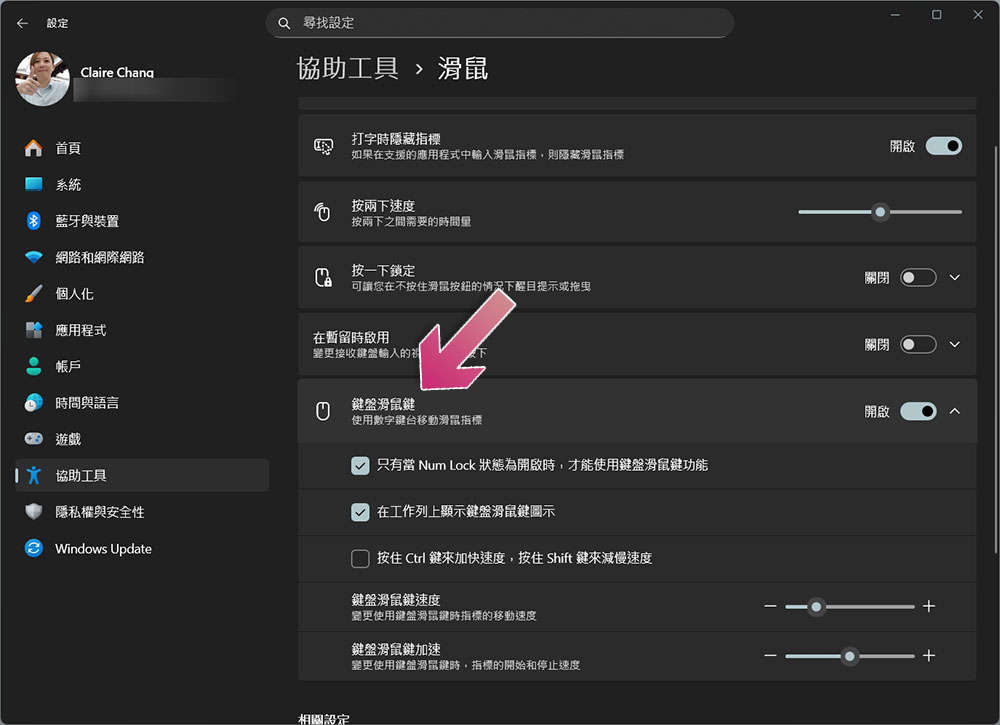
- Enable “Keyboard & Mouse Keys” so you can use the numeric keypad to move the cursor and improve accuracy. In addition, you can customize the cursor speed by adjusting the mouse button speed and acceleration sliders.
Of course, assistive technologies are actually designed for people with special needs, but if you enable the right features, they can also help ordinary people boost their productivity. As long as these features make your daily work easier and lighten your workload, they’re truly serving their purpose.
Source: KOCPC Chinese