


YouTube has long been the primary platform where most people watch videos, but its recommendation system doesn’t always show content that best matches your interests. The algorithm determines which videos to feature on your homepage based on factors such as your viewing history, likes, and interaction patterns. So when the recommended content starts to stray from your preferences, you might use the “Not Interested” or “Unsubscribe from Channel” options to clean up your homepage.

How do I undo a “Not Interested” on a YouTube video?
The problem is that once you apply these options to a video or channel, YouTube doesn’t provide a clear way for you to undo them. Unless the video is reuploaded, retitled, or appears on another channel, it will almost never show up on your homepage again. If you use these features extensively, it could even lead to a nearly empty homepage with almost no new content to watch. If you’re experiencing this and want to review and undo videos you’ve previously marked as “Not Interested,” or if you want to re-include channels you’ve listed as “Not Recommended” in your recommendations, you’ve come to the right place. This guide will walk you through how to recover these “muted” videos and channels and show you, step by step, how to undo those settings so that YouTube’s recommendations return to what you’re used to.
How do I remove videos I’ve marked as “Not Interested” on YouTube?
On the YouTube app or website, we often use the “Not Interested” or “Don’t Recommend” options to filter out content we no longer want to see. However, YouTube itself doesn’t provide an interface that lets you directly remove these marked videos or channels from the list. In fact, all activity across Google’s services is ultimately consolidated on the “My Activity” page linked to your Google Account. Videos you’ve marked as “Not Interested” or channels you’ve set to “Don’t Recommend” are all recorded there.
- Open a web browser on your smartphone or computer and go to “myactivity.google.com」。
- Sign in with your Google account.
- Click “Other Activities” in the left sidebar.
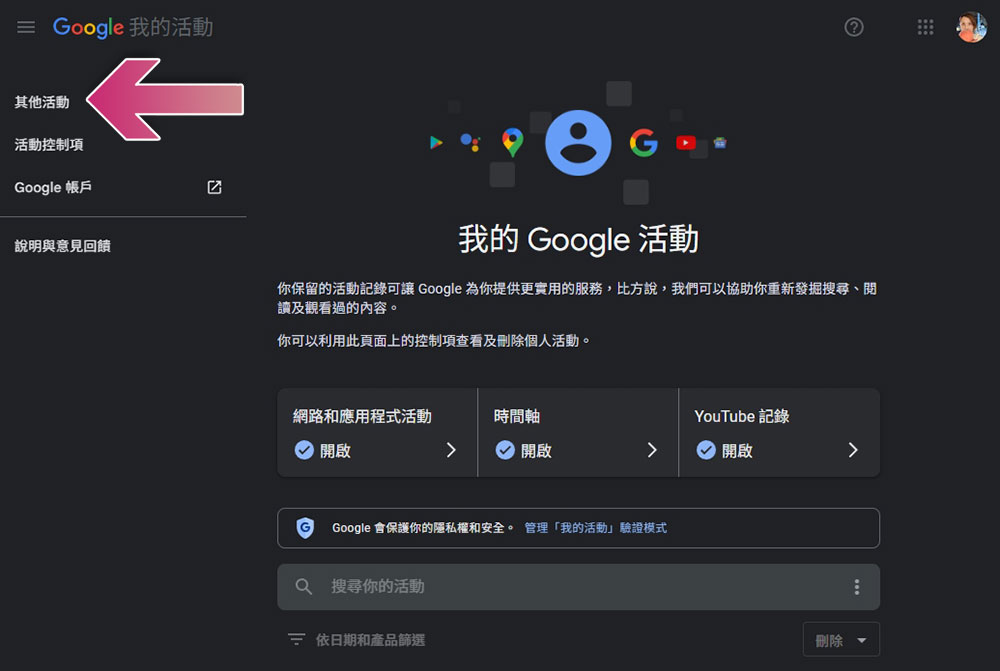
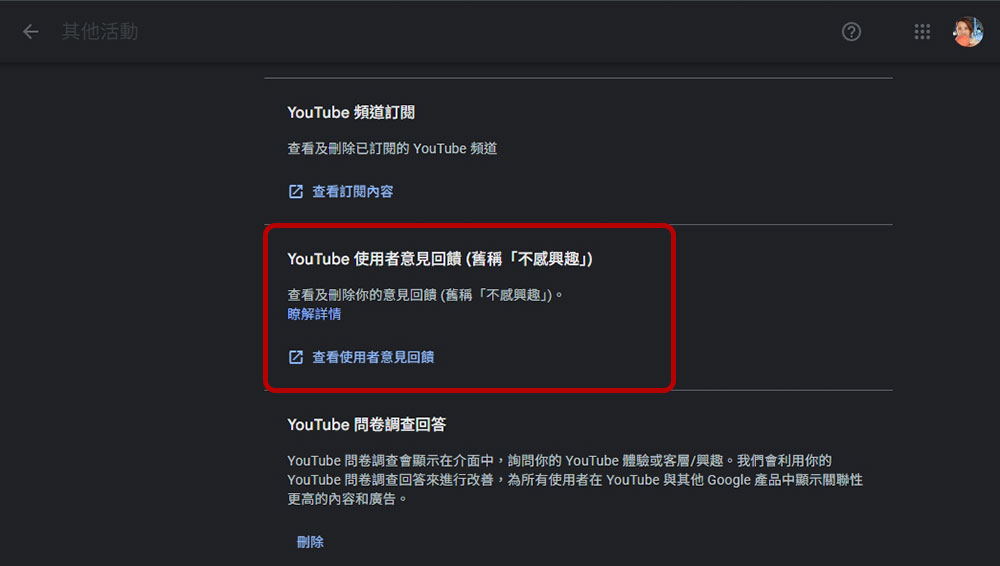
- On the Activity Controls page, scroll down to the “Other Activities” section and click “YouTube User Feedback (formerly ‘Not Interested’).”
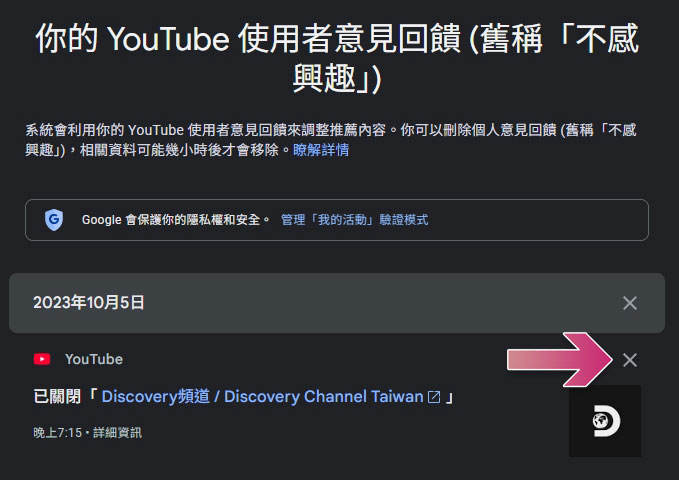
- On the next page, you’ll see all the videos you’ve muted or channels you’ve chosen not to watch, sorted by date. Currently, you cannot delete your entire feedback history. Click the “X” next to a specific video or channel to remove it from the feedback page.
-
The videos or channels will reappear in your recommendations within a few hours. If you find that your home page is filled with videos you don’t want to watch, you can hide them again at any time.
How do I undo a “dislike” on YouTube?
If you want to undo a “dislike” you’ve given on YouTube, you can do so through Google’s “My Activity” page. First, open “myactivity.google.com“, and sign in with the Google account linked to YouTube.
- Click “Other Activities” in the left sidebar.
- On the Activity Control page, scroll down to the “Other Activities” section and click “YouTube Likes and Dislikes.”
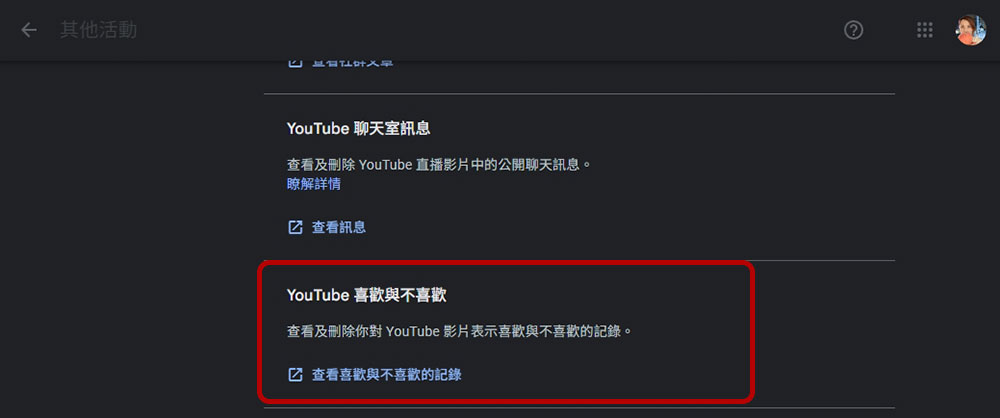
- On the next page, simply click the “X” next to the video you want to remove to delete it from the feedback page.
Source: KOCPC Chinese