


When you come across some good content and want to add it to NotebookLM Every time I want to import a notebook, I have to open the NotebookLM website and then select the import method, which is actually a bit of a hassle. I recently discovered a pretty good browserExtensionsIt’s called the “NotebookLM Web Importer,” and it lets you import content directly into your Notebook without leaving the current webpage. And it supports not just webpages, but YouTube as well—a must-try for heavy NotebookLM users.
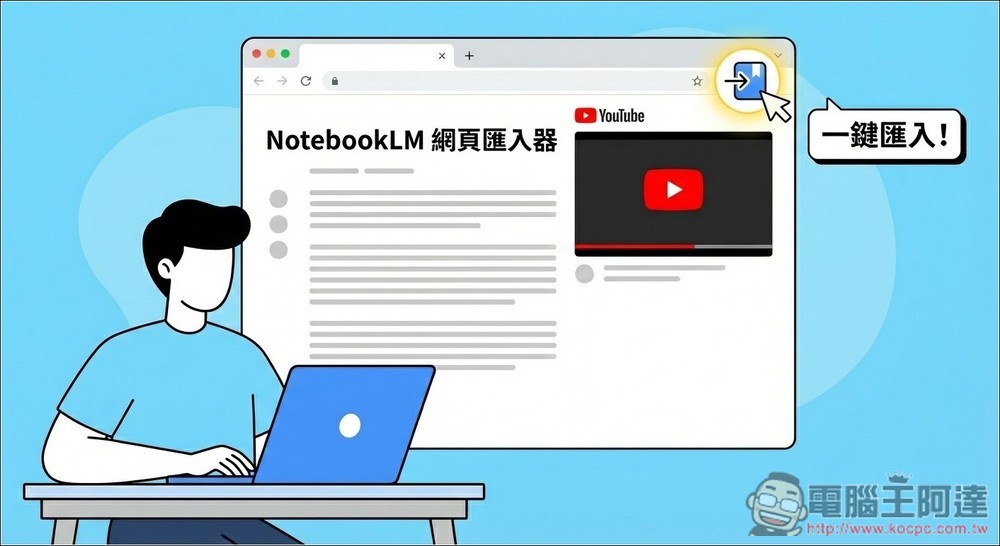
Say goodbye to complicated steps! The “NotebookLM Web Importer” lets you import your NotebookLM notebooks directly from your browser with just one click.
“NotebookLM Web Importer” is a Chrome extension designed specifically to boost efficiency in research, organization, and learning, featuring a minimalist “one-click import” experience. Once installed, whether you’re browsing news articles, technical papers, or watching YouTube videos, simply click the extension icon to import the current page’s content directly into your NotebookLM notebook—eliminating the hassle of copying, pasting, and manual organization. This extension is extremely useful for anyone who needs to collect large amounts of information.
Once imported, the content can be used for conversational queries and summarization in NotebookLM. You can even use the audio overview feature to convert long articles or videos into audio content similar to a podcast.
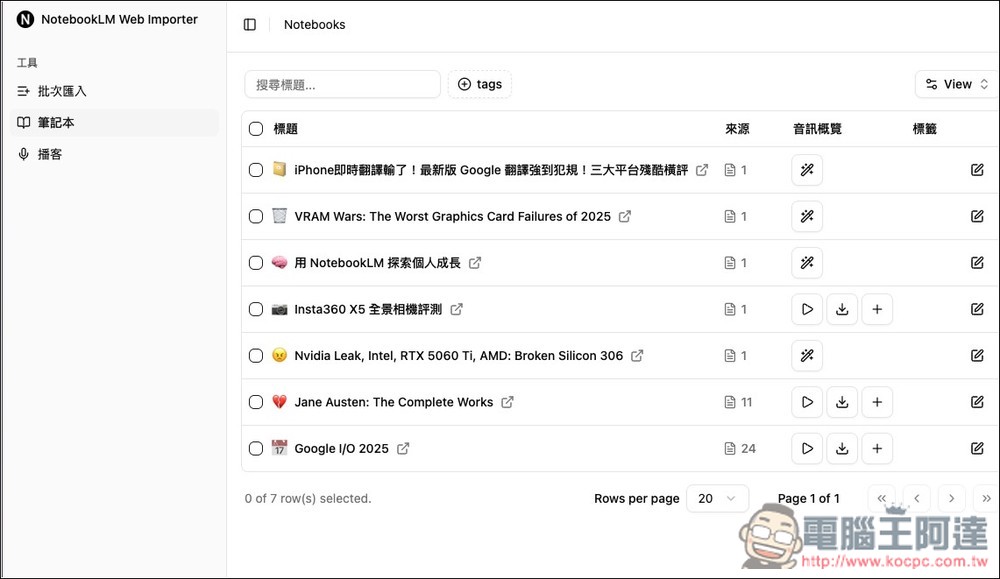
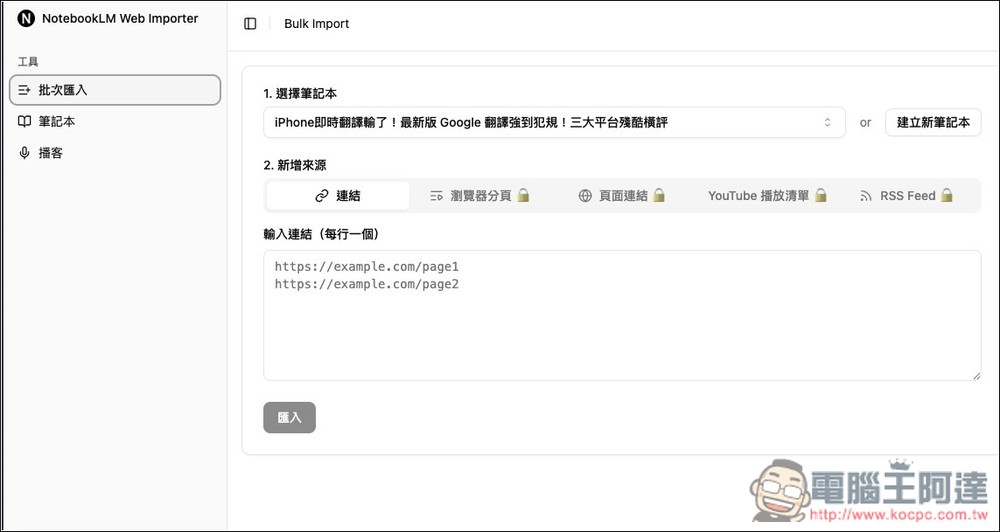
It also includes a built-in feature for organizing NotebookLM notebooks (allowing you to easily delete multiple unused notebooks with a single click), as well as the ability to batch import multiple links.
Key Features
- Import webpages or YouTube videos into NotebookLM with a single click
- No more copying and pasting—a smoother data organization process
- Pair it with the audio summary to make long articles easier to digest when converted to speech (for paid users only)
- It’s easy to use and has an intuitive interface, so even beginners can get the hang of it quickly.
- The extension file is small and has minimal impact on Chrome’s performance
Get the “NotebookLM Web Importer”
Although “NotebookLM Web Importer” is a Chrome extension, you can use it with any browser based on Chromium—for example, I was able to use it on ChatGPT Atlas.
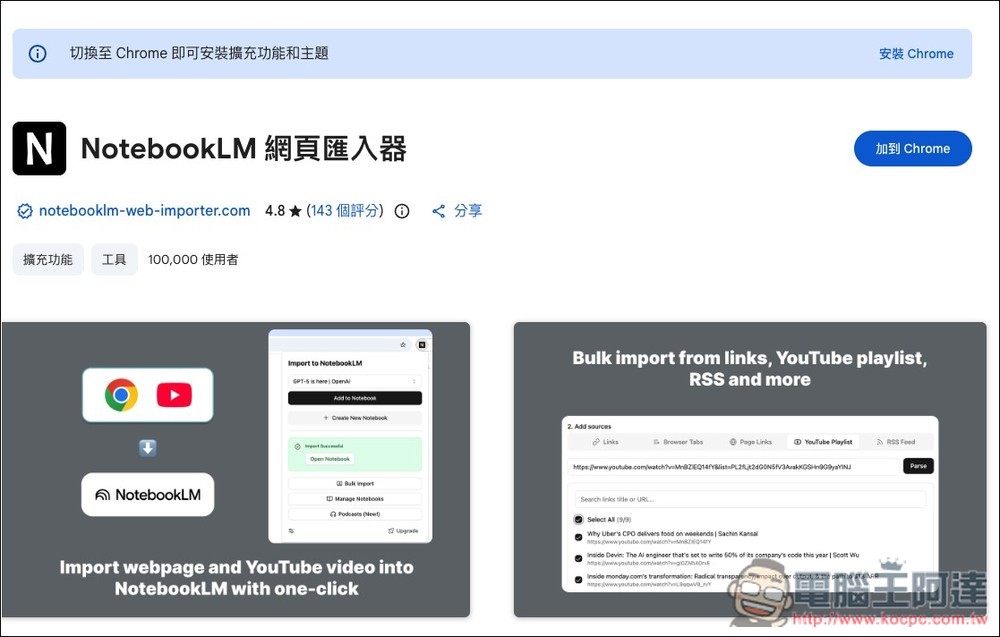
After clicking the link above to go to the Chrome Web Store page, click “Add to Chrome” in the upper-right corner:
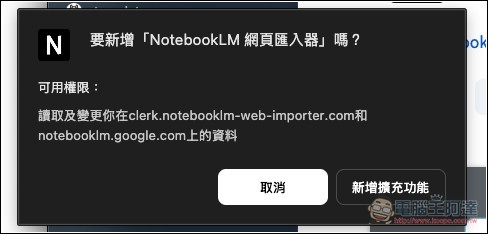
A prompt will then appear; select “Add Extension,” and the installation is complete:
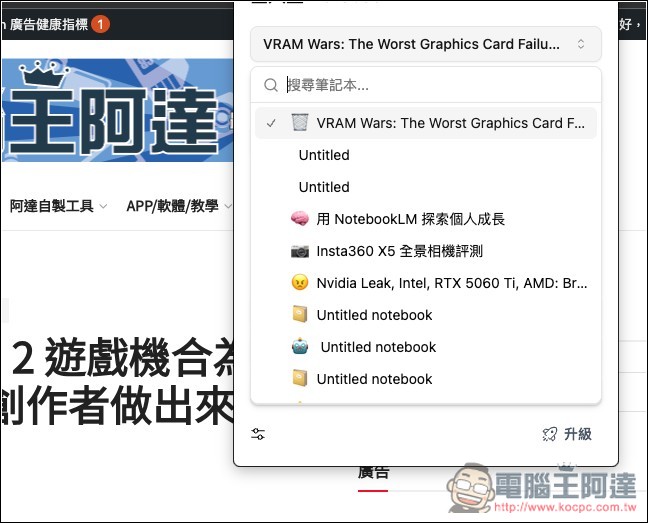
It’s very easy to use. First, make sure you’re logged into NotebookLM. Once you find the webpage you want to add to your NotebookLM notebook, click the extension icon to add it. By default, it will be your most recent notebook. If you don’t want to add it to that one, you can expand the list, select a different notebook, or create a new one:
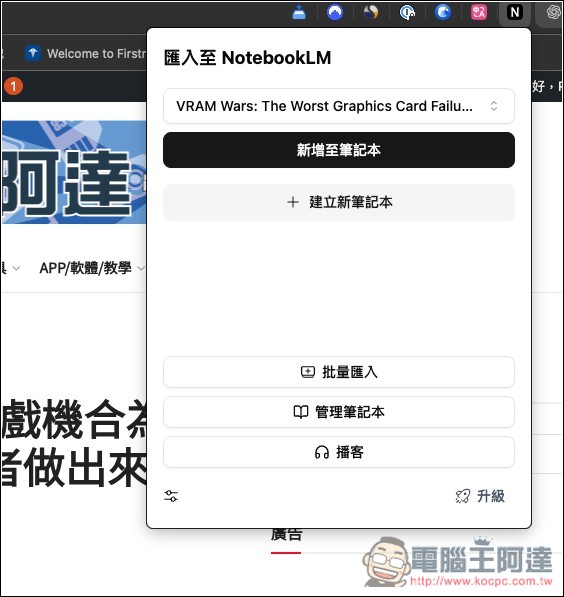
Once the menu expands, you’ll be able to find your other notebooks:
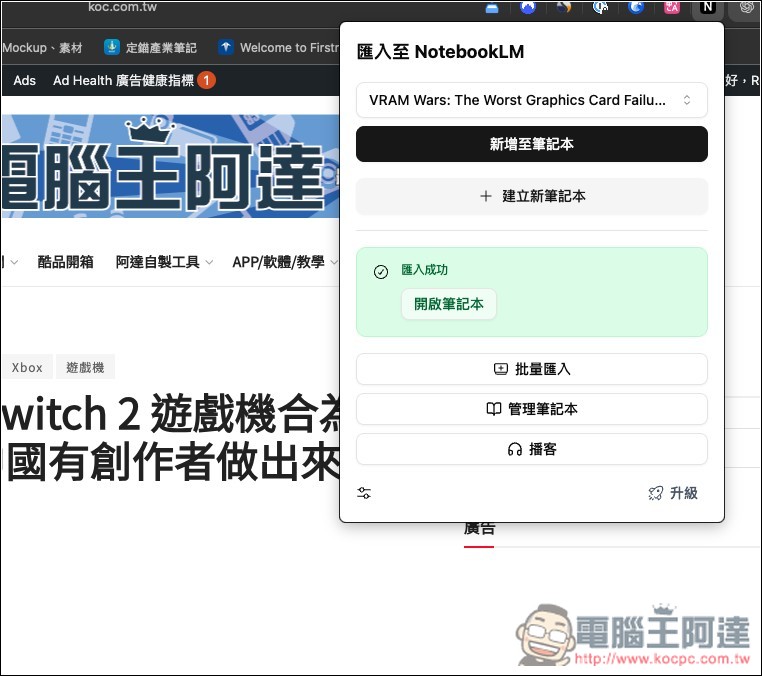
I chose to create a new notebook, and after waiting about a second, “Import Successful” appeared at the bottom. If you want to check whether it was actually added, you can click “Open Notebook” at the bottom:
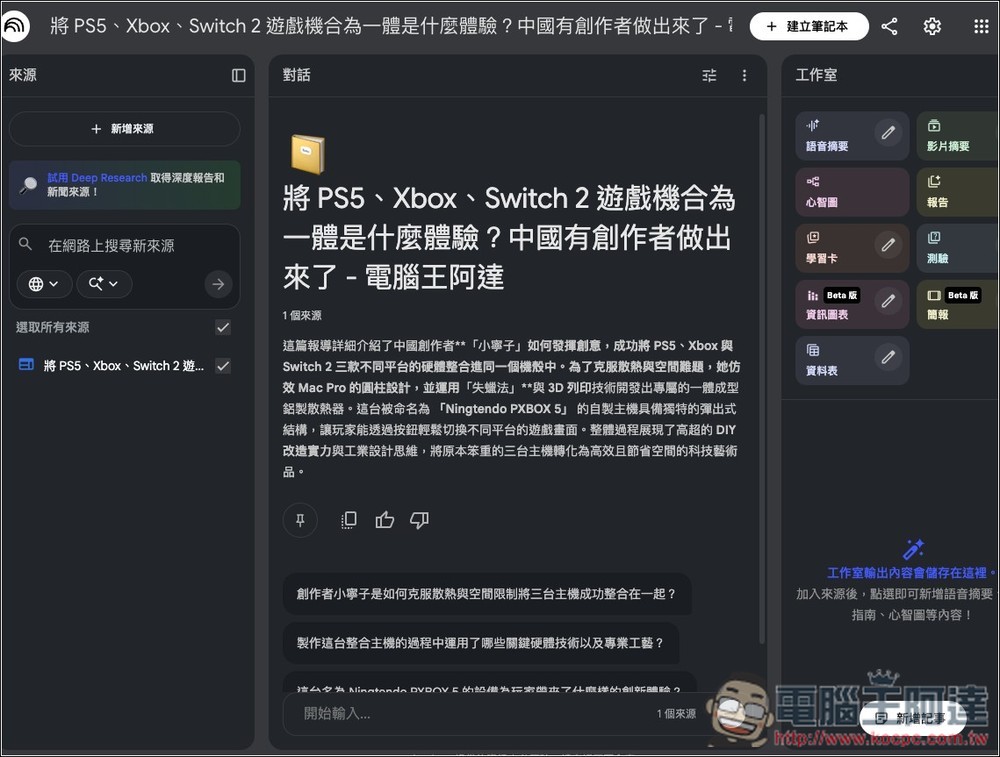
It automatically opens a page in the NotebookLM notebook. Tested and confirmed to work; it really does create and add new entries:
The process is the same for YouTube videos:
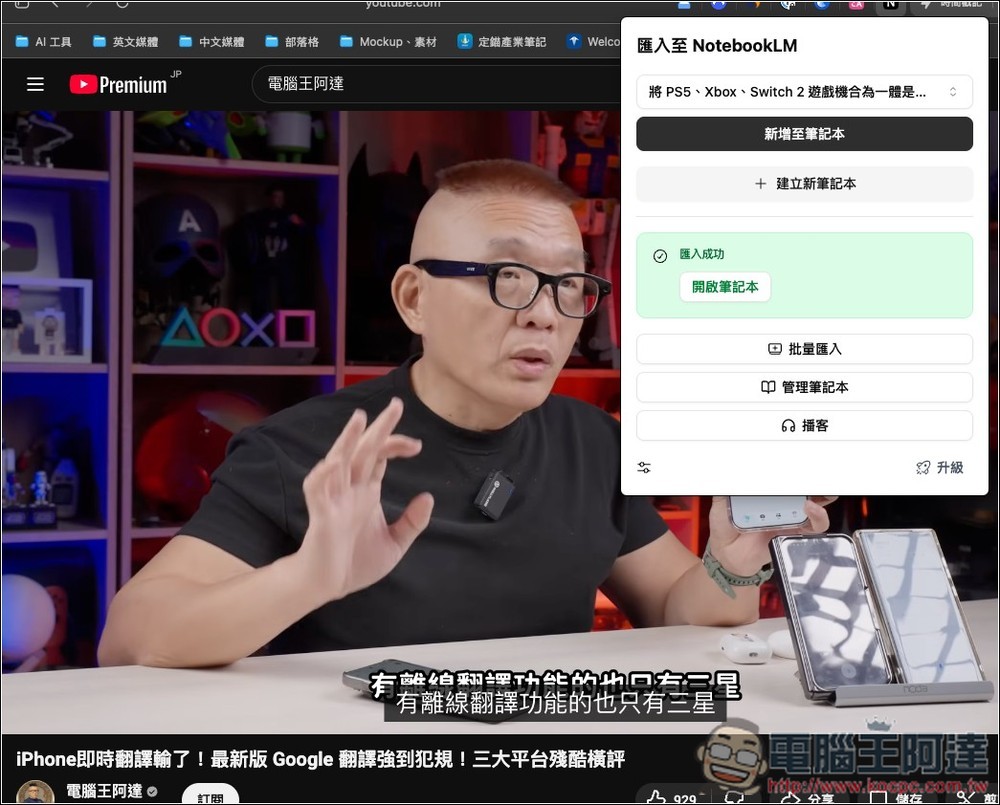
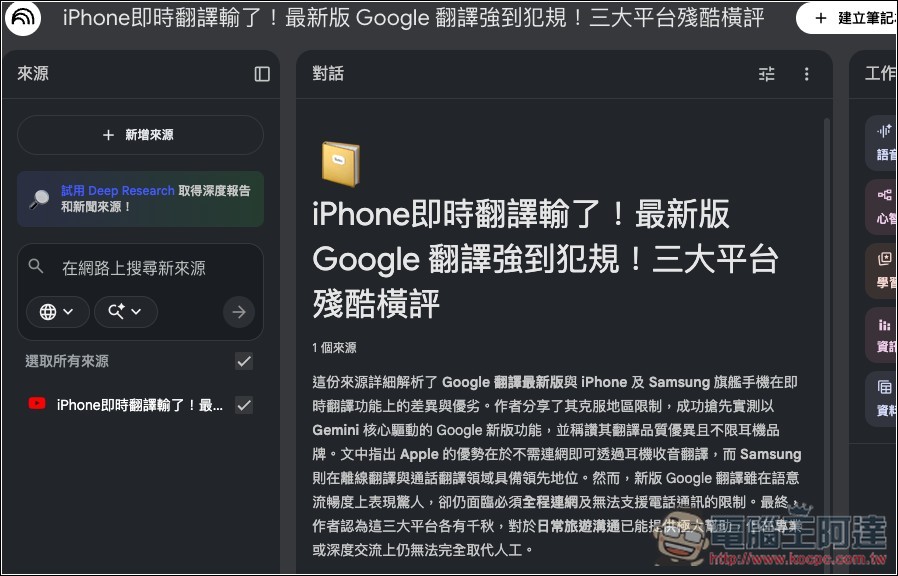
Actual testing confirmed that it was indeed added to the NotebookLM notebook:
In addition, you can use this tool to quickly organize your Notebooks—for example, you can delete unwanted notebooks all at once, play back audio previews you’ve already generated, or download presentation files, among other things. Needless to say, this saves you from having to go into the specific NotebookLM notebook to perform these tasks, making it much more convenient:
You can also import sources in batches and create new notebooks:
Source: KOCPC Chinese