


Have you ever opened your iPhone only to suddenly find that an app was missing? This kind of unexplained disappearance can often be unsettling. In fact, this isn’t a figment of your imagination—it’s the result of your iPhone automatically removing the app. Why does this happen? Below, we’ll walk you through the common causes and the steps you can take to prevent it.
It’s Not a Bug When Your iPhone Deletes Apps on Its Own—Here’s How to Prevent It
Disable and Uninstall Unused Apps
We often download apps to try them out, only to forget all about them afterward—yet they still quietly take up storage space. To prevent unused apps from taking up space when storage is running low, the iPhone offers a “Remove Unused Apps” feature. As the name suggests, the system detects apps you haven’t opened in a long time and automatically removes them.
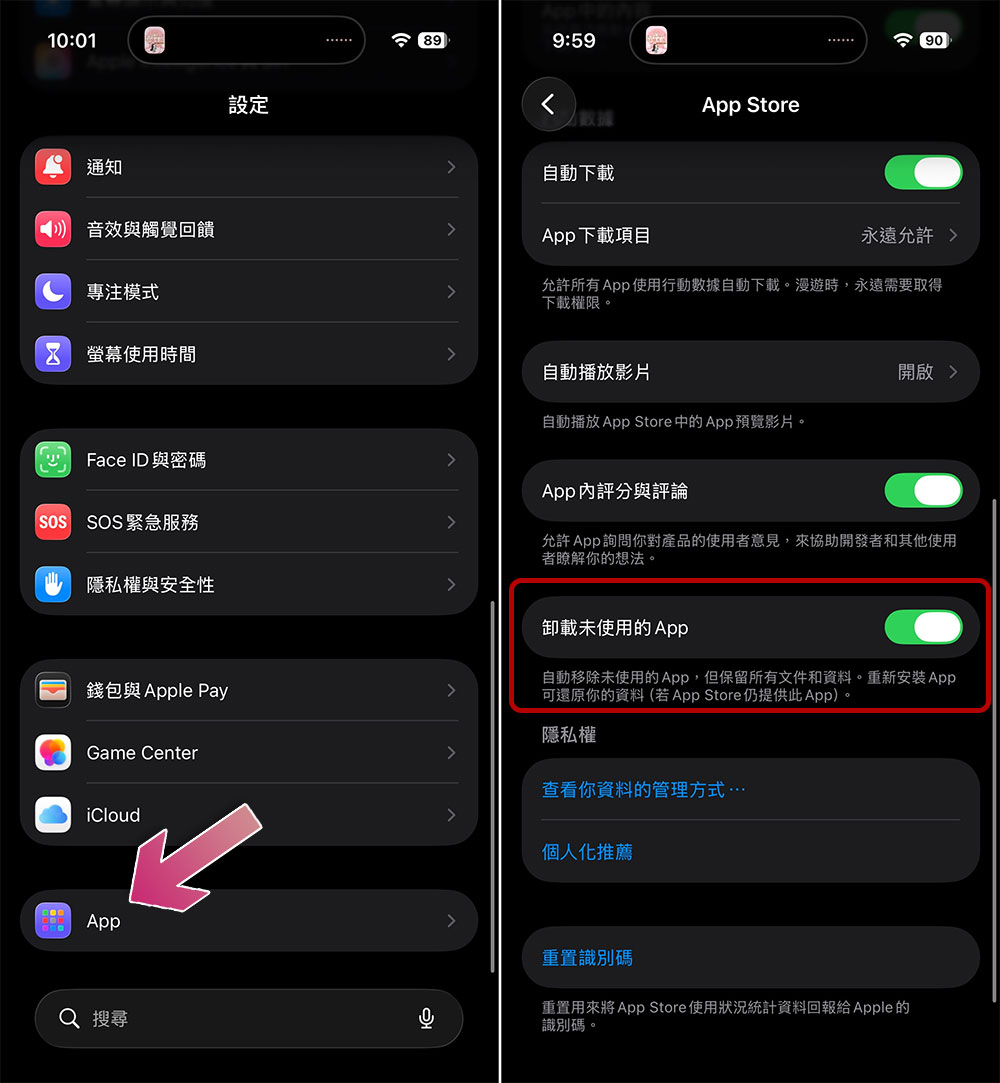
While this feature helps manage storage space, it may also accidentally delete important apps that you only use occasionally. If you notice that an app has disappeared for no apparent reason, this feature is likely to blame. You can follow the steps below to turn it off:
- Open the Settings app.
- Scroll all the way to the bottom and select “App.”
- Find the “App Store.” (It’s faster to use the search function.)
- Scroll down and turn off “Offload Unused Apps.” Once this feature is turned off, your iPhone will no longer automatically remove apps, even if you’re running low on storage space. Disabling this feature is usually enough to prevent apps from being automatically deleted. If the problem persists, you can try the other solutions listed below.
Free Up Storage Space
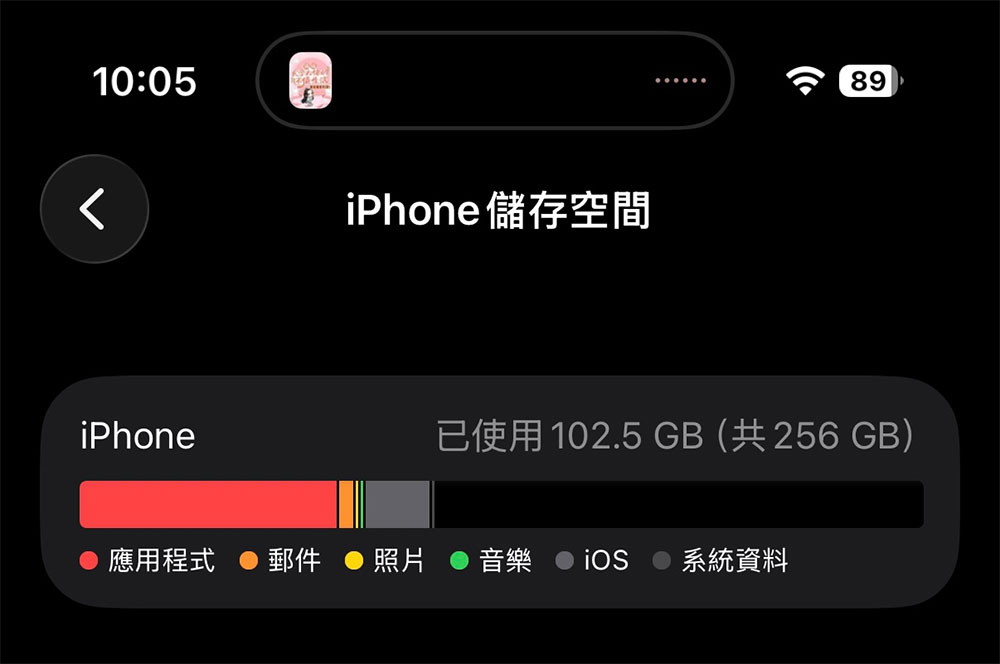
Once you turn off “Uninstall Unused Apps,” your iPhone will no longer automatically remove apps to free up space. However, if your storage space drops below a certain level, the system may still exhibit unusual behavior. iOS may attempt to free up space to ensure updates proceed smoothly or to allow you to take photos and save new data. To prevent such issues, it’s still important to maintain sufficient available storage space.
To free up storage space, start with the items that take up the most space: delete old photos and videos you no longer need—this usually frees up a significant amount of space right away. Next, check your Downloads folder and clear out any files you don’t need. You can also uninstall apps you rarely use and delete large message attachments or other unnecessary data to further increase available storage space.
Keep in mind that low storage space won’t directly cause an app to be deleted, but it may affect system updates or trigger warning messages. Therefore, regularly freeing up storage space is still a good habit to maintain your iPhone’s normal operation.
Screen time limits or other restrictions
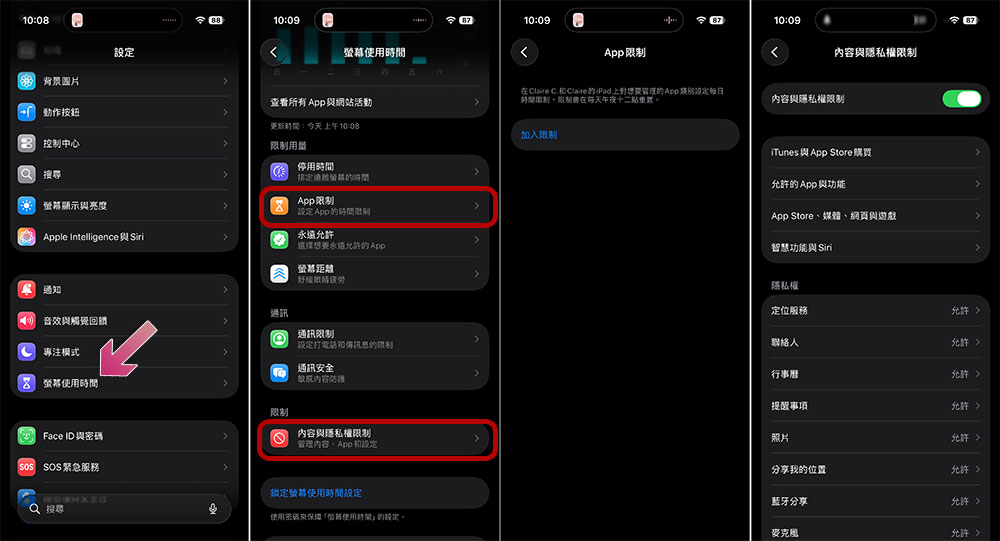
If “Uninstall Unused Apps” is turned off and your iPhone has enough available storage space, the next step is to check whether “App Limits” or “Content Restrictions” are enabled. App Usage Limits set a daily usage limit for specific apps. Once the limit is reached, the app is hidden from the Home screen, its icon turns gray, and a timer appears; the app cannot be used until the limit resets.
Similarly, content or age rating restrictions may prevent certain apps from appearing on the Home screen at all. If your iPhone has parental controls enabled, this may be why the app is missing. If you suspect the restrictions are set incorrectly, you can adjust them yourself:
- Open the Settings app.
- Go to “Screen Time,” and you’ll see all the options for related restrictions.
- Go to “App Limits” and remove all time limits applied to the app.
- Next, go to “Content and Privacy Restrictions” and turn off any restrictions you don’t need.
App Store or Apple ID Issues
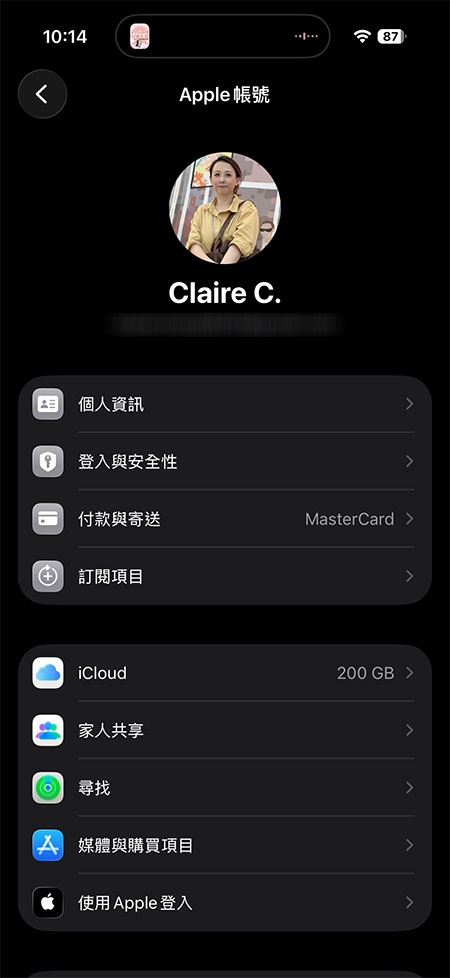
Sometimes, apps may disappear due to issues with your Apple ID or the App Store. For example, if your device has been signed out of iCloud, your Apple ID needs to be re-verified, or there are pending updates in the App Store, installed apps may temporarily disappear. Additionally, if you previously downloaded certain apps using a different Apple ID and are now signed in with a different account, those apps will not appear on the Home screen.
First, try to recall: Have you changed your Apple ID recently? Did the apps start disappearing after that? If so, that’s likely the cause. To confirm, go to “Settings” and check whether the currently signed-in Apple ID is correct. Next, open the App Store, tap your profile, and check for any pending updates or error messages. You can also try signing out and then signing back in to resync your account information. If the issue occurs only with a specific Apple ID, try switching to a different account to see if the problem persists.
Beta App Expiration
If you’ve ever installed a beta app through TestFlight, this might be why some apps have disappeared from your iPhone. Each beta version is valid for 90 days; once it expires, the app will no longer open. Sometimes, expired or older versions are replaced by the latest beta released by the developer, so you might not be able to find the original version.
In addition, developers can terminate a specific beta version or remove an entire beta program at any time, which may result in the app becoming unavailable. If multiple people share your device, it’s also possible that someone else manually stopped the TestFlight test. To avoid confusion, we recommend opening TestFlight regularly to check the expiration dates and statuses of each beta version, so you can understand why an app might disappear or become inaccessible.
It can certainly be unsettling to see an app disappear from your iPhone for no apparent reason, but in most cases, this isn’t caused by a system malfunction or suspicious activity—it’s due to the common reasons mentioned earlier. By following these troubleshooting steps, you can usually pinpoint the source of the problem, prevent apps from being accidentally deleted, and ensure that your important apps stay right where you need them.
Source: KOCPC Chinese