


To get a beautifulImage, After taking a screenshot, many people use other software to enhance it—for example, adding a beautiful background, applying shadow effects, or rounding the corners. This process can actually be a bit tedious. Recently, on GitHub I immediately came across a product that claims to be CleanShot X for macOS After actually testing the alternative app, “Better Shot,” I found it to be quite useful. Once you take a screenshot, the app instantly enhances it, so you can use it right away without any further editing.
Of course, you can also manually customize the appearance to your liking, such as replacing the background with something else. It also includes built-in features like arrows, circles, rectangles, numbered lists, text, and OCR. Currently, it only supports Mac。
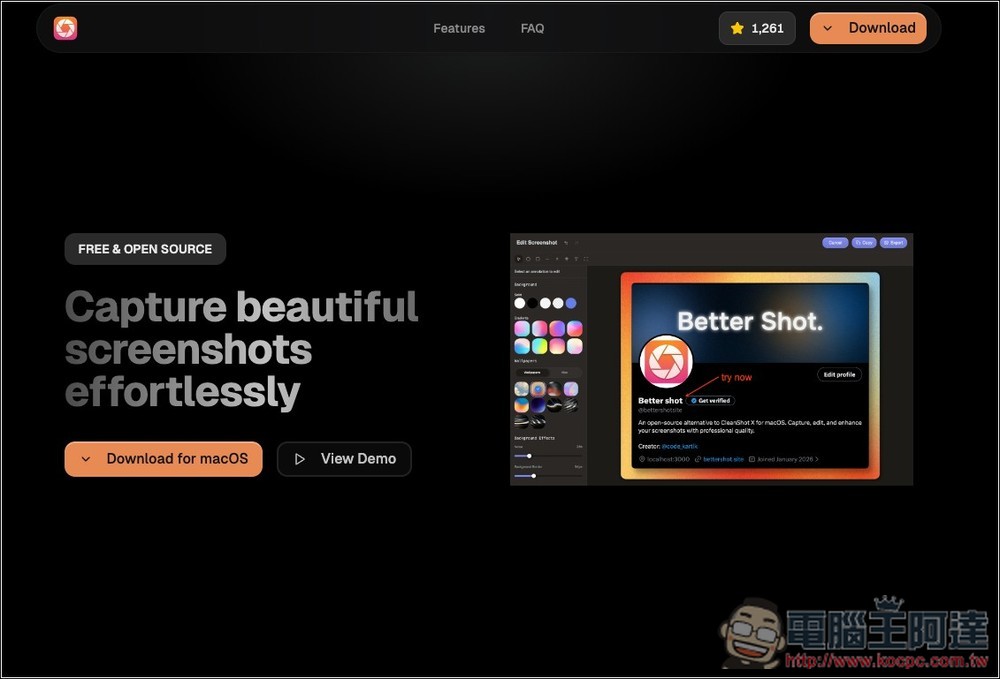
Better Shot is a free alternative to CleanShot X that automatically enhances images after taking a screenshot.
Better Shot is an open-source screenshot tool built specifically for macOS, designed to be “fast, smooth, and easy to organize,” and is regarded by many developers and creators as a free alternative to CleanShot X. Built on the Tauri+React framework and leveraging the performance benefits of Rust, it’s not only lightweight and launches quickly but also handles the entire screenshot and editing process locally.
Whether you’re writing technical documents, creating presentations, running a blog, or sharing tutorial screenshots, you can use it to quickly capture screenshots, enhance them, add annotations, and then export them as high-quality images.
Better Shot also offers keyboard shortcuts, allowing you to take screenshots from any screen using keyboard shortcuts.
Key Features
- Multiple screenshot modes: Supports region, full-screen, and window screenshots, and can also extract text using OCR via macOS’s native Vision Framework.
- Background and Special Effects Editor: Includes a variety of built-in background styles, and allows you to adjust shadows, rounded corners, blur, and noise effects to give your screenshots a more polished look.
- A full range of annotation tools: arrows, boxes, text, and numbered labels—all included—making it ideal for teaching and step-by-step instructions.
- Custom Keyboard Shortcuts: You can customize both screenshot and editing functions to suit your preferences.
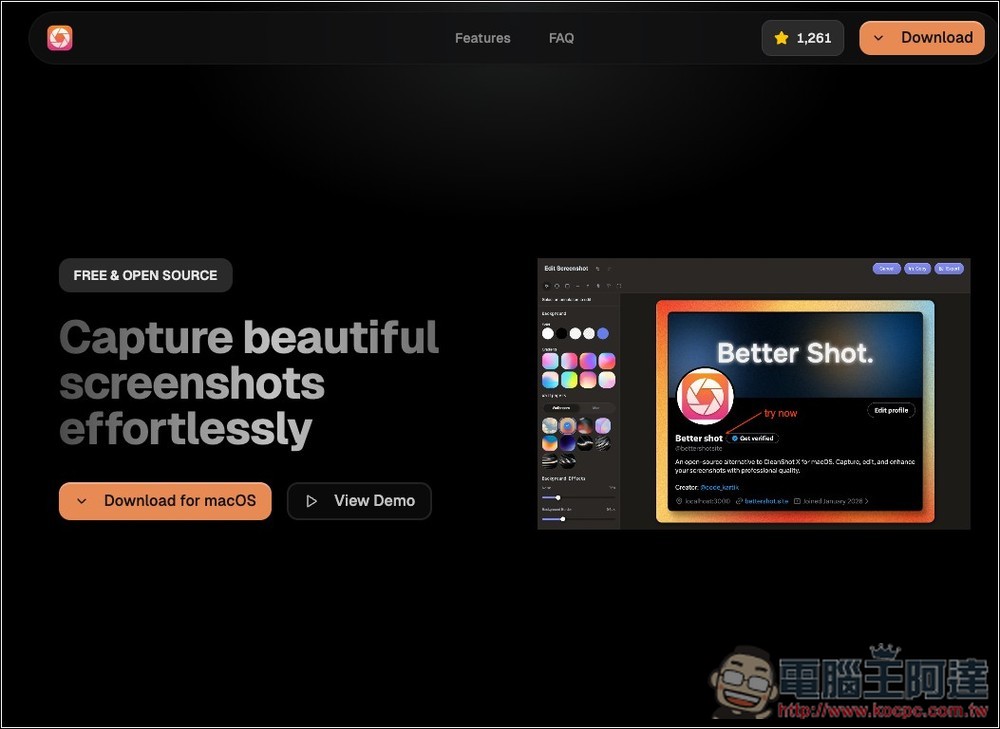
Better Shot has an official website where you can download the installer directly. If you want to view the source code on GitHub, click the star icon in the upper-right corner:
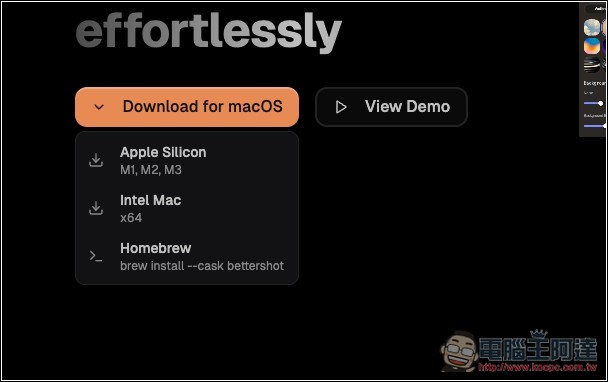
Select your Mac model—both Apple Silicon and Intel Macs are supported:
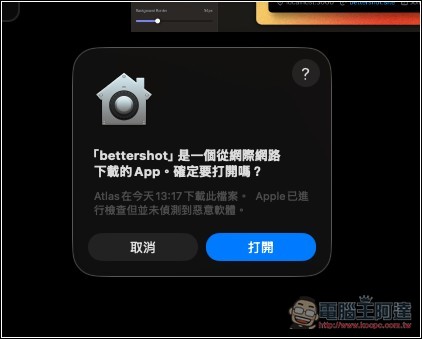
After installation, open the app. Since it was downloaded from the internet, the system will display a prompt; simply tap “Open”:
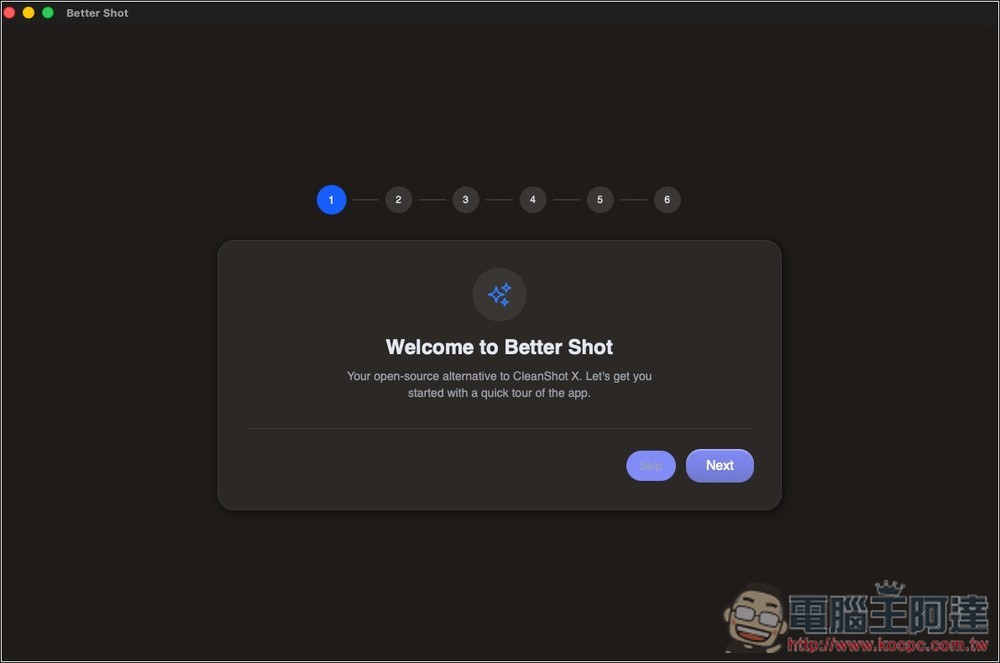
At the beginning, there will be some instructions on how to use the app and an introduction to its features. You will also need to grant certain system permissions:
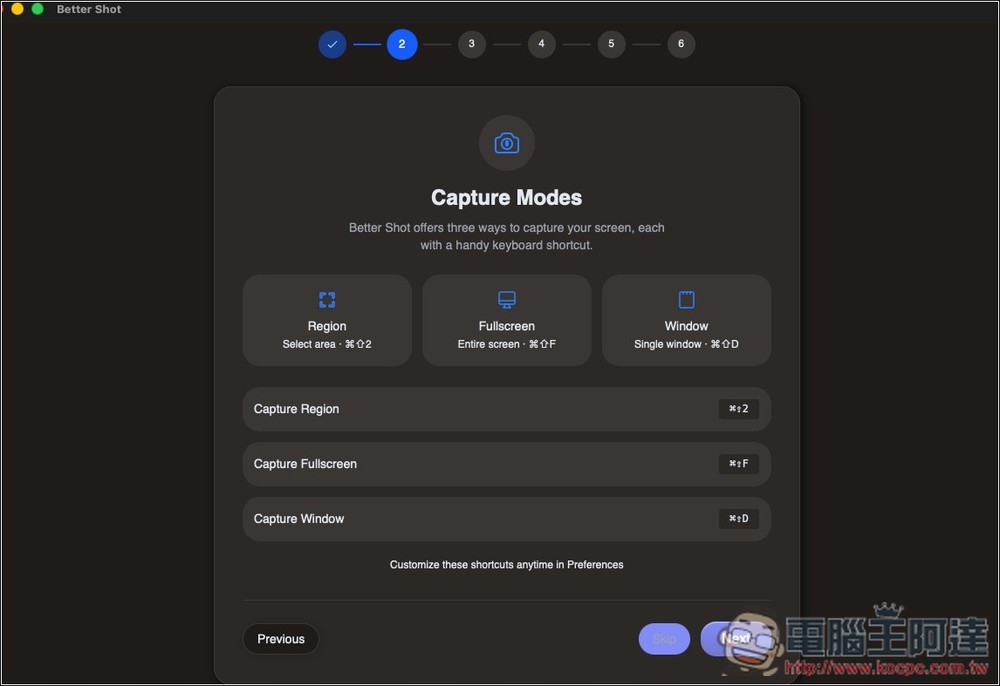
The software comes with default keyboard shortcuts, which you can adjust at any time to suit your preferences. Supported capture modes include: manual selection, full screen, and specific windows:
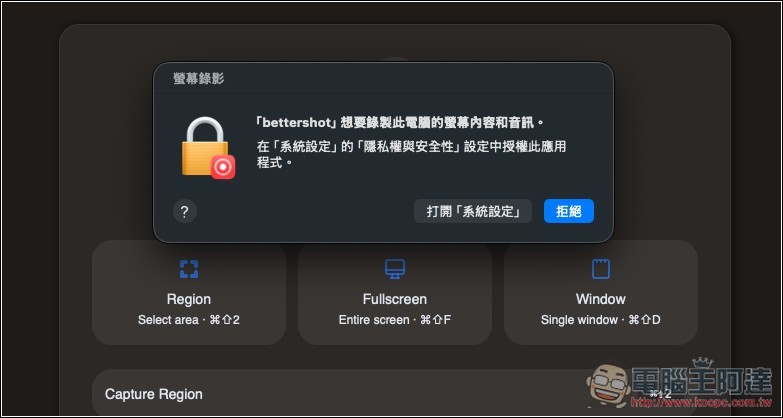
You will be asked to grant permission to record this computer’s screen and audio. Please click “Open System Settings” to launch this app:
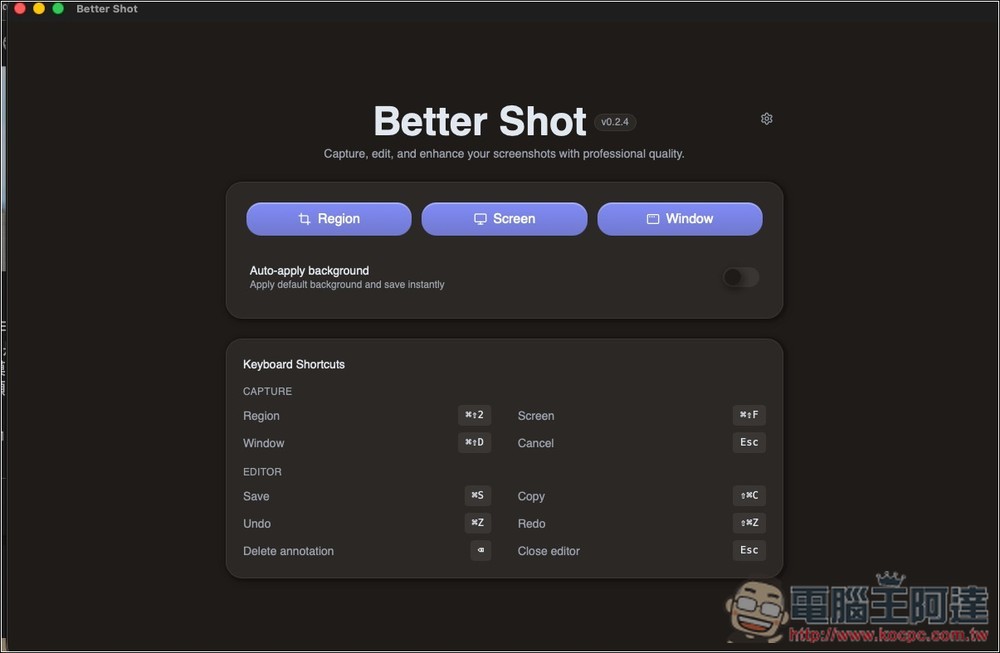
Once you’ve granted all the necessary permissions, you can start using it:
After taking a screenshot, the editing screen will open automatically. By default, some enhancements have already been applied, including a background, rounded corners, and a shadow. If you don’t have any specific requirements, you can simply click the “Export” button in the upper-right corner to save it.
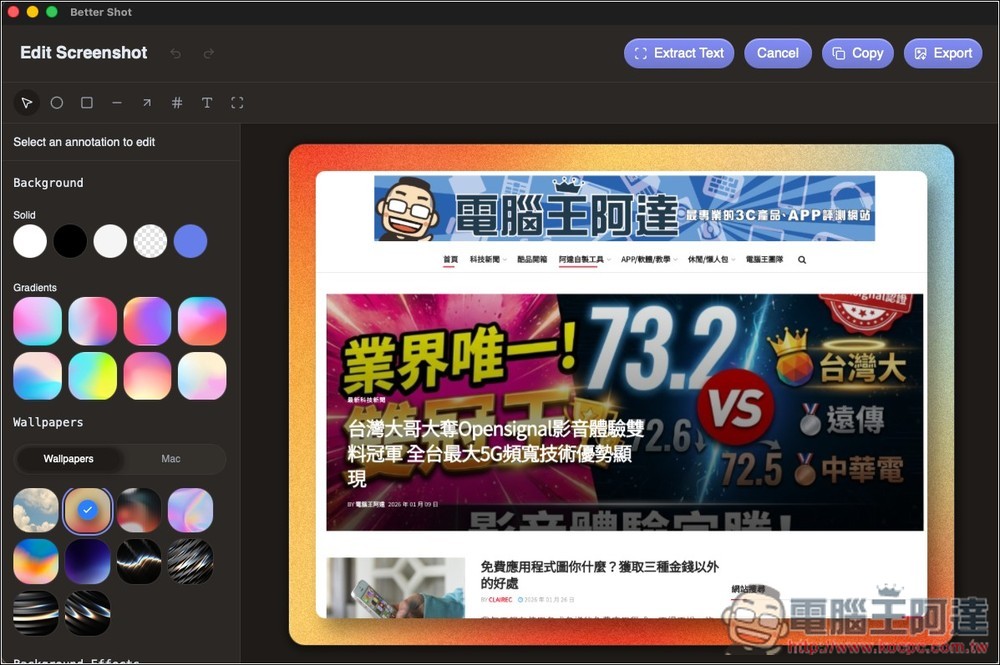
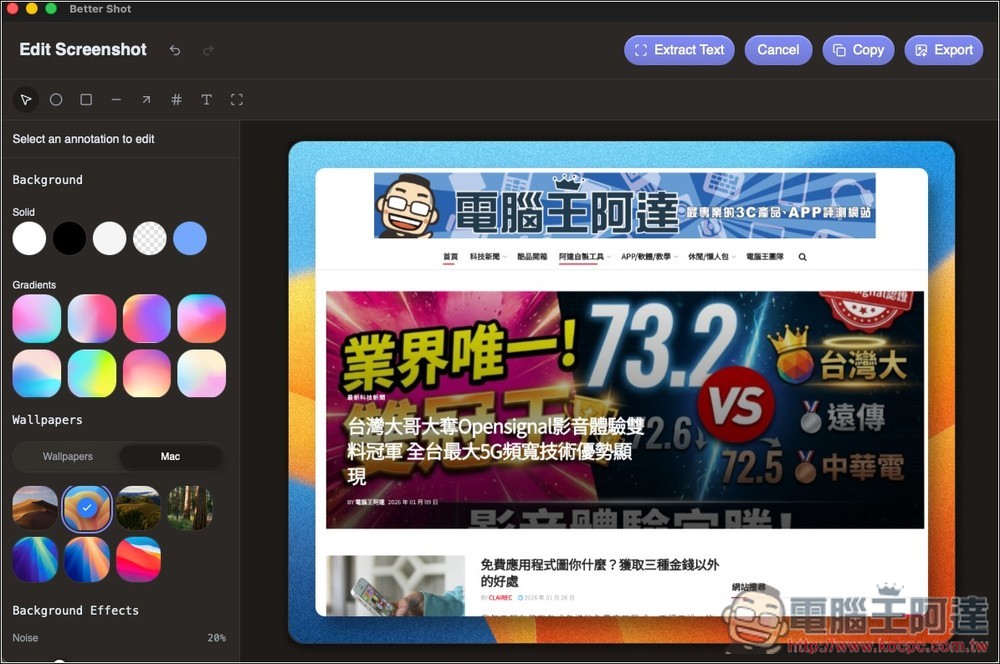
If you don’t like this background, there are many options available on the left, including: solid-color backgrounds, gradients, and Mac’s built-in wallpapers:
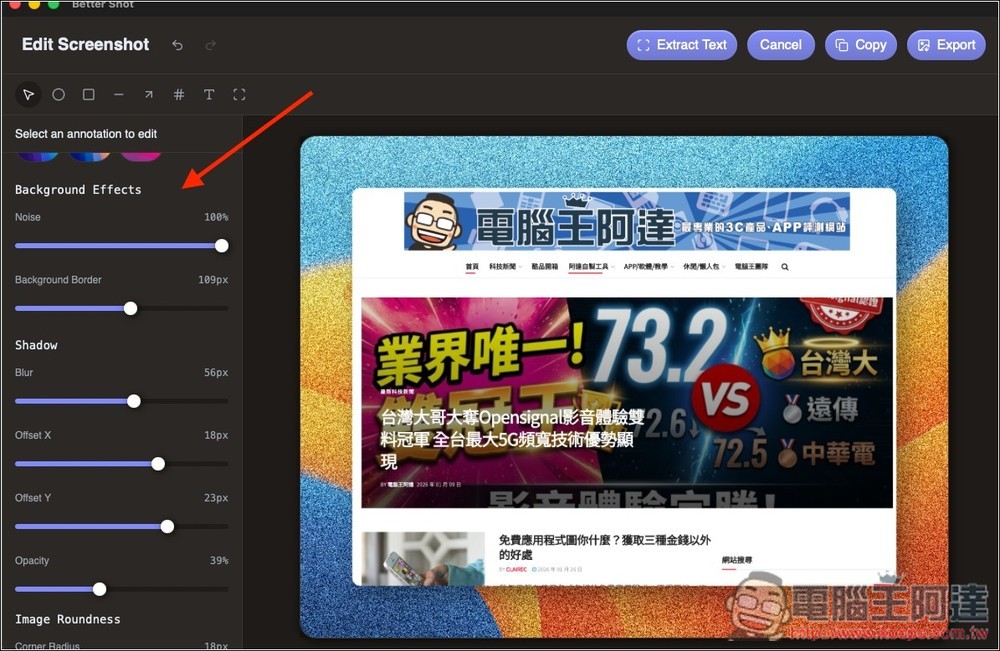
There are also some background adjustment features, such as special effects and shadows:
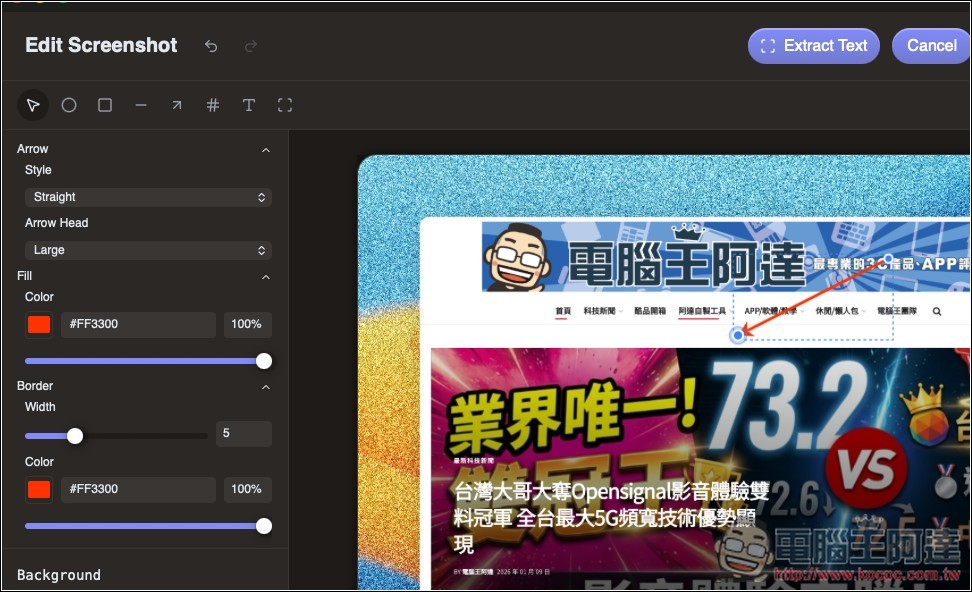
The editing tools are located in the upper-left corner. You can add arrows, lines, rectangles, blurring, numbering, and text to your screenshots:
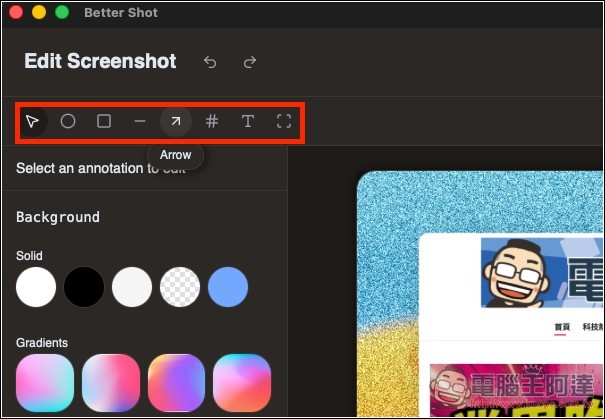
These editing tools—such as the arrow—can, of course, also be used to adjust details like color and width:
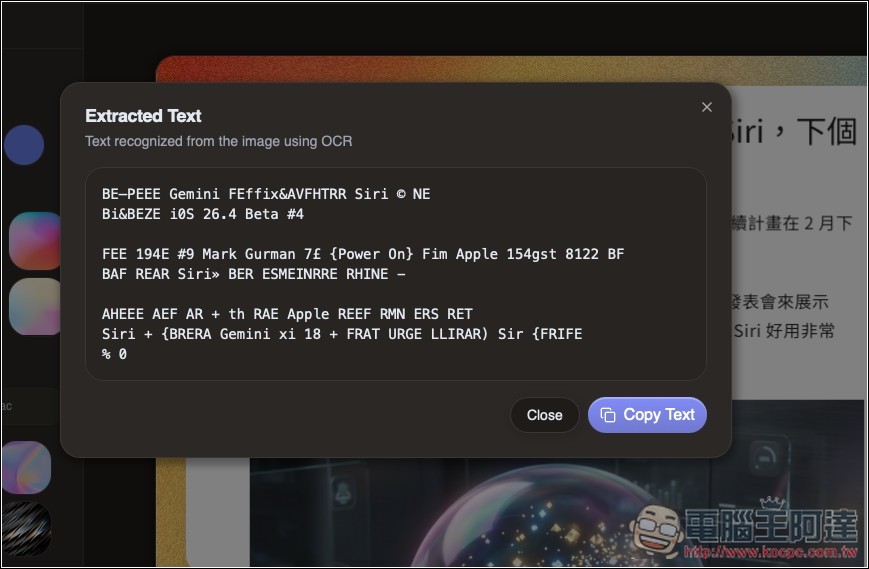
I tested the OCR feature, and it appears that OCR currently only supports English; it does not support Chinese:
Although it’s billed as a free alternative to CleanShot X, there are still some differences in how it works overall.
Source: KOCPC Chinese