


With the release of GPT-5.5, more and more people are now using Codex. However, most people probably still only use it for coding tasks – like writing programs they need, checking code, modifying files, running tests, and even helping create pull requests. In fact, Codex can do much more than that. Recently, a member of the OpenAI Codex team posted on X about aGetting the most out of CodexThe article shares how to get the most out of Codex, and the content is extremely comprehensive. For those who have the time, it’s highly recommended to read the original article carefully. Below are the 11 tips mentioned in it, organized.

Tip 1: Leverage persistent conversation threads so Codex remembers your work context
The first one is “Durable Threads”—Codex conversations that preserve context over the long term, which you can think of as fixed workspaces rather than disposable chat windows.
For example, you can dedicate a specific conversation thread to handling release processes, document reviews, external monitoring, or even use it as an assistant similar to a project manager. That way, when Codex returns to the same discussion thread later, it won’t need to re-understand previous decisions, preferences, and progress.
This is important for long-running tasks, because the real time-consuming part of many jobs isn’t the individual commands themselves, but having to re-explain the context. The value of preserving conversation history over time is that the context doesn’t have to start from scratch every time.
Tip #2: Use voice input to quickly get out rough ideas first

The text specifically highlights the value of voice input. Often, you only have a vague idea in mind and haven’t yet worked out the full command, but this kind of “rough thought” is actually well-suited to being spoken aloud first using voice.
In other words, you don’t necessarily need to write a perfectly polished prompt first—even casual, conversational requests like “I think someone mentioned something in Slack, but I don’t remember the details, can you help me find it?” can serve as a starting point for Codex to begin searching and organizing context.
Technique 3: Use Steering to make real-time corrections during the task
Codex doesn’t just take a task and work through it to completion—users can also intervene while a task is in progress. This is called Steering. That is, when Codex is working on something, you can redirect it mid-way.
For example: When reviewing the website layout, if you find that a certain section is too large, the spacing between two elements is off, or the copy doesn’t meet the requirements, you can directly add instructions to have Codex adjust its direction on the spot, rather than waiting for it to finish and then redoing everything from scratch.
Tip 4: Queue the Next Task (Queuing)
Steering is adjusting direction in real time, while queuing lets you line up your next task without interrupting what you’re currently working on.
For example, if Codex is handling a website review task, you can add something like: “Once this is done, send the preview link to the person responsible for the review.” This doesn’t interrupt the current task—it just queues up the next action.
This design makes Codex more like an assistant that can handle continuous work, rather than only being able to answer one question at a time.
Tip 5: Expand Your Work Scope with Browser, Chrome Extension, and Computer Use
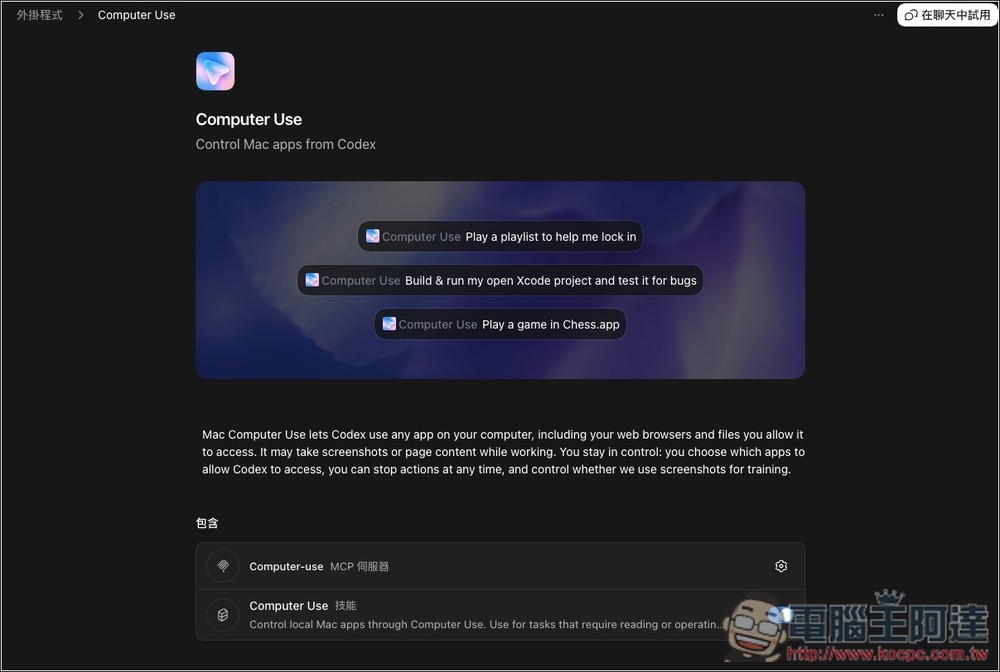
Once Codex has long-term context, the next question is what it can operate on—like in-app browsers, Chrome extensions, Computer Use, MCP servers, and connectors—to complete more tasks.
Codex’s in-app browser lets you and Codex jointly view rendered web pages in the same conversation thread, making it great for previewing pages and adding visual annotations when developing or debugging. However, it doesn’t support login flows, logged-in pages, common browser files, cookies, extensions, or existing tabs.
If your tasks require a logged-in browser state, the Codex Chrome extension is better suited, allowing Codex to use your Chrome to handle tasks that require login status, such as LinkedIn, Salesforce, Gmail, or internal tools.
As for Computer Use, it enables Codex to view and interact with graphical interfaces on macOS, such as inspecting desktop apps, using a browser, modifying app settings, or reproducing bugs that only occur in GUIs.
Tip 6: Organize Repetitive Workflows into Skills
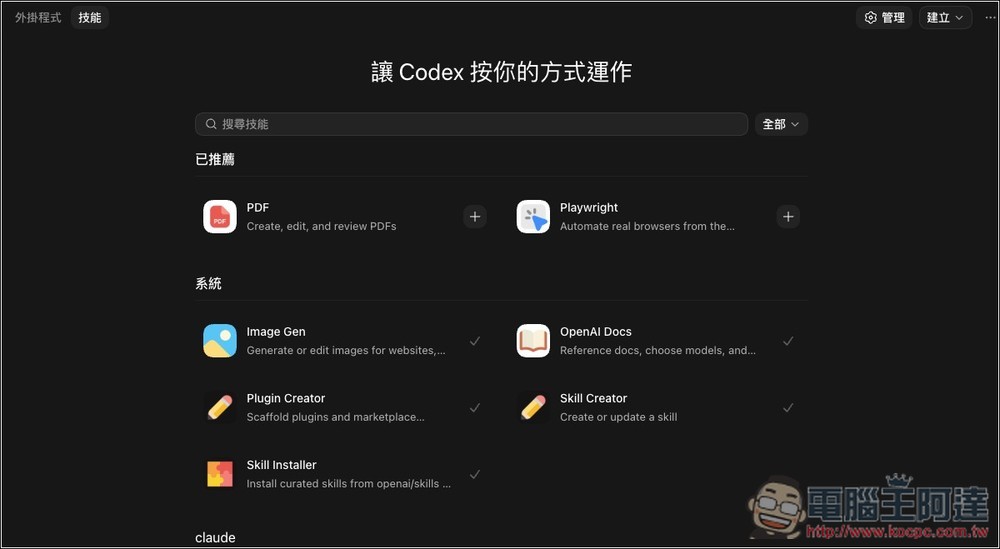
If a workflow recurs repeatedly, it’s recommended to package it as a Skill. This way, when Codex encounters a similar task next time, it won’t need to relearn the entire process.
Tip 7: Keep Tasks Uninterrupted with Your Phone

Codex in ChatGPT’s Mobile Version Allows you to leave your desktop and still check progress, answer questions, approve the next steps, or change direction as needed through your phone. Files, credentials, permissions, and local settings remain on the machine running Codex, with updates syncing back to your phone in real time.
This is very helpful for long-running tasks, as you don’t have to sit at the computer waiting for results the whole time—you can just step in when Codex encounters nodes that need your judgment or approval.
Tip 8: Use automation to regularly return to the same workflow
The original text particularly emphasizes automation, which enables Codex to execute tasks on a schedule—for example, generating daily reports, periodically checking repositories, or continuously tracking whether an external source has new feedback.
Tip 9: Use task objectives to set clear completion criteria
Setting task goals (Goals) is a very important part—it’s not simply telling Codex to “keep going,” but giving it a clear endpoint.
The official Cookbook says that Goals are like “long-term task objectives” in Codex—they let a single conversation thread work toward a specified outcome over time, rather than just handling one-off commands each time. When setting them up, you also need to be explicit about what constitutes completion, how to verify success, and which constraints cannot be broken.
Most importantly: it must be “verifiable.” Don’t just say “complete this project” — define what “done” means. For example, tests must pass, benchmarks must hit their targets, bugs must be reproducible and fixable, or the final deliverables must be clearly inspectable.
Tip 10: Use the Side Panel to Check Outputs Directly
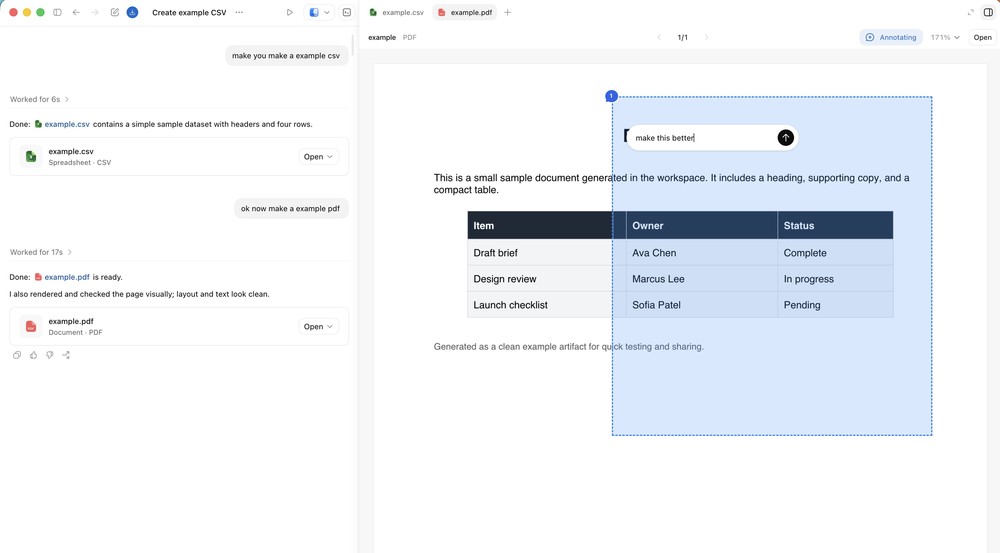
Image source: X
The sidebar is key to completing the Codex workflow, allowing users to review code, documents, presentations, PDFs, spreadsheets, or web pages in the same interface instead of constantly exporting files and switching tools.
Official documentation states that when tasks produce non-code outputs, Codex’s sidebar can preview PDFs, spreadsheets, documents, and presentations. Users can also track Codex projects, sources, outputs, and summaries during task execution.
This means Codex doesn’t just generate results—it also feeds review feedback back into the same workflow. For content that requires iterative changes, like presentations, documents, static web pages, or spreadsheets, this is far more efficient than the traditional export-and-import back-and-forth.
Tip #11: Create Shared Memory to Prevent Important Context from Being Trapped in Chat History
The concept of Shared Memory is not about cramming everything into chat history, but rather about placing important information in a more stable, verifiable, and maintainable location.
For example: you can use an Obsidian vault, Git, Dropbox, Google Drive, or other sync folders to store long-term work context, such as TODOs, project notes, contact information, decisions, blockers, owners, and important links. This way, future conversations can continue using this information.
OpenAI’s official documentation also mentions the Codex Memories feature, which allows Codex to bring useful context from previous conversations into future work—such as stable preferences, recurring workflows, tech stacks, project conventions, and known issues. However, the documentation also emphasizes that essential team rules should still be placed in AGENTS.md or version-controlled documents. Memories functions more like an辅助性的本地回憶層,serving as a supplementary local memory layer rather than the sole source of rules.
Source: KOCPC Chinese