


not just Claude CoworkCodex Desktop can now easily connect to local AI models for use, meaning it’s completely free with no usage limits, and the setup is incredibly simple! Ollama v0.24.0, released in mid-May, officially added support for Codex Desktop. With just one command, you can switch Codex Desktop to your chosen AI model. Below is how to do it.
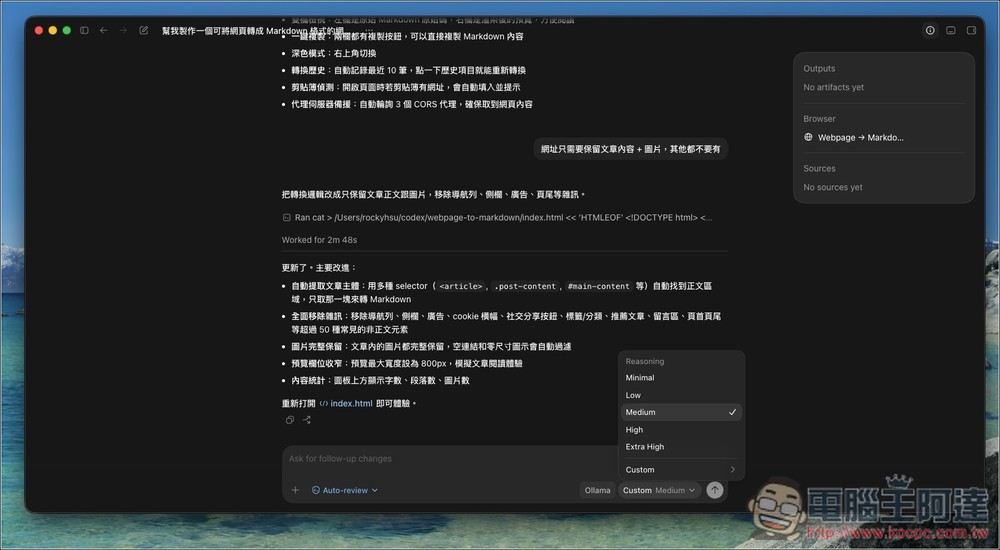
Unlimited Free Codex! One command to easily connect local AI models via Ollama
First, if your computer hasn’t installed Ollama yet, please go to Ollama Official Website Download and Install, Windows and Mac are both supported. After downloading, just follow the on-screen instructions, so I won’t demonstrate the steps here. If you have it installed, remember to check for new version updates. You can also enter ollama --version Check what the current version is.
After installation is complete, open the terminal or command prompt and enter this command:ollama launch codex-app
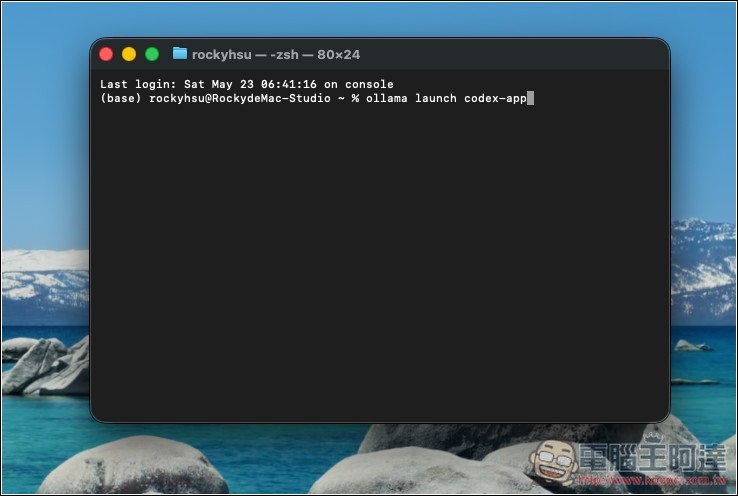
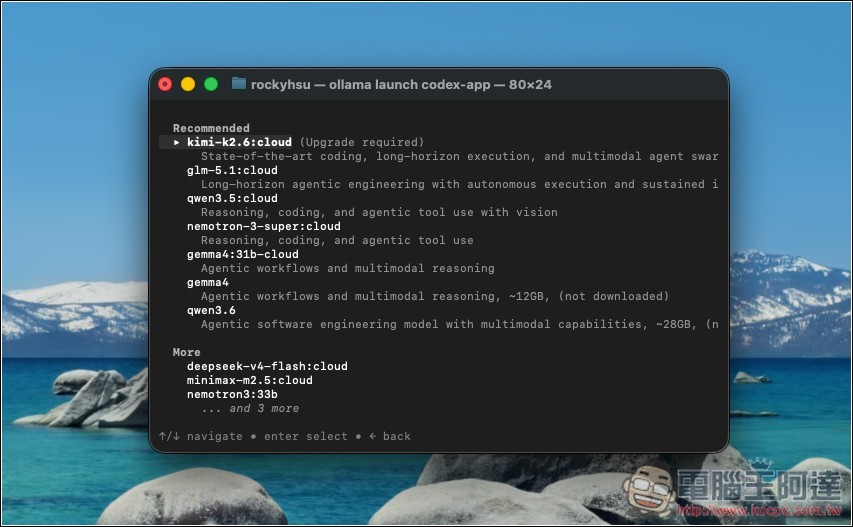
Next, you’ll enter the model selection menu, where Ollama recommends using the following models.
For subscribers of Ollama Cloud, when it comes to difficult software development and AI agent tasks:
- kimi-k2.6 (with visual support)
- glm-5.1
Don’t have an Ollama Cloud subscription, or want to use local models? You can use the following three models:
- nemotron-3-super
- gemma4:31b
- qwen3.6
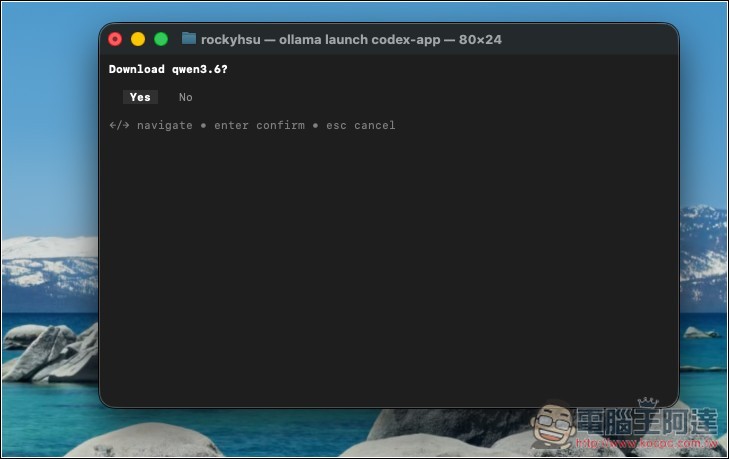
I set qwen3.6, then it will start downloading. If the computer already has it installed, pressing Yes will skip it.
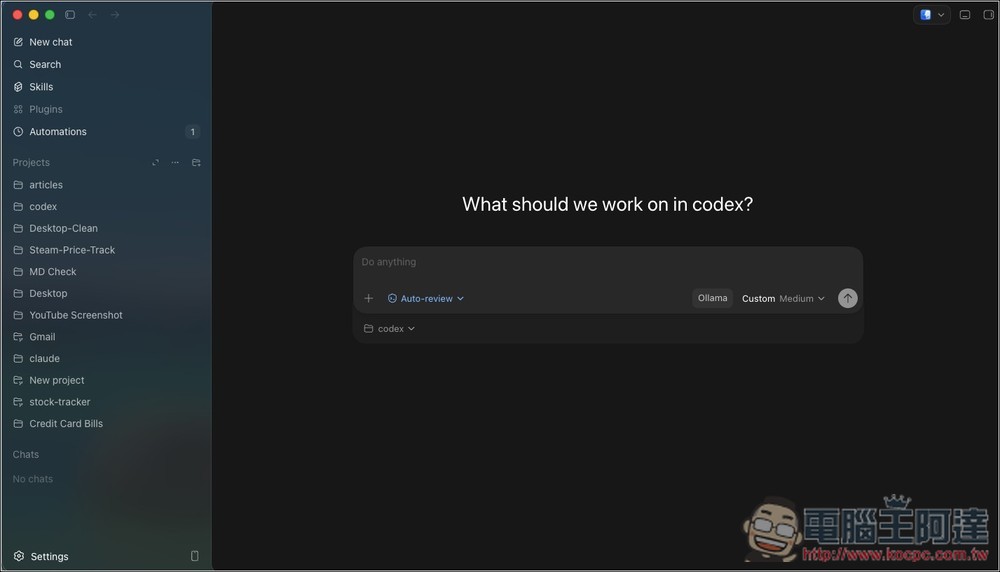
After it’s done, Codex will open. You may notice that the project folders on the left are still there, but all the chat threads are gone—this part cannot be shared. The model menu on the right also changed to Ollama Custom:
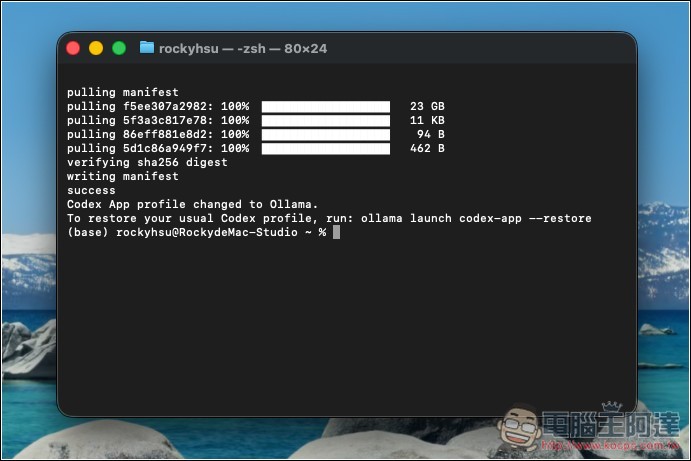
If you want to switch back to using OpenAI’s Codex model, enter the following in the terminal or command prompt:ollama launch codex-app --restore
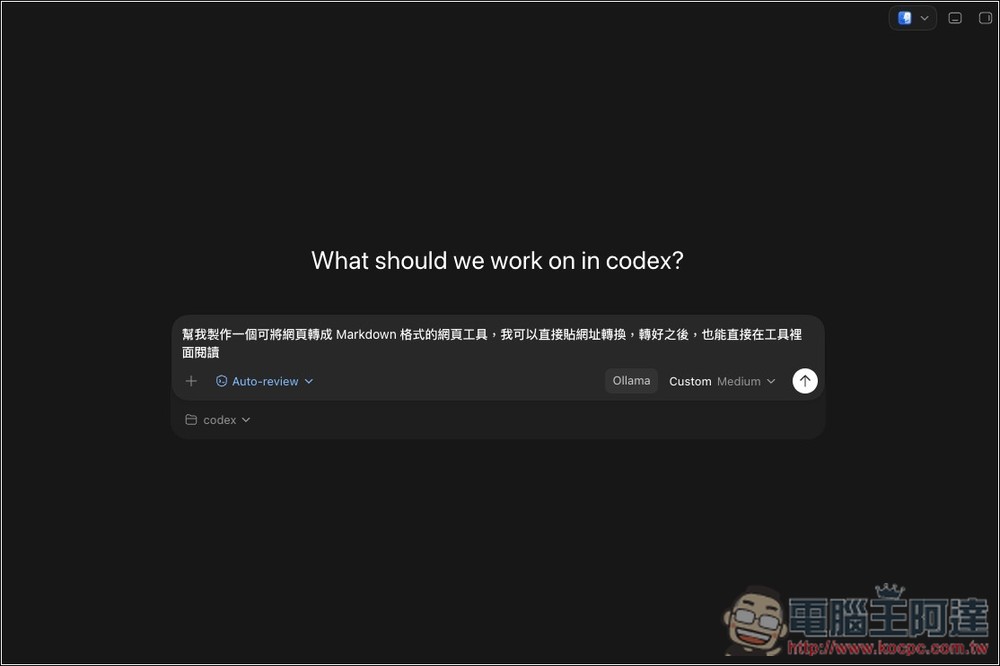
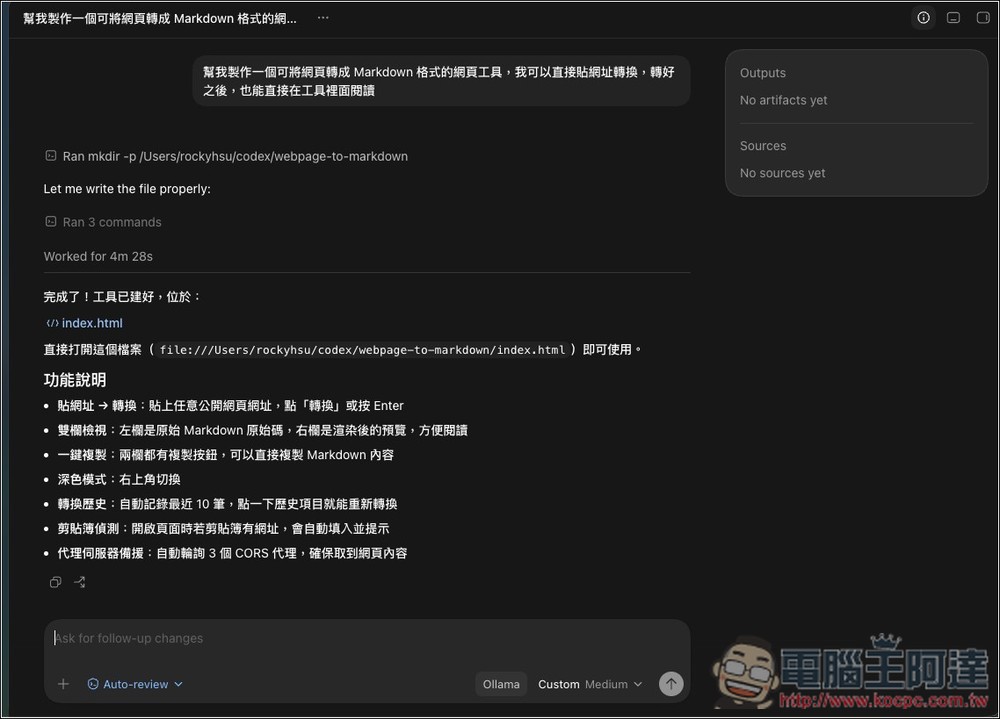
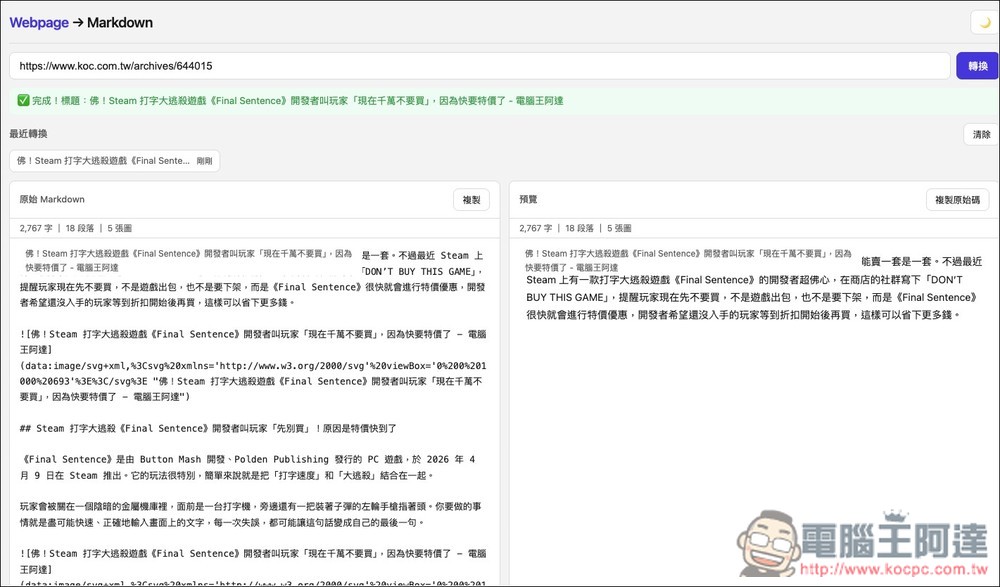
Then I also ran a quick test, asking it to create a web tool that can convert web pages to Markdown format.
Successfully running, AI is processing:
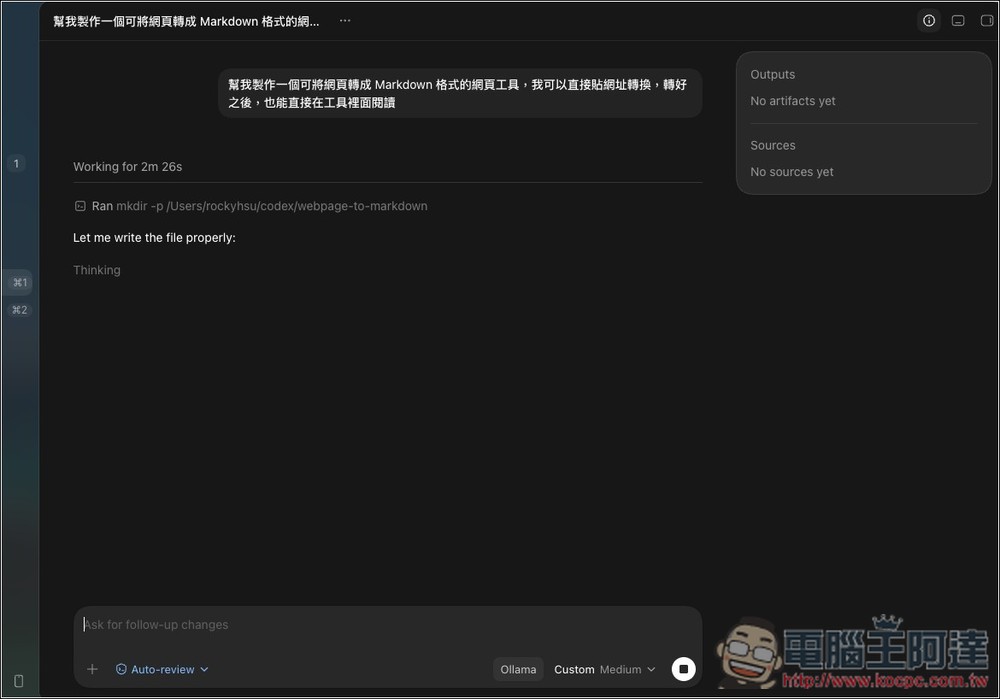
Compared to cloud models, local models are a bit slower, and the speed depends on your computer’s hardware level:
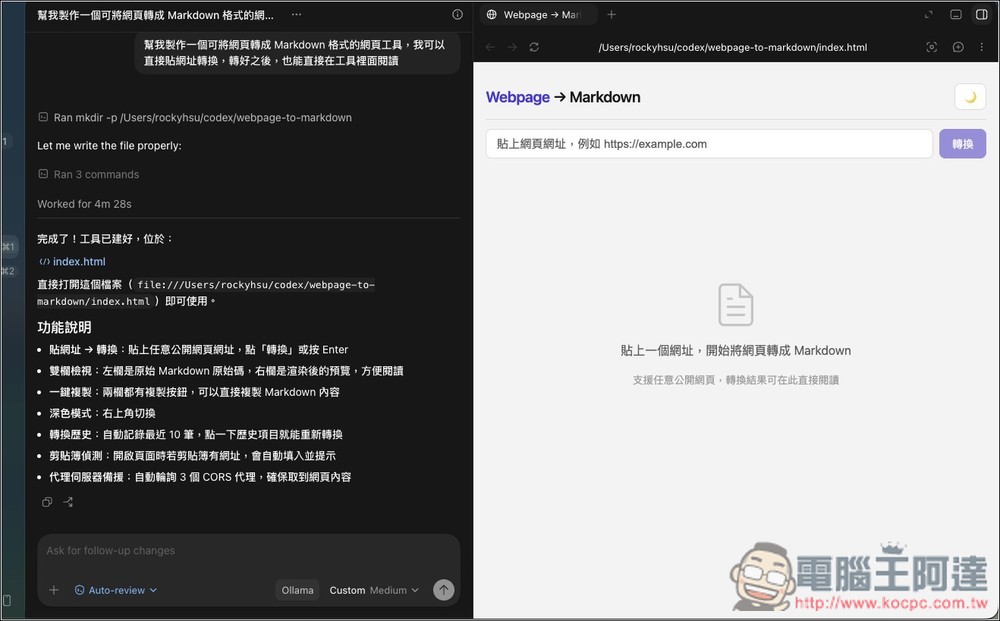
The preview function on the right also works properly:
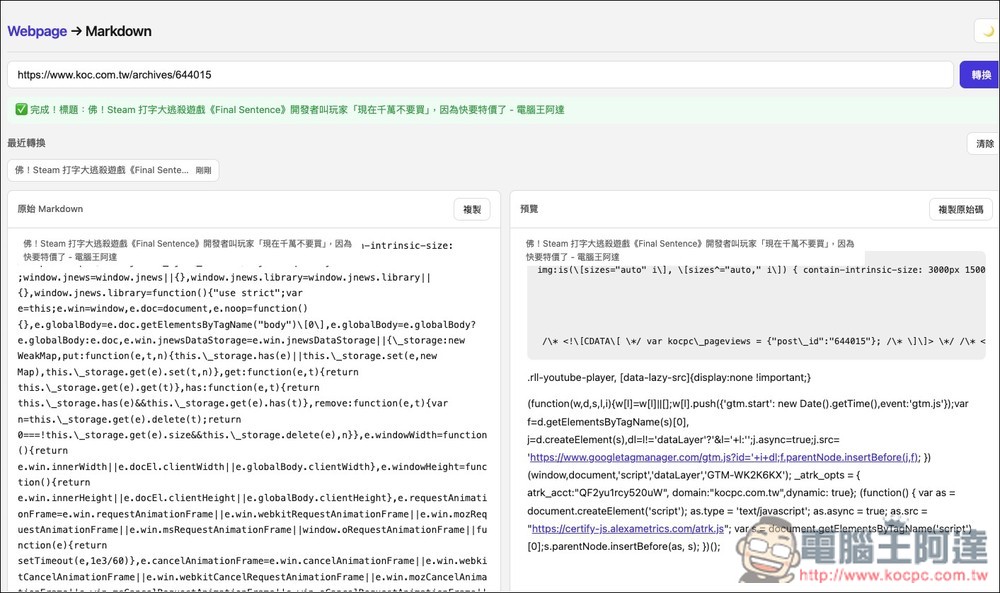
Tested it and it actually works, but it saves everything from the webpage, making the Markdown content very messy:
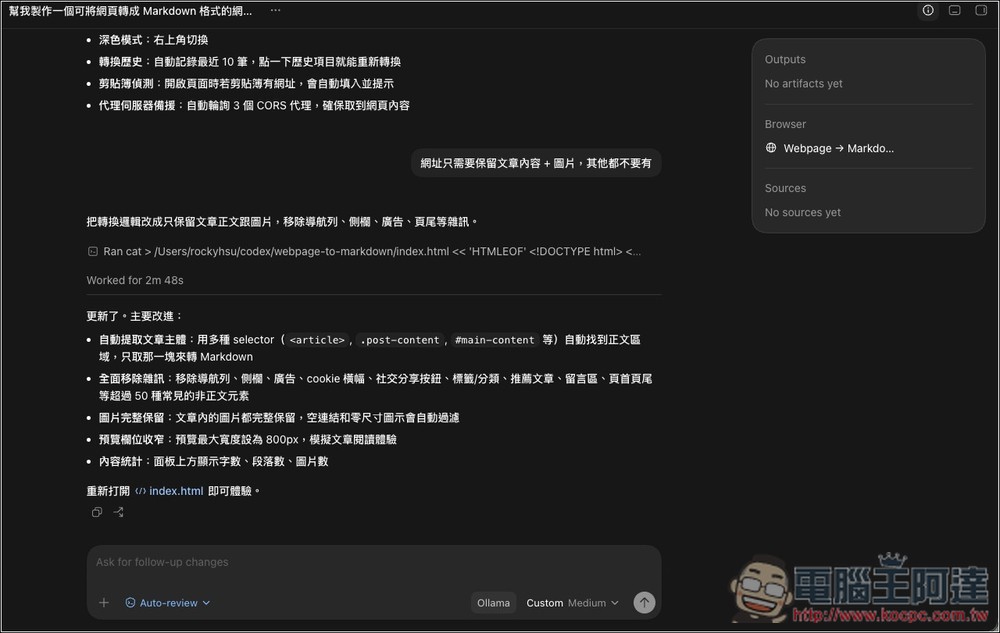
So I asked it to modify it again to keep only the article content and images, nothing else. It was successfully updated as well:
After testing again, it was much cleaner:
In the future, when you enable Codex to use local models, if you don’t want to go into the model menu to select one, you can also directly specify the model after the command, for example:
ollama launch codex-app --model kimi-k2.6:cloudollama launch codex-app --model qwen3.6ollama launch codex-app --model gemma4:e4b
Source: KOCPC Chinese