


AI tools are becoming increasingly powerful, with caption generation, multilingual translation, and even caption review and format conversion now capable of professional-grade results. So you no longer have to worry about watching foreign videos without subtitles. If you haven’t found a good AI subtitle and translation tool yet, you definitely don’t want to miss SmartSub, which we’ll be recommending in this article.
SmartSub is a fully-featured free and open-source AI subtitle and translation tool. It uses the Whisper model to convert videos into subtitles, then uses AI models to translate them into other languages (including Traditional Chinese). Even better, it provides a proofreading feature for the generated subtitles, allowing you to easily check and edit each line for errors, or even let AI optimize them directly. It also supports the bilingual subtitle feature that many people need. Available on Windows, Mac, and Linux.
SmartSub: A Great Free Tool for AI Subtitle Generation and AI Translation
SmartSub is a free, open-source AI tool for subtitle generation and translation. It can quickly convert videos and audio into subtitles, with support for translation, proofreading, and format export. It’s extremely useful for people who frequently watch foreign videos, online courses, product launches, or need to organize foreign language audio and video content.
Supports Windows, macOS, and Linux, with batch processing that lets you configure multiple video or audio files at once.
SmartSub also supports various translation services, including traditional translation APIs, local Ollama models, and OpenAI-format APIs, allowing you to choose the translation method that best fits your needs.
Another notable feature is that SmartSub emphasizes local processing, so videos don’t need to be uploaded to the cloud—giving users who value privacy or need to process large amounts of audio and video content greater peace of mind. It also supports NVIDIA CUDA and Apple Core ML hardware acceleration, which can boost processing speeds on compatible devices.
Main Features
- Free and open source, available on GitHub.
- Supports Windows, macOS, Linux
- Convert video or audio to subtitles
- Subtitle translation, subtitle proofreading, and bilingual subtitle creation
- Can batch process multiple audio and video files
- Supports subtitle formats such as SRT, VTT, ASS, LRC, and TXT
- Supports multiple translation services and OpenAI format API
- Can be used with local Ollama models for translation
- Supports NVIDIA CUDA and Apple Core ML hardware acceleration
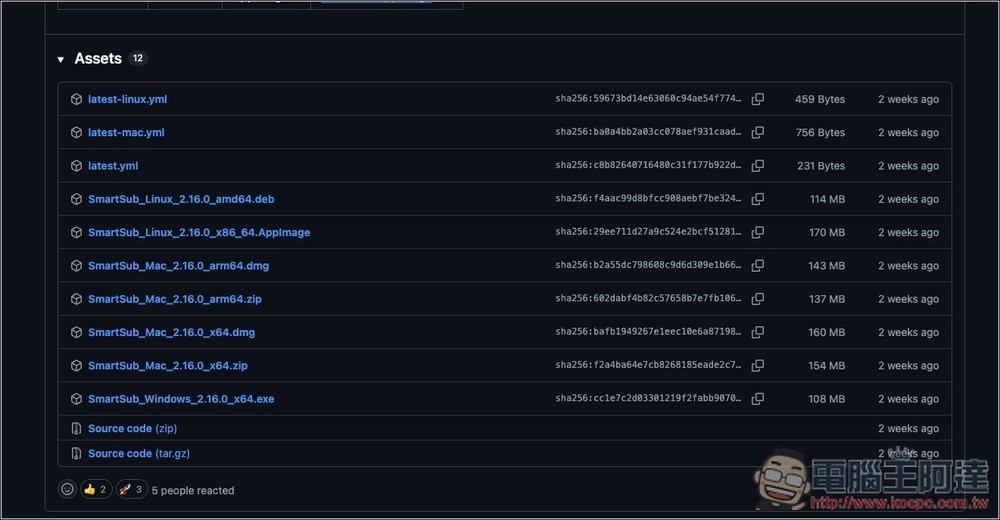
Follow the link above to SmartSub’s GitHub page and download the latest version. Choose the one for your operating system—I have an M-series Mac, so I downloaded the one ending in arm64.dmg.
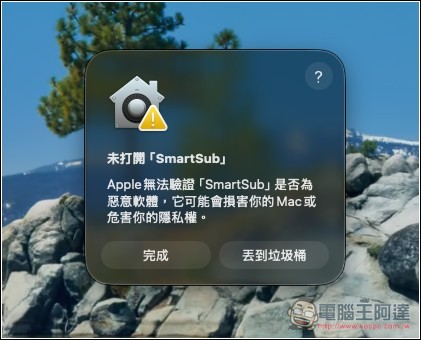
For the Mac version, you may encounter an “Apple cannot verify” warning. In this case, you’ll need to enter a command in Terminal:
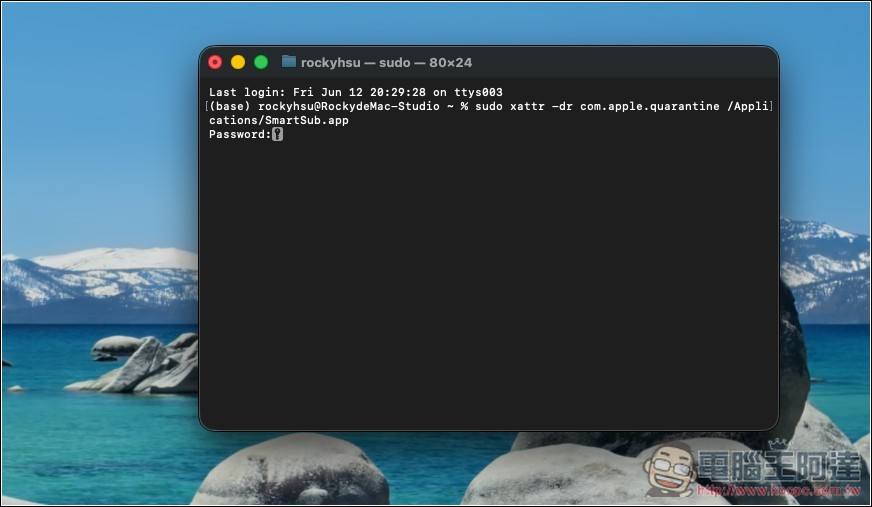
Enter `sudo xattr -dr com.apple.quarantine /Applications/SmartSub.app`, then enter your startup password, and it will open normally.
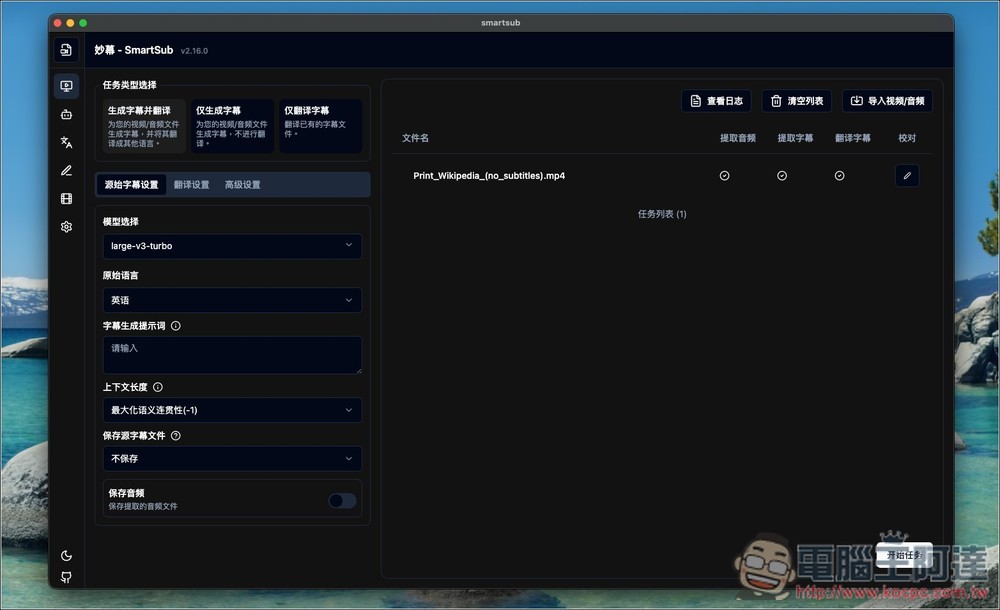
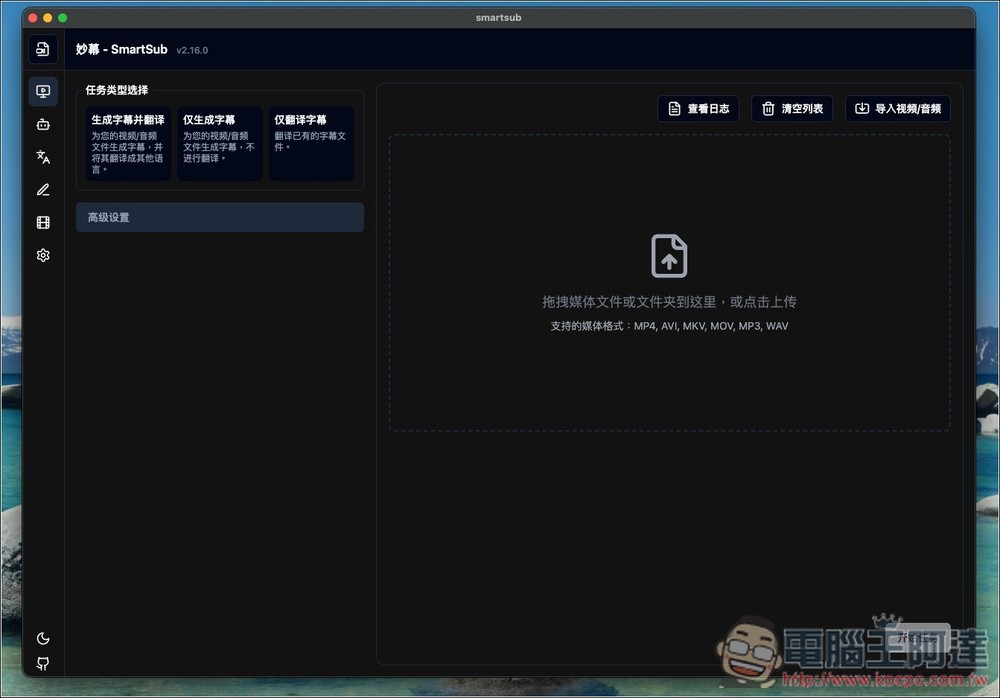
The image below shows SmartSub’s interface. It’s in Chinese, so you don’t need to worry about not understanding it. When using for the first time, remember to first set up the Whisper model and AI translation engine you want to use.
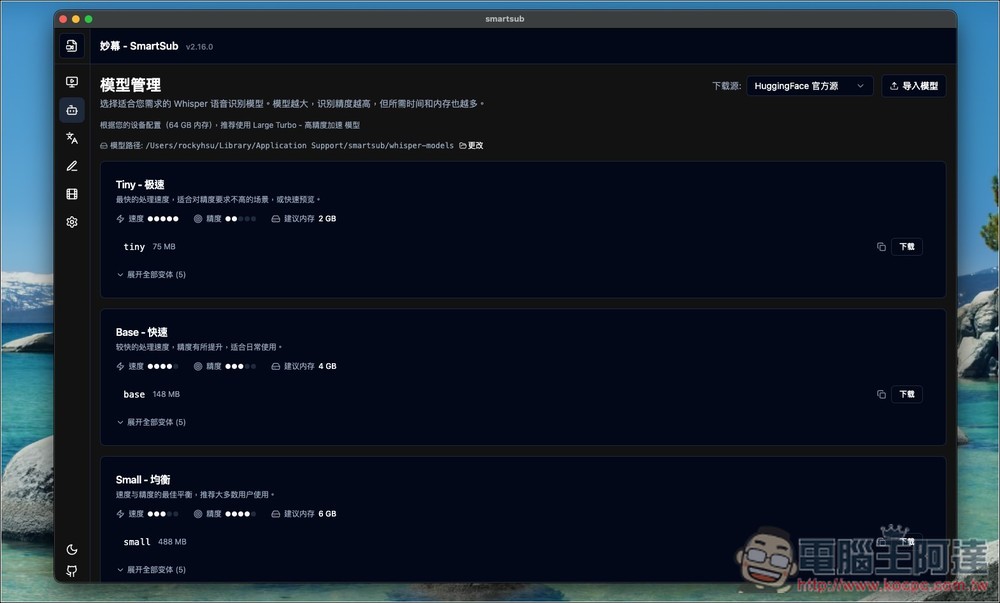
Choose the Whisper model that fits your computer. Each one has labels above showing how it performs and what memory it’s suitable for:
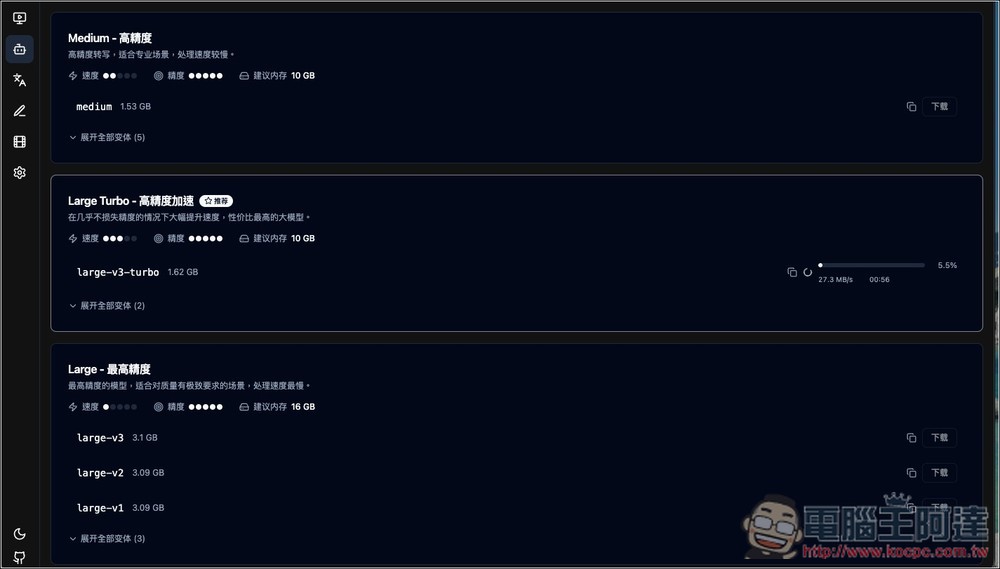
Currently, Whisper’s most recommended model is Large-v3-turbo, which balances both speed and accuracy:
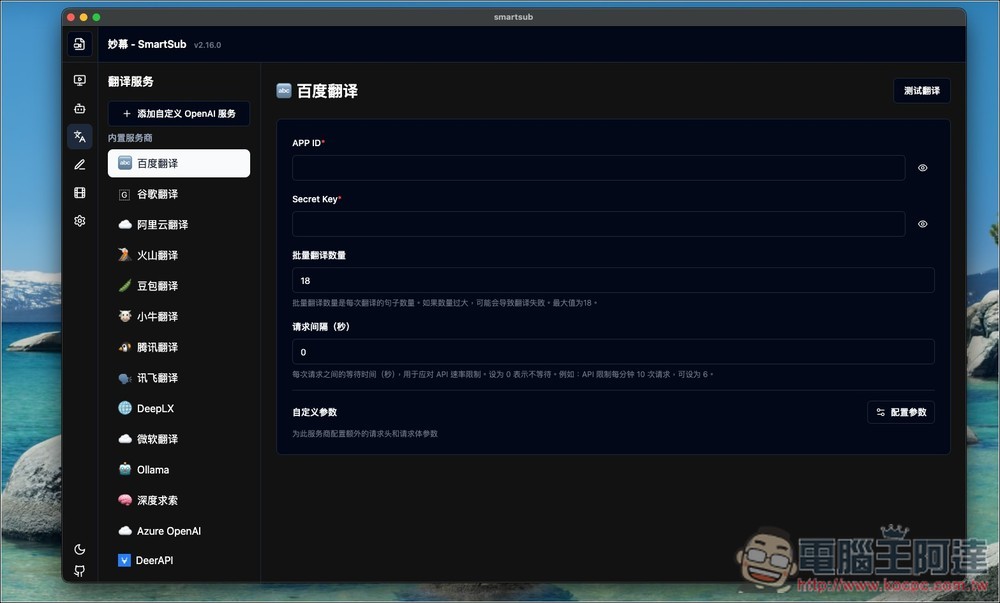
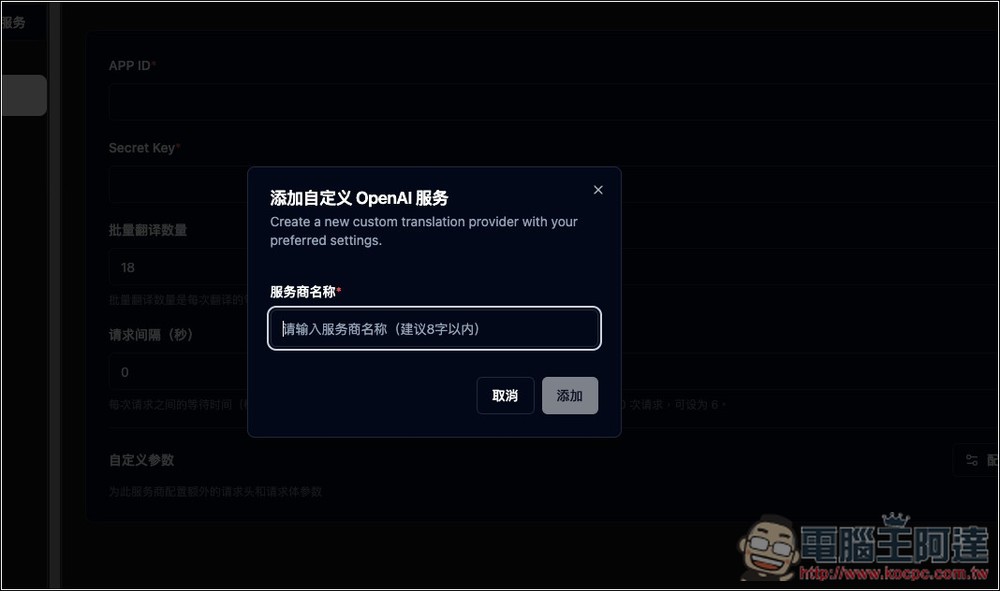
Next is the translation engine. You can use traditional translation engines like Google, Baidu, or Microsoft, it also supports local Ollama, or use an API in OpenAI format:
I’m using Agnes AI’s completely free API, which uses the OpenAI format API:
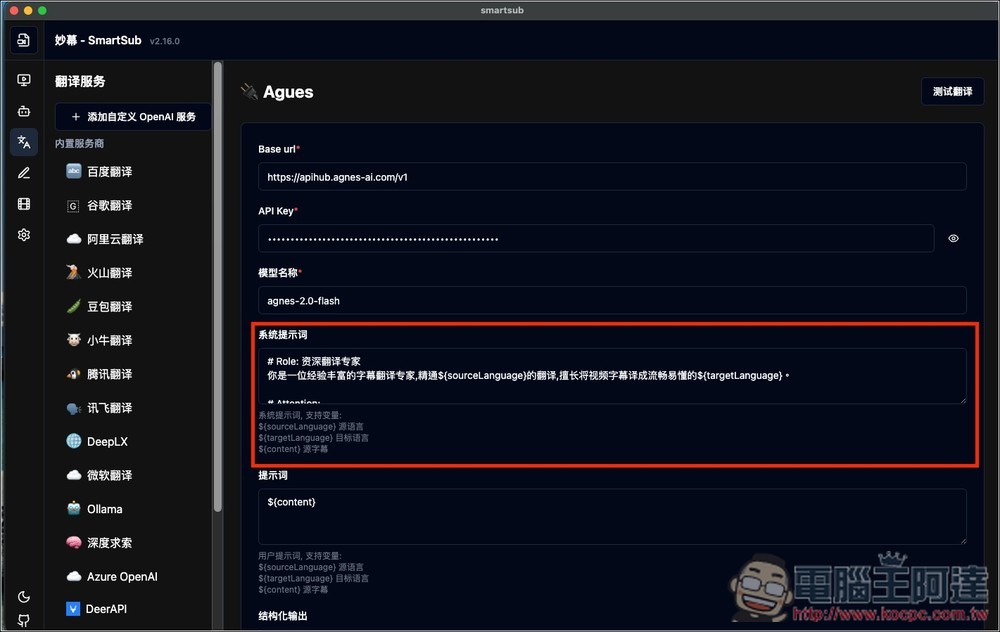
After entering the URL, API Key, and model name, there is a system prompt below. The default is simple. You can change it to Traditional Chinese, or modify it with your preferred prompt content:
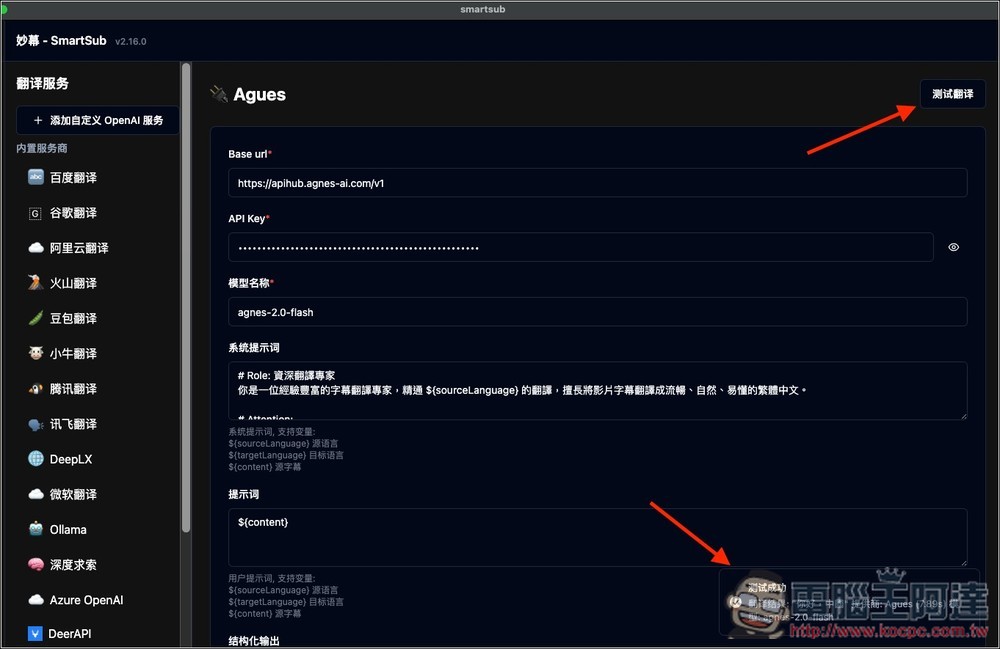
Before confirming, we recommend testing first. Click “Test Translation” in the top right corner. If successful, a “Test Successful” notification will appear in the bottom right corner:
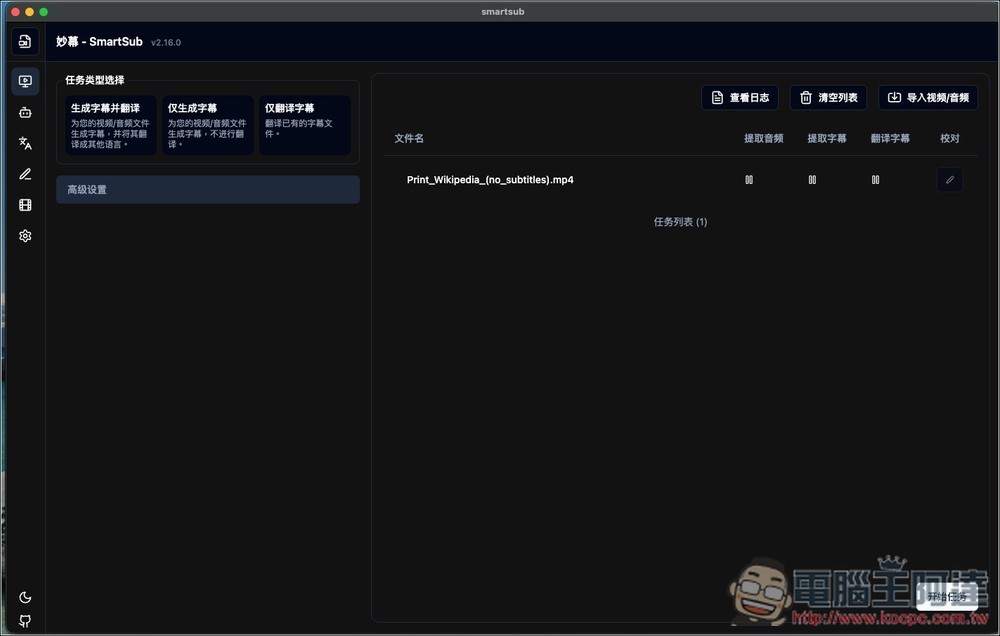
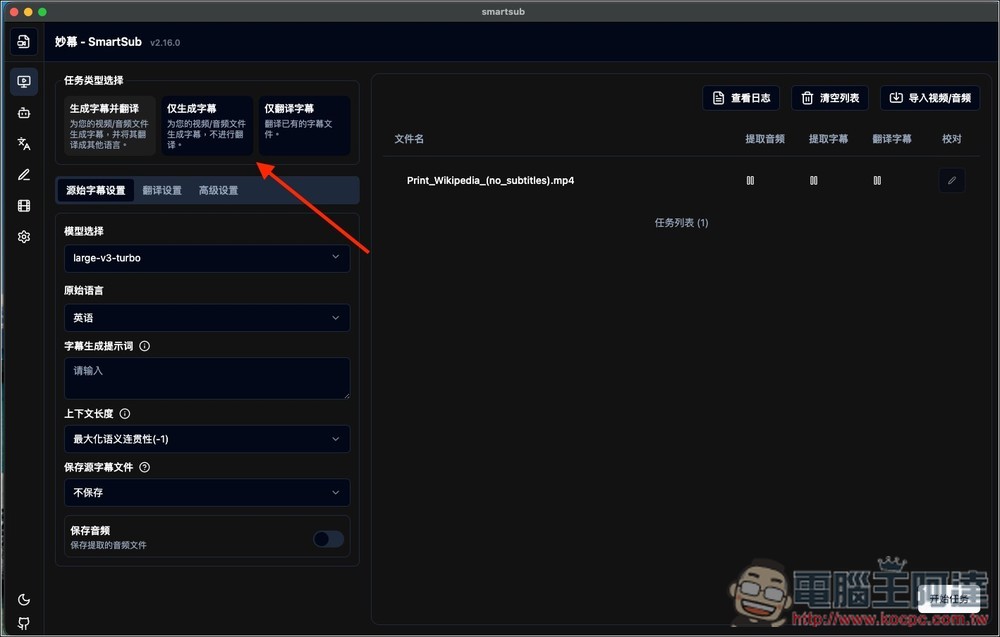
Next, you can start converting video to subtitles and translation. Import your video, then select the mode you want from the top left: “Generate and translate subtitles,” “Generate subtitles only,” or “Translate subtitles only.”
I select “Generate and Translate Subtitles”, and three menus appear below: “Original Subtitle Settings”, “Translation Settings”, and “Advanced Settings”:
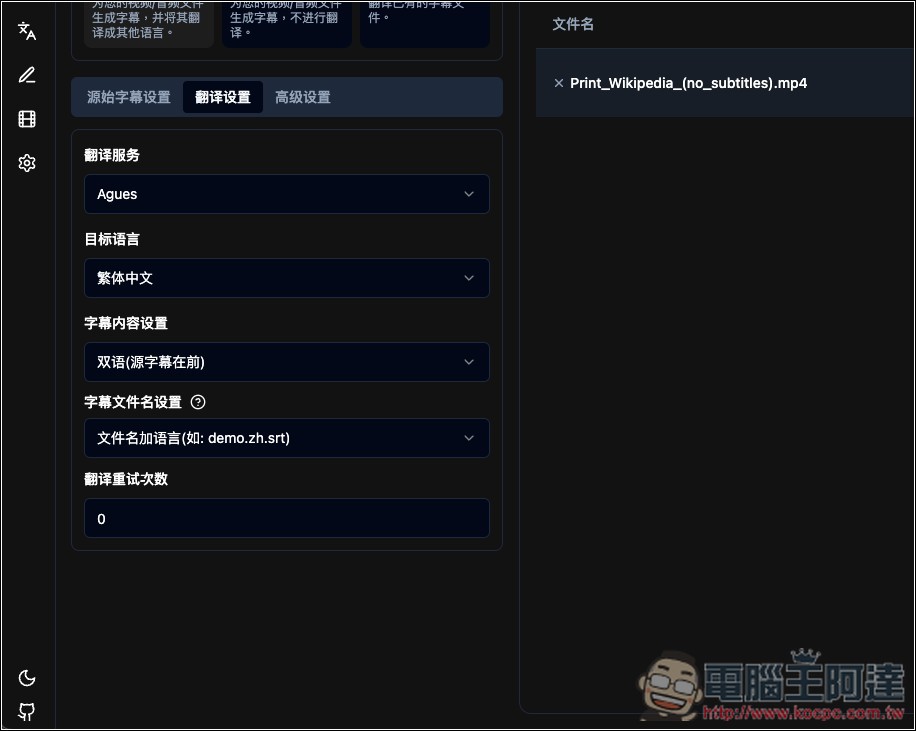
If you want bilingual subtitles, remember to change the ‘Subtitle Content Settings’ to ‘Bilingual’ in your translation settings:
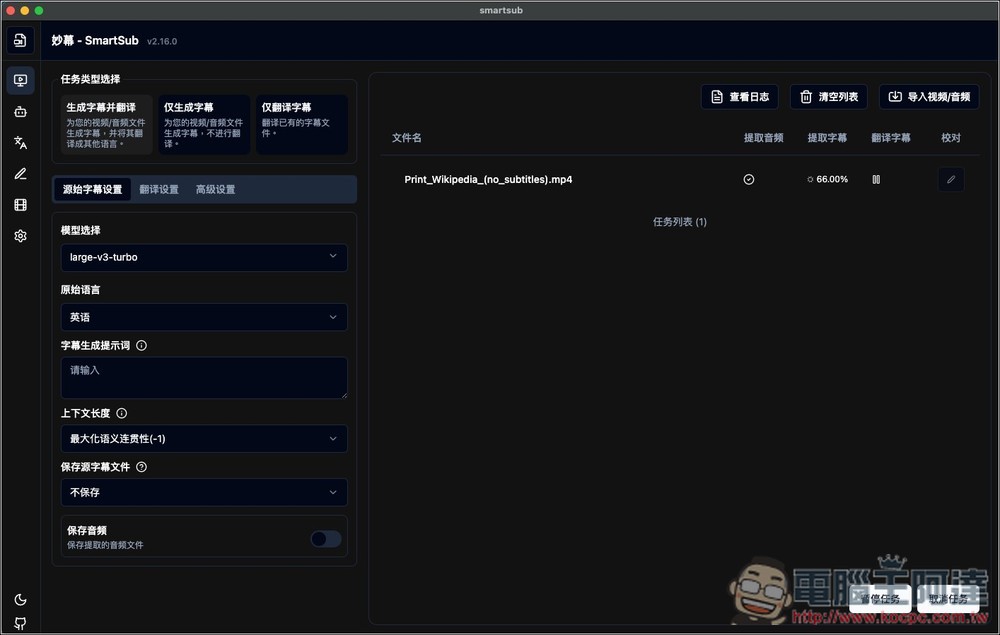
No problem. Press “Start Task” and it will begin converting. The right side will display real-time progress. When all items are checked off, it’s complete.
After completing, you can click the “Proofread” icon on the right to check if the subtitles are correct:
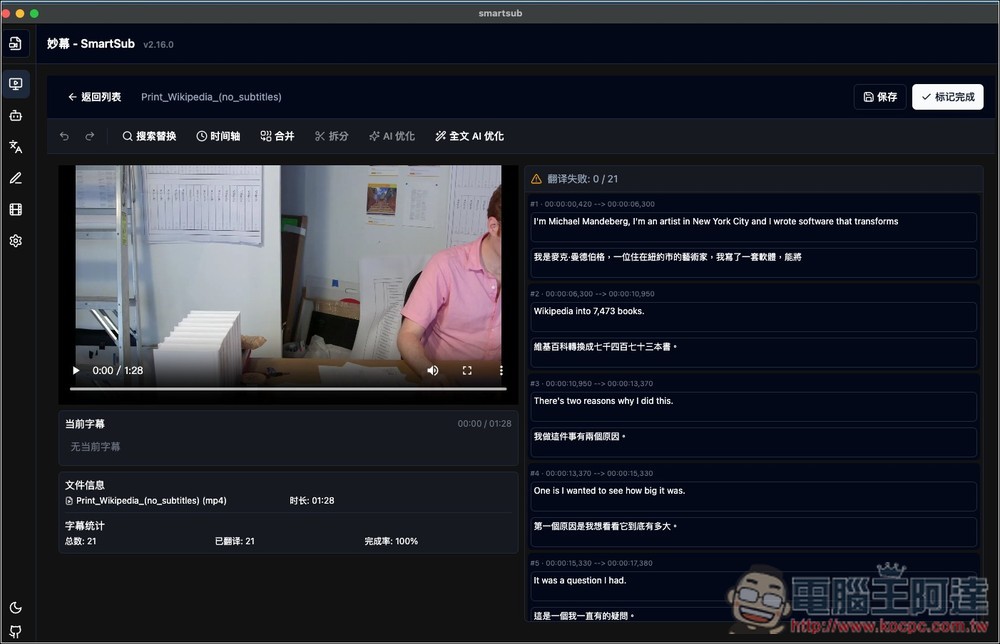
Video test source: VGrigas (WMF), CC BY-SA 3.0, via Wikimedia Commons
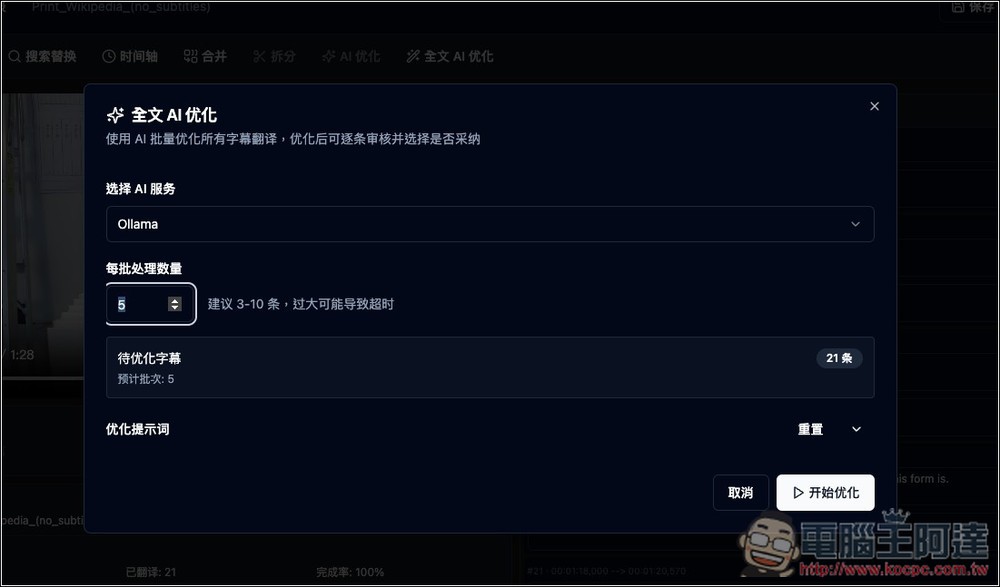
Too lazy to check them one by one? Let AI optimize it:
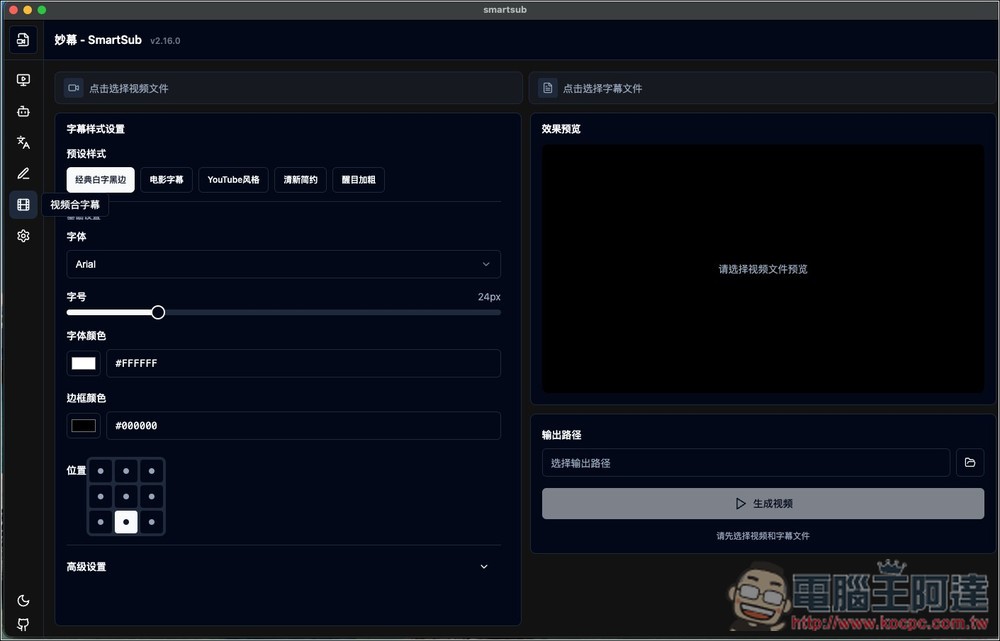
In addition to AI subtitle generation and translation, it also offers video subtitle merging features.
Source: KOCPC Chinese