


I’m sure that when most people hear “NAS,” the first things that come to mind are backing up photos, storing videos, using Time Machine, and so on—or using it as a simple server at the office for sharing files. Generally speaking, as long as it can handle these core tasks—and as long as data doesn’t disappear when a hard drive fails but can be fully restored by simply replacing it—that’s actually enough for most people. But recently, because OpenClaw and Hermes With the emergence of these AI agents, the role and functionality of devices like NAS have become quite interesting, since they were originally designed to run 24/7 (and are essentially basic computers in their own right). and they offer storage, network connectivity, Docker, virtualization—and some models can even run Ubuntu. It seems like you could kill several birds with one stone, right? Well, you actually can! In this post, I’ll use QNAP The TS-464 directly addresses these needs, so I’m sharing it here for your reference.
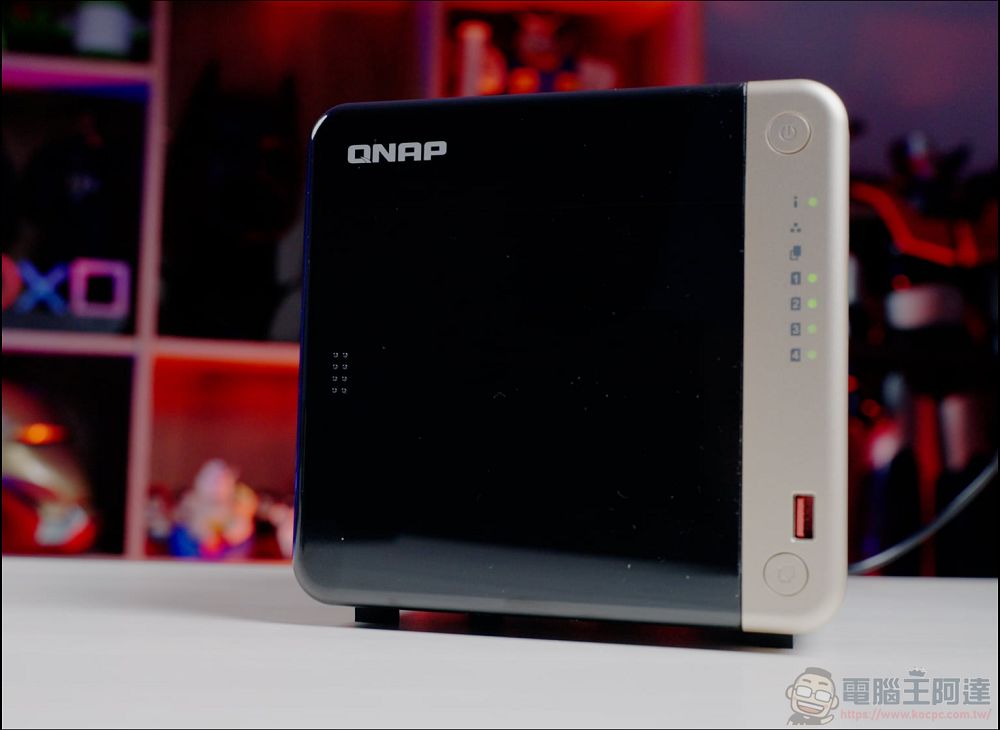
QNAP TS-464 Configuration and Design
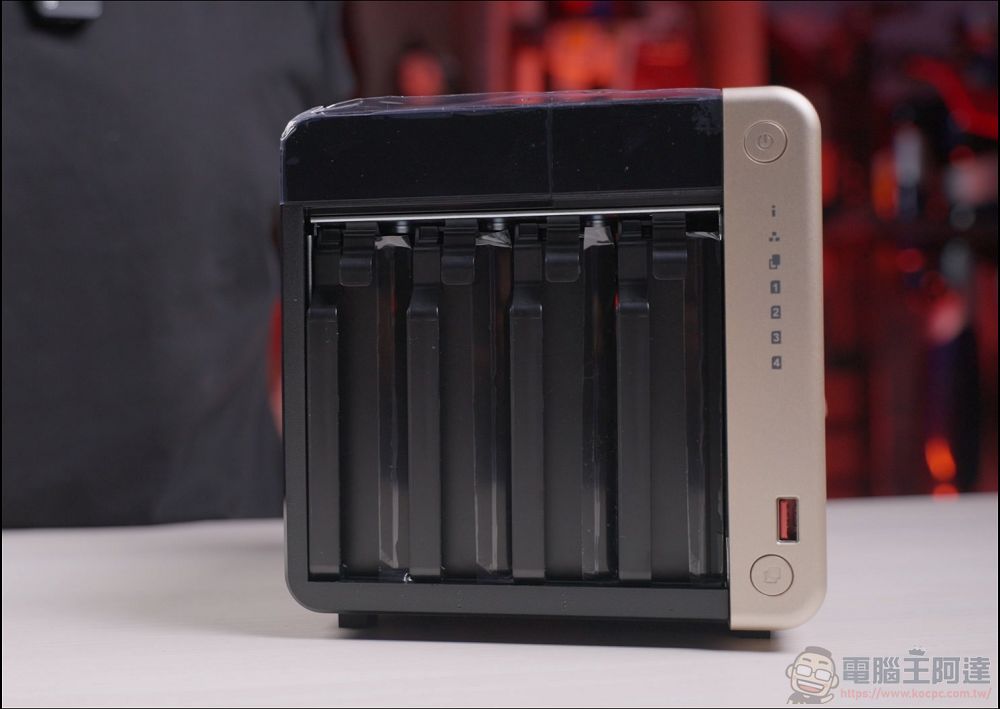
Before we begin, let me briefly introduce the platform we’ll be using: the QNAP TS-464 is a desktop 4-bay NASWhen you open the front cover, you’ll find four hard drive bays that support 3.5-inch SATA hard drives and can also accommodate 2.5-inch SATA SSDs. The front panel features a power button, LED status indicators, and a USB Copy button. This design is very intuitive for general users: simply plug in an external hard drive or USB flash drive to quickly back up data to the NAS.
QNAP TS-464 Official Website (Click here)
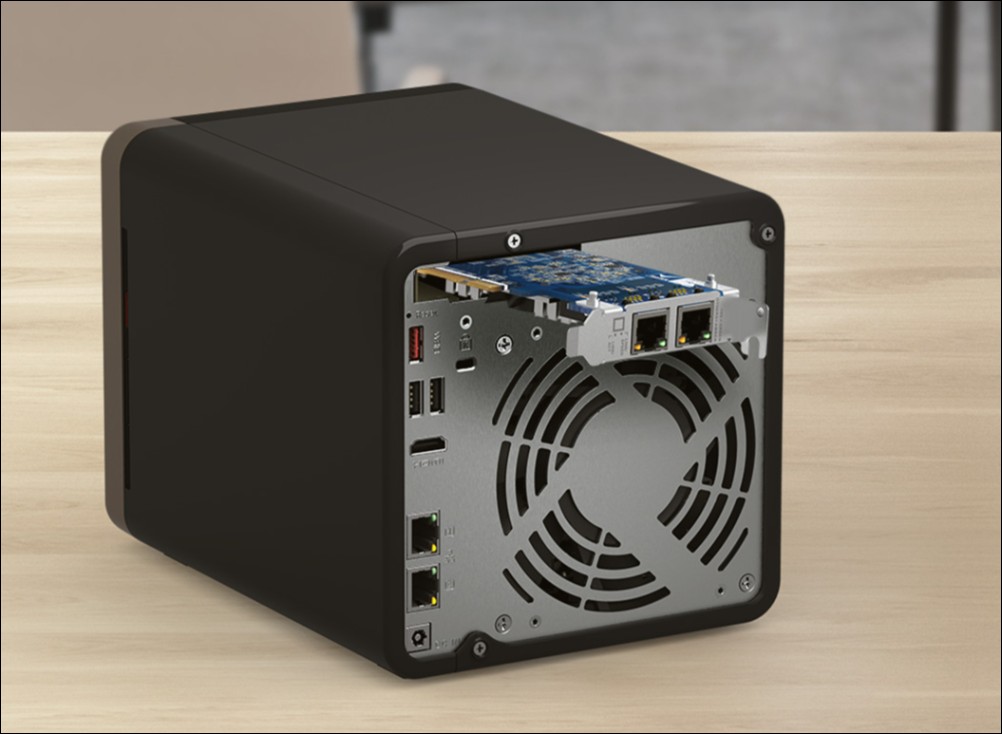
On the back of the unit, there are two 2.5 GbE RJ45 network ports. When used with a switch and port trunking, these can theoretically achieve a higher total bandwidth. If desired, you can also purchase a 5 Gigabit or 10 Gigabit PCIe expansion card to install.
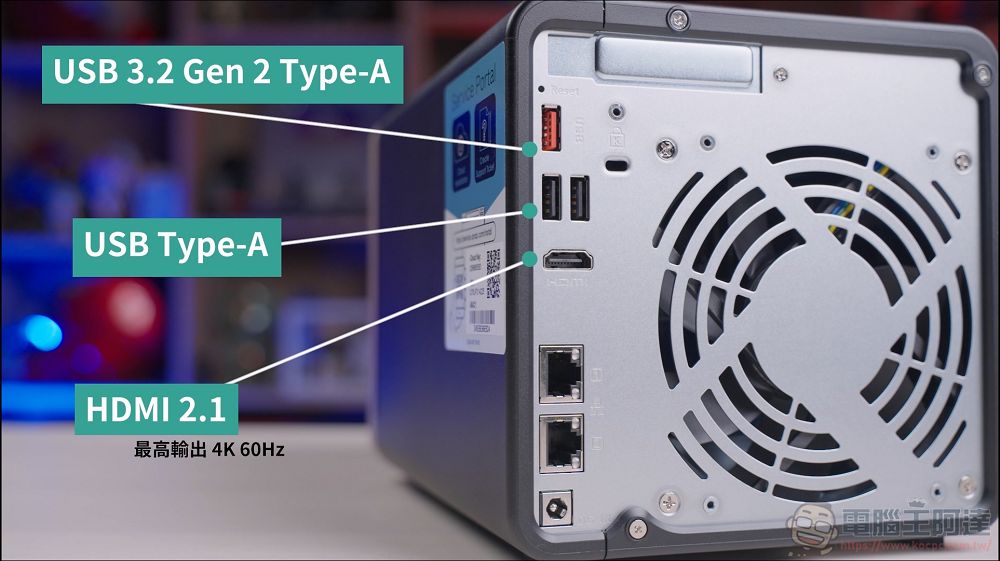
It also features HDMI 2.1, which supports up to 4K at 60Hz, as well as two USB 3.2 Gen 2 Type-A ports, making it convenient for connecting external high-speed storage devices or for backups—it can even be used as a Linux computer:
In terms of specifications, the TS-464-8G is officially equipped with an Intel Celeron N5095 processor and 8GB of DDR4 SODIMM memory, with official support for up to 16GB:
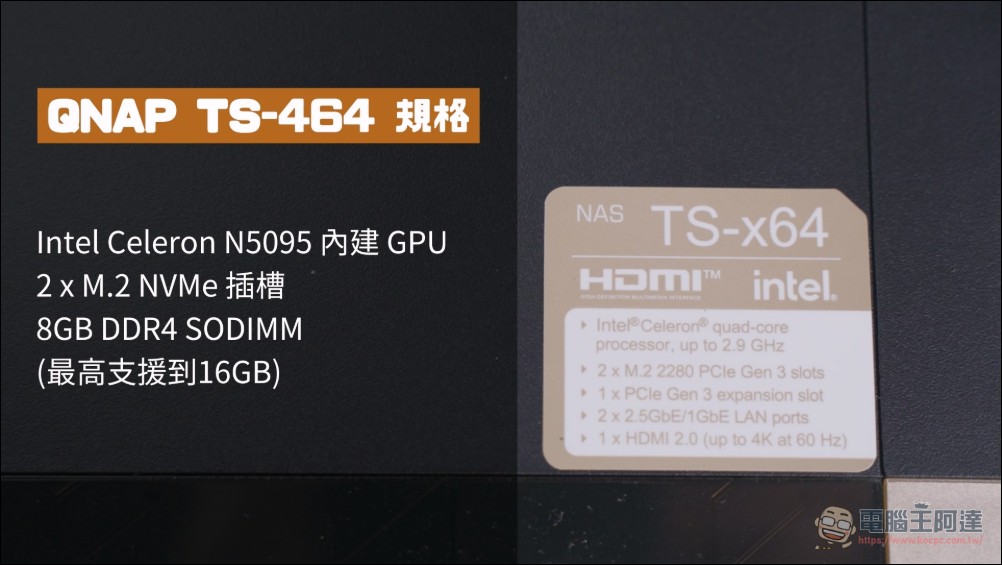
For the hard drives, you can start by setting up a RAID 5 array with four NAS drives of the same capacity, which offers a good balance between storage capacity and data security. If you already have very important data, please remember that RAID is not a backup—you should still create a separate off-site backup of your critical data. As for the optional M.2 SSD, if you’re only using it for watching videos or backing up photos, honestly, you probably don’t need to install one. However, if you plan to run OpenClaw, Docker, databases, indexing, or services involving a large number of small files, I’d recommend installing at least one SSD to serve as a system drive or cache. However, the QNAP TS-464’s M.2 slot is PCIe Gen 3 x1, not full-speed PCIe Gen 4×4, 4 NVMe, so don’t expect it to reach the outrageous speeds of a PC SSD—but it will still help improve app responsiveness and small-file access.
We’ve also filmed a fairly detailed unboxing and OpenClaw installation tutorial, which we recommend you check out.Take a look:
OpenClaw Installation Hands-On Test
Once QTS has finished initializing, you can install a variety of extension apps. Its ecosystem is actually quite comprehensive, covering everything from photo storage, music and video streaming, VPNs, and download assistance to a simple web server. I won’t go into further detail here:
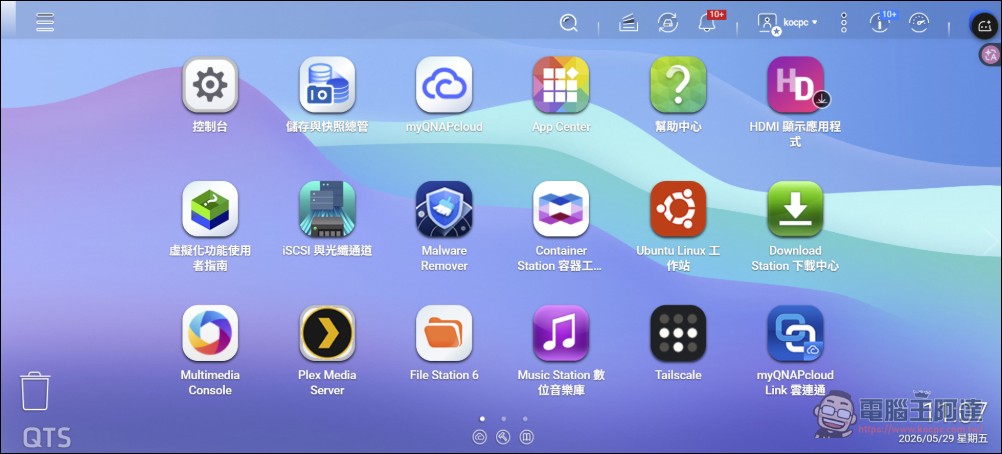
If you want to set up a virtual machine to create an isolated environment for an AI agent, you can use the built-in Container Station, run Virtualization Station, or use Ubuntu Linux Station to run Linux. Personally, I find Linux to be more versatile, so I’ll be using Ubuntu Linux Station to install OpenClaw this time.
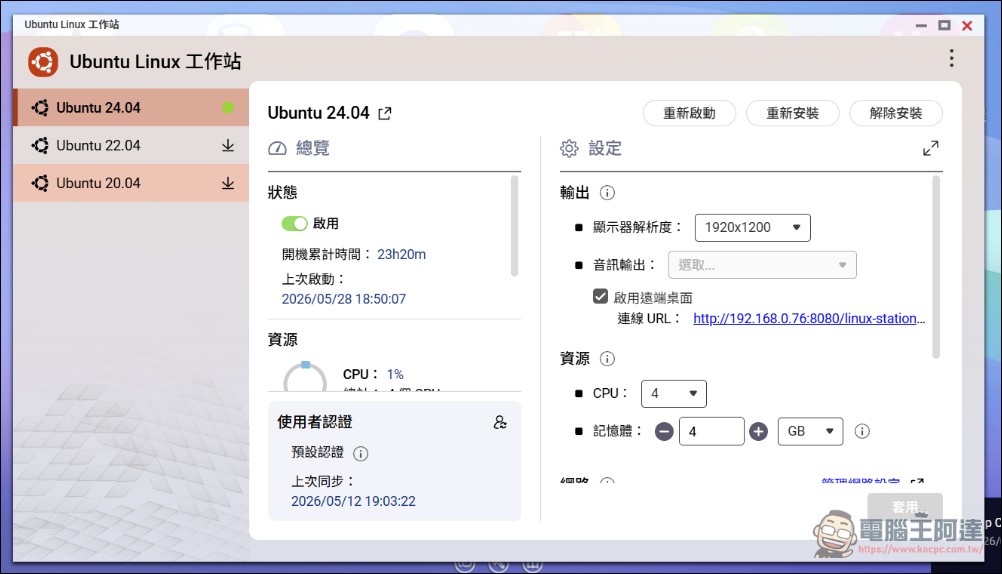
OpenClaw has been featured many times on our website and by me personally. It’s an AI agent designed to run continuously; it can connect to messaging platforms like Telegram, Discord, and LINE, and—with your authorization—execute local commands, read files, and run automated tasks. So while it’s very convenient, the downside is obvious: if you grant it too many permissions or install it on your primary computer, it poses a cybersecurity risk.
Personally, I’ve always advised against running OpenClaw “unprotected” directly on your main computer or NAS operating system. If you’re installing it on your own computer, the simplest approach is to run it in a virtual machine.
How to Install OpenClaw on Ubuntu Linux Station
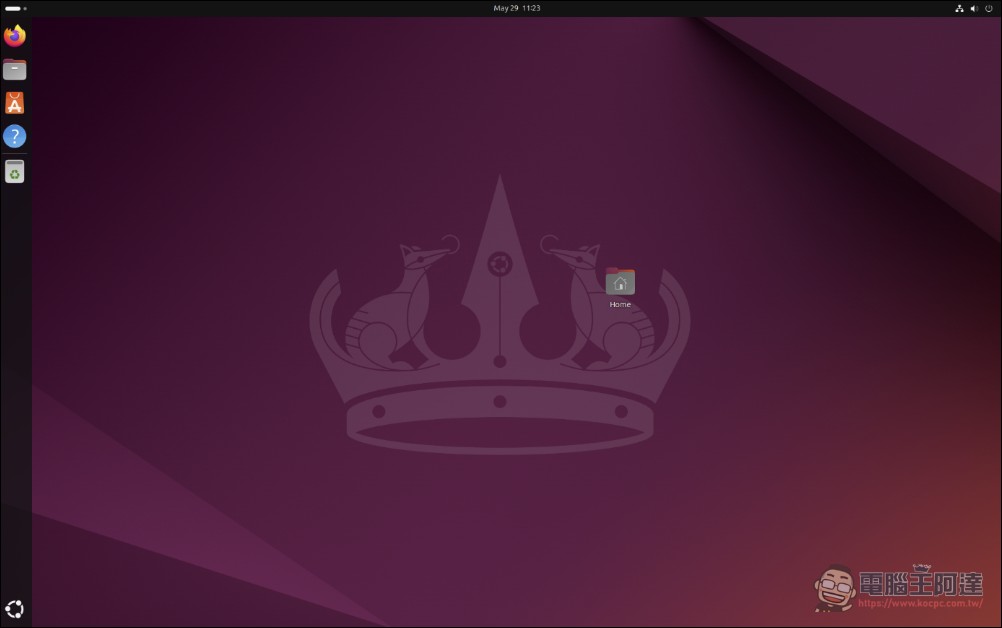
After downloading and installing Ubuntu Linux Station, click the “Connect” URL next to it to launch the Linux virtual machine:
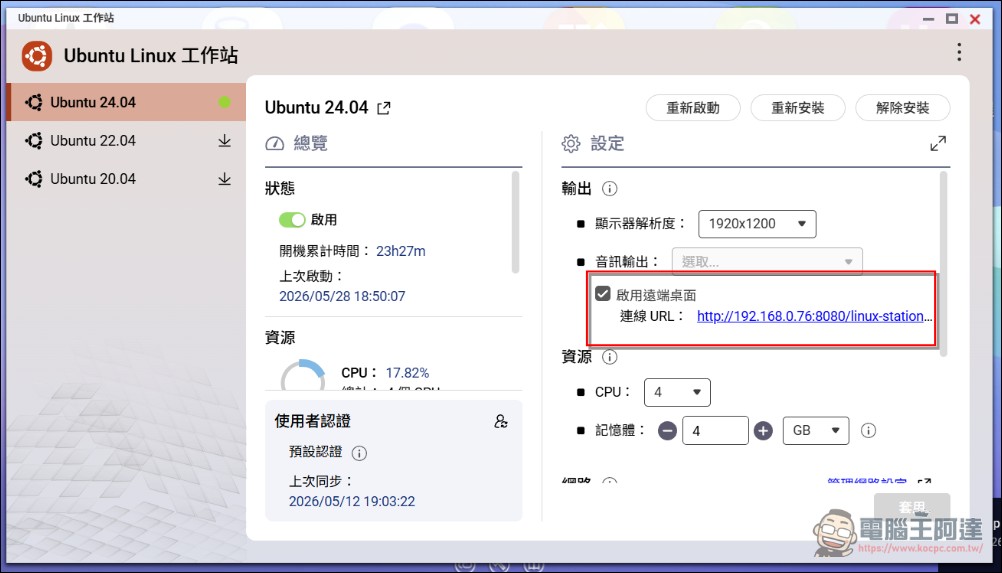
Once you’re logged in, the process is the same as in the previous video tutorial:
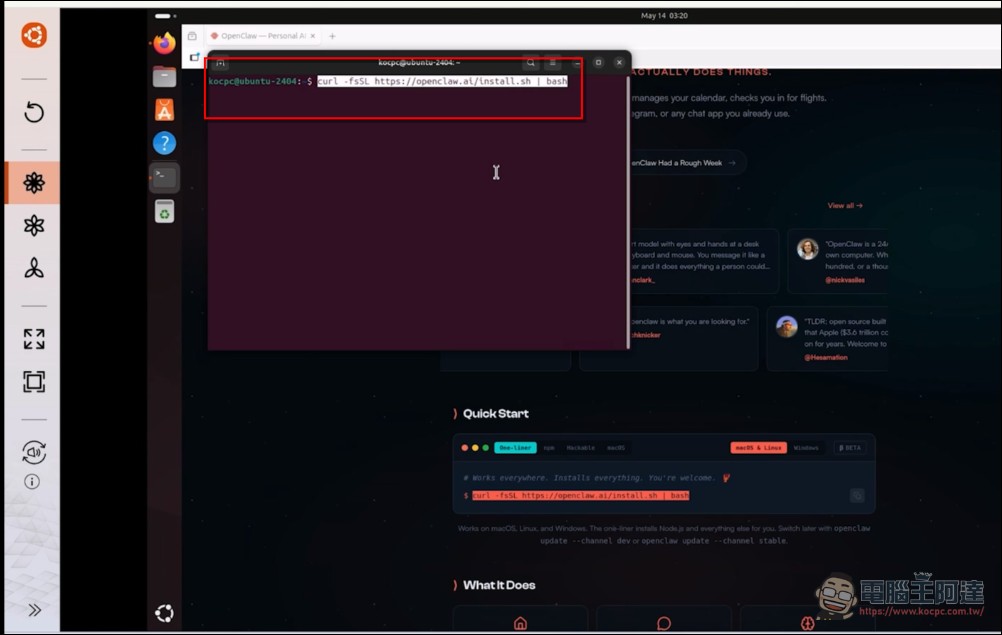
Go to the OpenClaw official website, copy the command, open a terminal, paste it, and start the installation. Once the process completes and the model API is configured, you’re ready to use it. If you’re unsure how to proceed, please watch the video above orThis tutorial:
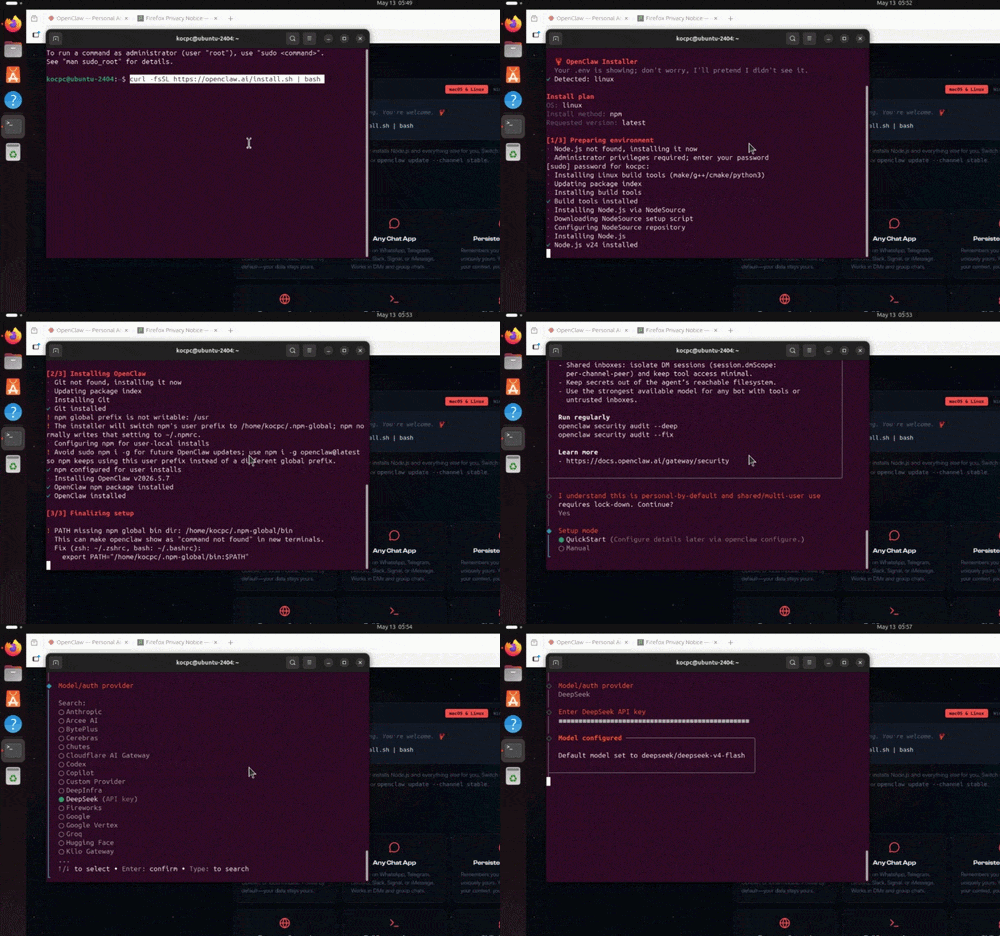
Once you’ve set up Telegram, you can start using the AI Agent right away—it’s completely hassle-free:
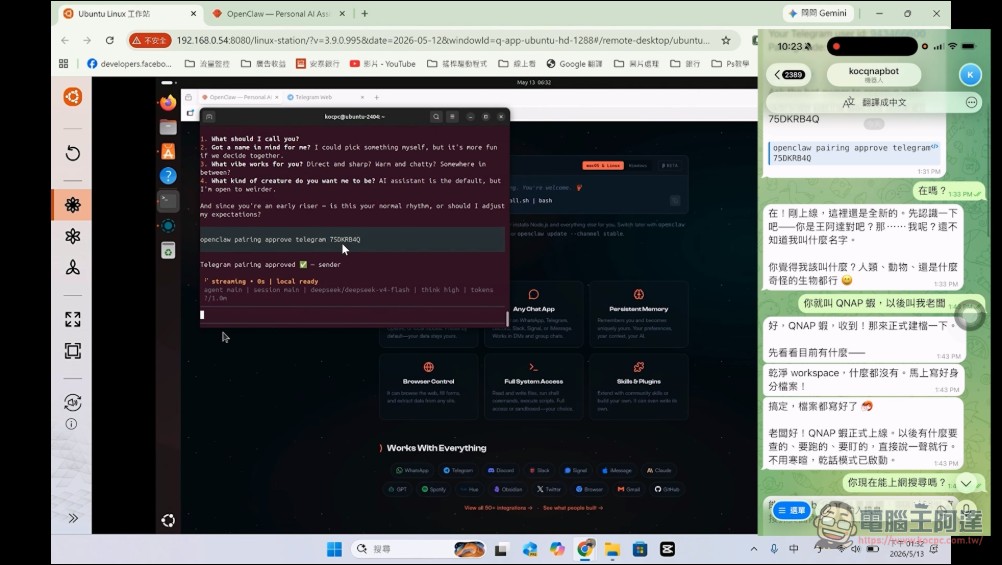
In real-world testing, it was found that the device can understand voice commands, search for information online, and summarize key points:
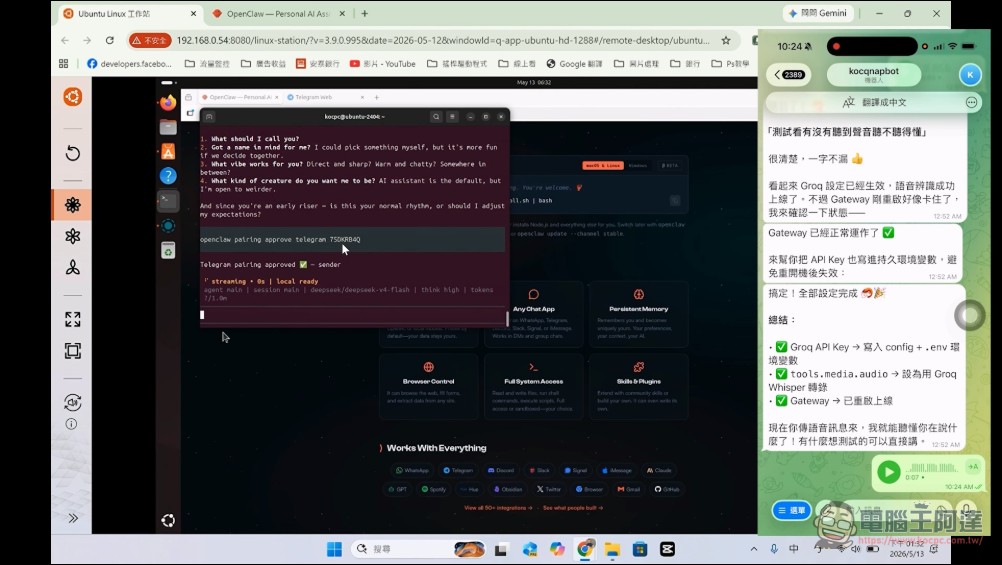
If you want to run Hermes, which has also been very popular lately, just enter the installation command in the terminal. If you’re not sure how, check out this video. Given the current ecosystem, I personally recommend installing Hermes—it’s smarter and uses fewer tokens:
In addition to Linux, the QTS system also includes Container Station, which allows you toFollow this tutorialLet’s install OpenClaw or Hermes. However, unlike Linux, this container workstation doesn’t have a graphical user interface or a browser you can use; it’s a pure CLI interface, so you can’t see what’s running inside it:
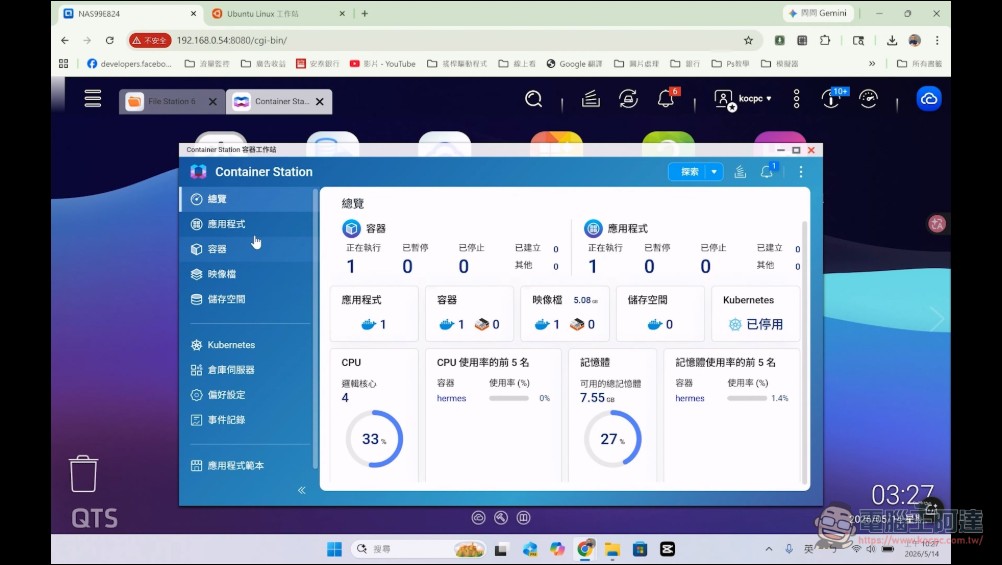
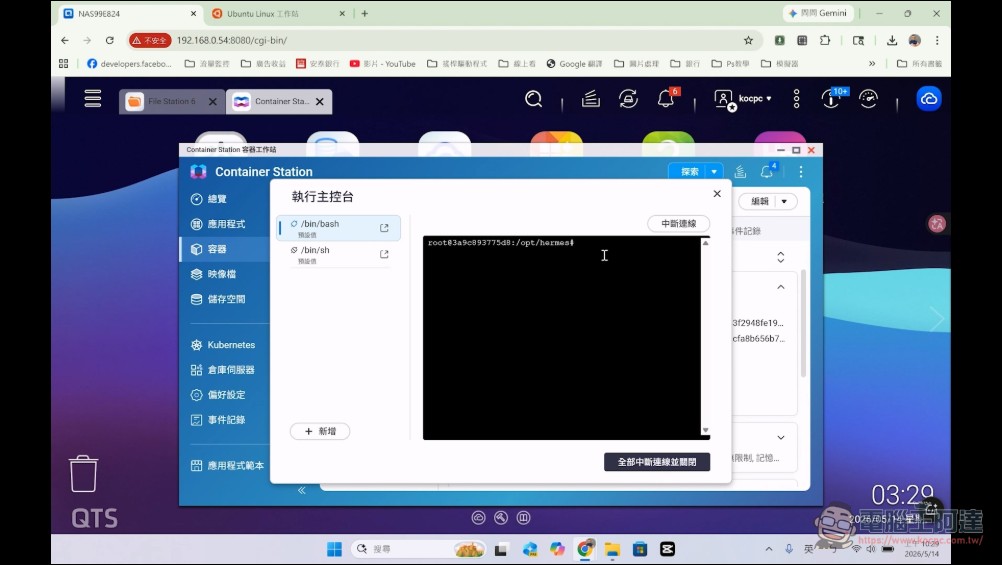
Here’s an important point—as noted in the official QNAP documentation—if you want other devices to connect to the OpenClaw web interface, you can configure Ubuntu Linux Station to obtain its own external IP address, but you must never directly expose the WebUI management interface to the public internet. OpenClaw is an AI agent capable of performing tasks—it’s not just a chatbot. Be sure to protect your API keys, tokens, and system permissions; otherwise, the consequences could be quite serious.
Other Basic QTS Features
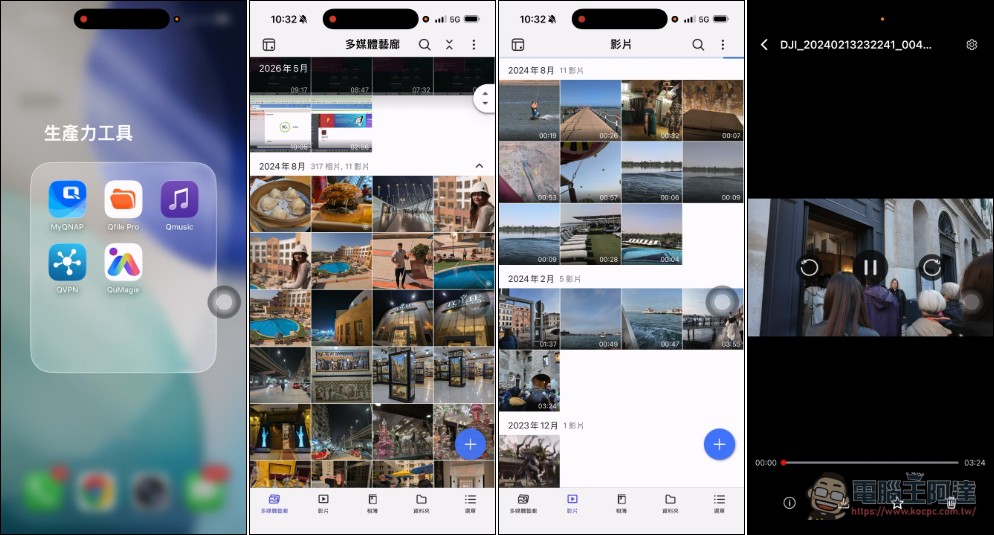
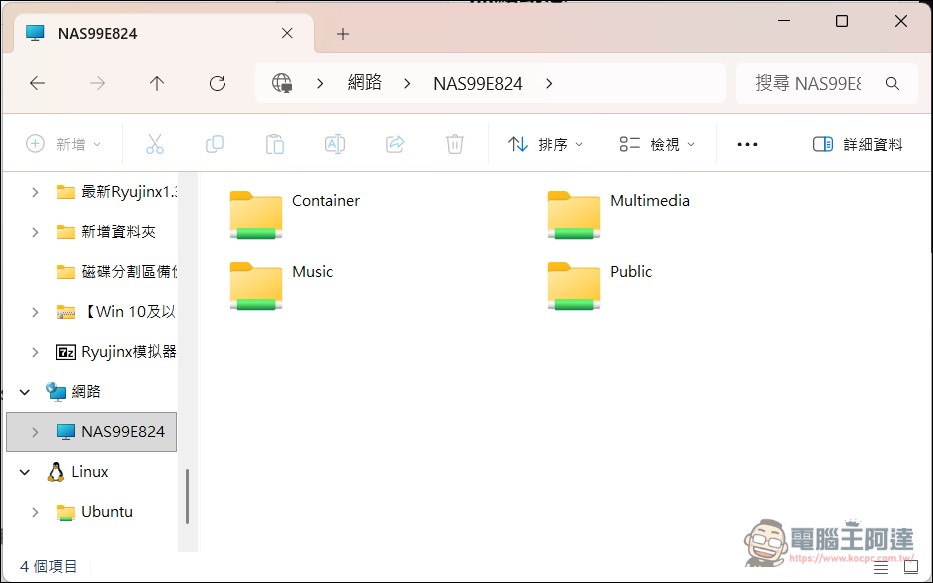
There are also various QNAP-related apps available for both iPhone and Android platforms. In general, they can bypass firewalls to directly access photos and videos stored on the NAS, as well as stream media and set up a home theater… (Be sure to keep your account credentials safe.) I won’t go into detail here, as these are basic operations for any NAS user. Sharing files within the same network is also a breeze:
QNAP TS-464 Official Website (Click here)
Summary
After reading Ada’s brief introduction above, I’m sure you now understand the positioning of mid-range NAS devices like the QNAP TS-464 and what they’re capable of in this era of AI agents. It can’t replace a high-end workstation, and its computing power isn’t sufficient to run large local models, but it’s more than capable of keeping AI agents like OpenClaw online 24/7 to handle tasks, organize files, and run lightweight automation tasks for you. It can also serve as a backup file storage solution for your home or studio. Since NAS devices are designed to run continuously and consume far less power than typical desktop computers, using a NAS to host your AI agent is a great way to kill two birds with one stone if you don’t want to keep your main computer running nonstop.
Finally, my personal recommendation is this: if you’re just looking for general home backup, you don’t necessarily need the TS-464—QNAP offers many entry-level models to choose from. However, if you’re a content creator, work in a small studio, or are an engineer who regularly uses Docker, Plex, VMs, AI agents, etc., and want a machine that doesn’t require manual power cycling every day, then the TS-464 is a great fit. Its strength doesn’t lie in any single standout spec, but rather in the fact that it brings together 4 bays, 2.5 GbE, x86, M.2, HDMI, Docker, and Ubuntu to create a highly flexible desktop NAS.
A machine of the TS-464’s caliber might seem overkill if used solely for backing up photos, but if you think of it as a “home or studio data center combined with an AI agent host,” it becomes excellent value for the money. Especially with the growing number of tools like OpenClaw, I believe NAS devices will gradually evolve from simple storage devices into low-power, always-on automation hosts. Especially now that generative AI is becoming more and more prevalent—whether it’s assets generated by AI-powered art, temporary files from video editing, or the massive datasets accumulated for model training—the sheer scale of this “explosive” growth has likely made many people realize for the first time just how important NAS storage capacity really is.
As expected, future NAS devices will be better suited to AI computing needs. Whether in terms of hardware specifications or software integration, they will undoubtedly become increasingly powerful. As AI applications become more widespread, I’ve also noticed that QNAP is taking an increasingly proactive approach in this area. That concludes my unboxing and hands-on review of the QNAP TS-464 paired with OpenClaw. I hope you find this helpful.
To learn more about QNAP AI NAS and related applications, please visit the QNAP booth at Computex 2026 (June 2–5, Taipei Nangang Exhibition Center, Hall 1, Booth J1209a).
Get a sneak peek at exciting solutions and new products:https://www.qnap.com/zh-tw/campaign/2026/computex
Source: KOCPC Chinese