


No matter how high-end and powerful your computer is, over time it will eventually start to become sluggish due to various factors. It may be a performance gap caused by a slowdown in hard disk read and write speeds, processor downclocking due to excessive temperature, long-term accumulation of memory leaks, or system updates not being installed in time. Building or purchasing a powerful computer is just the starting point. To keep it smooth, quiet, and reliable throughout its life, routine maintenance is key.
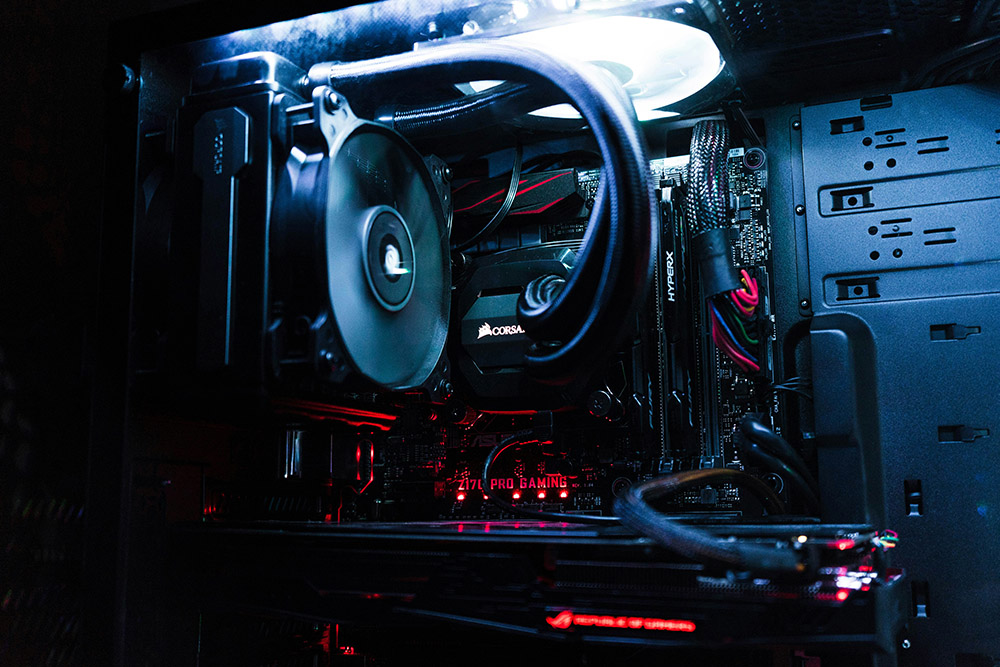
5 simple maintenance tasks to keep your computer running like new
The good news is that maintaining your computer does not require advanced skills, nor does it take a lot of time. As long as you spend a few minutes occasionally for simple cleaning and inspection, you can effectively extend the life of the hardware and keep the system in optimal condition. Regularly clear junk files, update drivers and operating systems, check the health of storage space, and clean dust on fans and radiators. These seemingly basic actions can bring significant performance improvements. When you are willing to invest in these small maintenance tasks, your computer will reward you with more stable performance, lower noise, better cooling efficiency, and longer service life. Whether it is daily work, gaming and entertainment, or professional creation, a well-taken care of computer can still maintain smoothness after many years, allowing you to truly feel that “good maintenance is more cost-effective than blind upgrades.”
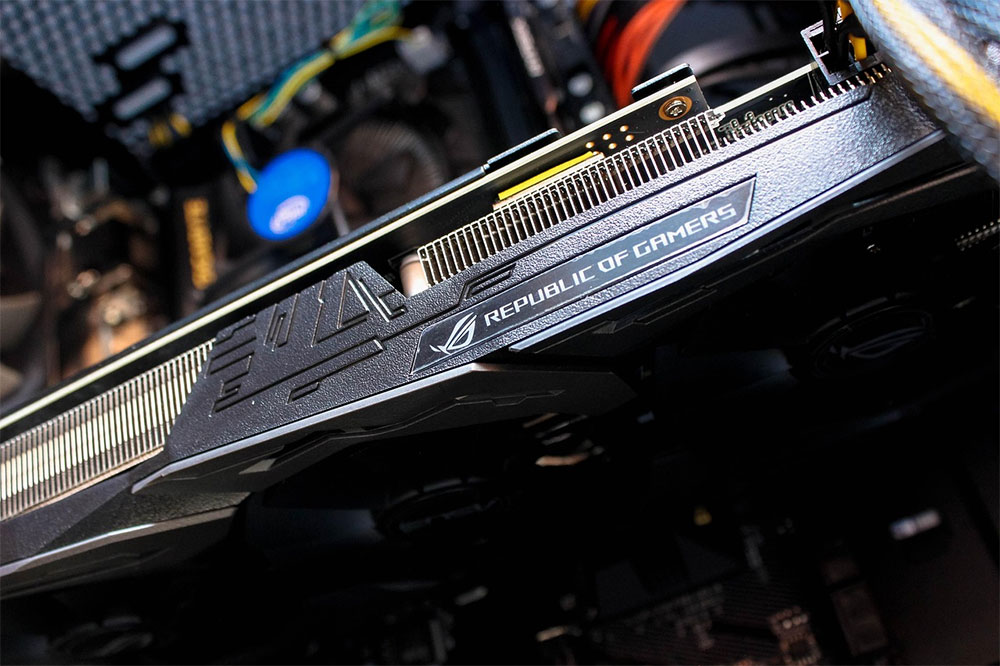
deep cleaning
Dust has a troublesome characteristic: it is always pervasive. No matter how diligent you are in keeping your environment tidy, it’s almost impossible to keep your computer completely dust-free. It may take months, not weeks, before dust begins to accumulate noticeably, but eventually it will show up. The reason is simple. Your computer must suck in air through the intake fan to dissipate heat, and dust is the most unwelcome “hitchhiker” in this airflow.
The airflow design of different cases will affect the location and speed of dust deposition, but given enough time, every computer will become visibly dirty. It’s not just a matter of appearance. Dust can make an otherwise clean case look old and dull, and more importantly, it can impede air circulation. If the fan blades are covered with dust, they must rotate at a higher speed to suck in the same amount of air. Over time, even if the fan is running at full speed, it may not be able to effectively remove heat, causing components to overheat, performance to drop, and even the entire computer to become noisy and unstable.
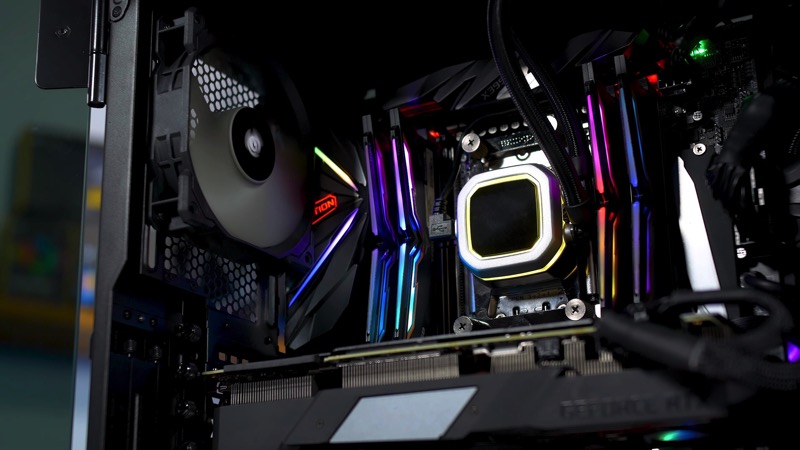
The good news is that daily cleaning is not required to avoid these problems. A thorough dusting every three to six months, depending on environmental conditions, can effectively maintain cooling efficiency. Regularly cleaning the inside of the fan, heat sink, and case will prevent dust from accumulating enough to block airflow and prevent overheating from becoming a long-term hazard. If dust is allowed to accumulate for a long time, it will not only affect performance and temperature, but when you finally decide to clean it, the entire process will become more time-consuming and troublesome. Rather than letting dust “take root” in the case, it is better to spend some time on regular maintenance to keep the computer clean, quiet and efficient.
Delete junk files to prevent SSD from slowing down
SSDs actually need a little “breathing space” to maintain optimal performance. When the controller needs to write new data, it will empty some partially filled cells by rearranging and moving existing data. This process is called “garbage collection.” The efficiency of garbage collection depends on the available empty blocks inside the SSD. If the hard disk space is less and the more blocks are filled, the empty storage space that the controller can use will be limited, and the time required to clean and reorganize the data will also increase. This is why SSDs often feel slower after being used for a while. When there is insufficient space, the controller must spend more time clearing partially filled storage cells to make room for new write operations. These additional clearing actions will cause delays and slow down the overall write speed.
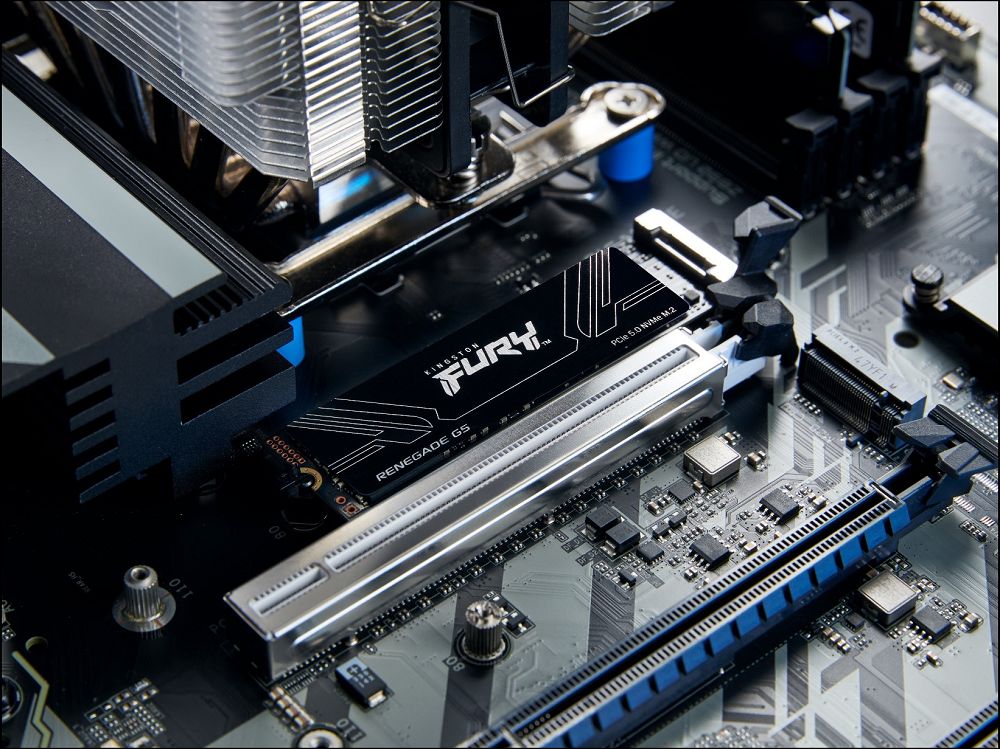
In addition, excessively frequent data rewriting can also cause “write amplification” (Write Amplification), which means that in order to write a small amount of data, the SSD needs to perform more additional writing operations. Write amplification not only slows things down, it also accelerates SSD wear and tear, shortening its lifespan. To avoid these problems, it is recommended to keep about 10% to 15% of free space on the SSD. This makes garbage collection more efficient and reduces unnecessary write amplification. If you want to find out what data is taking up space on your SSD, you can quickly scan it with a disk analysis tool like WizTree. Windows’ built-in functions can also automatically clean up temporary files and junk data to help you maintain healthy storage space.
If you’re shopping for an SSD, choosing a model with DRAM cache can also improve overall performance. DRAM can help the controller more quickly track which cells are empty and which are used, making data writing and garbage collection smoother. As long as you pay a little attention to space management and regular cleaning, SSD can maintain fast and stable performance for a long time and will not gradually slow down due to lack of space.
Watch out for component overheating
As mentioned earlier, dust accumulation can cause your computer to overheat, but that’s not the only heat source problem. Even if your case is clean as new, your CPU, GPU, or SSD may still be abnormally hot due to other factors. Therefore, it’s a good idea to check system temperatures every one to two months to ensure that all components are operating within safe limits. Sometimes the problem may simply be that the fan curve is set too conservatively, causing the CPU to stay in a near-underclocked temperature range for an extended period of time. It may also be that the overclocking setting of the graphics card is too aggressive, making the cooling system unable to effectively remove heat. Even high-end SSDs, especially Gen5 NVMe, can experience significant underclocking due to excessive temperatures under heavy loads, resulting in performance well below expectations.
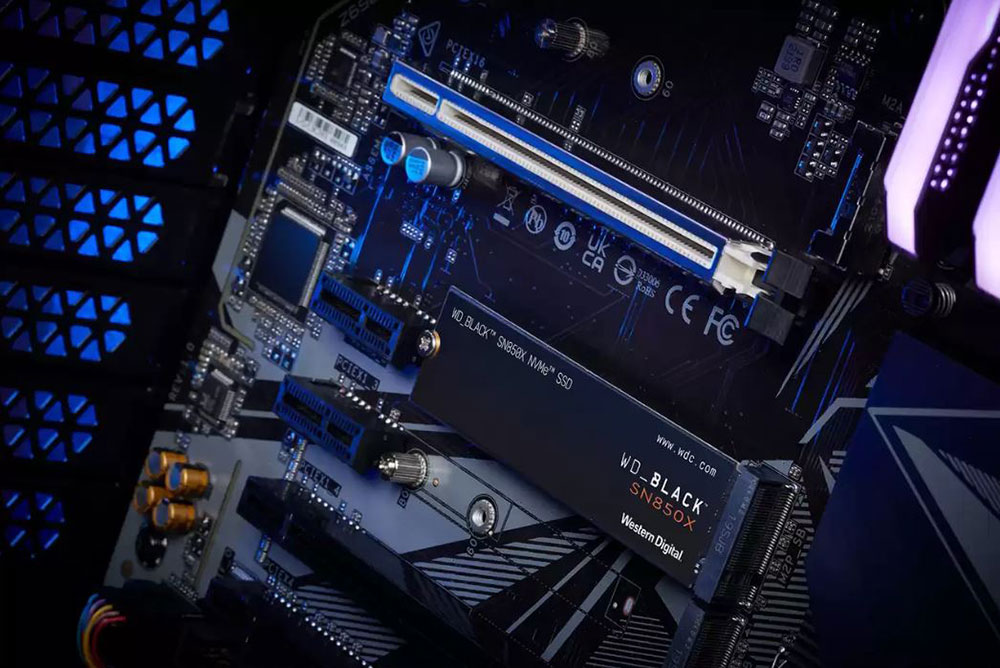
Regularly observing the temperature will allow you to detect these anomalies early and make adjustments accordingly. If the overheating problem is ignored for a long time, or if the hardware is not aware that the hardware has been operating at high temperatures for many years, the life of the computer may be significantly shortened. Excessive heat is a chronic damage to all components. If you can cool it, don’t heat it. This is the rule in the hardware world. Of course, occasional high temperatures do not require excessive stress, but “thermal throttling” and “high temperatures within the normal range” are two different things. The former means that the hardware has been forced to reduce performance to protect itself. In the long run, the system will age faster, and performance may suddenly drop or become unstable when you least expect it. As long as you get into the habit of regularly checking the temperature, you’ll have a better understanding of your computer’s health and be able to deal with problems before they become serious.
Occasionally shut down and restart occasionally
For people who are used to leaving their computers in sleep mode for long periods of time, shutting down occasionally may sound like a nuisance, but it’s actually one of the best ways to avoid inexplicable delays and weird instability issues. If the computer is not actually shut down for several weeks, Windows may not be able to properly release system resources. Over time, memory leaks, excessive background program usage, etc. may occur, making the overall performance worse and worse. There’s another common side effect of using sleep mode exclusively for long periods of time: driver conflicts. Some drivers do not fully function properly between sleep and wake-up, which may cause device abnormalities, delays, or instability over time. In addition, if Windows updates are not installed through restarting, the system may be left in a semi-updated state, causing more unexpected problems.

Therefore, it is recommended to perform a complete shutdown at least once every 15 days to give the system a chance to reorganize resources, clear accumulated error states, and ensure that updates can be completed smoothly. This is a very small effort, but it can lead to a more stable and smoother user experience. Moreover, modern systems can actually be restored very quickly. Most browsers can automatically restore your tabs after restarting, and Windows can reload commonly used background programs in seconds. In other words, shutting down occasionally won’t disrupt your workflow, but will keep your computer running at its best.
Don’t neglect important BIOS updates
BIOS updates have always seemed like a high-risk thing to many people, as if pressing the update button could brick the computer. But in fact, these concerns are no longer in line with the current design status of modern motherboards. Most of today’s motherboards are equipped with protection mechanisms such as BIOS flashback or dual BIOS. Even if the update fails unexpectedly, the system can be restored smoothly without causing a disaster that cannot be booted.
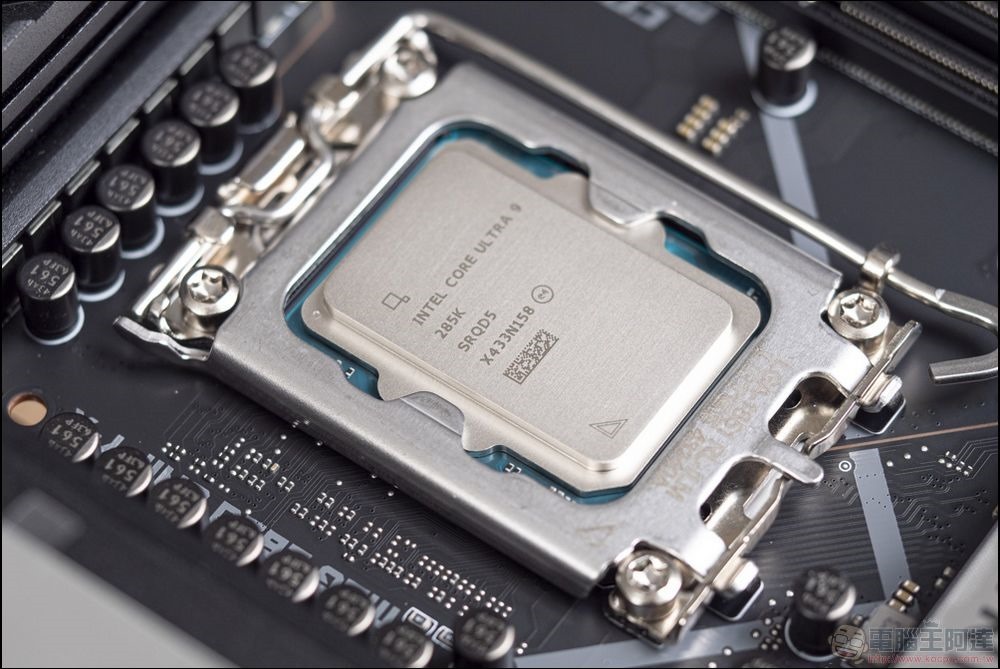
Since the update risk is greatly reduced, ignoring BIOS updates for a long time will make you miss many important improvements. Motherboard manufacturers often use BIOS updates to add new features, improve stability, improve compatibility, and even patch critical security vulnerabilities. If you stay stuck on an older version, your system may unknowingly be subject to unnecessary limitations. Of course, you don’t need to chase every BIOS update, nor do you need to install an update as soon as you see it. But it’s still a worthwhile habit to check for important updates every six months to keep your system healthy without burdening you with frequent updates.
In other words, modern BIOS updates are not as scary as they used to be, but part of maintaining a stable and secure computer. As long as you pay proper attention, you can enjoy the benefits it brings with very low risk.
You can check the release notes to learn how a BIOS update may affect your computer. If you’re worried about bugs or instability, check out Reddit and other forums to see first-hand experiences from those with updates. If everything looks fine and the BIOS version promises stability or security improvements in the update notes, you can go ahead and update your machine.
Taking a few minutes to maintain your computer once in a while is nothing to worry about when you consider what you get in return. Ensuring your computer stays cool, dust-free, updated and free of junk files extends its life so you can enjoy peak performance for longer. Every piece of hardware eventually ages, but you can significantly delay that day by doing your best.
Source: KOCPC Chinese