


Whether you have just switched from PC to Mac and find that the position of “@” or “#” is completely different from what you are used to; or you are looking for commonly used symbols such as the euro sign (€), pound sign (£), pound sign (#), etc. but can’t find them; or even when you are working or traveling and need to enter some unusual special characters, symbols or accented letters temporarily, this article can help. Next, the author will guide you to quickly master various methods of entering @, #, €, £ and other special symbols on Mac, from the simplest key combinations to more advanced input techniques.
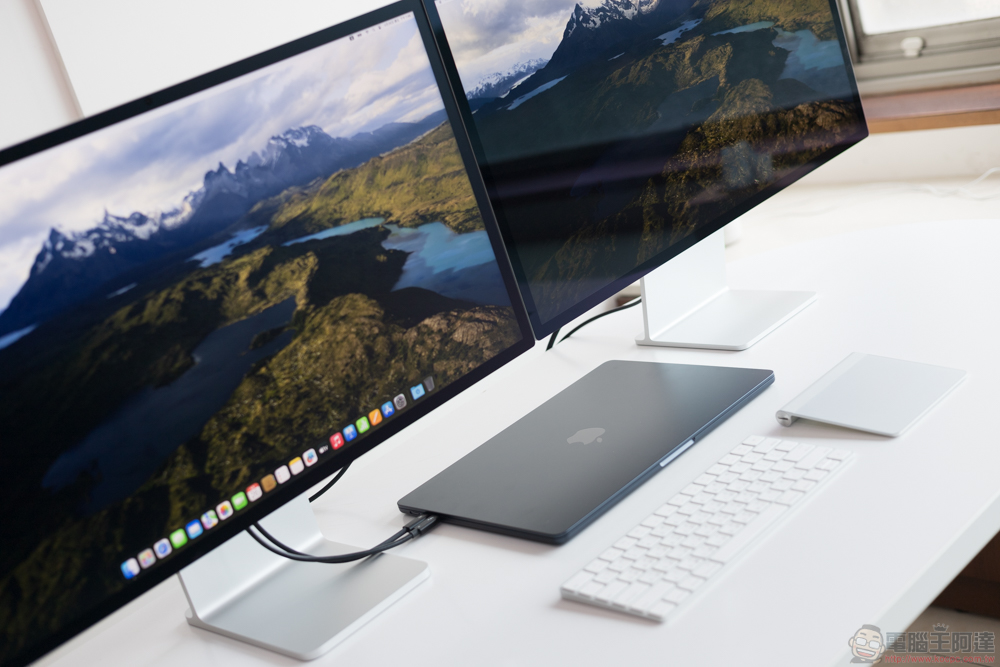
How to type @, #, €, £, and other special characters on Mac?
On macOS, there are some symbols that you may use frequently, but they may not necessarily appear directly on the keyboard, and may even be in a completely different location than on Windows. Don’t worry, these symbols have not disappeared, they are just hidden deeper. The author will tell you step by step how to input them, so that you can type on Mac as smoothly as on PC.
List of special character positions
| special characters | US Mac keyboard |
| € | Alt/Option + Shift + 2 |
| £ | Alt/Option + 3 |
| # | Shift + 3 |
| @ | Shift + 2 |
| © | Alt/Option + G |
| ® | Alt/Option + R |
| ™ | Alt/Option + 2 |
| ° | Shift + Alt/Option + 8 |
| √ | Alt/Option + V |
| | Alt/Option + Shift + K |
Alt and Option confusion
Another area that often confuses people is that “Alt” and “Option” are marked inconsistently on the Mac keyboard. Some keyboards are marked only with Option, while others are marked with Alt as well, and even keyboard layouts vary slightly from region to region. No matter how they are named, they are actually the same key, represented by this symbol on the Mac: ⌥.
This also explains why when you look up tutorials, you may see someone mention the Option key and someone else say the Alt key, but you won’t find either one on your keyboard. In fact, they refer to the same button. If you’re not sure where it is, here’s our explanation: The location of the Option key is actually very fixed, it’s just labeled differently.
If you’re using a PC keyboard on a Mac, the confusion is even greater. Because in this case, Alt on the PC keyboard will correspond to Option on the Mac, and the Windows key will become Command. For users who have just switched platforms, this key mapping method can easily cause confusion.
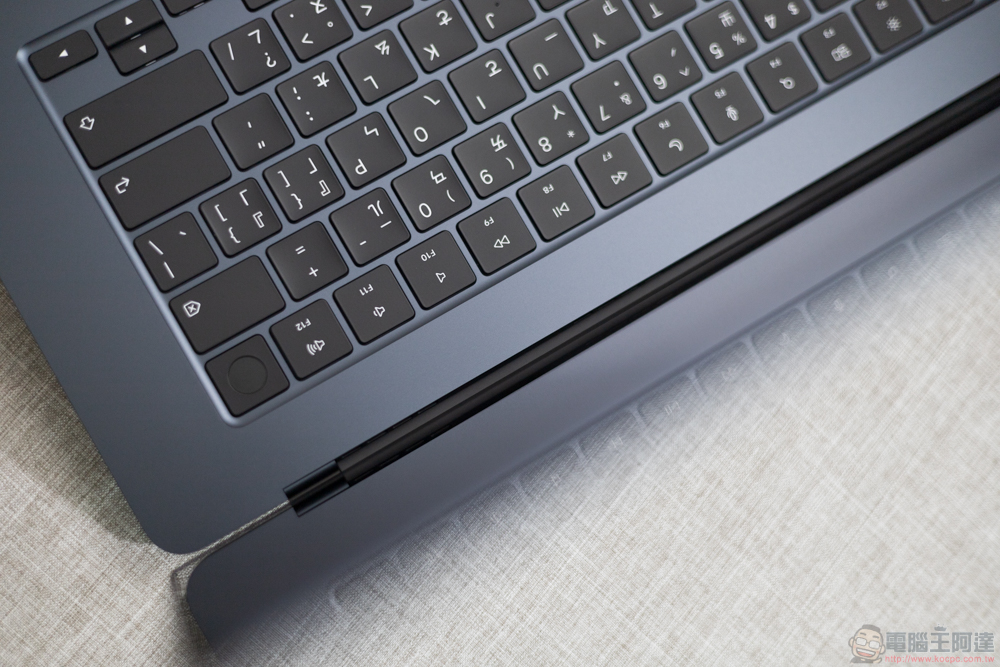
What are the hidden characters on the keyboard?
To enter many of the special characters you need, you may need to press the Alt or Option key. So, before we get started, here’s a brief overview of the hidden characters you can type using the Option/Alt keys. Let’s take the American keyboard, which is most commonly used in Taiwan, as an example:
How to enter special characters on Mac
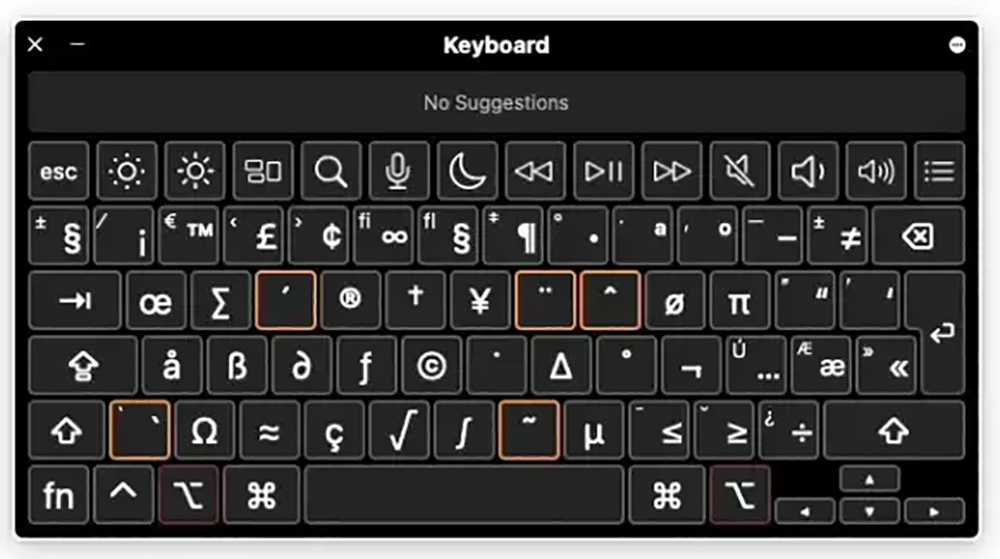
You may remember the “Character Viewer” in macOS—the tool that expands all symbols and allows you to directly click and insert them into your document. It actually appeared earlier than the emoji panel, but since emoji became popular in large numbers, it has been hidden deeper, but its functions are still complete and available at any time.
As mentioned earlier, you can press Control + Command + Spacebar to bring up the emoji panel. Then, just click the small icon in the upper right corner of the panel to switch to the full character viewer. Here, you can not only find various emoticons, but also arrow symbols, currency symbols, mathematical symbols, technical symbols and many more categories.
For example, the character viewer lists several currency symbols:
¥、¢、₽、₩、₱、₹、﷼
You can also find common and uncommon mathematical symbols:
∄、ℇ、ℏ、≥、≯、Σ、√、∱、≉
If you need to type some symbols that aren’t found on the keyboard, the character viewer is often the fastest and most intuitive way to do it. There are also hieroglyphics that predate emojis, including all of the above.
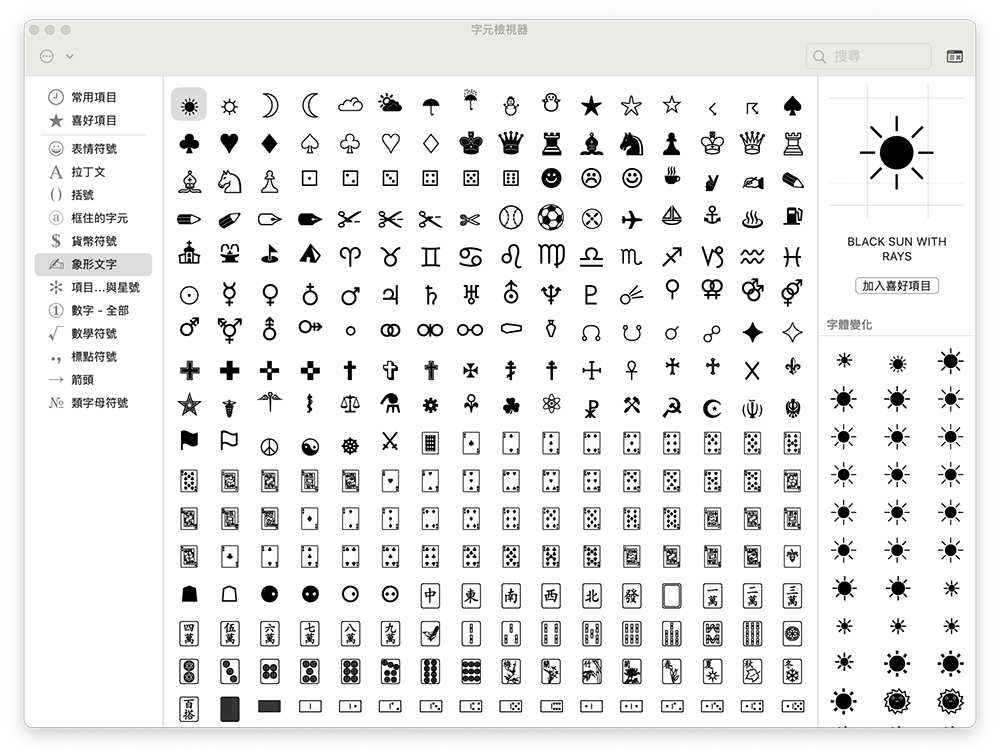
How to see an on-screen keyboard overview
If you want to check the keyboard configuration of any language, macOS actually has a very useful “simulated keyboard” built in. You can quickly turn it on by following these steps:
- Check whether there is an input method icon in the menu bar
In the upper right corner of the screen (next to the Spotlight search icon), if you see an input method symbol for American, British, or another language, click it. - Open keyboard viewer
In the expanded menu, you will see “Show emojis and symbols” and “Show simulated keyboard”, select “Show simulated keyboard”.
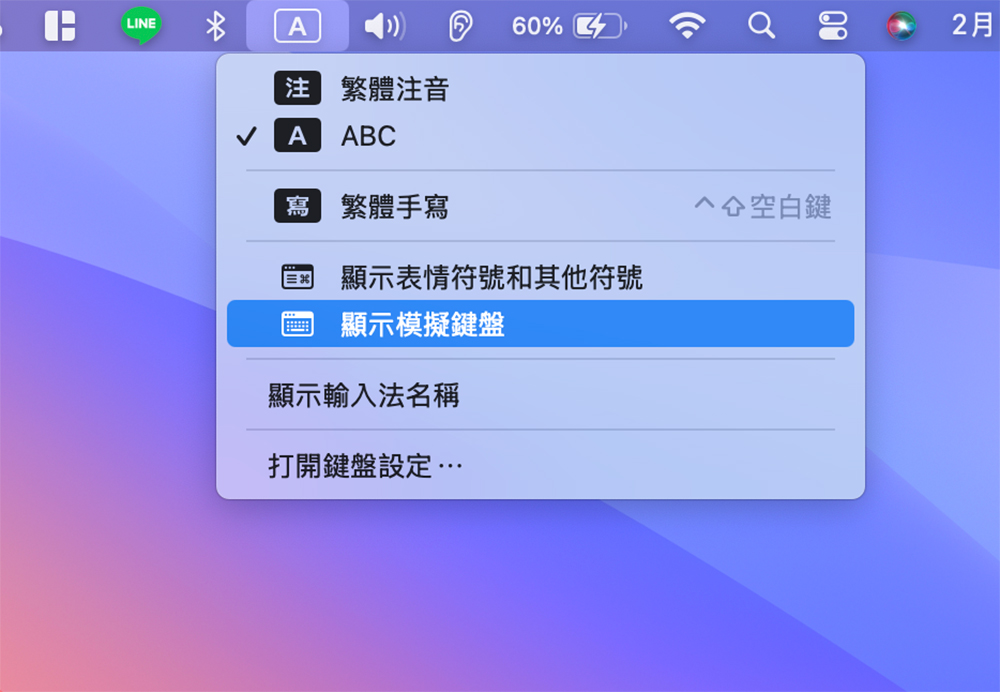
- View the characters that can be output by different key combinations
- After clicking it, you will see an interactive virtual keyboard.
- Press the Option (⌥) key on the physical keyboard, and the virtual keyboard will instantly display the symbols that can be output by each key after pressing Option.
- Press Shift + Option together and you’ll see more hidden characters. This is very helpful for entering special symbols.
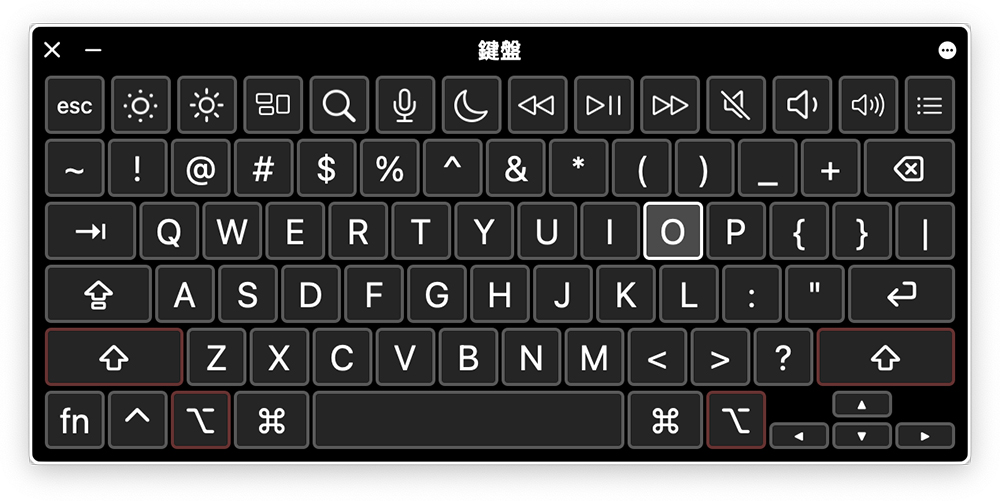
- If you can’t find the input method icon
Go to “System Settings > Keyboard” and make sure “Show input menu in menu bar” is checked. When enabled, the input method icon will appear in the menu bar. There is an additional benefit of using the virtual keyboard: when you are typing text, it will simultaneously display possible auto-complete suggestions, allowing you to find the word or symbol you want to enter faster.
Source: KOCPC Chinese