


In the Windows operating system, everyone should also know that the update messages of certain software are very annoying. Obviously, the software rarely uses network resources, but it likes to bother you with notifications of new messages, which is very annoying. But you can’t unplug the Internet just to block a single software message notification, which is a bit impractical. But having said that, managing application network permissions is also an important part of maintaining computer security and privacy. Whether it is to prevent automatic software updates from causing version compatibility issues, or to prevent specific applications from transmitting data without permission, there will be times when it is necessary to “disable software from connecting to the Internet.”
If you want to block network functions in Windows, you must disable it through firewall settings. However, many people think that firewall settings are very complicated work, so they give up. But in fact, it is very simple to set up the software connection function through the built-in firewall of Windows, and it is enough to meet most needs, and it can be used without installing additional tools.
This tutorial will demonstrate how to set up a firewall “block connection” rule, allowing you to block the network for software and ensure that the software is completely offline when running:

(Image source: AI generated)
Use Windows built-in firewall to block software from connecting to the Internet
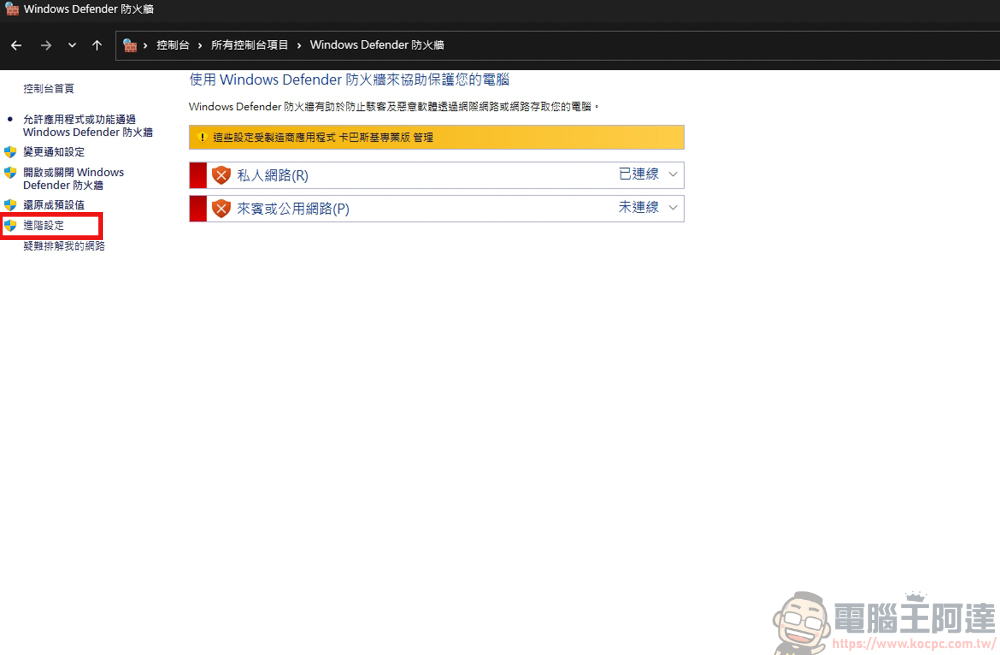
First, find the console in Widows → Windows Defender Firewall. Because my computer has anti-virus software installed, the page may look different from everyone else’s, but you can just follow the steps. After entering, click on the advanced settings on the left:
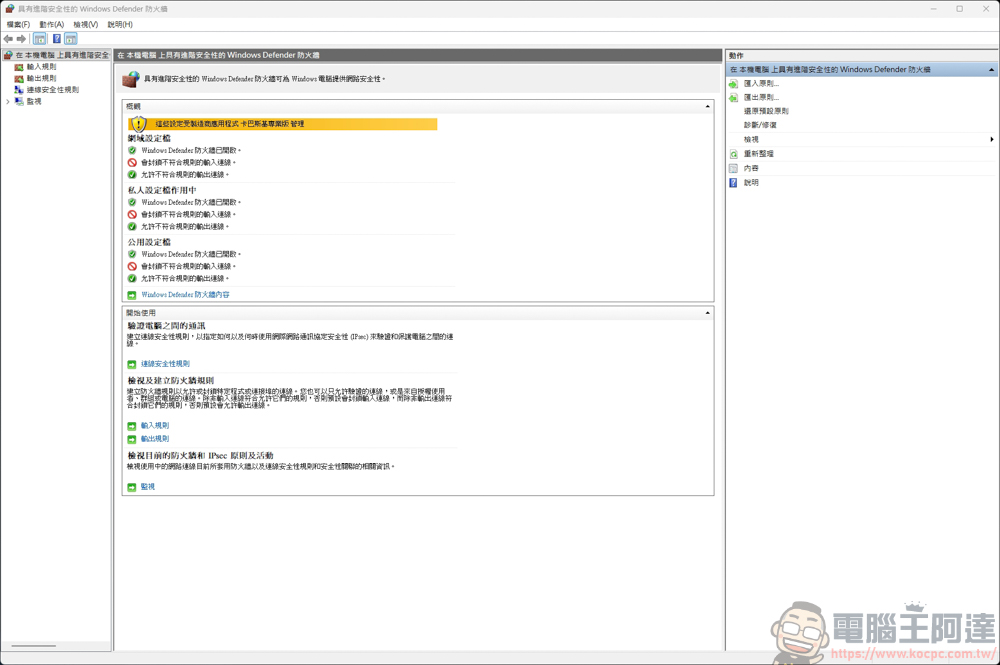
After entering advanced settings, the page will look like this:
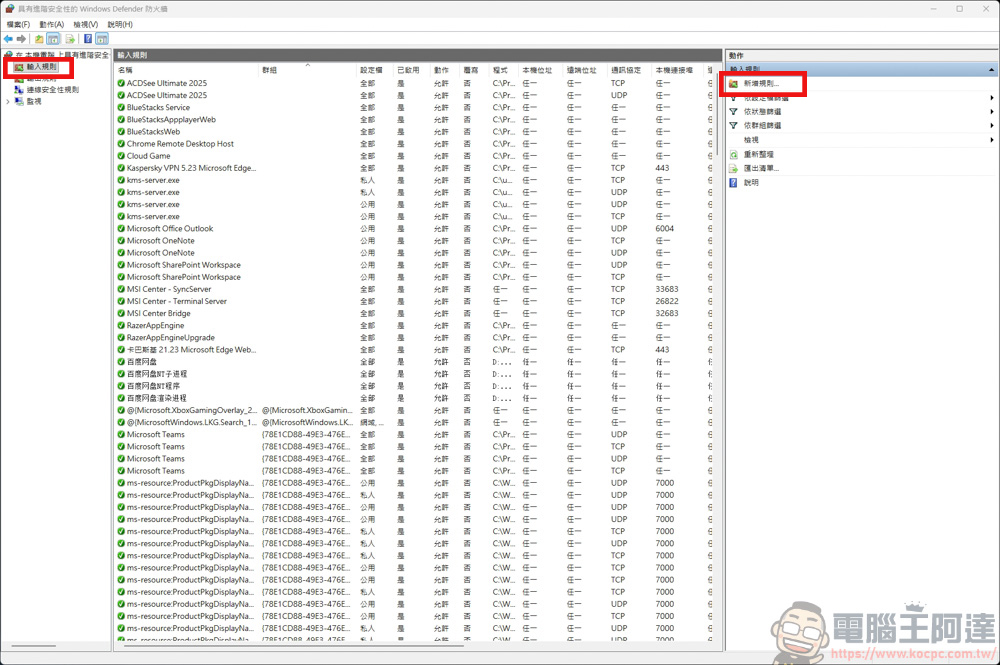
Then click on the input rule on the left, and then click on the add rule on the right:
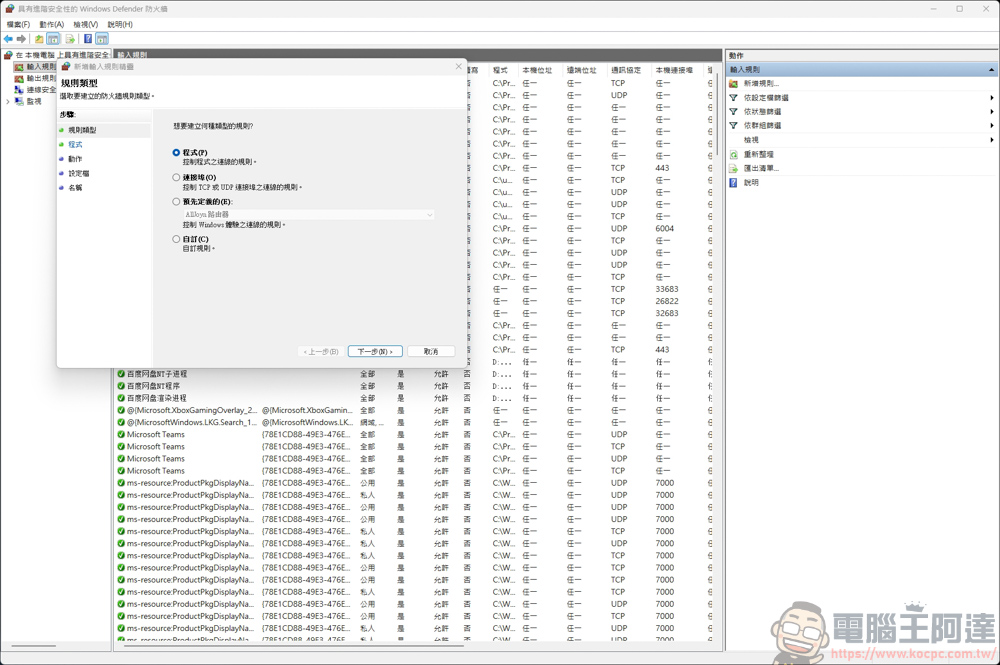
This time we teach how to block the connection to the software, so select the first “Program” and click Next:
Then select the apps you want to block:
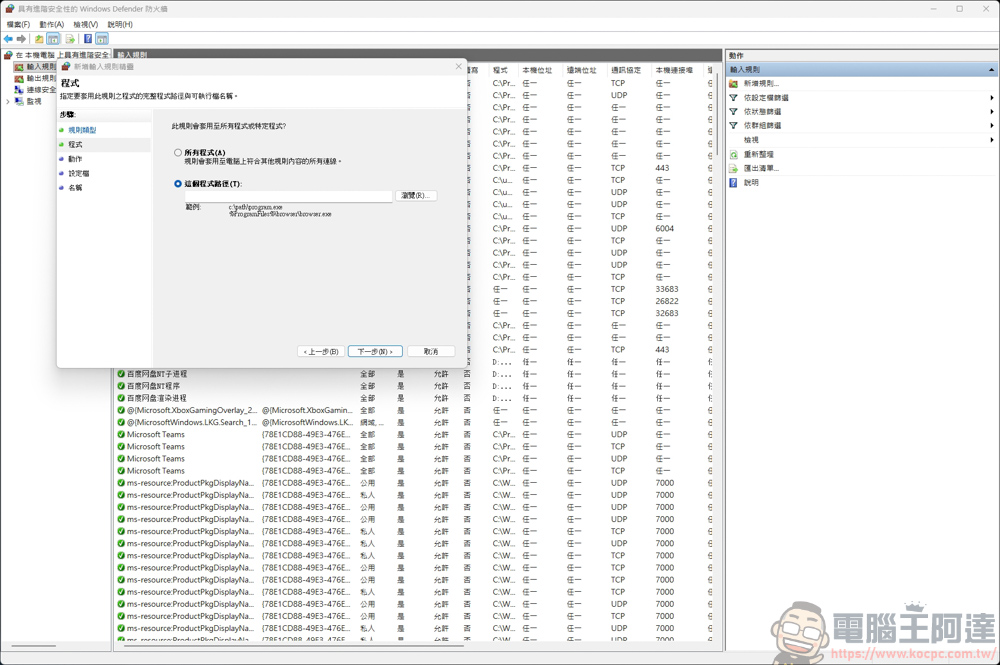
Let me take Chrome as an example. Find the exe executable file of Chrome and click to open it:
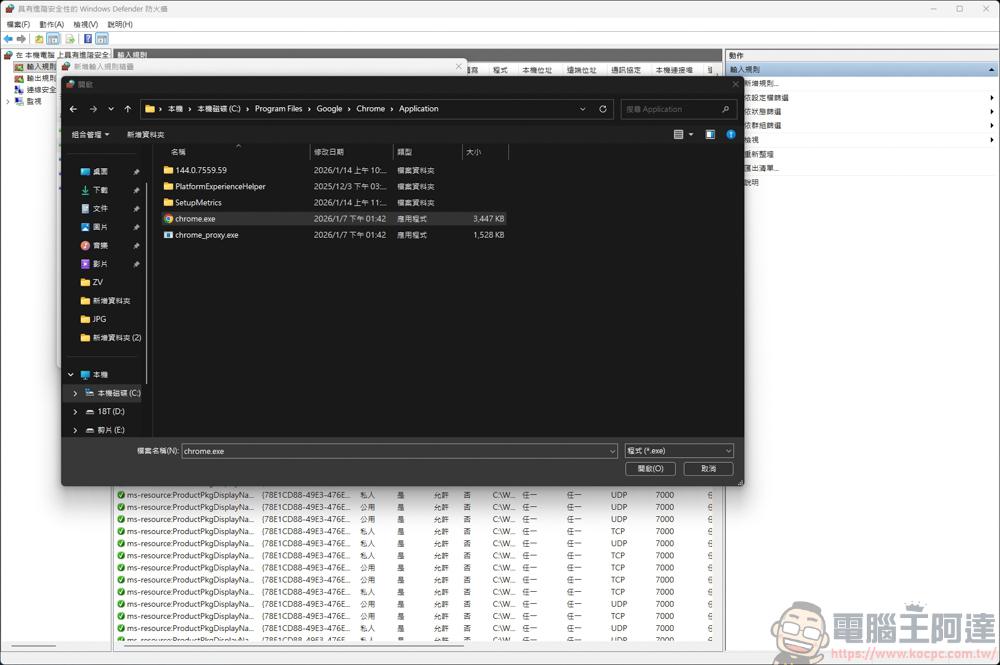
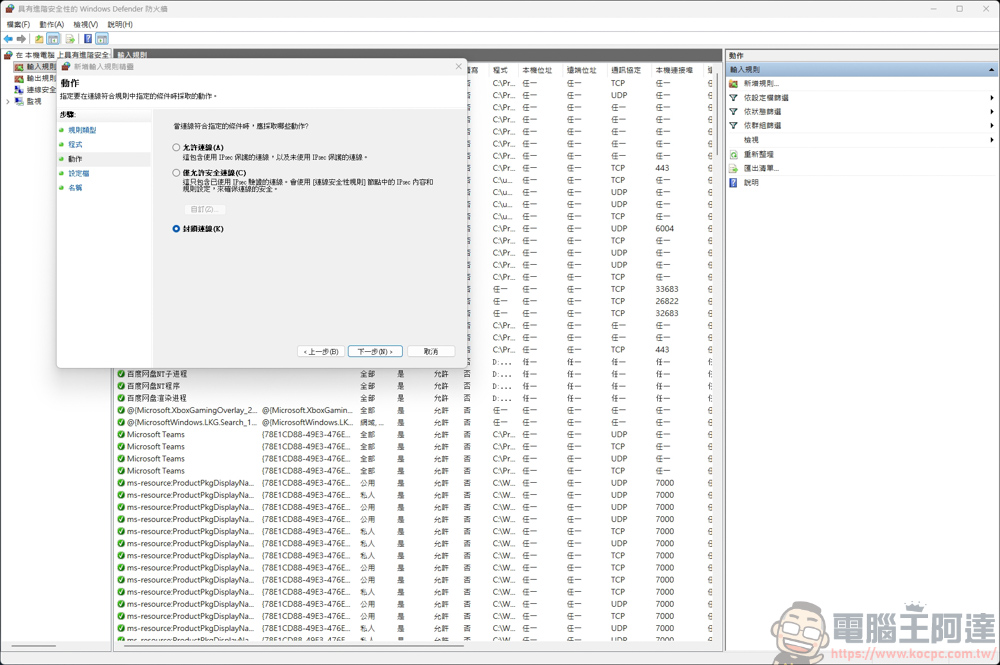
After selecting, select the “Block connection” option and click Next:
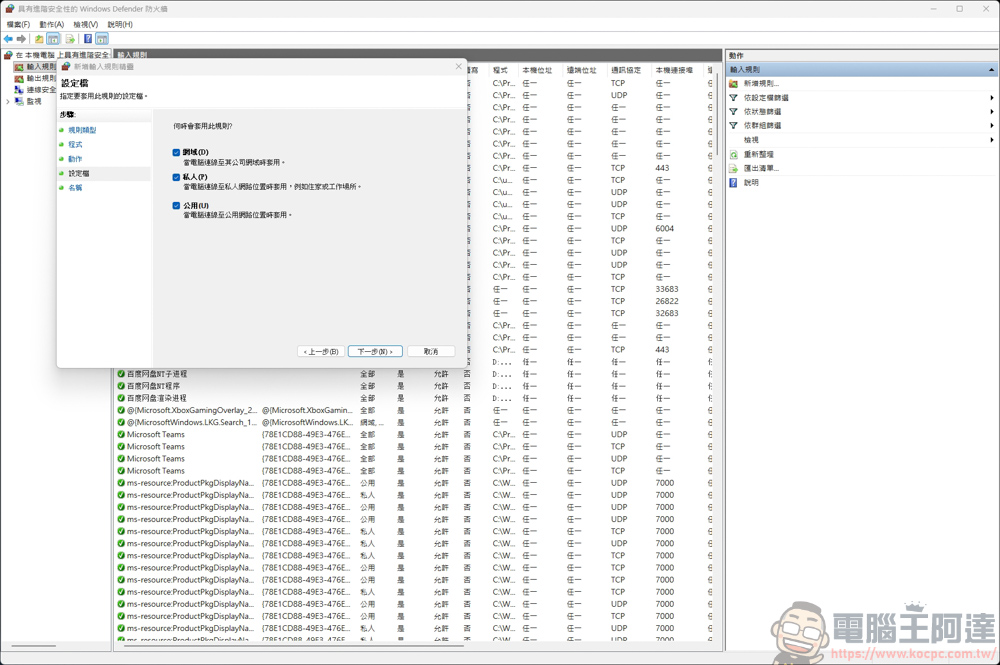
Check all network categories to be blocked:
Finally, give a name and press Finish. It is recommended that you choose a name that you understand. You will not know what software is blocked until you unblock it in the future:
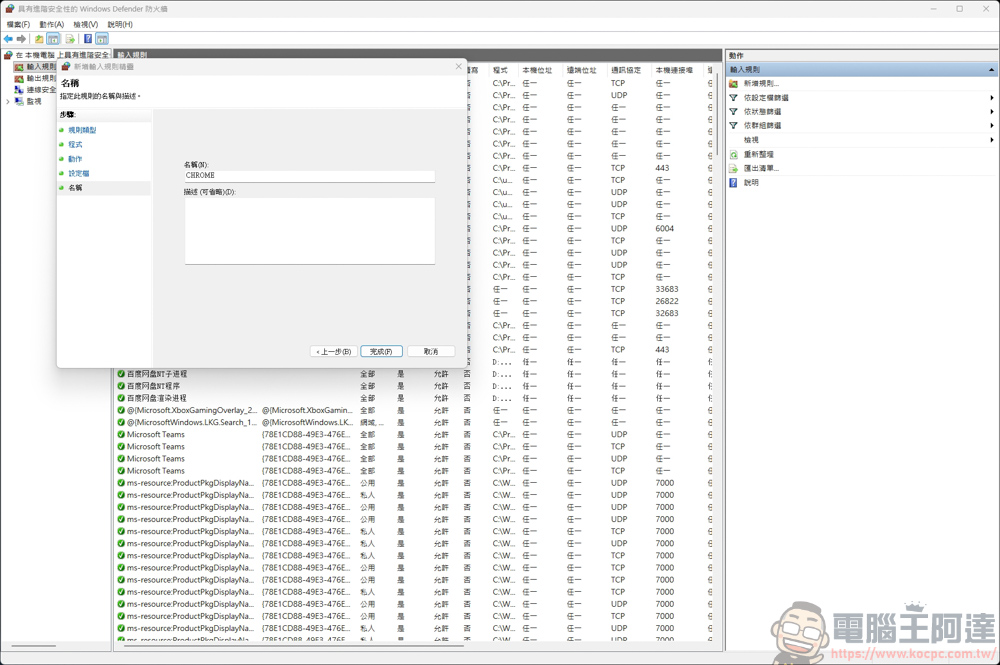
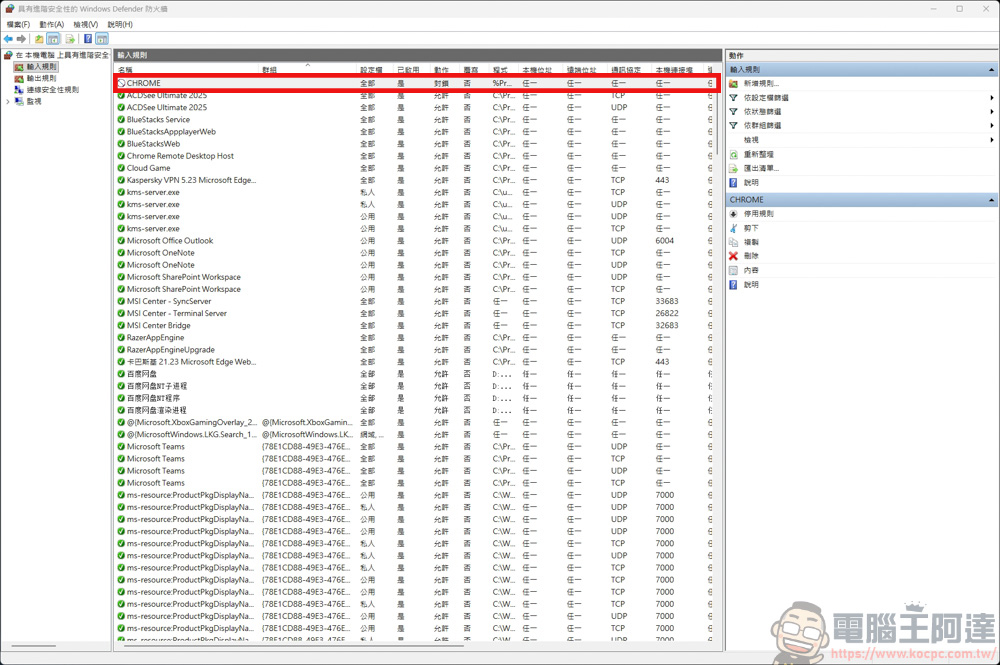
The newly added blocking rules will appear in the content column:
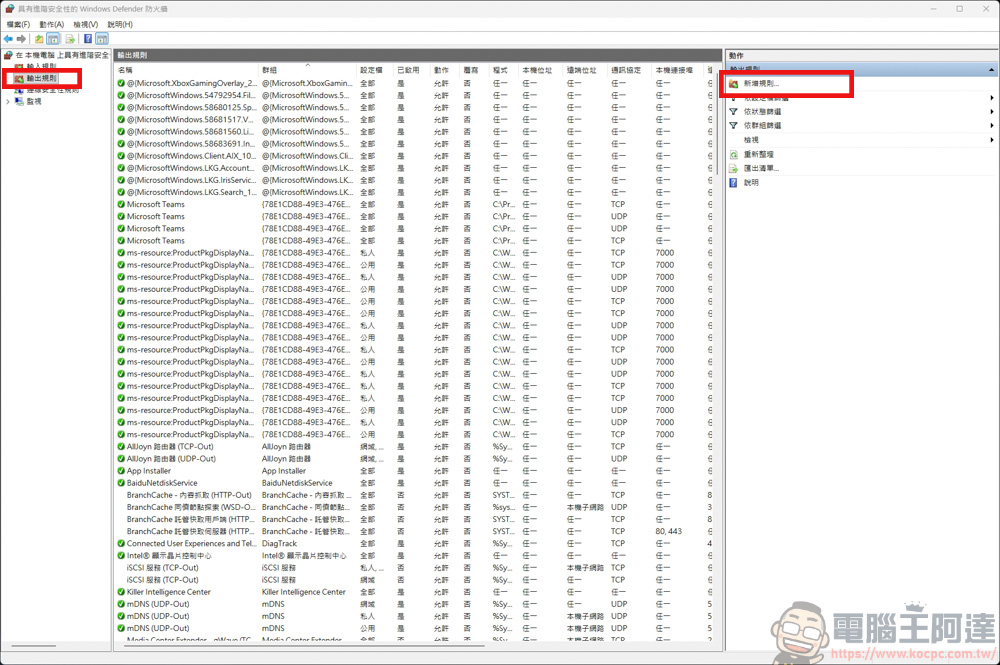
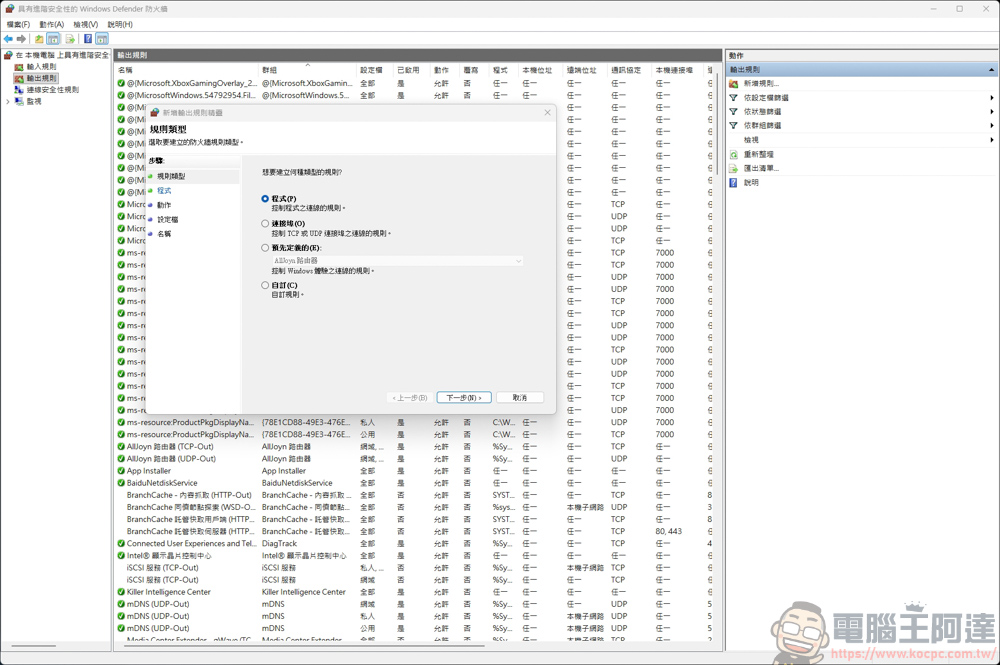
After the input rules are processed, the next step is to set the output rules. The next steps are the same as the steps performed above, so here are only illustrations for reference, without further text explanation:
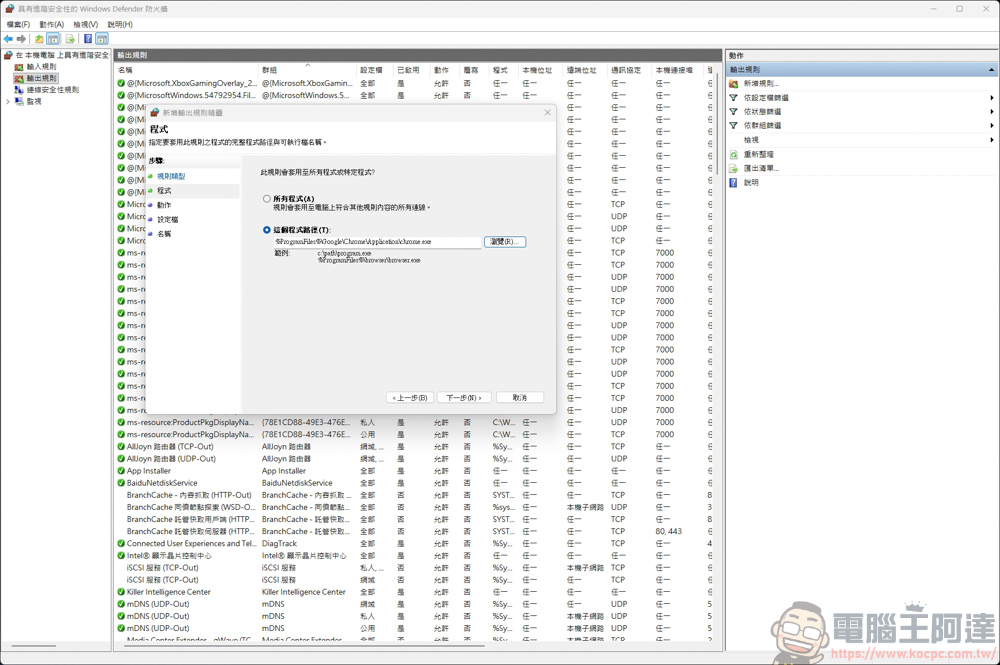
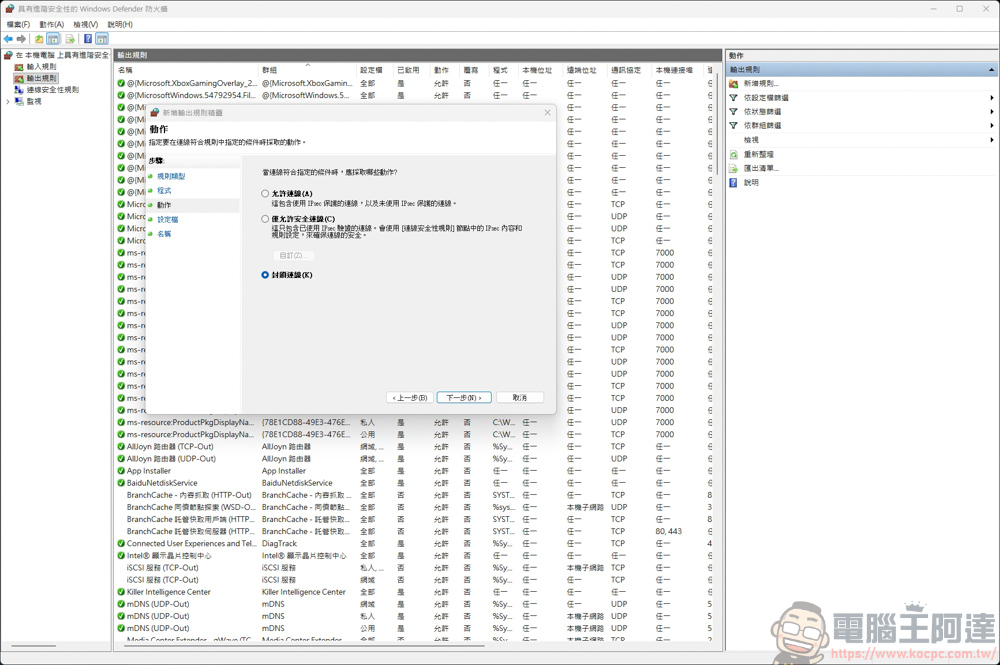
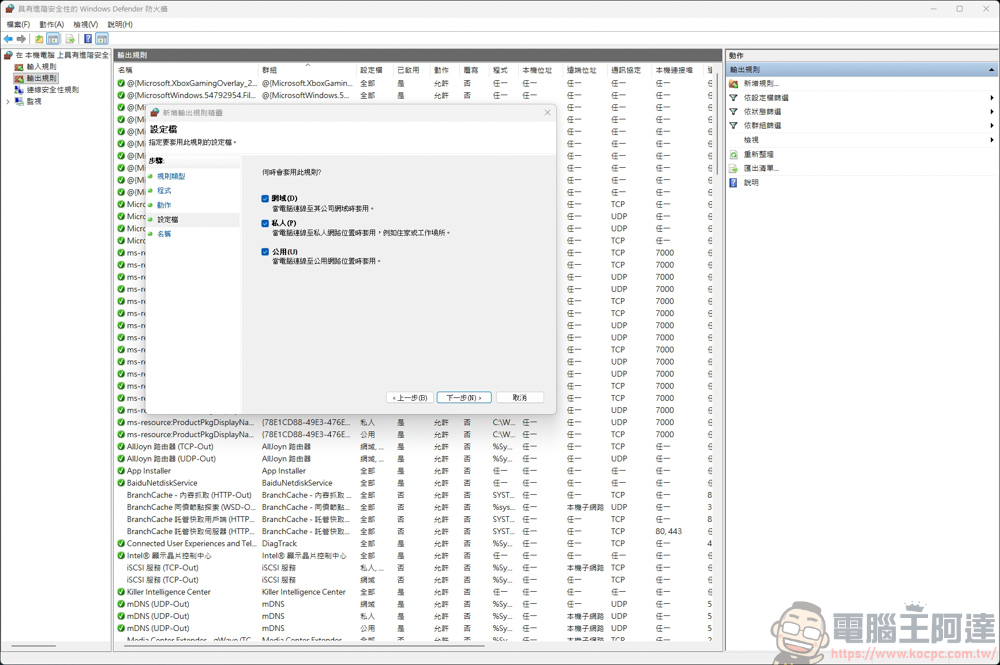
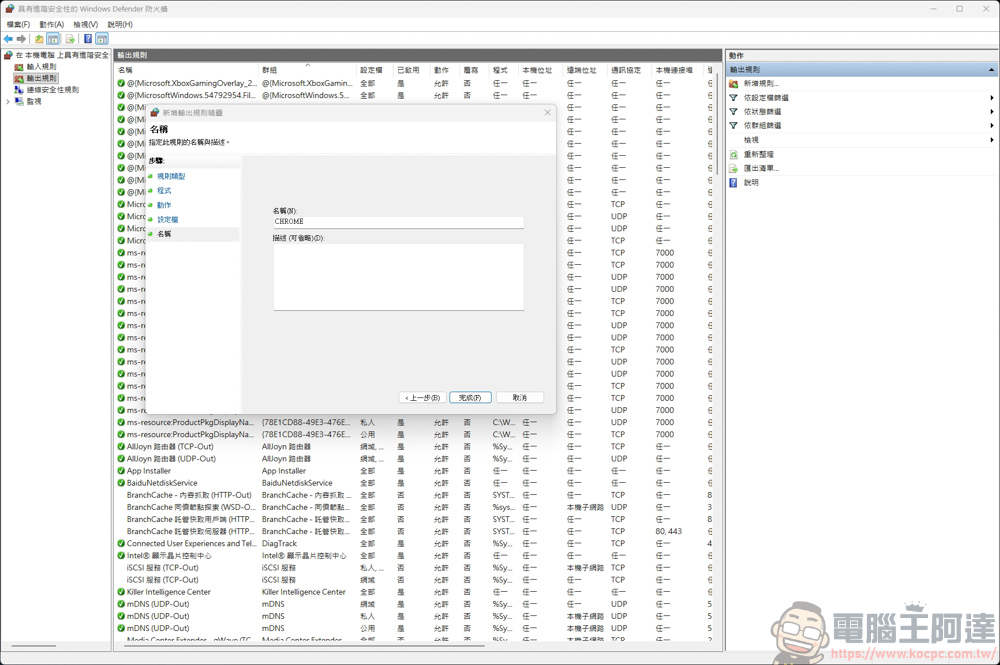
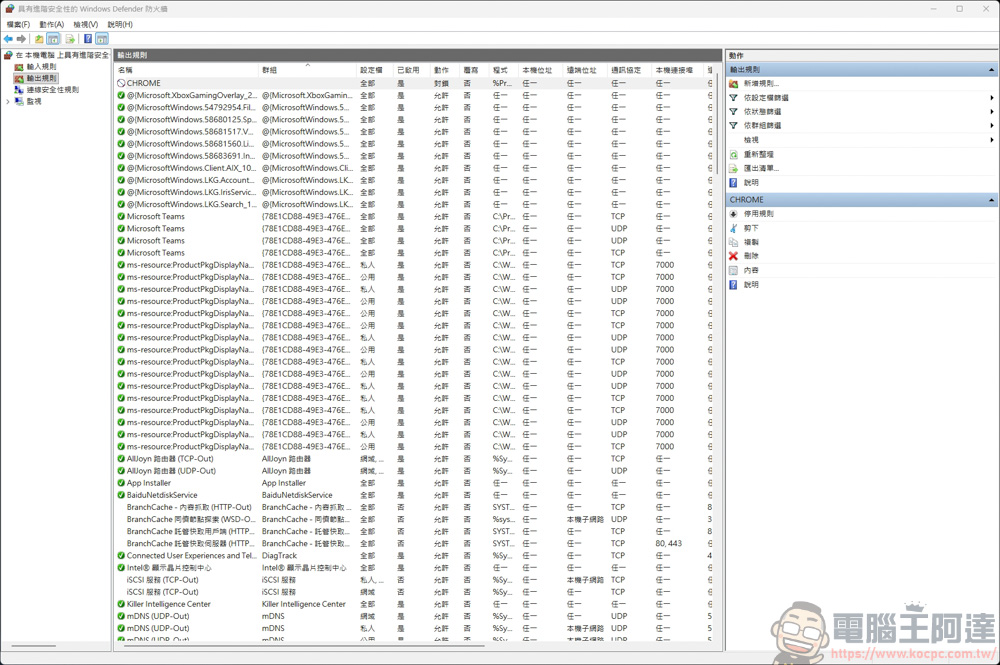
test
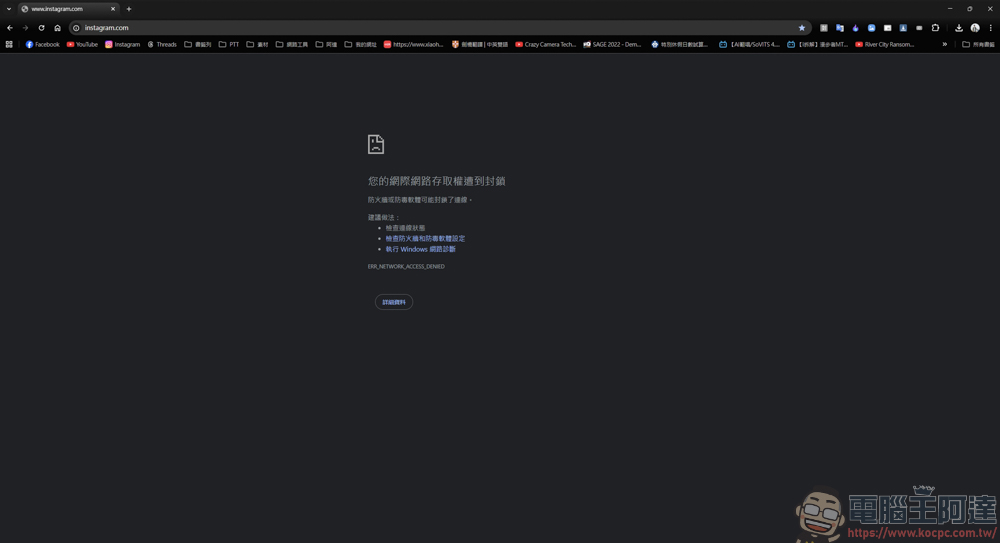
After blocking Chrome, try connecting to the Internet. As you can see from the picture below, after running Chrome, the message that Internet access is blocked will be displayed. So through this method, you can block the software from connecting to the outside and secretly transmitting data. You can even block the games and software played by children through this method to prevent them from being overly addicted:
It is also very simple to undo the settings, just delete the settings you just made:
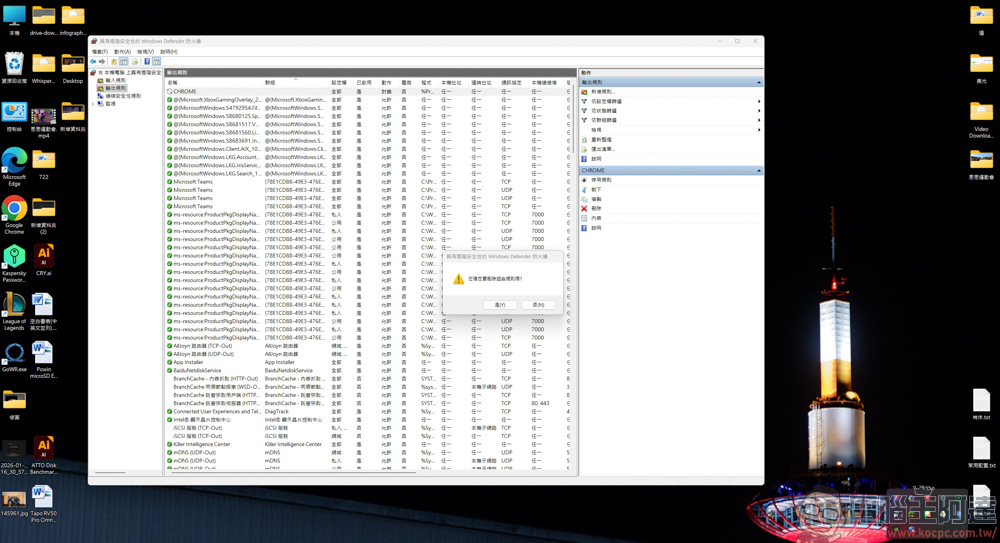
After deletion, the original software can continue to connect to the Internet:

summary
Through the above simple steps, we can use Windows’ built-in firewall to achieve the “specified blocking” effect without installing any third-party software. Not only can it be used to block software that likes to secretly transfer data in the background or keep popping up annoying update notifications, it is also a killer tool for parents with children at home to control their children’s online games.
Source: KOCPC Chinese