


Although OpenAI launched ChatGPT’s Chrome extension a while ago, anyone who has used it knows it was basically half-broken, because it used to be paired with Codex, so using it would consume your Codex quota. Now, a little earlier, the company officially announced that ChatGPT’s Chrome extension officially supports reading browser tabs. It may sound a bit complicated, but simply put, you can now actually chat directly with ChatGPT in the Chrome sidebar, and it can also read the content of tabs you already have open (not just the current screen).
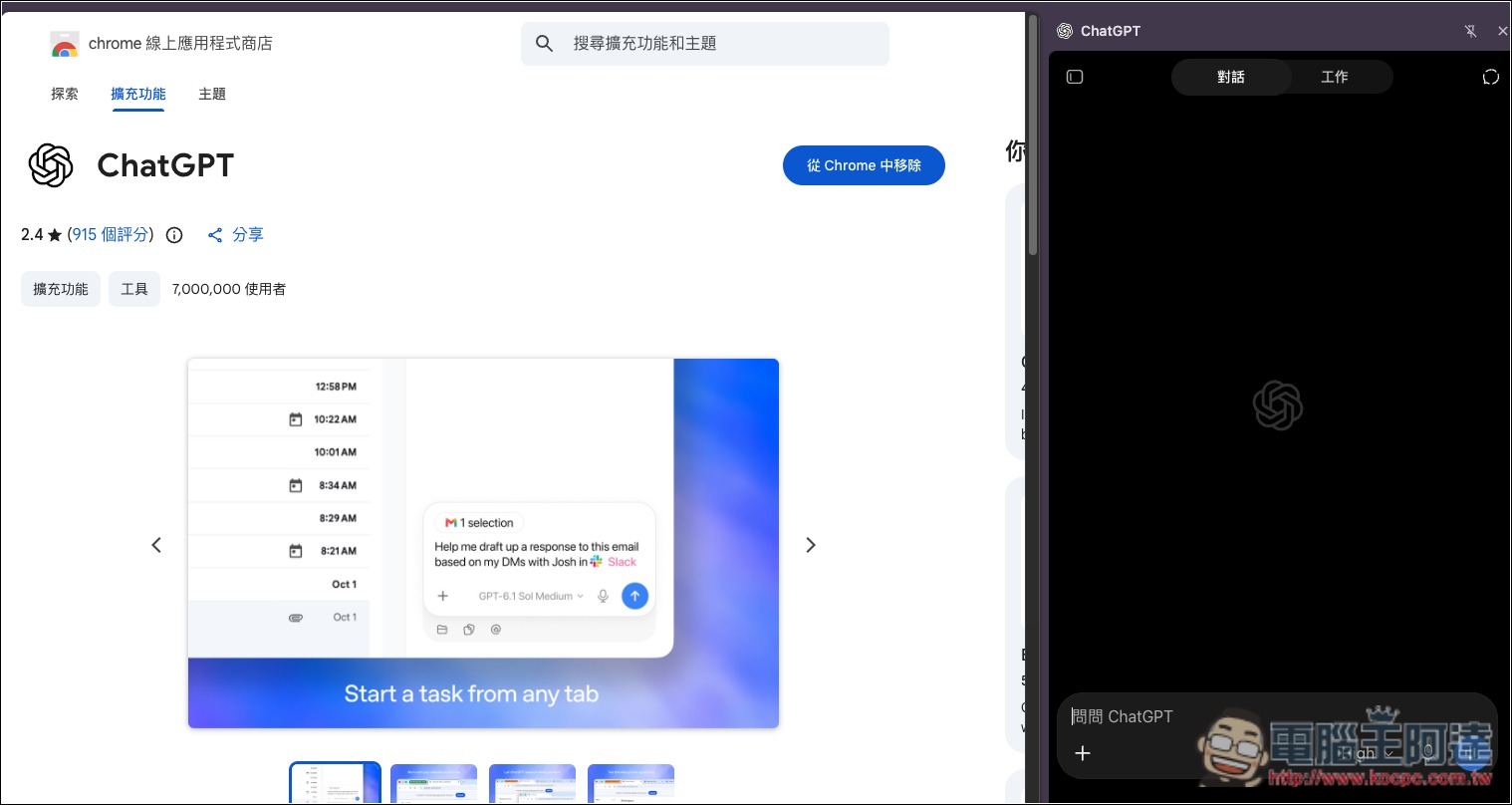
Finally! Chrome’s sidebar can now chat directly with ChatGPT, not just Codex anymore.
ChatGPT officially announced this new feature earlier in the X community, so from now on, when you chat with ChatGPT in the sidebar, you won’t have to worry about using up your Codex quota (unless the official policy changes to ChatGPT and Codex sharing [the same quota]):
Next up: using ChatGPT right within a Chrome tab got a major upgrade – the full power of ChatGPT is now in your browser. Your entire ChatGPT history is right there, and you can ask question in Chat or get things done in Work – side by side while you’re on a site. https://t.co/ABiwzLvNnD
— ChatGPT (@ChatGPT) October 15, 2026
If you haven’t installed it yet ChatGPT Chrome extensionYou can install it from the official store first.
Now when you open ChatGPT’s Chrome extension, you’ll see that the top really says ChatGPT, and there are two modes: Chat and Work. Work also consumes Codex quota, so keep this in mind:

The sidebar within ChatGPT can also be opened, so you can switch between chats and features at any time as needed:

It works just like other AI chat extensions: it can directly read the page in the tab you currently have open. You can also choose the model and thinking intensity you want to use below:

You can also add other browser tabs as needed:
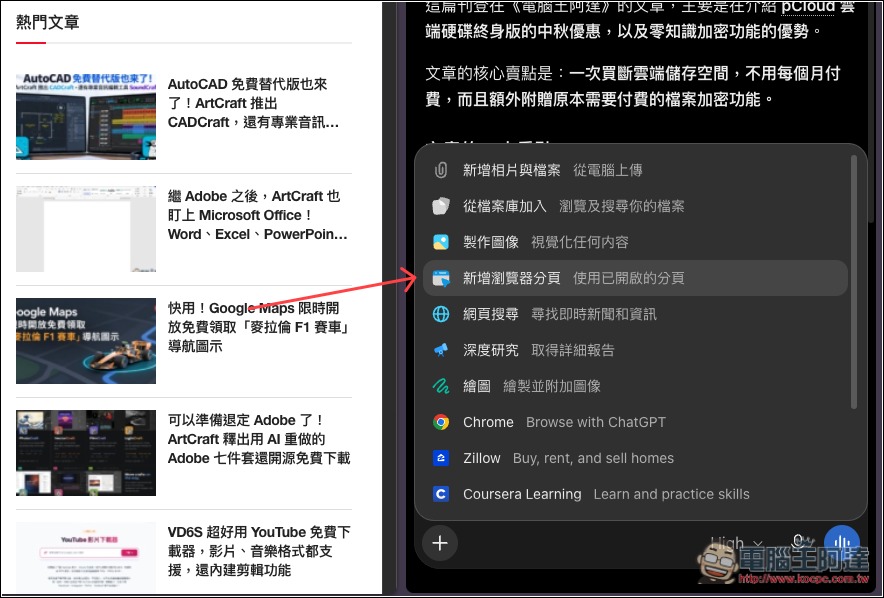
Added browser tabs will appear above the chat input box:
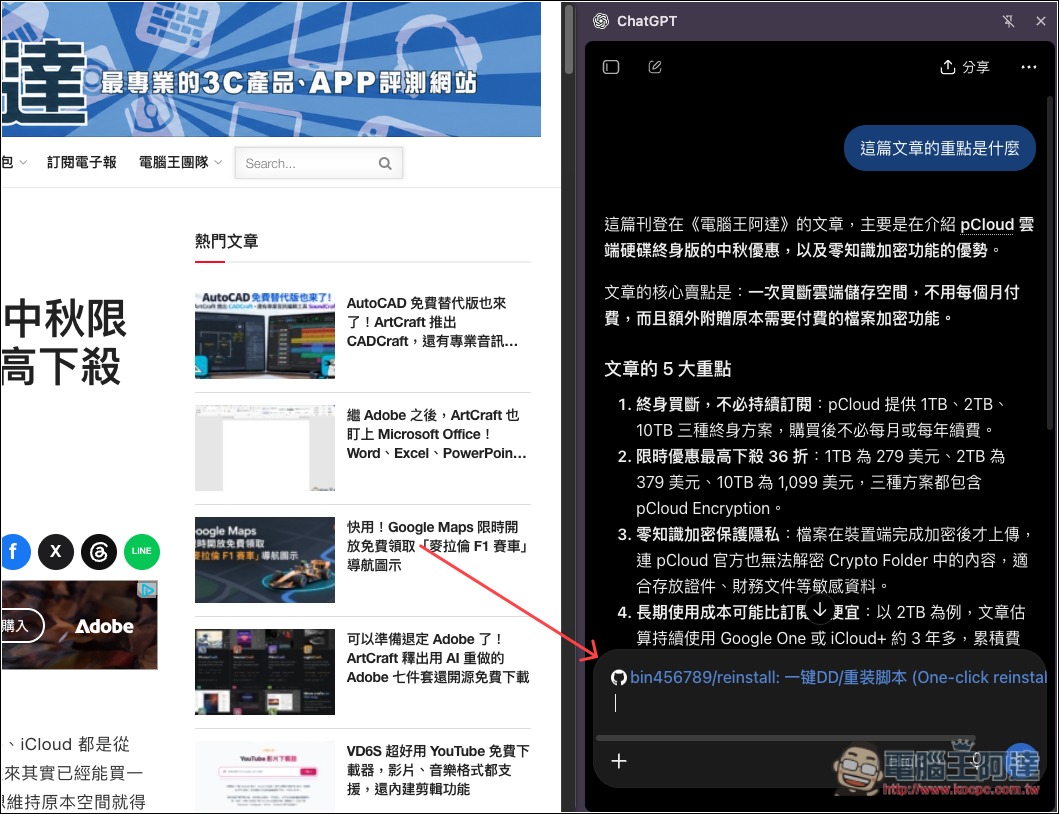
The most useful part of this feature is that it can read the contents of multiple web pages at the same time. For example, when you’re comparing different products, you can first open several product introduction pages, then add those tabs to a ChatGPT conversation, and directly ask it to organize the specifications, prices, and feature differences, without having to copy and paste them one by one yourself.
For those who frequently need to look up information, read foreign news, or organize content from multiple articles, it is also very convenient. For example, you can open three reports from different media outlets at the same time and ask ChatGPT to compare their content, summarize their shared key points, and even list the differences among the reports.
Additionally, besides the entire webpage, you can also select a specific passage of text on the page and ask ChatGPT about it. The official version also supports right-clicking on a webpage and selecting “Ask ChatGPT” to quickly open the sidebar. If you’re watching a YouTube video, as long as captions are available, ChatGPT can also use the caption transcript to help summarize the video’s key points and explain the content.
Notably, if you switch to Work mode, ChatGPT can further operate the Chrome browser, including filling out web forms, organizing tabs, downloading files, and even performing specified actions on websites.
Simply put, Chat mode is better suited for reading articles, organizing information, comparing data, and answering questions; Work mode is suited for work that requires AI to actually help complete.
However, as mentioned earlier, the usage quotas for the two modes are different. Regular chat conversations use ChatGPT’s own conversation quota, while Work and Codex currently share a usage quota. Therefore, if you just want to read web pages or summarize articles, using Chat mode is enough; there’s no need to use Work.
Source: KOCPC Chinese