


Do you also have this feeling? No matter how much money you spend on a high-end smart TV, its performance will always fall short of expectations, and it will even become slower and slower after being used for a long time? If your Android TV is laggy, menus are stuck, apps are slow to open, and the overall experience is choppy, you’re definitely not alone. The good news is that most problems can actually be solved in just a few seconds, and the method is much simpler than you think.
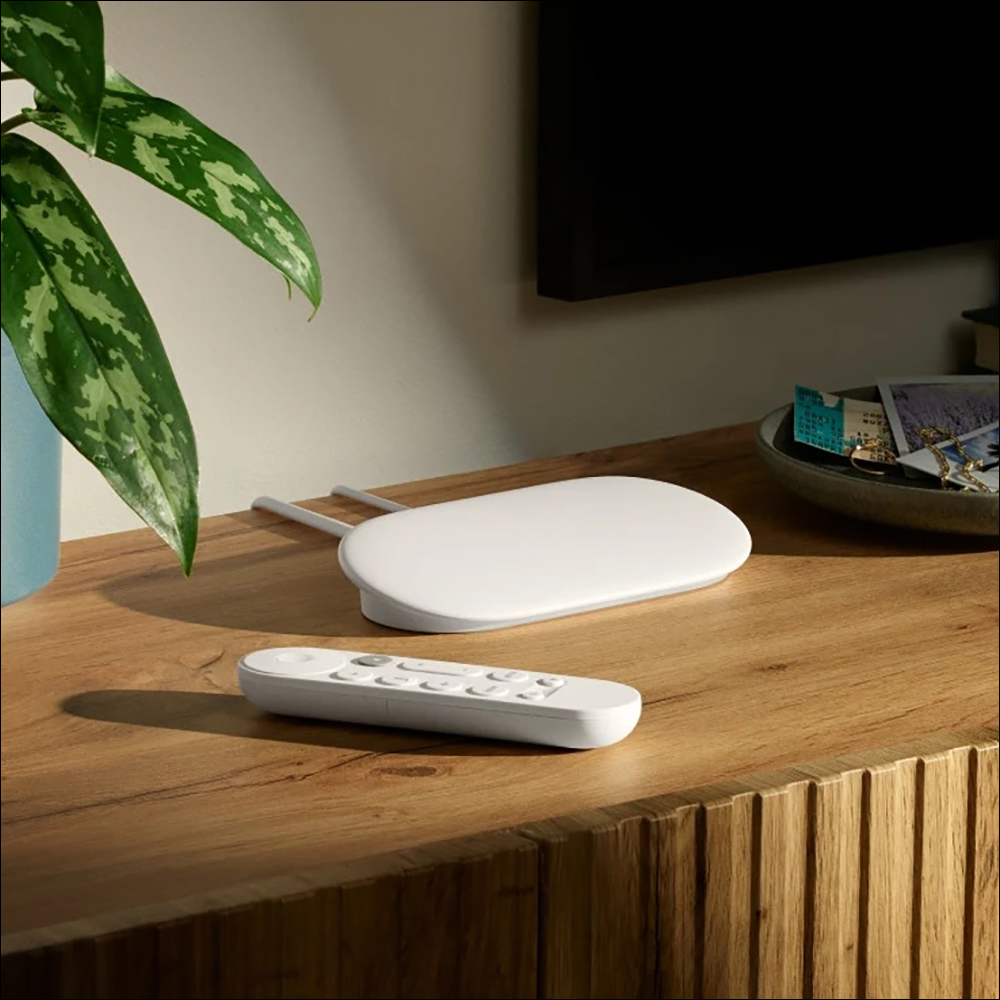
Fix most Google TV issues in just 30 seconds
When you encounter lag when browsing apps, switching channels, or operating menus, don’t worry too much. There is a quick and effective way to improve it. While there may be many reasons why your Google TV or older Android TV may be slowing down, here are the easiest tips to get started and the best to try first.
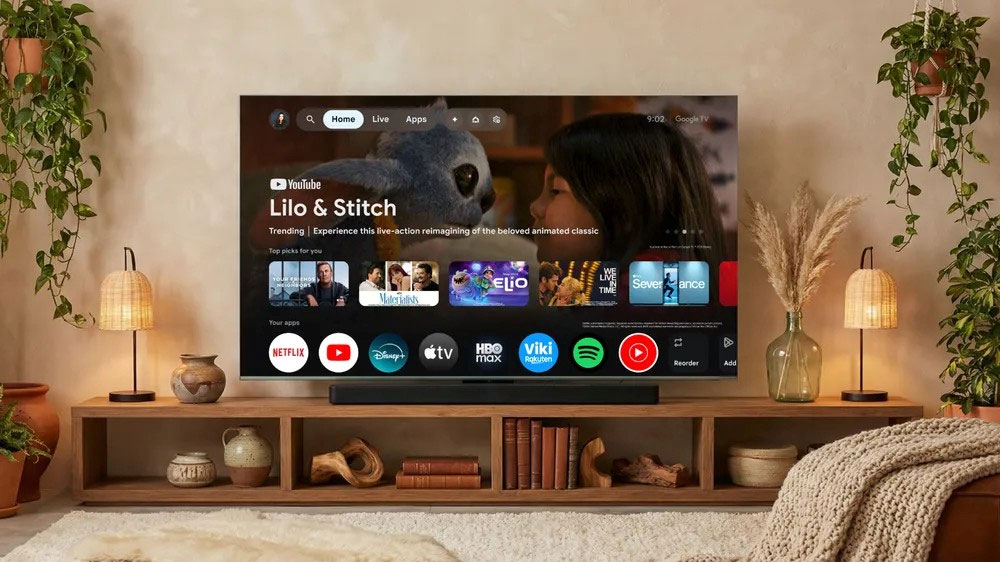
Complete power outage and restart: Be sure to unplug the power plug
When was the last time you actually turned the TV “completely off”? It’s not the kind where you press the power button on the remote control and continue watching TV shows the next day, but the kind where you completely cut off the power, restart, and let the system start from scratch. In fact, most modern smart TVs do not actually shut down when you press the power button. Instead, they enter “energy saving” or “standby” mode. Although the screen is black, background programs are still running. This is why the TV usually boots up very quickly and can automatically update the system when you don’t notice.
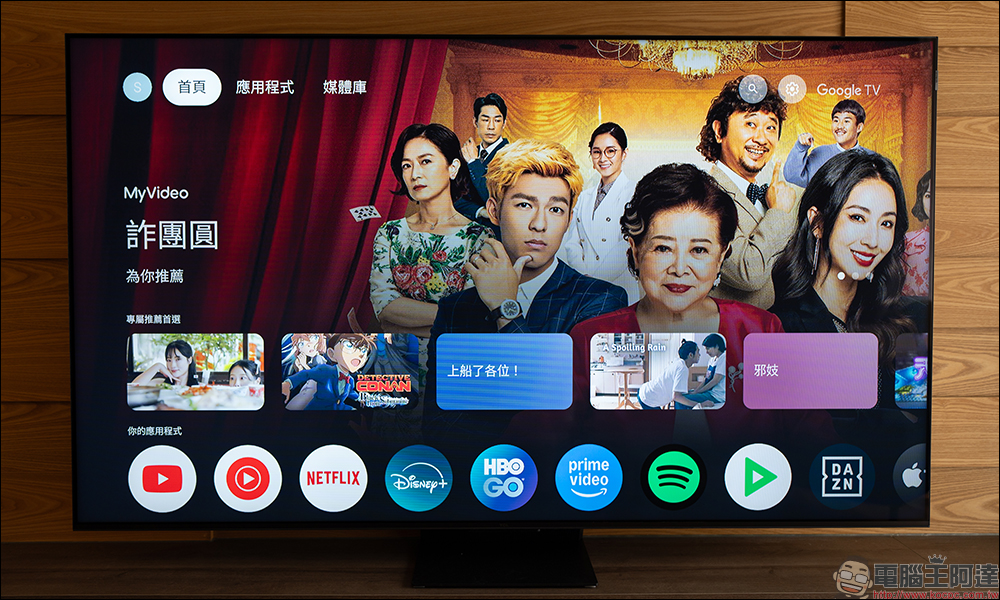
Before performing a complete reboot, it is recommended to clear your TV’s application cache. Cache is temporary data generated when an application is running. Sometimes this data is damaged or lost, causing the system to slow down. There are slight differences between brands, but the option to clear cache can usually be found in Storage or Application Management.
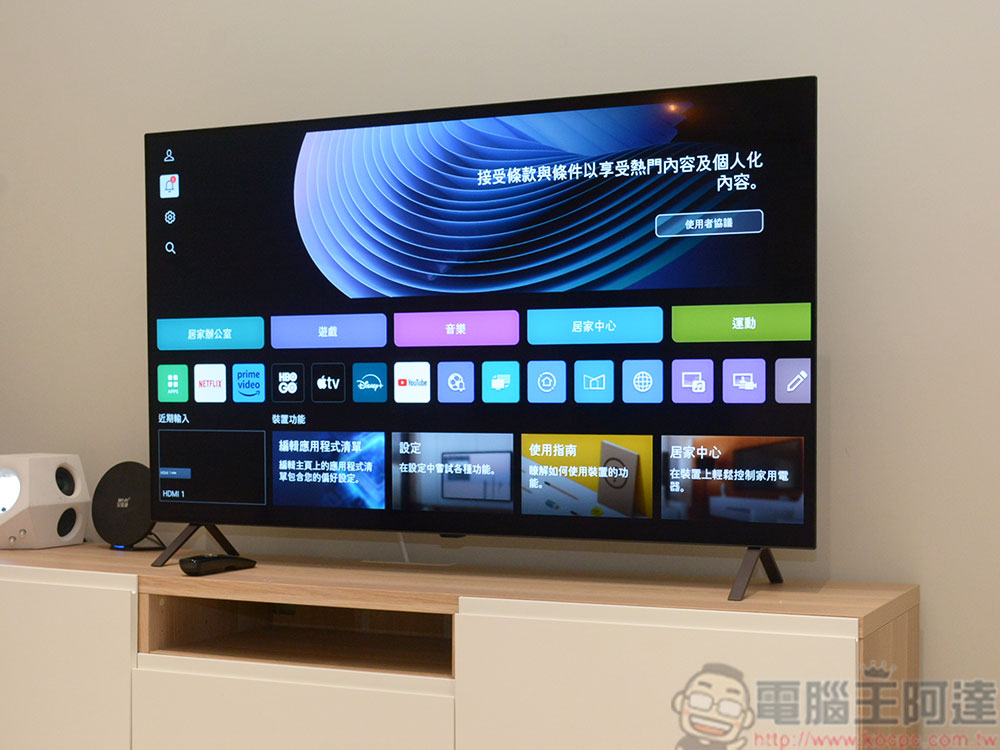
Then, you can enter the most critical step: unplug the power plug. This is one of the most effective and quickest fixes for Google TV or Android TV. A complete power outage allows the TV to truly power cycle, clear the scratch memory, and refresh the system state. Here’s how to do it correctly:
- Unplug the TV from the wall.
- While the TV remains powered off, press and hold the power button for about 20 seconds.
- Wait at least 30 to 60 seconds (longer is fine) before plugging it back in.

When you turn it back on, you’ll notice that the TV starts up slower than usual because this time it’s not waking up from standby mode, but restarting from a true off state, which is exactly what we want. It sounds simple and even a bit incredible, but it is indeed one of the most direct and effective ways to improve the performance of Android TV or Google TV. Unfortunately, this improvement usually only lasts for a while, depending on the age of your TV or the number of apps you have installed. While you’ll immediately notice speed improvements, with smoother menus and smoother operation of commonly used apps, the effects tend to wear off over time.
As the use of applications, thumbnail accumulation, automatic playback previews and other background behaviors increase, the system will gradually become laggy. When your Google TV starts to feel unbearable again, just unplug it for 30 to 60 seconds, plug it back in, and you’ll see noticeable improvements again.
Source: KOCPC Chinese