


Cafés, co-working spaces, and shopping malls in Taiwan almost all offer free Wi-Fi. For remote workers, contractors, and freelancers, finding a table, ordering a coffee, and then opening a laptop to handle emails, cloud documents, or company systems is an everyday work routine. The problem is that when many people judge whether a Wi-Fi network is secure, they only check whether the network name looks like it belongs to the establishment and whether it has password protection. However, these checks are not sufficient to indicate that the entire connection environment is secure.
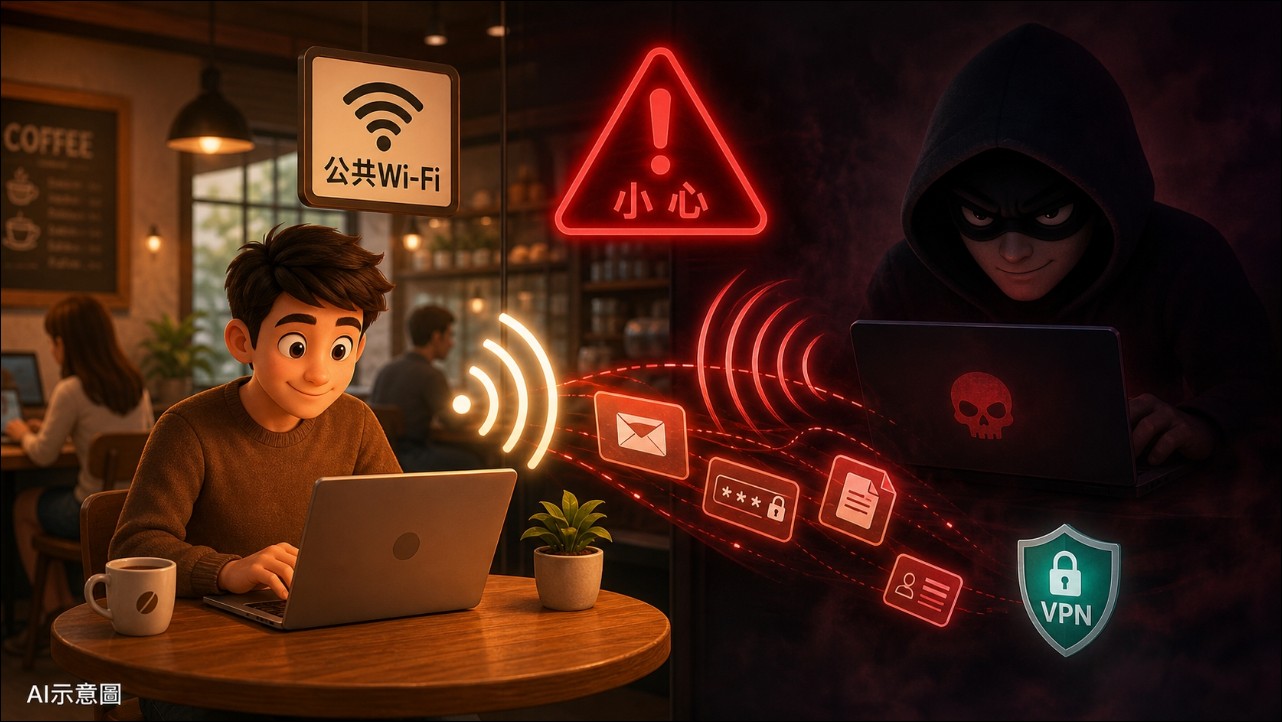
Public Wi-Fi is not necessarily dangerous; the real problem often lies in users’ negligence with device settings, a lack of connection authentication mechanisms, and security blind spots in daily workflows. This article outlines the mistakes most people tend to overlook when using public networks and explains how VPNs can protect your security on public connections.
Common information security mistakes when using public networks
Many people tend to overlook protection settings when using free networks in public places, giving hackers an opening. Below are some of the most commonly overlooked mistakes when using public networks:
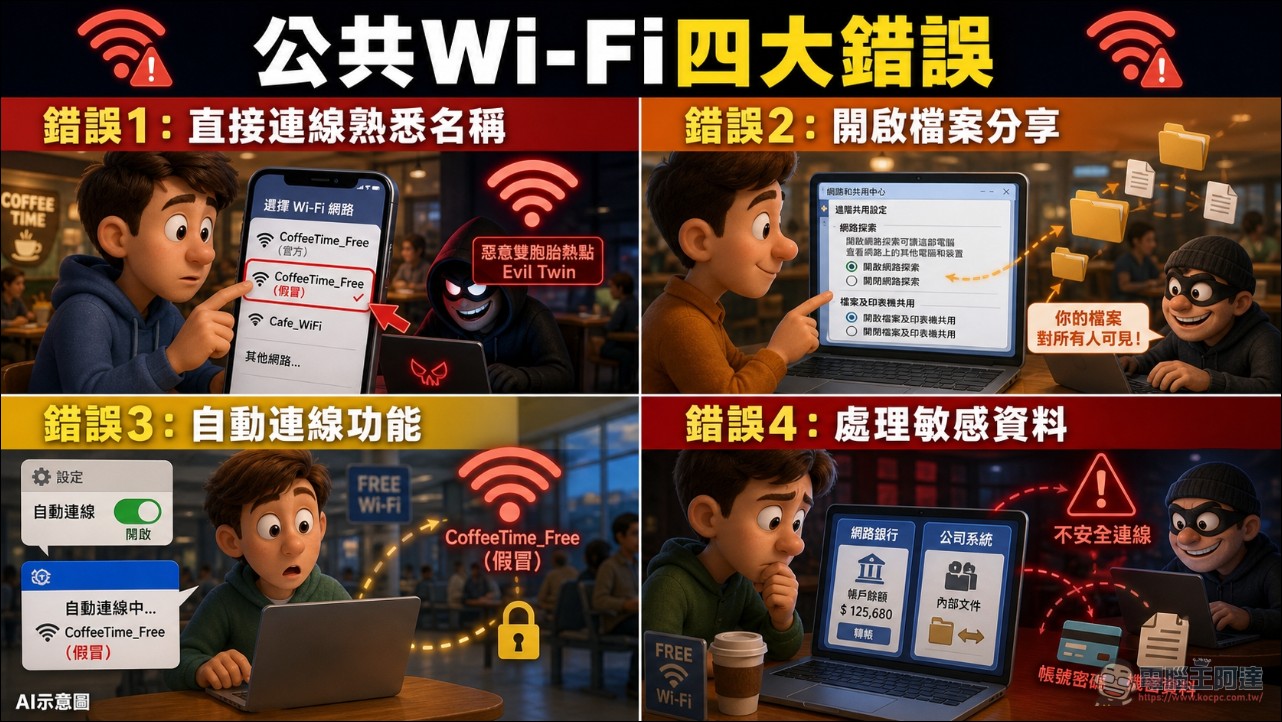
Mistake 1: Connecting directly when you see a familiar Wi-Fi name
The most common mistake is seeing a Wi-Fi signal that is the strongest and has a name most resembling the store, then connecting directly. Hackers may set up fake hotspots with names similar to or even exactly the same as legitimate ones, tricking users into thinking they have connected to the store’s network. This type of attack is called “Evil twin attack」。
Therefore, before connecting at a café, it’s best to directly confirm the correct Wi-Fi name and login method with the staff, rather than simply relying on the results automatically detected by your phone or laptop.
Error 2: Enable file sharing and device discovery
When using a laptop at home, you might enable file sharing, printer sharing, or network discovery to easily transfer data with other devices. But when you’re at a cafe, it’s best not to have these settings enabled. Windows, macOS, and some mobile devices have network discovery or sharing features. When a device is on a public network, other users can see the device name, available services, or shared resources on the network, further increasing the attack surface for unauthorized access.
Therefore, after connecting to a café’s Wi-Fi, you should set the Windows network type to “Public network” and turn off features such as file and printer sharing and network discovery.
Mistake 3: Letting devices auto-connect to unknown networks.
Most devices remember Wi-Fi settings they have connected to before, making it convenient for users to automatically reconnect next time. However, this convenient feature is often an attack vector for hackers. As long as attackers know the name of an official hotspot, they can set up a fake hotspot with the same name nearby, waiting for devices that have previously connected to that network to automatically connect.
Therefore, usePublic Wi-Fi It is recommended to disable the auto-join network feature, and after leaving the café, also delete the hotspot to reduce the chance of accidentally connecting next time.
Mistake 4: Handling highly sensitive data on public Wi-Fi
Even if the Wi-Fi itself has not been attacked, there may still be other risks when working in a café. For example, logging directly into internal company systems, cloud drives, or email on a public network, or handling client contracts and financial data, all increase the risk of your work information being intercepted and unauthorized login attempts on your accounts.
On public networks, avoid logging into internal company systems, cloud drives, email, or handling customer data. If you must do so, be sure to connect to a VPN before proceeding.
How does a VPN solve these problems?
VPN is a commonly used protective measure for public networks. However, it is essential to establish the correct concepts and understand VPN Definitionand purpose, in order to correctly use this tool.
What is the definition of VPN?
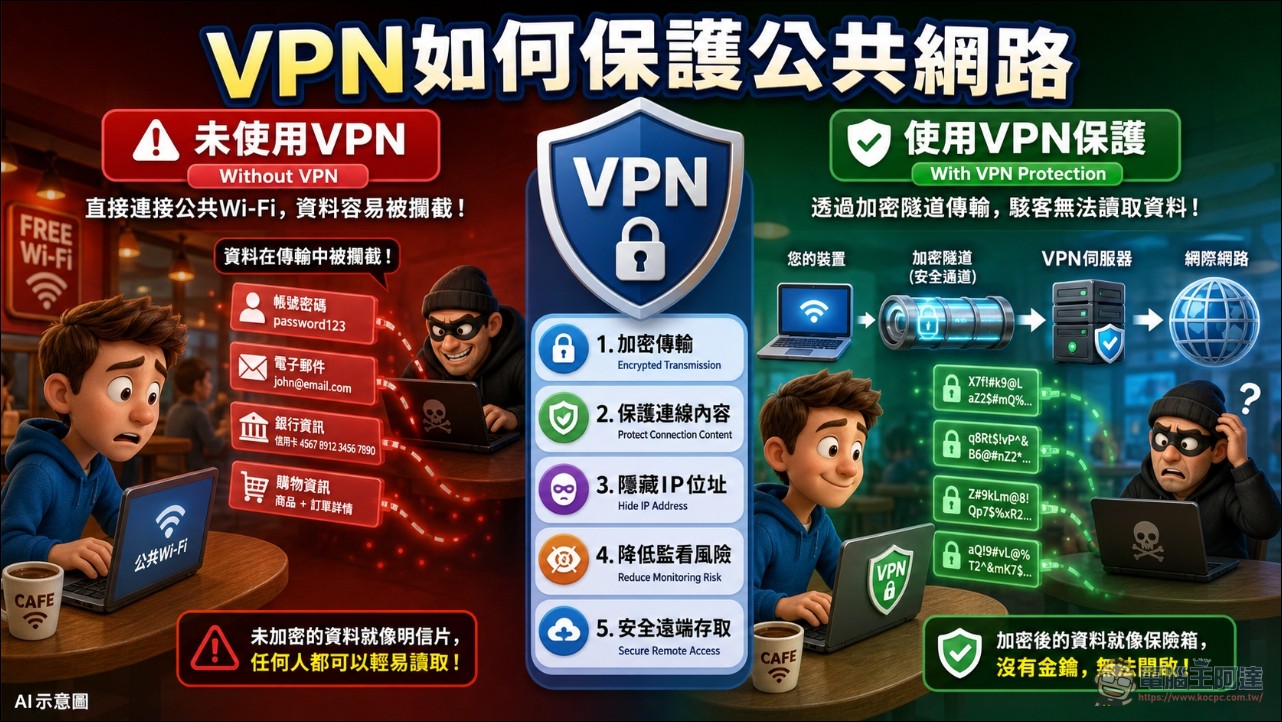
VPN is defined as a “Virtual Private Network,” a technology that establishes a secure encrypted tunnel between a user’s device and the internet through encryption.
Once you connect to public Wi-Fi in a café, all network traffic first passes through this encrypted tunnel to the VPN server, and is then forwarded to the destination website. This effectively prevents third parties on the same public network from intercepting data or capturing packets.
How VPNs protect your security when using public networks
VPN leverages the following advantages to avoid the security risks you may encounter when using public networks:
- Encrypted data transmission:Reduce the risk of data being intercepted on public Wi-Fi.
- Protect connection content:Preventing administrators or hackers from directly viewing users’ network activity content.
- Hide real IP address:The website will see the VPN server’s IP address instead of the user’s original IP.
- Reduce the risk of surveillance on public networks:Even if the Wi-Fi environment itself is not necessarily secure, a VPN can still provide an extra layer of encryption protection.
- Secure remote access to internal network:Enable remote workers or employees to securely connect from outside to the company’s internal servers to access files and work systems.
How to choose a reliable VPN service
When choosing a VPN service, it is recommended to prioritize the following principles:
- Strict no-log policy:Prioritize service providers that have been independently audited by third-party authorities to ensure they do not record users’ connection logs or activity traces.
- Supports advanced encryption protocols and security features:Ensure the service supports WireGuard or OpenVPN protocols, and includes auto-connect, Kill Switch (automatically disconnects the network when the connection drops), and DNS leak protection features.
- Transparent operational background and authorization requirements:Avoid using VPN apps that are completely free and lack a clear corporate background, and check whether apps on your mobile device request unreasonable system permissions.
Conclusion
Working on public Wi-Fi in cafés has become part of many remote workers’ daily routine. Next time you plan to use Wi-Fi to work in a café or other public place, take a moment to go through this checklist first. Those few minutes can save you potential trouble down the road.
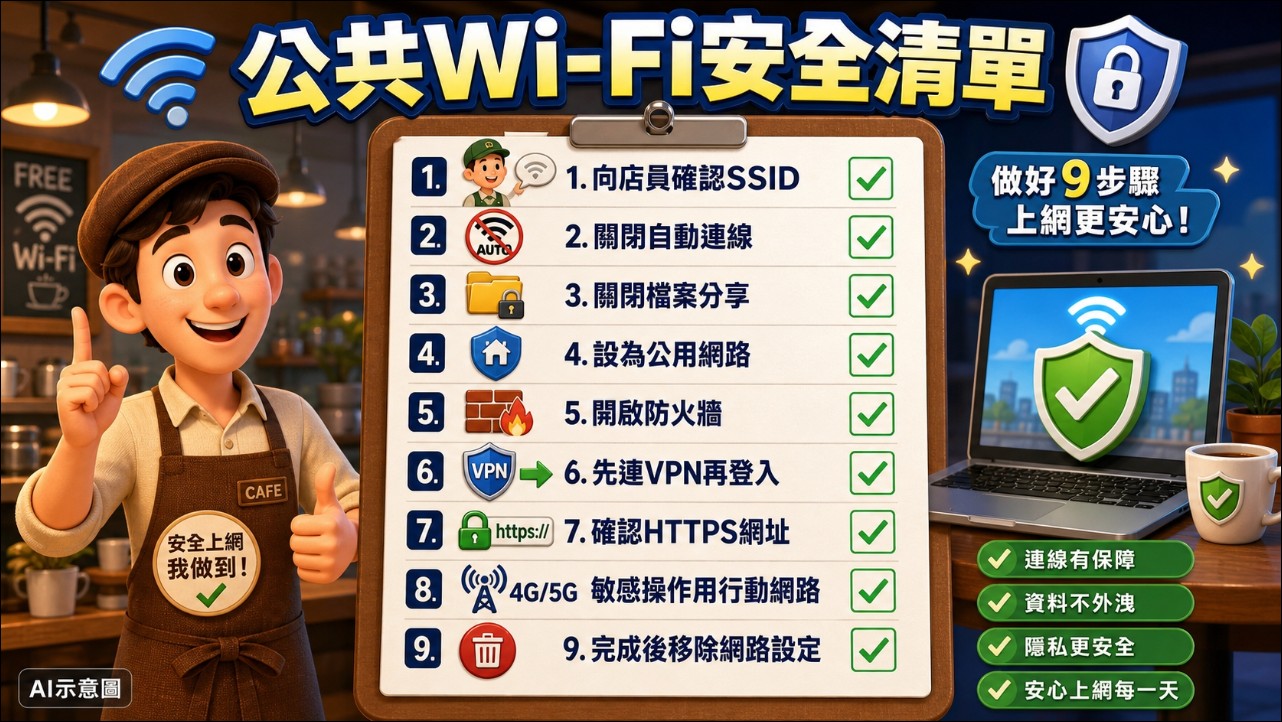
- First, confirm the correct SSID and login method with the store staff.
- Turn off unnecessary auto-join Wi-Fi features.
- Turn off file sharing, printer sharing, and network discovery.
- Set the Windows network type to ‘Public network’.
- Enable the device firewall.
- Connect to the VPN first, then log in to your company or work account.
- Verify that the website uses HTTPS, and be mindful of whether the domain name is correct.
- When performing online banking, payments, or other highly sensitive operations, prioritize using your phone’s mobile data.
- After finishing work, log out of your account, turn off Wi-Fi, and remove any public network settings you no longer use.
Source: KOCPC Chinese