


Next month, Windows 11 will see an important security change—though it’s not the addition of any new feature, but rather a further expansion of the existing “Memory Integrity” feature’s scope of enablement. Previously, this feature was mainly turned on by default on compatible computers with a fresh install of Windows 11. However, for devices upgraded from Windows 10, it generally remained disabled.
Starting in October, Microsoft will proactively enable Memory Integrity on eligible Windows 11 PCs via Windows Update; if the underlying VBS (Virtualization-Based Security) hasn’t been enabled yet, it will also be turned on as well.
Although this change does enhance Windows 11 security, it comes at a cost—numerous real-world tests have found that enabling VBS and Memory Integrity can cause varying degrees of performance drops in certain games and hardware configurations. As a result, this update warrants extra attention from gamers who prioritize frame rates or those who engage in CPU undervolting and performance tuning.
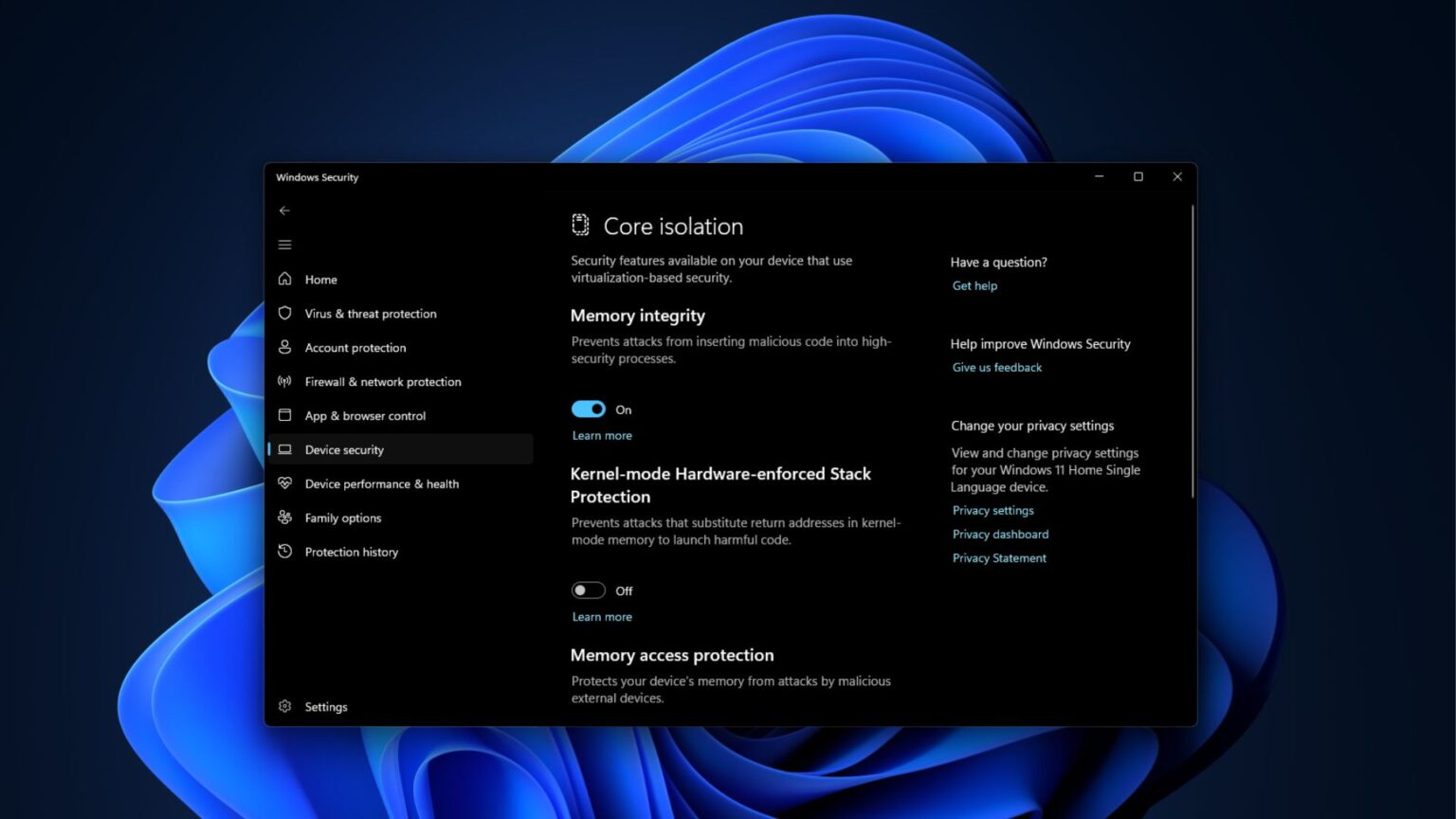
Image source: Windows Latest
Starting in October, Windows 11 will automatically enable “Memory Integrity”: Security is increased, but performance on some PC games may degrade.
According to Windows Latest, recentlyMicrosoft announced in the Windows IT Pro blogThis change is expected to begin enabling Memory Integrity on eligible devices with Windows quality updates following the October 13 Patch Tuesday. Microsoft Group Program Manager Peter Waxman added that Windows quality updates will start enabling Memory Integrity protection on eligible devices, and if a device has not yet enabled Virtualization-Based Security (VBS), these updates will also turn on VBS at the same time.
For readers unfamiliar with “Memory Integrity,” here’s a brief explanation. Its technical name is Hypervisor-protected Code Integrity, or HVCI for short. It primarily leverages the CPU’s hardware virtualization capabilities to establish an isolated, secure environment within the Windows system that even general kernel code cannot access arbitrarily. Any driver or code attempting to execute at the Windows kernel level must first pass integrity and trustworthiness verification, and can only run after being confirmed to have no issues.
This mechanism is mainly intended to reduce the risk of malware gaining Windows kernel privileges. In a common BYOVD attack technique seen in recent years, attackers don’t necessarily try to break through antivirus software directly. Instead, they find a way to load a driver that has a valid digital signature but contains security vulnerabilities into the system, and then exploit those vulnerabilities to obtain kernel-level privileges. Ransomware and other malware have both used this type of approach.
Once HVCI is enabled, Windows applies stricter verification and isolation to core code. Combined with mechanisms like Microsoft’s vulnerable driver blocklist, this further reduces the likelihood of such attacks succeeding. HVCI itself relies on the isolated environment created by VBS (Virtualization-Based Security) to function, so if VBS isn’t enabled, HVCI can’t work properly either. That’s why, when Microsoft automatically turns on Memory Integrity this time, it will also enable VBS alongside it when necessary.
However, not every computer will have it automatically enabled. It must be an Intel 8th generation or newer, AMD Zen 2 or newer, or Qualcomm Snapdragon 8180 or newer processor. The x64 platform must have at least 8GB of memory and an SSD of 64GB or more. Virtualization in BIOS/UEFI must also be enabled, and drivers must pass a compatibility check.
Microsoft said the system will first evaluate the device’s hardware capabilities, compatibility, and performance, and only after confirming that it meets the criteria will it automatically enable memory integrity.
Additionally, computers that previously had Memory Integrity manually disabled will not have it turned back on after the update.
As for how much gaming performance will actually drop after enabling VBS, foreign media Tom’s Hardware Previously tested 15 games on a platform using the Core i9-13900K, RTX 4090, and 32GB DDR5-6600.
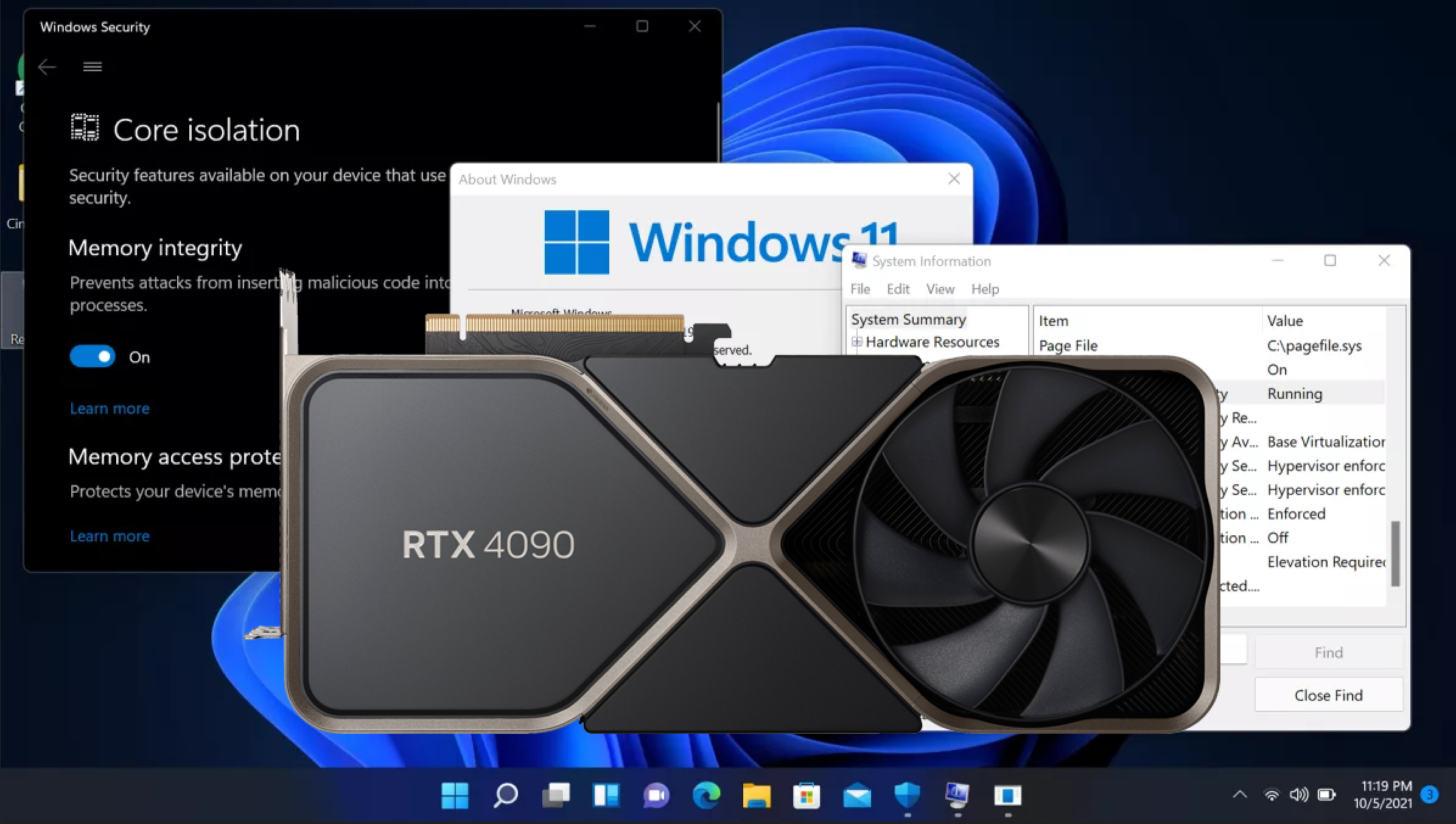
Image source: Tom’s Hardware
The results show that after disabling VBS, average gaming performance improves by about 5% at 1080p Medium, 1080p Ultra, and 1440p Ultra. At 4K Ultra, the gap narrows to around 2%, since the performance bottleneck leans more toward the graphics card.
The differences in some games are even more pronounced:
- Horizon Zero Dawn
- 《Marvel’s Spider-Man: Miles Morales》
- Cyberpunk 2077
Under most test settings at 1080p and 1440p, these games see an improvement of roughly 5% to 8% after disabling VBS. The most noticeable case is Microsoft Flight Simulator, which gains over 11.2% even at 1080p medium quality. In other words, VBS’s performance impact is not the same across every game or every resolution. The higher the resolution and the more the bottleneck shifts toward the GPU, the smaller the difference tends to become. But in more CPU-bound games or at lower resolutions, the penalty can be more pronounced.
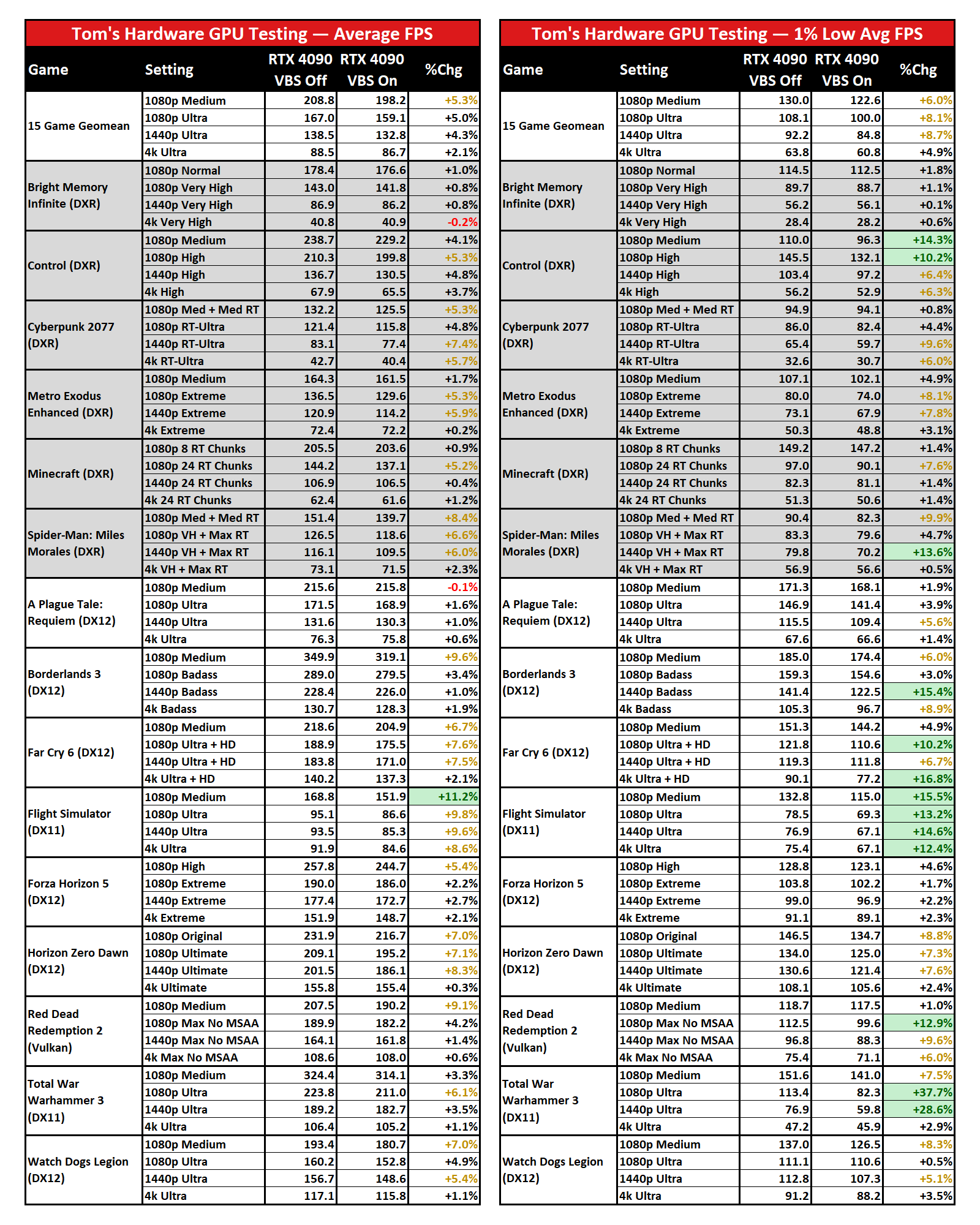
Image source: Tom’s Hardware
Besides gaming performance, this change may also affect CPU undervolting and tuning tools commonly used by some players. For example, Intel has officially stated that Intel XTU is incompatible with Windows VBS in certain hardware environments, especially on Intel Core processors before the 11th generation that lack Undervolt Protection. As long as VBS is detected as enabled, XTU may fail to start properly. Therefore, players who previously used tools such as Intel XTU or ThrottleStop for undervolting should also keep an eye on whether their settings are affected after this update.
Source: KOCPC Chinese