


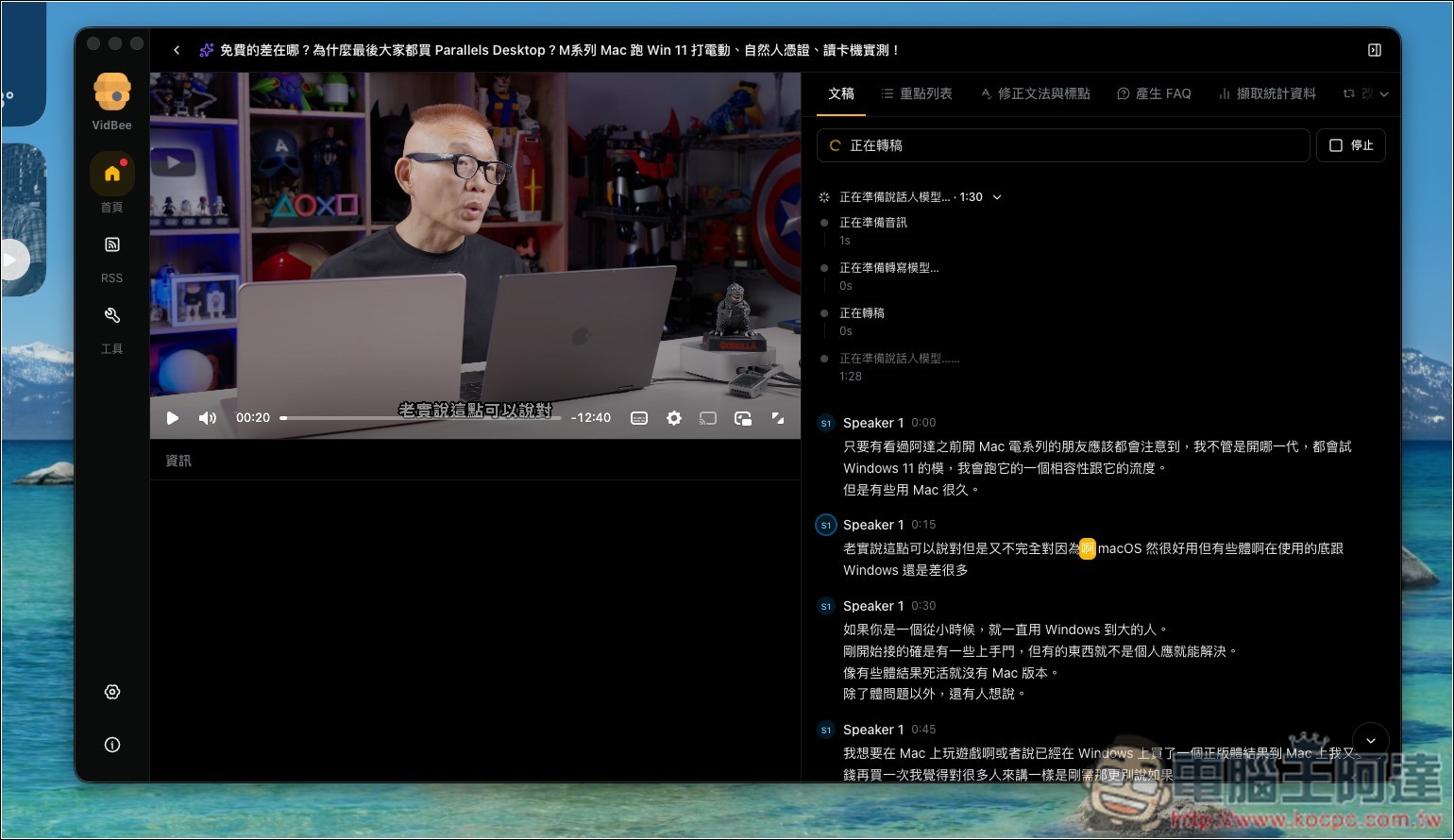
Finally, video download tools are starting to incorporate AI features! VidBee, this free and open-source download tool, can not only download videos and music from over 1,000 websites, including popular sites like YouTube, Facebook, and Bilibili, but also offers AI features. After connecting the service (or a local setup), you can directly generate video summaries, FAQs, and even mind maps—it’s very convenient. More importantly, it also has a built-in transcription feature that can directly transcribe downloaded files.
ReminderBefore use, please verify that the content on YouTube or other websites is legally authorized, such as self-uploaded works, Creative Commons licensed content, or public domain material. If it is copyrighted music or audiovisual works, downloading or converting them without the rights holder’s consent may involve copyright risks and may also violate the original platform’s terms of service.
Introduction to VidBee, the Free Open-Source Video Downloader
VidBee is a free, open-source cross-platform video download tool that supports Windows, macOS, and Linux. Its biggest feature is that it can not only download videos but also integrates functions such as “speech-to-text,” “AI summarization,” and “RSS auto-download” all into one software. It’s also very easy to use: after installation, just paste the video URL and you can start downloading right away.
Under the hood, it uses the well-known yt-dlp and FFmpeg, so it supports a wide range of websites — currently over 1,000, including common platforms like YouTube, TikTok, Instagram, Facebook, X, Bilibili, Twitch, and Vimeo. When downloading, you can choose different video qualities, extract audio only, and it also supports playlists, batch downloads, specifying video segments, subtitle extraction, and a download queue. For YouTube videos, you can also download high-definition versions, choosing 1080p, 4K, or even 8K depending on the specifications offered by the original video.
The biggest difference between VidBee and typical video downloaders is its built-in voice-to-text feature. Once a video is downloaded, you can transcribe it locally using models like Whisper, SenseVoice, or Qwen3-ASR, with support for over 100 languages. It can also identify different speakers and add timestamps. The finished transcripts can be searched by keyword — just click to jump to the corresponding point in the video — and can be exported as TXT, Markdown, or subtitle files.
Additionally, it can hand the transcript to AI for further content generation such as summaries, translations, FAQs, mind maps, and key takeaways, with support for services like OpenAI, Claude, Gemini, DeepSeek, and OpenRouter. It can also connect to Ollama and LM Studio to run AI locally.
Main features
- Completely free, open source, no account registration required.
- Supports Windows, macOS, and Linux
- Use yt-dlp and FFmpeg as the download core.
- Supports YouTube, TikTok, IG, Facebook, X, and 1,000+ other websites
- Supports downloading videos, audio, subtitles, and playlists.
- You can select various video qualities, with some sources supporting 4K and 8K.
- Supports batch downloads and download queue management.
- Built-in on-device AI speech-to-text feature
- Supports Whisper, SenseVoice, Qwen3-ASR, and other models
- Supports 100+ languages and speaker recognition
- Transcript can be searched by keyword and jump directly to the video timestamp.
- Can output formats such as TXT, Markdown, and subtitles.
- Supports AI summaries, translation, FAQ, mind maps, and more.
- Can integrate with AI such as OpenAI, Claude, Gemini, DeepSeek, etc.
- Supports Ollama, LM Studio local AI models
- Supports RSS subscriptions and automatically adds new videos to downloads.
Go to the VidBee official website
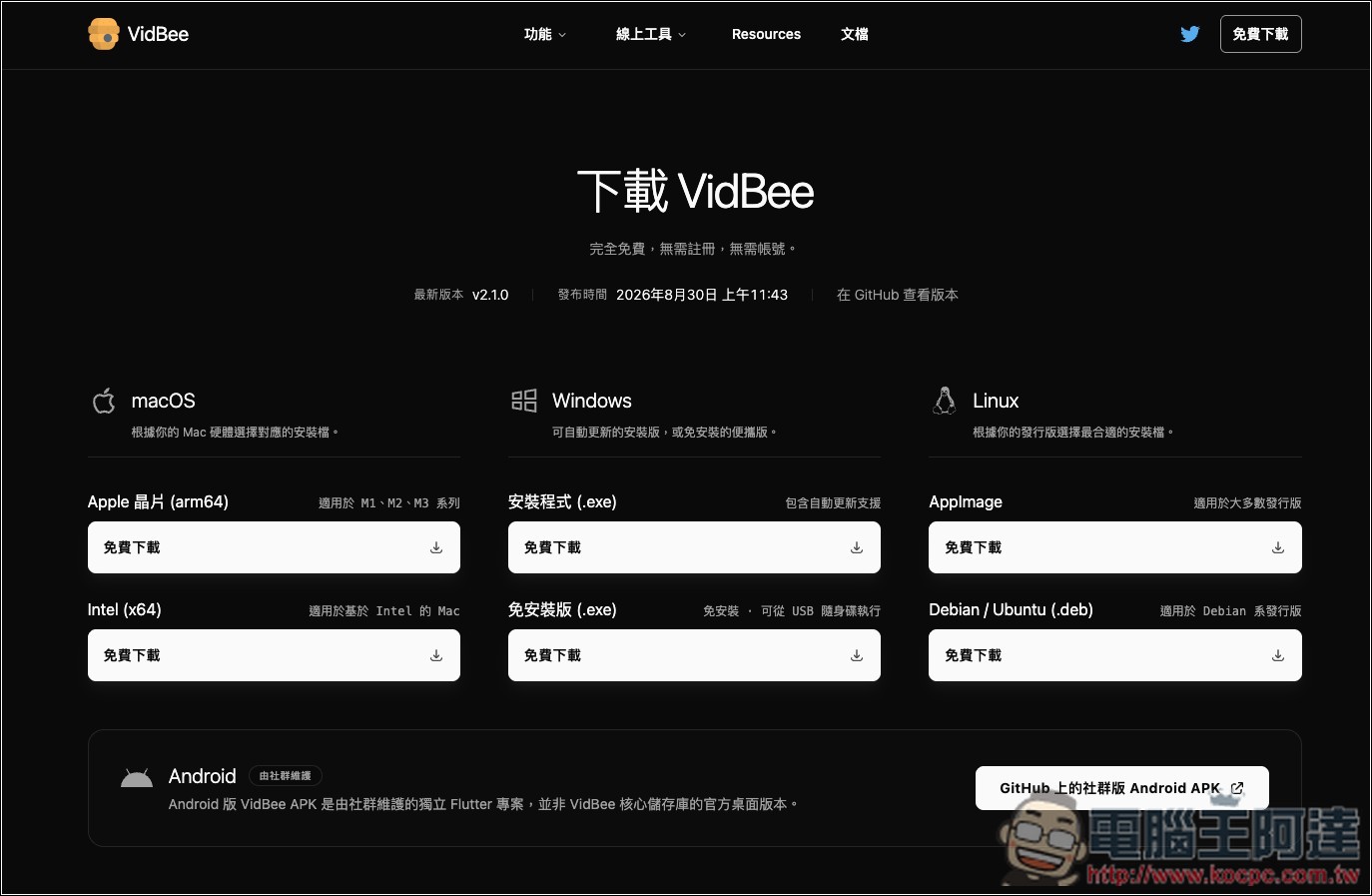
After entering the VidBee official website via the link above, download the version suitable for your computer. I’m on macOS (Apple chip):
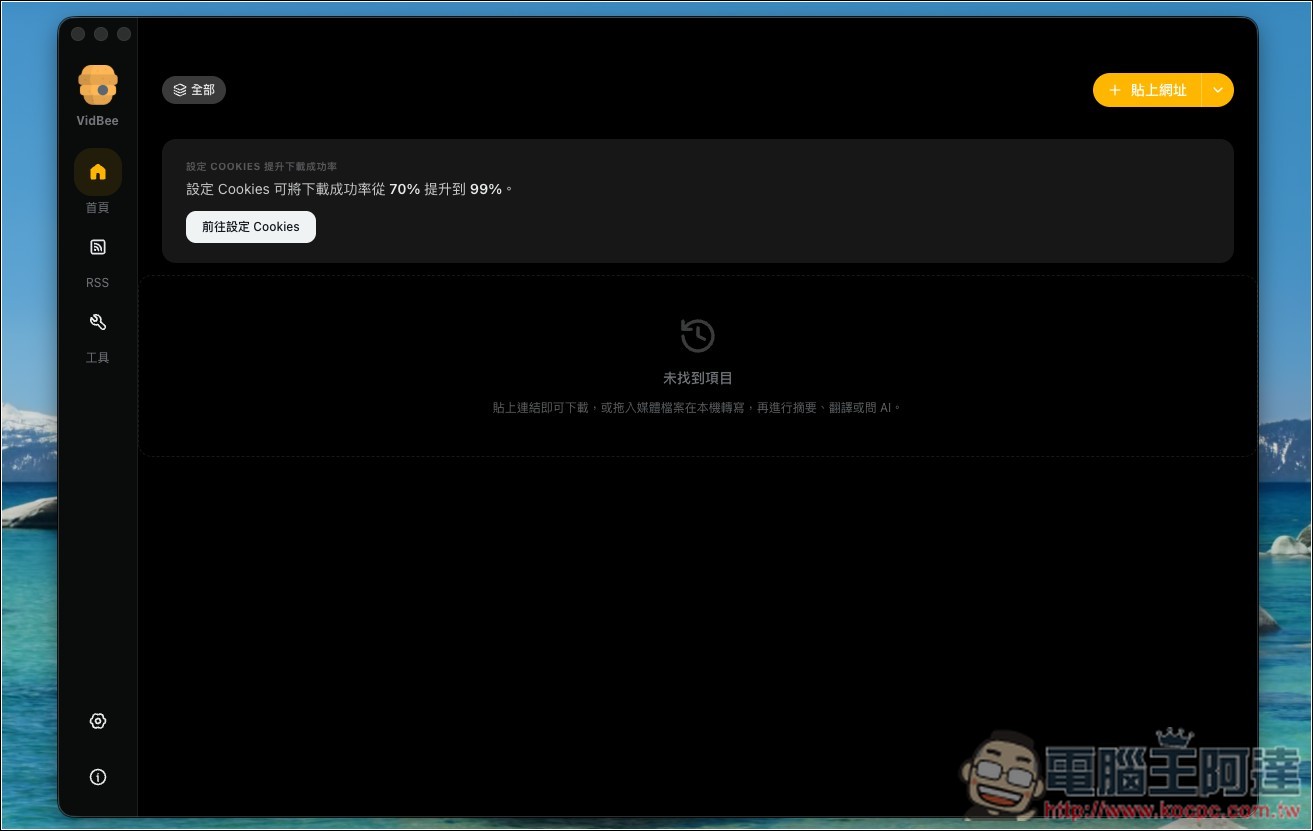
The image below shows the software’s interface, which is very simple. On the left is the main menu: “Home” is for downloading videos, “RSS” automatically downloads new videos after you add sources, and “Tools” is the toolbox (though it’s a web version):
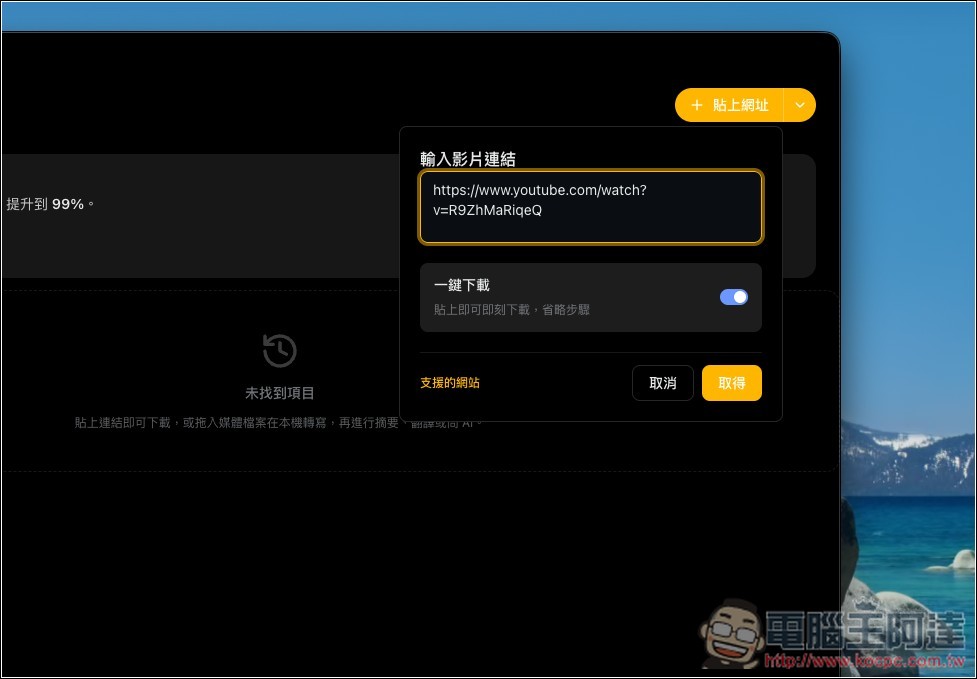
Copy the URL of the video you want to download, paste it in the field above, and the video link will be entered automatically. If you want to adjust settings like quality or audio, remember to turn off the one-click download toggle, then click Get.
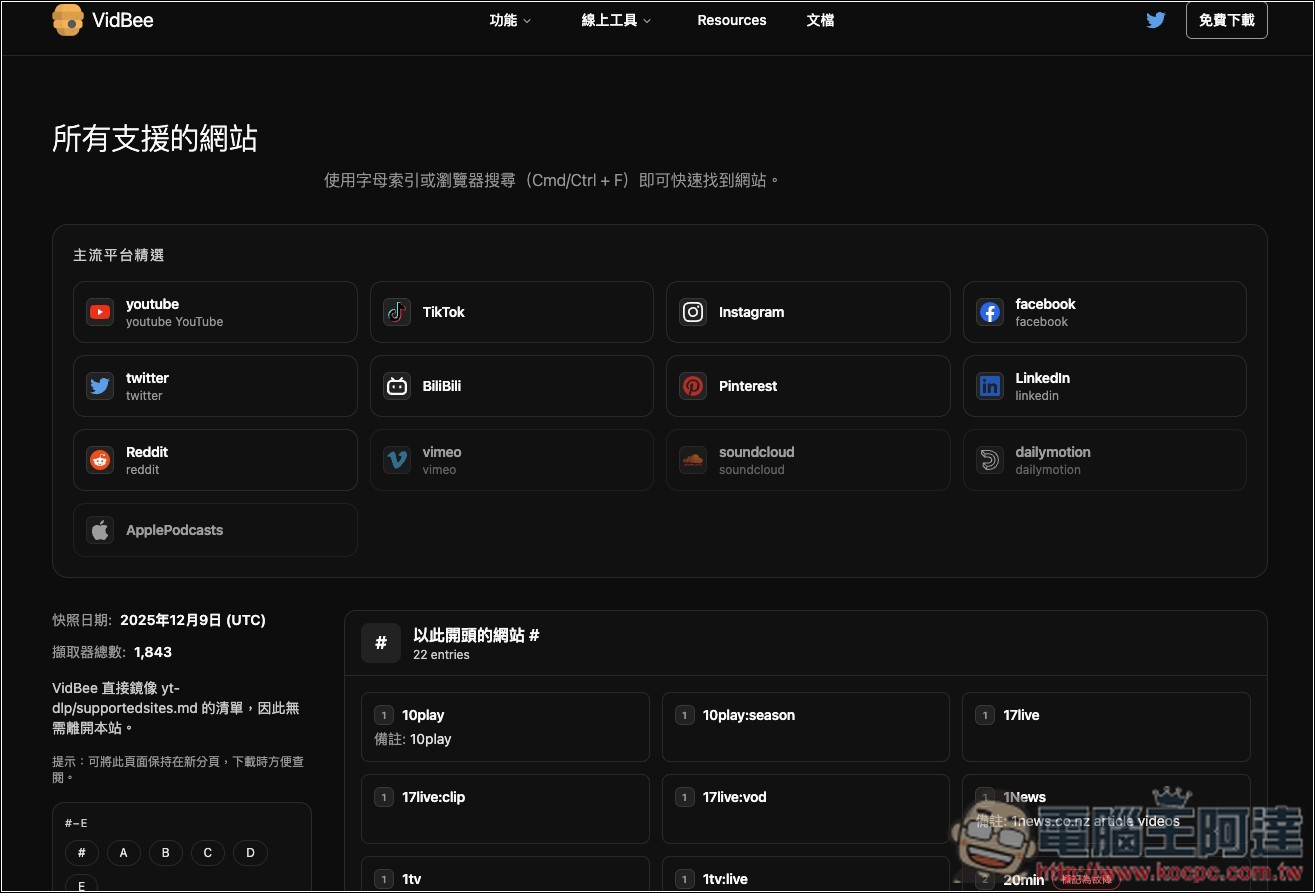
atThis webpage canYou can query all supported websites, currently up to 1843:
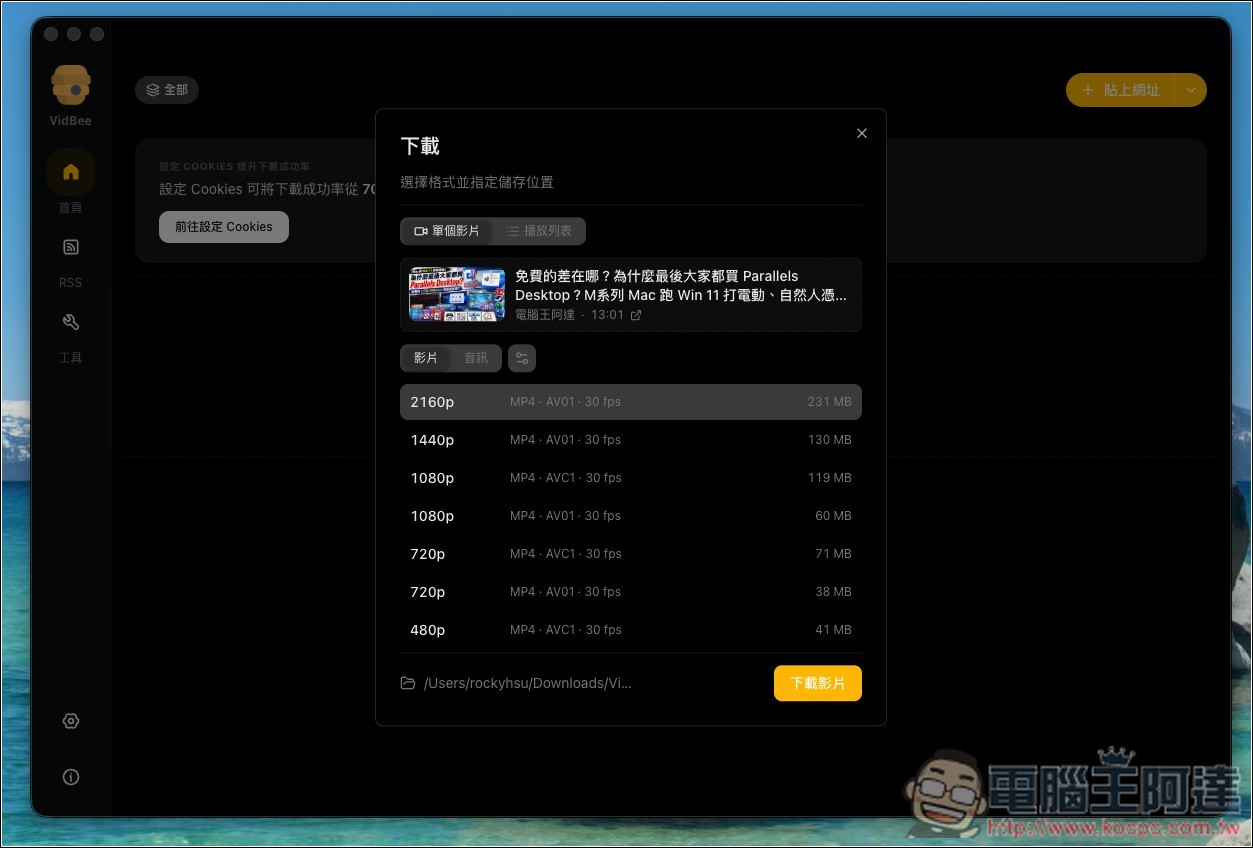
YouTube supports up to 8K quality, but this video of mine only goes up to 4K:
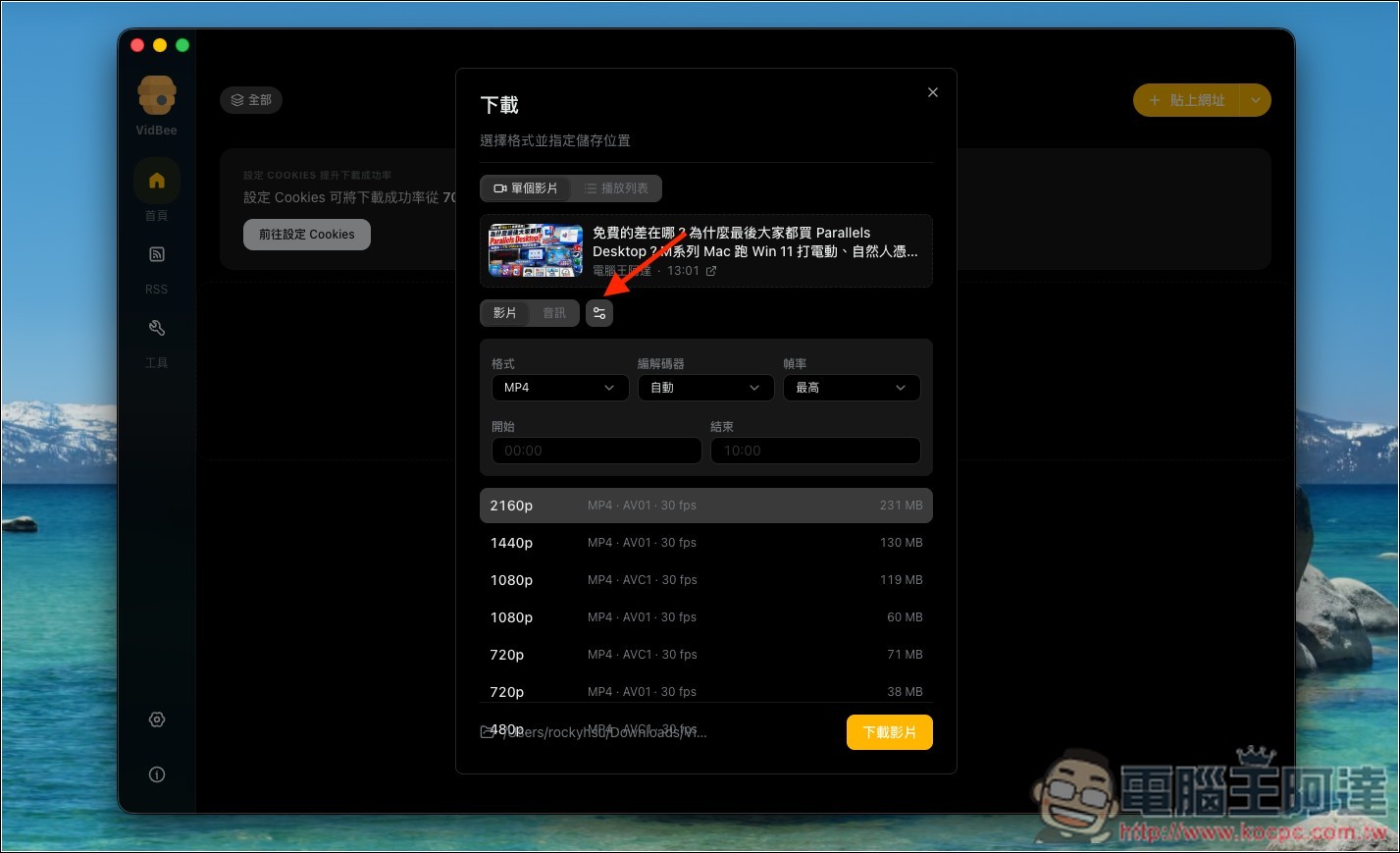
Clicking the icon next to it expands the settings. The default format is MP4, and you can also specify which segment to download, which is quite nice:
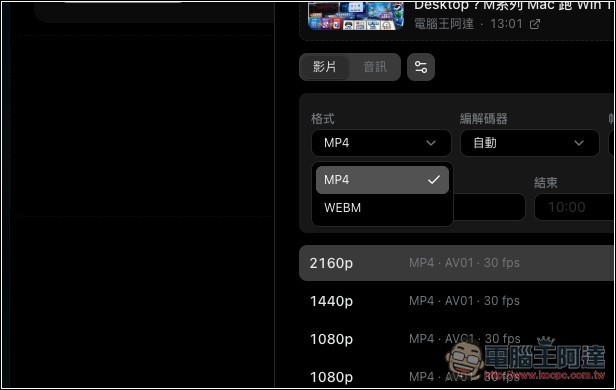
The video also supports the WEBM format:
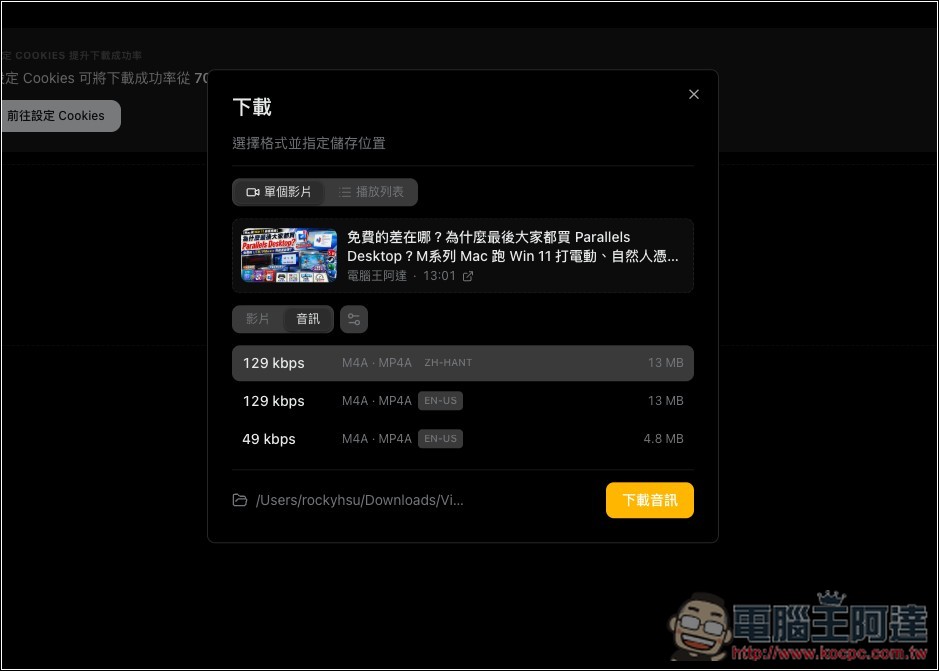
Unfortunately, the audio does not support the MP3 format:
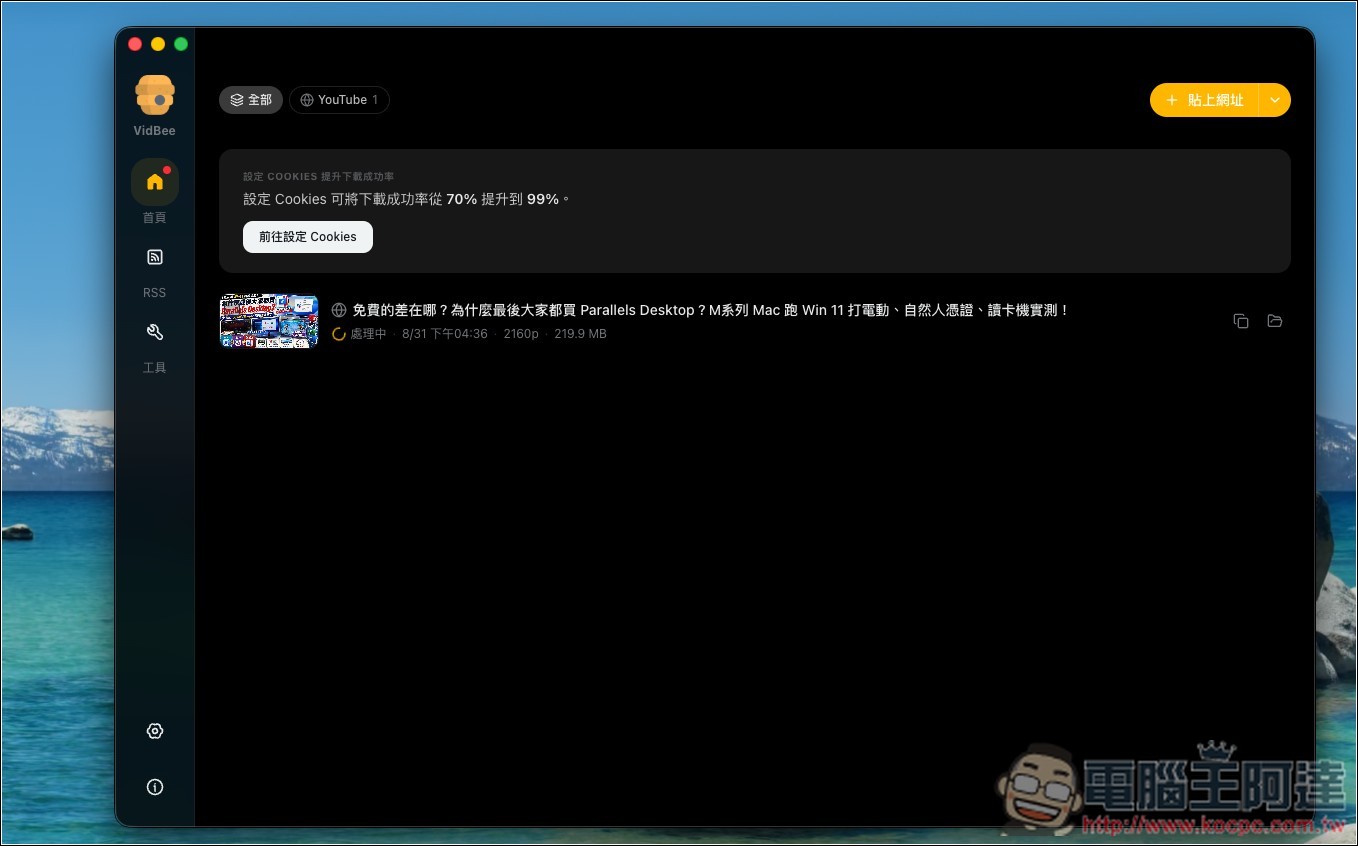
After clicking download, it will start processing, and the download speed is quite fast:
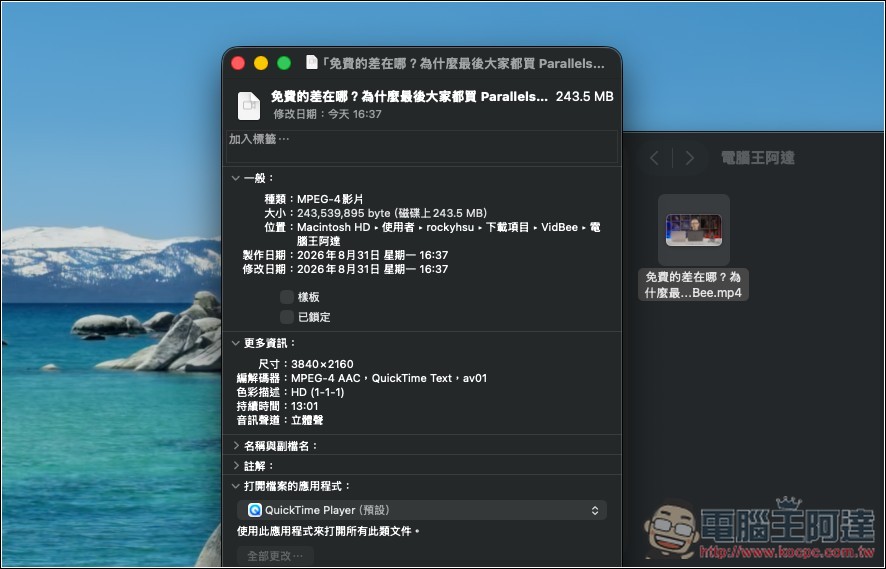
I tested and indeed successfully downloaded 4K quality:
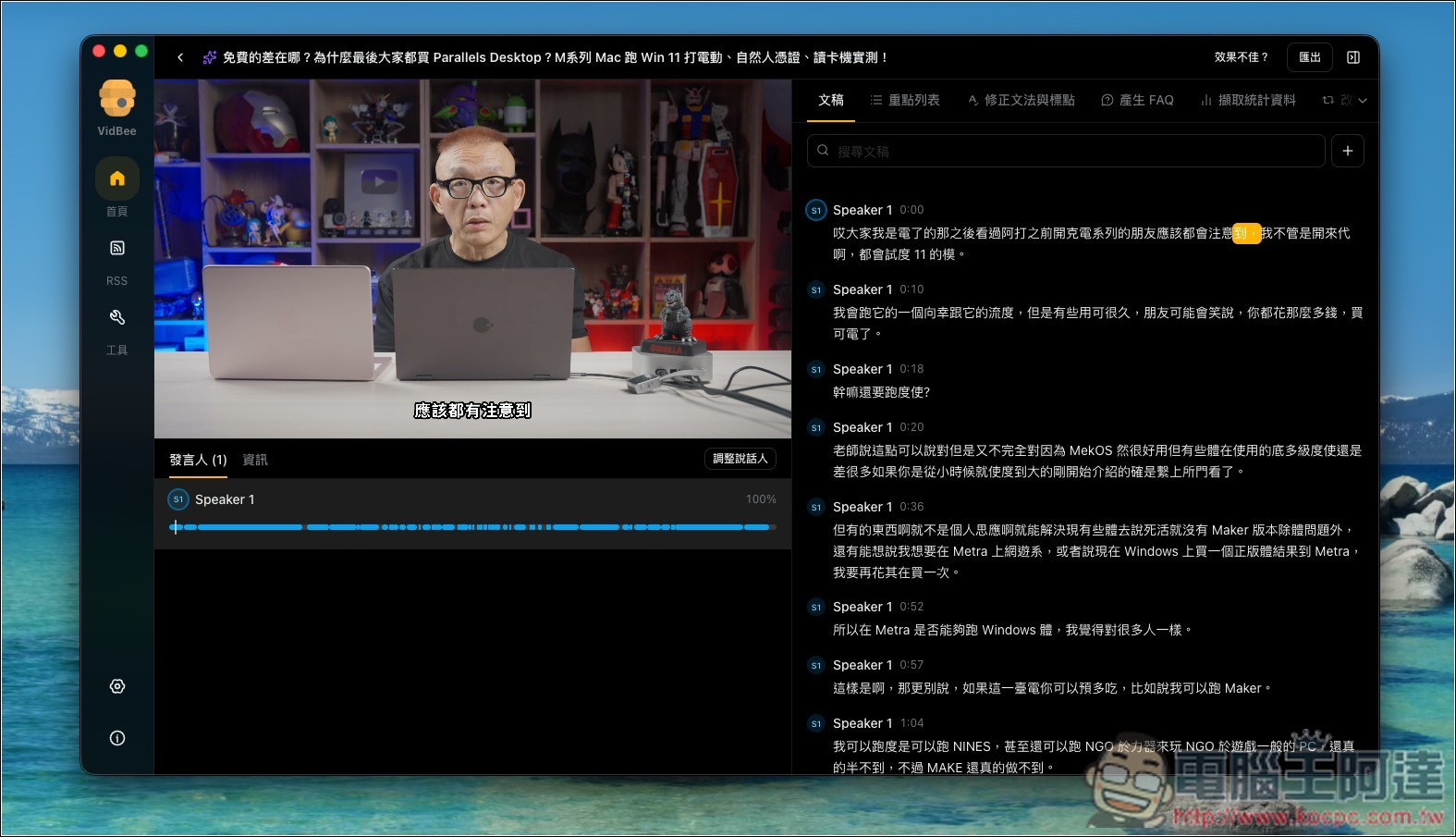
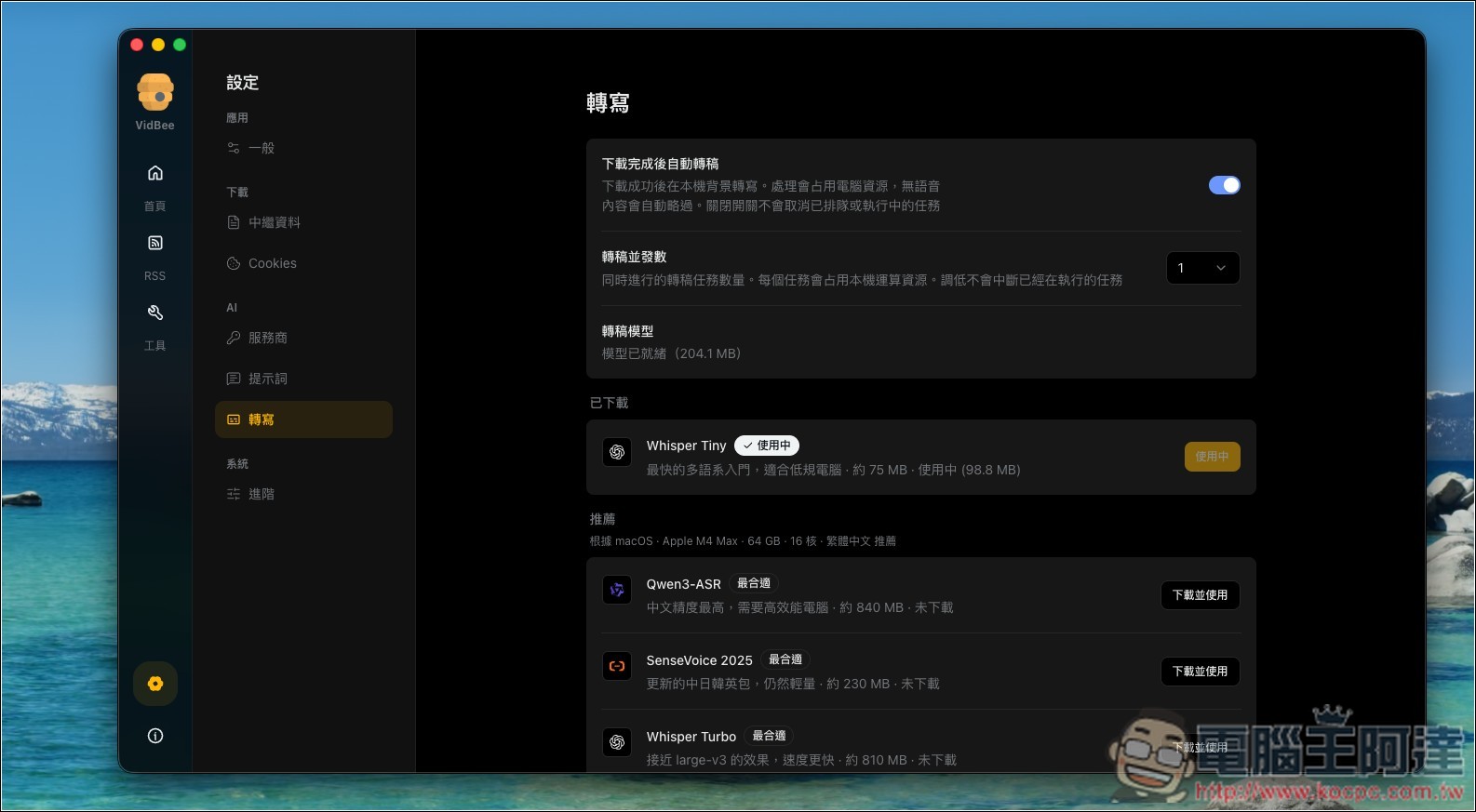
You can double-click to open the video directly in the software, which takes you to the editing backend. There, you can get the verbatim transcript (script) and other AI features. However, the default transcription model is Whisper Tiny, and the transcription quality isn’t very good:
You can go to the transcription settings menu in Settings to switch to a different model. We recommend Whisper Turbo or Qwen3-ASR:
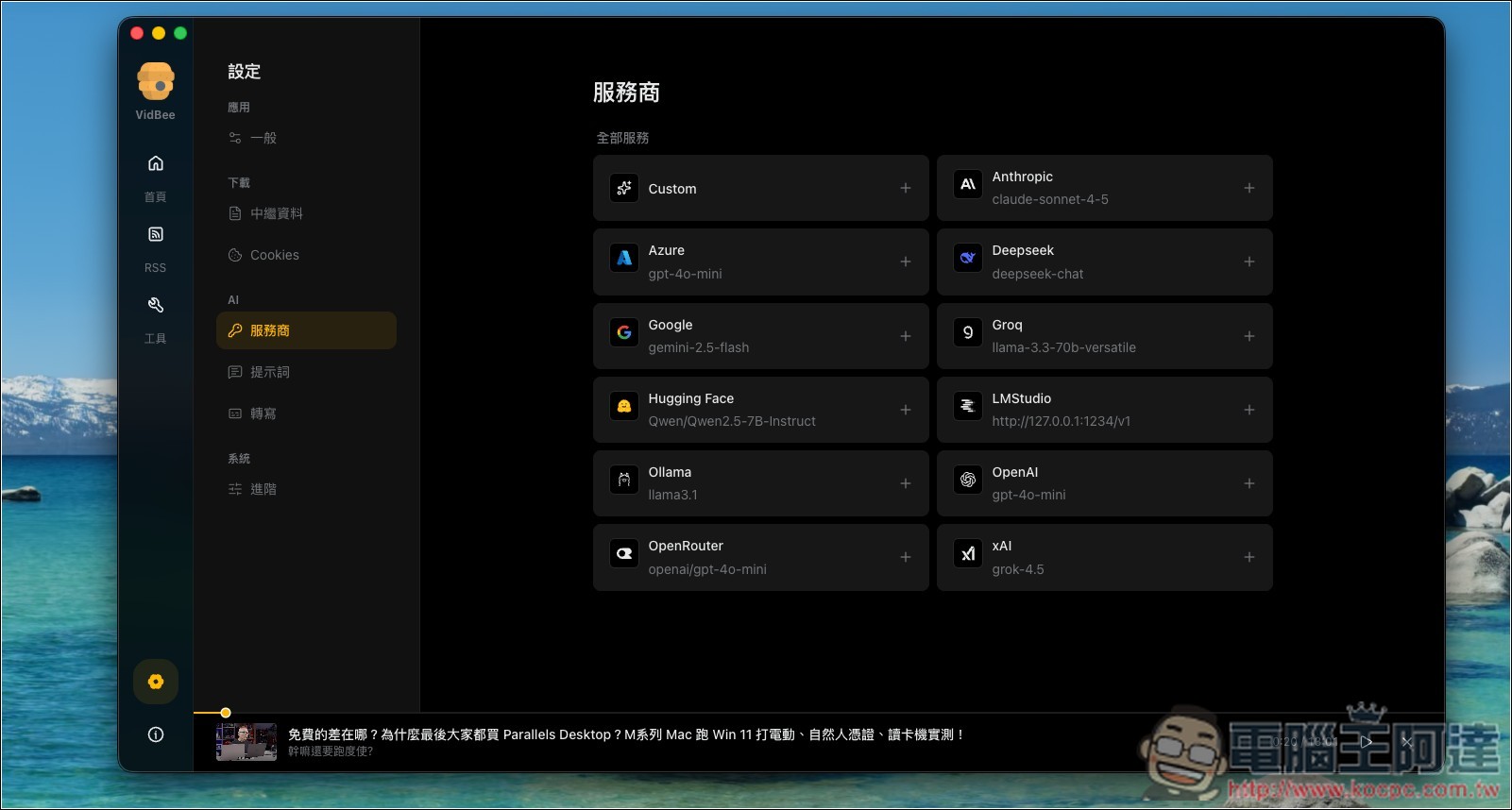
To use AI features, you must first set up a service provider. OpenAI, Anthropic, Google, xAI, and others are all supported. You can also set up a local one by selecting “Custom.”
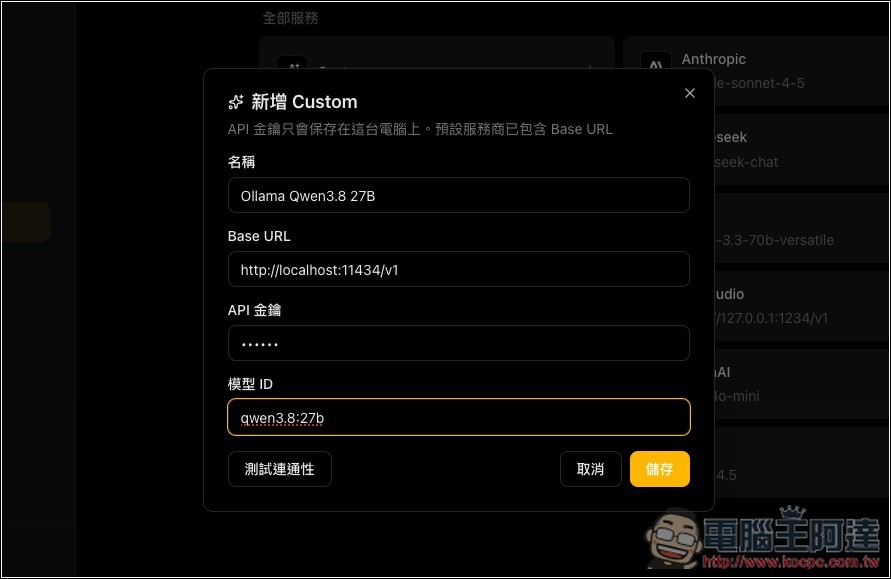
I integrate Ollama:
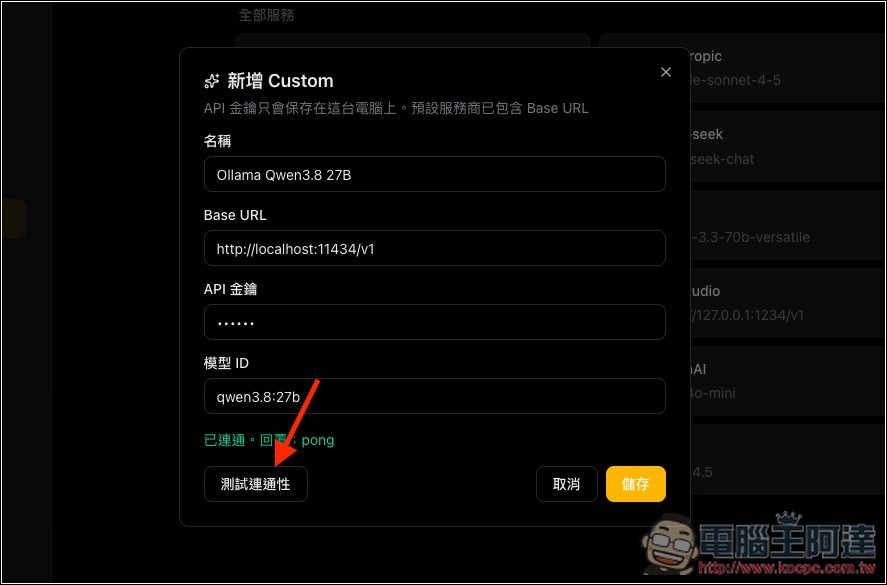
After filling in, remember to click “Test Connectivity” to confirm everything is correct:
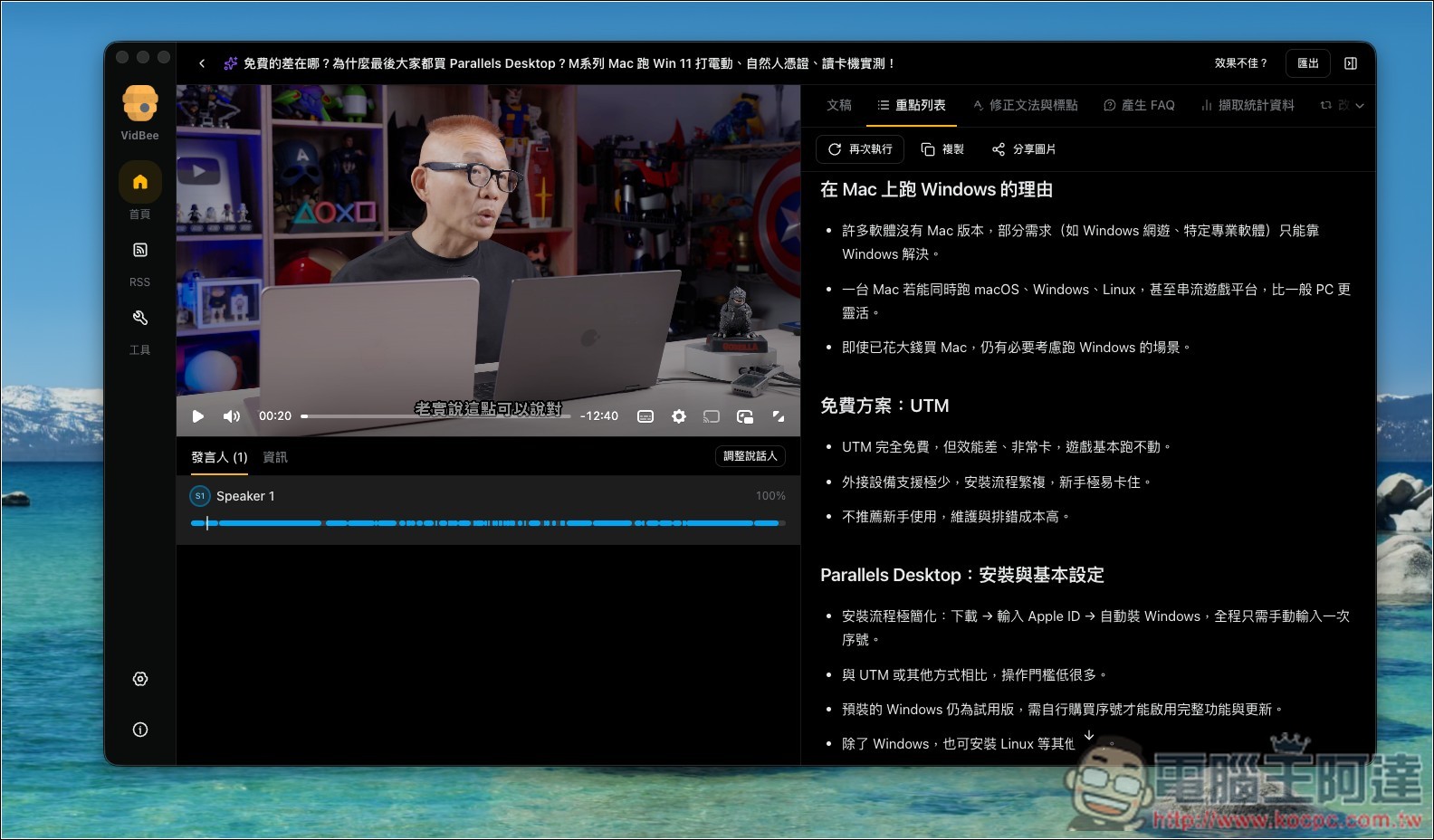
Then, back in the video backend, you’ll get AI-organized summaries like key point lists, so you can quickly grasp the highlights without having to watch the entire video:
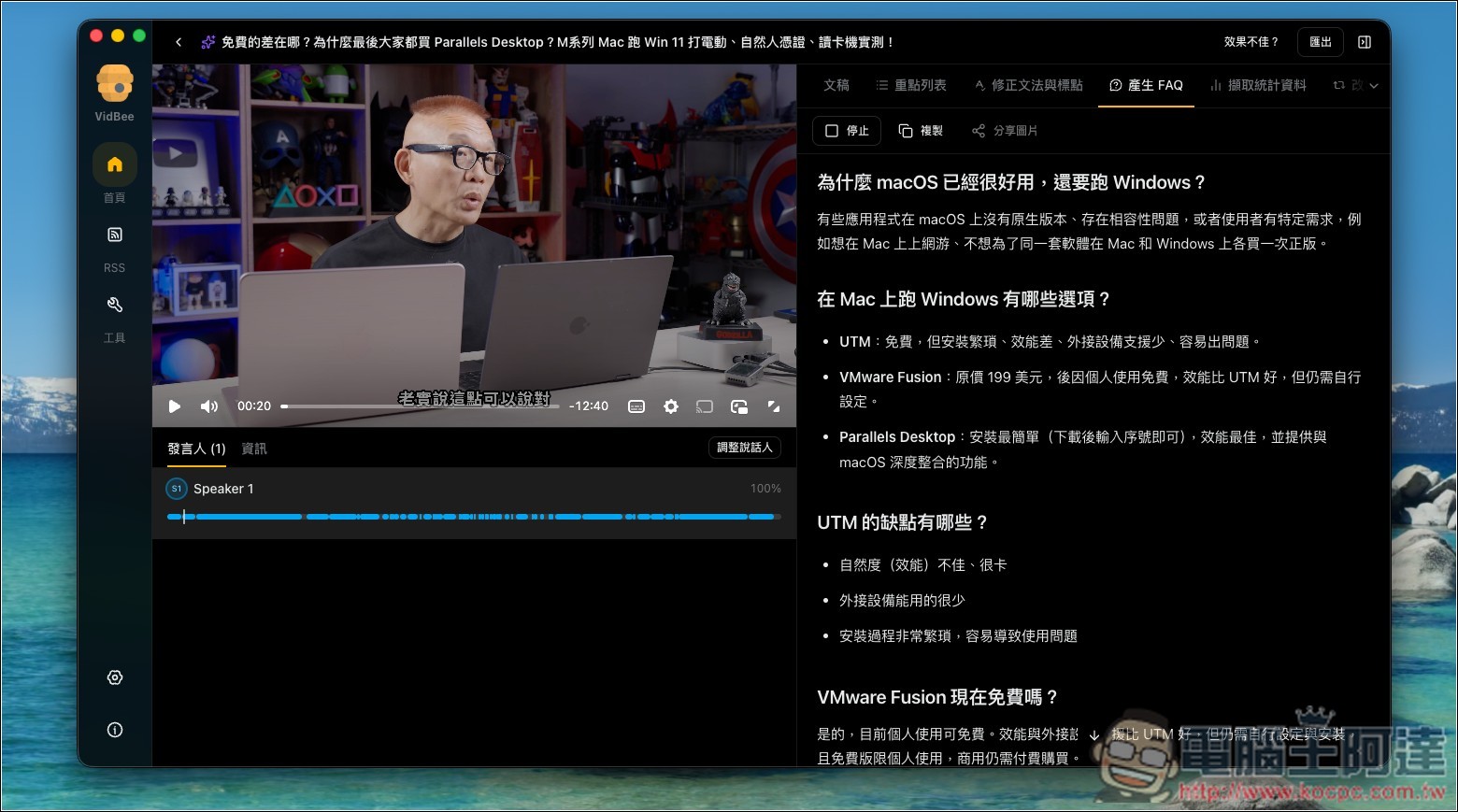
can also generate FAQ Q&A:
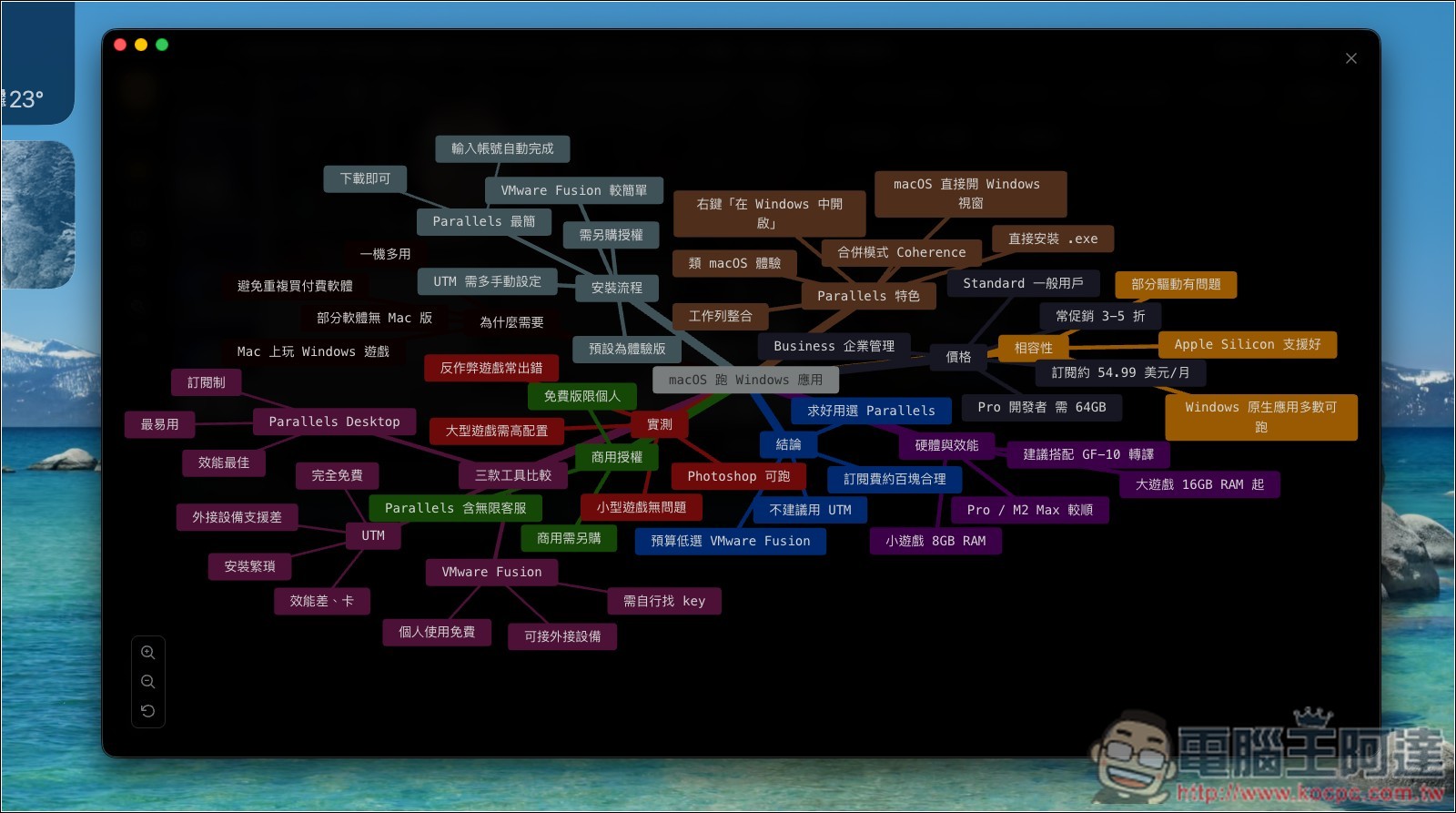
Even mind maps can be created:
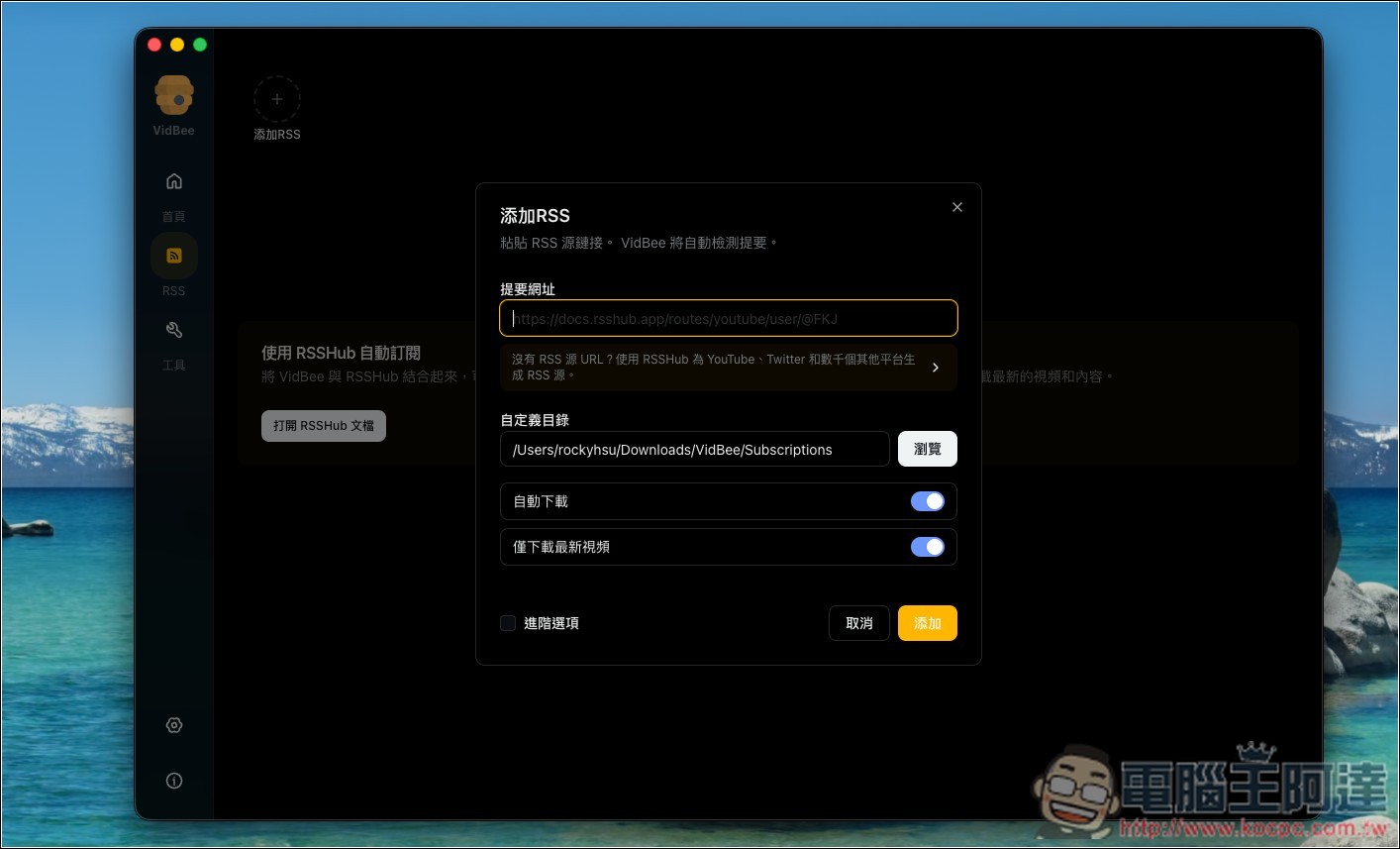
After adding the channel to RSS, new videos will be downloaded automatically.
Source: KOCPC Chinese