


For a long time, I hardly read any long-form content on my phone. As long as it’s articles, PDFs, or even slightly lengthy emails, I’ll quickly feel irritated. The fonts are crowded, the brightness is wrong, and my eyes are tired after looking at them for a long time. Later, I spent some time studying the display and reading settings of the phone, and unexpectedly discovered that a few small adjustments can bring huge improvements.
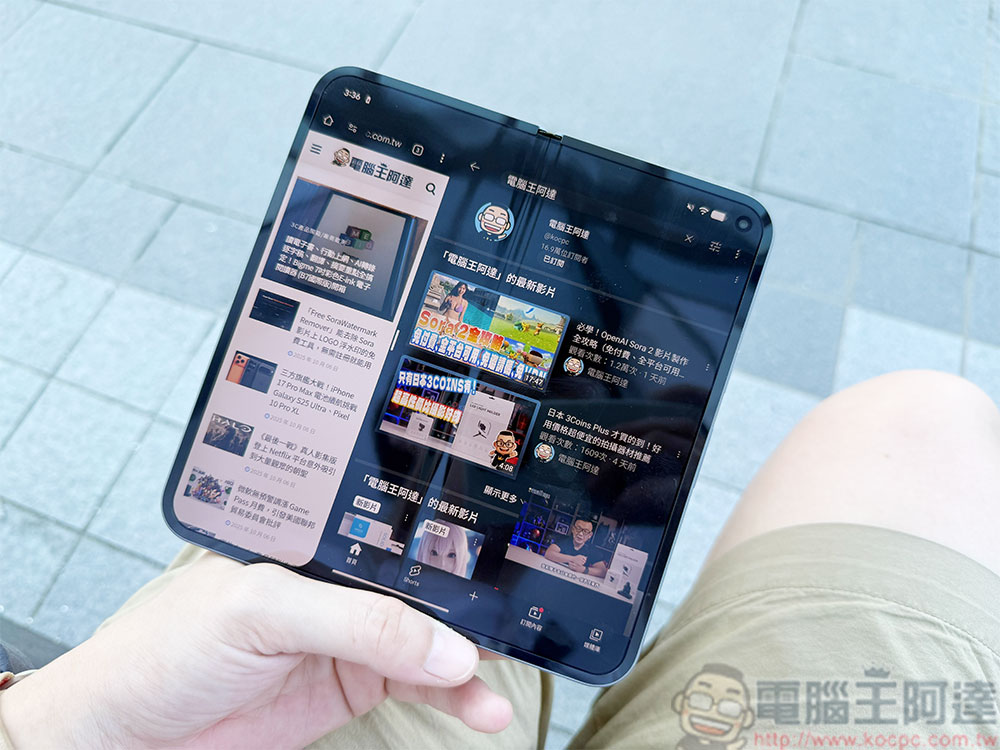
Change these settings to improve your reading experience on your phone
Enlarge fonts to reduce eye fatigue
One of the easiest ways to make reading on your phone more comfortable is to enlarge the font size. Many phone default fonts are smaller, which can make long articles or documents difficult to read. Slightly larger fonts can reduce eye strain and make it easier to read text without having to constantly squint or zoom in. Even small adjustments can make paragraphs appear wider. You can change it using the following methods:
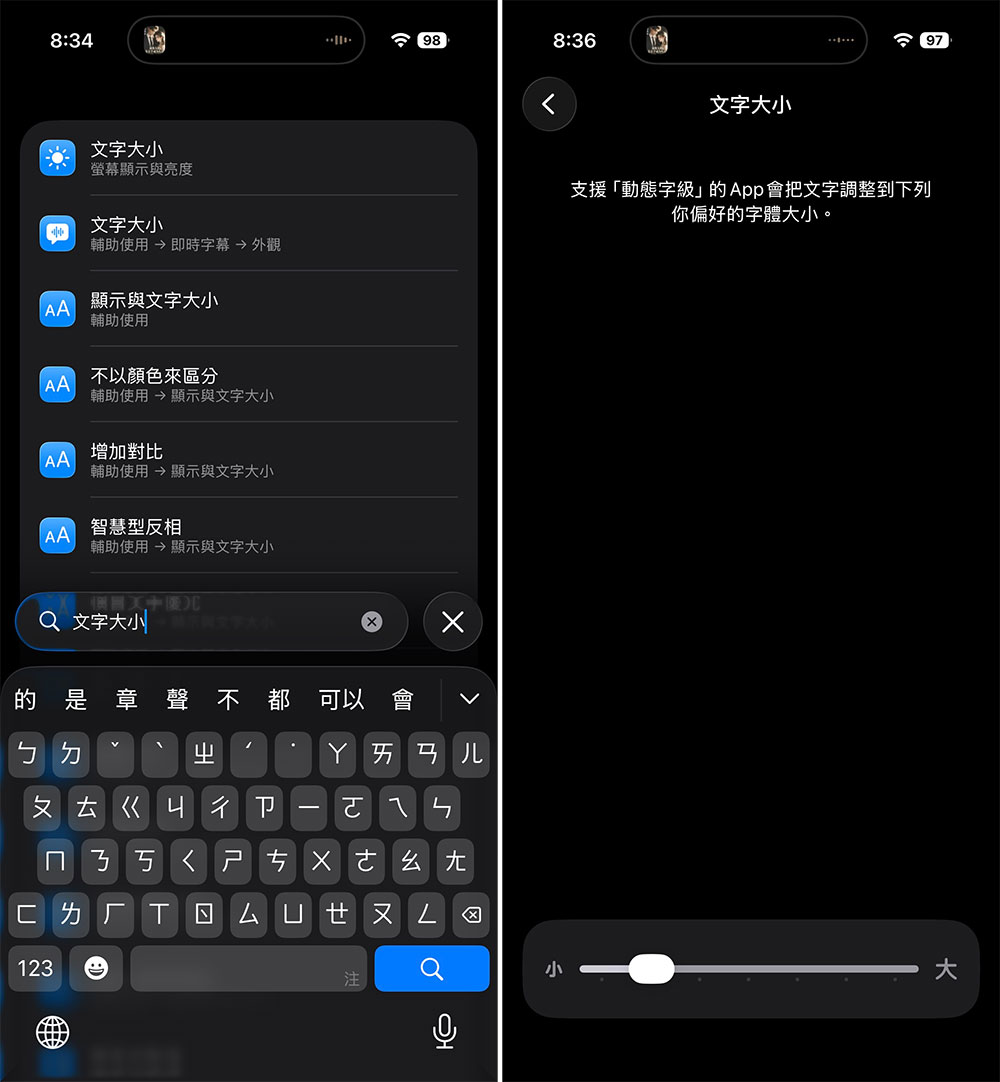
- Open the Settings app.
- Enter font size in the search bar and select it.
- Move the slider left or right to adjust the font size until you feel comfortable.
You can also resize the display in the same way, which changes the overall scaling of all elements on the screen, such as buttons, menus, and app layouts.
However, not all applications can fully adhere to the system font size. Some applications use fixed layouts or custom text control directions, which means that font size changes may not be noticeable. However, for everyday reading in browsers, text messages, and many apps, enlarging fonts does make a noticeable difference.
Switch to warmer screen tones
Another key to making reading on my phone more comfortable is switching the screen to warmer colors. The default color temperature of most mobile phones is cooler, and the screen will have a bluish tint. Although this setting makes the screen look more vivid, it is not very friendly when reading for a long time. After changing to warm colors, the stimulation of blue is reduced, and the eyes will be much more relaxed when reading text, especially at night or in dark places.
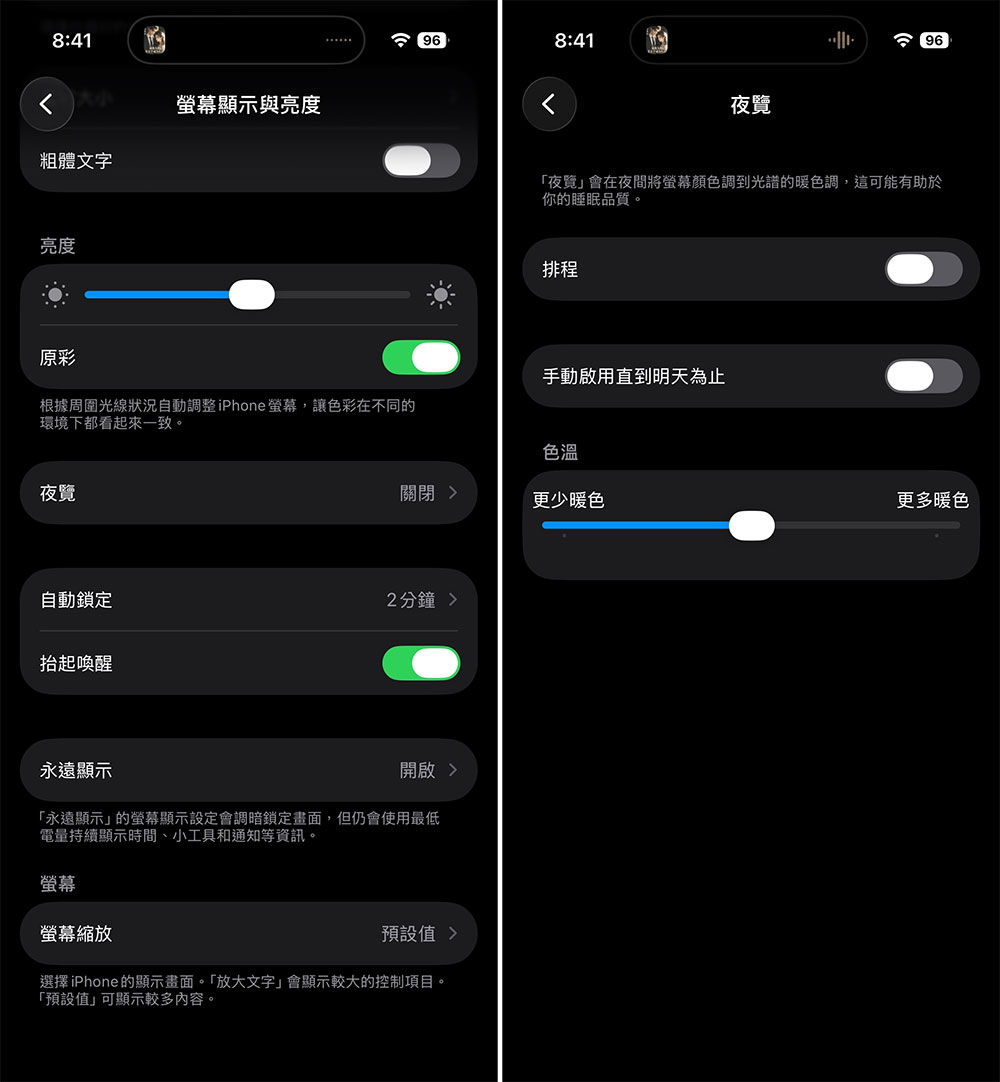
You can enable this feature through eye protection mode or night mode (night shift mode, the name varies depending on the brand):
- Open the Settings app.
- Go to “Display” or something with a similar name.
- Click “Night Shift” (also known as night, eye protection mode, etc.).
- Turn on the feature, then drag the slider to adjust the intensity of the screen’s warm tones.
You can also set a schedule to automatically turn it on at night and off in the morning, so the screen’s color temperature will automatically adjust when you read in dimly lit environments. You may not get used to it at first, but once you get used to it, the warm colors will make reading for long periods of time more comfortable.
Use dark mode or brown background
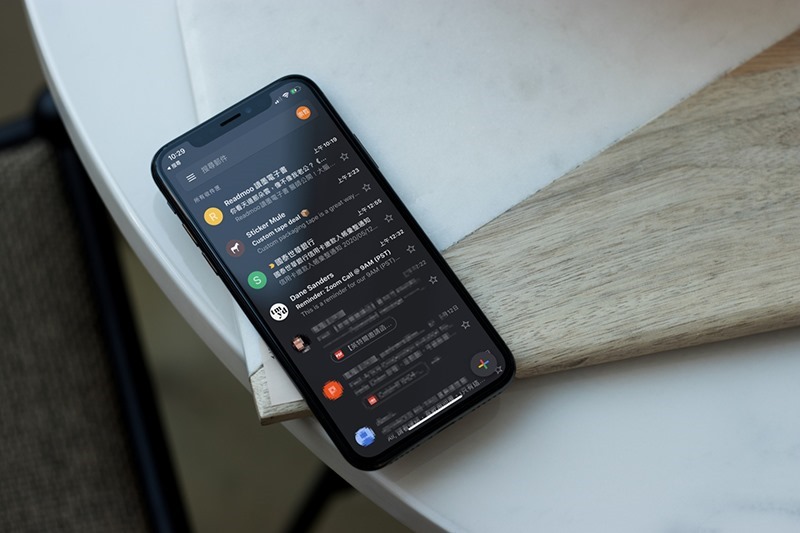
The bright white background is actually one of the main culprits of poor reading experience on mobile phones. Staring at the dazzling white light for a long time can easily cause eye fatigue. After switching to dark mode, the improvement is immediately felt. The picture changes from a white background with black text to a dark background with light text. Especially in a dark environment, the eyes will be much more relaxed. Some reading apps even offer sepia backgrounds that mimic the warmer texture of paper. I find this background particularly comfortable for daytime reading.
Ultimately the best choice really depends on the current light conditions: dark mode is friendliest at night, while tan or off-white backgrounds are better during the day. All in all, the overall reading experience will be much more pleasant as long as you avoid the glare of a stark white screen.
Lock screen orientation
Another small adjustment that makes reading on my phone smoother is locking the screen orientation. Most phones are preset to automatically rotate the screen when you tilt the device slightly. If you’re lying down, half-reclining, or holding your phone at an odd angle, the screen may suddenly jump between portrait and landscape orientation.
Every time the screen is rotated, the pages will be rearranged, and you may even lose the position where you are reading. This kind of interference is really annoying when reading. After locking the screen orientation, the screen will no longer move around unless you manually switch it. You can turn off “Auto-rotate” in the “Quick Settings” panel. Fix the screen in portrait mode and the text will stay firmly in place. Even if you adjust your posture, you will no longer be interrupted by sudden rotations.
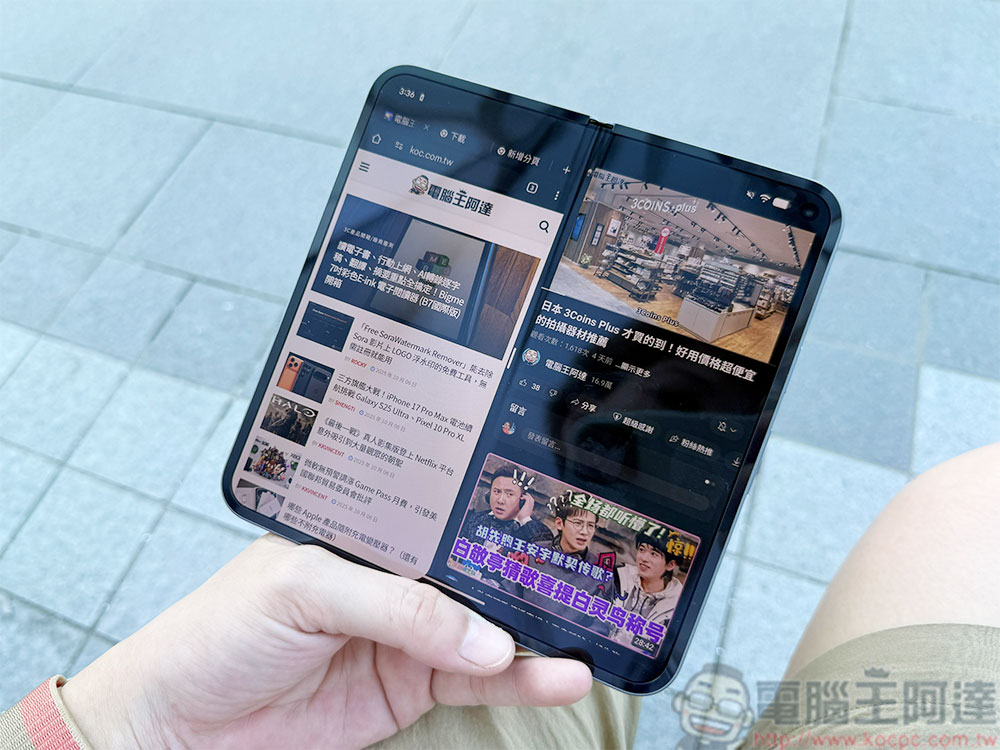
Adjust screen brightness
Screen brightness actually greatly affects the comfort of reading on a mobile phone. If the brightness is too high, the glare will make your eyes tired; if the brightness is too low, you will have to squint or even bring the phone to your face to see clearly. Finding the right brightness can significantly improve the reading experience, and the ideal setting usually depends on the surrounding light.
In strong sunlight, you may need to turn the brightness up a bit to see the text clearly; but in dim environments, lower brightness will make your eyes more relaxed. Most mobile phones also provide “adaptive brightness”, which will automatically adjust the screen brightness according to the ambient light. You can enable it in Settings > Display > Adaptive Brightness.
However, even with the automatic adjustment function, I still occasionally manually fine-tune the brightness when reading for a long time to keep my eyes in the most comfortable state. Especially at night, a slightly lower screen brightness usually feels more friendly to the eyes.
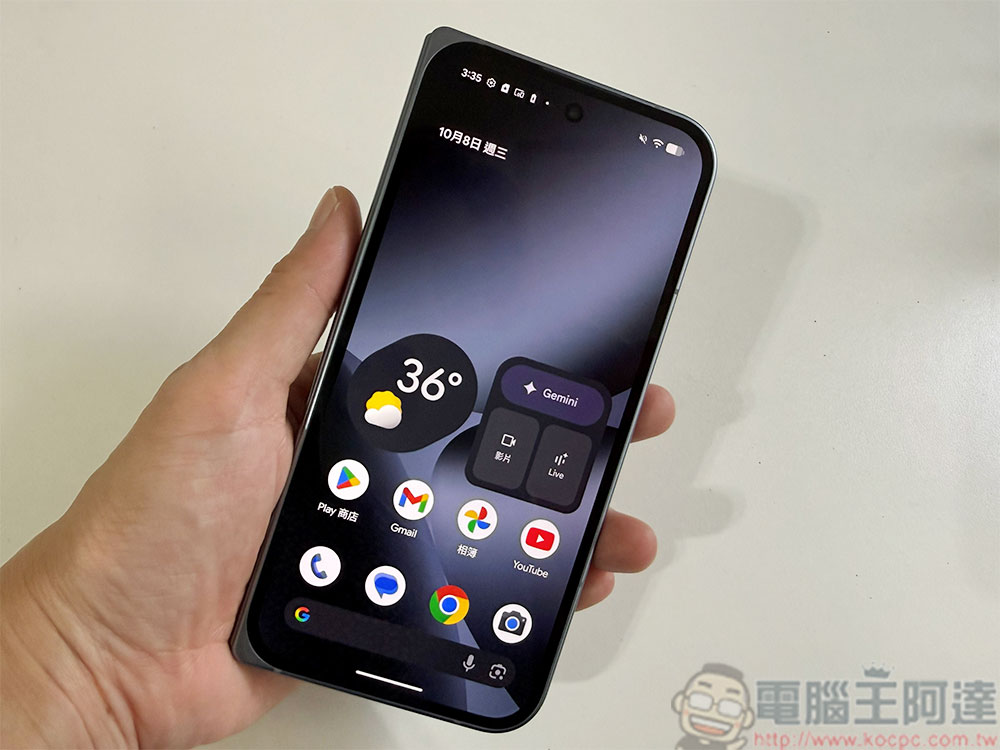
Before making these adjustments, reading on my phone had always seemed like a compromise that I had to accept. Whenever I encountered a longer article, document, or report, I would almost subconsciously wait until I could use a computer to read it. The phone screen appears too small, the text is too dense, and the brightness and color temperature are not ideal, making the overall experience uninspiring.
But then I started trying to adjust some seemingly trivial display settings, and the reading experience improved unexpectedly. From making the fonts a little larger and switching to warmer screen tones to enabling dark mode and locking the screen orientation, these seemingly simple changes added up to a much more noticeable effect than I expected. The text becomes easier to read, the screen is no longer glaring, and the screen does not rotate suddenly due to changes in posture. After the originally annoying details are eliminated one by one, reading on the mobile phone becomes much easier.
Now, even if I only have a few minutes to spare, I will naturally pick up my phone and continue reading without feeling like I am forcing myself. These small adjustments have turned my phone from a “reading tool of last resort” into a truly convenient and comfortable choice.
Source: KOCPC Chinese