


I used Gboard for years, yet I was always tormented by the same typing mistakes. Either I’d hit the wrong keys, or I’d switch keyboards just to enter a number, then have to go back and fix things—the whole process was both time-consuming and frustrating. It wasn’t until one day I actually opened Gboard’s settings page that I realized I had completely underestimated how customizable it was.
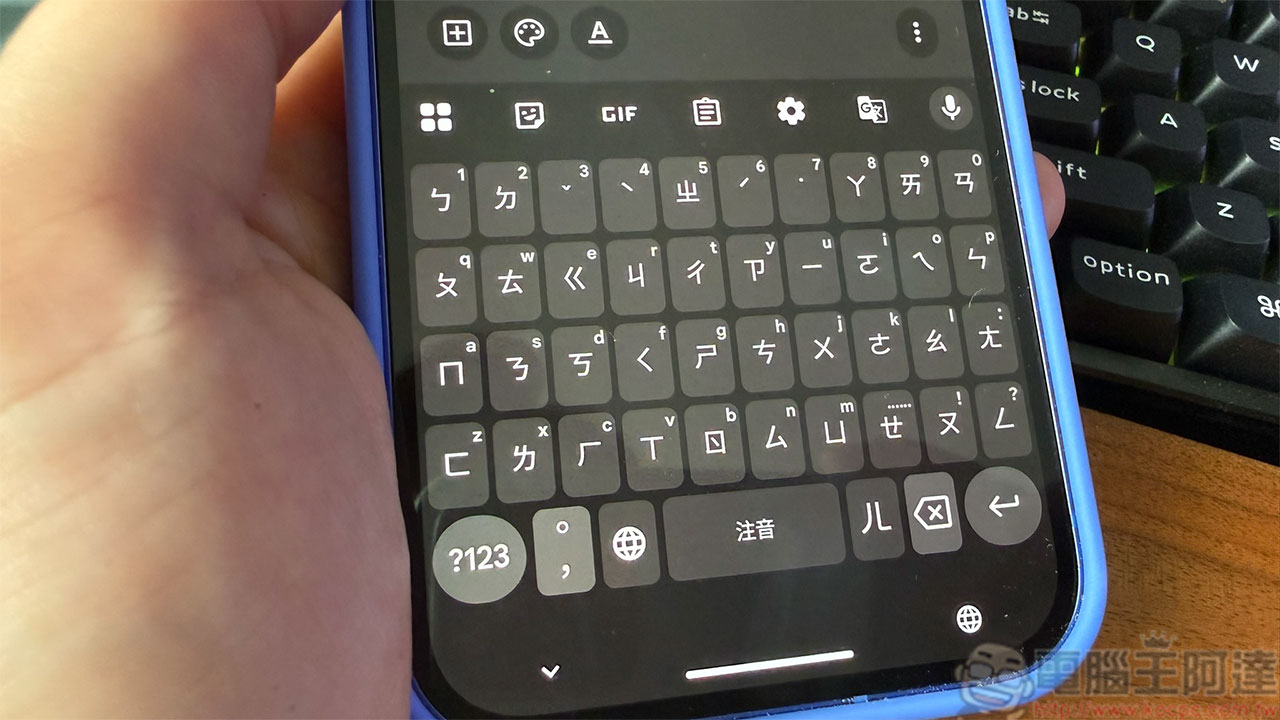
Adjust these hidden Gboard settings to make your typing faster and smoother.
As it turns out, just making a few subtle adjustments can make the keyboard fit my typing habits much better. Things like adding commonly used words, resizing the keyboard, and even enabling features I’ve completely overlooked for years—these seemingly minor settings have significantly improved my daily typing experience. The following Gboard tweaks have made the biggest difference for me.
Adjust Gboard keyboard size
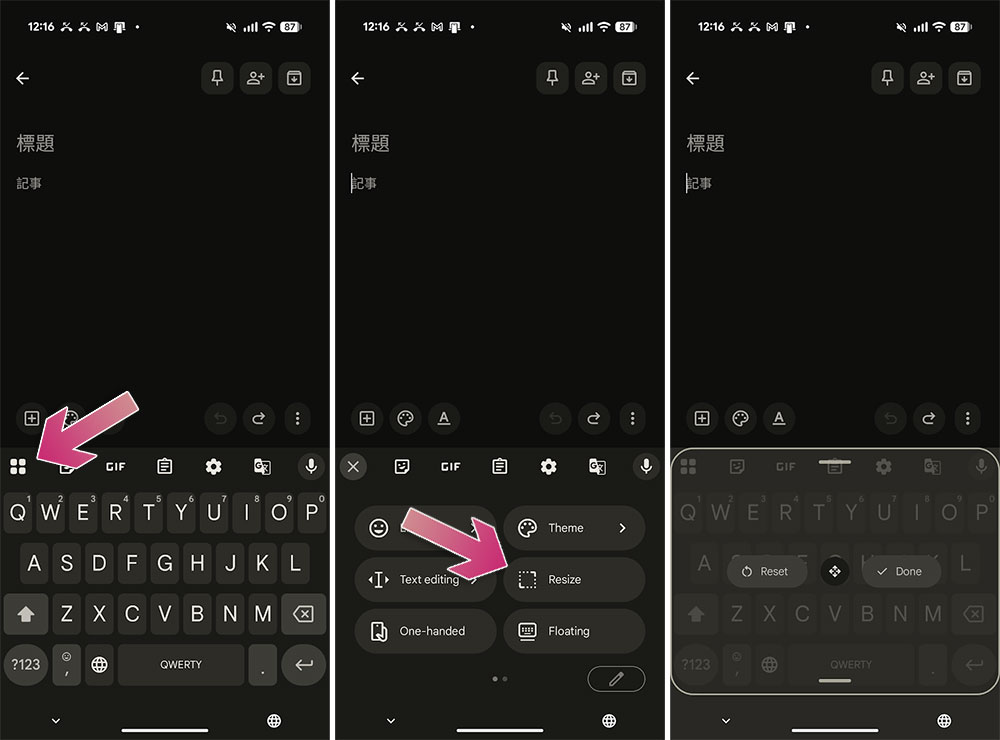
After discovering Gboard’s “Resize” tool, I was finally able to adjust the keyboard to fit how I hold my phone, rather than being forced to adapt to the default layout. If you want to try it, just open Gboard, tap the square icon on the toolbar, and then select “Resize.” Then you can drag the edges of the keyboard to make it taller, shorter, wider, or narrower, until you find the most comfortable configuration.
For me, slightly raising the keyboard was the most noticeable change. This tweak makes it easier for my thumbs to land on the right keys, and accidental touches while typing quickly have noticeably decreased. The whole adjustment takes less than a minute, but the effect is striking—after adjusting, Gboard feels like it was designed specifically for your hand shape, rather than making you conform to a one-size-fits-all keyboard layout.
Customize Toolbar
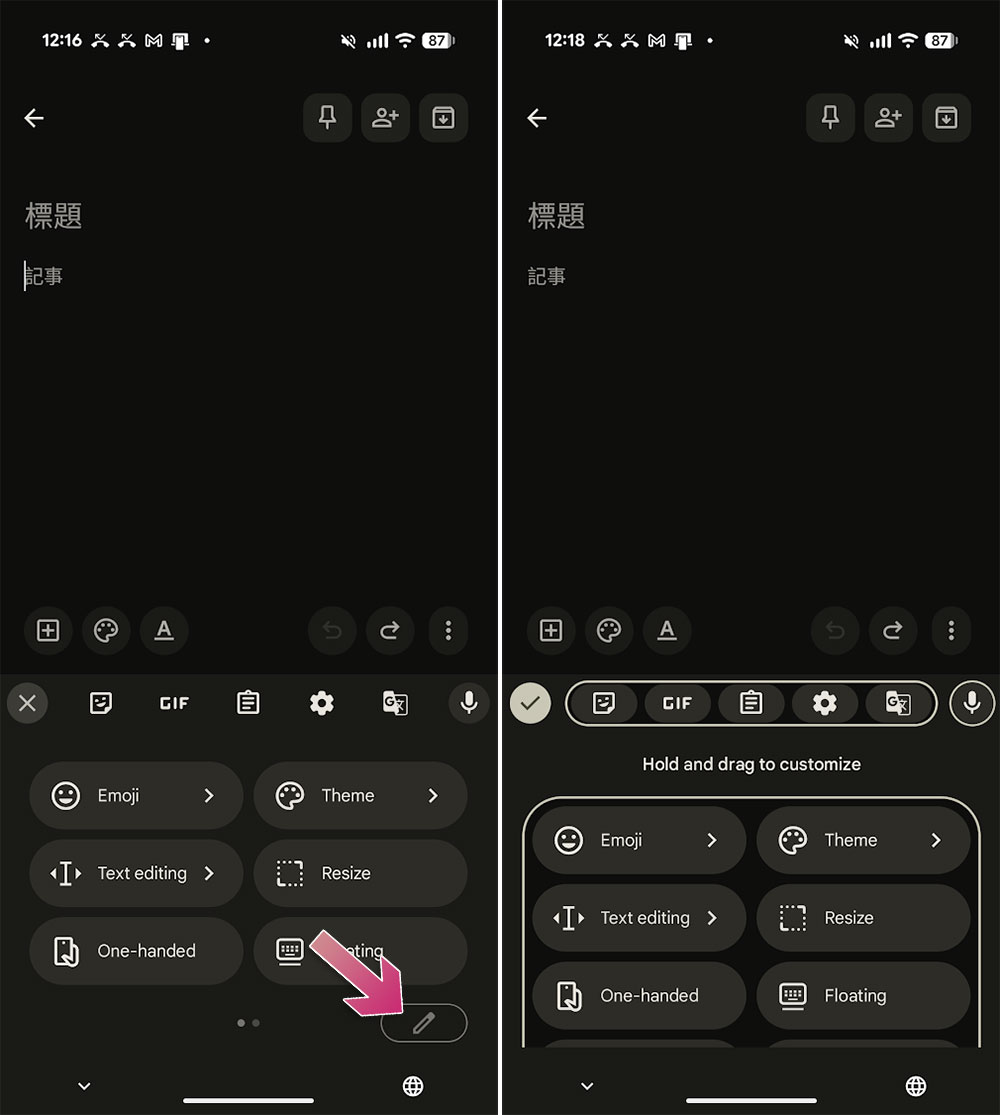
It wasn’t until I started customizing Gboard’s toolbar that I realized how much time I’d been wasting in the menu. It turned out that the most frequently used, handiest features were all hidden behind the square icon, requiring extra taps every time I needed them—over time, that became an unnecessary burden. If you want to adjust the toolbar too, just open Gboard, tap the square icon, then tap the pen icon in the top-right corner to freely rearrange everything. Move the features you use often to the front, leave the less common ones in the overflow menu, and the interface instantly becomes much more convenient.
I put clipboard, translation, and text editing at the top so they open with a single tap; tools I only use occasionally stay further back, taking up no space and not getting in the way. After making these adjustments, the whole input flow became more intuitive, with much less needless back-and-forth.
Teach Gboard the words you use
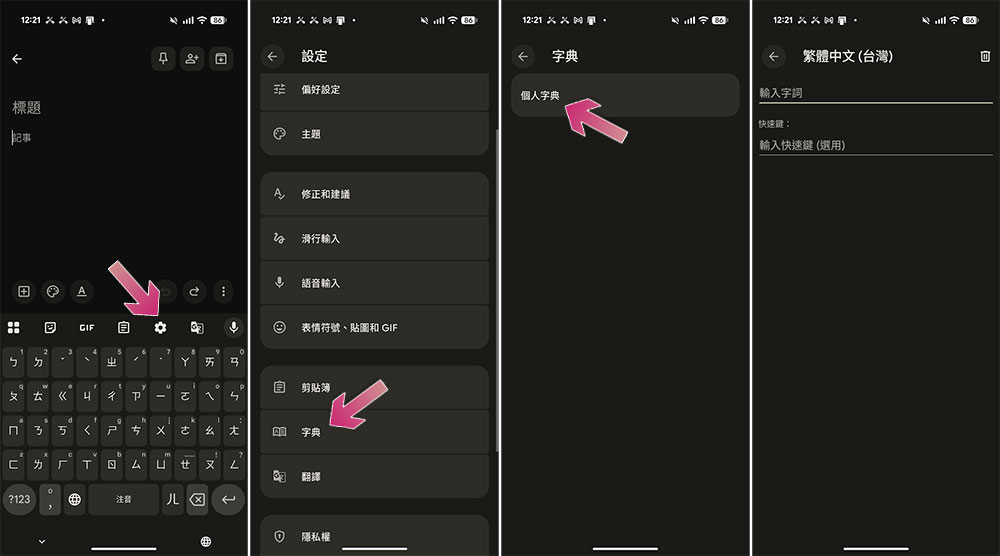
One of the biggest reasons I keep making the same typing mistakes is that Gboard simply doesn’t recognize the words I use all the time. Product names, technical terms, people’s names—they either get autocorrected into something weird, or I have to retype them over and over. Eventually, I started adding these frequently used terms to Gboard’s personal dictionary, and the problem was solved immediately. Whenever I notice Gboard replacing a word I want to keep, I go to Settings > Dictionary > Personal Dictionary, select the language, and add the word.
Over time, your personal dictionary accumulates various commonly used names, abbreviations, and proper nouns, and as a result, the time you spend fixing autocorrect errors or retyping words that should have been recognized in the first place decreases significantly.
Preserve the number column.
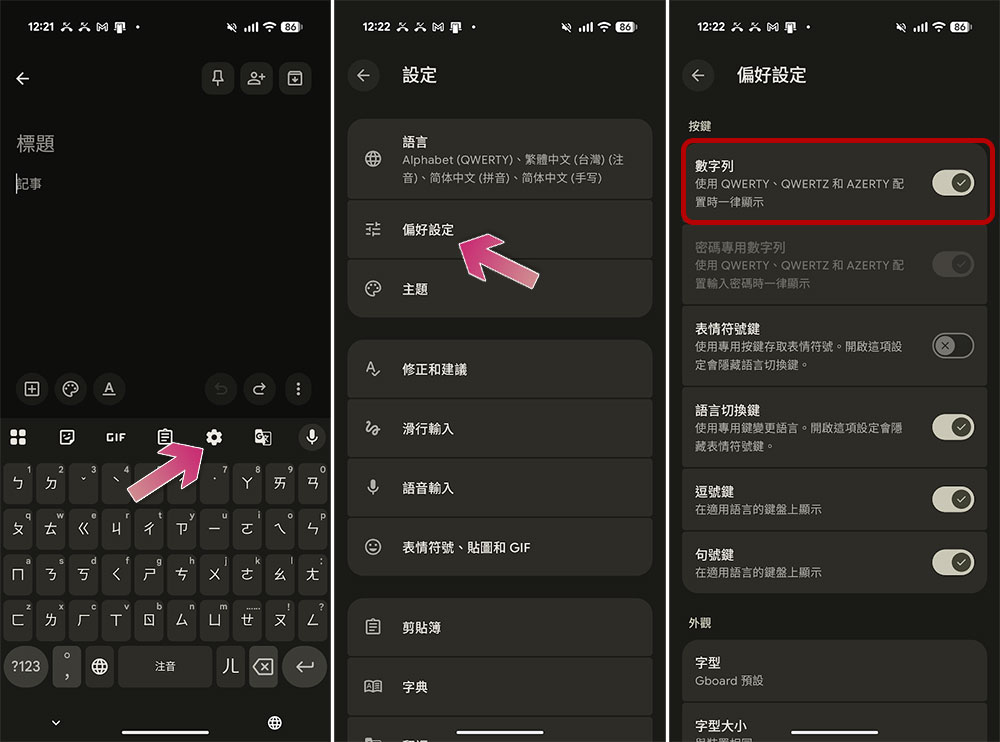
Later, I also turned on the “Number row” in Gboard. This small setting unexpectedly improved my typing speed quite a bit. Enabling it is simple: open Gboard settings, go to “Preferences,” and toggle “Number row” on. From that moment on, when you use the QWERTY English layout, a dedicated row of number keys appears above the letter keyboard, so you no longer need to switch keyboard layouts.
With this row of number keys, whether you’re entering two-factor authentication codes, filling in sizes, adding prices to a shopping list, or mentioning an Android version in your notes, numbers are always within reach. Without the need to switch keyboards, the entire input process becomes smoother, faster, and less likely to interrupt your train of thought.
Source: KOCPC Chinese