


Samsung mobile phones dominate the market in Taiwan, but the popular Galaxy A series often displays warnings about slow charging or failure to charge on the phone screen. Hong Kong Samsung recently announced on its official website [Why is your Samsung Galaxy device charging slowly or not charging?】, details the reasons why Samsung mobile phone screens cannot charge or charges slowly and provides review guidelines to help users find out the reasons and restore normal charging.
The following is a summary of the review guidelines for Samsung mobile phone charging obstacles provided by Samsung Hong Kong:
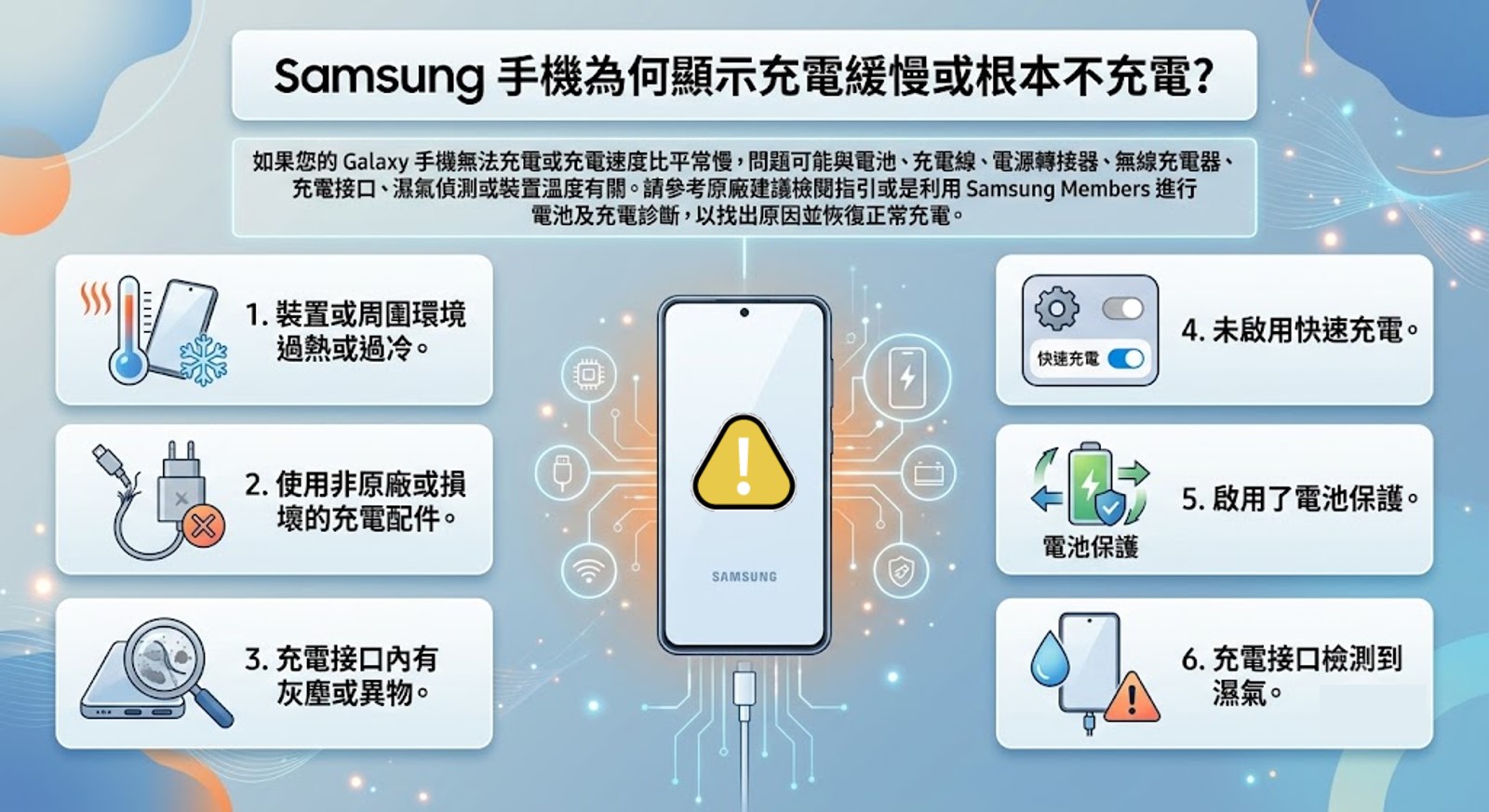
What should I do if my Samsung phone charges slower than usual or the device shows that it cannot be charged? Samsung officially provides user review guidelines to help users perform charging self-diagnosis measures to eliminate false faults before sending it for repair. Below is a summary video and detailed description of Samsung’s official charging barrier review guidelines:
Hong Kong Samsung Electronics pointed out on the management website: If your Galaxy phone cannot charge or charges slower than usual, the problem may be related to the battery, charging cable, power adapter, wireless charger, charging port, moisture detection or device temperature. You can refer to the official review guide or use Samsung Members to perform battery and charging diagnosis to find out the cause and restore normal charging.
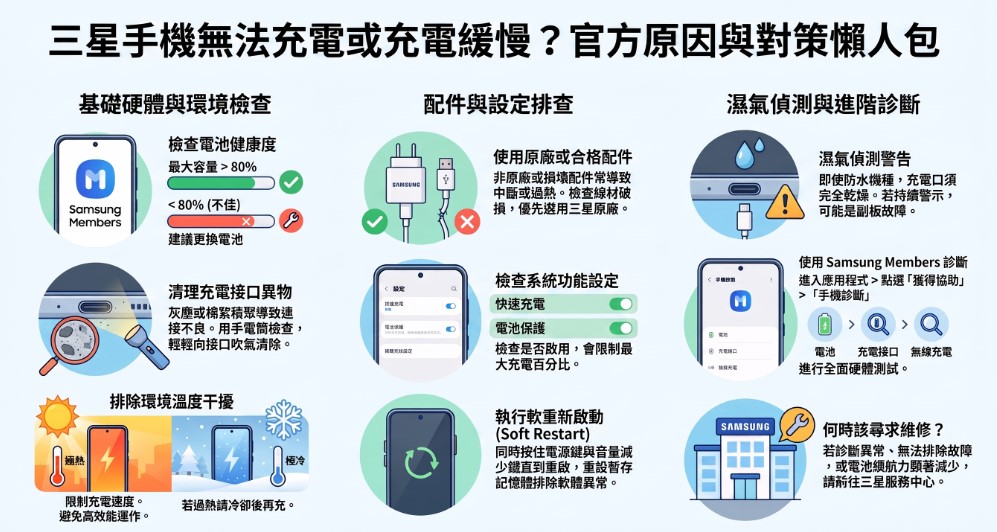
1.Samsung’s official charging barrier review guide:
A. Check whether the mobile phone battery is aging or in poor health:
When the mobile phone battery ages and becomes unhealthy, it will cause slow charging or failure to charge.
You can check the estimated charging time or open the built-in Samsung Members app, click “Get Assistance” to enter “Phone Diagnostics”, and then click “Battery Status” to view the results. If the system displays “Bad” or the maximum capacity is less than 80%, it is recommended to go to an authorized service center to replace the battery.
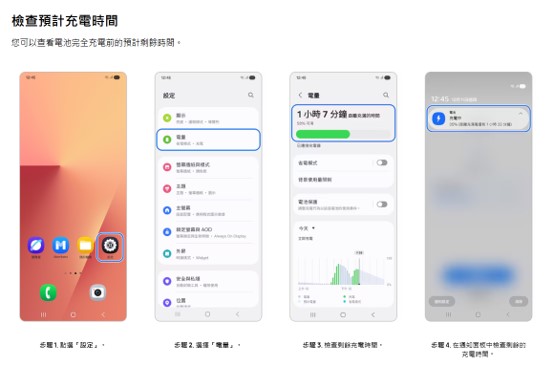
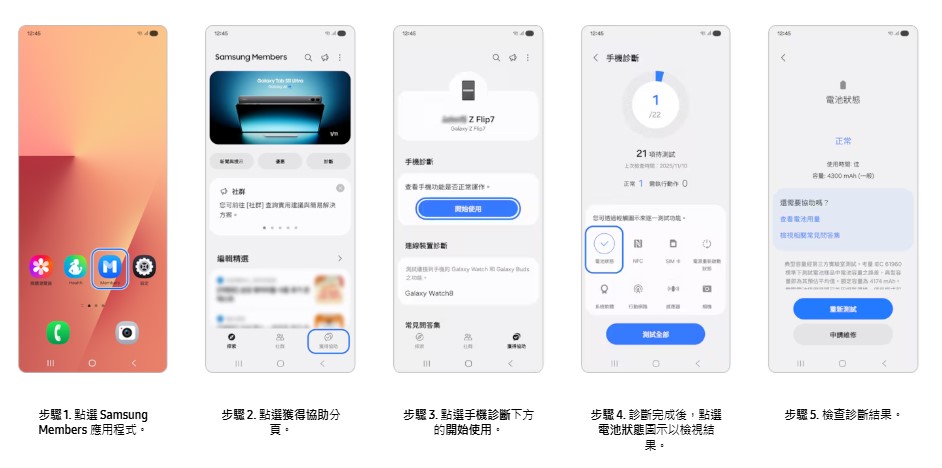
△Samsung Members Battery Health Check
B. The temperature of the mobile phone is too high or the environment is too hot or too cold:
Charging may be limited if the device overheats or if the surrounding environment is too hot or cold. It is recommended to charge the device at room temperature to ensure stable charging.
Using high-performance applications such as gaming, video streaming, or browsing while charging may increase device temperature and reduce charging speed. If the device becomes too hot, charging may stop temporarily or charging may slow down. Please wait for the unit to cool down before charging again.
If your phone still has power left, try a soft restart. This action allows the device to reset its temporary memory, which can help you determine whether the problem is software related. To restart, press and hold the Power key and Volume Down key simultaneously until the device restarts.
C. Use non-original or damaged charging accessories:
Using cheap non-original or damaged charging accessories (chargers and charging cables) may result in slow charging, interruption of charging, overheating or failure of charging.
It is recommended to use Samsung original charging accessories or qualified products, and make sure the charger is properly connected when charging; if necessary, please check or replace charging accessories that have been used for a period of time to see if they are faulty or damaged.
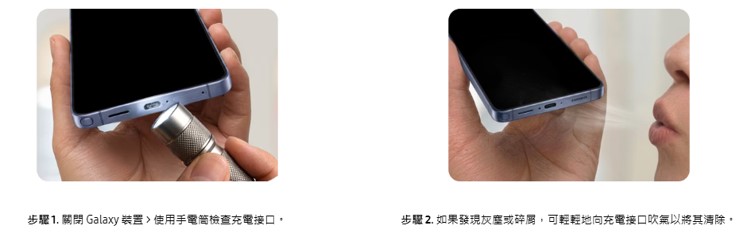
D. There is dust or foreign matter in the charging interface:
If dust, lint, or debris accumulates in the charging port, the charging cable may not connect properly to the charging device. It is recommended to use a flashlight to check whether there are foreign objects in the charging port. If dust or debris is found, gently blow into the charging port to remove it.
Also, when using wireless charging, make sure there are no foreign objects between the device and the charging pad, otherwise it may slow down the charging speed.
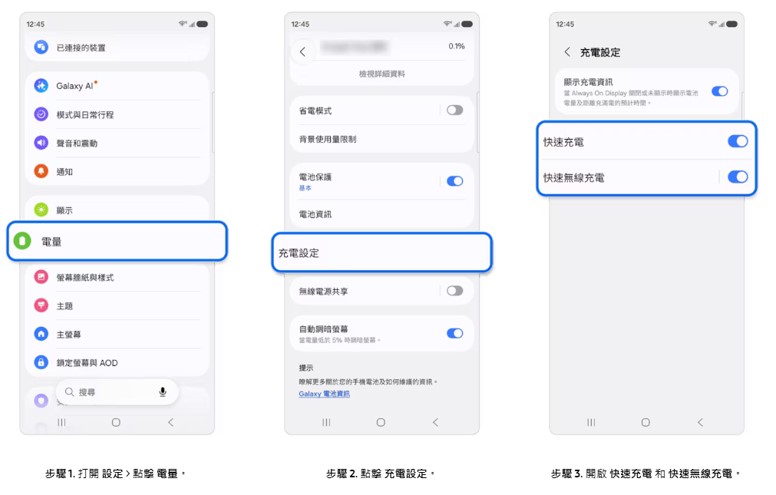
E. Fast charging not enabled:
If the device supports fast charging, it is recommended to enable fast charging in settings. If your device is charging slowly, check whether fast charging is enabled on your device.
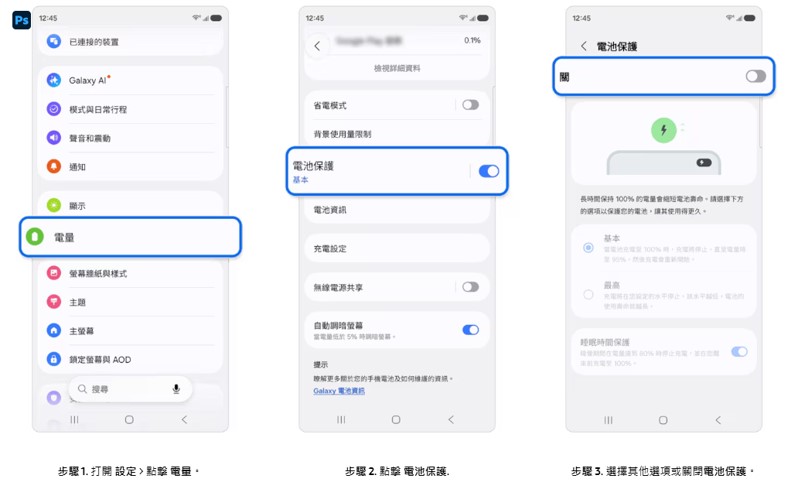
F. Battery protection enabled:
If battery protection is enabled, charging may be terminated early or the maximum charge percentage may be limited depending on the selected option.
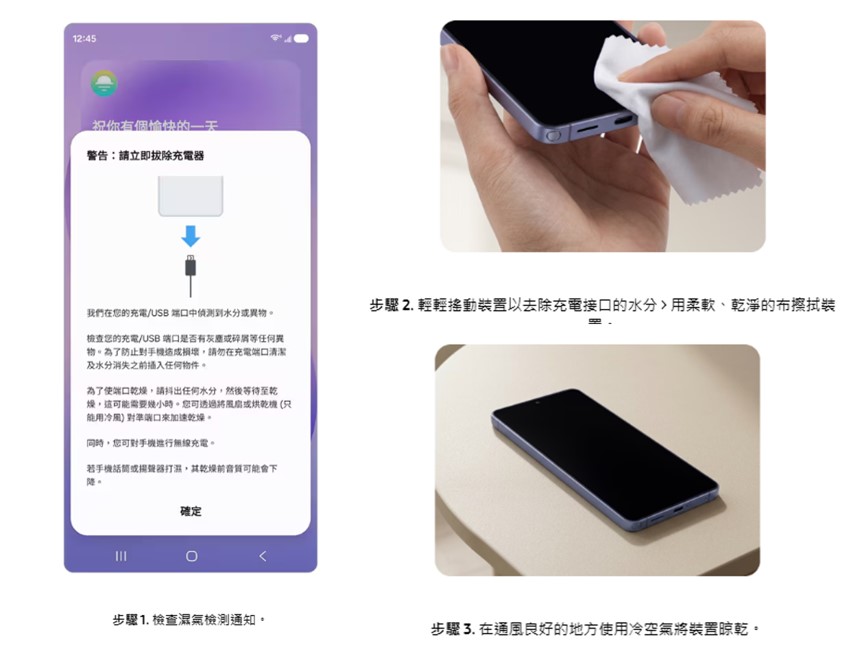
G. Moisture is detected in the charging port:
If moisture is detected in the charging port, charging may be aborted to protect the device from damage. Please note that even on waterproof Galaxy devices, the charging port must be completely dry before charging.If a water drop icon appears on the screen, it means that the phone has detected moisture or moisture in the connection port (anti-fool protection mechanism). Please turn off the phone and place it in a ventilated place to dry.
According to the experience of netizens sending the phone for repairs, when moisture is detected at the charging interface, sometimes it is not because the phone is damp. Sometimes, the charging hole sub-plate of the phone is faulty and detects an abnormality in the charging hole. Therefore, the phone itself activates an internal protection mechanism to prevent the phone from starting and charging. If the moisture warning cannot be improved, you may want to consider using Samsung Members for further testing or sending it for repair!
2. Run the test through Samsung Members:
If Samsung users experience problems with their device charging slowly or failing to charge, they can perform battery and charging diagnostics through Samsung Members to help determine whether the problem is related to the transmission line, wireless charging, or battery condition. like「Samsung Members」If the mobile phone diagnostic data shows abnormalities that cannot be ruled out, or if charging problems persist or battery life is significantly reduced, it may indicate a hardware problem. It is recommended to visit a Samsung service center for inspection.
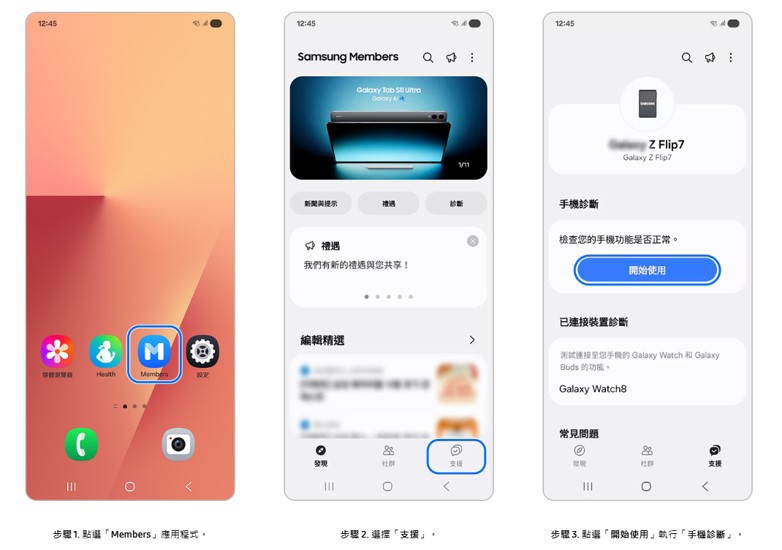
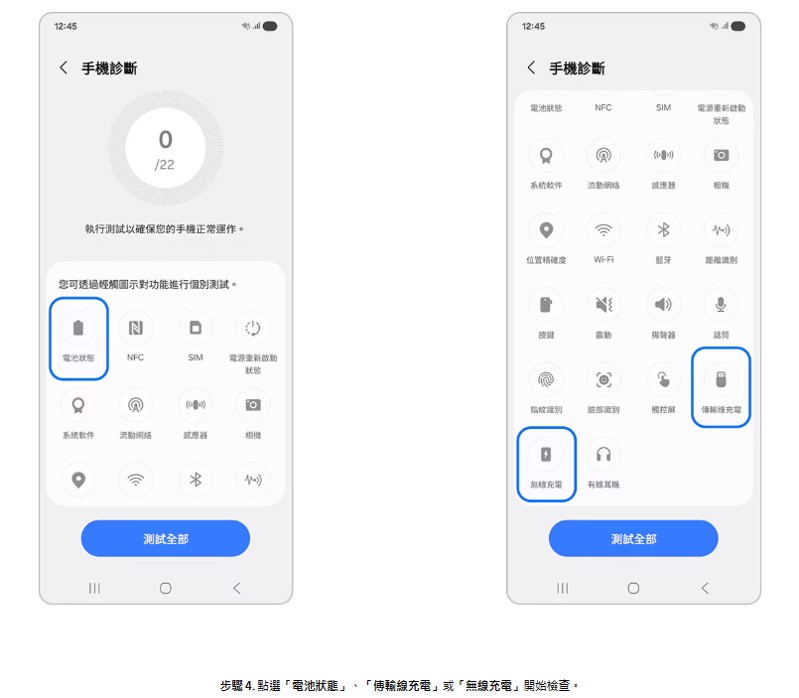
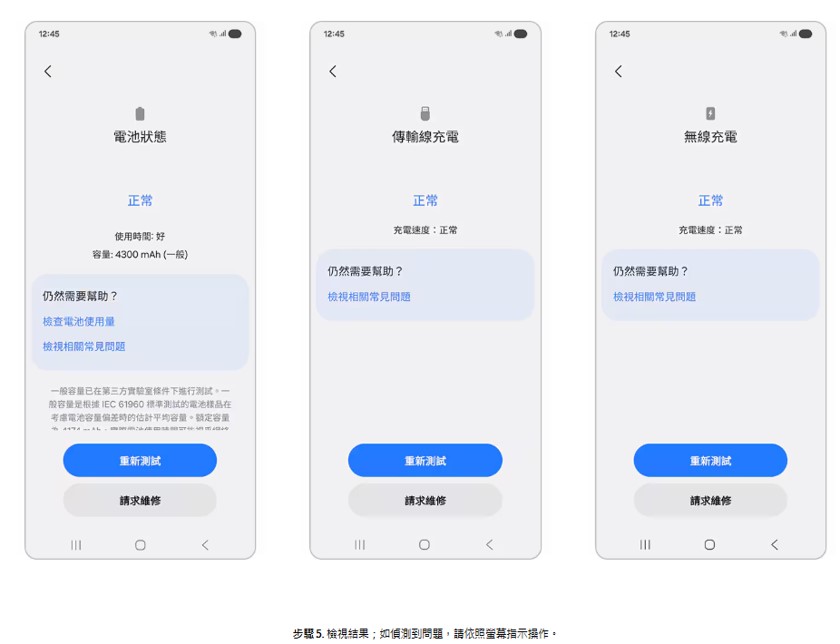
Source: KOCPC Chinese