


OpenAI This time, we’ve pushed Windows support for the Codex App a big step forward! In the past, Codex’s desktop operation capabilities (Computer UseThis was previously macOS-only. Windows users could still use the Codex CLI and run projects and terminal tasks in the Windows app, but if a task required Codex to actually see the screen, click buttons, and operate desktop apps, the experience still fell noticeably short of the macOS version. Starting with Codex 26.527, official support has been added for Windows Computer Use and remote control of Windows devices, meaning Codex is no longer just writing code in Windows—it can now directly operate Windows desktop applications.
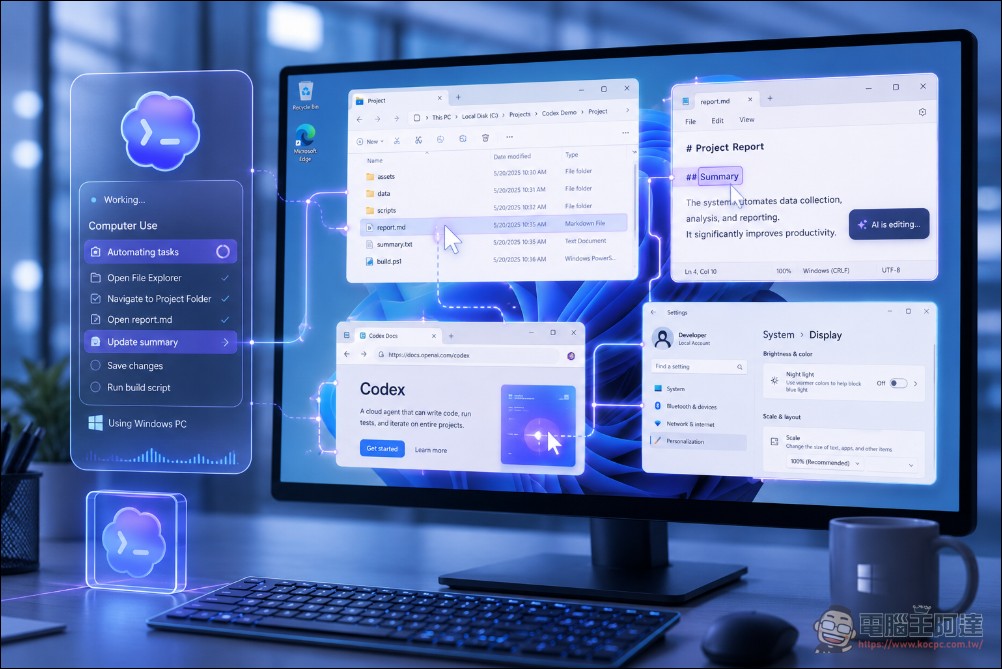
The Windows version of Codex can finally use Computer Use.
The point of this update isn’t just “supporting one more platform.” For many Windows developers, the real difference is Codex Going forward, it will be able to handle more tasks that previously relied solely on human eyes and a mouse—such as opening desktop apps to test workflows, checking for local GUI bugs, operating legacy systems that lack APIs or MCP plugins, and even letting a Windows computer at home or in the office keep running tasks while you check progress on your phone. This is also a key signal that the AI coding agent is moving from “helping you edit files” to “helping you operate your work environment.”
What’s new in Codex 26.527?
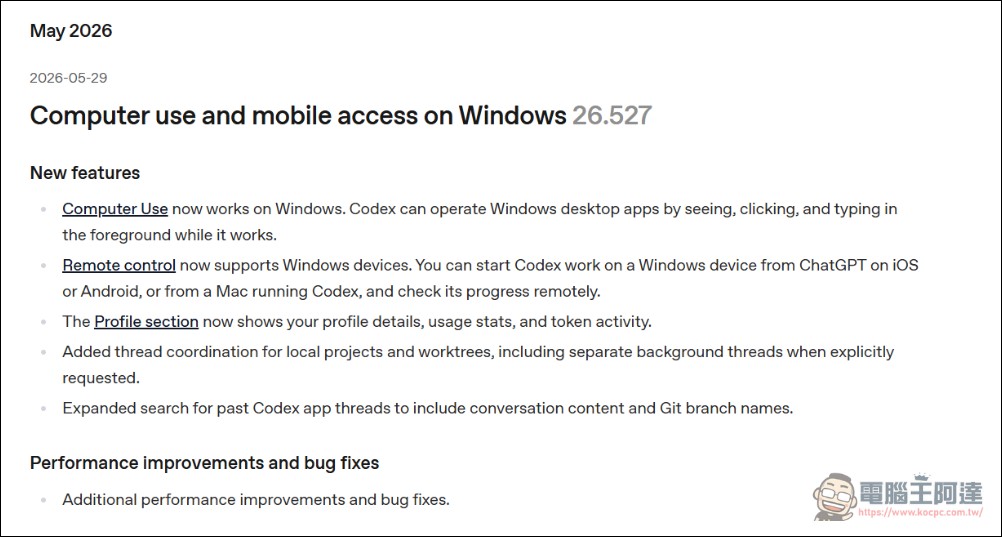
OpenAI’s Codex on May 29, 2026 changelog It lists three main new features. First, Computer Use is now available on Windows, so Codex can operate Windows desktop apps by viewing the screen, clicking, and typing while working in the foreground. Second, Remote Control now supports Windows devices, allowing users to start Codex tasks on a Windows device and check progress remotely from the ChatGPT iOS or Android app, or from another Mac running Codex. Third, the Codex app has added a Profile section where users can view personal information, usage statistics, and token activity.
OpenAI’s Computer Use documentation also notes that Codex App’s Computer Use is currently available for macOS and Windows, but the European Economic Area, the UK, and Switzerland are not included at the initial launch. Before use, you need to install the Computer Use plugin in Codex settings; on Windows, the target app must remain on the currently visible active desktop, because the Windows version does not operate stealthily in the background but takes over foreground input.

The Windows version doesn’t run in the background; it takes over the current desktop directly.
This is important. The macOS version of Codex has designs like “locked computer use,” which can execute tasks while the computer is locked under specific conditions; but OpenAI’s documentation explicitly states that the Windows version of Computer Use is foreground-only, meaning you cannot let Codex operate on one hand while the user continues doing their own thing in the same Windows session on the other. In practice, Codex moves the cursor, types text, and manipulates windows — meaning you will see it working on your Windows desktop.
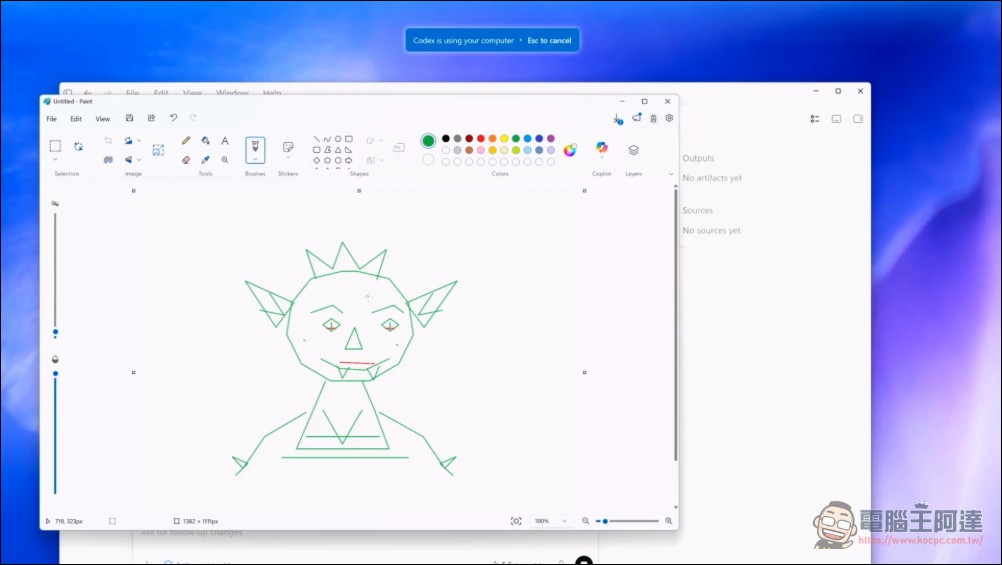
If you want to avoid being interrupted while Codex is running Windows tasks, OpenAI’s direction is to keep the Windows device unlocked and connected to the internet, then use your phone to remotely check progress or add follow-up instructions. Another approach is to put the Codex App inside a Windows virtual machine and let it take over the VM instead of your main desktop.
How do I install Codex for Windows?
The Windows version of the Codex app is available for download from the Microsoft Store or the official website. OpenAI documentation also provides a command-line installation method: you can install it using `winget install Codex -s msstore`. For updates, check the Downloads page in the Microsoft Store. In enterprise environments, it can be deployed through Microsoft Store app distribution alongside enterprise management tools.
Windows Sandbox is the key behind this support.
OpenAI had previously beentechnical articleThe article explains that one of the challenges for the Windows version of Codex is the sandbox. Codex requires an OS-level isolation mechanism to limit what the agent can write to. macOS has Seatbelt, Linux has seccomp or bubblewrap, but Windows lacks a ready-made solution that fully matches Codex’s open-ended development workflow. OpenAI evaluated mechanisms such as AppContainer, Windows Sandbox, and Mandatory Integrity Control, but none of them were quite the right fit.
This is also why Codex for Windows isn’t simply a direct port of the macOS version’s features. On Windows, OpenAI has to handle PowerShell, Git, Python, package managers, build tools, and permissions for developers’ local folders. From this perspective, Computer Use coming to Windows isn’t just another desktop automation plugin—it signals that the overall local workflow of Codex for Windows is starting to come together.
This time, the Windows version of Computer Use finally lets Codex do more than just revise your code—it can now step into Windows desktop workflows, handling GUI testing, desktop app operations, and remote task monitoring.
What is it suitable for?
OpenAI’s documentation positions Computer Use very clearly: it’s only appropriate when command-line tools or structured integrations aren’t enough to get the job done. Typical scenarios include testing macOS or Windows apps, controlling the browser, reproducing bugs that only appear in the GUI, adjusting settings that require clicking through the UI, checking data sources that no plugin can read, or handling workflows that span multiple apps. I also tested it myself, and right now it’s genuinely interesting to watch Codex control the computer with the mouse. However, the actions are a bit slow—the video is sped up, and the original took around nine minutes. Also, the first time it runs a piece of software, it spends a lot of time thinking. I tested Jianying (CapCut), and it could do simple importing and editing, but asking it to control the browser ran into URL security restrictions. Its current capabilities still fall a bit short of those on ARM-based macOS, and Codex officially doesn’t support Intel-based macOS:
For Windows developers, the most impactful scenario might be local app testing. For example, if you built a WinUI, WPF, Electron, or internal tool, Codex could previously help you modify code, run tests, and inspect error logs, but button workflows, window states, form interactions, and menu paths in the GUI still had to be verified manually. What Computer Use adds is the ability to “let Codex actually see and operate that interface,” which brings bug reproduction and UI regression checks much closer to real human testing.
But it’s not a silver bullet. Whenever a task can be accomplished via CLI, API, testing frameworks, MCP server, or dedicated plugins, structured tools should generally still be preferred, because those approaches are more stable, reproducible, and faster. The value of Computer Use lies in handling workflows where “you can only tell what’s happening by looking at the screen.”
Summary
The Windows Computer Use support in Codex 26.527 is a critical catch-up for Windows users. It takes Codex one step further from the terminal and file level toward Windows desktop app operations, and also makes remotely controlling a Windows host from a phone more complete. For users who need to spend long periods developing, testing, and inspecting GUI workflows, this will be a highly promising way to work.
However, based on OpenAI’s official documentation and the first wave of reports on X, this should still be treated as an early-access experience. The Windows version currently takes over the foreground desktop, so it can’t run as a background task without bothering you at all. Some users have also run into issues like plugins disappearing or helper connection failures. My take is that, for now, it’s best suited for testing small-scope, abortable, low-risk GUI workflows—such as testing a Windows app you’re currently developing, or asking Codex to reproduce a specific UI bug. For anything involving accounts, payments, sensitive data, or irreversible actions, you should still stay at your desk and personally confirm every authorization step.
Now that OpenAI has already nailed the Computer Use feature for Codex, next it’s up to Anthropic’s Claude to see whether it keeps playing dead—worth looking forward to.
Source: KOCPC Chinese