


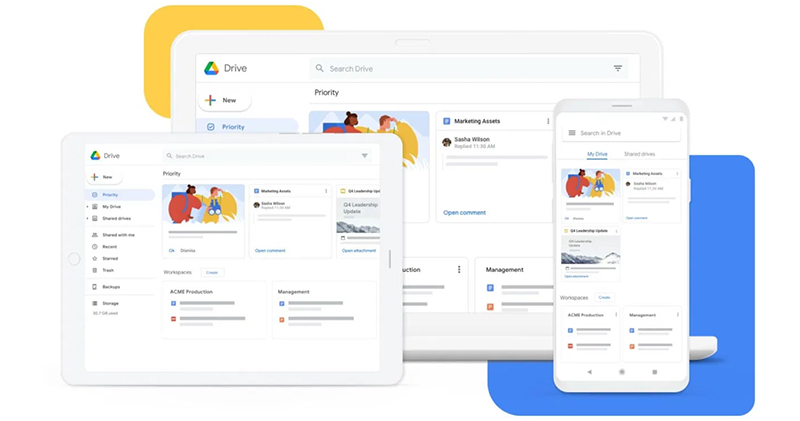
As Google Drive fills up, finding the files you need can become frustrating. Basic searches will either miss the item you’re looking for or return too many results, making it difficult to narrow down. The author myself has struggled with this, but since I learned some search techniques, the time it takes to find files has been greatly reduced. You can also give it a try.
Use your search skills to find Google Drive files without looking for a needle in a haystack
Filter search results by file type
When searching for files, we typically enter a general query into the search field, and Google Drive returns results based on the file name, whether it’s a document, form, presentation, or video. Filtering out irrelevant results can be time-consuming, but if you specify the file type, you can significantly reduce the clutter and find what you need faster.
If you’re looking for files with a company name attached to them, selecting “Documents” will filter out all other file types. For precise results, go to the Google Drive homepage, click the “Type” drop-down menu below the search bar, select the file type you want, then enter your search keywords, and the results will show files of the selected type.

Filter by file owner or creator
While filtering by file type is helpful when working with a few files, it gets trickier when hundreds of files are involved, especially files from different people. To further refine your search, you can specify the person or owner who owns, created or shared the file.
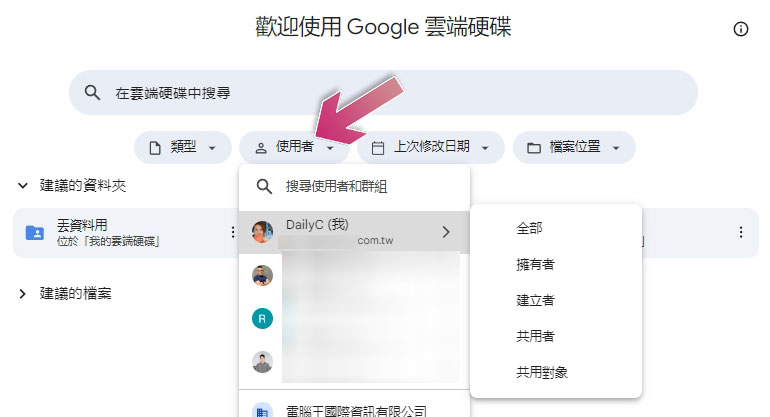
This only works if you know the person’s name or email. To use this method, click the “User” drop-down menu below the search bar, enter the person’s name, move the mouse over the person’s name, and then select the relevant criteria. This method allows you to locate files more quickly and accurately.
Sort files based on last modification time
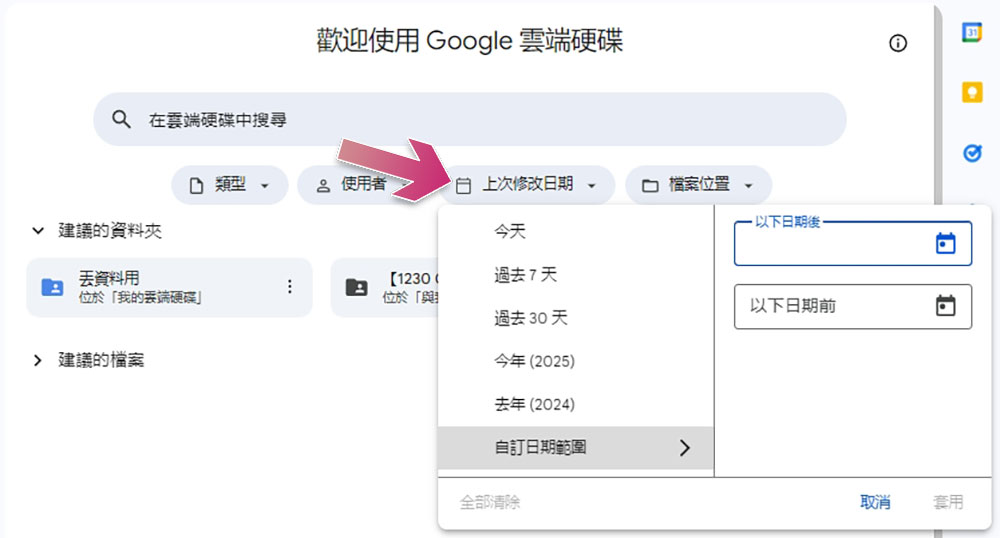
Even if you filter by file type and file owner, Google Drive may still show files that were used years ago. If you know roughly when a file was last modified, a week, a month, a year ago, or within a custom time range, you can use this to narrow your search to exclude older and irrelevant files.
To use this filter, click “Last modified” and select the desired date range. Note, however, that if your memory of the modification date is incorrect, the file will not appear in the results.
Search files by content
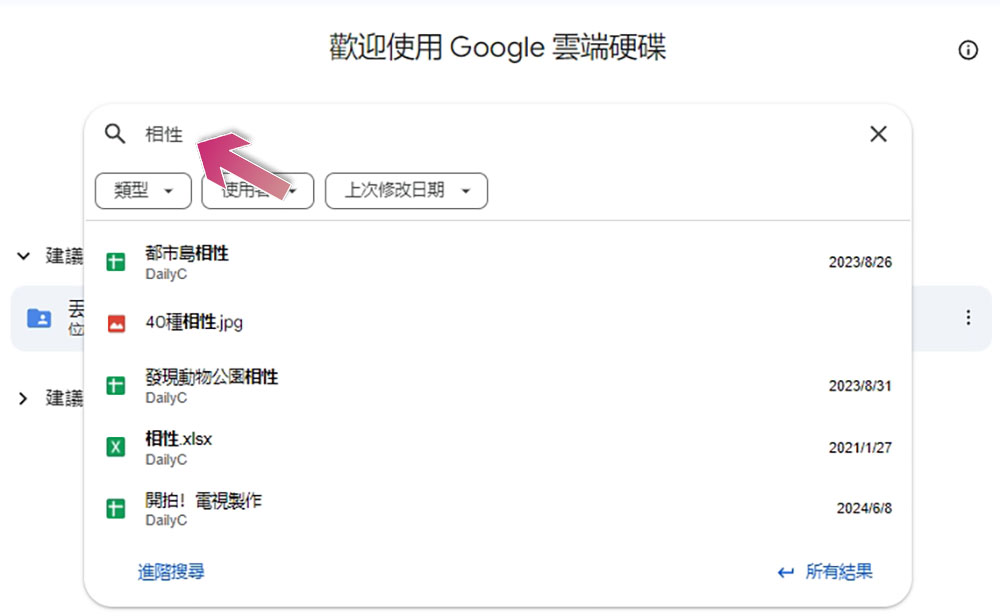
We usually rely on the file name when searching on Google, but we often forget that it can also search based on the actual content of the file. If you’re looking for a document with an ambiguous, inconsistent, or completely forgotten name, you can still find it by recalling specific details in the file, such as a sentence or any unique phrases. Type that term into the search bar, and Google Drive scans the text and filters the results to find files even if their names don’t provide useful clues.
Use advanced search to find the information you need
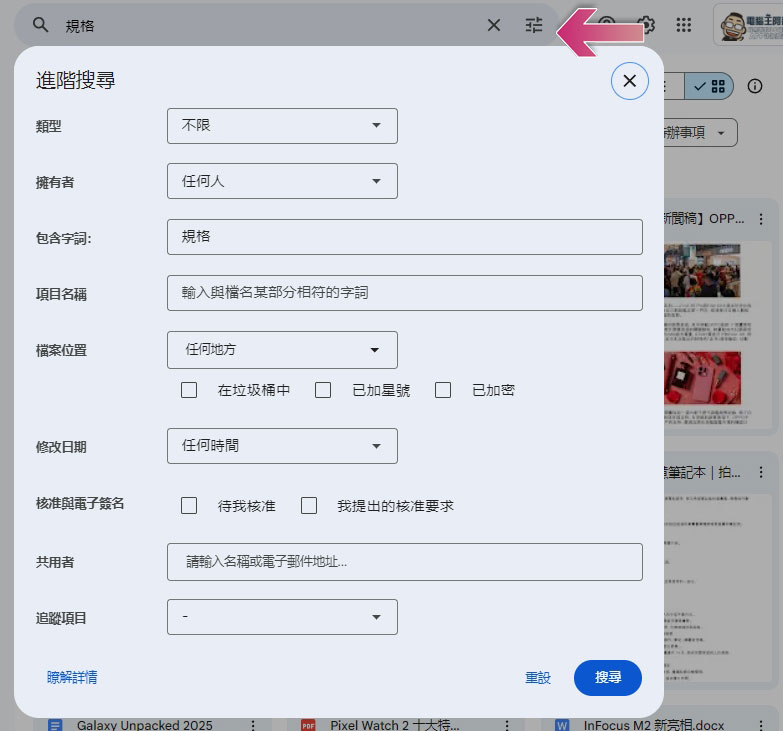
You can even uncover deep-hidden files with Google Drive’s advanced search capabilities. It allows you to combine the filtering functions we mentioned above with other filtering functions, such as searching for information in specific folders, filtering files that have been reviewed or applied for review, tracking follow-up, etc. Defining multiple criteria at the same time can help further narrow down your search results.
To use advanced search, click the filter icon on the far right side of the search bar. This will open a panel showing all available search filters. Fill in only the details you clearly remember and leave the rest blank. When finished, click Search to display matching files. If you accidentally added any filters or want to start over, just click Reset to clear them.
Use search operators to find files
If you don’t want to dig through search filters or fine-tune your search options, you can use search actions directly in the search bar to narrow your search. For example, you can find files containing a word by placing it in quotation marks. Entering “type:pdfs” will limit the results to only PDF files. The following operators are available:
| operator | use | example |
|
“ |
is a keyword, you can search for files containing the keyword. | Search for documents with “spec” in the content “Specification” |
| – | Find documents that do not contain specific words. | Search for documents containing “Specifications” but not “Software” Specifications -Software |
| owner | Find files belonging to a specific person. | Find files from Bob owner:bob@gmail.com |
| pendingowner | Look for files for which you are the pending owner. ※You can only search files for which you are the pending owner. |
pendingowner:me |
| creator | Find shared files created by specific people. | creator:jane@yourdomain.com |
| to |
Find files you’ve shared with specific people or groups, or files shared with you. |
|
| from |
Find files that specific people share with you or that you share with others. |
|
| app | Search by application name. This includes any apps associated with your Google Drive account. |
|
| sharedwith | Find files that a specific workspace account or group has access to. Exclude files owned by this account. |
|
| is:starred | Find your favorite files. | is:starred |
| is:trashed | Find files you threw in the trash. | is:trashed |
| type | Search files by file type. |
|
| before and after | Find items modified before or after a specific date. The date format is YYYY-MM-DD. |
|
| createdbefore and createdafter | Find projects built before or after a specific date. The date format is YYYY-MM-DD. |
|
| title | Search files by title. | title:Conference 2021 |
| followup | Look for files that contain to-do items or suggestions assigned to you. |
|
| unorganized | If the other party deletes a folder, you can find the file you created in the folder. Your files will not be deleted, but will be automatically moved to your “My Drive”. ※Only you can delete files you own. |
is:unorganized owner:me |
If searching for files in Google Drive feels like a chore, try the tips above and you’ll be surprised how easy it is to find what you need, even in a cluttered Drive. Also, if your storage space often becomes a digital junk drawer, consider color-coding files, labeling important files, and using a consistent naming system to keep everything organized and easy to find.
Source: KOCPC Chinese