


A lot of people should be like me now, look YouTube When making a long video, in order to facilitate review or understand the content of the explanation more easily, sometimes subtitles will be thrown in AI, and then start asking for the answers you want to know. However, YouTube itself does not provide the function of copying subtitles, so you need to use third-party tools to achieve it, such as downloading subtitle files, or using the subtitles we have introduced YouTube subtitle generatoretc. If you are using a computer and Chrome For browsers, the “Youtube Transcript Generator” extension would be a better choice.
After installation, the subtitles will be displayed on the right side of the YouTube video. Not only can you copy all subtitle content with one click, but it also provides the function of downloading subtitle files and searching for subtitle keywords. Just click on the keyword to quickly forward the video to that time point. This is super convenient and completely free.
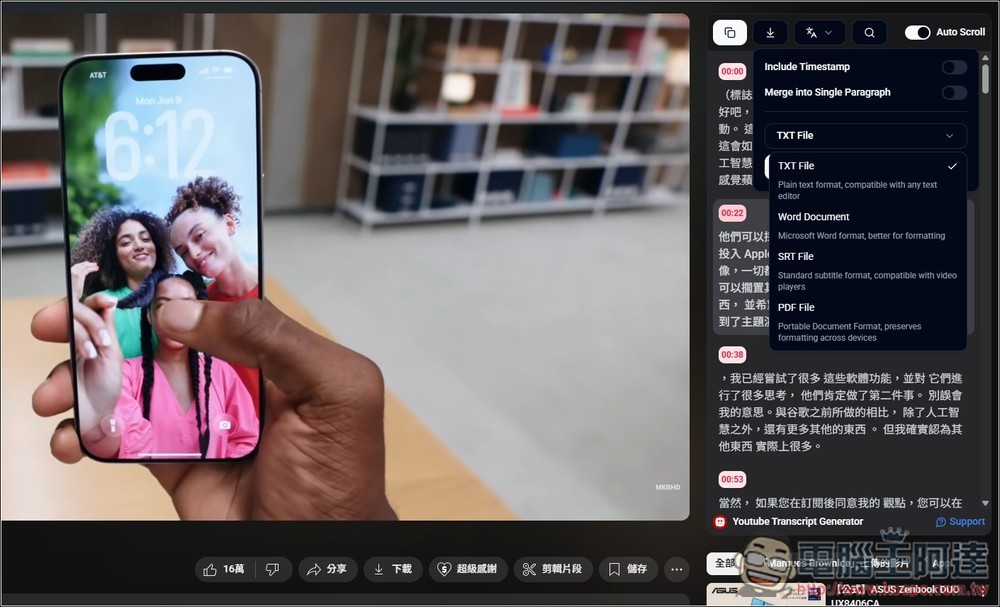
Introduction to extended functions of Youtube Transcript Generator
Youtube Transcript Generator is actually what we introduced before YouTube subtitle generatorPreviously, I used the extended function by opening the generator webpage, but after recently switching to the extended function, I found it to be very convenient, so I specially recommended it to everyone.
It’s just that although it is a Chrome extension, when I tested it, Microsoft Edge didn’t seem to run properly. It can only be used in Chrome. People who use Edge can also try it. My test failed.
Youtube Transcript Generator can perform five major functions, namely “display subtitles on the right side”, “copy all subtitle content”, “search for subtitle keywords and go to the video playback time”, “download subtitle files” and “translate subtitles”.
After clicking the link above to enter the Chrome store page, click Get in the upper right corner:
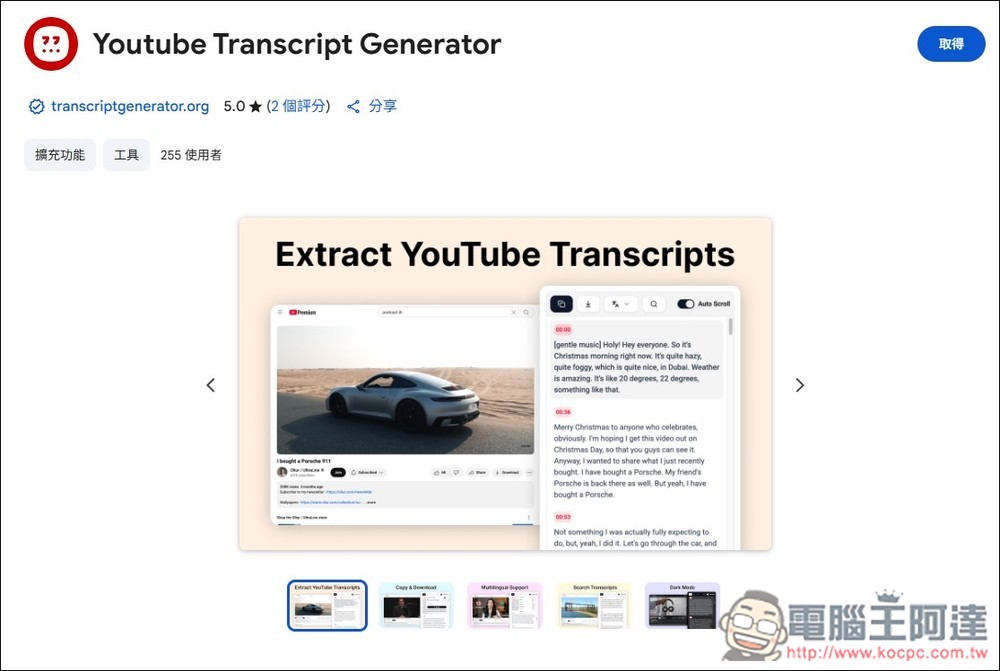
Click “Add extension”:
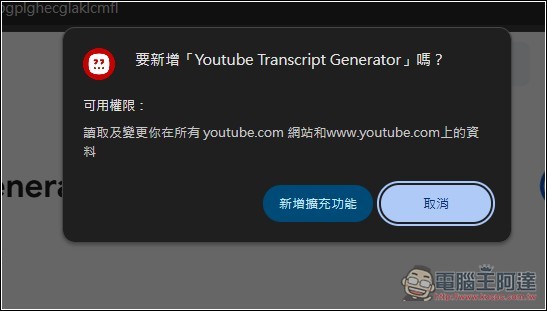
When this message appears in the upper right corner, it means success. There is no need to pin it in the upper right corner. It will be automatically enabled when you open the YouTube video:
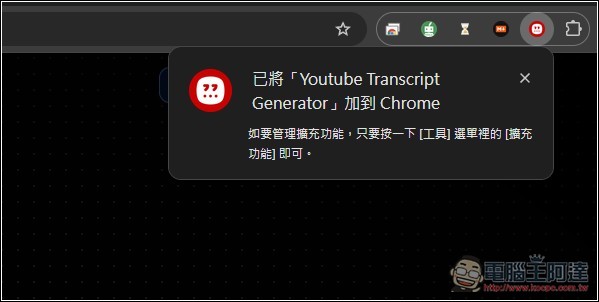
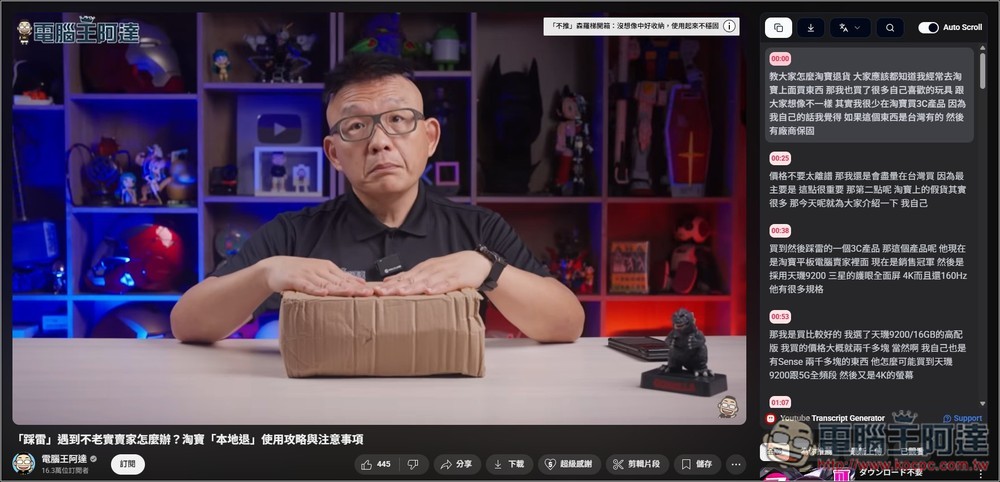
As shown in the figure below, all subtitles will appear on the right, and the subtitle content of the current video clip will also be marked:
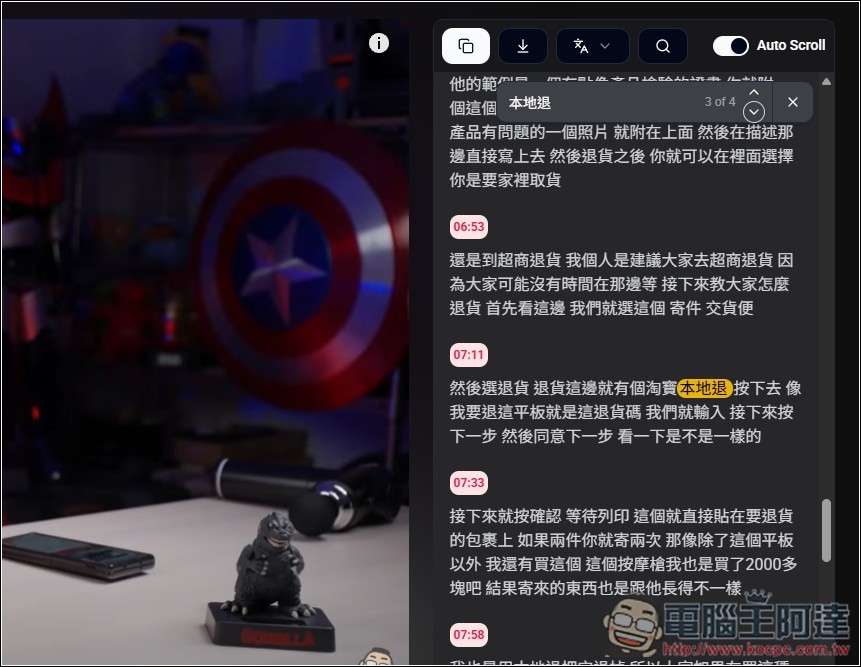
If you have specified a clip you want to watch and don’t want to spend time watching it all, you can click the search icon on the right and enter the “keyword” you want to watch. Once you find it, just click on it and the video will immediately jump to that time point:
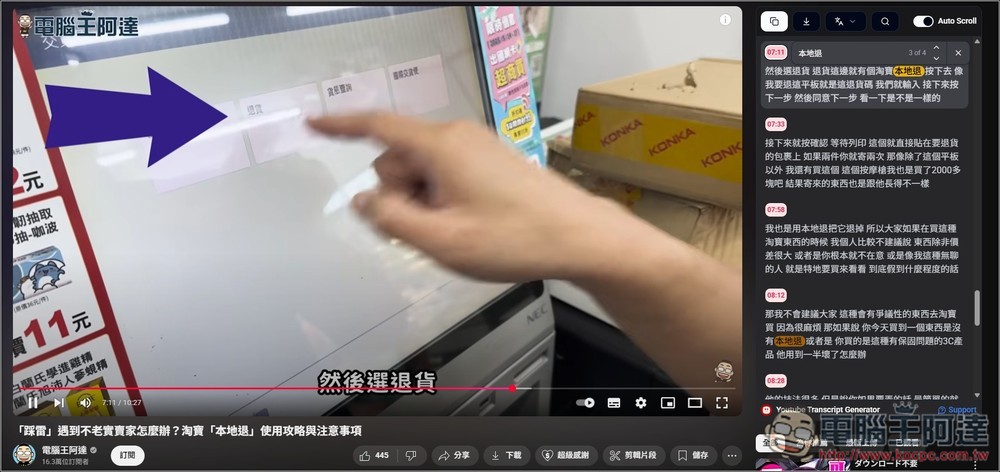
As shown in the picture below, if I press the keyword 07:11, the video will jump directly from the beginning to 07:11 and play, without spending time looking for it. I love this feature very much:
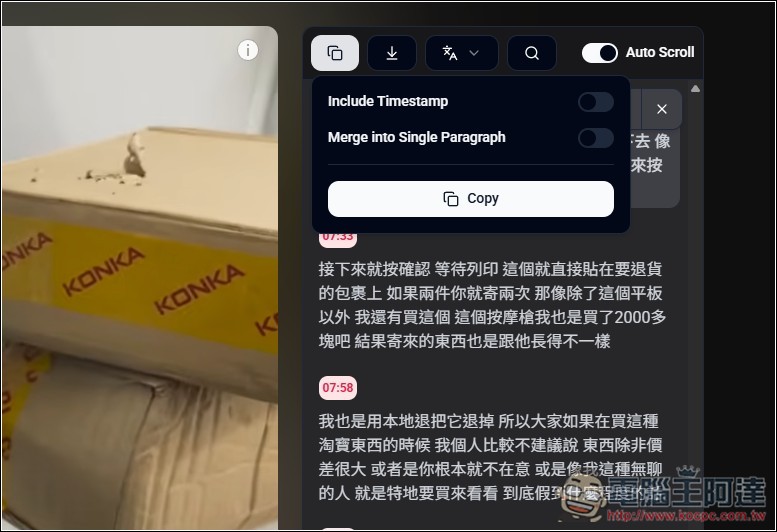
The first icon is the subtitle copy function. Click Copy below to copy all subtitle content. Timestamp (add timestamp), Merge into Single Paragraph (integrate into a single paragraph) can be turned on if you need, the default is off:
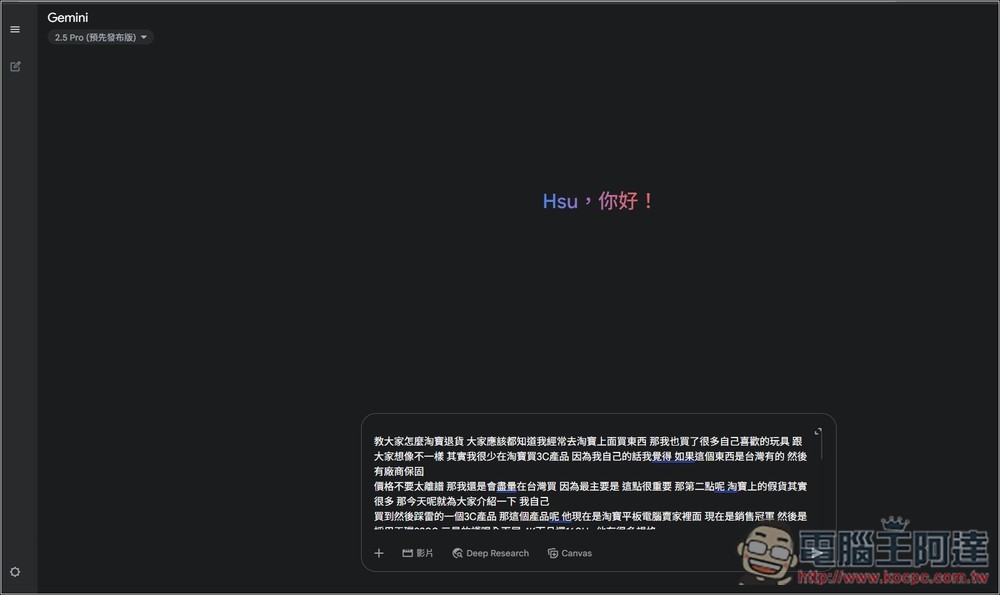
After the subtitles are copied, you can paste them into your commonly used AI tools:
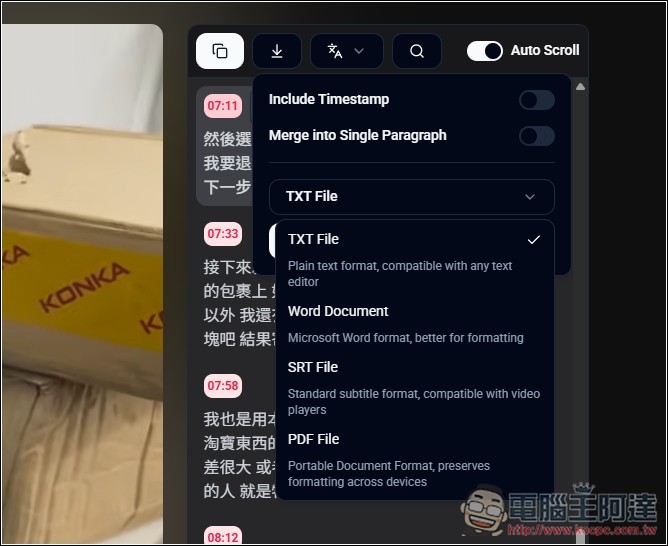
The second is the function of downloading subtitle files, providing TXT, Word, SRT and PDF file formats:
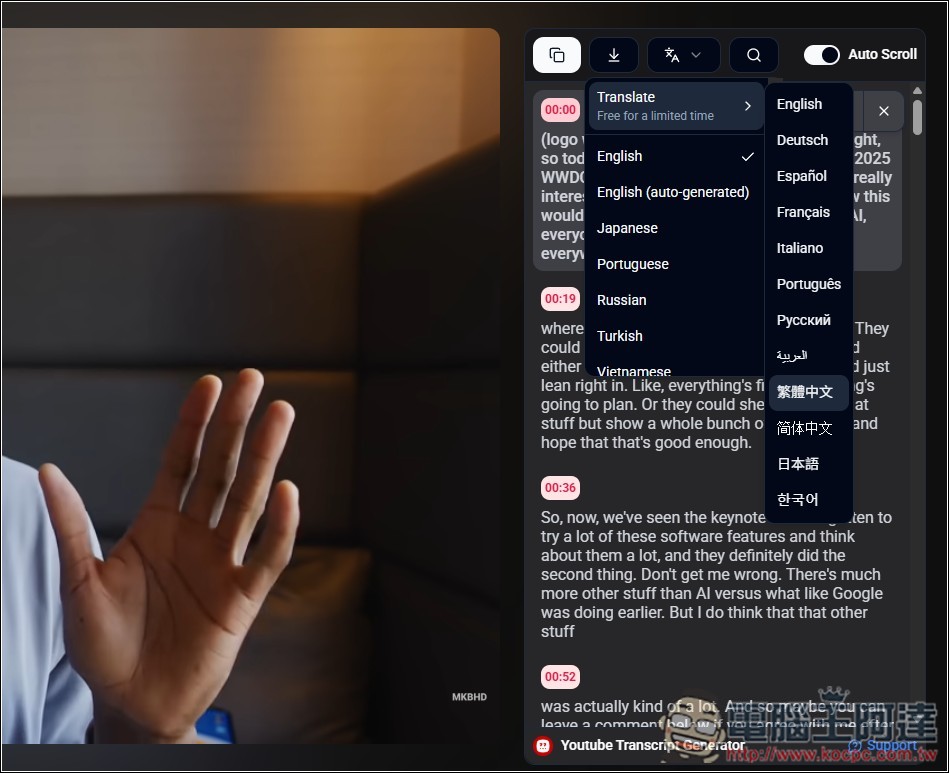
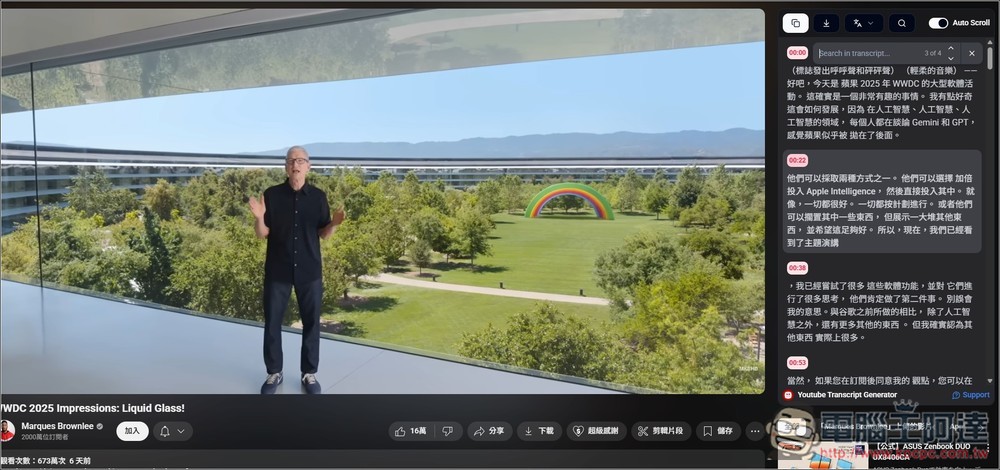
If you are watching foreign videos and want to get Chinese subtitles, it also has a built-in translation function, which is currently free. After selecting Traditional Chinese, the subtitles will be translated into Chinese immediately:
As shown below:
Source: KOCPC Chinese