


With OpenAI officially launching the ChatGPT Search function, many users who have subscribed must have tried it, and may even want to change the original browser search engine to use ChatGPT Search instead of Google. This article will teach you how to do it. The method is very simple.
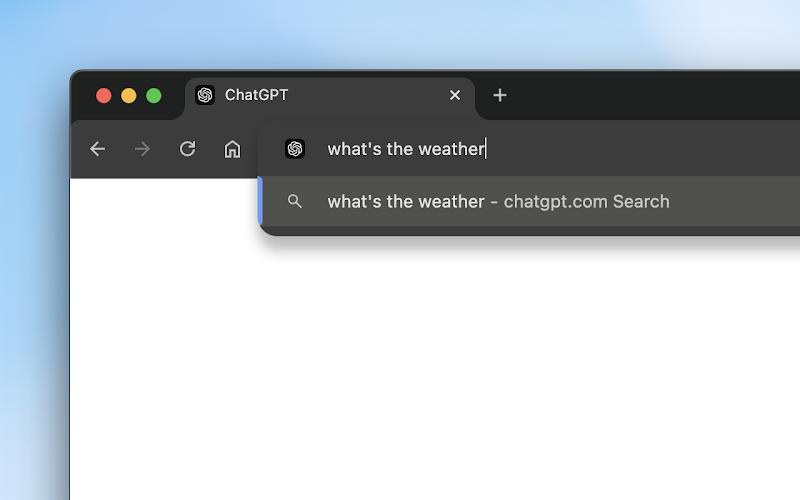
Image source:chrome online app store
How to set Chrome’s search engine to ChatGPT Search
OpenAI has launched a dedicated extension for Chrome. Once installed, the search engine will become ChatGPT Search. This is the simplest way.
But if you want more flexibility and can choose when to use Google and when to use ChatGPT Search, then don’t install the extension and add the following in Chrome settings instead.
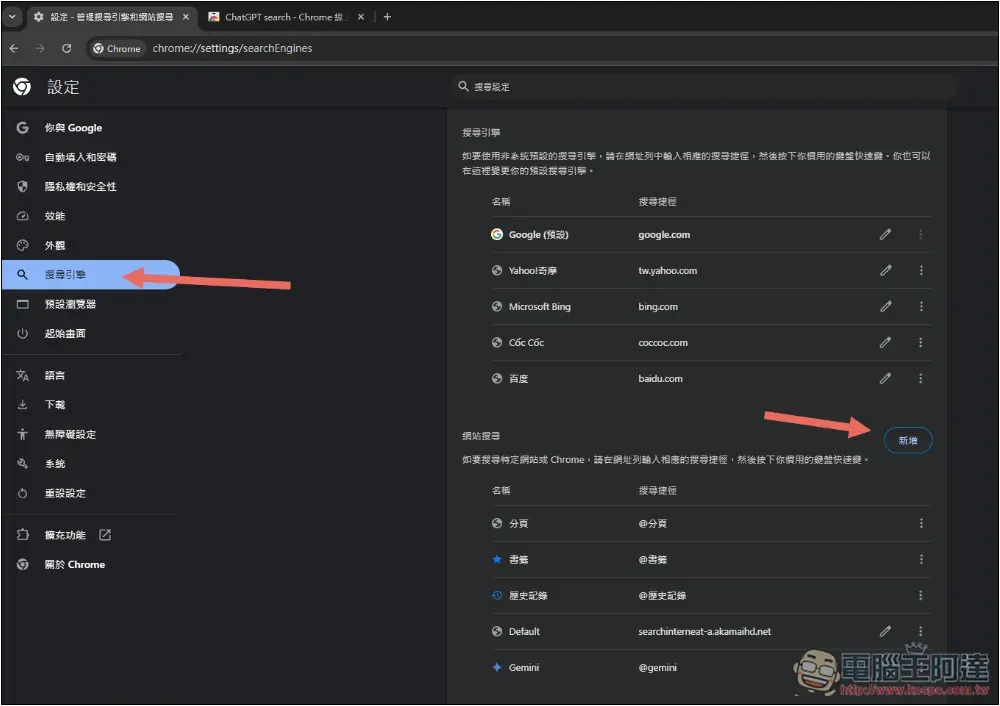
Open Chrome settings, go to search engine options, and click the “Add” button to the right of the website search:
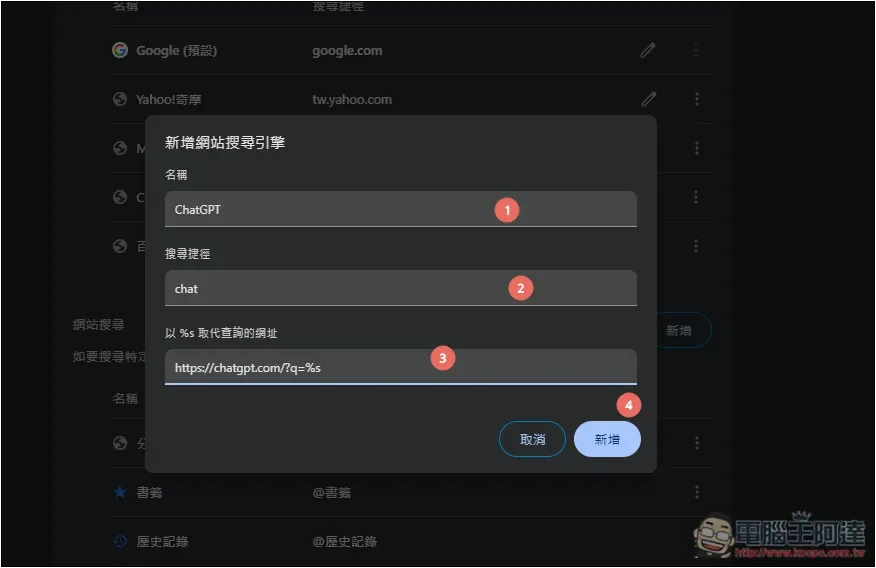
Enter the name as you like, I chose ChatGPT, and the search shortcut is the word that is enabled when you want to use ChatGPT Search. If I set chat, in the future, enter chat + space bar in the address bar to enable ChatGPT Search. If you do not enter this, it will be the default search engine of the browser, such as: Google. Fill in the URL field at the bottom with “https://chatgpt.com/?q=%s”:
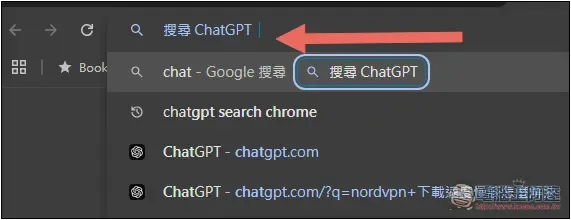
I type chat and press the space bar on my keyboard:
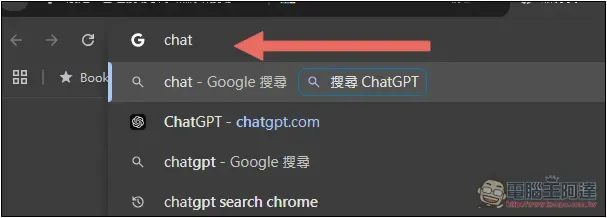
It will become “Search ChatGPT”:
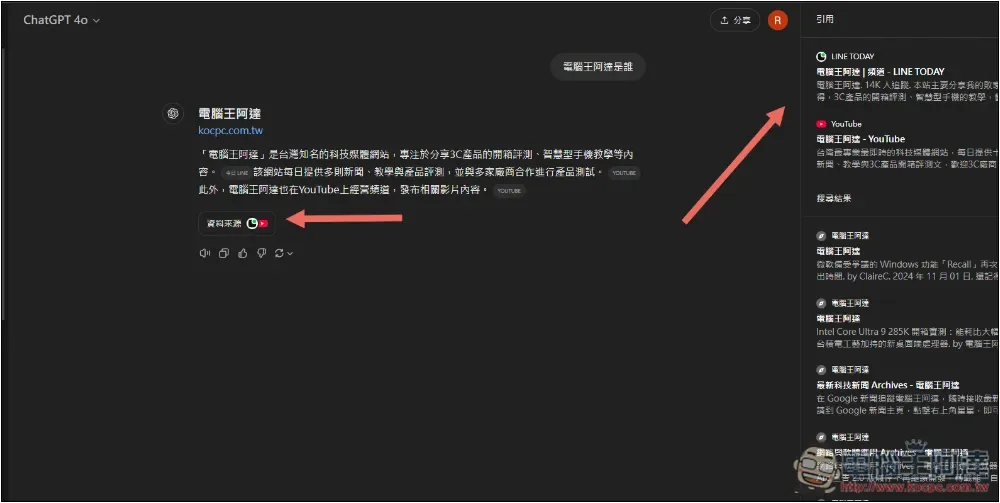
Entering anything to search for will open ChatGPT and enable ChatGPT Search:
How to set the search engine in Microsoft Edge to ChatGPT Search
Microsoft Edge is also a browser developed using the Chromium core, so it can also install OpenAI’s ChatGPT Search extension. However, security issues are currently displayed. After installation, you need to go to the extension management to manually enable it:

Of course, you can also manually add the ChatGPT Search search engine in settings just like Chrome.
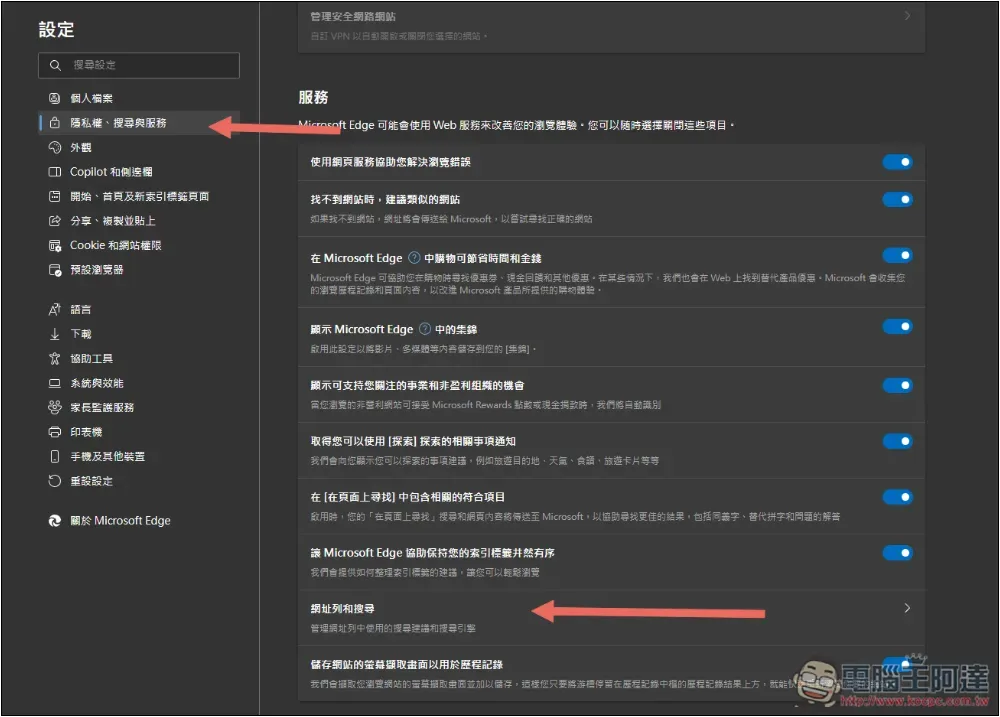
After opening Microsoft Edge settings, go to “Privacy, Search & Services” and scroll down to find “Address Bar & Search”:
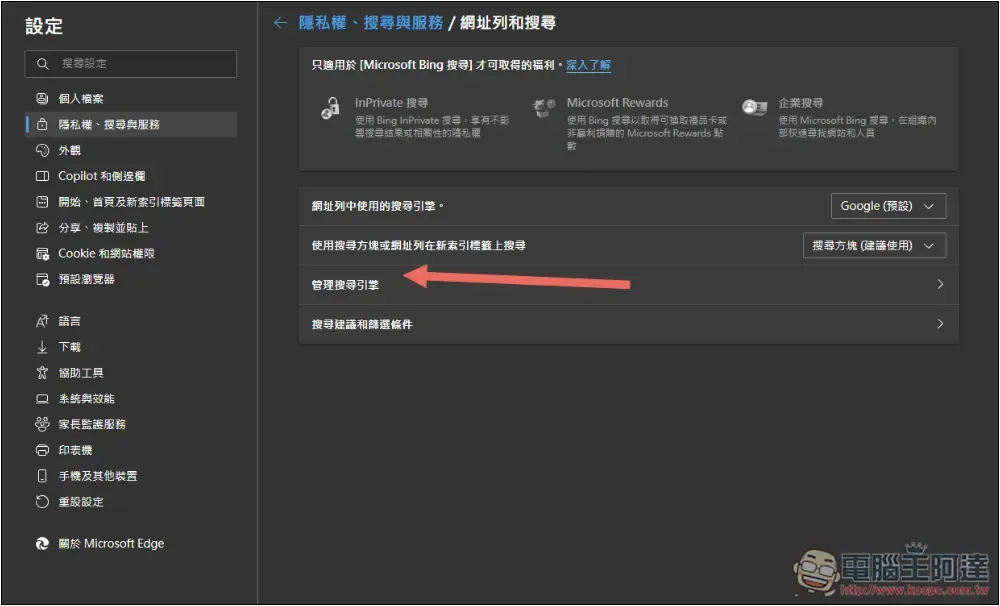
Enter “Manage Search Engines”:
Click Add in the upper right corner:
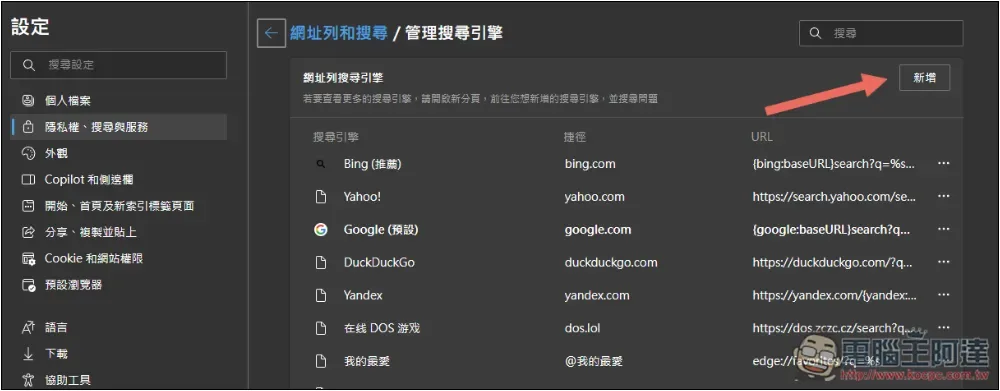
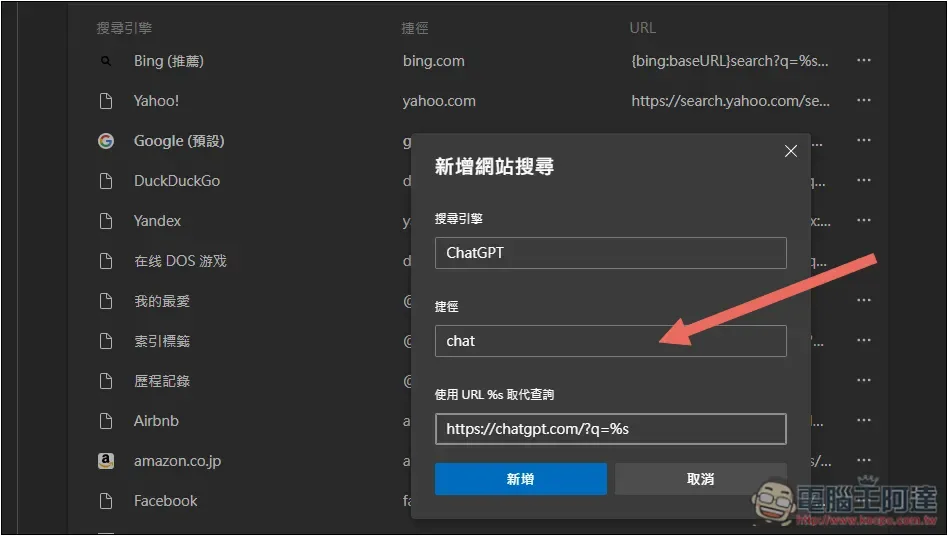
You can fill in ChatGPT as the search engine name. The shortcut is to set the string you want to enable ChatGPT Search. I set chat. In the future, enter chat + blank key in the address bar to enable ChatGPT Search. Enter the URL “https://chatgpt.com/?q=%s” and click Add after completion:
Then you can open the address bar test, enter the shortcut string you set and press the space bar, “Search ChatGPT” will appear on the left, enter what you are looking for, and ChatGPT will open:

How to set Firefox search engine to ChatGPT Search
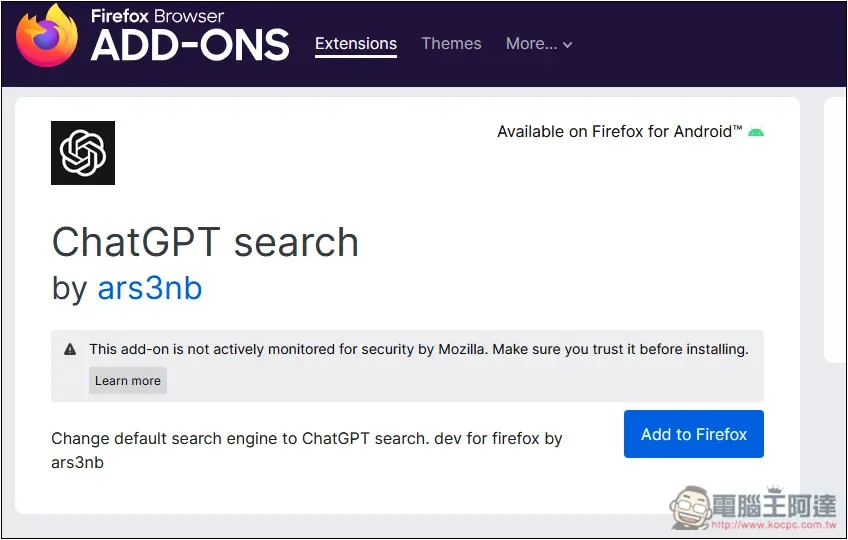
Firefox does not provide the function of manually adding search engines, and currently OpenAI has not launched extension functions for Firefox, so normally, this is not possible now.
However, there are third-party developers who have developed a ChatGPT search extended functions, which claims to be able to change the search engine to ChatGPT search. Those who need it can give it a try. The only thing to note is that it currently displays “This extension is not subject to Mozilla’s security monitoring. Before installing, please confirm that you have enough trust in the extension.”:
Source: KOCPC Chinese