


After 2024, I am increasingly convinced of one thing: we no longer need to replace our smartphones every one or two years. The hardware performance of Android mobile phones has long entered the “era of excess”. The performance, screen, camera and battery life of flagship phones are sufficient to support a use cycle of more than three to four years. However, using the same mobile phone for a long time is not without cost. When you no longer reset the usage environment by “replacing a new mobile phone”, the mobile phone will gradually become a digital garbage dump. This is not because you do not cherish your mobile phone, but an inevitable result of modern usage habits.

Use Android’s built-in hidden tools to find out which apps require the most memory
You will install various applications that you need at different stages: for a certain period of time, you became obsessed with fitness, and you downloaded three or four sports apps; for a certain trip abroad, you installed local transportation, translation, maps, and room booking tools; for a certain weekend, you wanted to try AI photo retouching, AI notes, AI, and so on, so you installed a few more apps. These apps are “necessary” at the moment, but few people clean them one by one after the task is over. As a result, over time, the apps on your phone are stacked up layer by layer like sedimentary rocks.
The thing is, these apps don’t sit perfectly still in the corner just because you don’t open them. Many apps will continue to run in the background, whether they are synchronizing data, receiving push notifications, maintaining services, detecting locations, or performing background tasks that you don’t need at all. These behaviors occupy memory, consume system resources, and even affect battery life. When the accumulation reaches a certain level, you will start to feel that the phone is not as smooth as before. The speed of opening the app becomes slower, the screen occasionally freezes when switching screens, the animation is no longer so smooth, and even the camera startup may become sluggish. These phenomena are often not due to the aging of the phone, but because the system is carrying too much burden that you no longer need.
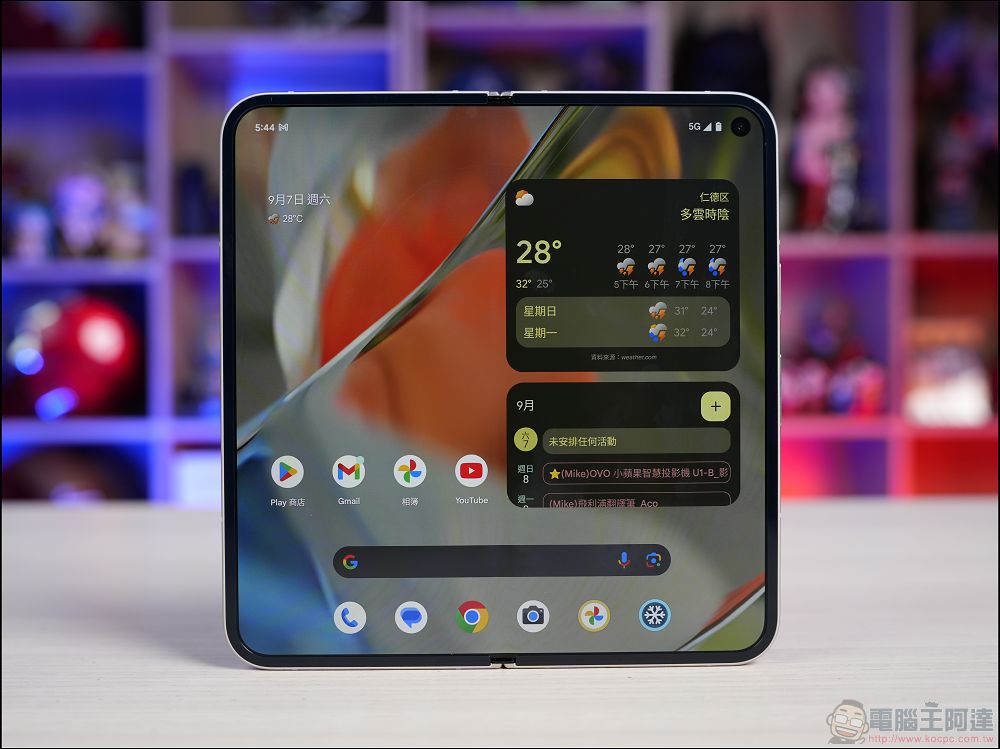
Fortunately, the Android system actually provides a relatively hidden but very useful tool that allows you to accurately understand the memory usage of each application. This feature does not appear directly on the general settings page, but is hidden in developer options or advanced system information. Through it, you can clearly see which apps take up a lot of RAM in the background, which apps are barely running, and which apps continue to consume resources even though they haven’t been opened for a long time.
Before viewing memory information, you need to enable developer options on your phone to see this setting. To enable developer options, follow the steps below:
- Open the Settings app.
- Enter “About Phone”.
- Scroll to the bottom and click 7 times on the “Version Number” section.
- You will receive a message that Developer Options is enabled.
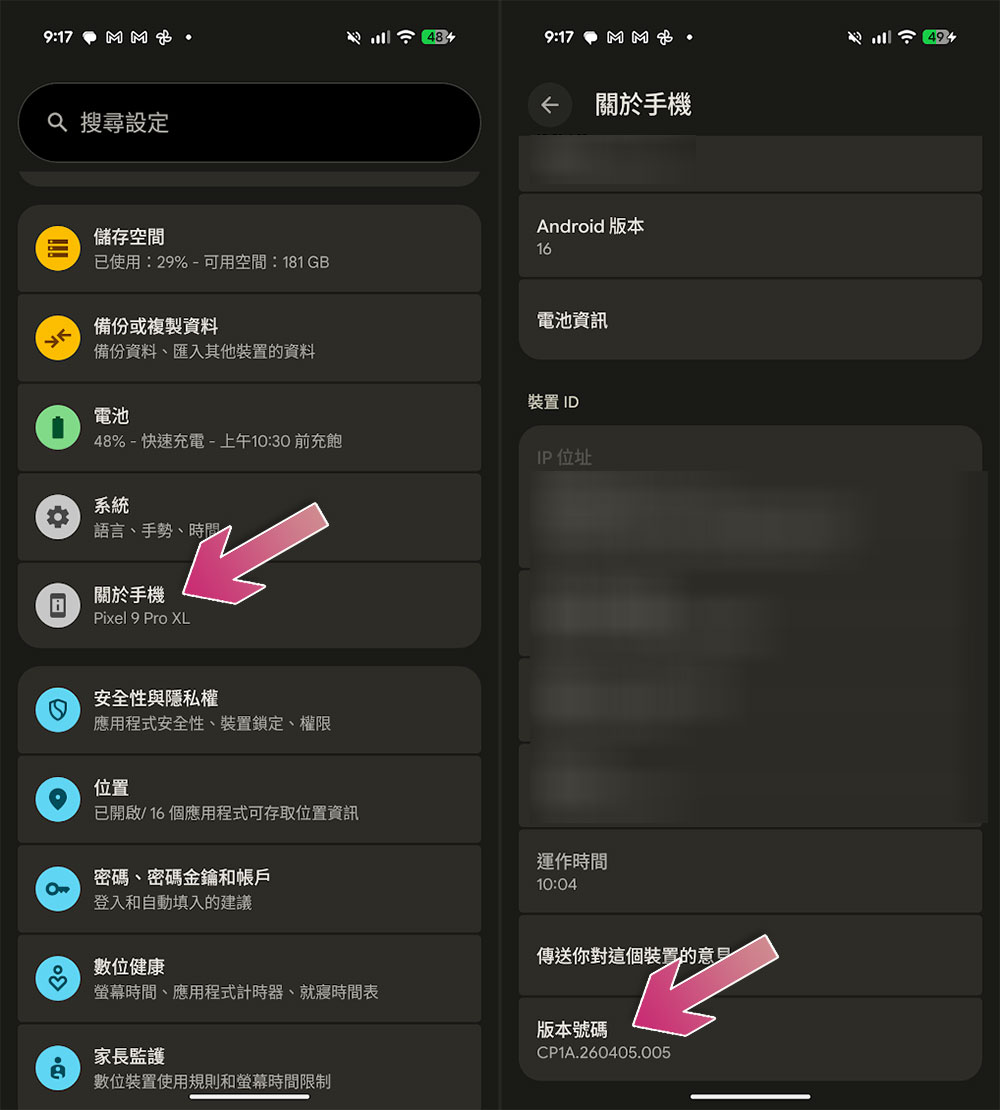
After turning on the developer options, you can check the RAM usage as follows:
- Enter the Settings app.
- Click “System”.
- Scroll down and you’ll see “Developer Options” in the penultimate item.
- Turn on “Use developer options” at the top.
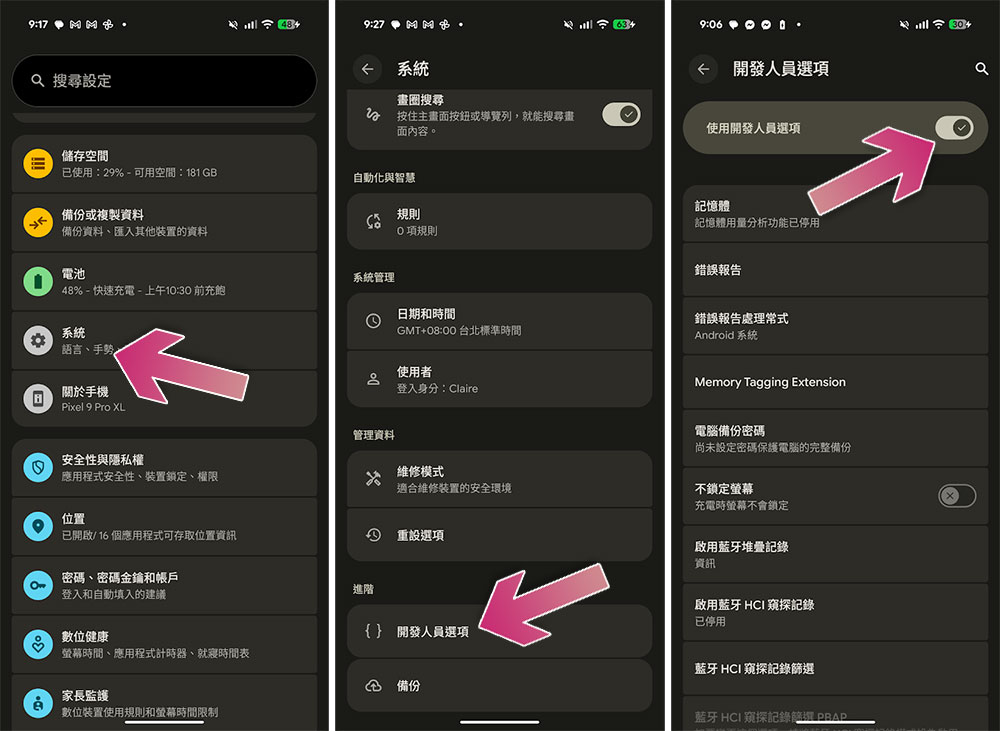
- The first item in the developer options is “Memory”.
- After entering, turn on the switch of “Enable memory usage analysis function”, and then the system will restart.
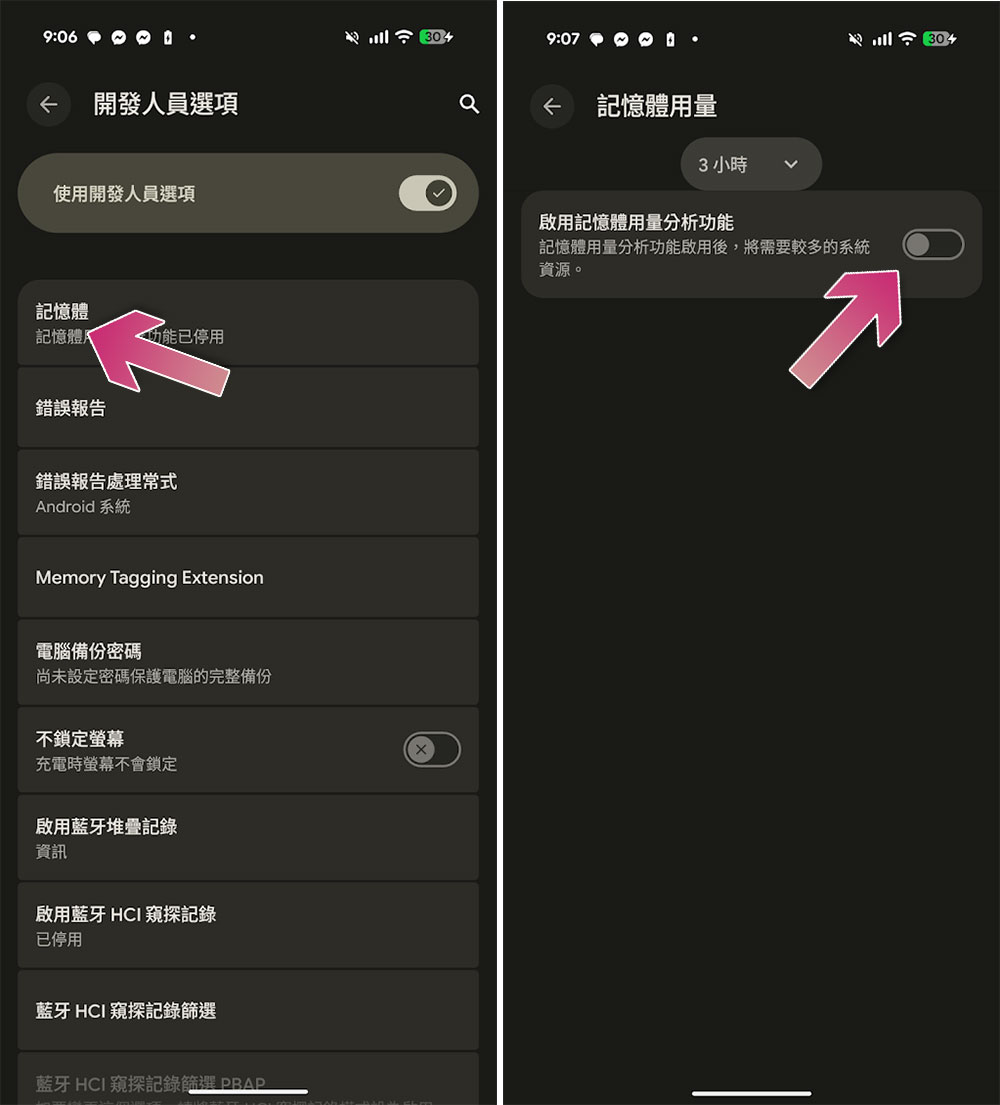
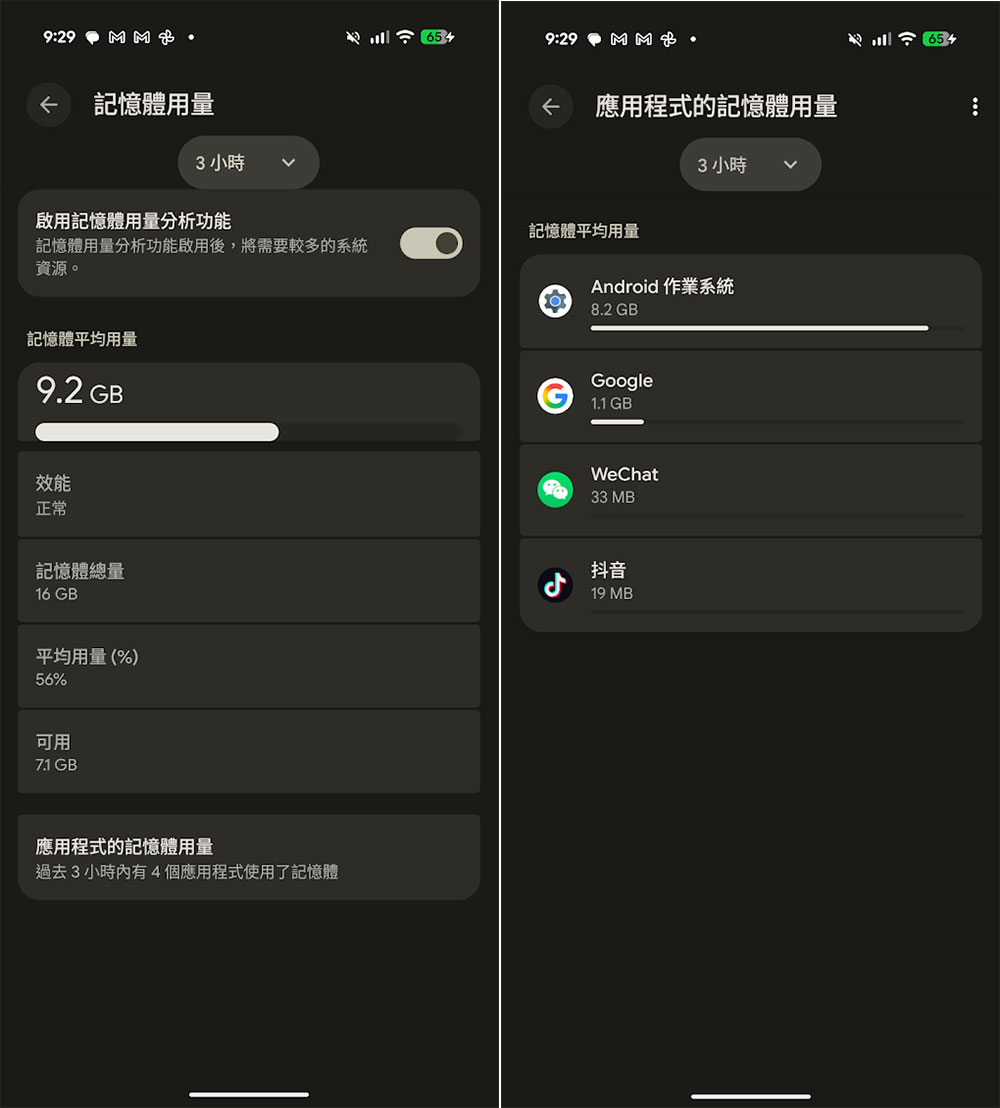
After restarting and entering the “Memory” page, you will first see the phone’s RAM capacity, average usage, and a brief evaluation of the system’s overall performance. This information can help you quickly understand the current resource load of the phone.
But if you want to know more about “which applications are eating up memory”, you need to click on the “Memory Used by Applications” option. By default, the system will list all apps in order based on their RAM usage in the past three hours, allowing you to see at a glance which programs are most active in the background. At the top of the screen, you’ll see a drop-down menu that allows you to switch between different observation time ranges, such as three hours, six hours, 12 hours, or one day. In terms of practicality, I would recommend choosing “Twelve hours” or “One day” because this can more fully reflect the background behavior of the App throughout the day, rather than just looking at short-term fluctuations.
Typically, you’ll find that the top of the list tends to be the Android operating system itself, and that’s completely normal. The system needs to run many background services at the same time, and these services are classified under the Android system, so taking up more memory does not mean there is a problem. What’s really worth noting is whether third-party applications take up “unreasonably large amounts of memory.” You can click into any app to see its average memory usage, peak usage, and background operations. This information can help you determine whether an app is silently slowing down your phone.
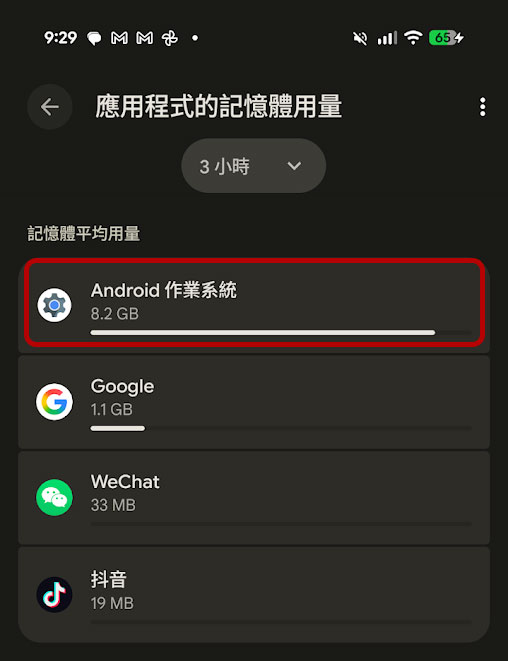
The design philosophy of Android is to “make good use of available memory” and keep frequently used apps in the background so that they can load faster the next time you open them. Therefore, seeing memory being used does not mean that the phone is wasting resources. The key is to identify which apps you really need and which ones have been idle for a long time but are still taking up RAM. If you find that a rarely used app takes up a lot of memory, you can select “Force Stop” on this page. But this is only temporary because whenever you open the app again, it will still reload the background service. If you are sure that you no longer need it, the most effective way is to uninstall it directly to completely prevent it from continuing to occupy system resources.

Many people think that the “Recent Apps” list is all running apps and that simply sliding them away will free up memory, but this is actually a common misunderstanding. Many Android Apps will continue to execute services in the background, and these services will not appear in the recently used list. This is why Android provides “average memory usage over the past few hours”, which can more truly reflect the actual load of background processes.
In summary, this memory analysis tool can help you find out which apps are taking up too much RAM for a long time, which apps continue to run in the background, and which apps are no longer needed. Through this information, you can clean up your phone more effectively, reduce unnecessary burdens, and keep the system smooth. If you recently feel that your phone is slowing down, lags are increasing, or battery life is significantly reduced, this memory information can also be used as the first step in diagnosis. Then you can further adjust settings, limit background activities, or clean up unnecessary apps to restore your Android phone to its best condition.
Source: KOCPC Chinese