


There’s no getting away from it: Google knows a lot about you, probably more than your best friends and closest family members. Although the company has changed the way it tracks users in the past, it still collects a lot of information to personalize the experience for each user. Everything from your favorite YouTube videos to the people you interact with the most online is in the hands of Google.
Teach you step by step how to view and clear your Google activity tracks
Given Google’s ubiquity on the web, many of us use its services without giving much thought to how our data is used, or where it might go. Even if you don’t use Google regularly, it’s almost impossible to avoid some of your data getting caught up in the web. Google retains this information for a long time, and in some cases, until you delete your account. It is conceivable that over time, users will accumulate a large amount of personal information in them throughout their lives. Although this is not necessarily a bad thing, it may also raise security and privacy concerns.
Fortunately, Google provides a set of tools for you to manage what data is stored and for how long, helping you limit the exposure of your personal information online and protect your privacy. If you’re ready to control what data Google has about you, follow the next steps.

How to view your Google Activity?
The first step to understanding how Google collects and stores information is to review your Google activity. If this is your first time looking at your Google Activity, you might be surprised by what you find. The Company keeps extensive records of activity on its Services. When you view your Google Activity, you’ll first see a timeline of your activity on Google, starting with your most recent activity. Here you can browse your searches, directions taken on Google Maps, app activity (for Android), voice assistant commands issued, and more.
- Go to Google.com and log in to the account you want to check.
- Click on your profile picture in the upper right corner of the page.
- Select “Manage your Google Account” from the drop-down menu.
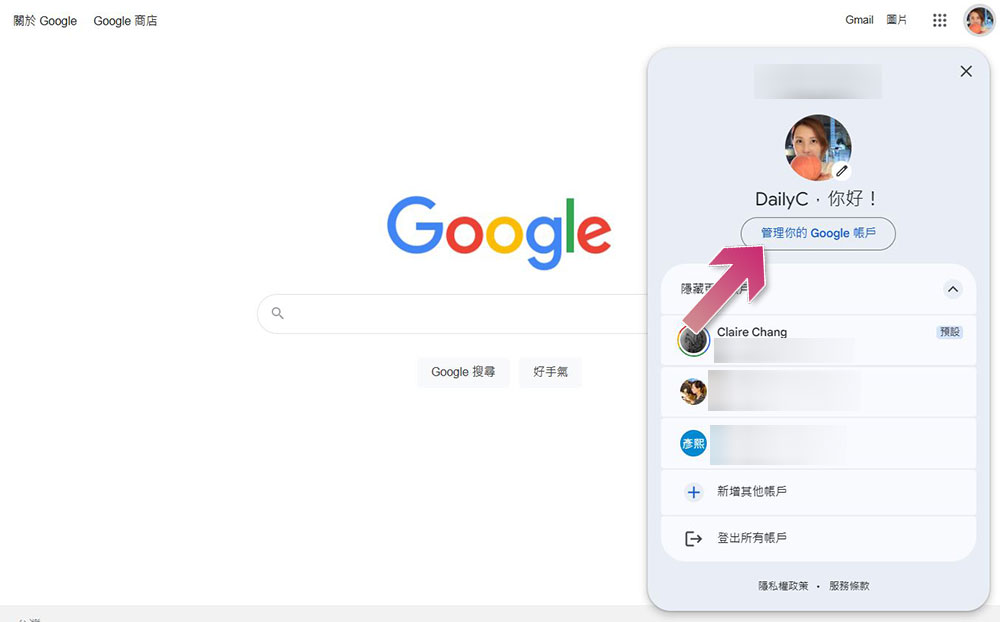
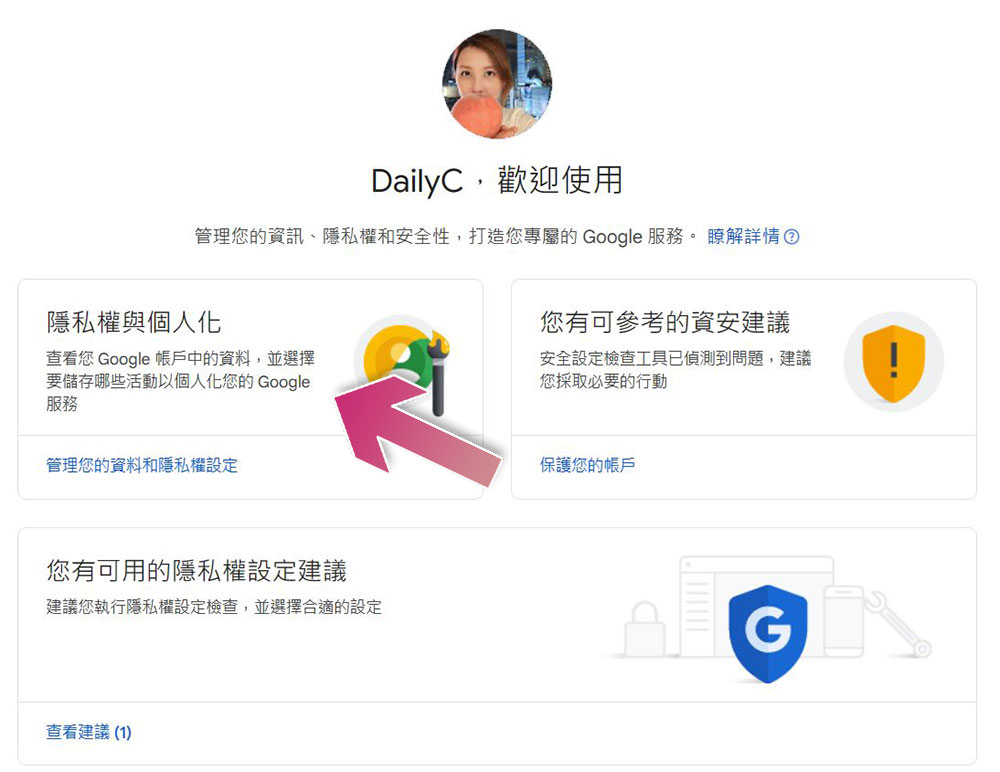
- Click “Privacy & Personalization”.
- Scroll down until you find the “Logging Settings” item and click “My Activity.”
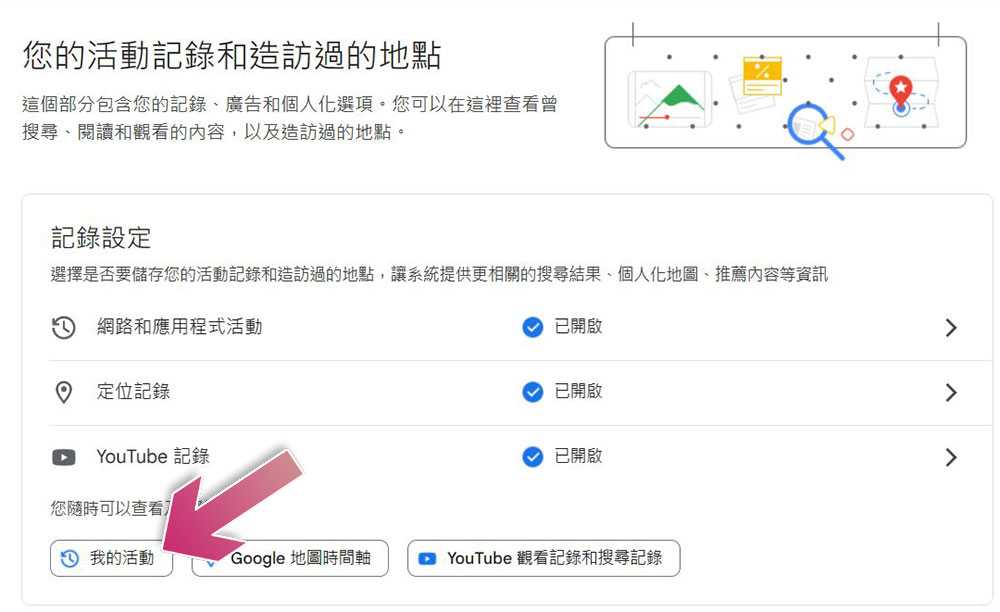
Completing the above steps will redirect you to a page with detailed records of your activity across Google services.
How to clear your Google Activity?
Once you’ve reviewed your Google Activity, it’s time to decide what you want to keep and what you want to delete. Google gives you a lot of control, you can scroll through your activity and manually delete specific items, or you can delete all activity from a specific date, it’s up to you. You can also delete your activity in specific Google products, like Search, YouTube, or Maps, without affecting data from other services. You can clear your Google activity history for a specified time period or all by following the steps below:
- Open a browser and visit “myactivity.google.com」。
- Find “Delete” listed at the top of the event, click it and select the specified time period or custom time you want to delete from the drop-down menu.
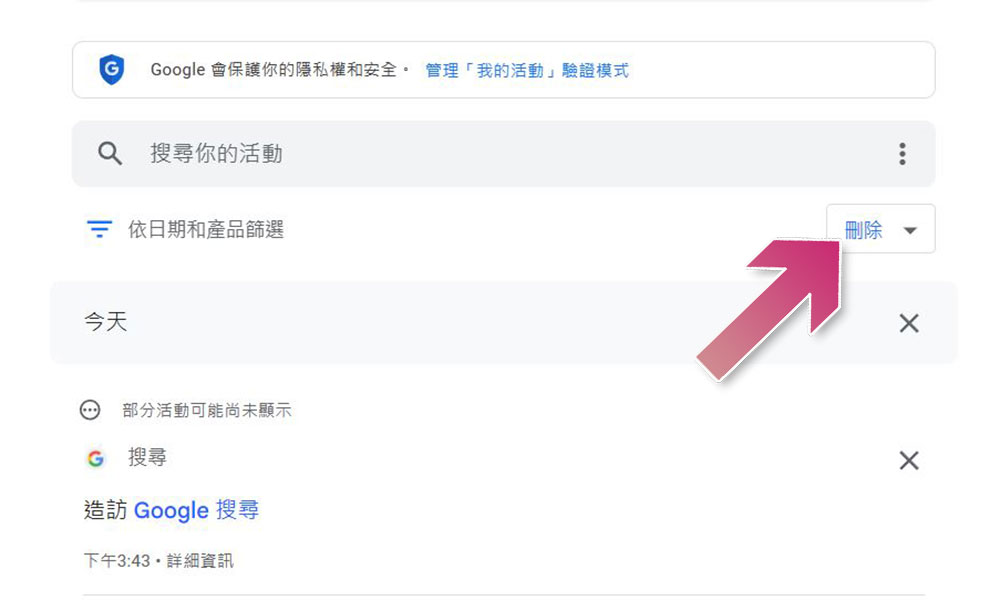
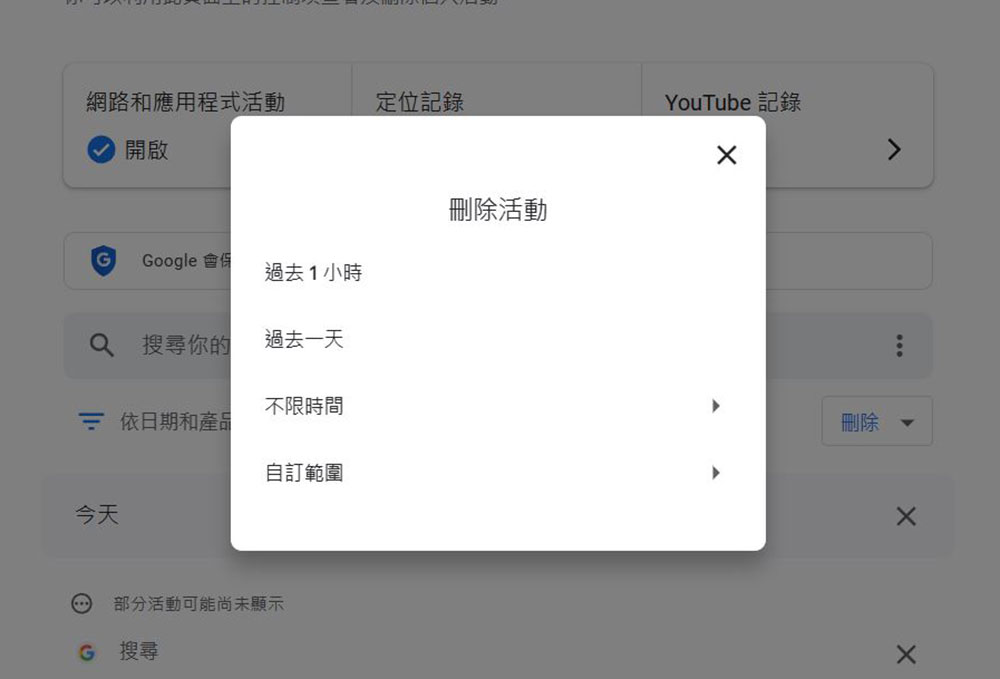
- If you want to delete all records in a specific service, you can click “No time limit”, then check the service items you want to remove records, and click Next to complete the subsequent deletion operation.
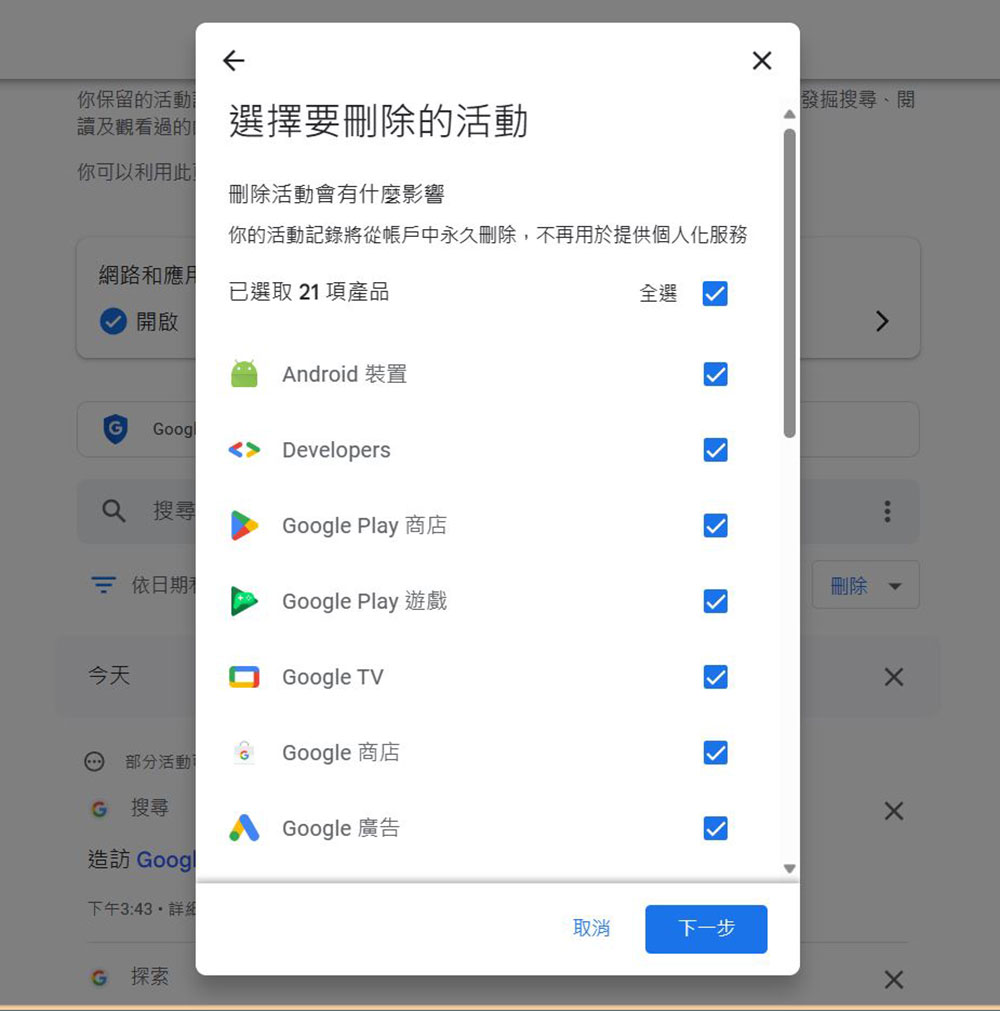
Deleting your Google Activity will permanently remove it from your My Activity page. However, even if it is deleted, it usually takes about two months for the data to be completely removed from Google’s servers.
How to automatically delete your Google Activity?
If you’d like to automate the management of your Google activity data, you can set up automatic deletion of your account’s activity. This feature allows you to choose an interval of 3, 18, or 36 months to automatically clean up your activity history:
- Open a browser and visit “myactivity.google.com」。
- Click “Web & App Activity.”
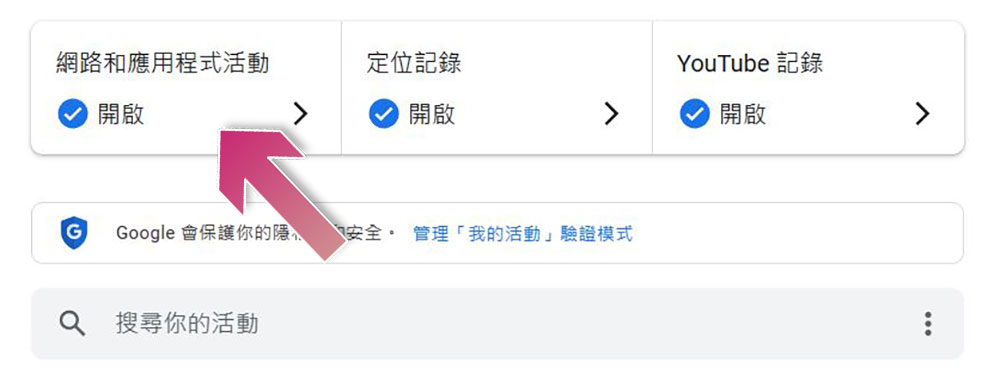
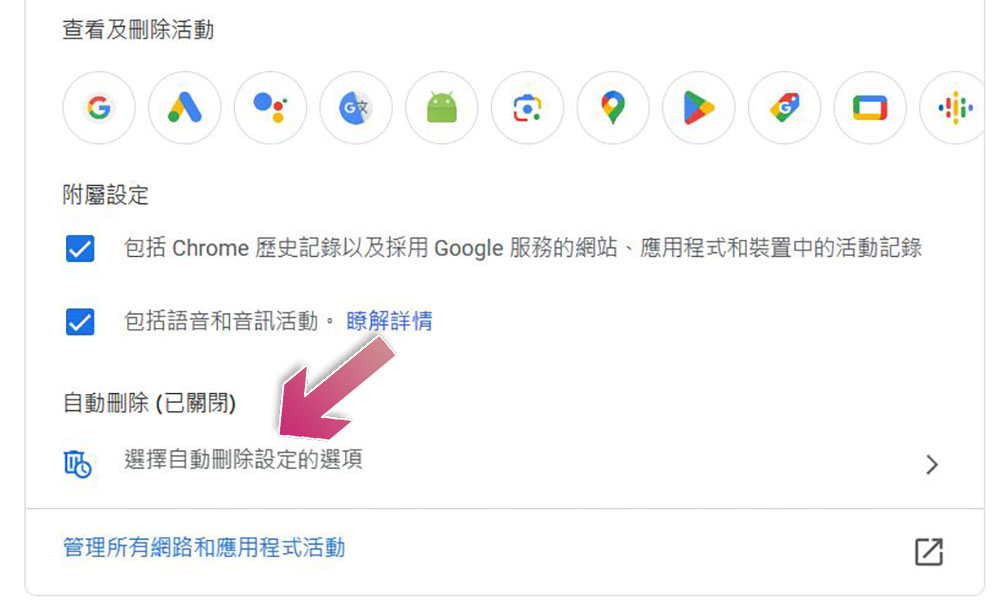
- Scroll down to see “Auto-Delete” and click “Select options for automatic deletion settings” below.
- In the options, click to switch to “Automatically delete activities before”, then select the time period from the drop-down menu, click Next and select OK.
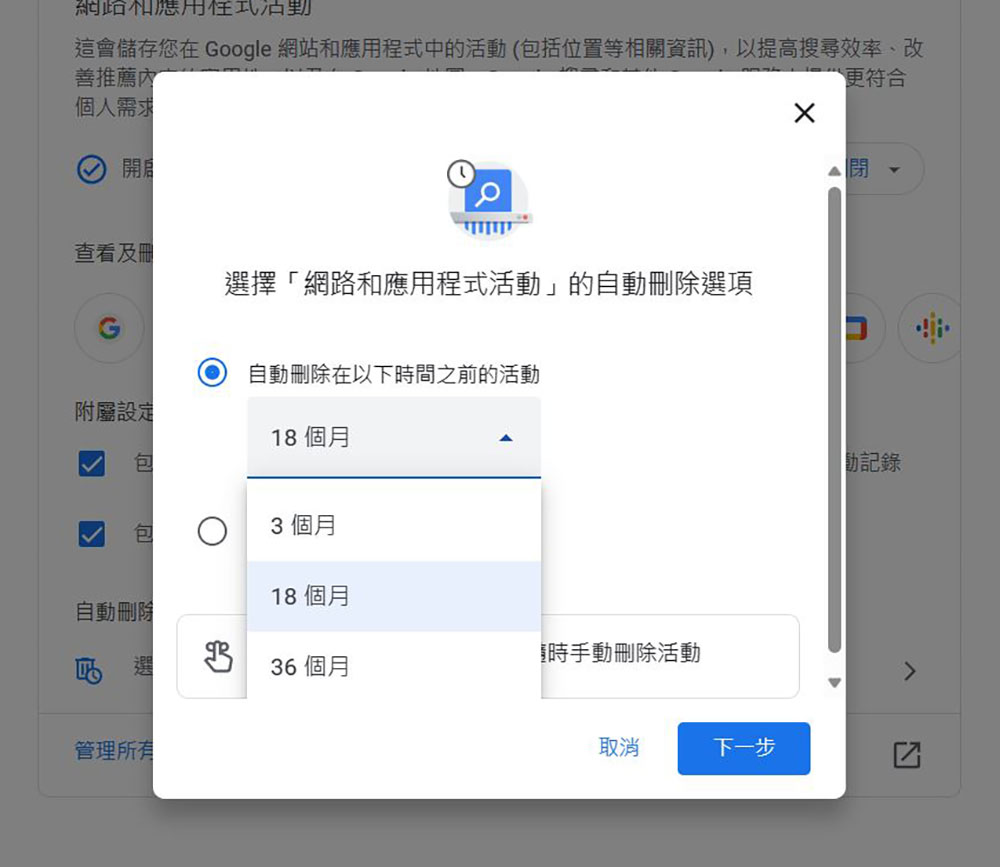
Once set up, Google will automatically delete activity older than the time you specify, ensuring that your old data (including search history, app usage, and website visits) is regularly purged without you having to do anything manually. By enabling this option, you can add additional privacy protection to your online activities.
Source: KOCPC Chinese