


Last week we reported that the ChatGPT Plugins plug-in and Web Browsing web browsing function will be open to all ChatGPT Plus users this week. When I opened the ChatGPT chat room earlier, I saw that the Plugins plug-in is already available. It seems that web browsing will have to wait for a few more days. This article will teach you how to enable the Plugins plug-in function and the classification of all plug-ins.
ChatGPT Plugins plug-in function enablement tutorial, current plug-in complete classification summary
To use the ChatGPT Plugins function, you must be a ChatGPT Plus member. Free members are not currently available. If you are a Plus member but have not seen this feature yet, please wait a few days before trying again. It may be that OpenAI is still opening up.
How to enable and install ChatGPT Plugins plug-in
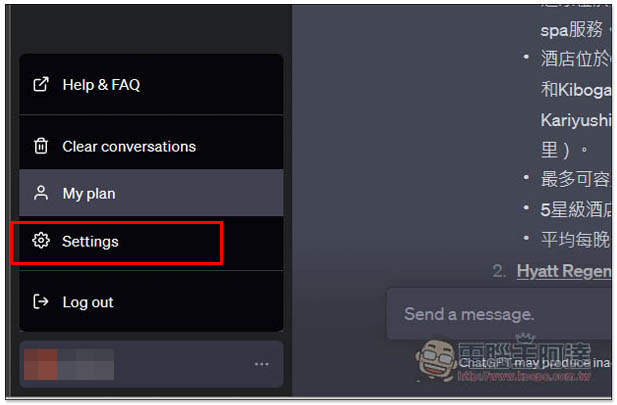
After ChatGPT Plus members open the ChatGPT chat room, click the Settings setting option in the lower left corner:
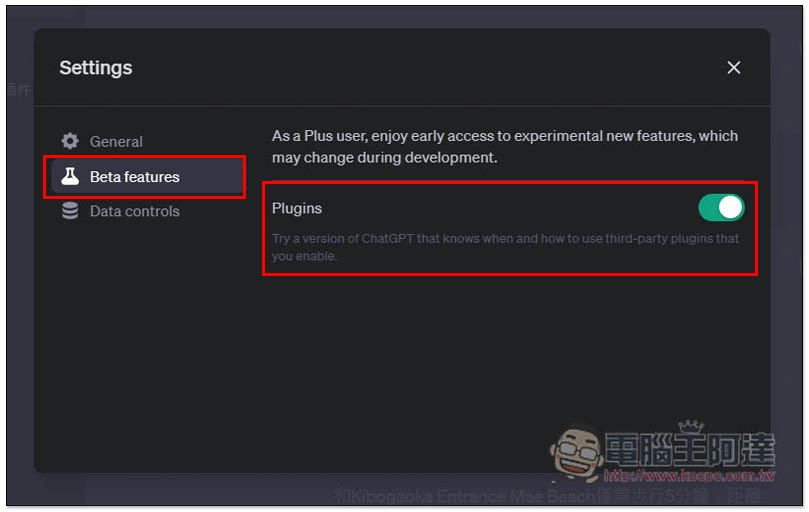
Then you will see the new “Beta features” option, which contains the Plugins plug-in function. Just turn it on. If you are lucky enough, you may also see the Web Browsing function option simultaneously. If so, you can also open it simultaneously to experience the ChatGPT web browsing function:
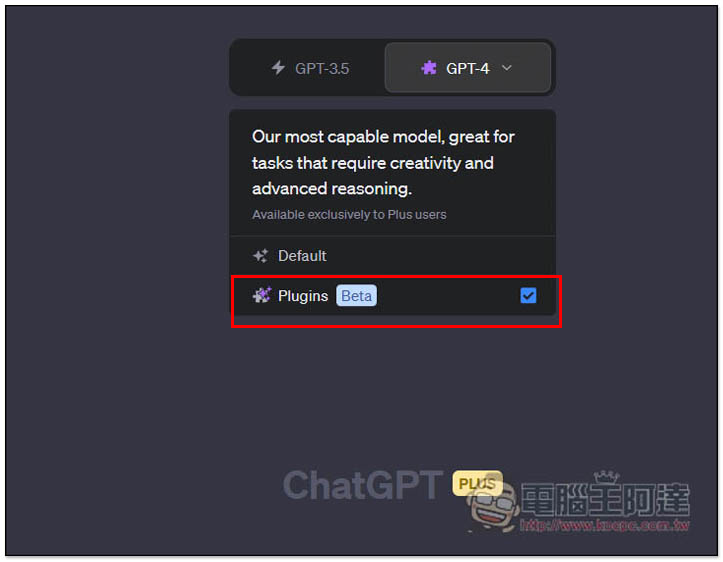
Once you’re back in the new chat window, switch to GPT-4 and you’ll see the Plugins Beta option, enable it. Currently, it seems that only the Plugins function of GPT-4 is enabled. My GPT-3.5 does not have this option:
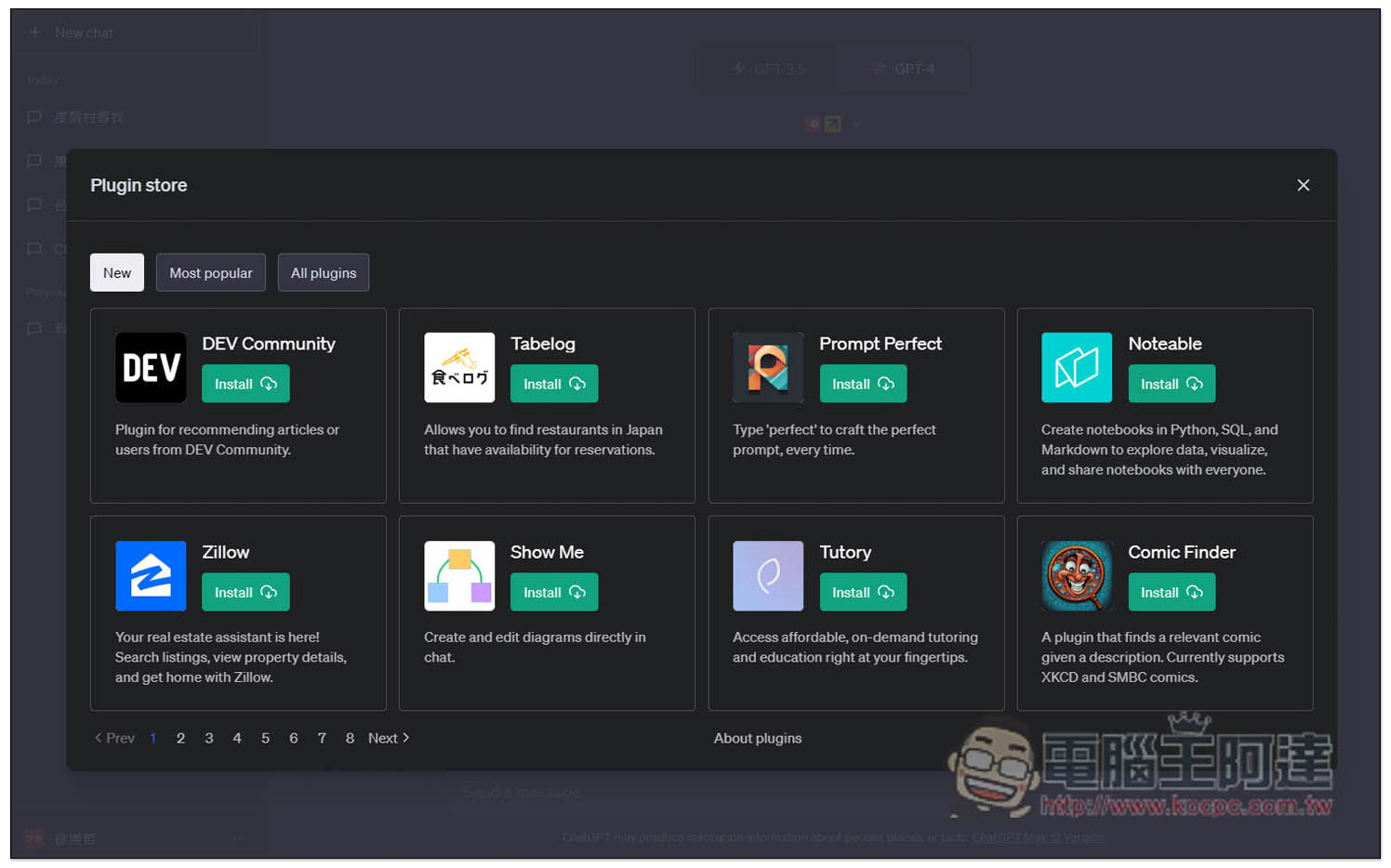
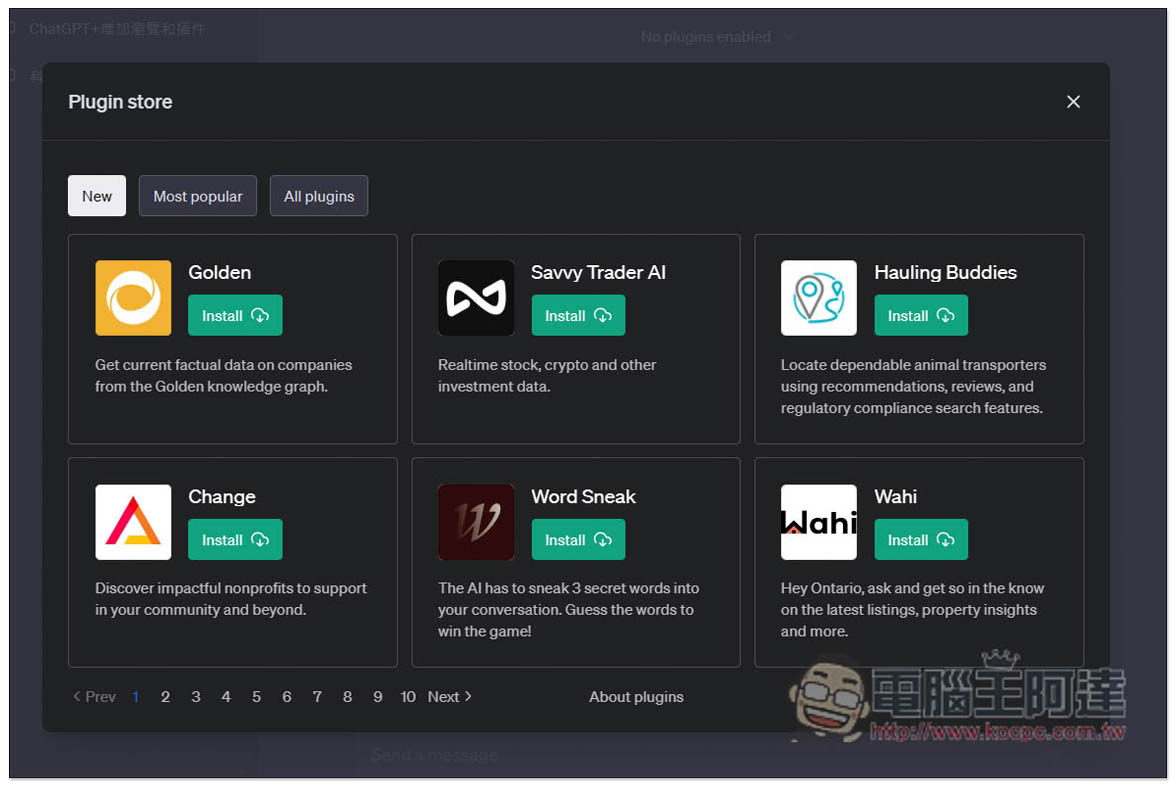
Then you can go to the Plugin store to install the plug-in you want to try. According to the official introduction, there are currently about 70 kinds of plug-ins available, but it is said that some people have reached 80 kinds. I am not sure about this:
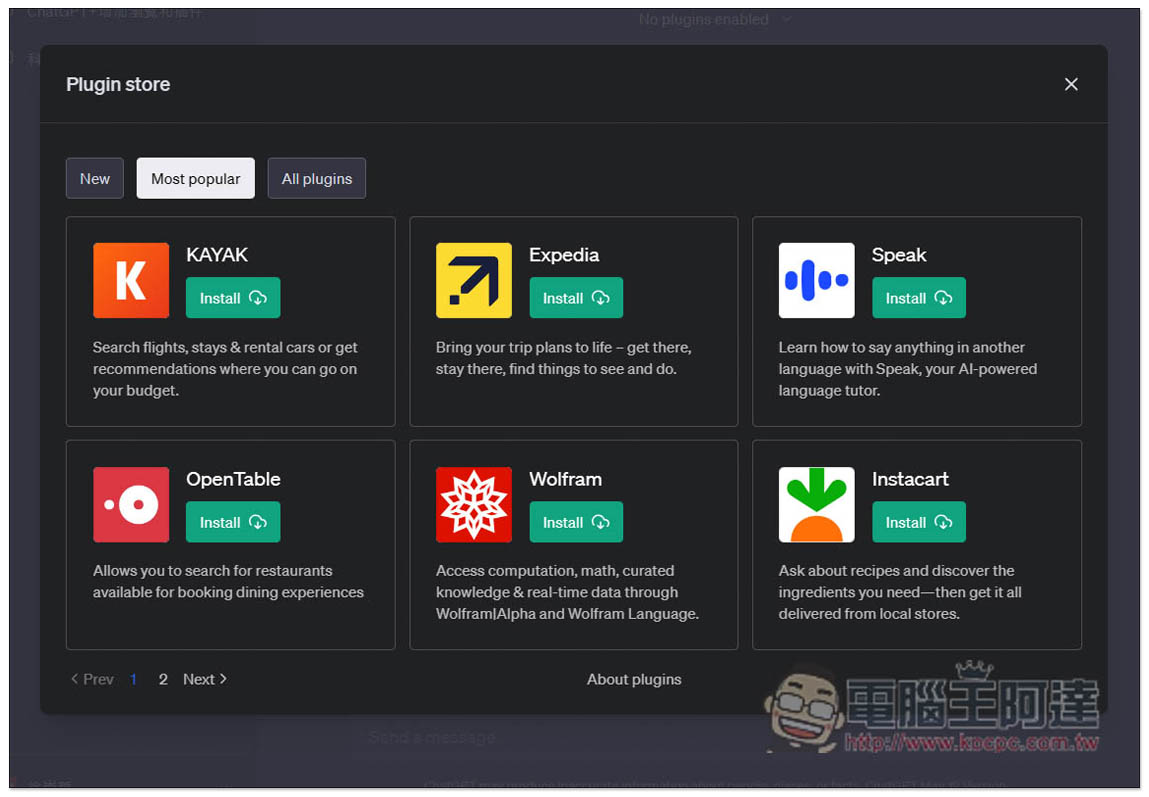
Most popular is currently the most popular externalization. If you don’t know which one to start with, you can find it here. Each one has a simple explanation. Those who don’t understand can use ChatGPT to translate:
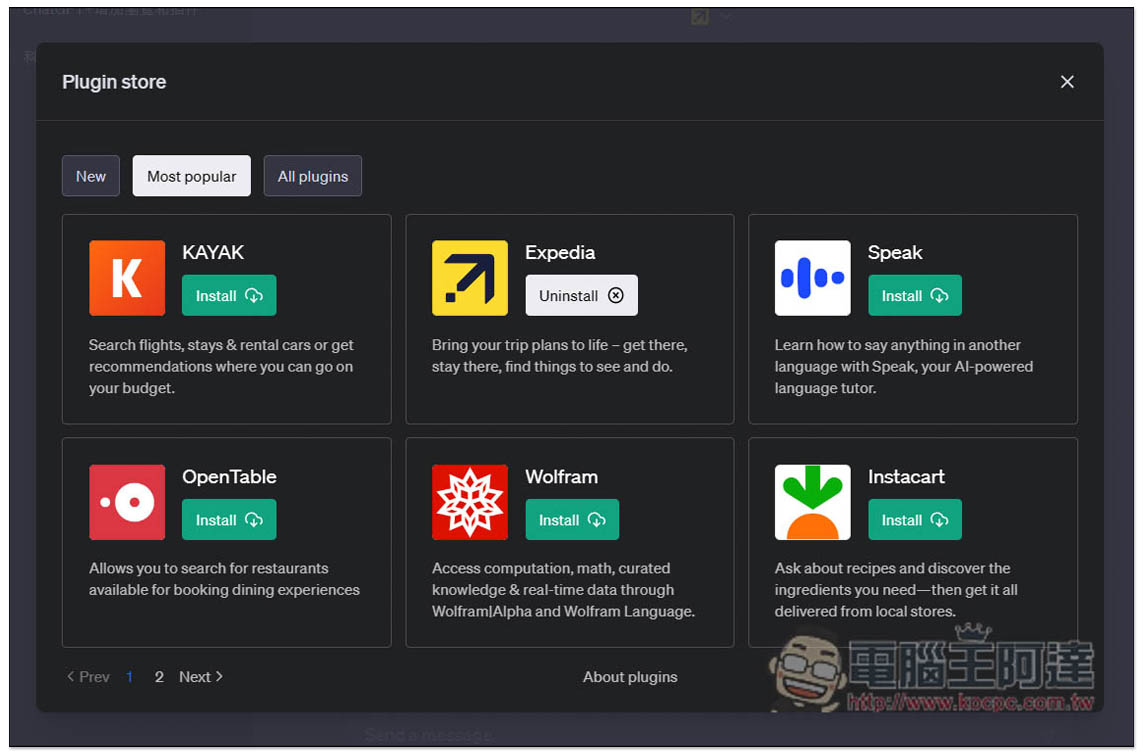
Click Install on the right to install. If Uninstall is displayed, it means the installation is complete. If you want to remove this plug-in in the future, click Uninstall:
How to use ChatGPT Plugins plug-in
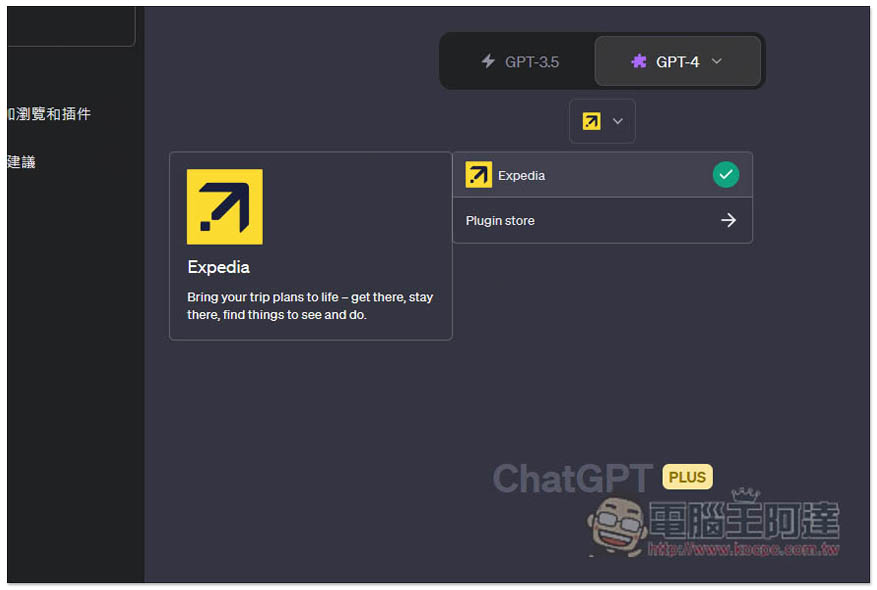
The usage is very simple. After installing the Plugins plug-in, check the plug-ins you want to enable before chatting. I will use Expedia as an example:
Enter the question you want to ask, like me asking: “I plan to go to Tokyo for 5 days and 4 nights in October. Help me find the cheapest round-trip air tickets, 4-star or above hotels, and Tokyo experience activities”:

Then the chat will start:
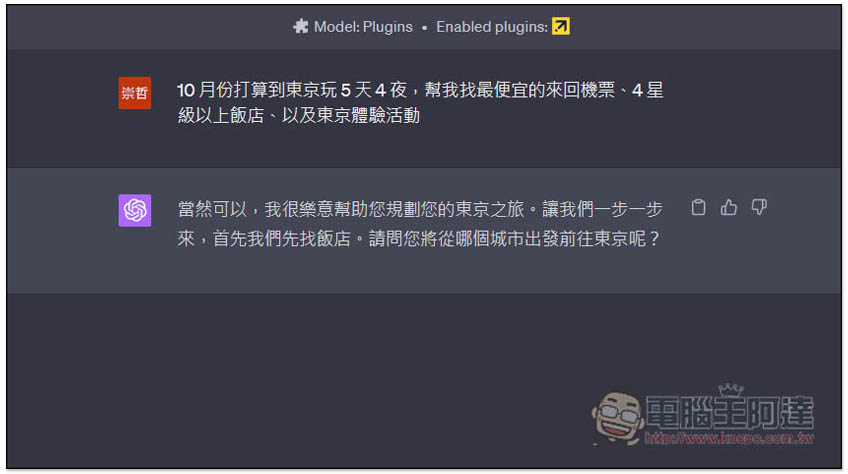
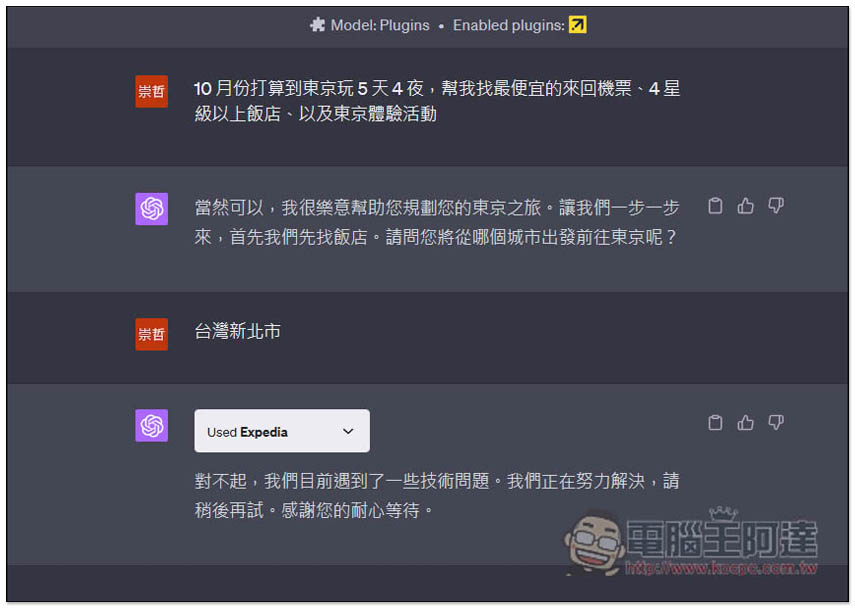
One thing to note here is that the departure location I entered is wrong and I should not type “New Taipei City, Taiwan”:
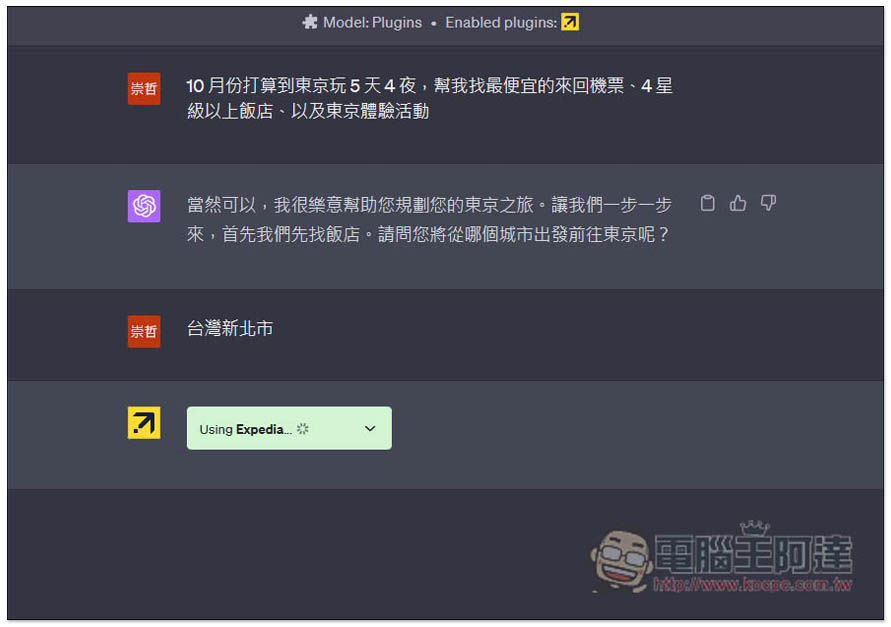
Because there is no such place in New Taipei City, Taiwan, when searching for it on Expedia, of course you can’t find it using this plug-in. You should enter “Taipei”, but the most important thing is that Plugins have just been released, and most plug-ins are not very smart yet. I guess there should be opportunities to improve this part in the future:
Then after I added Taipei to the question, the answer I got was more accurate. For example, ChatGPT will search directly through the Expedia plug-in and give me the answer directly. The first is the three recommended hotels:
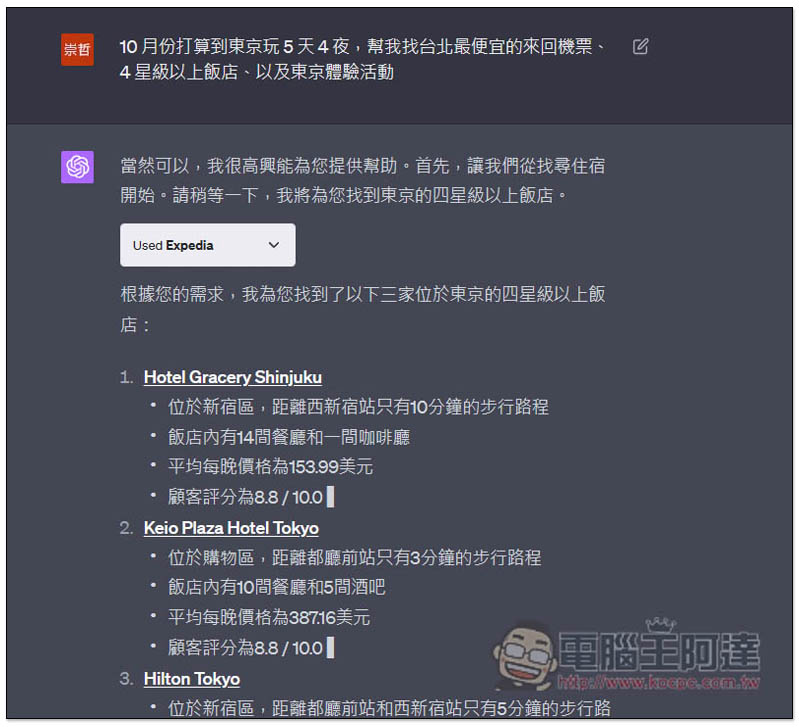
There may be gaps between each answer, so please enter “continue”:
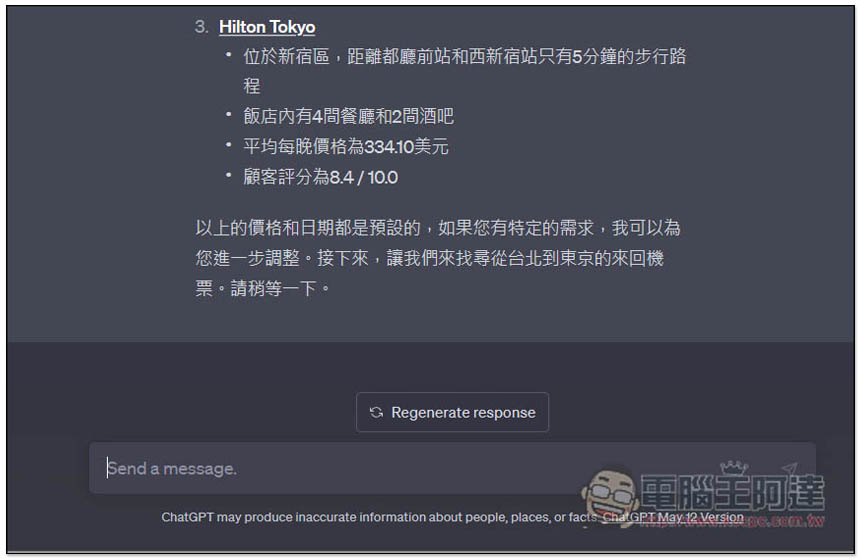
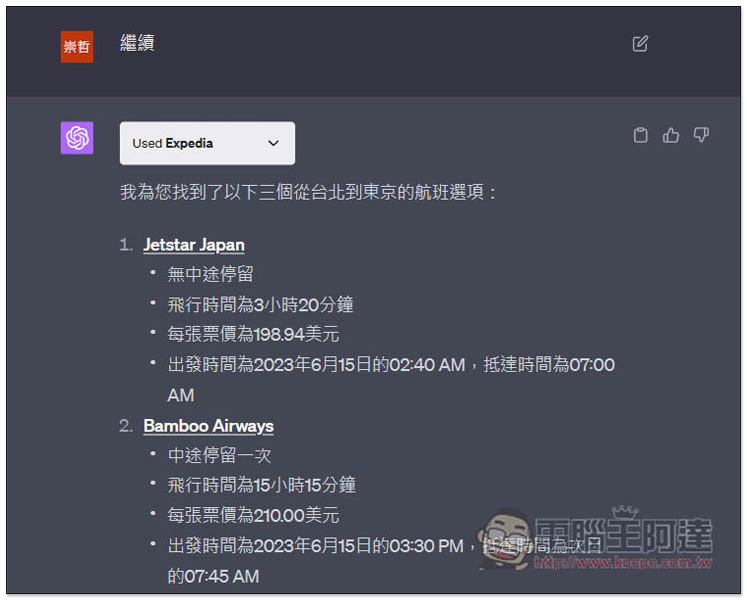
ChatGPT will continue to answer and help me find recommended air ticket options. Each flight will be given whether there are stopovers, flight time, approximate fare, and departure time. Another situation arises here, that is, it does not lock the “October” I entered, but gives June:
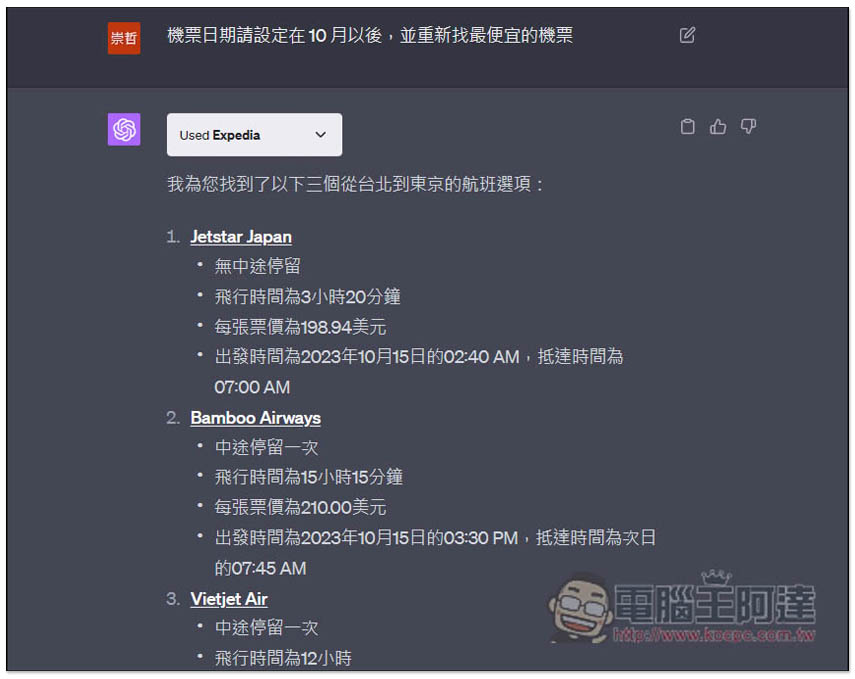
I asked again to set it after October, and this time the answer was no problem, except…:
I clicked on the URL it gave me, but it was still the same day as 6/15:
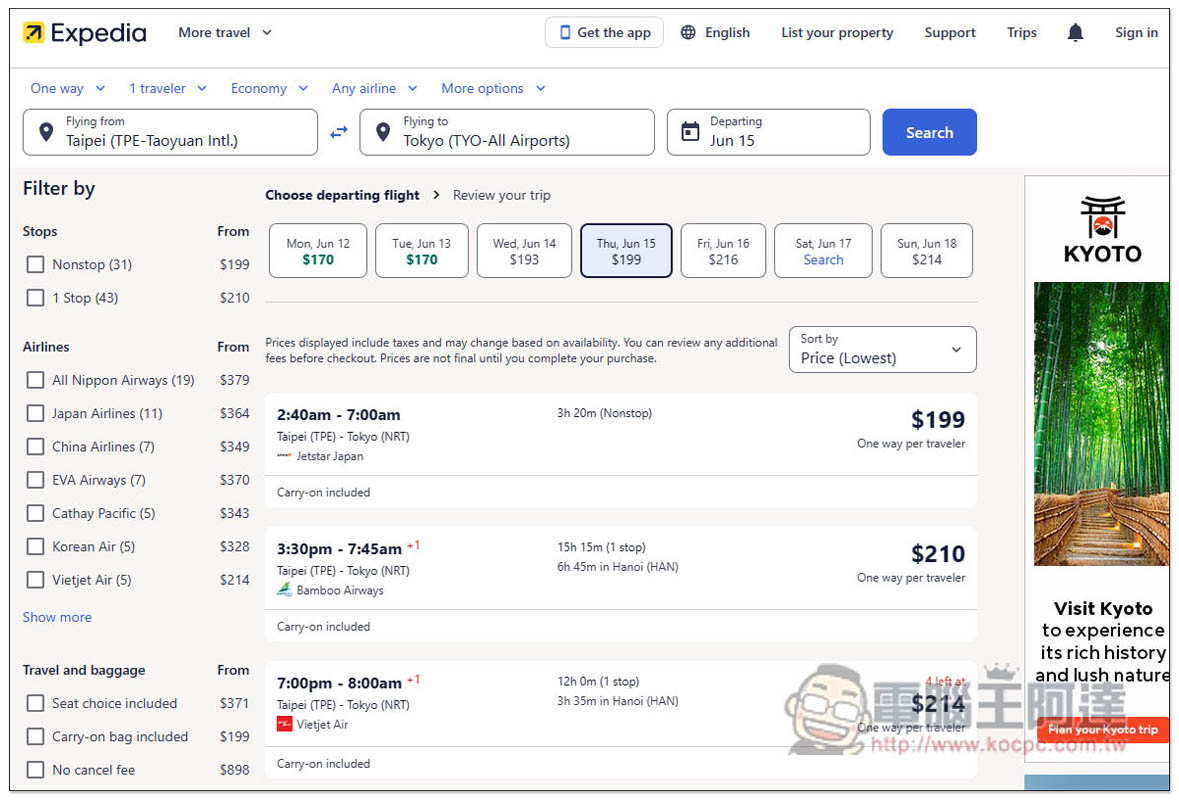
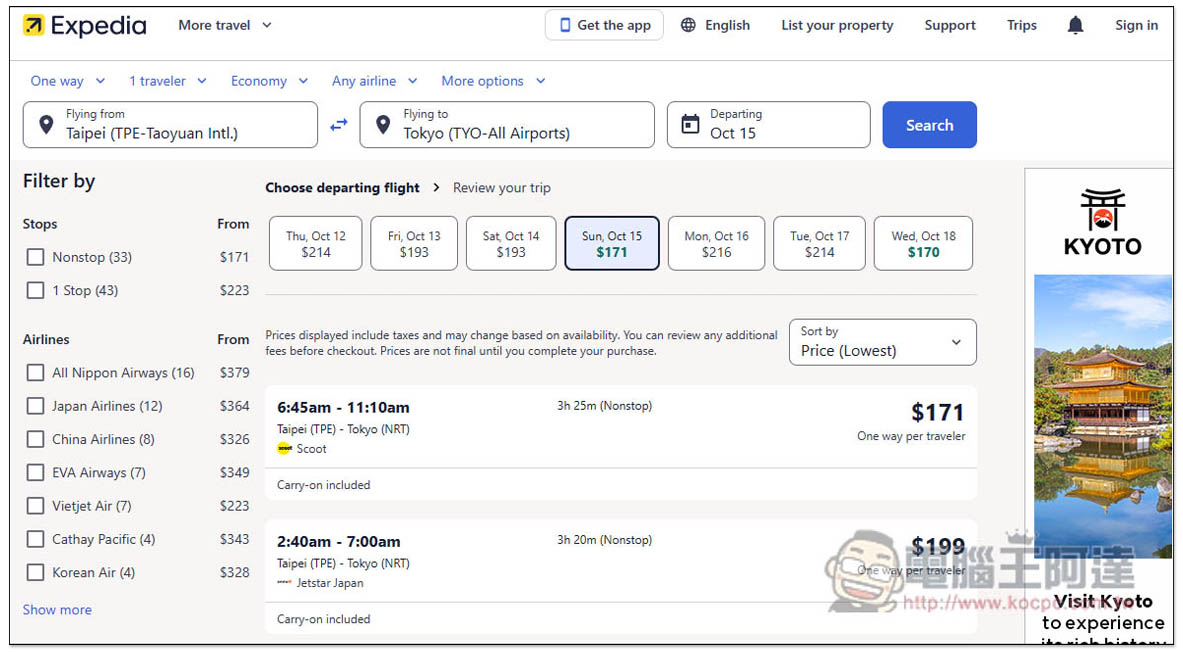
I manually changed the date to 10/15. Unexpectedly, there was actually a cheaper flight ticket of US$171, and the airline was Scoot:
In addition, I also found that the following pictures are three recommended Tokyo experience activities found by ChatGPT through Expedia. I think there are too few, and they all look at the scenery:
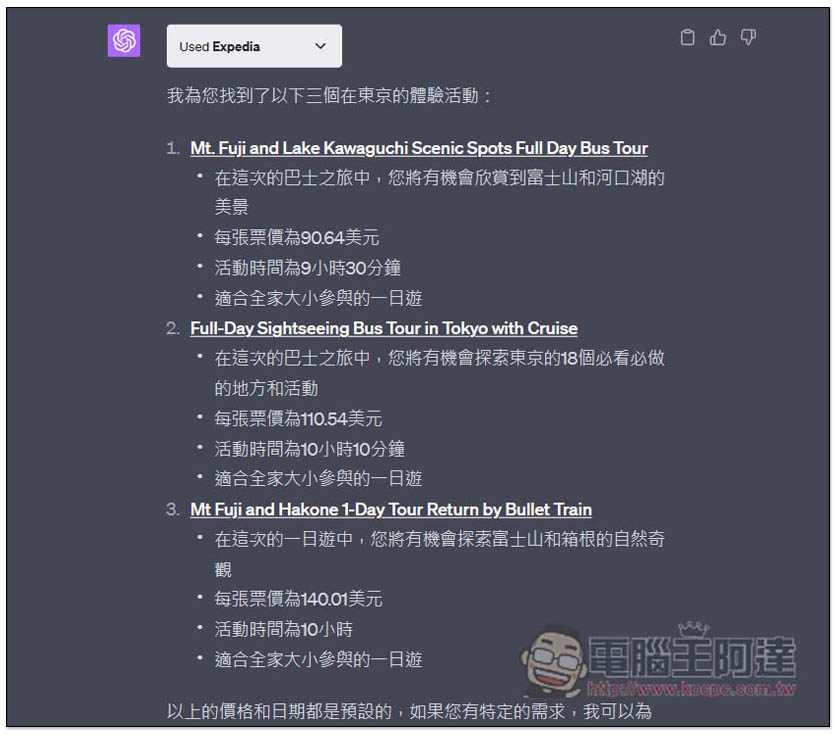
I asked it to give me more options, and it gave me the same duplicate:

I don’t know if it’s a ChatGPT problem or if the Expedia plug-in is not written well. There is only one answer so far, so don’t expect too much from ChatGPT Plugins now.
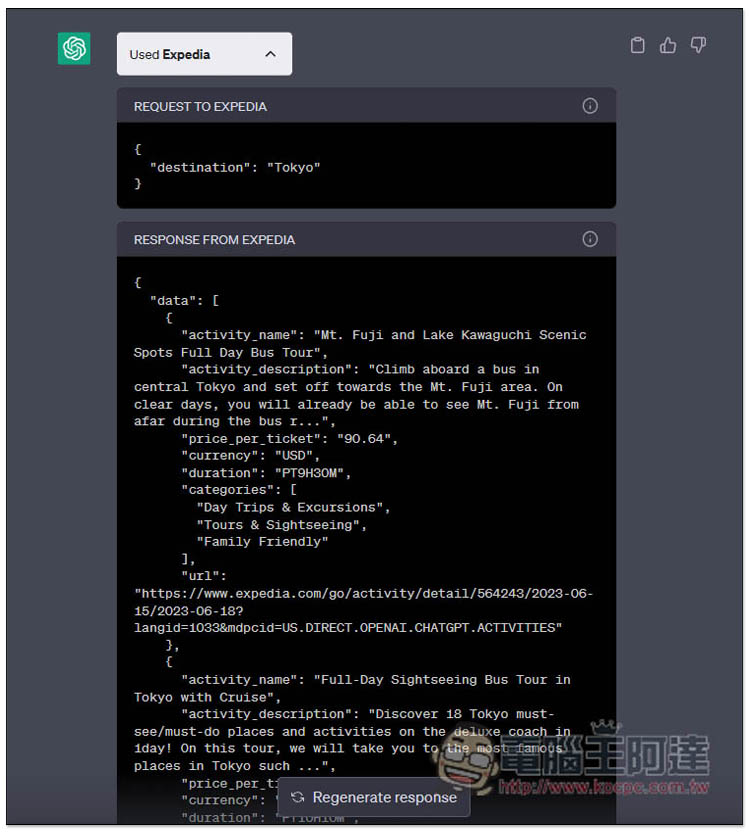
For each answer you can expand the menu to see how ChatGPT requests the plugin, and then figure out the best way to ask:
ChatGPT Plugins complete classification summary
As mentioned before, some users may have a larger number of plug-ins. The following is for reference only. They are all the plug-ins I have found so far.
Restaurant reservation
- Tabelog
- OpenTable
Work task efficiency
- AskYourPDF
- Yay! Forms
- Glowing
- Zapier
- ChatWithPDF
- Speechki
e-commerce
- Wishbucket
- Coupert
- Instacart
- Bohita
- Giftwrap
- Klarna Shopping
- Shop
- Lexi Shopper
music
- MixerBox OnePlayer
vacancies
- Ambition
- Tutory
- Vivian Health
software development
- CreatiCode Scratch
- Diagram It
- Noteable
creativity
- Polarr
real estate
- Wahi
- Manorlead
- Zillow
- Rentable Apartments
knowledge learning
- Wolfram
- edX
- Open Trivia
language learning
- Speak
Data collection and analysis
- Yabble
- BlockAtlas
- Weather Report Data
- Cloudflare Radar
Data search
- KeyMate.AI Search
- VoxScript
- Video Insights
- Prompt Perfect
- WebPilot
health care
- Shimmer: Nutrition Coach
- Tasty Recipes
SEO
- SEO.app
non-profit activities
- Change
invest
- AITickerChat
- Savvy Trader AI
- PortfolioPilot
- Redfin
travel, tourism
- Expedia
- Turo
- GetYourGuide
- KAYAK
game
- Chess
- Crafty Clues
- Algorithma
- Word Sneak
marketing
- FiscalNote
- KalendarAI
- Golden
- Kraftful
news
- BizToc
sports
- ndricks Sports
- Keyplays Live Soccer
media, entertainment
- Likewise
- Comic Finder
other
- One Word Domains
- DEV Community
- Hauling Buddies
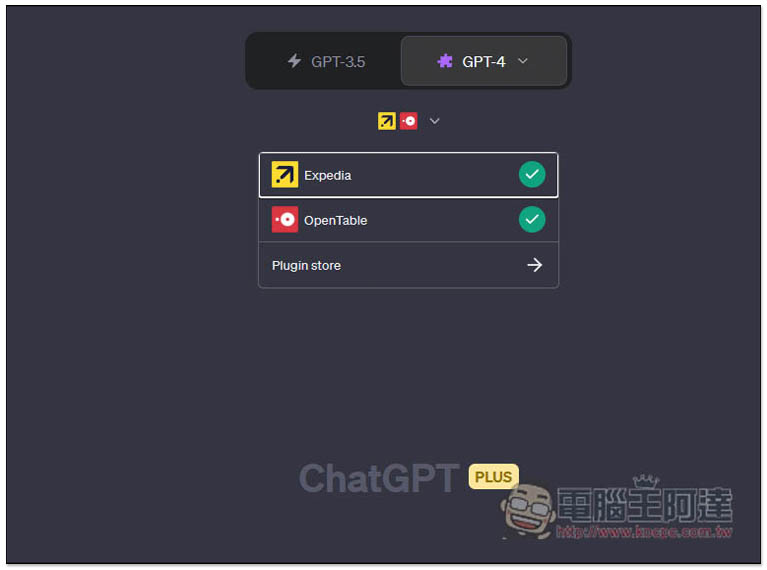
Installing multiple plug-ins can be enabled at the same time, but now it can only be set before the chat room starts. There is no way to adjust the enabled plug-ins in a chat room that has already been opened:
Source: KOCPC Chinese