


For many drivers, the biggest fear after parking is not that they can’t find the exit, but that after walking around for a while, their minds are blank and they can’t remember which row the car is parked in. This situation happens every day, especially in large parking lots, underground multi-story parking spaces, or when traveling to unfamiliar places.
actually,Google Maps A solution to this problem has been prepared for a long time, but many people have never discovered it. Now iPhone and iPad users can enjoy Google MapsAutomatically rememberparkingWith the location function, you don’t need to manually mark it. It will automatically save it for you after you park your car. You can just follow the map when you return. This article will give you a complete understanding of how this function works, how to set it, and what details you must pay attention to, so that you no longer have to rely on memory when parking next time.
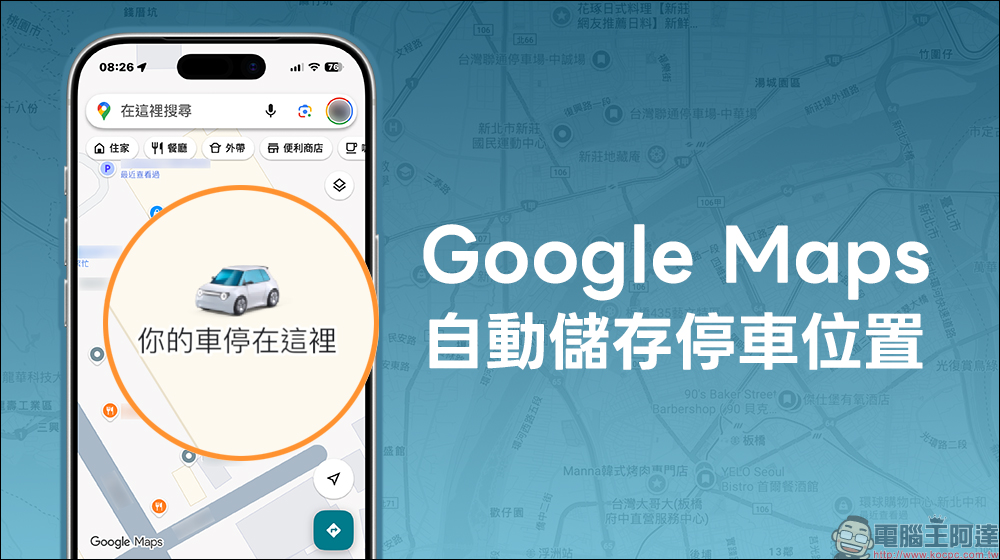
How to use Google Maps to automatically save parking locations? With this setting, you no longer forget where you parked your car, and you can also set a super cute car icon.
Whether you are an office worker who commutes every day, or a light driver who only drives on holidays, “Where should I park my car?” is a classic scenario that almost everyone has encountered. Sometimes I just go into the store to buy something, only to find that every row looks exactly the same when I come out. I can only search slowly by pressing the remote control and listening to the sound of the horn. Sometimes I park on the side of the road, and when I walk out the next day, I can’t find that familiar corner.
In the past, many people would choose to take pictures with their mobile phones, write down the floor in a memo, or manually save a pin on Google Maps, but to be honest, remembering to do these methods is already very tiring. Therefore, as long as there is a function that can automatically help you remember the parking location, it is a real plus point for driving.
Over the years, Google Maps has continuously added a variety of life-friendly features, from real-time traffic conditions, lane guidance, parking information, to public transportation integration, all with the purpose of making users feel less confused and more sure during their travels. The parking location recording function is actually not a new concept, but in the past most of it required users to operate it manually.
Now, the iOS version of Google Maps has evolved to the point where it can automatically determine when you have ended your driving journey and record the parking location for you at the appropriate time without having to click any additional buttons. It is very practical for forgetful drivers.
If you want Google Maps to determine the parking location more accurately, the most recommended way is to use Bluetooth to connect the vehicle. The setting method is actually very simple. Just make sure that the Bluetooth function of your iPhone or iPad is turned on, then complete the pairing with the vehicle, and set the audio source in the car to Bluetooth.
When you get off the car and leave and the Bluetooth connection is interrupted, Google Maps will use this time point with the positioning information to automatically determine where you parked. For most modern cars, this is the most stable method with the highest success rate.
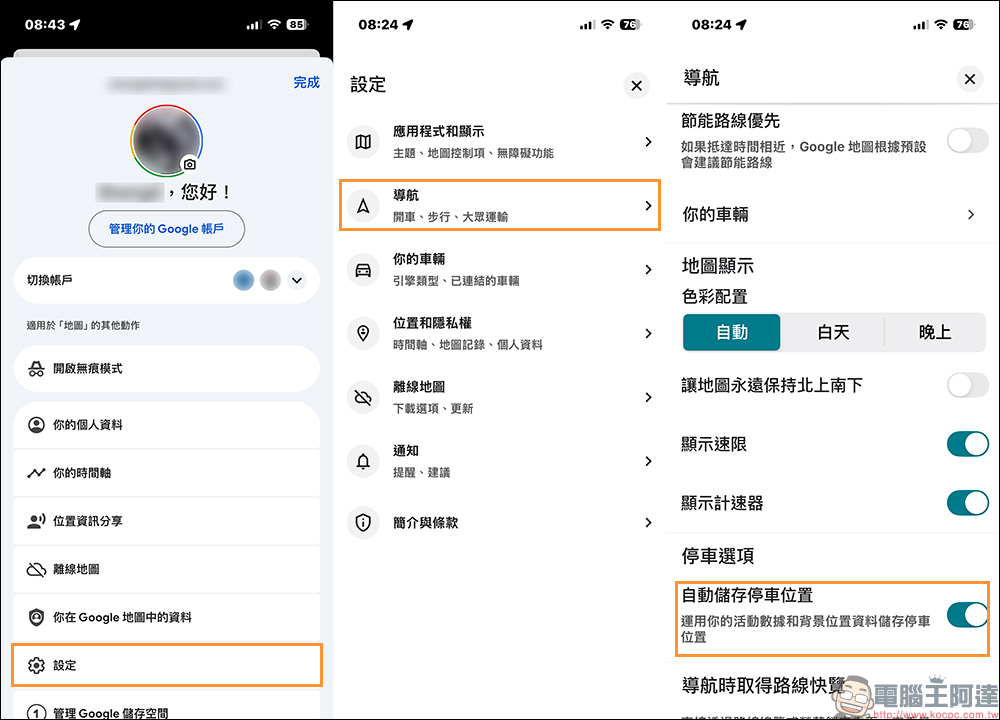
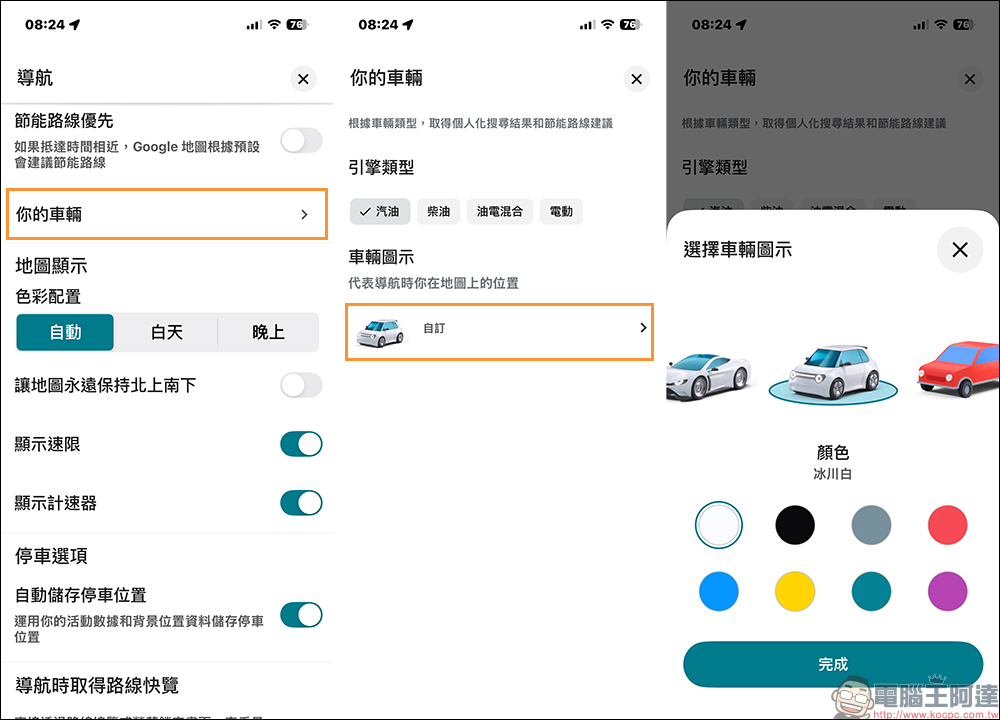
If you want to confirm whether the “Automatically Save Parking” function has been turned on, you can first click the photo icon in the upper right corner of the Google Maps App to open the function menu, then click “Settings” to find “Navigation”. Under “Parking Options” you will see the “Automatically Save Parking Location” option, just turn it on.
What Google Maps does on iOS/iPadOS is not to rely solely on GPS to determine where you have stopped, but to combine multiple sources of information, including the connection status of the device and the vehicle, as well as the built-in motion and fitness sensing data of the phone.
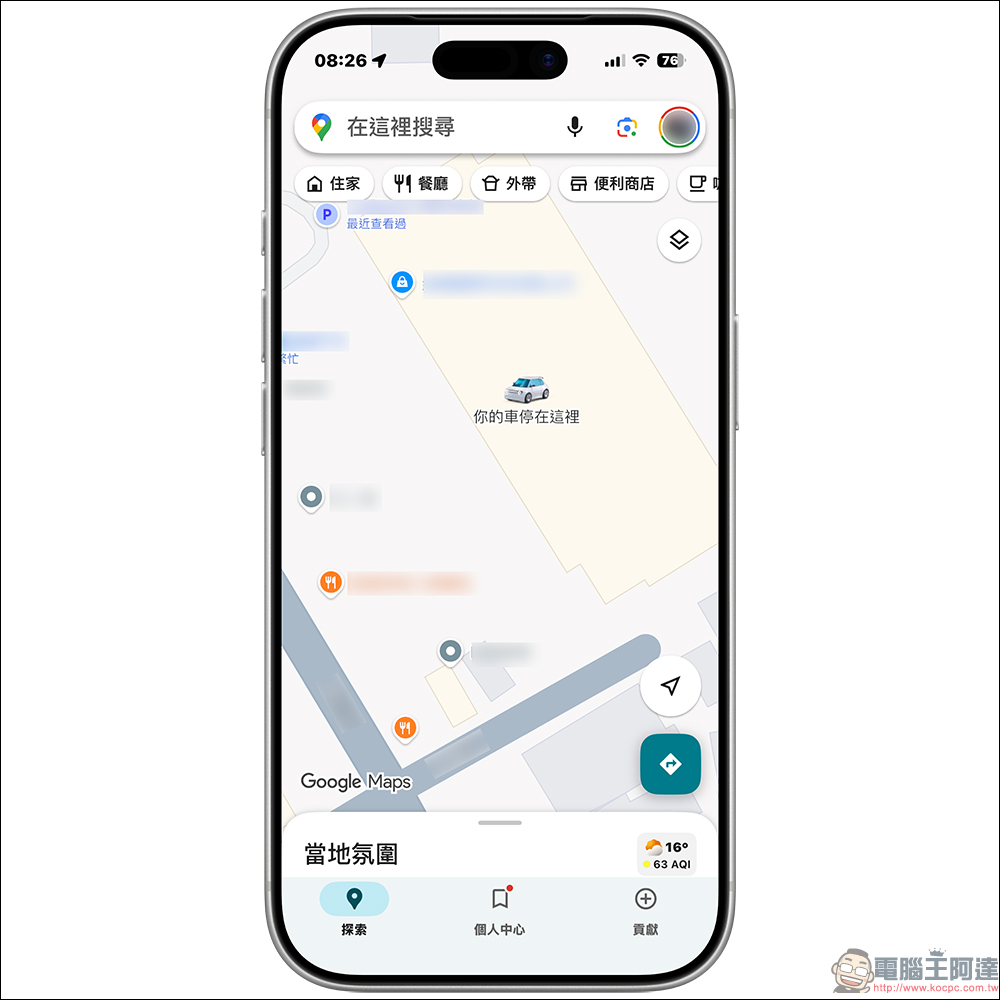
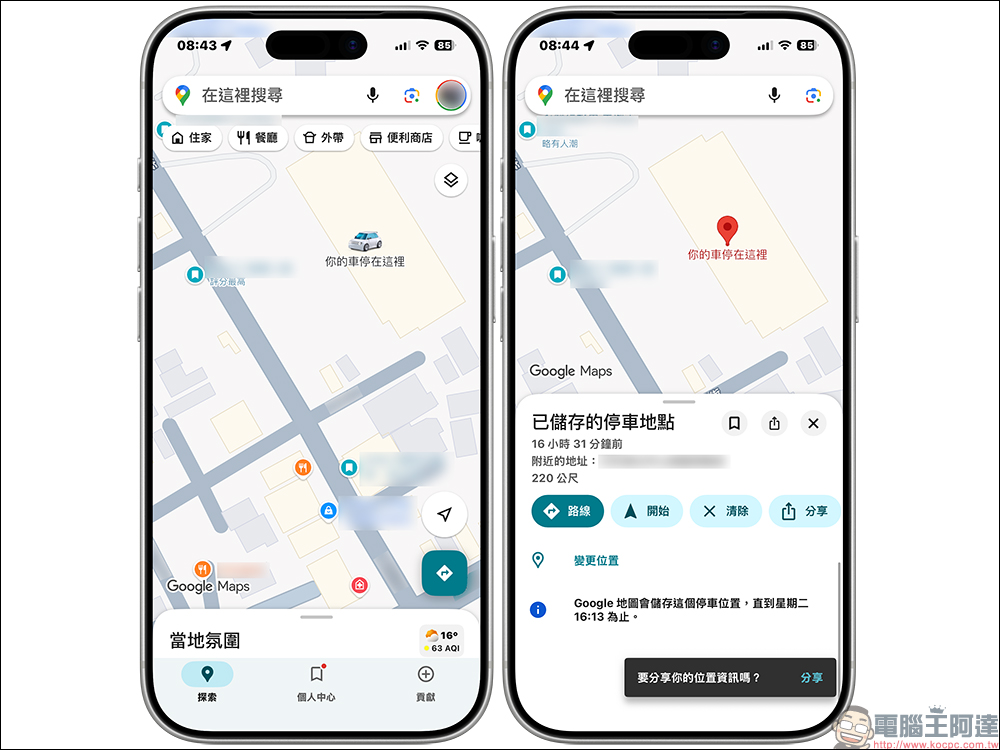
When Google Maps successfully remembers your parking location, you’ll see a pin on the map that usually says something like “Your car is parked here.” You can also enter parking-related keywords directly into the search bar and Google Maps will take you back to that location.
When the system determines that you are driving and remains connected to the vehicle, once the connection is interrupted and the movement status changes, Google Maps will assume that you have completed parking and automatically write down a parking location pin on the map. This location information will be retained for up to 48 hours before it is manually cleared or driving is restarted, allowing you to quickly find the vehicle’s location in a short time. For shopping, traveling, and business trips, this one-click car search experience will really make people unable to go back to the era of manual memory.
If you want to make the parking location easier to find, you can further set the vehicle’s display icon. Find “Your Vehicle” on the “Navigation” page of the above Google Maps settings and you can customize the vehicle display icon. You can choose from a variety of super cute car icons and set the color of the vehicle.
In addition to Bluetooth, CarPlay and USB connections are also very reliable basis for judgment. As soon as you connect your iPhone to your vehicle’s USB port, CarPlay will usually be enabled automatically on your vehicle’s screen. When you end your trip, unplug the cable, or turn off the car and leave the car, Google Maps can also use the disconnection to determine the timing of parking.
This method is especially suitable for people who are accustomed to using CarPlay navigation. No additional settings are required to naturally enjoy the convenience of automatically recording parking locations.
Whether you are using Bluetooth, CarPlay, or motion and fitness sensing, location service settings are very important. If you want Google Maps to successfully record parking locations in the background, we recommend setting the location services permission to always enabled.
In this way, even if you lock the screen, switch apps, or Google Maps is not displayed on the screen, the system can still operate the positioning judgment normally to avoid functional failure due to insufficient permissions.
How to manually save parking location on Android?
according to Google official description, currently this function of automatically saving parking locations is only available for the iOS version, including iPhone and iPad. Although the Android system can also mark parking locations in Google Maps, it still requires manual operation by the user and has not yet enabled automatic judgment and storage.
As for why there is such a difference, the official has not given a clear explanation, nor has it been announced when the Android version will follow. It is generally speculated that it may be related to iOS’s sensor permissions, background positioning behavior and CarPlay integration mechanism, but the actual reason remains to be explained in subsequent updates.
If you are an Android user, you can still manually save the parking location and quickly find where the car is parked:
- On your Android phone or tablet, open the Google Maps App
- Tap the blue dot representing your location
- Tap “Save Parking Location”
- Parking locations will be stored in Google Maps until manually removed
Conclusion
If you often park in large parking lots, often drive in unfamiliar places, or think that your memory is not very good, then this function is almost a must-enabled setting. Even if you usually have a good memory, having an automatic backup mechanism can make the entire trip less anxious and more secure.
The only pity at the moment is that Android users still have to wait. However, judging from Google’s past pace of feature advancement, the possibility of future follow-up is not low, but the time point cannot be determined yet.
Further reading:
Source: KOCPC Chinese