


PDF It can be said that it is a file format that is often encountered, socomputerThere must be a useful one in there PDF editing/View tool, if you haven’t found it yet, the “JOPDF” introduced in this article is a good choice and is completely free to use.Windows、Mac are supported, and there are many built-in practical tools, such as PDF conversion, compression, splitting, encryption and decryption, etc. More importantly, the interface supports Traditional Chinese, so you don’t have to worry about not being able to understand it.
“JOPDF” is a completely free PDF editing/viewing tool with built-in useful functions such as format conversion and compression.
JOPDF is a “one-stop” desktop PDF tool that allows you to complete common tasks such as editing, converting, compressing, merging, splitting, and annotating in the same interface without having to switch back and forth between multiple websites or software.
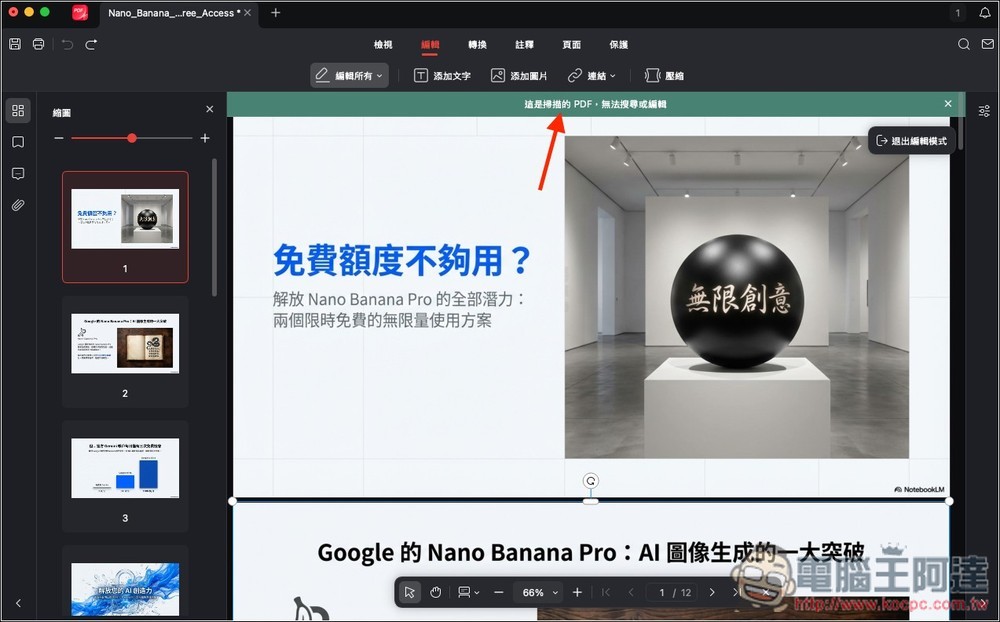
The operating interface is very similar to a general document editor, and you can modify text, insert images and links directly on the PDF, and adjust the font, size and color. Unfortunately, the presentation generated by Nano Banana Pro when I tested it cannot be edited.
When PDF files are too large, you can use the batch compression function to reduce the size while maintaining image quality. You can also batch convert PDFs to Word, Excel, PowerPoint or pictures, or quickly generate high-quality PDFs from pictures and documents. However, please note that I don’t know if I happened to make an error during the test, but these auxiliary functions cannot be used. This part is for everyone to test by themselves.
Main features
- Free: There are no hidden fees and you can use it without logging in.
- Cross-platform support: Windows/macOS can be installed
- Edit like Word: directly change text, add images and links, adjust font size and color
- Batch conversion: Supports converting PDF to Word/Excel/PowerPoint/pictures, or generating PDF in reverse
- Batch compression: reduce files but maintain image quality as much as possible
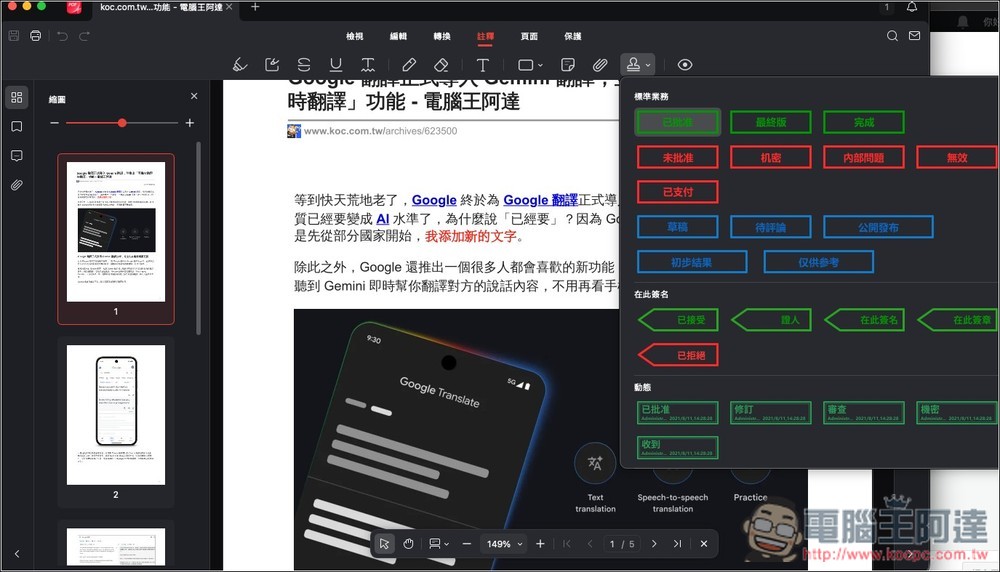
- Annotation tools: highlighter, graphics, handwritten annotations, and can be shown or hidden with one click
- Security protection: password encryption and permission settings
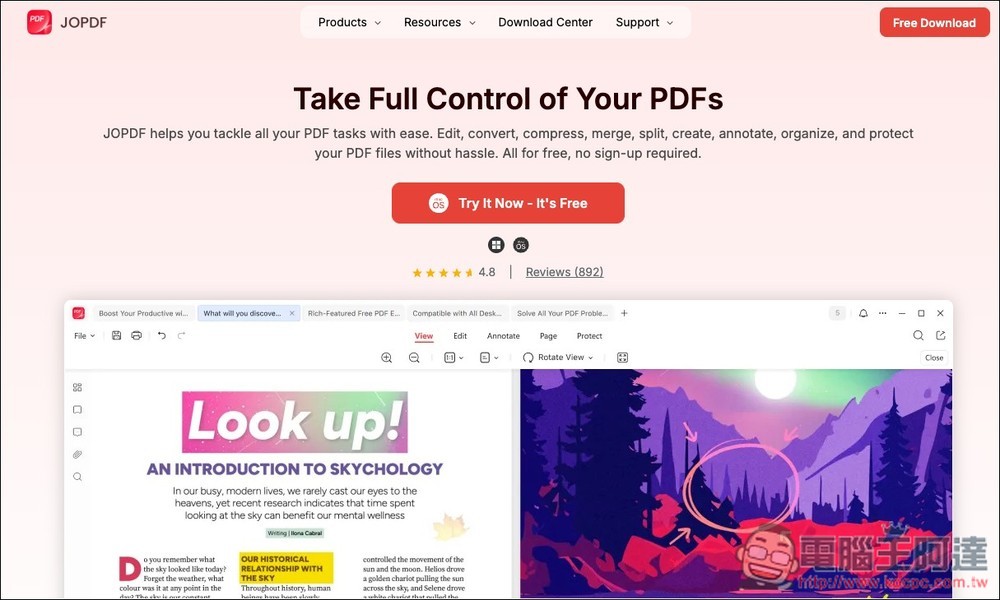
After clicking the link above to enter the JOPDF official website, although it is only in English, the interface language supports Chinese. Download and install your system version:
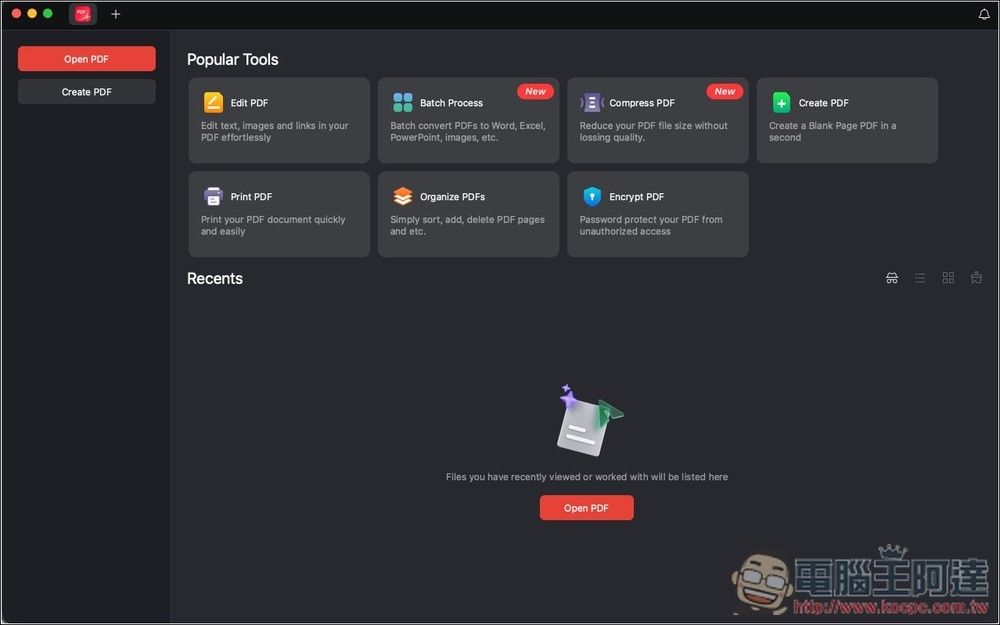
After installation, open it. The default language is English. Please open the language setting option:
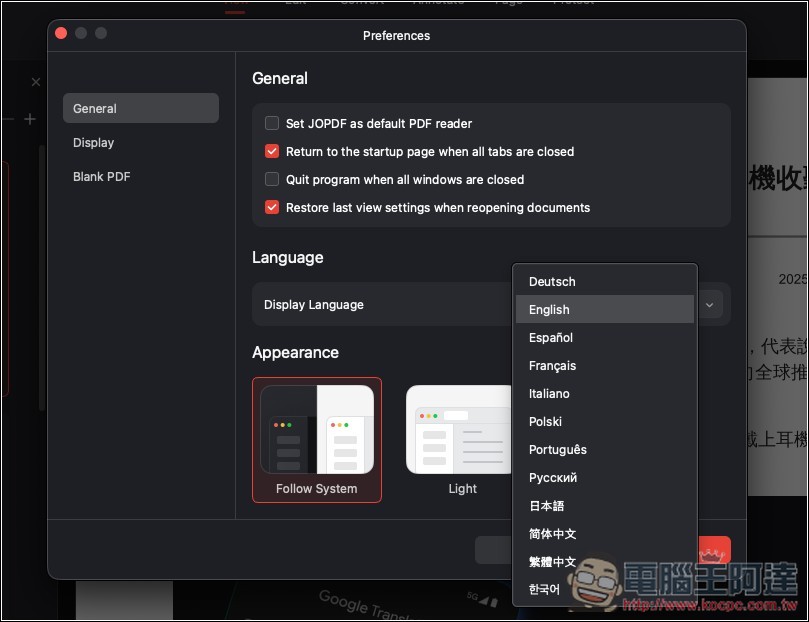
I am using a Mac. I can find the language option in the General menu and switch to Traditional Chinese:
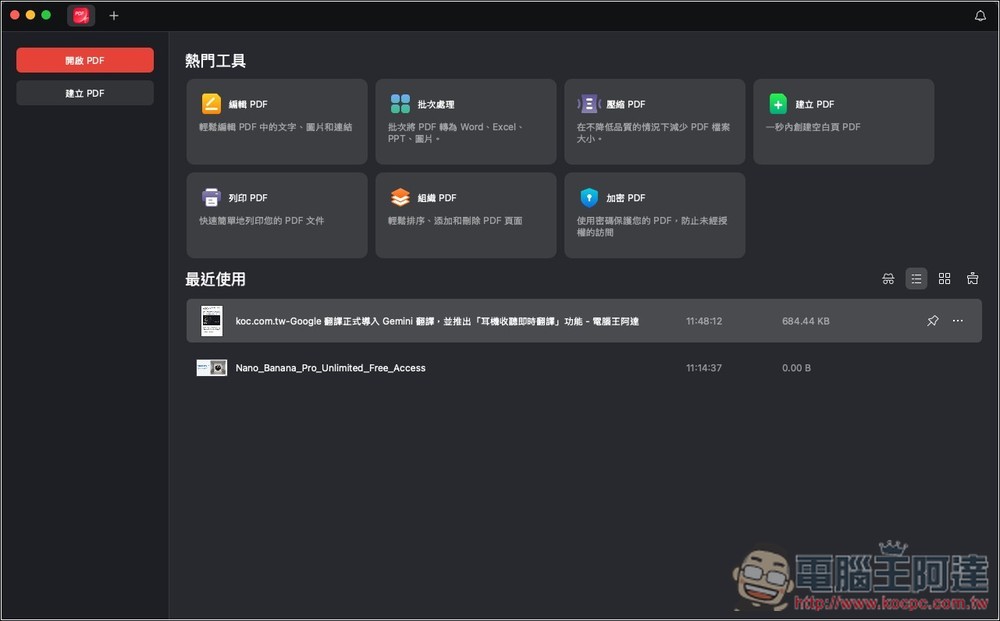
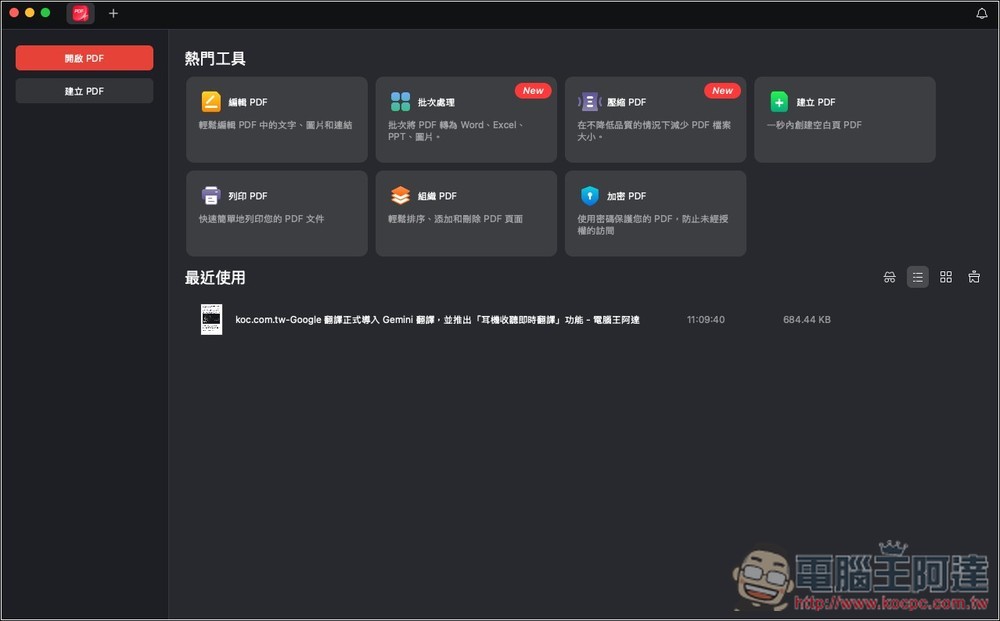
The interface becomes Traditional Chinese! In the Open PDF menu, there are 7 functions including editing PDF, batch processing, compressing PDF, creating PDF, printing PDF, organizing PDF and encrypting PDF:
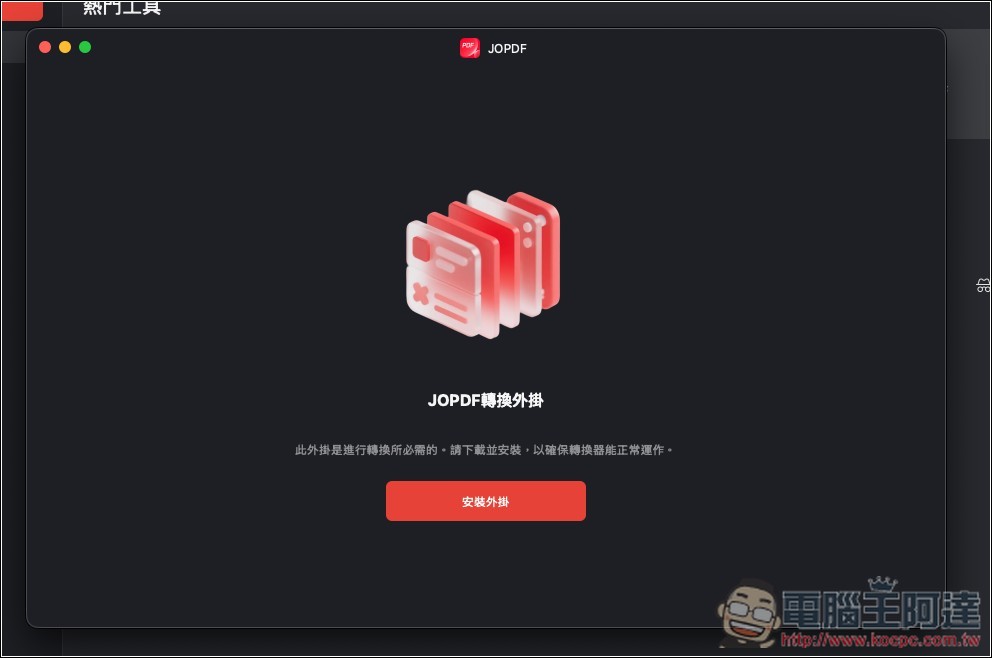
Most auxiliary functions (such as editing and compression) require the installation of plug-ins before they can be used. Just install them once:
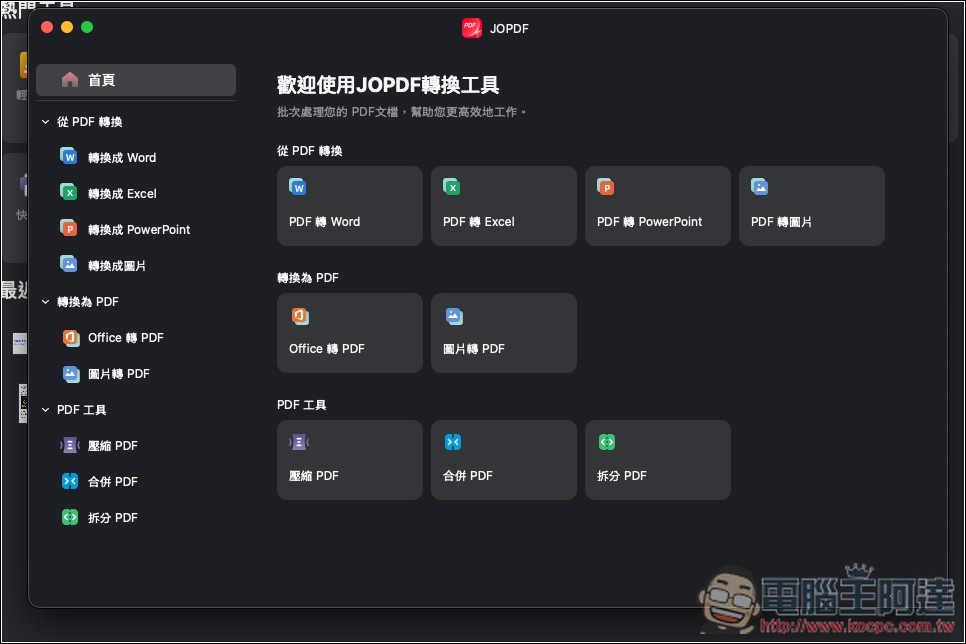
Then a screen like this will open, just select the tool you want to use. PDF format conversion supports Word, Excel, PowerPoint and pictures, and also supports Office or picture conversion to PDF:
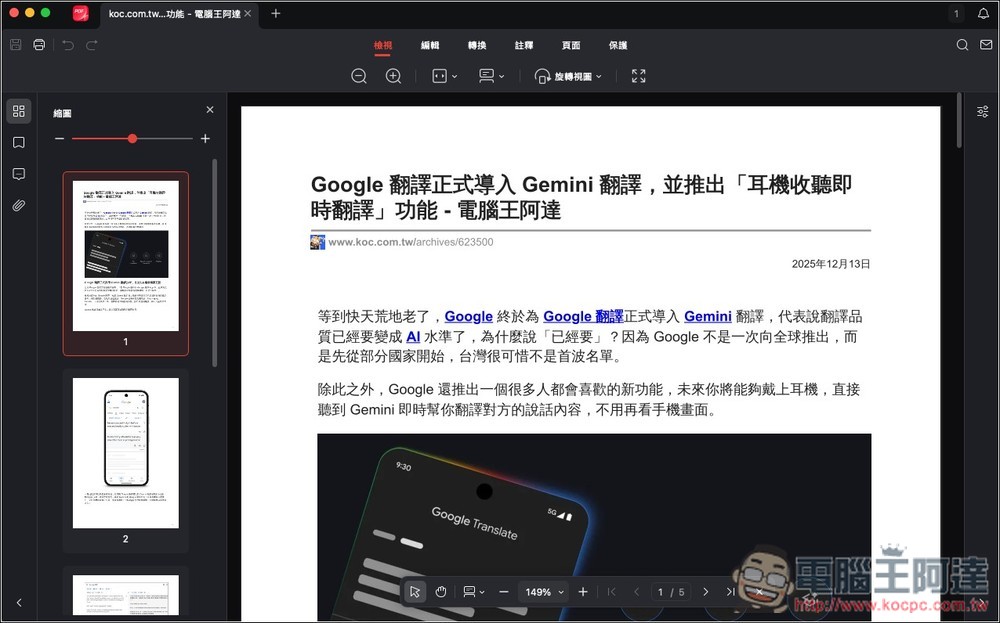
As for the PDF editing function, what everyone is most concerned about is how to edit it. After opening the PDF, there will be an “Edit” in the upper menu:
You can start editing text in PDF with just one click:
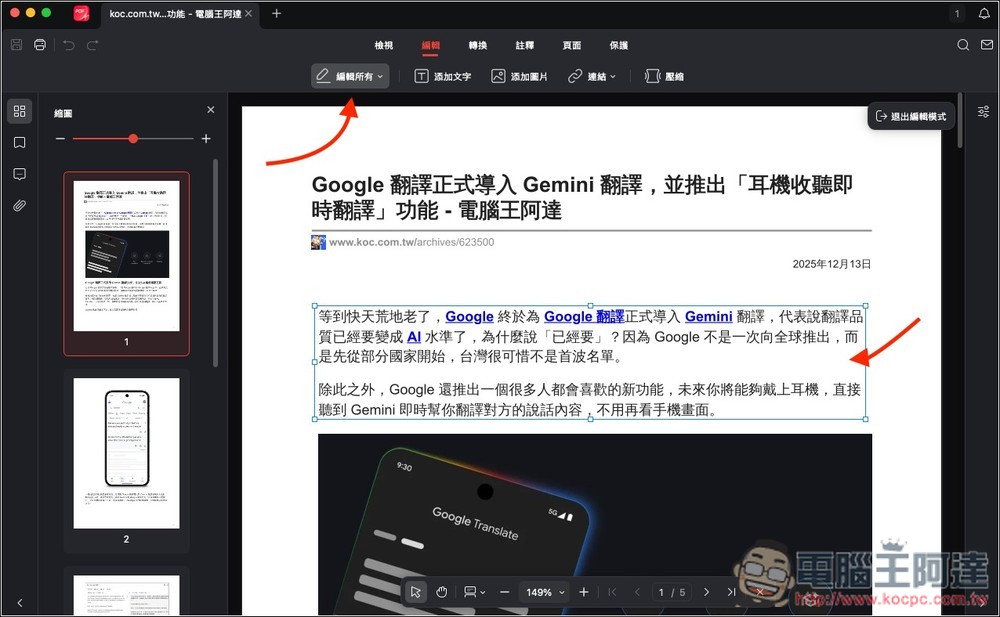
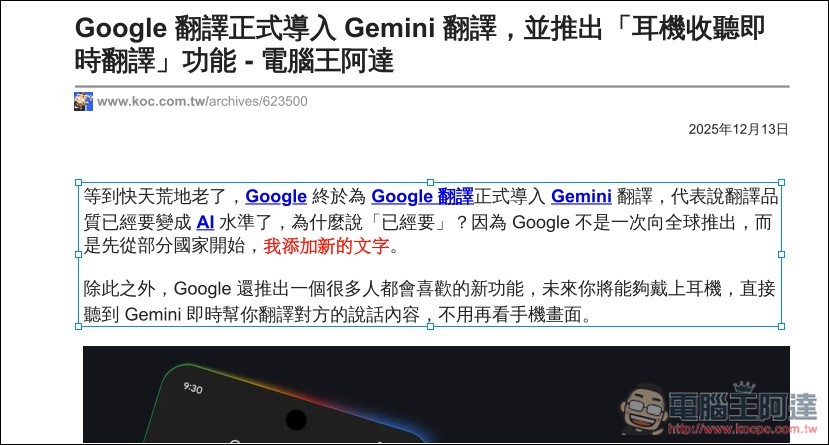
For example, I changed the original “Taiwan is unfortunately not on the first wave list” to “I added new text” and modified the color:
I tested opening the presentation PDF generated by Nano Banana Pro, and the message “This scanned PDF cannot be searched or edited” is displayed at the top, which means that the text cannot be edited:
The annotation function has built-in many commonly used process standard stamps, such as draft, completed, signed here, paid, etc.:
Source: KOCPC Chinese