


Many people use iPhone After taking the photo, I threw the photo into the computer and discovered that it was HEIF Format, as a result, Windows cannot be opened, the website is not supported, and the whole thing is stuck. Actually HEIF/HEIC It is not without reason that Apple uses it as the default format. It has good image quality and small capacity, but it is a bit troublesome for many users. Do you want to automatically convert HEIF/HEIC into JPG without installing additional tools or running conversion websites? In fact, LINE, which you use every day, can do it quickly and still retain the original resolution. This article will take you through what HEIF/HEIC is, why it gets stuck, and how to use the simplest way to turn it into a JPG that can be opened by all devices.
What is the HEIC/HEIF format? The simplest tool-free automatic conversion of iPhone to JPG with original image hiding techniques
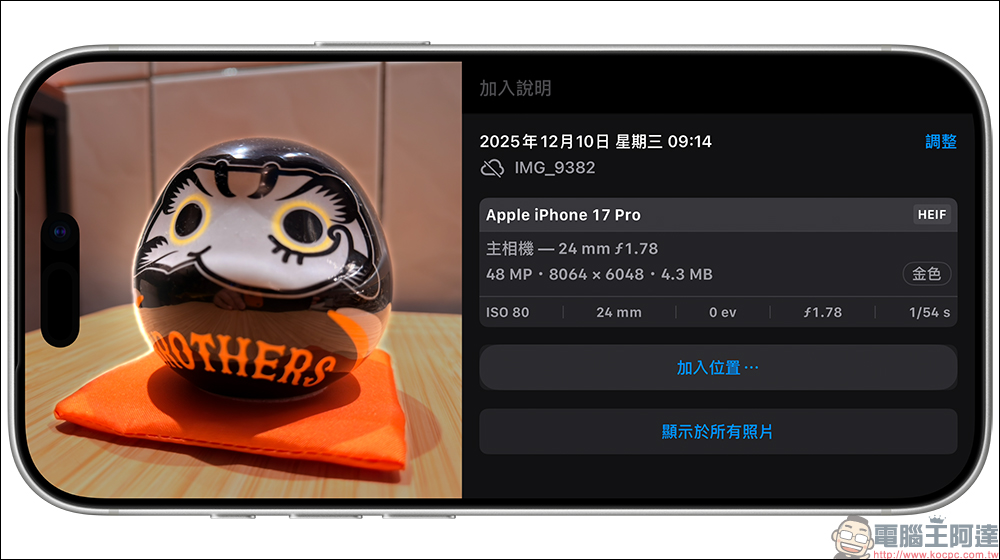
What exactly is the HEIC format? Why does the iPhone use it? If you are an iPhone user, the default file format you see after taking a photo with your phone and transferring it to your computer is actually not JPG, but HEIC. HEIC (High Efficiency Image Container) is a high-efficiency image storage format fully introduced by Apple starting from iOS 11. As for the HEIF (High Efficiency Image File) seen in the iPhone, it is Apple’s default format for storing photos.
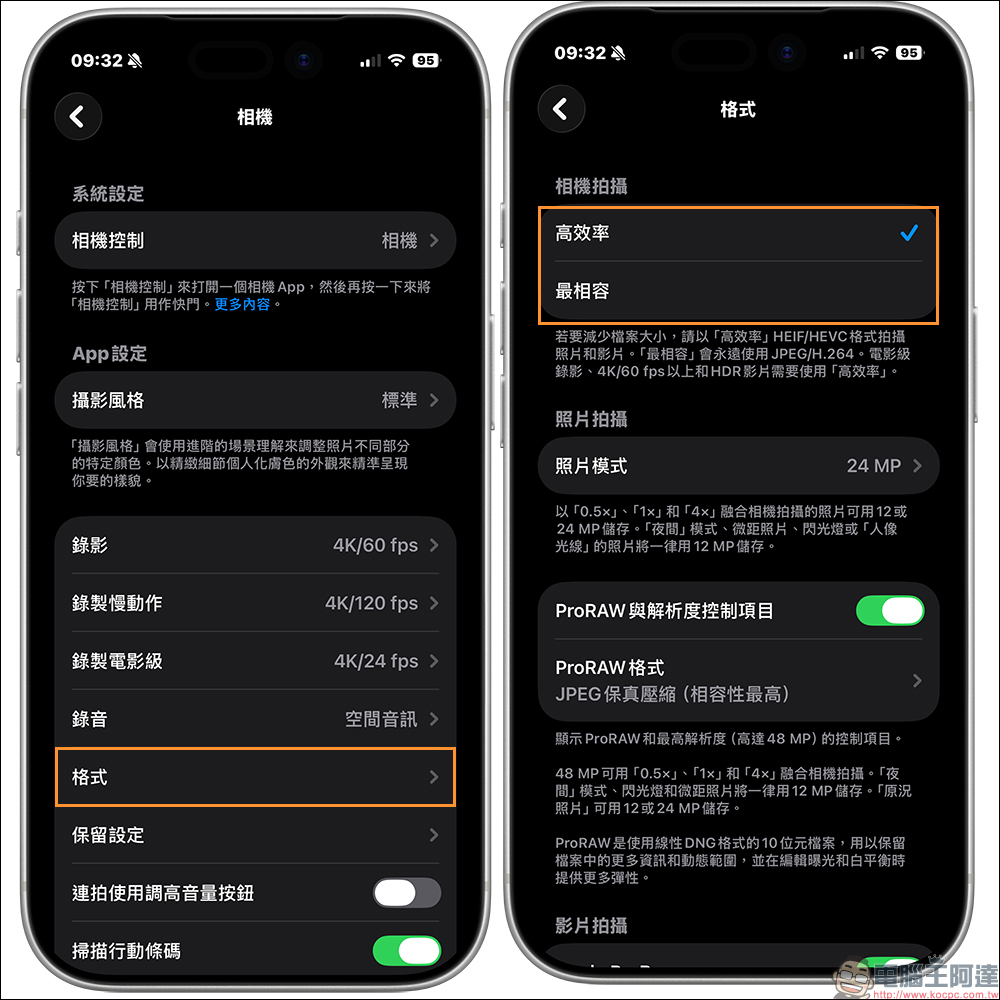
Its purpose is simple, it is to make photos more space-saving, but the image quality cannot be deteriorated. Compared with ordinary JPG, HEIF/HEIC has several obvious advantages:
- Small file size
- The same photo stored in HEIF/HEIC can be about 50% smaller than JPG, which means you can take twice as many photos without any problem.
- More detailed picture quality
- HEIF/HEIC can handle more colors, support high dynamic range, and retain details better than JPG.
- Can put multiple pictures in one file
- Like Live Photo or continuous shooting mode, HEIC can put related frames into one file, which is much more flexible than JPG.
Although HEIF/HEIC technology is very powerful, the most troublesome issue comes with it, which is compatibility. macOS, iPhone, and iPad can directly open HEIF/HEIC, but Windows computers do not have built-in support, and many websites cannot directly upload this format. This may cause you to have fun taking photos, but when you go home and open your computer, you find that the file becomes “unable to preview” and you have to find another tool to convert it to JPG.
This is why every time someone says “My iPhone photos can’t be opened”, 80% of the time it’s HEIF/HEIC that’s to blame.
No website or app installation required, the simplest and fastest way to automatically convert HEIF/HEIC to JPG
There are many HEIC to JPG conversion tools on the market, but the most convenient way is actually on your phone, and you use it every day, which is “LINE”.
Yes, you read that right. You don’t need to download additional conversion software or go to the website. You just need to upload the image once using LINE and it will automatically convert the HEIC to JPG for you. But be careful, there are a few details that you must remember, otherwise the conversion will fail or the image quality will deteriorate.
Many people will want to say: “Then if I use a computer to throw the HEIC into the LINE chat room, I should be able to see the JPG in the computer version, right?” The answer is no.
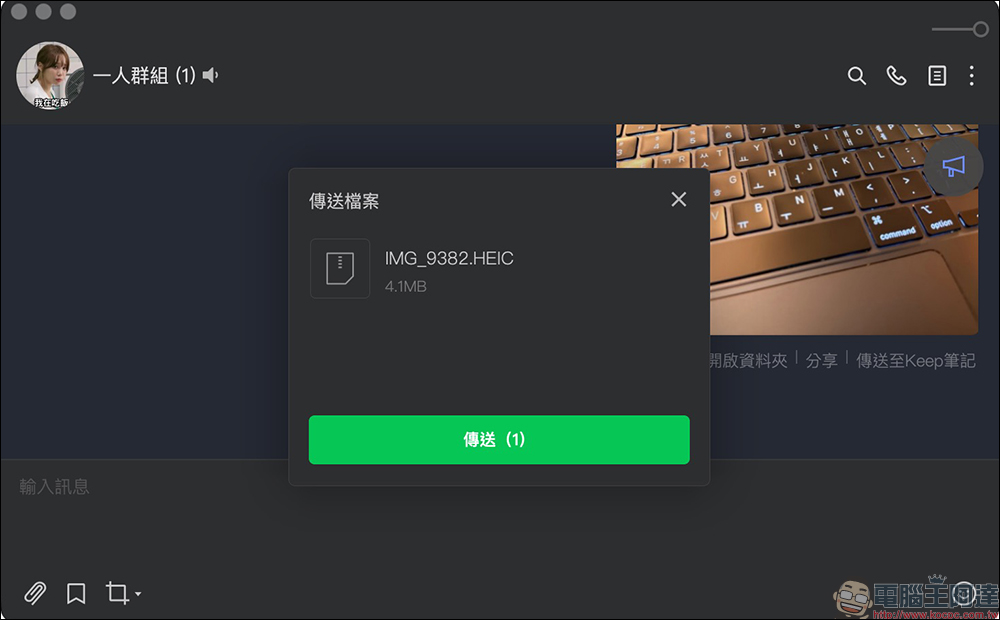
The PC version of LINE will not automatically process the HEIC you upload from your computer, so you must upload the HEIC image to the chat room from your mobile phone before LINE will automatically convert it to JPG in the cloud.

The operation is very simple:
- Open LINE on your phone
- Choose a group or chat with yourself
- Select HEIF/HEIC photos on iPhone
- Click “Original Quality” before sending
- The “original quality” here is important because the system will compress the image by default. If you forget to switch, the automatically generated JPG will become a low-quality version, which is not the original resolution you want.
As long as the photo is transferred from the mobile phone, you will find that the picture can be browsed normally in the mobile version of LINE. This is why people who usually use LINE to transfer pictures do not realize that the picture itself is in HEIC/HEIF format.

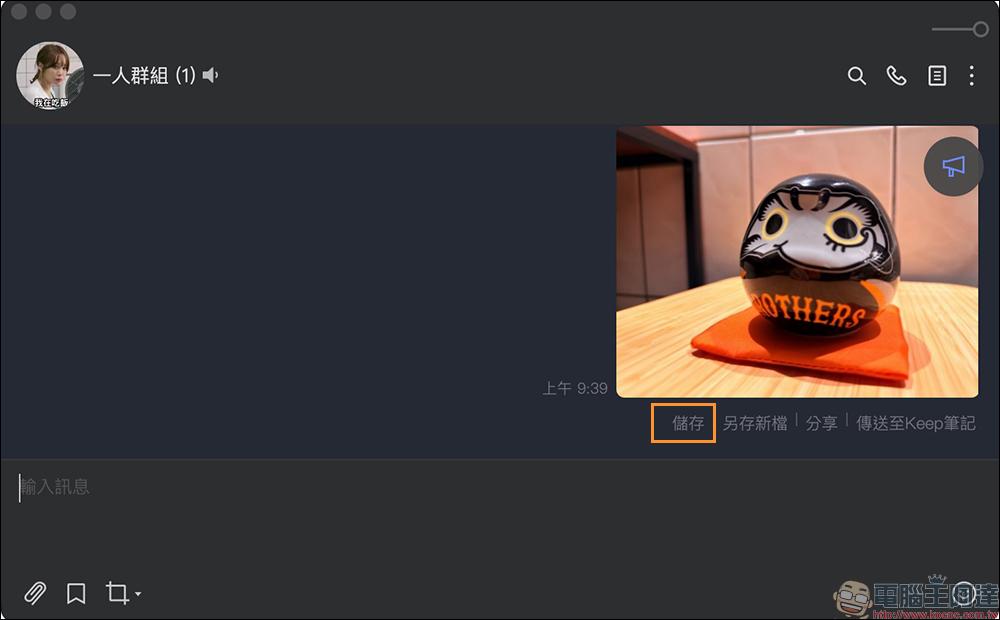
At this time, switch to the computer version of LINE and you will find that the photo can be previewed directly because it is silently displayed in JPG format. Now you only need to click “Save” below the image in the computer version of LINE to save the image file to your computer.
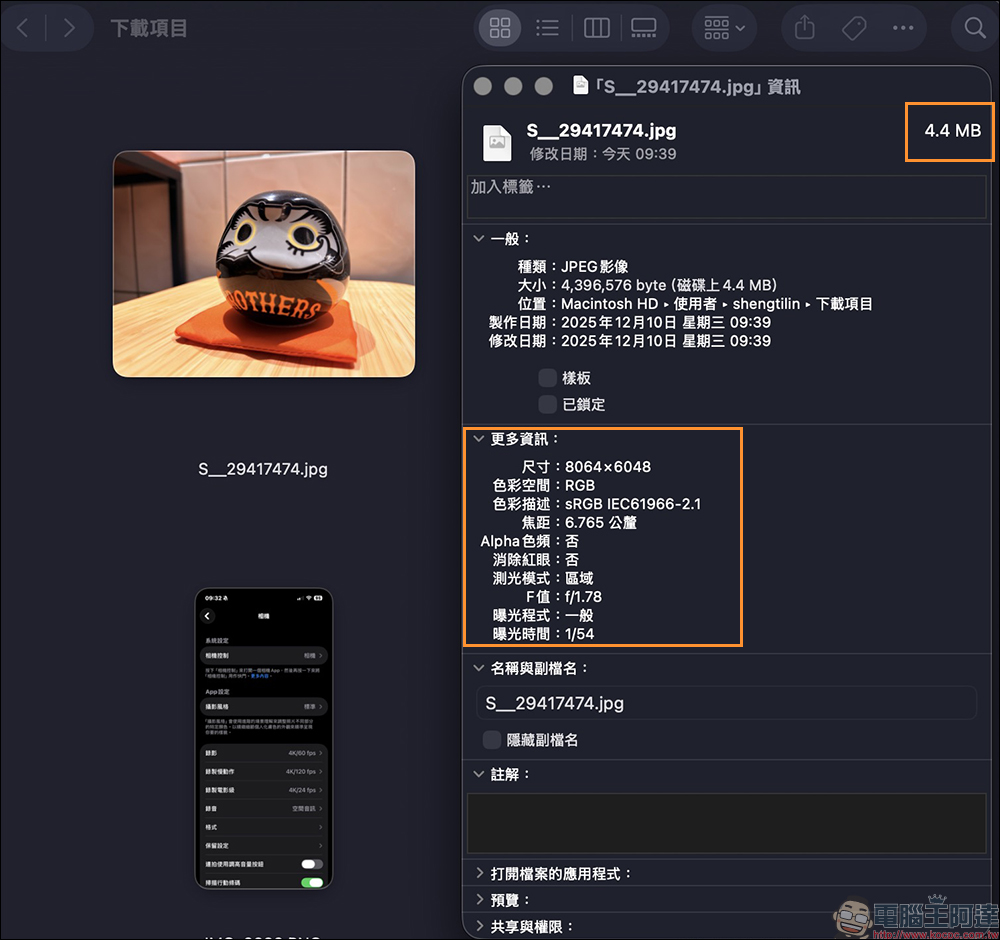
Finally check the file format, you will find that the file type has changed to JPG, the resolution is exactly the same as the original HEIC, and the file size is also the same as the original image (lossless image quality). In other words, you can convert iPhone HEIF/HEIC to JPG that is 100% compatible with your computer without any conversion website or additional software installation, while still retaining full image quality.
Conclusion
HEIF/HEIC itself is a very smart and efficient new format, but compatibility has not yet been fully popularized. Therefore, many people still need JPG, the most stable format, when transferring photos to computers, websites, or to customers.
The best part is that you no longer need to download strange conversion tools, and you don’t have to worry about the conversion limit of the tool or the image quality being compressed. Just use your mobile phone to transfer the photos to LINE, and then download them from the computer version, and you can painlessly get a JPG with the same resolution as the original image. If you often take photos and often need to transfer iPhone photos to your computer, this trick is definitely worth adding to your collection.
Further reading:
Source: KOCPC Chinese