


Taiwan recently officially blockedlittle red bookFor a year, it must be very inconvenient for users who are using it. In fact, there is currently a very simple solution, which is to modify DNS, not only can break through the blockade, this method can also instantly increase your network speed, especially when usingChunghwa TelecomPeople, let me teach you how to modify it. iPhone and Android cell phone DNS. This method can also be used if other applications are blocked in the future. If you are not using these software, just learn some basic skills.

Why changing DNS can improve network speed?
The DNS services I will introduce in this article are from Cloudflare and Google DNS. Both companies have deployed a large number of ultra-high-speed servers around the world. They have local nodes in places such as Japan, Taiwan, Hong Kong, and Singapore. It means that there are servers near your location, which will also give you a fast response, fast resolution, and almost no delay experience.
The ISP’s own DNS usually has fewer nodes and older equipment, so the resolution speed is naturally slower.
In addition, the DNS servers of Cloudflare and Google have very large cache capacity. When browsing commonly used websites, there is no need to actually search for data around the world. The servers can directly return the cached results.
To put it simply, after changing DNS, you will feel:
- Open web pages faster
- YouTube thumbnails appear faster
- Instagram and FB pictures load faster
- Lower latency (most noticeable when playing games)
- The website is not likely to get stuck suddenly
How to modify the DNS of an Android phone?
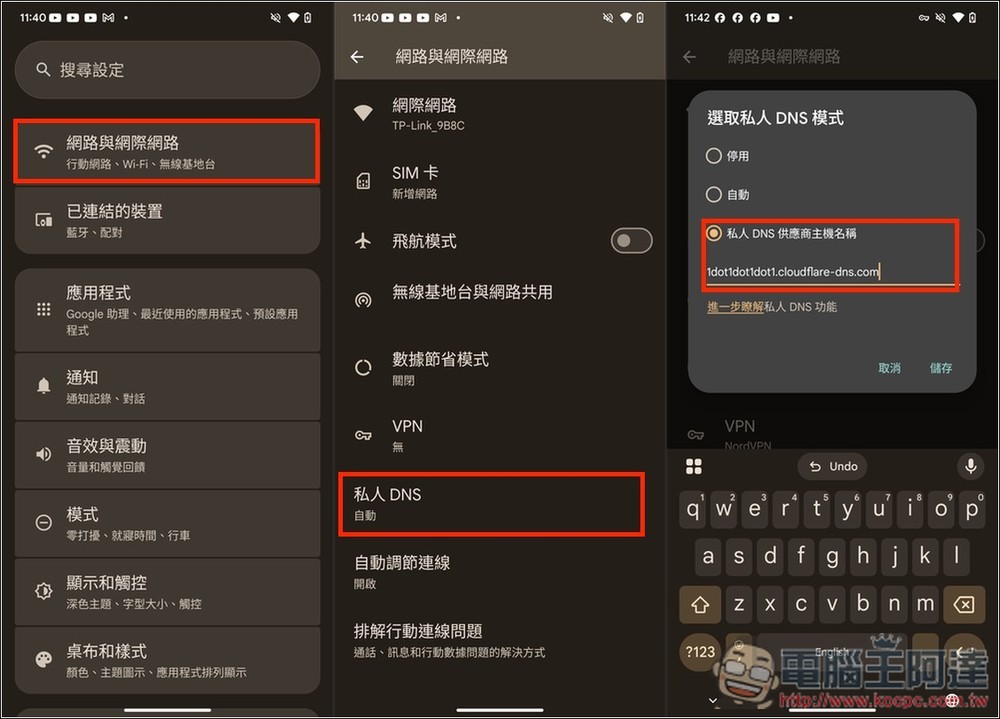
Android phones now have a “Private DNS” function. Once set, it will be applied to both Wi-Fi wireless networks and 4G/5G mobile networks, which means you only need to set it up once, which is very convenient.
The only thing to note is that the private DNS function only accepts host names, not IP addresses.
- The Cloudflare host name is “1dot1dot1dot1.cloudflare-dns.com”
- The Google host name is “dns.google”
After opening Android settings, go to “Network and Internet”, scroll down to find “Private DNS”, then switch to “Private DNS provider host name”, enter the DNS server name you want to use, it is recommended to use Cloudflare, so I entered “1dot1dot1dot1.cloudflare-dns.com”, click Save and it’s done:
How to modify iPhone’s DNS?
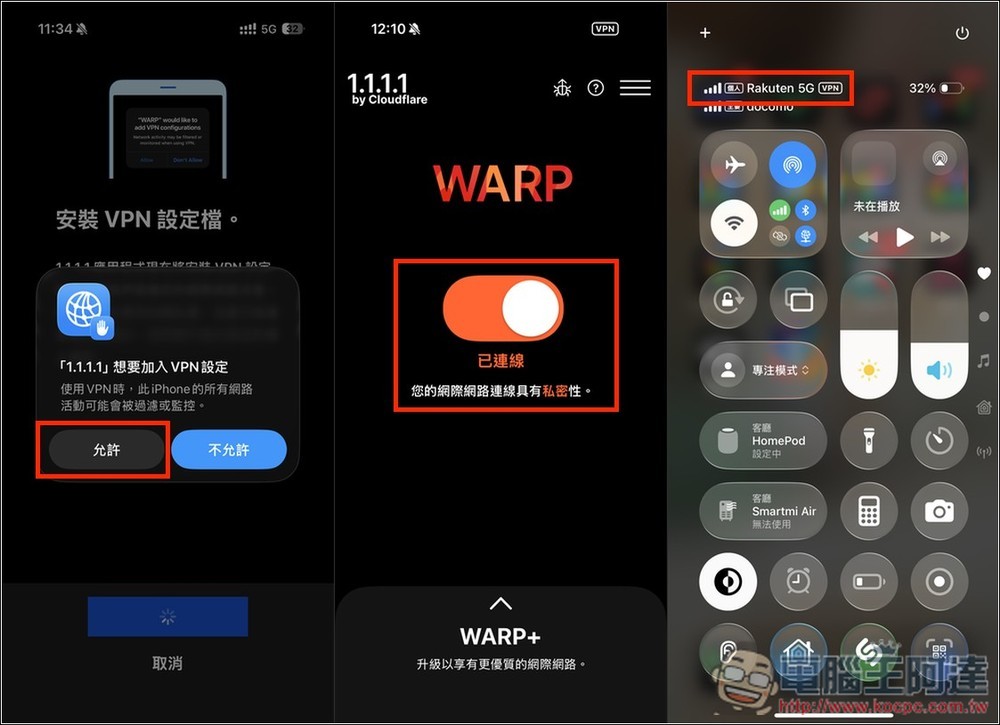
The iPhone only provides wireless networks and you can modify the DNS in the settings. There is no way to manually set the mobile network. It needs to be done through a third-party app. Cloudflare has launched it. 1.1.1.1:Faster Internet After downloading and installing the App, open the connection and the DNS will be modified successfully.
As shown in the picture below, after downloading the App, you need to allow VPN settings for the first time. Then turn on the switch on the screen. If it shows that you are connected and there is a VPN icon on the right side of the network status, it means that you have successfully changed it to Cloudflare’s DNS:
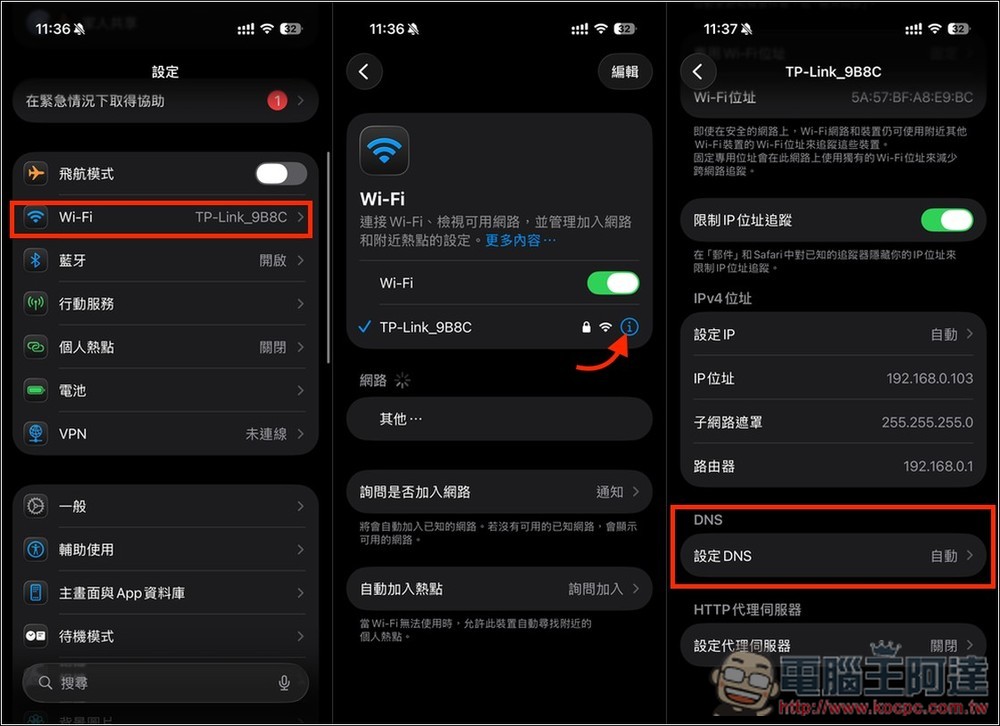
The way to manually modify the DNS of a wireless network is also very simple. Open the i icon on the right side of the Wi-Fi wireless network you are using, and scroll down to find “Setting DNS”:
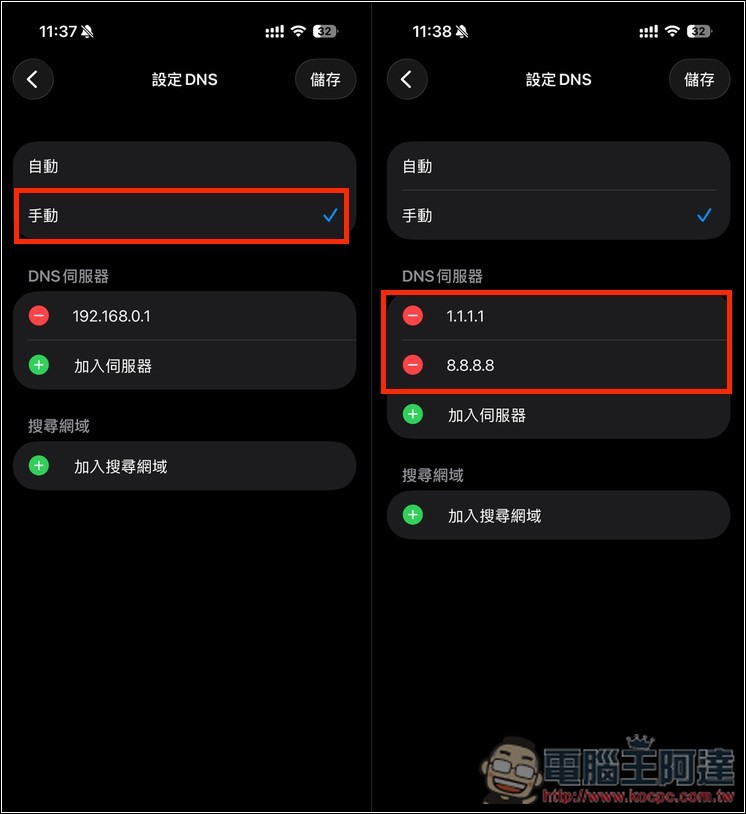
Change the above to manual, and then add 1.1.1.1 and 8.8.8.8. The former is Cloudflare and the latter is Google DNS. Click Save in the upper right corner and you are done:
How to check whether the DNS has been modified successfully?
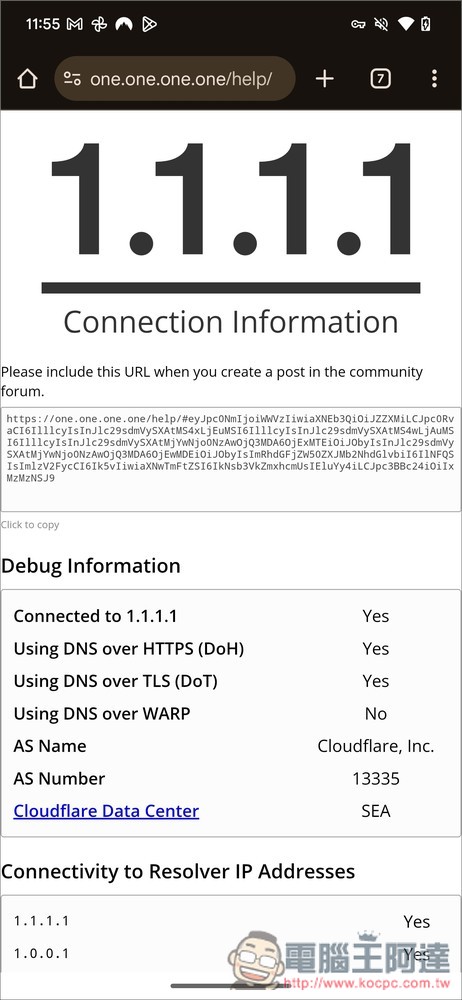
If you want to confirm whether the DNS has really been changed, you can go to 1.1.1.1/help Website, the first Connected to 1.1.1.1 displays Yes, which means the connection is successful:
Source: KOCPC Chinese