


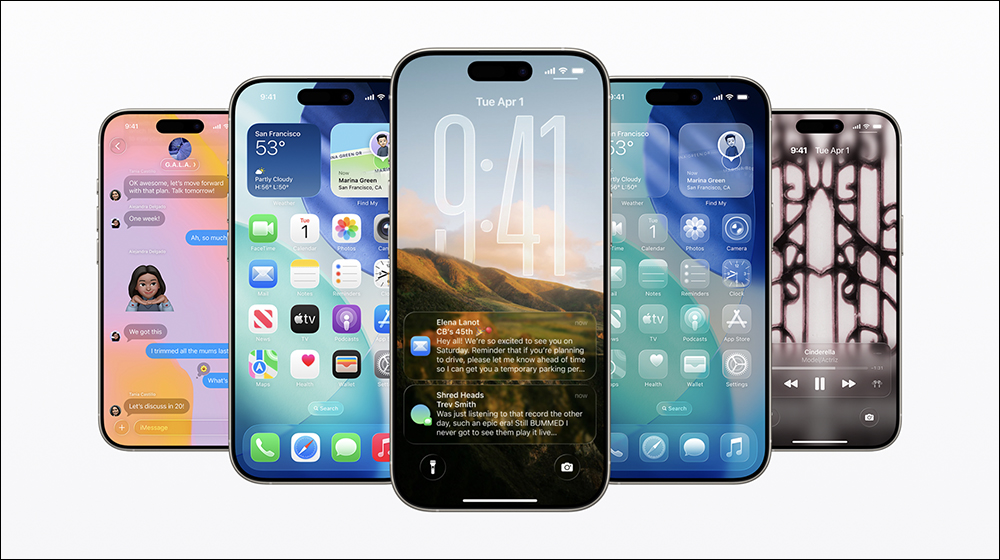
The iOS released by Apple is visually fresh. There is only one main reason, and that is the use of liquid glass to transform the user interface. This means that after more than 10 years, the iPhone looks and feels very different at the software level. It’s been a while since the update was released, and Liquid Glass has received polarizing reactions from users, but that’s why it’s easy to overlook some of the other really useful features iOS 26 has to offer.
iOS 26 allows you to slide your phone with your tongue, but please don’t lick the screen (including setting methods)
Apple’s products have always taken accessibility options very seriously, in fact, it’s on the top 10 list in the iPhone’s Settings app. Tools like VoiceOver and Live Caption ensure iPhone can be used by a wider audience by catering to users with special needs. Apple continues to build smarter accessibility solutions, such as eye tracking, which debuts in 2024, to control your iPhone with your eyes. We also now have a full suite of head tracking features in iOS 26, including the use of tongue roll.

It may sound a bit strange. While it’s something you can actually do, head tracking in iOS 26 is highly customizable. You can combine various gestures with different triggers to perform actions on iPhone and adjust settings to suit your needs. Enabling head tracking on iPhone is very simple. Just open the Settings app and turn on the switch in “Accessibility >> Head Tracking”. If you can’t find the toggle, make sure your iPhone has been updated to iOS 26. Head tracking doesn’t use any special sensors and relies on the front-facing selfie lens, so wipe it clean and get in a well-lit environment before trying it.
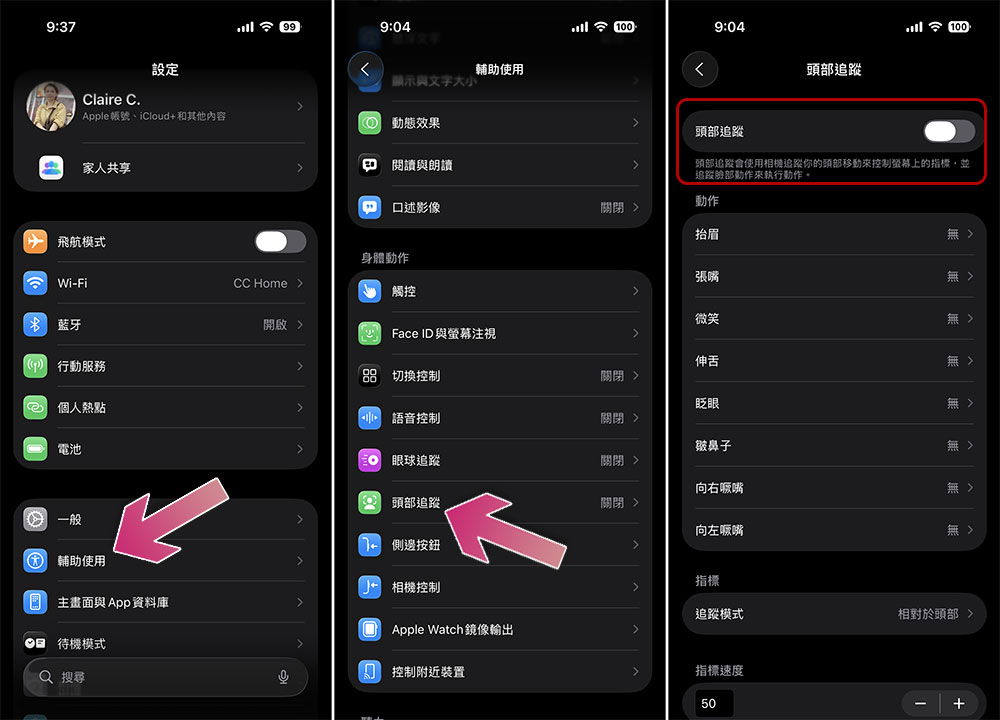
When you move your head, you will notice an indicator on the screen and the menu item will be highlighted. The operation principle is similar to eye tracking, which may feel awkward if you have not used it before. Also, please note that head tracking and eye tracking cannot be enabled at the same time. Dwell control is also enabled by default, which automatically clicks the highlight option if you keep your head steady for a while.
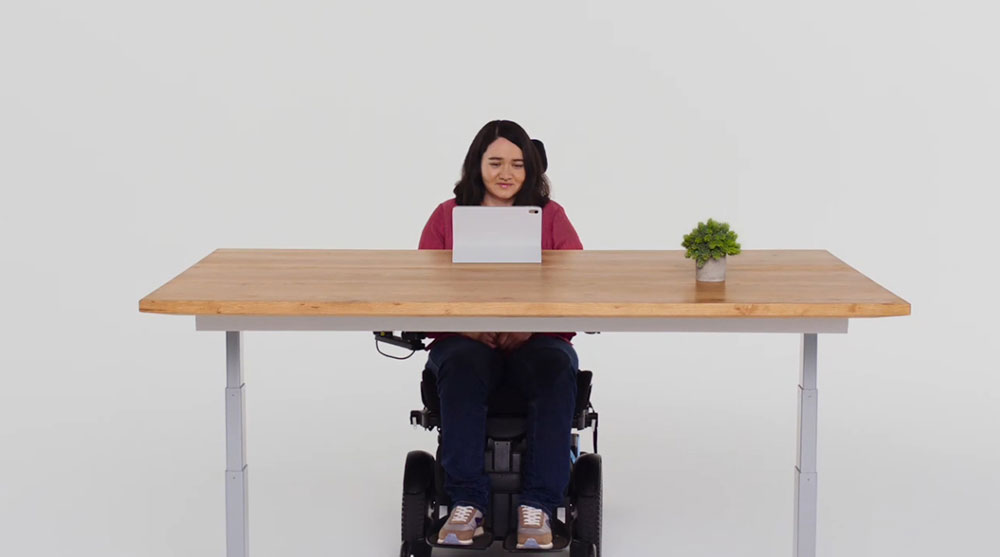
You’ll notice that there are some triggers listed, such as raising your eyebrows, blinking, wrinkled nose, etc. You can combine specific actions with these triggers, and iPhone will take action when you perform that action. If you select “Scroll Down” in the “Scroll Gestures” section under “Tongue Sticking”, your iPhone will scroll to display the content below every time you stick out your tongue. You can try this in apps with lots of scrolling content, such as endless scrolling platforms like Instagram or TikTok.
Source: KOCPC Chinese