


If your iPhone has been updated to the latest iOS 26, you may have noticed a new hexagonal button in the Photos app. This new button is called “Space Scene”, which turns ordinary photos into dynamic, 3D-like images that respond to your movements. So when you tilt your iPhone, the photo moves slightly, bends, and best of all Space Scene adds depth to the photo already in the album.
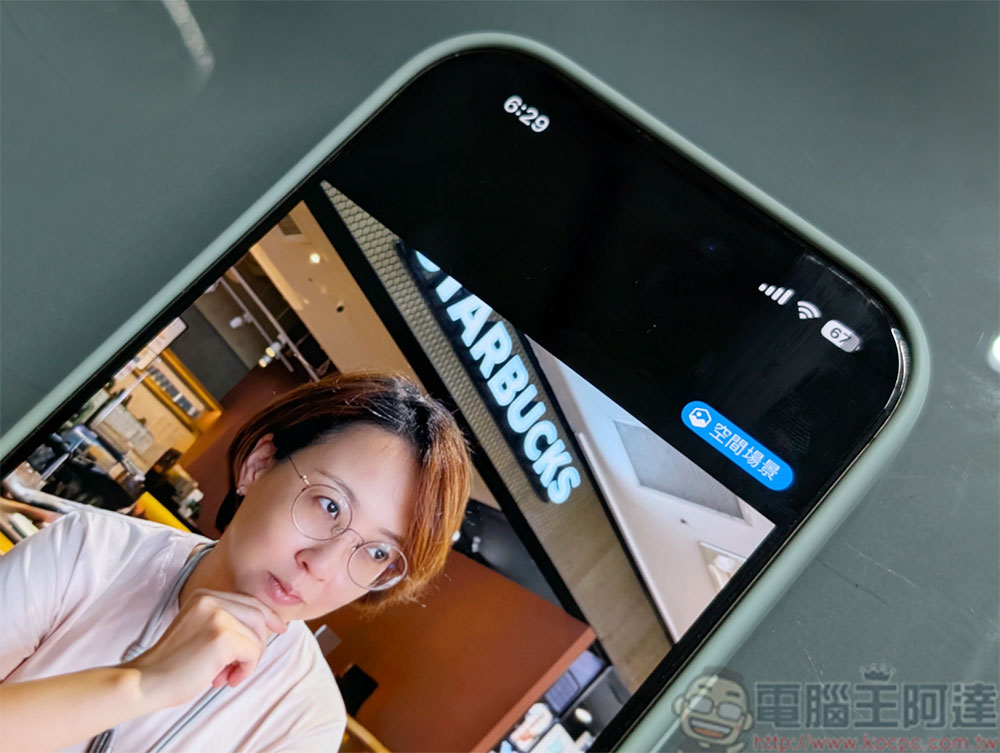
How to turn any photo on your iPhone into a 3D space scene?
Space Scenes are AI-powered depth effects that transform 2D photos into dynamic 3D images, and they require no new hardware because they use artificial intelligence and software to add depth to any existing photo taken with iPhone 12 or later.
How to turn photos on iPhone into photos of space scenes?
First of all, before entering the operation steps, you must first make sure that the phone is an iPhone 12 or later model, and also make sure that the operating system has been updated to iOS 26. When you enable Space Scene on a photo, it analyzes the image, separates the subject from the background, and adds subtle visual effects that make the photo appear to move with you.
- Open the Photos app and select any photo you want to add to the space scene. Not every photo is suitable for use in space scenes. Look for photos in the album with clear subjects, such as people, pets, or architectural landmarks. Especially photos taken in portrait mode will usually have good results because they have a clearer difference between foreground and background.
- Click the hexagonal space scene button that appears in the upper right corner of the photo. When the button turns blue, it means that the space scene has been started. If you want to close the space scene, just click the button again.
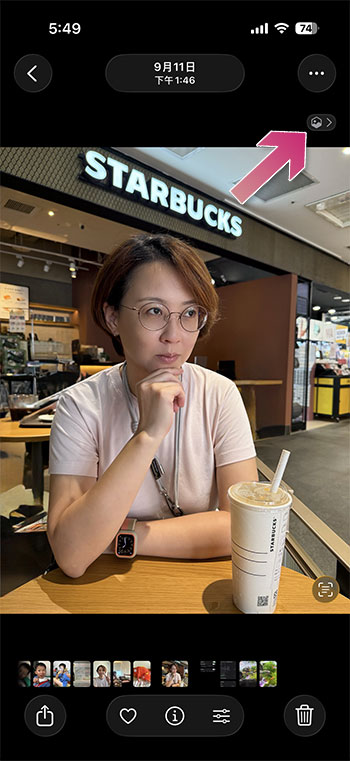
The effect is subtle, you just have to tilt your iPhone or move it side to side to see the effect, and while it may not be suitable and needed for every photo, it can feel dramatic when used on the right photo. Please avoid blurry photos and vast landscapes, as they won’t work as well. You can send space scene photos, but only other iOS 26 devices will show the space scene effect, and on phones with older or legacy systems, it will appear static and flat.
Additional screening at the same scene: How to apply space scenes to the locked screen?
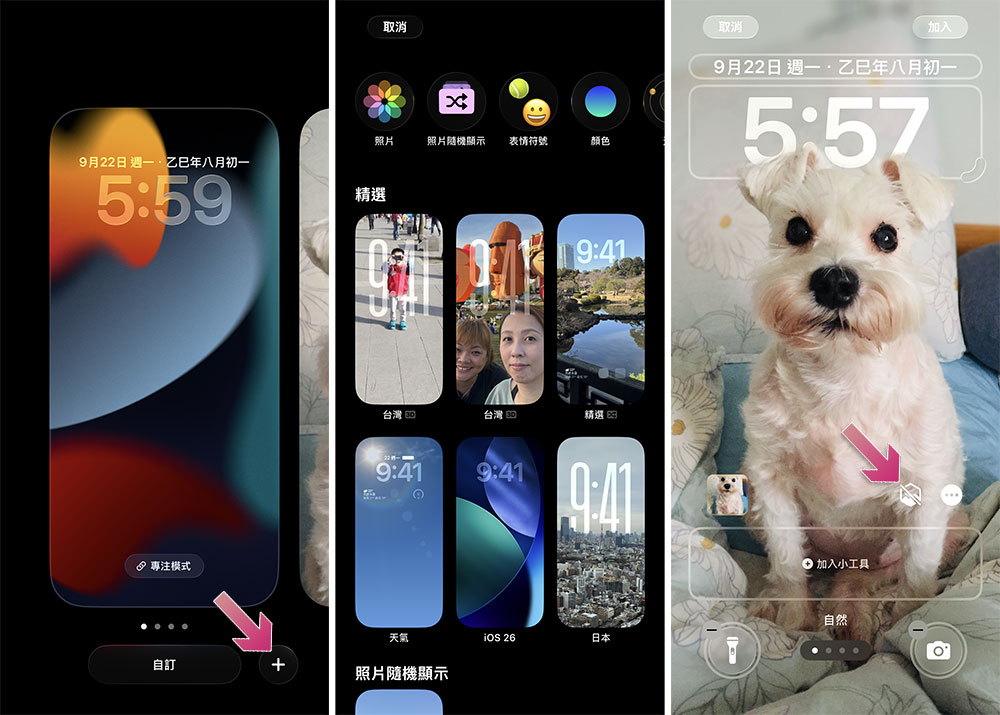
You can also use space scenes on the lock screen, but not directly from the album.
- Press and hold the lock screen until customization options appear.
- Click the “+” button to add a wallpaper.
- iOS will suggest compatible photos, or you can manually select one from the album.
- Click to open the space scene on the customization screen.
- After previewing the effect, click “Add”.
Source: KOCPC Chinese