


Facing the massive volume of chat messages that may occasionally arise in work and life, Google came up with a useful feature that integrates Gemini AI into messaging to help users handle them. Read on to see how Gemini AI can help you quickly grasp what all those chat messages are about, and the article content for enabling this feature in three simple steps.
▲Image source for this article: Google
Gemini AI can help you quickly grasp what the massive volume of chat messages is really about—just three simple steps to enable this feature.
Besides helping bring fanciful ideas to life through its “generation” function, generative AI is also a great companion for condensing large or even massive amounts of data into key information.
When facing the massive amounts of chat messages that can pop up from time to time in work and life – sometimes if you’re not paying attention, it really can get to the point where there are so many that you just want to give up. Treatment Reading. But also very worried that important messages might be overlooked the moment you press “read” and cause major problems.
For this kind of problem, Google came up with a useful feature that integrates Gemini AI into messaging to help users handle it.
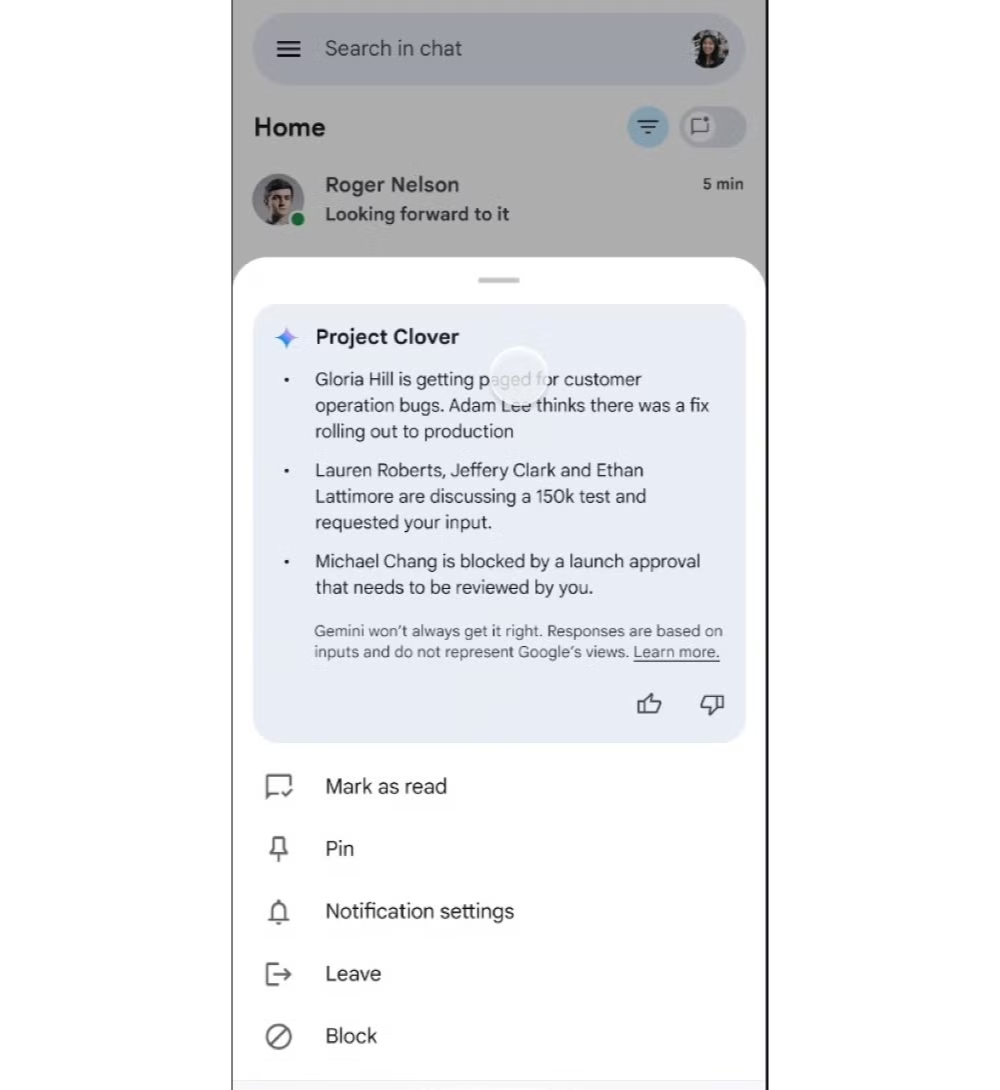
In the latest blog post from Google Workspace Updates, they announced that they are beginning to add a simple “Summarize” feature to the Google Chat app and web versions. The way to use it is also very simple – even within the app, you just long-press on a chat list with a massive number of messages, and at the top of the pop-up drawer menu, a sparkle icon marked with Gemini AI will appear, along with the summary highlights and a simple consolidated title put together by “it” – can this usage get any simpler? (thumbs up).
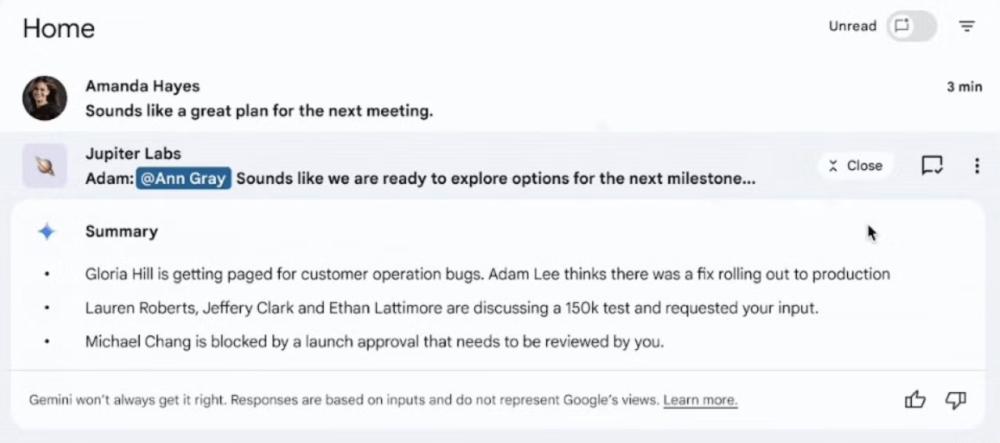
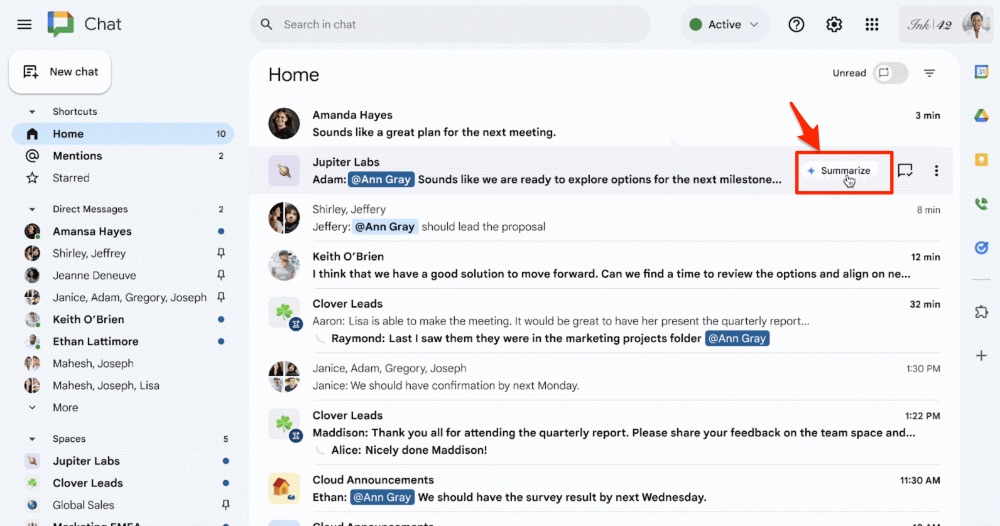
For desktop use, according to the official blog’s demonstration, hovering over a Google Chat chat list with unread messages will display a “Summarize” button. After clicking it, the key points generated by Gemini AI will expand.
How to enable the Gemini AI x Google Chat unread message summary feature
According to official information, to receive the features in this update, you need to go to Gmail’s settings and enable a toggle that covers multiple features. The specific steps are as follows:
1. Open the desktop version of Gmail and find the gear button “⚙️” in the top-right corner.
2. If available, please select “View all settings”.
3. In “General Settings,” you can find “Smart Features and Personalization” and check the box to enable it.
The feature should then be available in Google Chat once it’s rolled out. Supported eligibility currently includes Gemini Business, Enterprise, Education, Education Premium, and AI Meetings & Messaging.


Citation source:Android Central|
Further Reading:

Source: KOCPC Chinese