


Are you an experienced Android user? Do you think you know a lot about the features of this mobile operating system? No matter how long you have been using it, you may know the most commonly used functions by heart, but you may also often encounter functions that you may have never heard of before. This time we have compiled some hidden functions that are little known but very helpful in daily life. Let’s learn them together!
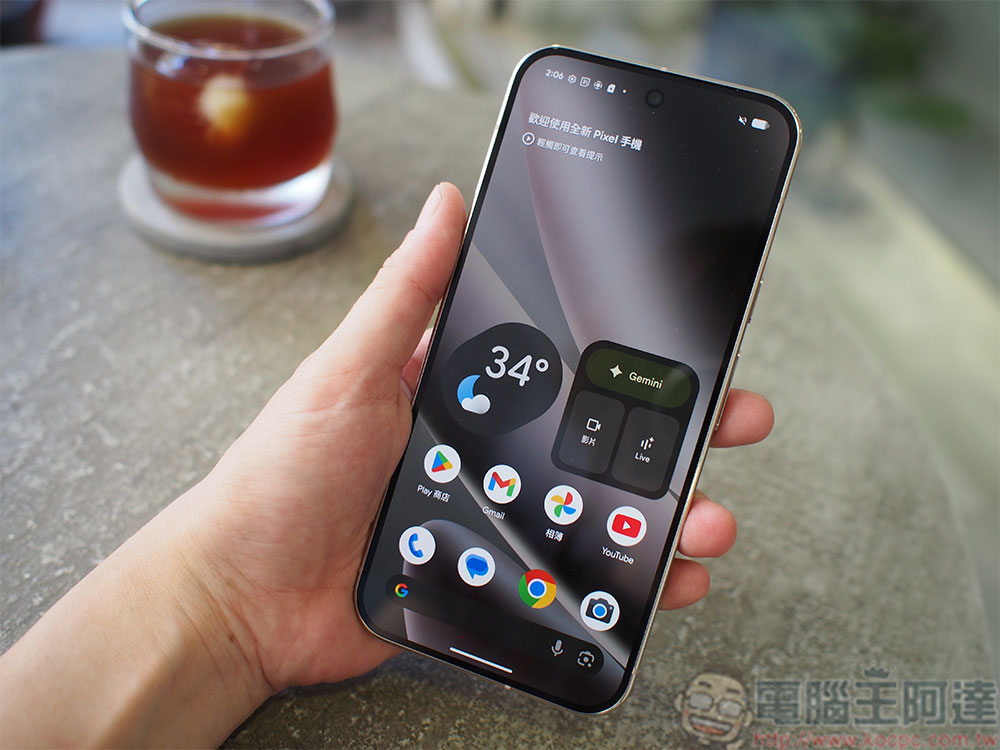
These hidden features allow you to use your Android phone more flexibly
Set custom text shortcut
You may often enter the same text or information on different websites, such as addresses, email addresses or other details, or you may often enter a unique company name. You can set up custom text shortcuts to save time typing. For example, you can set a text shortcut for your home address, and it will automatically be replaced with your home address when you type the shortcut.
Below we use the method of setting text shortcuts on Gboard, but the process should be similar for any input method:
- Open any typing application, such as Keep, and click the typing area to bring up the Gboard keyboard.
- Click the four squares icon in the upper left corner of your keyboard and select Settings (the gear icon).
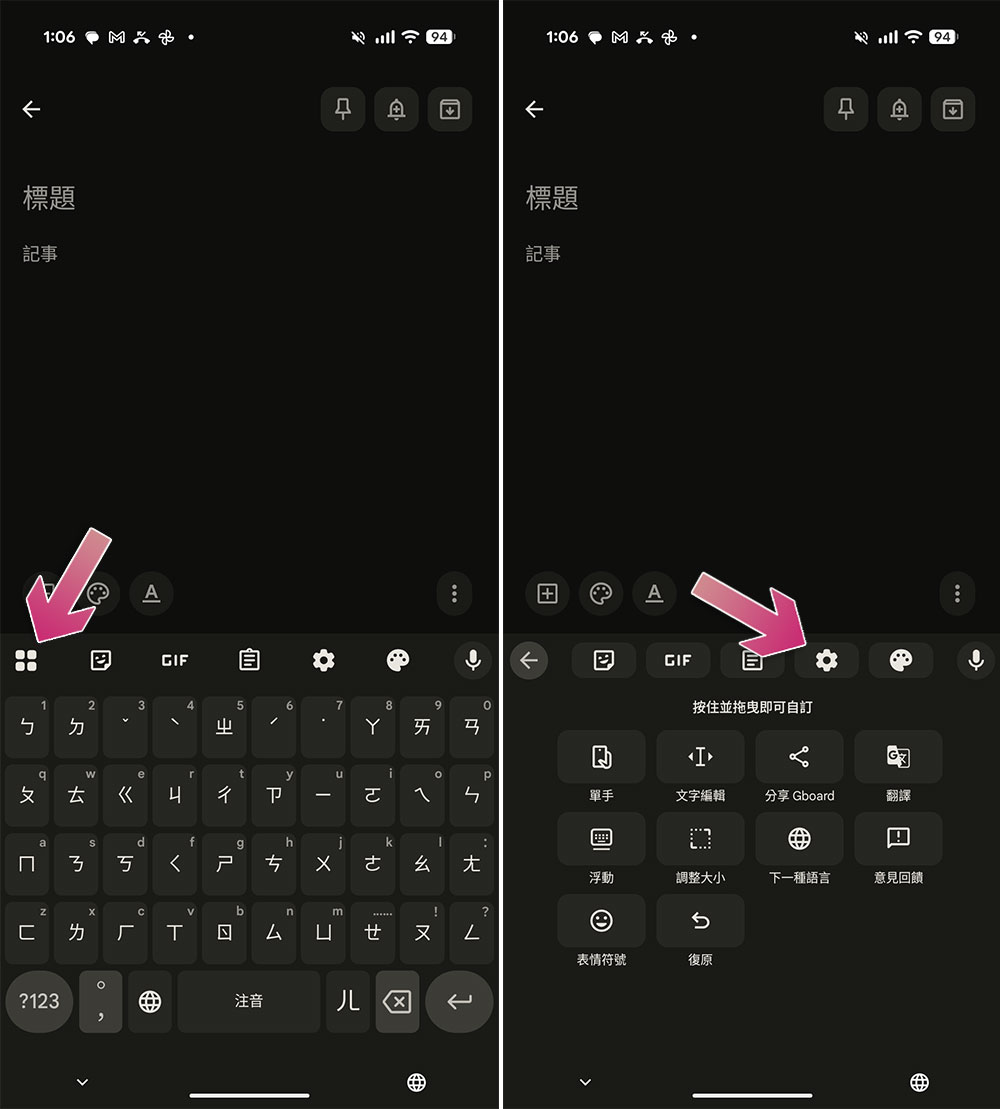
- Select Dictionary, then Personal Dictionary.
- Then select your language.
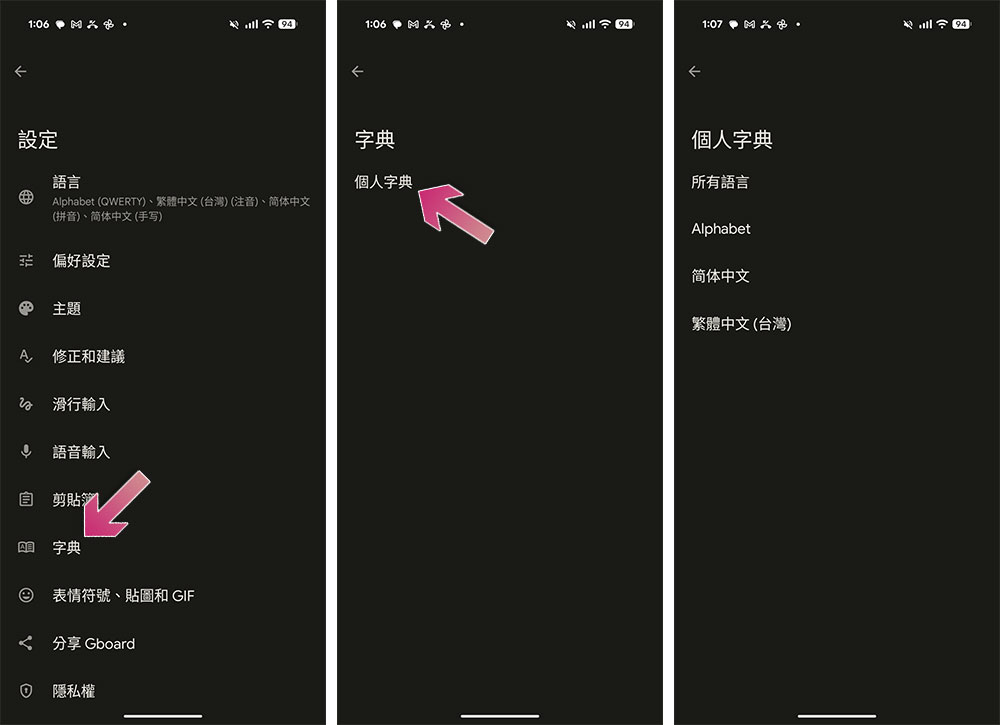
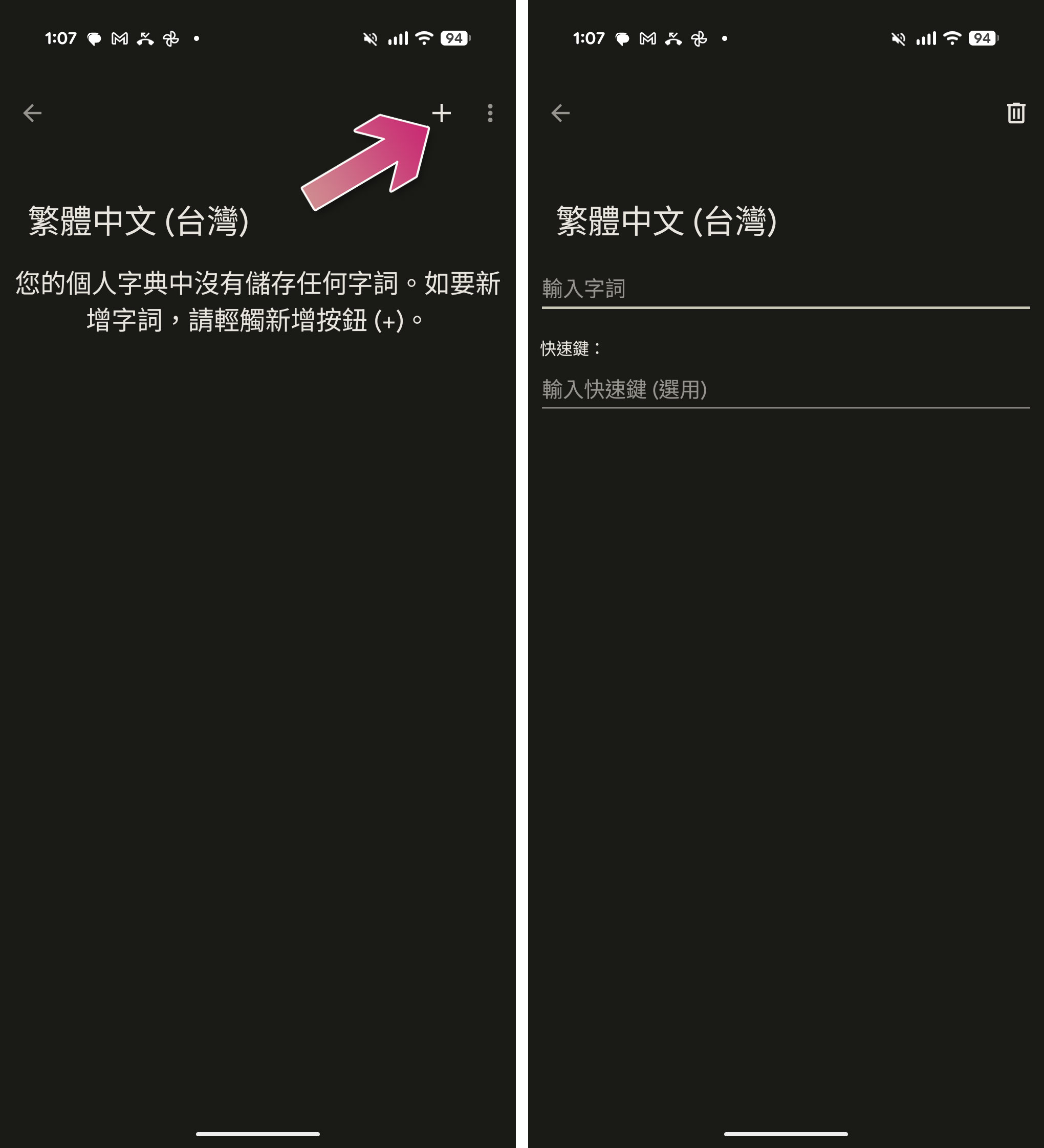
- Click the “+” icon in the upper right corner to add a text shortcut.
- Enter the target word in the “Enter word” section and enter the shortcut you want to assign to it in the “Quickkey” section.
For example, the author entered “Computer King Ada” in the target vocabulary and set the shortcut key to “KOC”. In the future, whenever I enter KOC, Gboard will automatically replace it with Computer King Ada.
Flip to mute
There are several ways to switch your Android smartphone to Do Not Disturb mode, and you can do this through the Settings app or Control Center. But if you have a Pixel smartphone, there’s a faster way to switch your phone to Do Not Disturb mode.
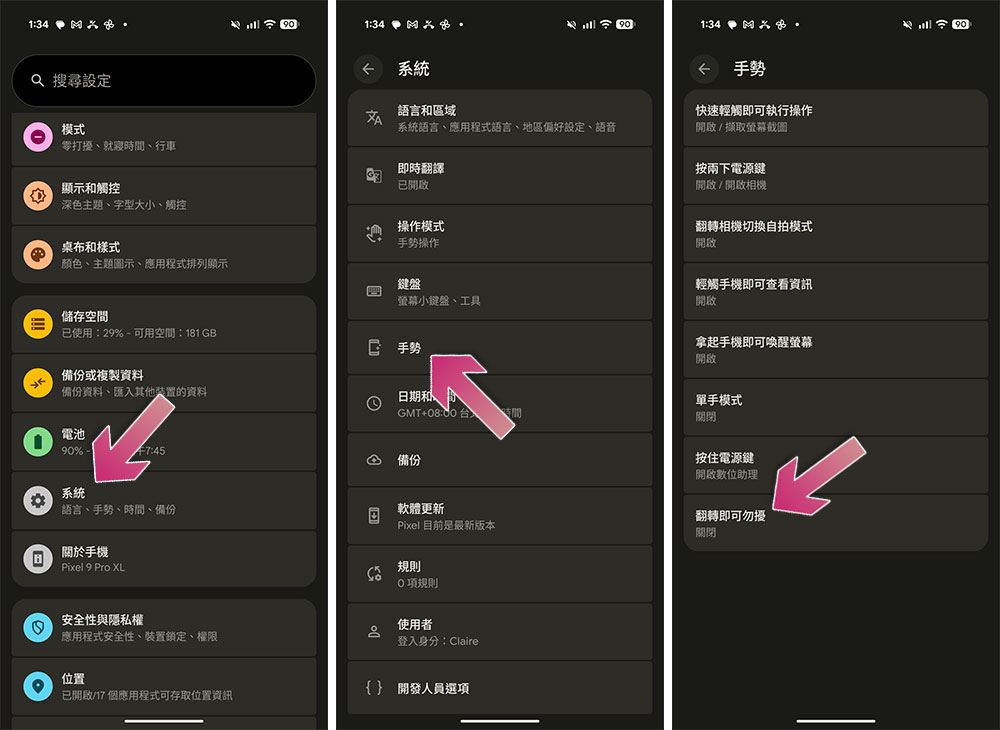
Google Pixel smartphones have a flip-to-silent feature that switches the phone back to Do Not Disturb mode when you place it face down on a flat table. To use this feature, follow these steps to enable it:
- Open the Settings app.
- Scroll down and find “System”.
- Select “Gestures”.
- Turn on the “Flip to Do Not Disturb” feature.
Split screen display
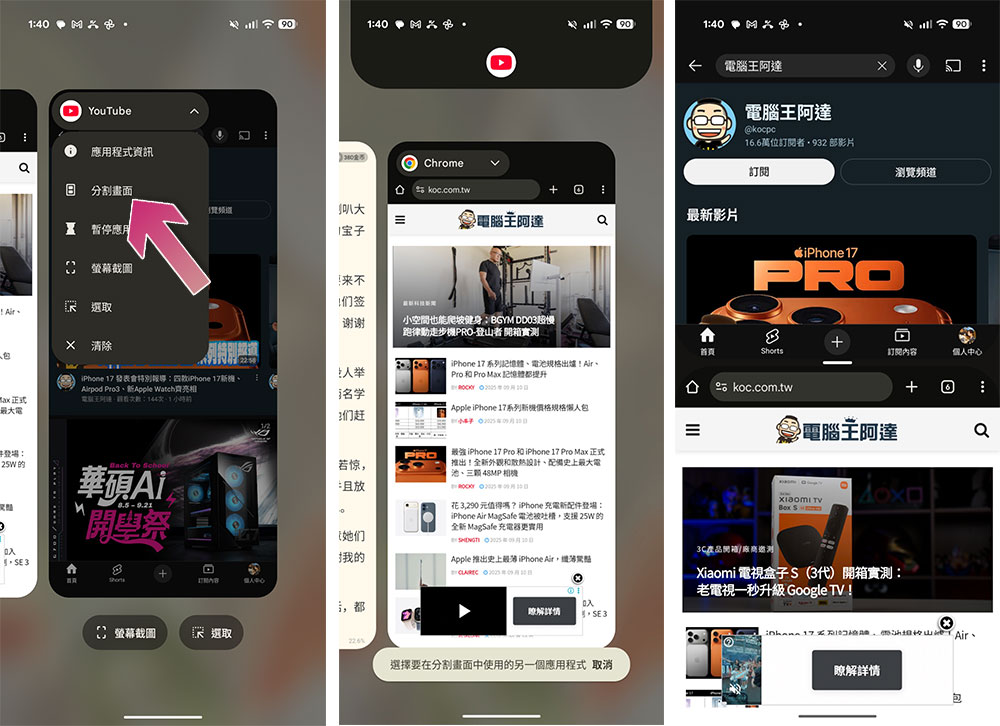
You may encounter situations where you need to handle two windows at the same time on your Android phone. For example, when you share information with friends in Messages, you must also collect data from the browser. Although you can switch back and forth between the two windows, you can also choose to split the screen to make your work easier. If you want to use split screen on your Android smartphone, you can follow the steps below:
- Switch to the application switcher.
- Click the drop-down menu in the upper left corner of the application you want to display in split screen (the application name will be displayed).
- Click “Split Screen” from the menu.
- Then select the second split display app.
Press power twice to quickly launch the camera app
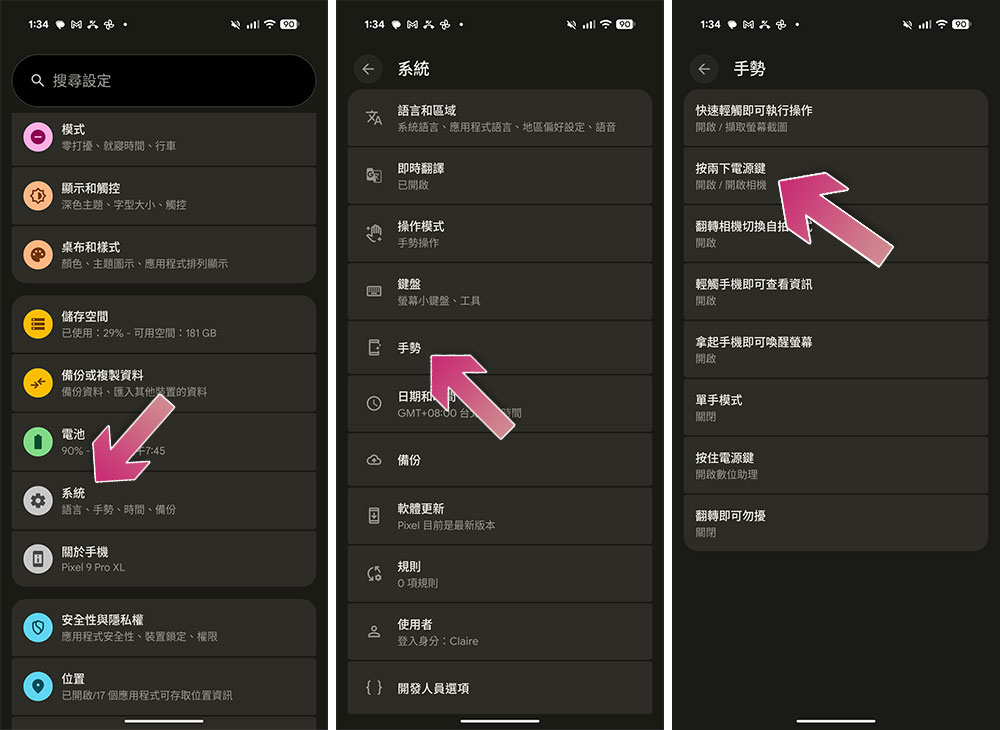
Opening the camera app on most Android smartphones is as simple as tapping the camera app on the homepage. However, sometimes you want to capture the wonderful moment, you can open the camera app more quickly. You can set double-pressing the power button on your Android phone to quickly launch the camera. If you are using a Pixel phone, you can follow the steps below. For other brands of phones, the location of the options will be slightly different. You can check it out yourself:
- Open the Settings app.
- After selecting “System”, click to enter “Gestures”.
- Enable “Twice-press the power button” and assign it to “Turn on camera”.
Notification history
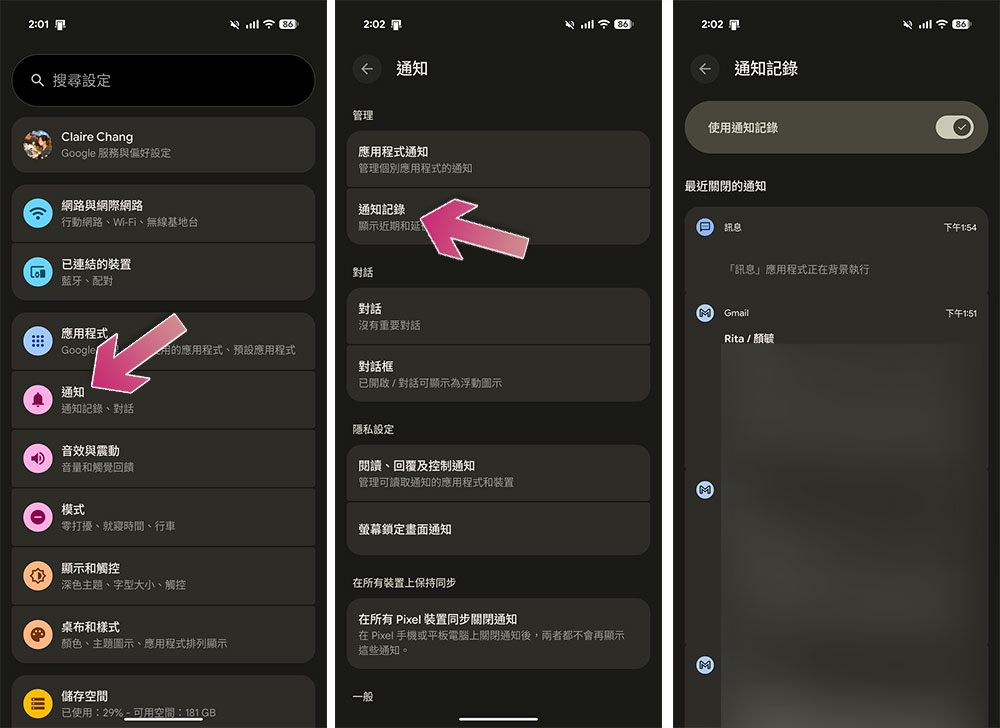
It’s very common to accidentally slide away important notifications. But with notification history enabled, you don’t have to worry about losing them. If you want to enable notification logging, follow the steps below:
- Open the Settings app.
- Select “Notifications”.
- Click “Notification Record”.
- Just turn on “Use Notification Record”.
Source: KOCPC Chinese