


Phone calls may not be among your top 10 favorite smartphone features, but it can be irritating to see a spam call or an unknown call interrupting the work you are doing. However, a new feature introduced in Android allows you to relax and answer calls that are actually waiting for you. This time let us also learn how to set business cards and photos for contacts.
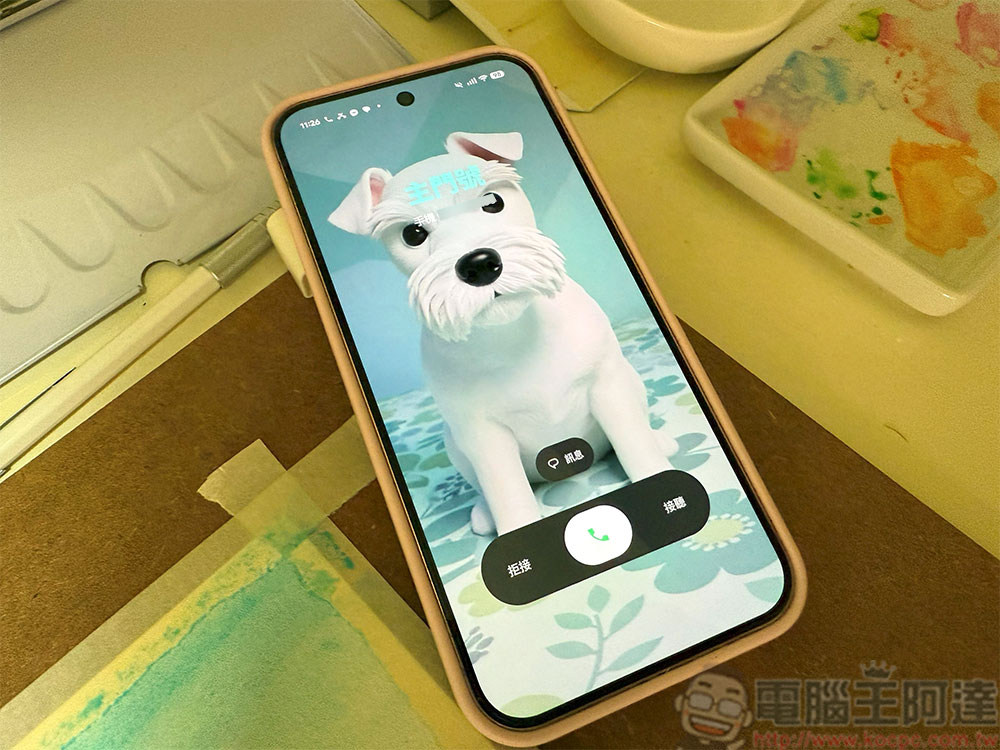
How to set up contact cards and photos on Android phone?
Technological breakthroughs that once transformed the world are now viewed as a nuisance. You’ve probably become so used to receiving cold calls, spam calls, and unknown numbers that you reject them more often than you answer them. Known contacts don’t look much different from other people, which is where Android’s new “Business Cards” feature comes in.
With this new feature imported with Material 3 Expressive, your screen will fill up with a large photo of the person calling you. You can choose a high-resolution photo and even customize the font and color of its name. It may seem like a small detail, but it makes a huge impact, and this visual change makes it very clear whether the person calling is the person you actually want to talk to. It’s also a pretty big shift from the little round contact photos Google has had for years, finally bringing some personalization to the calling experience that, ironically, has been overlooked for phones. Since iOS 17 in 2023, the iPhone has had a similar “Contact Poster” function, and now the functions are finally synchronized.
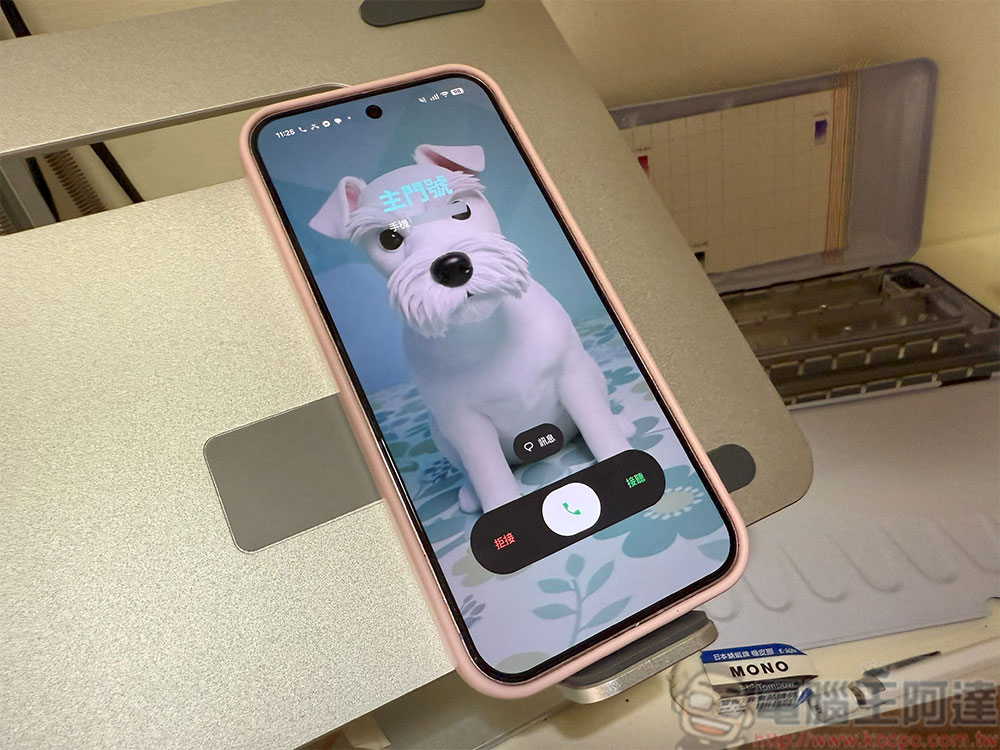
How to set up contact cards on Android
Contact Cards will start rolling out with the Pixel Drop in September 2025, but it’s unclear whether the feature will always be exclusive to Pixels since Google’s Phone app is also available on non-Pixel devices.
- Open the Phone app on your phone.
- Click on the contact you want to set, and be careful not to accidentally make a call.
- Click the pencil button in the upper right corner and you can see the “Photos and Contact Cards” section at the top.
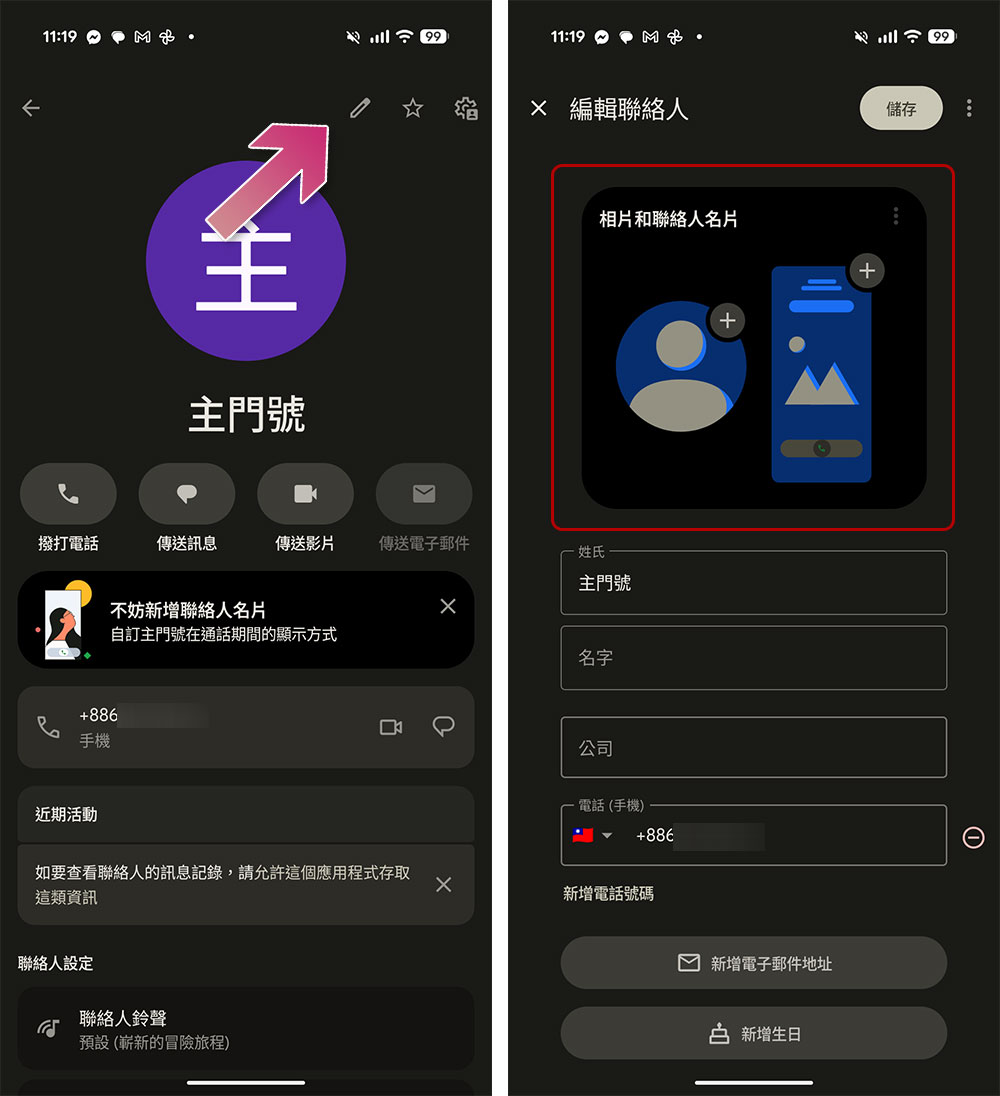
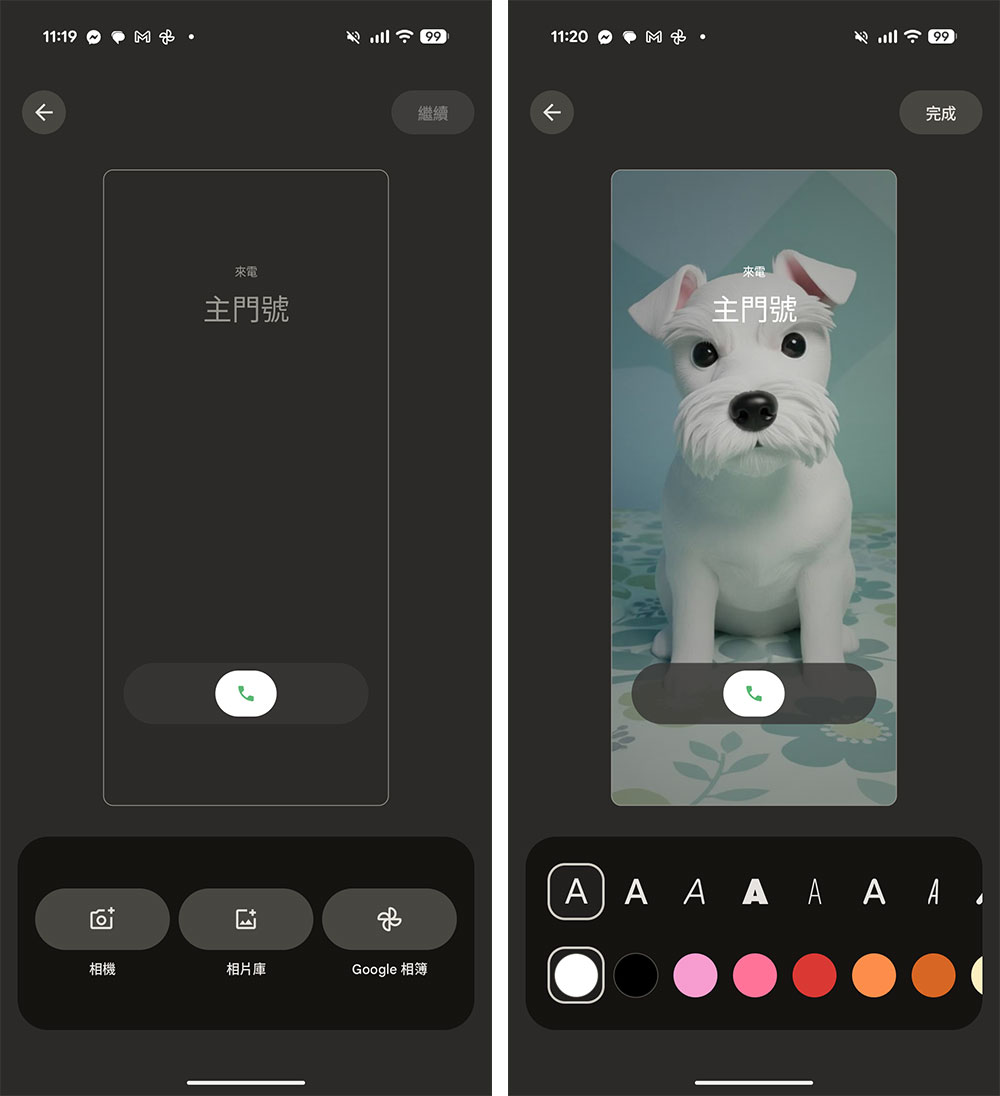
- Clicking on the square “Business Card” will take you to the editing page. You can select a photo from your phone’s photo album, Google Photos, or directly take a photo for your contact.
- Next, you can choose the displayed font and text color, and you can preview the effect directly on the page. After the settings are completed, click the “Finish” button in the upper right corner.
- If you want, you can also synchronize your business card as a contact photo, or of course, you can set another one.
These contact cards are for your personal viewing only so you know who the caller is when you call. Unlike Apple’s contact posters, you can’t create a business card for yourself that others can view when they call you. If you want to set a card for each contact, it may take some time to do it one by one, but if you set one for the important people, you will always look particularly happy when you receive a call.
Source: KOCPC Chinese