


If you install a lot of software on your Mac, you should encounter a lot of pop-ups asking you to grant permissions to these applications to perform certain operations. Most people will click agree without thinking, so it is worth taking a moment to check every now and then. If you’ve never checked it, follow us today to learn more about what permissions are and how to check them.
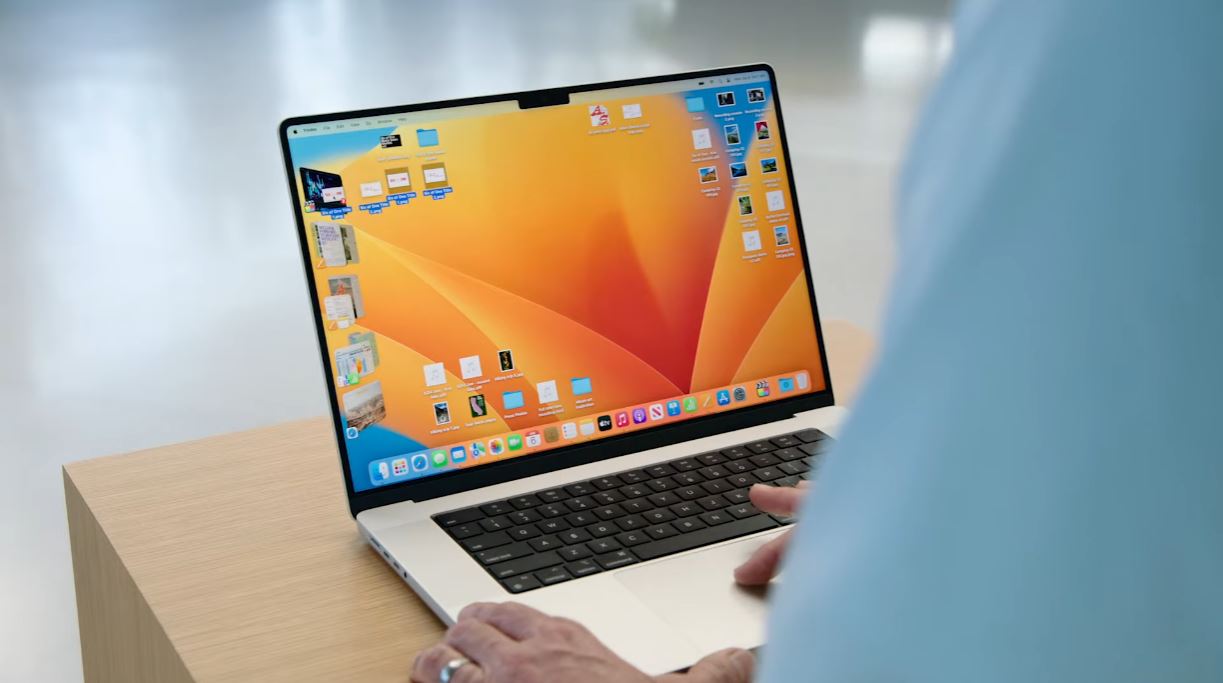
What are application permissions on Mac? Why should you get it checked out now?
What are permissions? How do they work?
Permissions control what applications can do on your Mac. Permissions are divided into more than 20 categories related to specific hardware features (such as the camera or microphone), certain functions (such as checking location), and applications such as access to contacts. If you do not allow these permissions, some applications will not be able to perform certain operations.
You most often see permission requests after a new application is installed and run for the first time. Many permissions are not malicious, but others are more powerful and can cause significant privacy and security concerns. For example, some permissions allow an app to access everything on the SSD, including settings and backups. There are also permissions that allow apps to record your screen or track all your keyboard input.
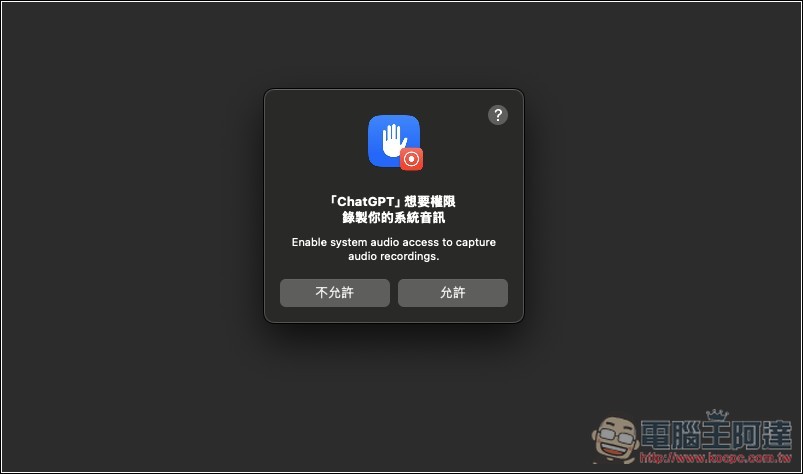
Most of the time, these aren’t issues. Most apps ask for permissions for a reason, and without permissions they won’t function properly or even function at all. As long as you download the software from a reputable platform, such as the App Store or the official website of the app you trust, you should be fine. However, if you install an app from an unreliable source or install software you don’t know much about, then you need to double check. Some programs will ask for permission, but the reason for the request is not obvious. And even well-known apps from well-known developers aren’t always flawless, such as why a note-taking app needs to record your location every time you launch it.

How to check and revoke permissions in macOS?
The best way to manage permissions is to understand them and make judgment calls when an application requests them. Say no to anything you’re not happy with, and if the app doesn’t work because of it, you’ll need to find an alternative. But there are many permission requests, and it’s easy to allow them without thinking. Therefore, you should also check from time to time what permissions have been granted, just to keep an eye on what your software is allowed to do.
To do this, you can open the Settings app and click “Privacy & Security” in the left sidebar. Here you will see all permission categories. Click on each category to see which apps are requesting permissions and which ones have your permission. If you think an application is unnecessary, close it.
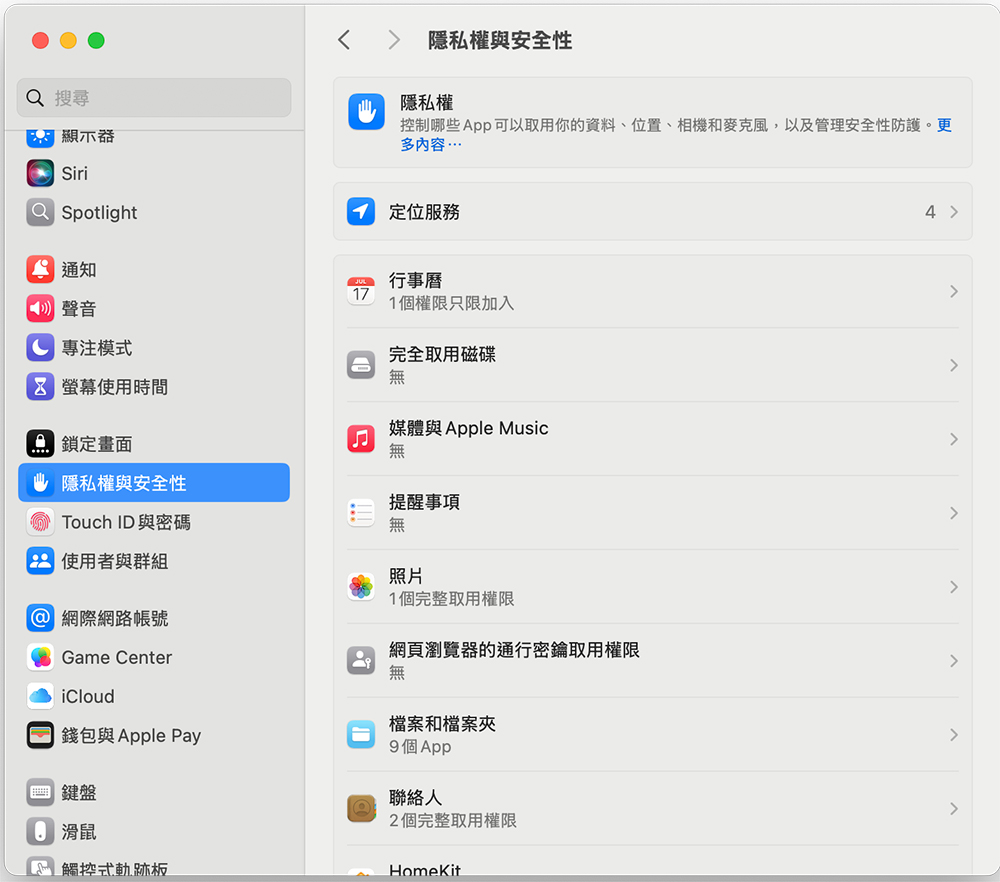
All permission categories are worth taking the time to check. No matter how much you trust an app, if you don’t think it needs to use the microphone or access certain folders, then you should be strict about not allowing permissions. But there are some permissions you need to pay special attention to:
- location services
Let the app check your location, and an icon in the menu bar will also indicate that your location is being used. - Files and folders
Allows the app to access the desktop, downloads, files, and iCloud Drive folders, as well as external drives. - full disk access
Allows an application to access the entire hard drive. In practice, few applications require this feature. - Accessibility
Allows an app to control your Mac, primarily used by accessibility apps, but often used by other apps as well. - camera
Allows the application to use the camera lens. For added safety, when using the lens, an icon will appear in the menu bar and a green light will illuminate on your MacBook. - Developer Tools
Even if some apps don’t meet macOS security requirements, they can still work with developer tools. - Input monitoring
An accessibility feature that allows apps to see everything you enter, including passwords and credit card numbers. - microphone
Allows the application to use the microphone, and when enabled, will also display an icon in the menu bar. - remote desktop
Allows applications to access and control your Mac remotely. - Screen and system recording
You can let the program record your screen and audio even if you are using other applications.
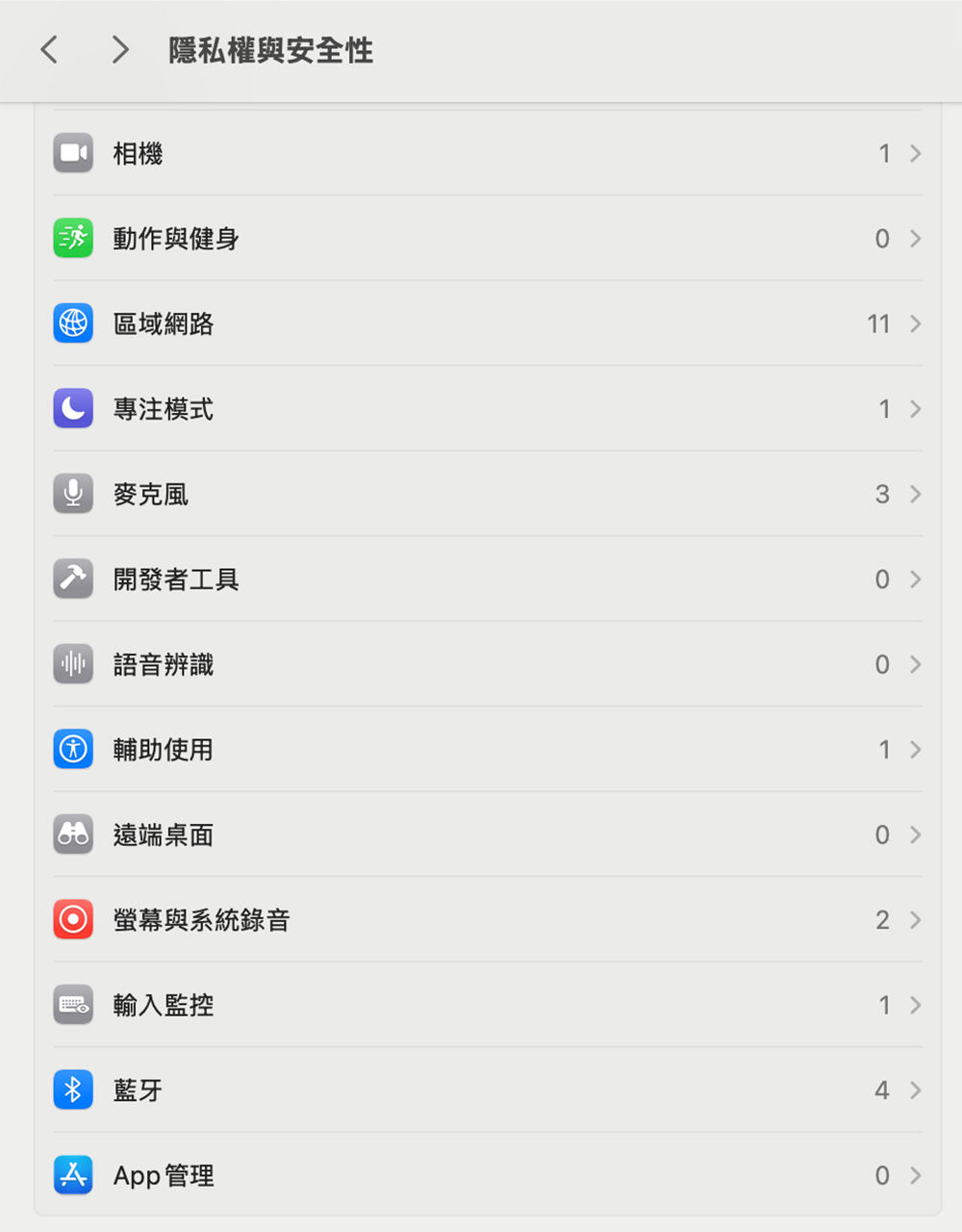
All of these permissions have legitimate uses. Screenshot apps need to be able to record your screen, video calling apps need your camera and microphone, and weather apps need to know your location. But they can also be misused and may raise privacy and security concerns.
Block applications from accessing the network
One permission the program does not require is access to the network. They can continue to access the network for any reason while running, and blocking this gives you ultimate control. You can set up a free firewall application such as LuLu) to prevent specific applications from accessing the memory. Of course, this won’t work for tools that require an Internet connection, but it doesn’t hurt if you download a game or something else that you’re not sure will require an Internet connection.
While checking permissions is important, it’s not something you need to do all of a sudden. In most cases, a quick permission check every few months is enough and is one of the easiest ways to keep your Mac secure and private.
Source: KOCPC Chinese