


Windows There are many hidden functions and tools, as we have sorted out before 10 Windows Utilities You Probably Never Used, the “memory compression” function introduced in this article is also known by few people. Its main function is to improve the system’s response speed. However, in an era when memory is very cheap, this function is not necessary for many computers, and it may also reduce performance. If you don’t want to be affected, here’s how to turn it off.
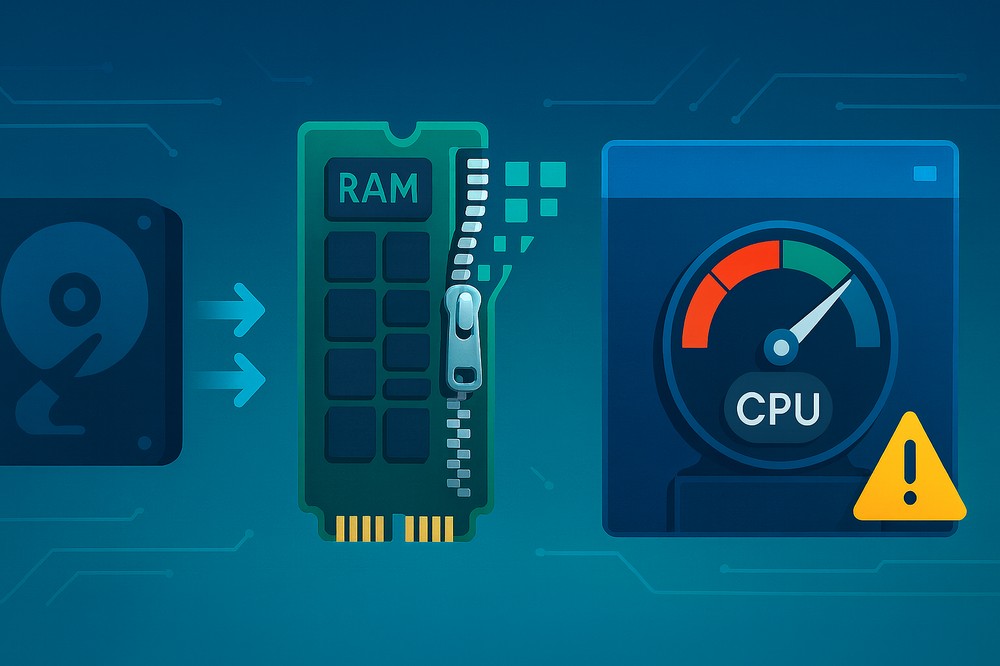
What is Windows Memory Compression Feature
When the computer is running, data will be placed in the memory first, because the memory is very fast. However, when the memory capacity is limited, if it is full, the system can only move the temporarily unused data to the page file (pagefile) in the hard disk, and then move it back when necessary.
However, the speed of the hard disk is much slower than that of the memory. When the system frequently loses data to the paging file and then moves it back, the computer will obviously freeze. To solve this problem, the “memory compression” function appears. When it is found that the computer’s memory is insufficient, the system will compress some content that needs to be accessed quickly and then store it in RAM instead of immediately moving it to the paging file of the hard disk.
For example: data that originally occupied 200 MB may only be 80 MB after compression.
After compression, it takes up less space, allowing more data to be crammed into the memory.
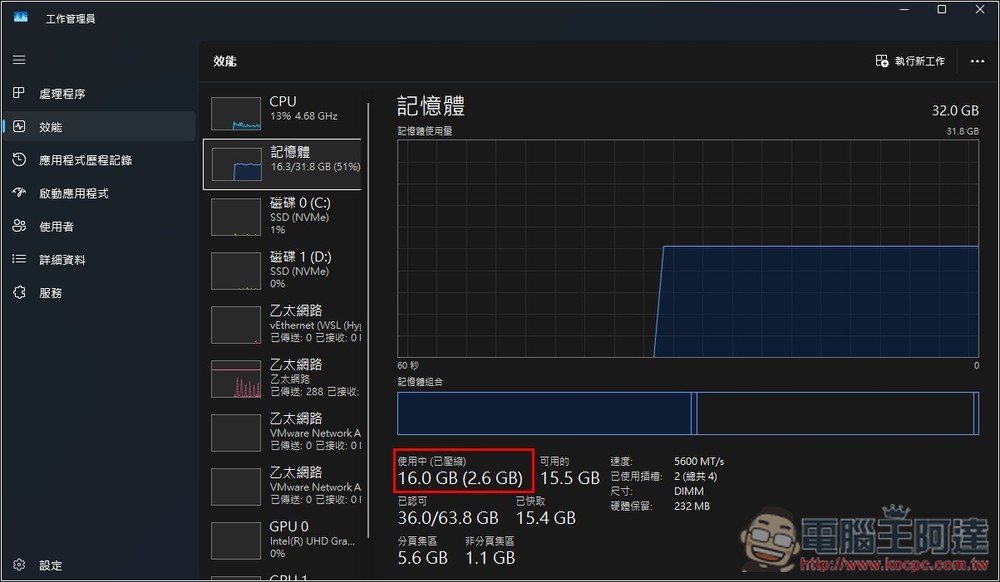
Windows 11 can check how much has been compressed in the work administrator interface:
Disadvantages of Windows Memory Compression Features
Just reading the above introduction, you may think that the Windows memory compression function is very good. In fact, this is not necessarily the case, because compression and decompression operations require CPU processing. When encountering high load conditions, it may cause the CPU to slow down. Especially if the CPU in your computer is not very powerful, such as a low-end laptop, the impact will be more obvious.
Nowadays, memory is not expensive. Even low-end laptops basically have 16GB of memory, not to mention desktop computers. 32GB and 64GB are very common. The memory compression function becomes a bit redundant because the memory capacity must be sufficient. Instead, CPU resources are wasted on compression and decompression. Therefore, most people recommend that as long as the computer has 32GB of memory, you can consider turning it off.
It is recommended to keep it on for 8GB and 16GB computers. Turning it off may worsen performance.
How to turn off Windows memory compression
For those who want to turn off Windows memory compression, here’s how to do it.
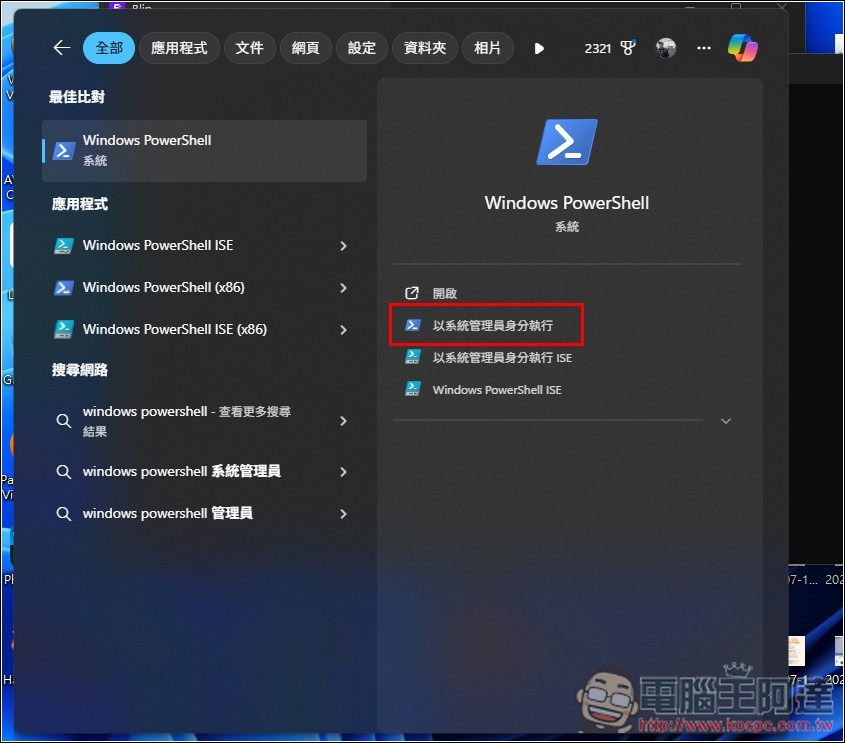
- Open PowerShell or Command Prompt as administrator
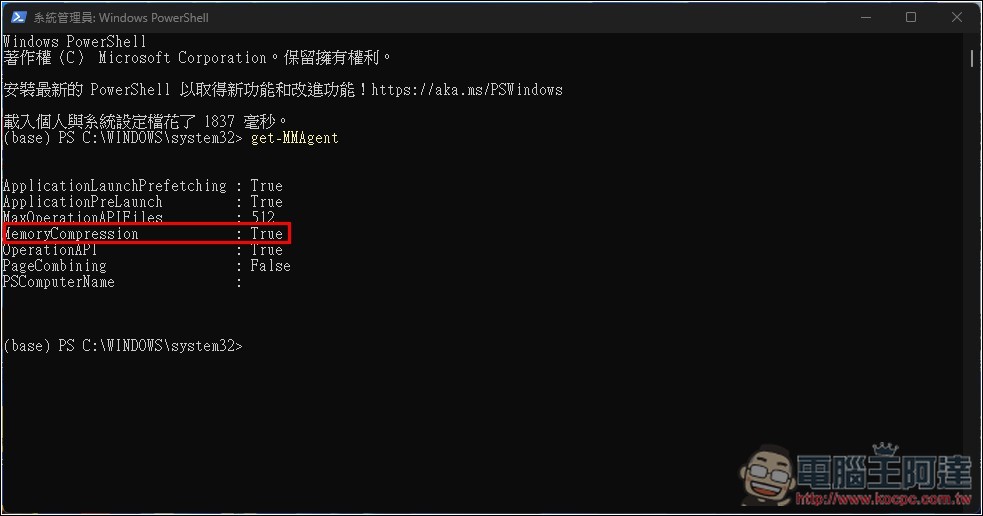
- You can enter this command first to check whether the memory compression function is turned on:
Get-MMAgent, MemoryCompression displays True to indicate on, and False to indicate off:
- If you want to turn off Windows memory features, enter:
Disable-MMAgent -mc, but already compressed data will not be decompressed immediately. - If you want to turn on Windows memory again, enter:
Enable-MMAgent -mc
After turning it off, you can test to see if the computer performance becomes faster.
Source: KOCPC Chinese