


Most of the local PDF Editing tools all require payment, and the price is not cheap. It is not very friendly to users who have no budget or only need simple editing functions. Although some online tools can also do it, the security of uploading PDF to the server is still a concern.
I recently discovered the Every PDF open source tool, which is commonly used to add text or watermarks to PDFs, add signatures, merge, and even format conversion functions. It is completely free to use. If you only need basic PDF editing functions, then Every PDF is very useful! Both Windows and Mac versions are available.
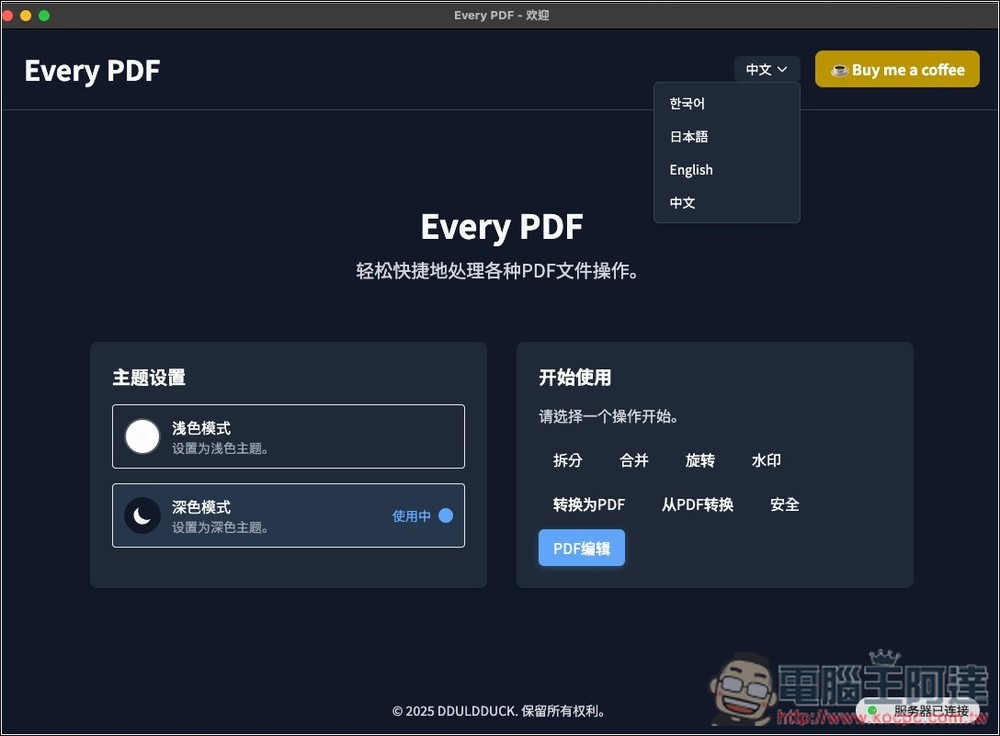
Every PDF is a free and open source PDF editing tool with functions such as adding text, signatures, watermarks, and converting files (Windows/Mac)
Every PDF is an open source, cross-platform PDF tool that integrates common functions into the same interface, including editing, converting, splitting/merging, watermarking, page rotation and rearrangement, encryption/decryption. It has a Chinese interface, so you don’t have to worry about incomprehension. Installation files are provided for Windows and Mac.
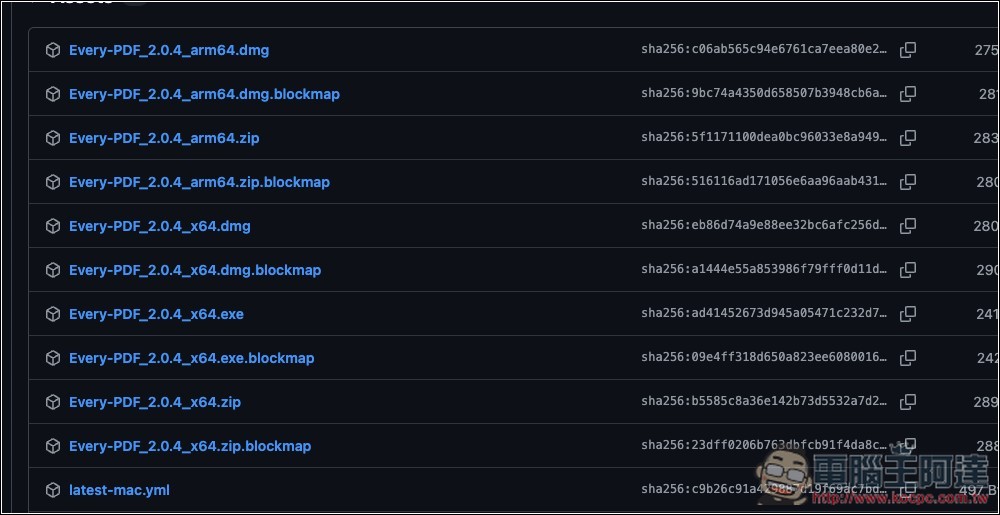
Click the link above to enter the GitHub page of Every PDF. The latest version is 2.0.4. Scroll down to find the version suitable for your operating system. For example, mine is a Mac Apple Silicon processor, so download the first arm64.dmg. For the Intel version, please download x64.dmg. Same as Windows, it depends on whether you have an ARM processor or x86:
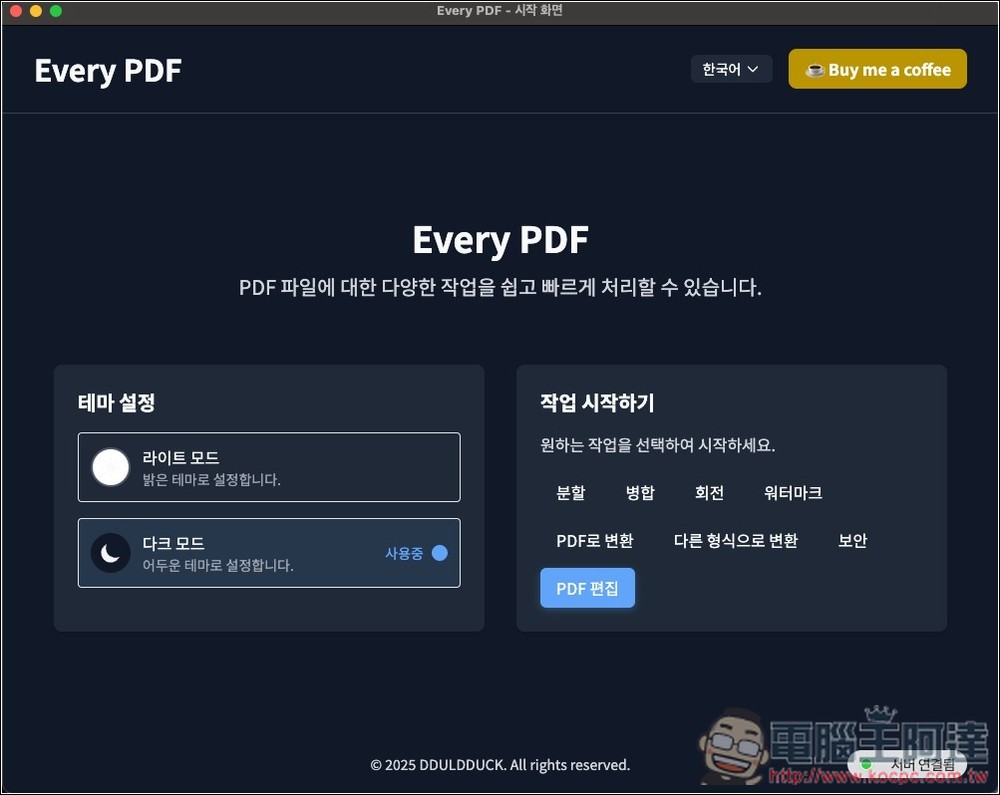
The main developer is Korean, so the default interface language is Korean:
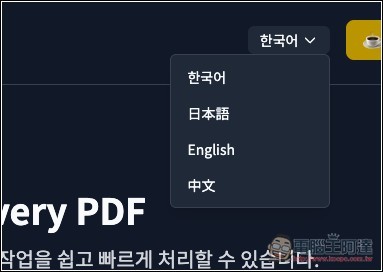
Open the menu in the upper right corner to find Chinese, and also supports English and Japanese:
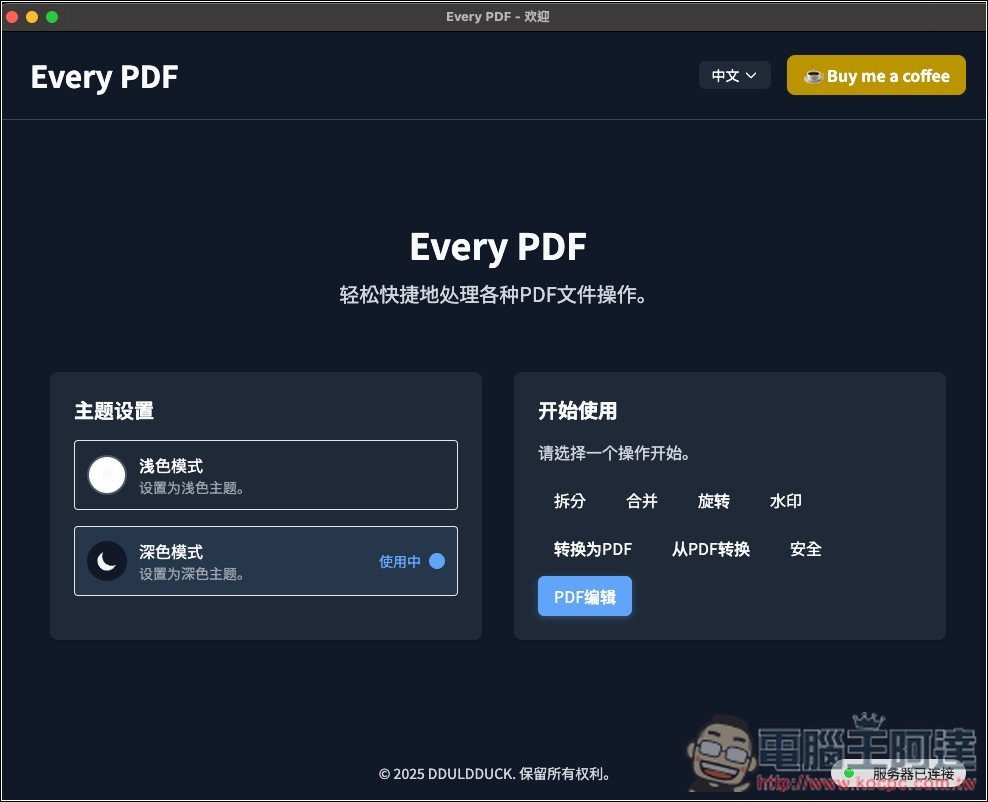
Two theme settings are available, light and dark. On the right are all the functions of PDF. Choose which one you want to use. For example, if you want to edit a PDF file, click “PDF Edit”:
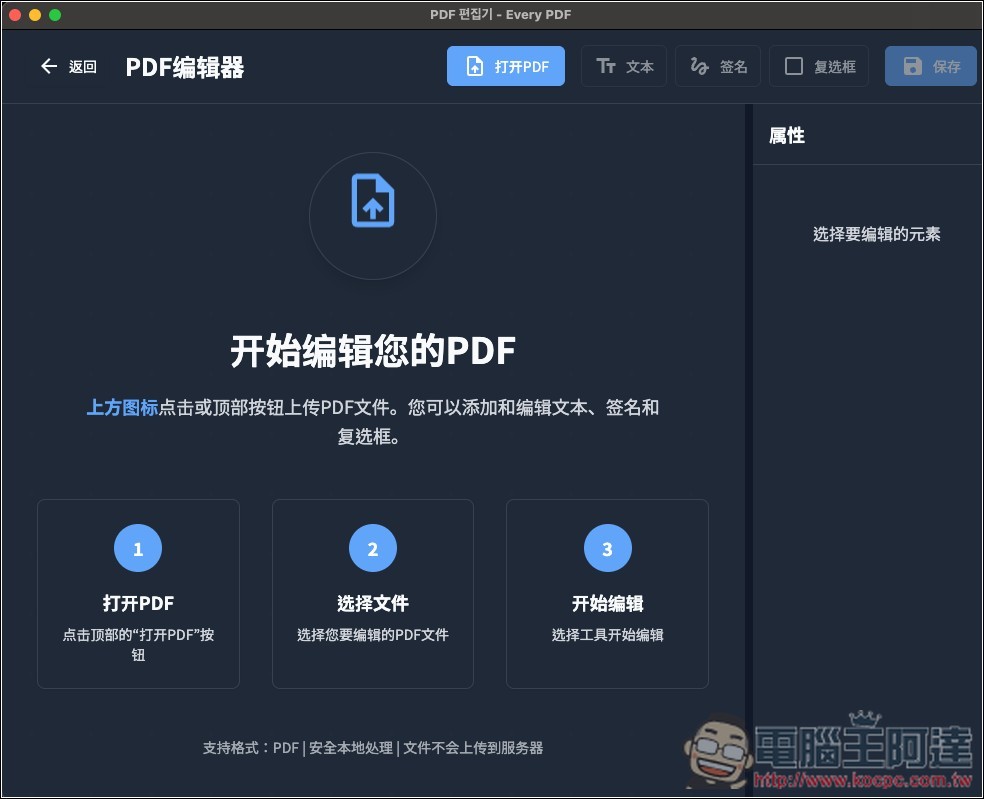
Then click the icon above or the Open PDF button to open your PDF file. The drag and drop import function is not currently supported. There is a special note below that “PDFs are processed locally and will not be uploaded to the server”:
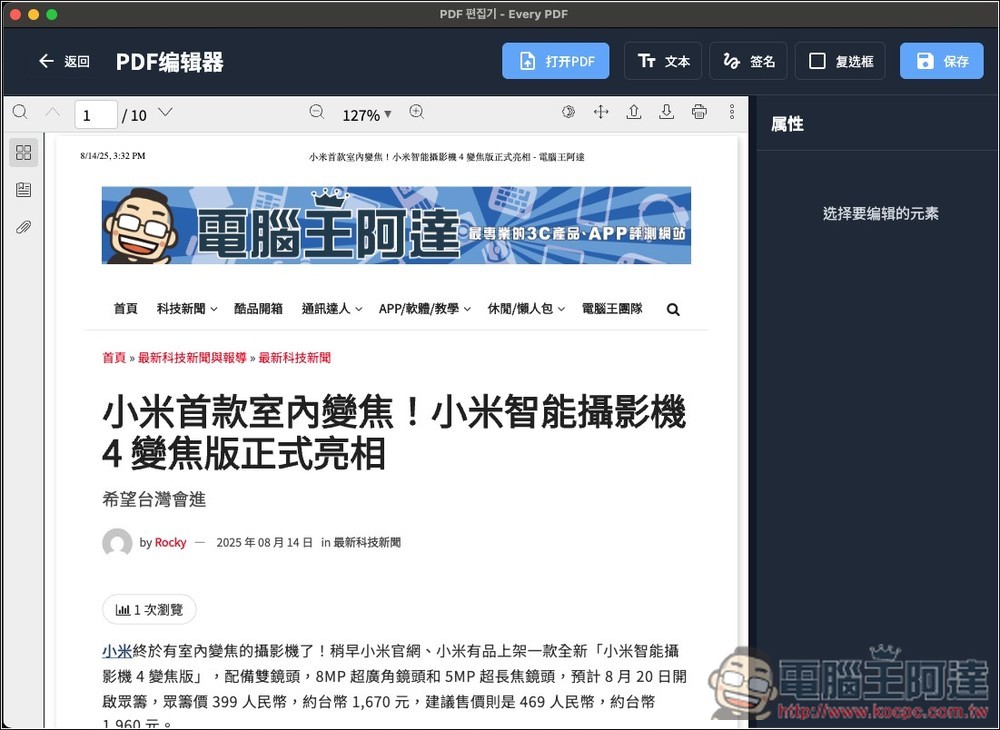
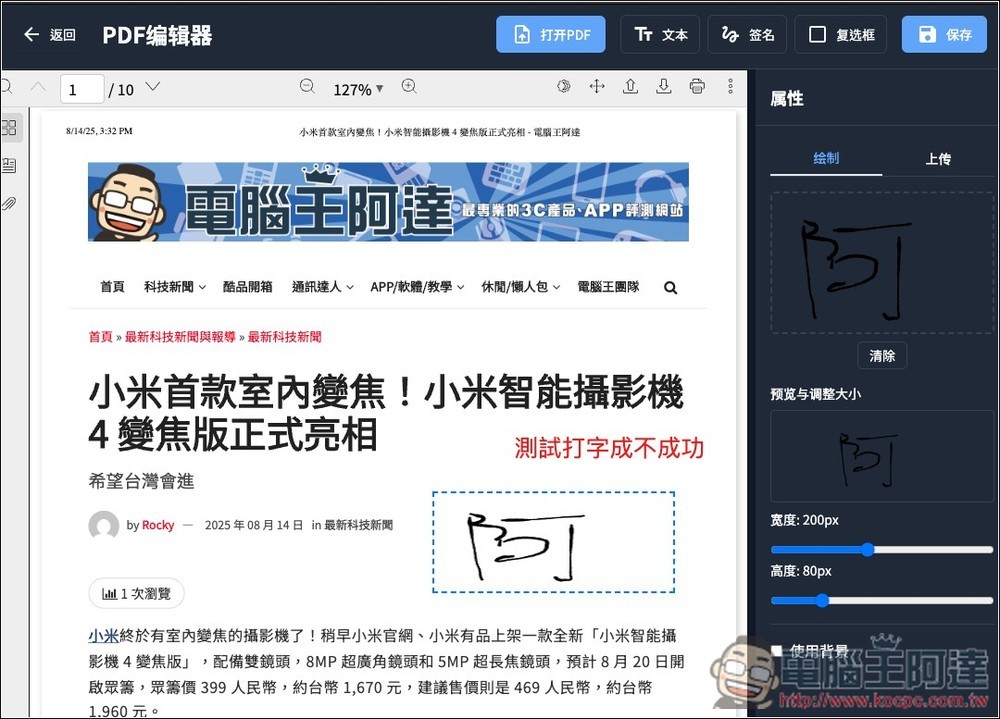
After opening the PDF file, there are three functions at the top, “Text”, “Signature” and “Checkbox”:
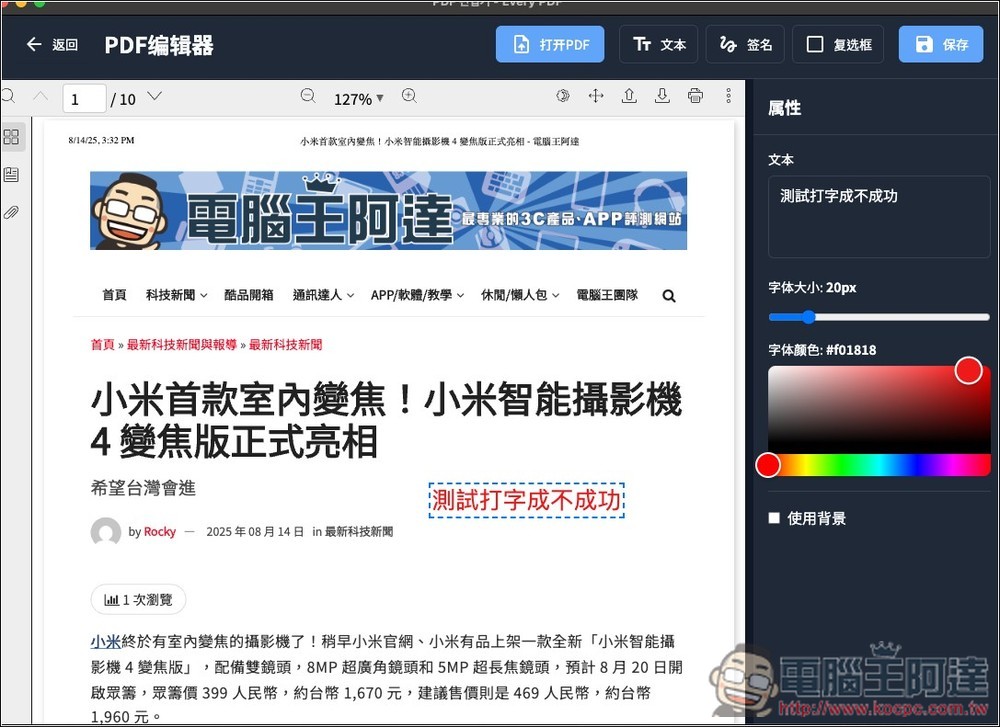
I test the text first. Click on the blank space of the PDF where you want to add text, and the properties function will appear on the right. Enter the text you want to add into the “text box”, and then the text will appear. The font color and size can be adjusted. The position of the text can also be moved with the mouse:
Next is the signature, which supports two modes: manual drawing and uploading. Manual drawing can adjust the width and height. After editing, click Save in the upper right corner to save the edited PDF to your computer:
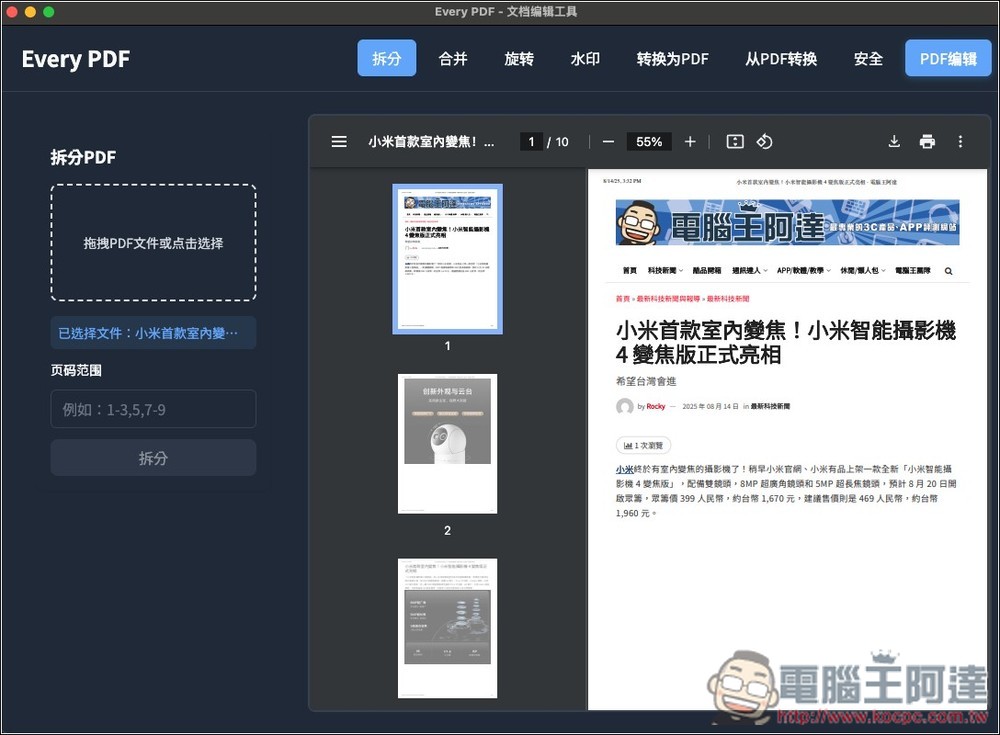
Splitting is to remove the pages you don’t want in the PDF and keep only the ones you do want. For example, my PDF has 10 pages and I only want to keep the first 5 pages. Enter 1-5 in the “Page Range” on the left, then click Split and Save. The new PDF file will only have the first 1-5 pages:
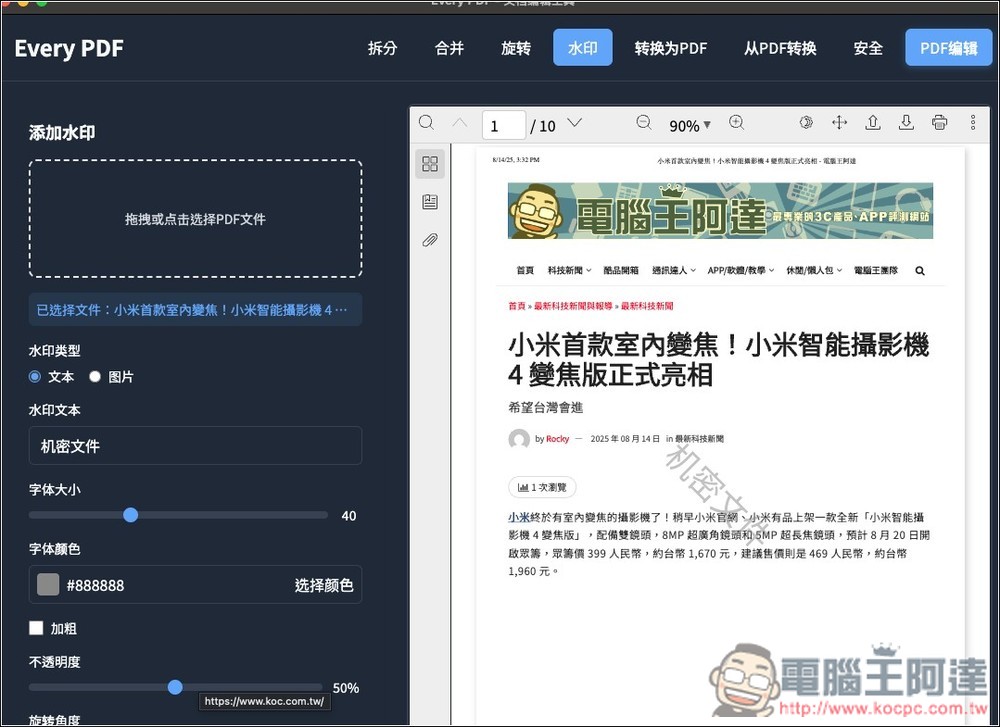
Watermark is also quite practical. You can add text or pictures to PDF, such as the confidential document in the picture below. The size and color of the text part can also be modified:
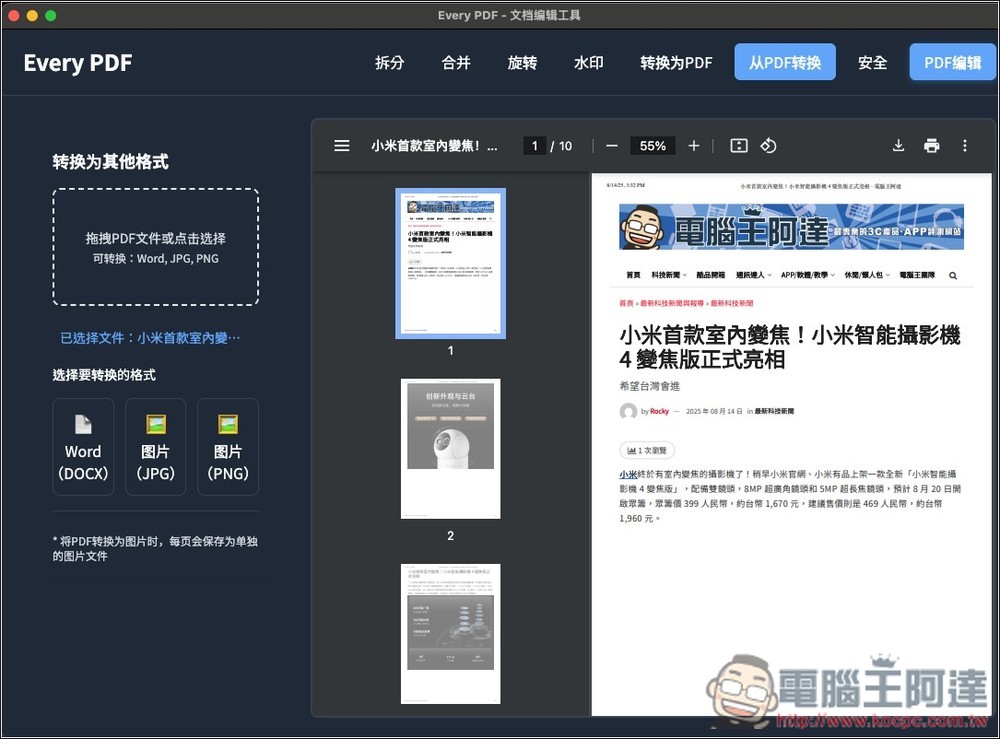
In addition to converting other common formats to PDF, it also supports converting PDF to Word, JPG and PNG:
Source: KOCPC Chinese