


You will browse the contents of your phone from time to time and clean up unnecessary applications, photos, and files. However, although you may use your computer every day, you have forgotten that if you want to keep your computer in optimal condition, you also need to spend time organizing it regularly. The same goes for any device, but computers are often overlooked. If you want to ensure that your Windows 11 computer continues to run smoothly, it’s a good idea to take the time to do a deep clean every year to keep it in tip-top shape. So what do you do?
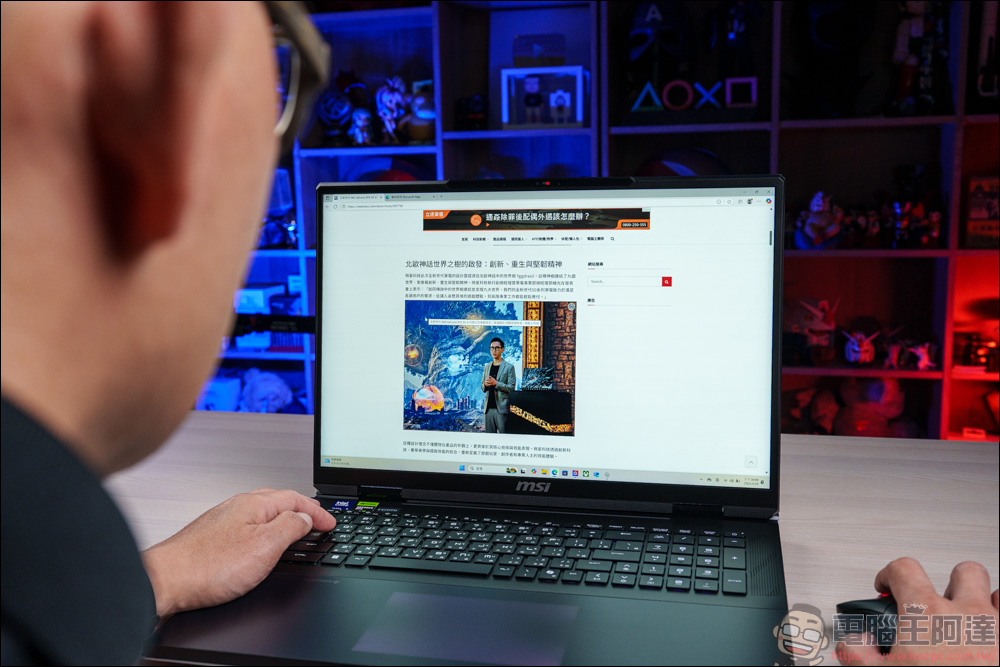
5 things to do in-depth cleaning of Windows computers once a year to keep your system running smoothly
Uninstall application
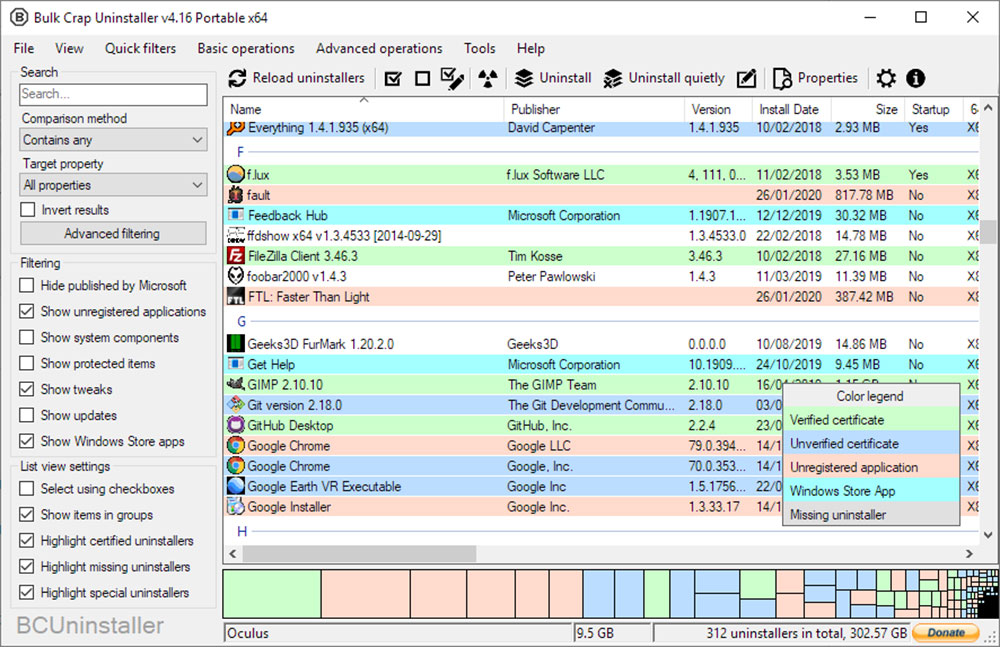
When you use your computer, you may install new applications from time to time. This is completely reasonable, but it also means that your computer is still full of junk. Most of the time you use it once after installation, and then forget about it even if you don’t use it afterwards. Applications are the first place to start cleaning. You can uninstall an app using the Settings app, but you can also use BCUninstaller managed by such a program. The app will scan your PC for apps installed using standard methods and can uninstall unwanted apps in bulk.
Disable startup apps
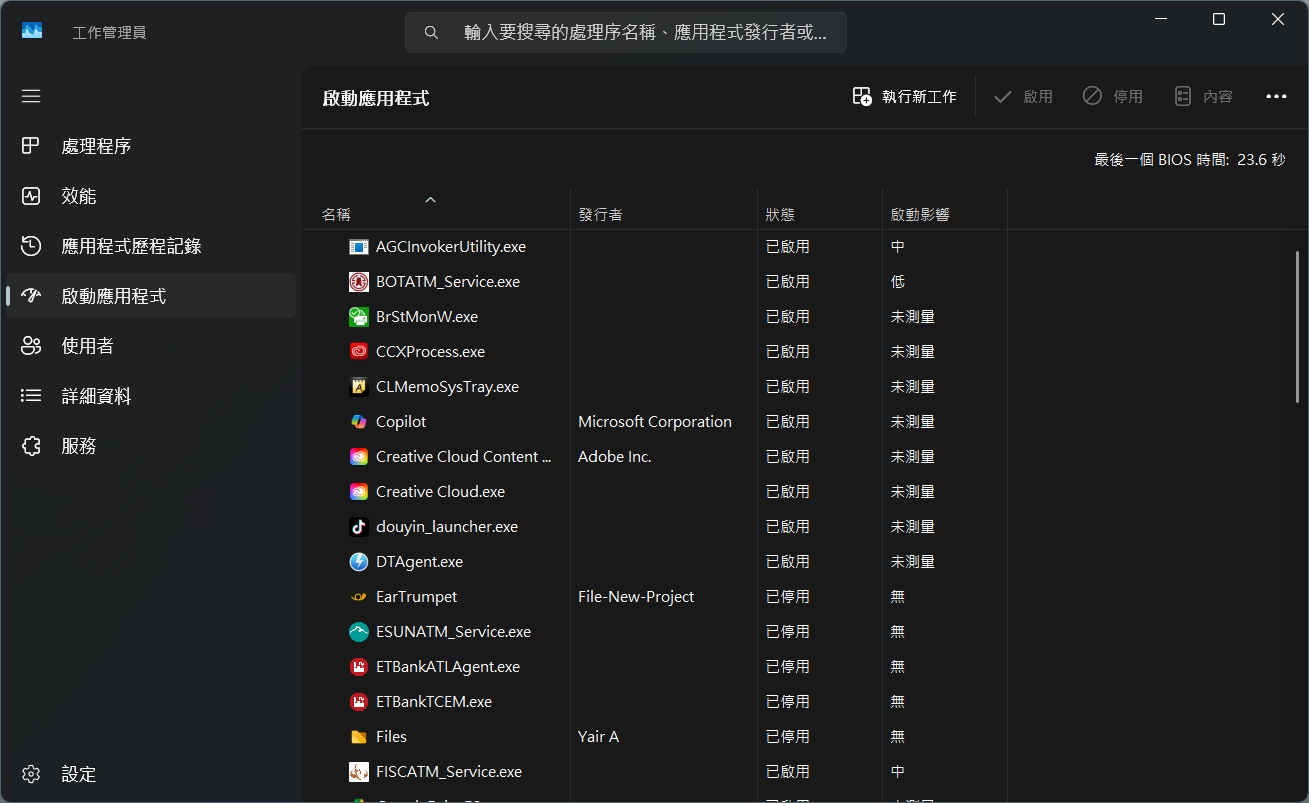
Even if you choose to keep certain applications on your computer, you may not notice that some of them start up when your computer boots up, taking up background resources and making your computer start up longer, so you should pay attention to your computer’s startup tasks to make sure nothing is slowing you down.
The most direct place to start is to view the job manager, which you can open by right-clicking the taskbar and selecting job manager. Click “Launch Applications” on the sidebar, and you can see which applications will be launched at the same time when you turn on the computer. You can usually use some of these applications without affecting the computer. But some of them may change your usage habits. For example, if you disable Microsoft Teams, you will not receive message notifications until you actively open the application.
Check for driver updates
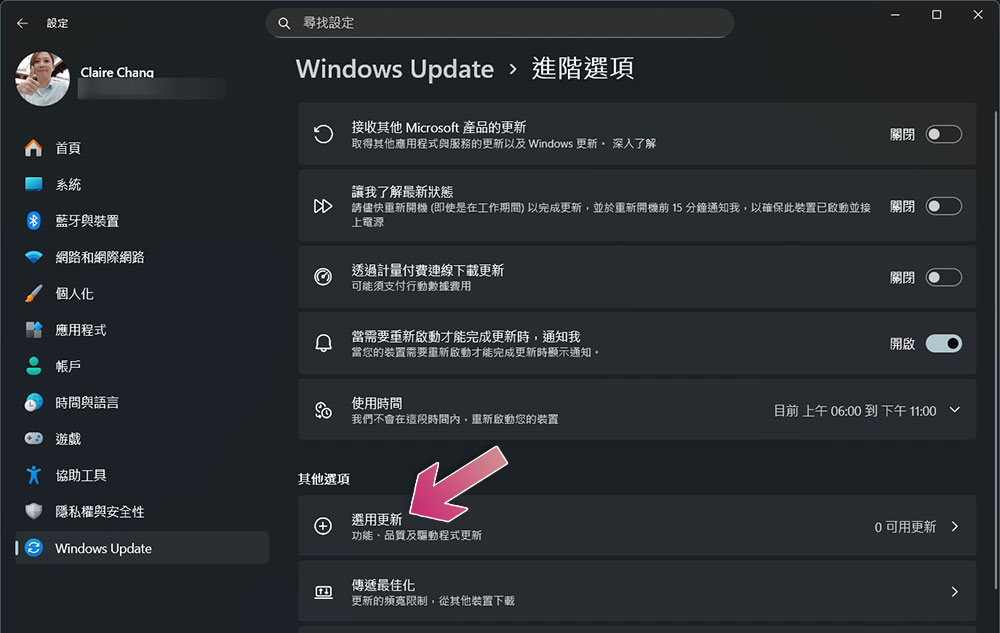
While cleaning usually means deletion, it’s also important to take the time to install any driver updates you may have missed over the past few months. Windows Update usually automatically installs critical driver updates, but if you go into Advanced Options >> Choose Updates and check, you may find some additional driver updates that may benefit your device.
For graphics drivers, your best bet is to go to the Nvidia, AMD, or Intel website depending on your GPU brand and download the latest version, which will also include management software to make it easier to download and install driver updates in the future. For the rest, check the computer brand’s website or check to see if the company has its own update manager for BIOS and other device-specific drivers. Windows itself should keep itself up to date automatically, so you don’t have to do much extra, but it never hurts to check for the latest updates.
Perform a malware scan
In fact, the best anti-virus is common sense in using computers, but not everyone is able to navigate all the potential dangers in the online world, and even tech-savvy users sometimes take the risk of visiting dangerous websites. When performing in-depth cleaning, it is best to check for viruses on your computer at the same time (especially if your computer is usually slow or has any abnormalities). You can choose reliable anti-virus software to scan the computer thoroughly and remove suspicious things.
Clean up temporary files
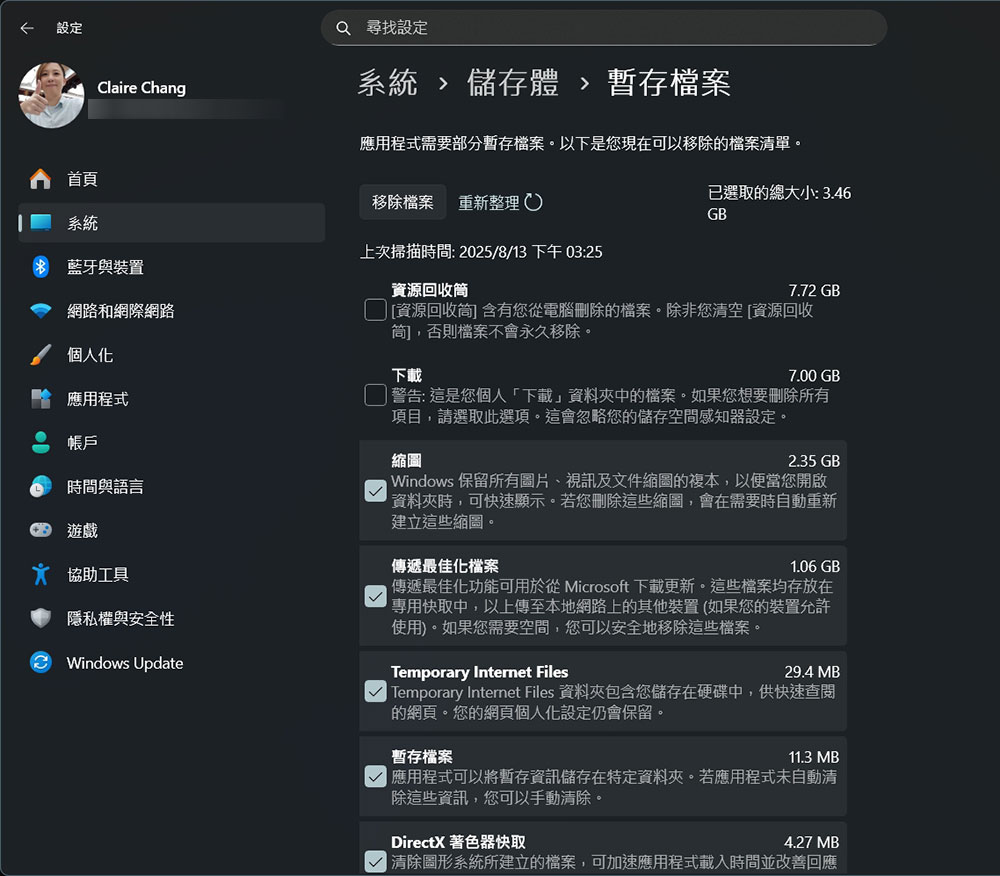
Finally, you should clean up the temporary files on your system. These may not significantly hurt your computer’s performance, but it’s better to free up space for more important files than to pile them up, and a drive that’s too close to full can actively hurt its performance, so it’s worth your while to clean it up.
You don’t need to use third-party applications to clean disks. You can see “Temporary Files” in “Settings >> System >> Storage”, click in and clean up unnecessary caches, update residual files, thumbnails, etc. in your computer. After scanning, you can safely choose which types of data to clean here. However, in the “Download” section, it is recommended to manually go to the download folder and filter which ones you want to delete to avoid accidentally deleting the files you want to keep.
Taking these steps every few months or year will go a long way in helping your computer run smoothly. Your computer may be too old and may need to update the hardware or simply replace it. However, if you want your computer to be used without problems for as long as possible, it is best to clean it regularly according to the suggestions above.
Source: KOCPC Chinese