


Over time, you will notice iPhone Your phone’s battery life doesn’t last as long as when you first bought it because phone batteries gradually degrade, stripping them of their ability to store power. This doesn’t mean you need to charge your phone or keep it in low-power mode. By adjusting a few settings, even an iPhone that’s a few years old can help extend battery life.
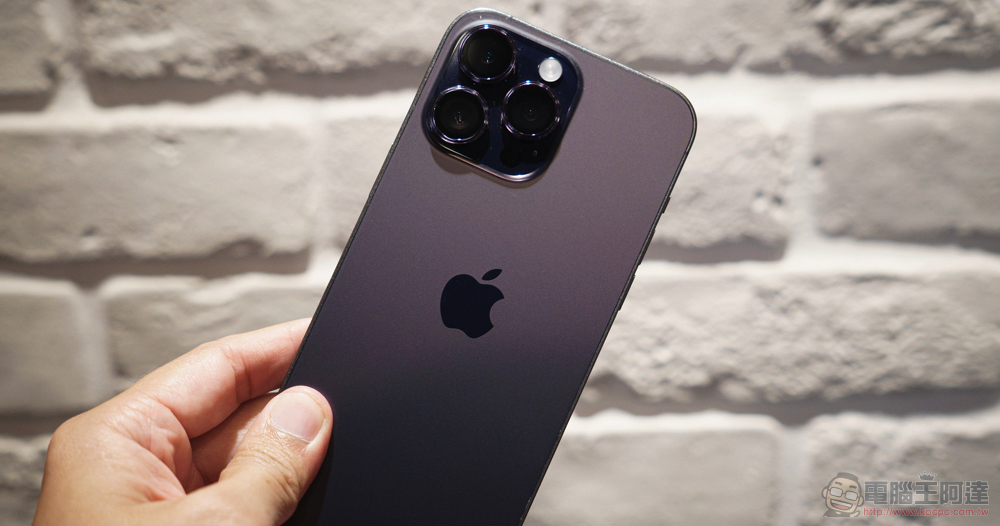
If you want your iPhone to last longer, turn off these three settings
Whether you’re using your phone to navigate, stream music, or send messages, the last thing you want is for it to run out of battery at the wrong time. Instead of scrambling to find a charger or turn on Low Power Mode every few hours, take a minute to check your iPhone settings. Turning off some battery-draining features may be the most urgent fix your phone needs, and it only takes a few seconds to set up.
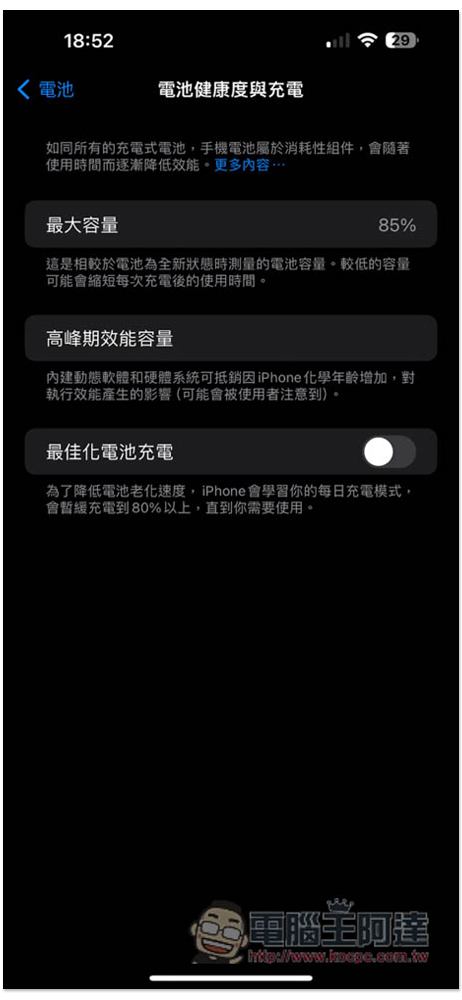
You can also keep an eye on your battery health meter, which will tell you your phone’s current battery health percentage (generally above 80% is considered good battery health) and show you the number of battery cycles and whether the battery status is normal. Below we’ll provide three iOS features that put varying degrees of stress on your iPhone’s battery.
Turn off gadgets on iPhone lock screen
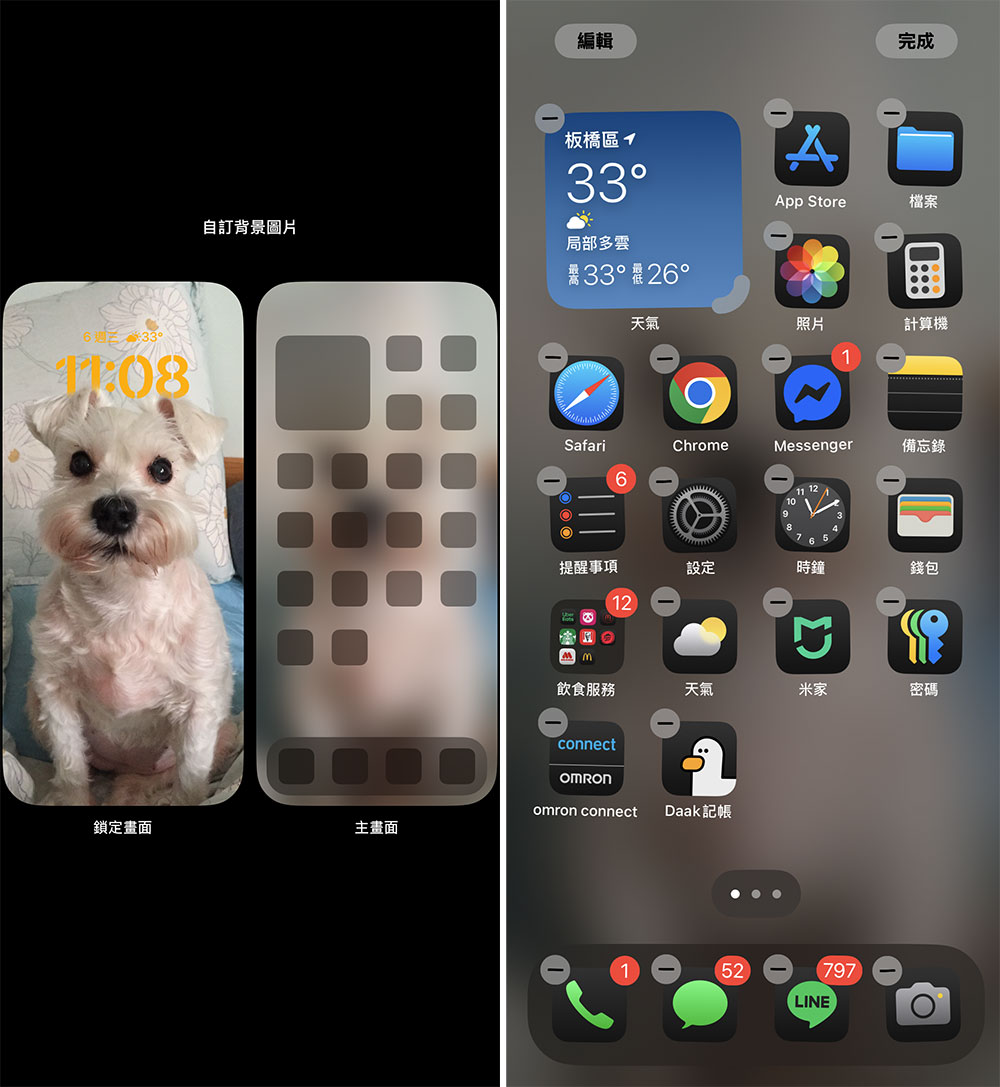
Locking all gadgets on the screen will force your apps to run automatically in the background, constantly fetching data to update the information displayed on the gadget, such as sports scores, weather, etc. Since the apps linked to your gadget are constantly running in the background, this also means they are constantly consuming battery power. If you want to save some battery on iOS 18, the best way is to avoid using gadgets on the lock screen and home screen. The easiest way is to switch to another lock screen profile: hold your finger on the existing lock screen, then swipe to select a screen without any widgets.
In addition, you can also delete unnecessary gadgets from the existing lock screen and home screen. Please press and hold the screen, and when the application shakes, click the “-” sign that appears in the upper left corner of the gadget to remove it.
Reduce iPhone UI animations
Your iPhone user interface will have some fun, stylish animations. The smooth dynamics of opening and closing apps and the colors that appear when launching Siri using Apple Intelligence are examples. These visual tricks help make the phone look lifelike, but unfortunately, they also shorten the phone’s battery life.
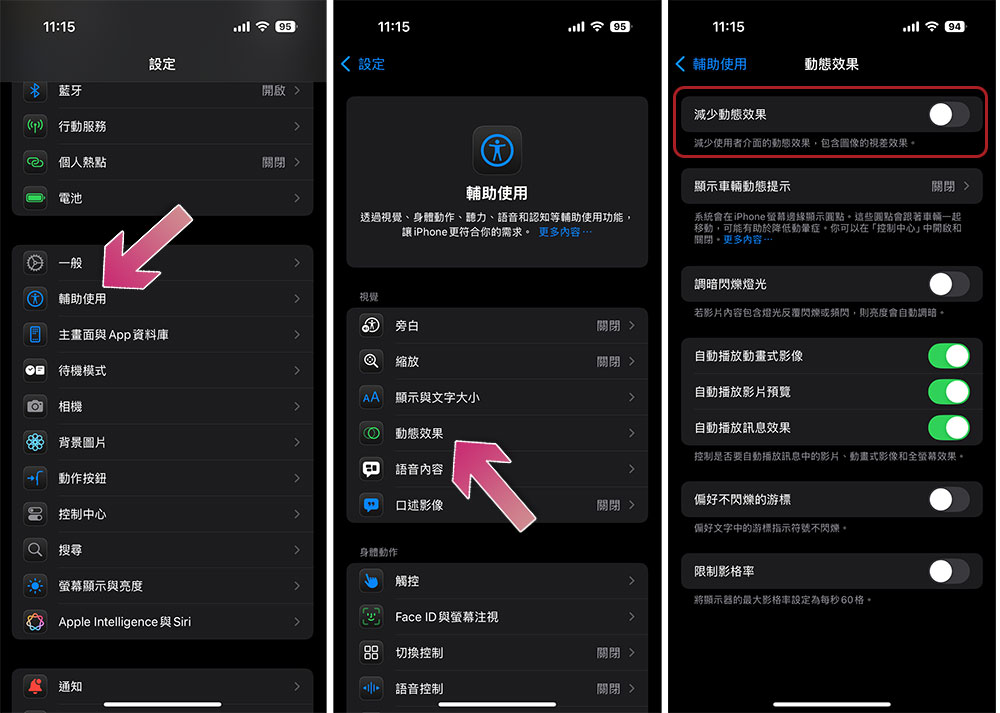
If you want to make animations appear less visible on iOS, you can enable the Reduce Motion setting. To do this, go to Settings >> Accessibility >> Motion and turn on the Reduce Motion feature.
Turn off iPhone keyboard vibration feedback
The keyboard on the iPhone does not have an explicit input vibration feedback function. It is a feature called “tactile feedback” that has been added to iPhones after installing iOS 16. Tactile feedback not only makes an audible click, but also gives each key a vibration, making typing more immersive. Likewise, this feature may also affect battery life.
According to the Apple support page about the keyboard, tactile feedback may affect the battery life of the iPhone, but no specific information is given on how much it consumes, but if you want to save power, it is best to disable this feature. By default, this feature is not enabled. If you accidentally enable it, you can go to “Settings >> Sound and Haptic Feedback”, scroll down to find “Keyboard Feedback” and turn off “Haptic Feedback”.
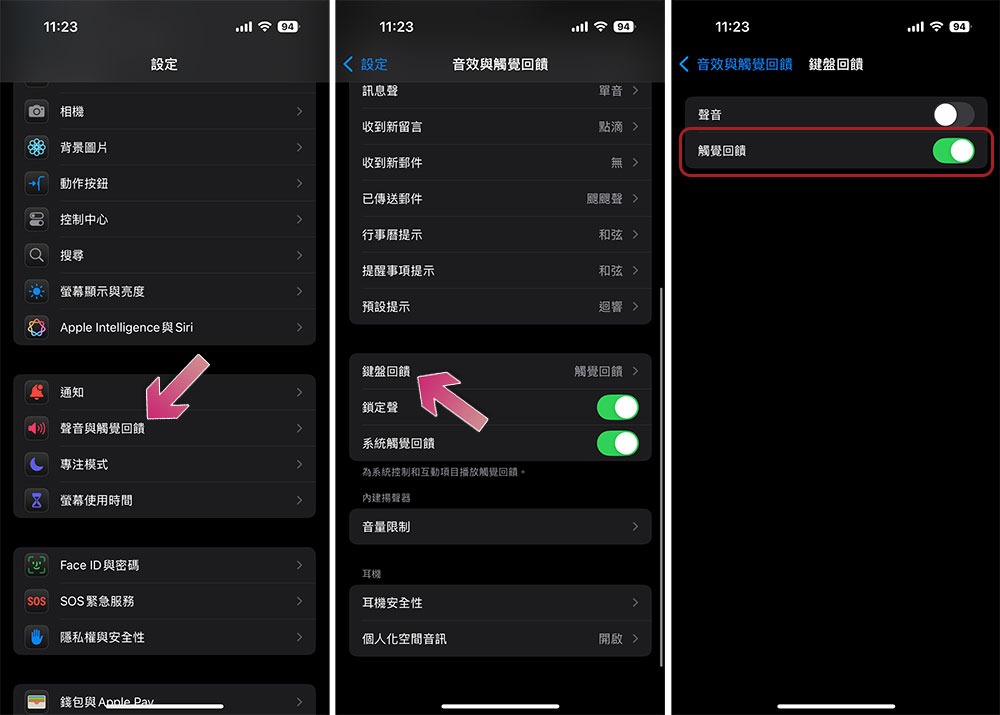
Source: KOCPC Chinese