


Windows 11 There are many applications installed by default, as well as some undesirable tracking settings and advertisements, which not only take up a lot of hard drive capacity, but may also cause system performance to deteriorate. This article will recommend a simple, easy-to-use and lightweight PowerShell script “Win11Debloat” open source tool, which can easily remove more than 50 Windows 11 default applications, disable unnecessary ads and privacy settings, making Windows 11 cleaner and lighter.
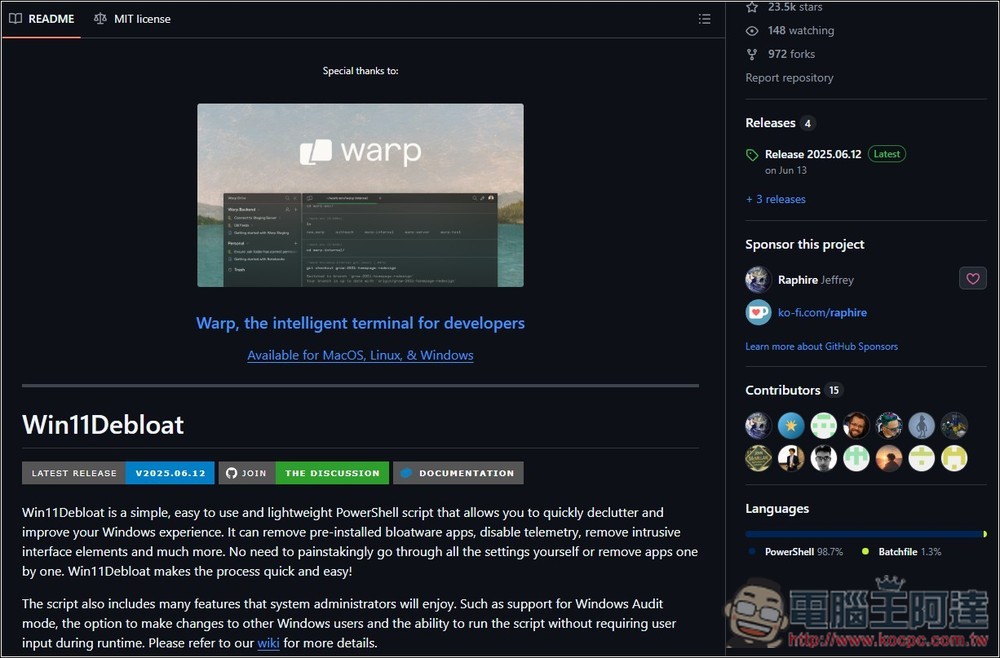
Introduction to Win11Debloat, an open source tool that easily removes more than 50 Windows 11 default applications
Win11Debloat is an easy-to-use and lightweight PowerShell script that helps users quickly organize and improve your Windows experience. It provides functions including: removing pre-installed applications, disabling telemetry, removing intrusive interface elements, etc. No need to check settings one by one or remove apps manually, making the whole process quick and easy.
In addition, this script also includes many features that system administrators will like, such as support for Windows audit mode, the ability to make changes to other Windows users, and the ability to execute automatically without user interaction.
The developers also mentioned that they have tried their best to ensure that this script will not break any operating system functions, but users still need to do so at their own risk.
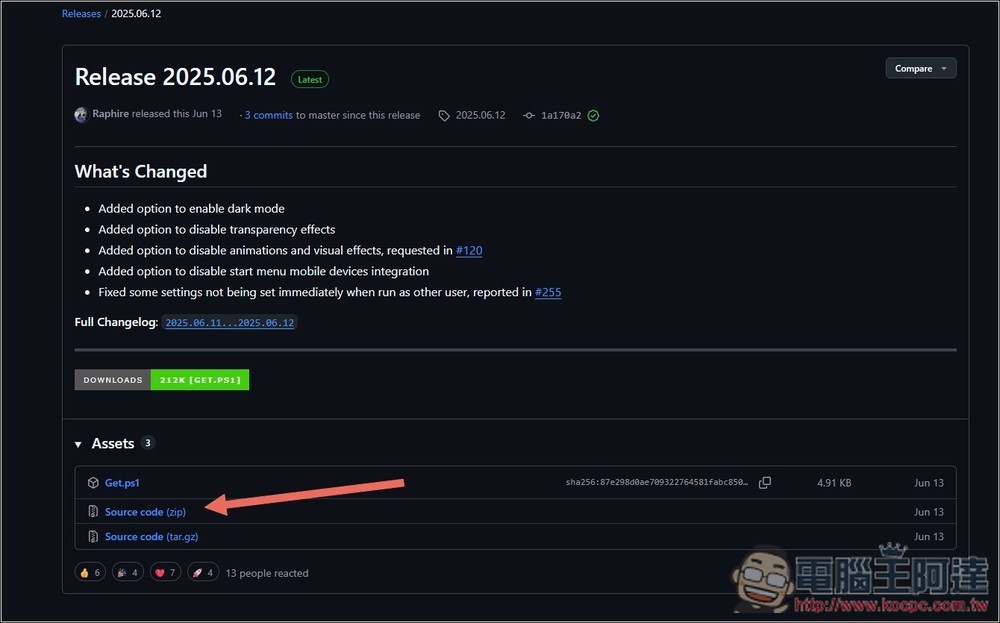
After clicking the link above to enter the Win11Debloat open source project, the latest version is 2025.06.12. Download the zip file:
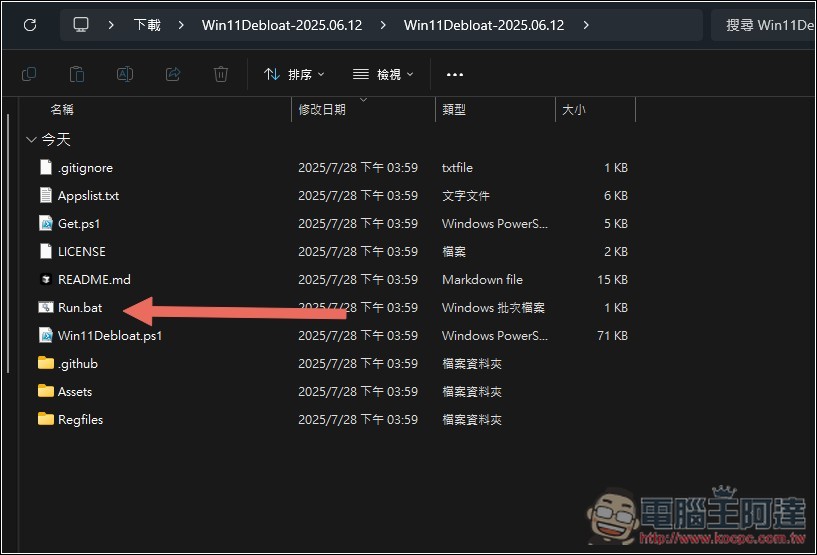
After decompressing, double-click Run.bat to run:
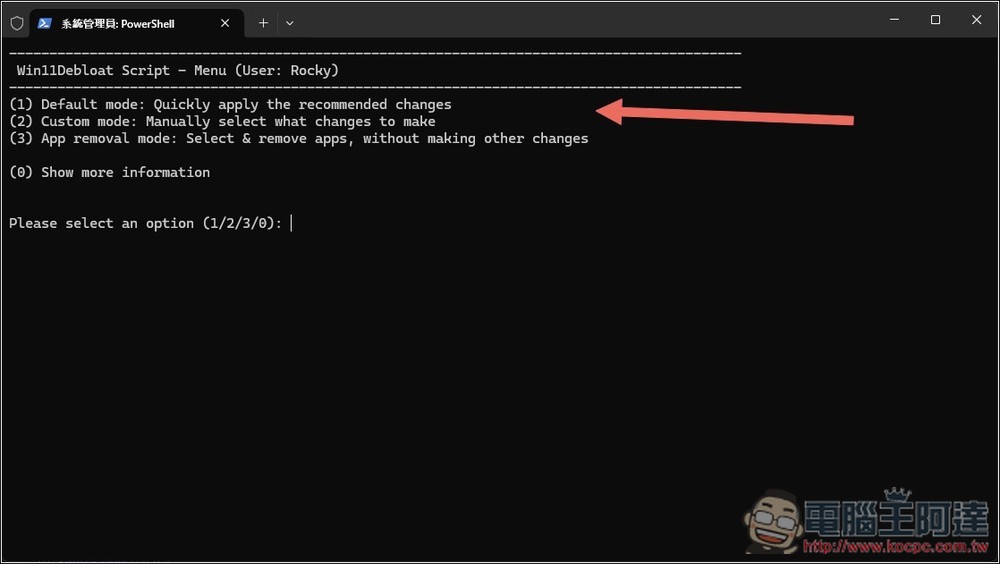
The picture below is the main screen, with a total of 3 options
- Default mode: The default recommended quick execution mode will automatically remove more than 50 common pre-loaded applications, disable tracking functions such as system telemetry, advertising ID, activity history, automatic suggestions, and turn off Copilot, Widgets, Meet Now, and Tips.
- Custom mode: Manual mode, you can manually select removed applications, privacy, and system settings.
- App removal mode: only removes applications and does not affect system settings
Normally, you can use Default mode, but some people may want to continue to use certain functions, such as Copilot. In this case, you can use Custom mode to set the items you want to remove. Enter the numeric keys and press Enter to enter the mode menu:
When I select 3, the removable applications window will pop up. Not all of them are checked by default. Only some functions that are not commonly used by most people are checked. For example, Microsoft Edge is not checked:
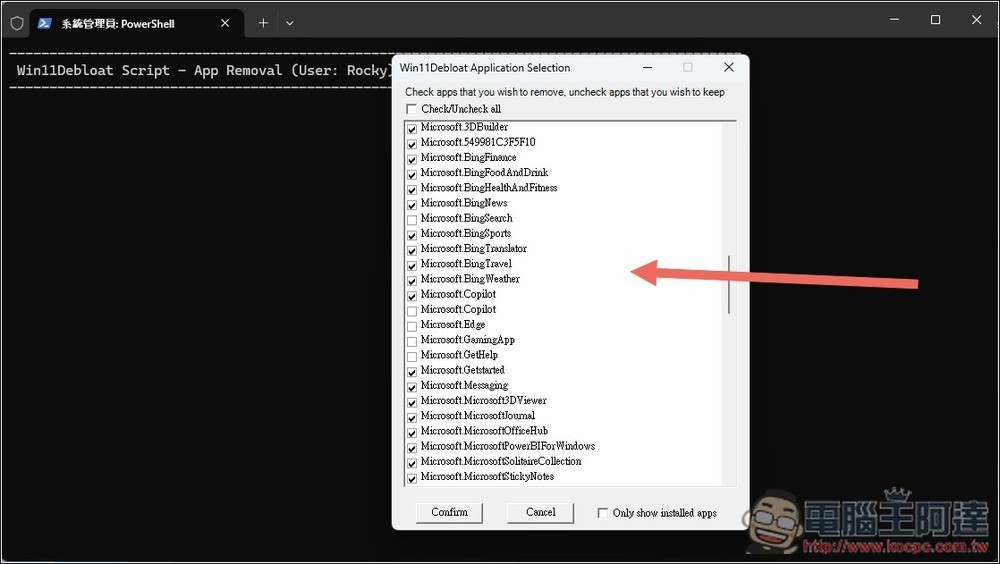
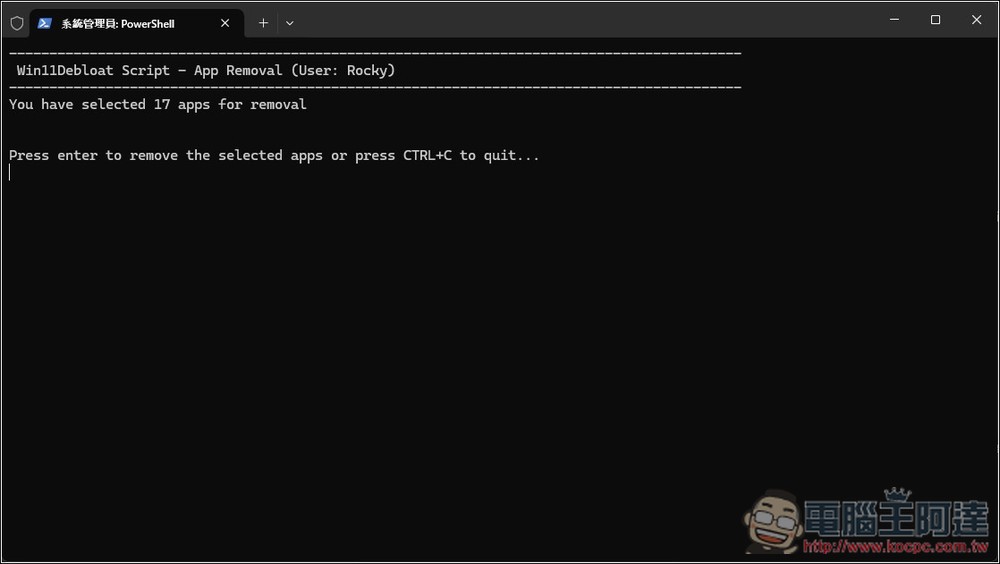
Select the application and press the Confirm button. Press the Enter key again to start the removal:
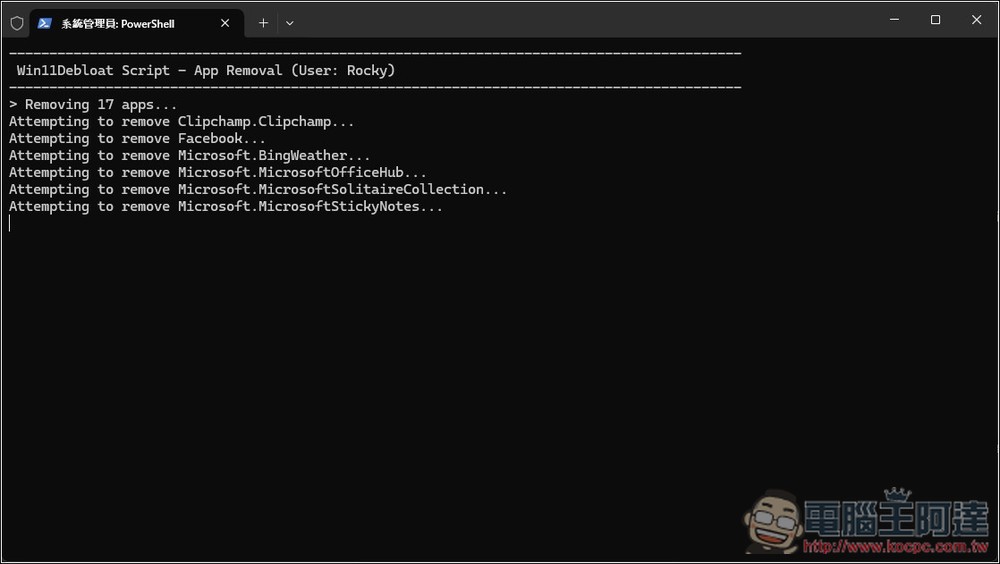
Removal is fast and completes in seconds:
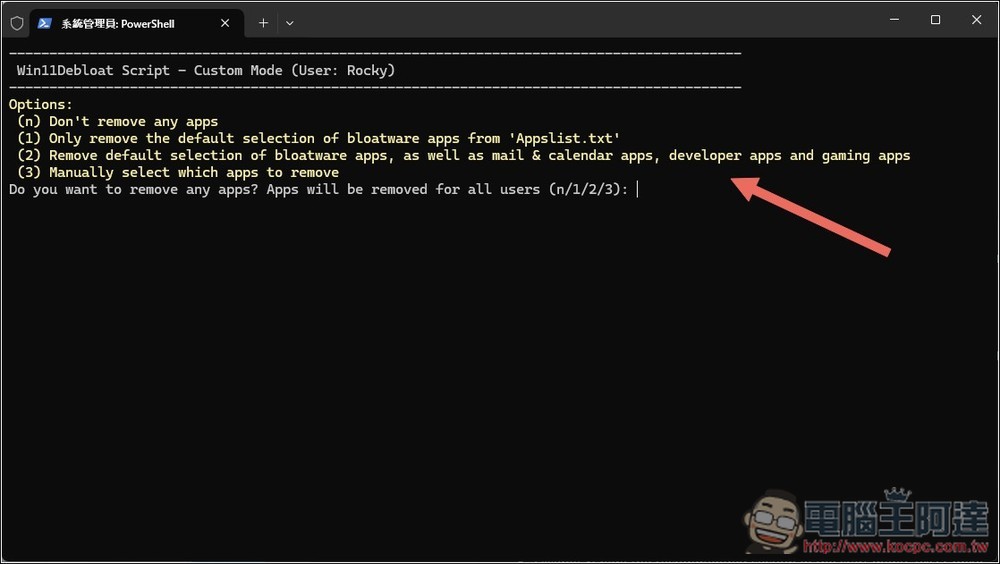
The manual mode section has four options, you can choose not to remove any applications, or only remove the default bloated applications, etc.:
As for the default mode, here’s what will be done:
- Remove default bloatware applications. (You can go to the bottom of the open source project description to view the complete list)
- Disable telemetry, diagnostic data, activity history, app launch tracking, and targeted advertising.
- Disable tips, tricks, suggestions, and ads in Start, Settings, Notifications, File Explorer, and Lock Screen.
- Disable and remove Bing Web Search, Bing AI, and Cortana from Windows Search.
- Deactivate and remove Microsoft Copilot. (Windows 11 only)
- Disable the “Quick Startup” feature to ensure that the computer shuts down completely.
- Displays file extensions for known file types.
- In File Explorer’s “My Computer”, hide the “3D Objects” folder. (Windows 10 only)
- Disable the Gadgets service and hide its icon from the taskbar.
- Hide the “Chat (Meet Now)” icon from the taskbar.
In addition, all removed Microsoft default applications can be reinstalled from the Microsoft Store if you regret it in the future, so don’t worry too much. Safe recovery settings section, you can read Reverting Changes。
Source: KOCPC Chinese