


For long-term use Windows For users, they will definitely feel that they are very familiar with the built-in functions and tools. However, in fact, there are too many tools provided by Windows, and it is impossible to know them all. Here is a list of 10 Windows hidden utility tools. You may not have heard of them, but they are actually very easy to use.
1. System settings
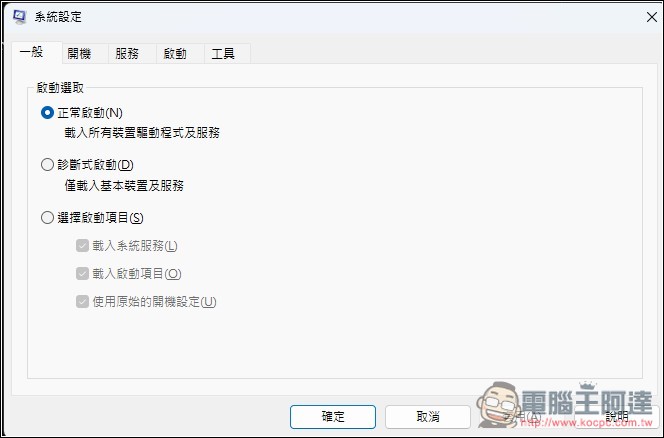
When Windows encounters a problem, it is often necessary to enter safe mode to repair it. At this time, system settings are a very useful tool. You can specify whether to “normal startup (load all device drivers and services)” or “diagnostic startup (only load basic devices and services)” during startup. You can even customize system services, startup items, and original startup settings to check or not.
You only need to press the Win+R keys, then type “msconfig” and press Enter to open the system settings.
2. Obtain battery report through Powercfg
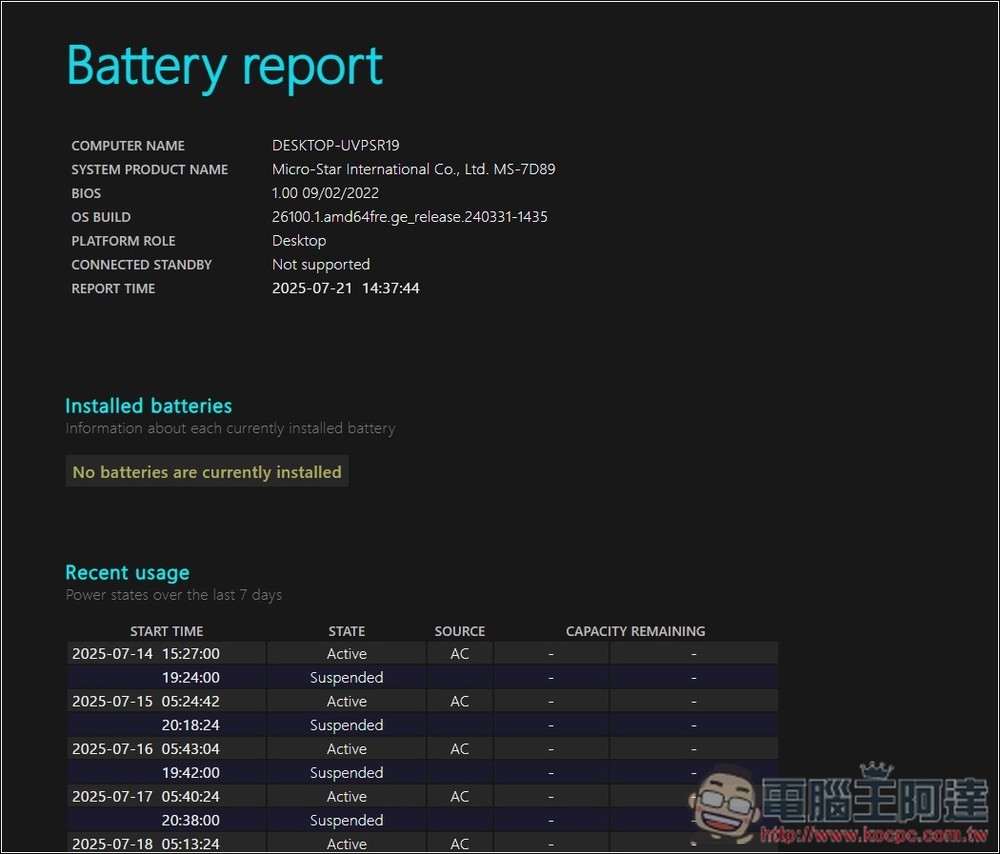
For laptop users, if they feel that the battery life has deteriorated after using it for a long time, they will definitely want to know if the battery is dying. You can easily generate a report through the Windows command prompt, which will provide you with the battery status of your computer from the first use to the present, as well as a comparison of the current battery capacity with the original capacity.
As long as there are battery problems, you can basically find them from this HTML report. There is no need to install any additional tools, just enter the specified command.
Open a command prompt and enter powercfg /batteryreport, the system will automatically create a battery report and provide you with the storage location.
3. Native Group Policy Editor
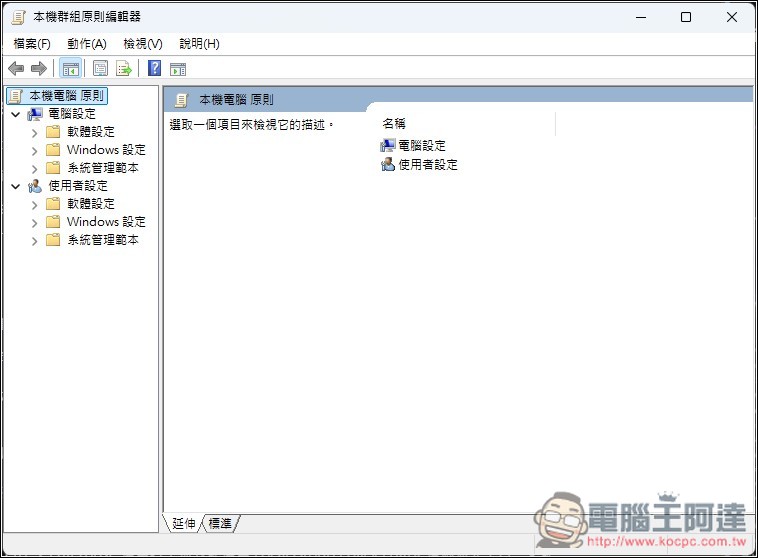
If you’re a user of Windows Pro or Enterprise editions, you’ll be able to use the native Group Policy Editor, not Windows Home, but there are ways to enable it.
In the local group policy editor, you can adjust many hidden settings, including security settings, software restrictions and application controls, user experience and restrictions, network and sharing settings, USB device usage permissions, and system automatic logout time, etc. This is the best management tool for advanced users who want to control the use of others.
You just need to press Win + R keys, type gpedit.msc and press Enter to open the local group policy editor.
4. Computer management
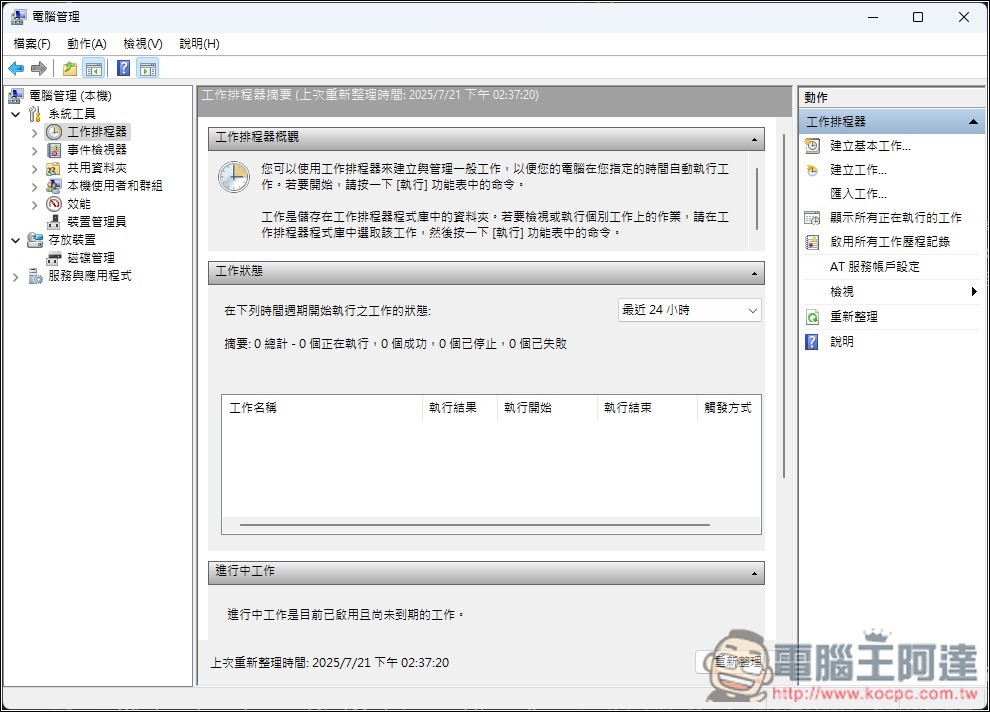
Windows “Computer Management” is a system tool that integrates many management functions, allowing you to conveniently access device manager, disk management, task scheduler, performance, event viewer, services and applications, etc. in one interface.
For example, you can view the system event log to diagnose problems, create or delete local accounts and groups, split and format disks, start or stop Windows services, and set automatic work schedules.
Also press the Win + R keys, enter compmgmt.msc and press Enter to open Computer Management.
5. Certified Administrator
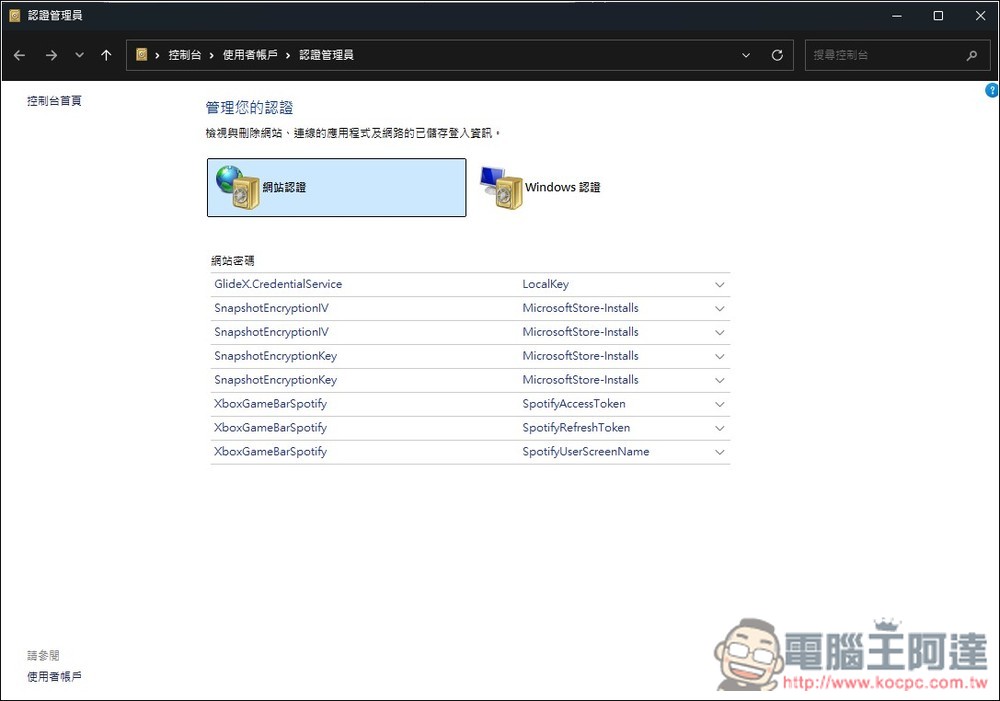
Few people should know this feature. It is actually a built-in password management tool in Windows, which is used to securely store and manage various login information (credentials), such as website account passwords, network sharing, remote desktop connections, Windows login information, etc.
When you encounter network connection problems such as incorrect account password, expired credentials, or incorrectly stored login information, you may be able to solve it through Windows Certified Administrator.
Type “certified administrator” in Windows search to open it.
6. God Mode
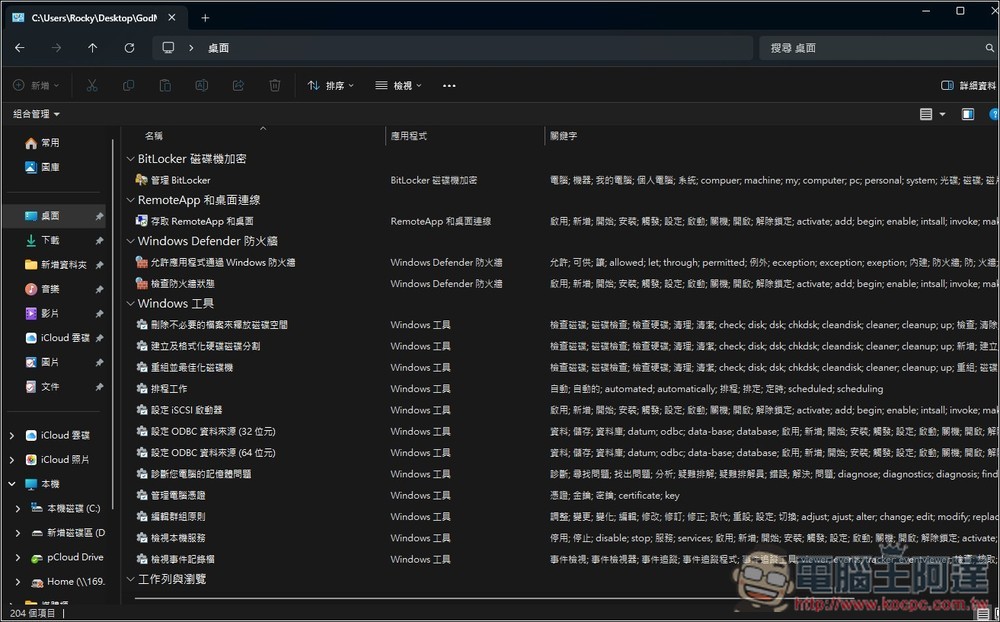
God Mode is a special folder in the Windows system. Once enabled, it will concentrate almost all system settings, console options and management tools in this folder list for easy and quick access. It is very suitable for advanced users who often need to customize and adjust Windows settings.
For ordinary users, be careful when operating to avoid accidentally changing some advanced system settings.
Supplement: God Mode will not unlock additional hidden functions, but will display all existing system settings in a centralized manner for easy management and use.
The activation method is also very simple. Create a folder on the desktop and name it GodMode.{ED7BA470-8E54-465E-825C-99712043E01C}
7. Windows Memory Diagnostics
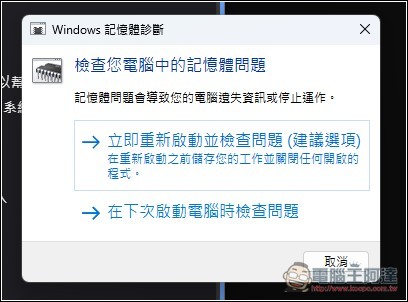
If there is a problem with your system memory, such as a BSOD blue and white screen, the Windows Memory Diagnostic Tool can help you find and resolve the cause. This tool is mainly used to test and check whether there are any problems with the computer’s random access memory. It is especially useful for troubleshooting computer abnormalities, blue screens, crashes or unknown errors.
will restart your computer and perform a full RAM scan to check for hidden errors that may cause random crashes, system freezes, or BSODs. After the test is completed, the results will be displayed the next time you log in to let you know whether the memory is normal.
Press the Win + R keys to open the execution window, enter mdsched.exe and press the Enter key to run Windows Memory Diagnostics.
8. Resource Monitor
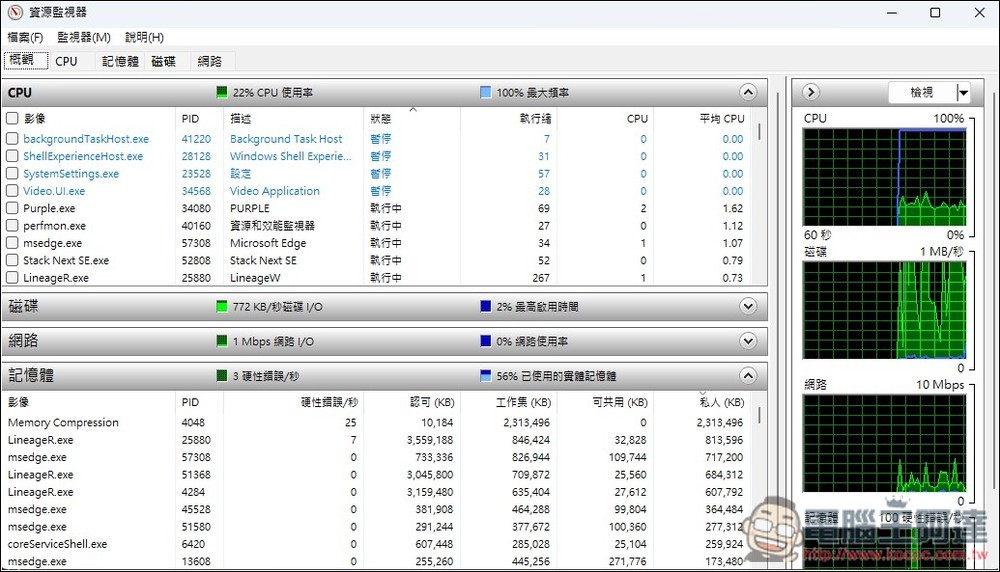
When the computer suddenly freezes or performance deteriorates, many people will open the task manager to check which application or service is causing the problem. However, sometimes they may not be able to find out. In this case, they can use the resource monitor instead.
Resource Monitor is an advanced system monitoring tool that can observe and analyze the real-time usage of various computer resources in detail. It provides more detailed information than the task manager, including real-time details of CPU usage, memory allocation, disk activity, and network bandwidth. It is very suitable for diagnosing system performance problems.
First, open the “Job Manager” and enter the Performance tab to find the “Open Resource Monitor” function. If you find it troublesome, you can also enter “Resource Monitor” in the Windows search.
9. Reliability Monitor
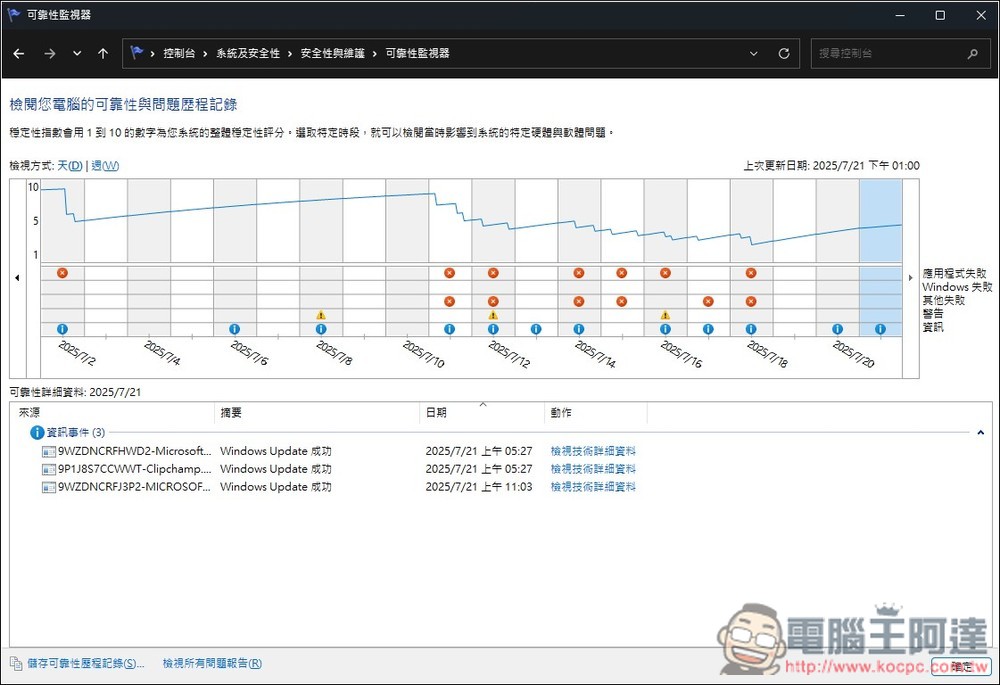
Reliability Monitor provides an intuitive timeline showing computer stability status, including software installations, updates, application crashes and hardware errors. This tool can help you quickly identify software or hardware problems and understand whether there have been any abnormal events in the system recently, making troubleshooting easier.
For example, if the computer suddenly displays a blue screen and then restarts, the Reliability Monitor will record the “Windows stopped working” event and mark the date of occurrence. You can use these records to analyze whether it is related to driver updates or hardware abnormalities.
Start the search by typing “Reliability Monitor” to open this tool.
10. DirectX Diagnostic Tools
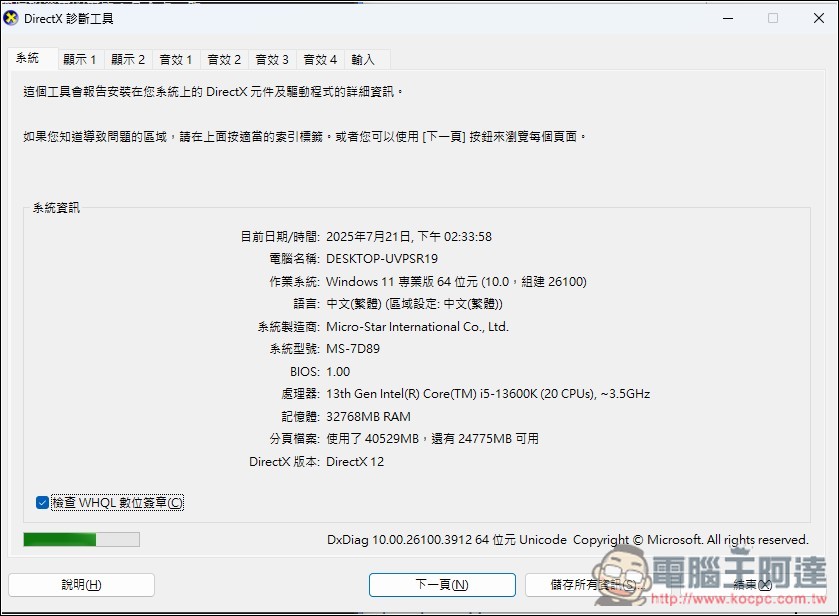
A useful tool for gamers, the DirectX Diagnostic Tool provides detailed information about your GPU, audio drivers, DirectX versions, and other multimedia system components. Useful when checking for GPU issues, game glitches, checking driver versions, or performing DirectX functionality tests.
You can also export all the information into a text file so that you can provide it to technical support personnel for analysis.
Press the Win + R keys to enter dxdiag and press Enter to open the DirectX diagnostic tool.
Source: KOCPC Chinese