


Mac If the application is not installed from the App Store, you need to manually drag it from the application folder to the trash when removing it. Although it is very simple, there is no way to delete the remaining files. A more recommended method is to use the Pearcleaner free open source tool introduced in this article. It will scan all the files of the application in the Mac. After confirming that they are all checked, you can completely remove them with one click. It also provides some useful information to let you decide whether to remove the application.

Pearcleaner The best free Mac app removal tool
Pearcleaner is an open source application removal tool. The source code is shared on GitHub. It has received more than 7.5K stars so far, which shows how well received it is. If you don’t have a useful application removal tool on your Mac, I really recommend giving it a try.
The installation file of Pearcleaner is placed on the GitHub page. At the time of writing this article, the latest version is v4.5.2. Download the .dmg file. The installation steps are the same as other software. Open and drag to the Application folder:

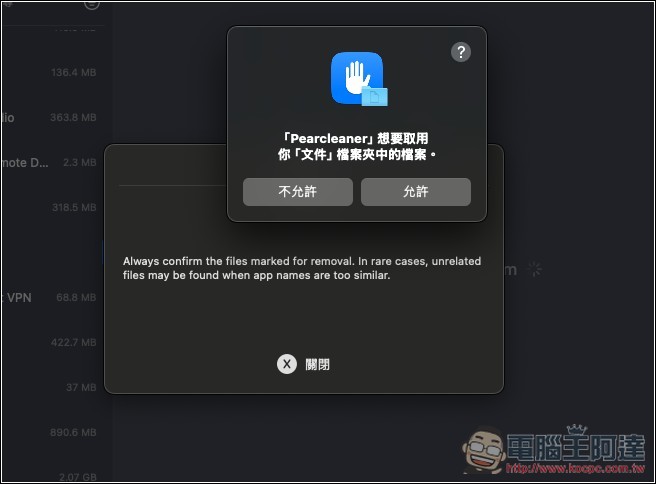
The main function of Pearcleaner is to remove applications. After opening it, the applications installed on your Mac will be listed on the left. However, you need to allow relevant permissions before you can start using them. Click View on the right side of the missing permissions:

Many windows will pop up, just click Allow:
You will also need full disk access to delete your application:
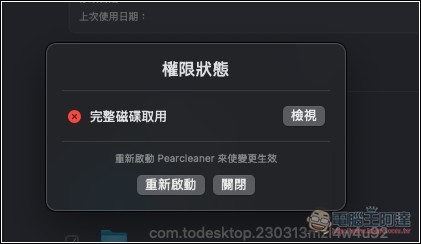
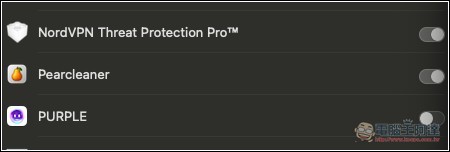
After pressing View, find Pearcleaner, turn on the switch on the right and restart Pearcleaner to complete:
Then you can start removing the applications you don’t need. Each application will scan all files and display them on the right. You can check them if you are worried. There will also be information on the installation date, modification date, and last use date of the application at the top. Once there is no problem, click the red trash can button below to remove it. There is no prompt after completion, but it is indeed removed:
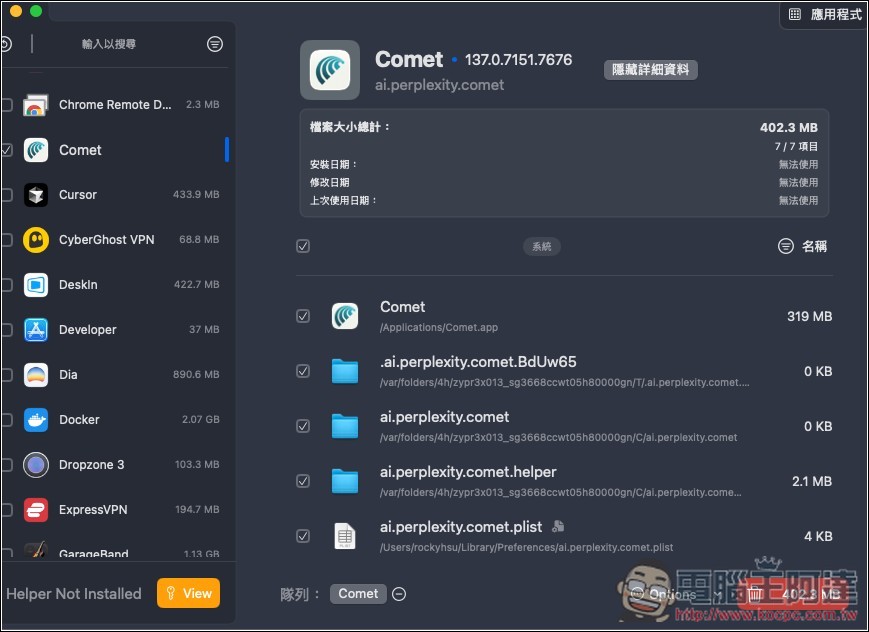
This app does not support batch one-click removal, but you can select all the apps you want to remove at once. After removing the first one, the status of the second app will be displayed. You can also press the lower red button to remove it.
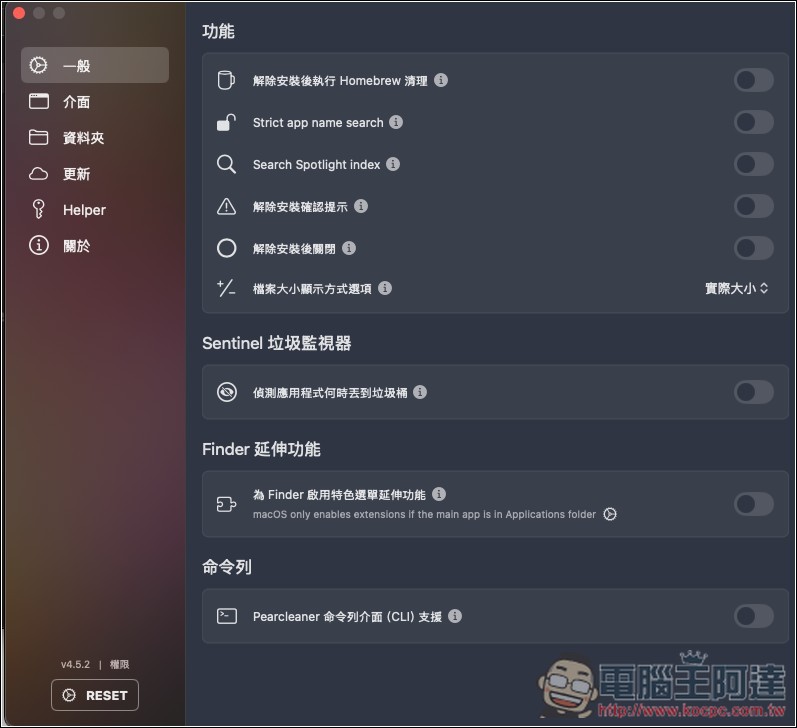
In the settings, there are also some good practical functions, such as “Perform Homebrew cleanup after uninstallation”, “Uninstallation confirmation prompt”, “Detect when an application is thrown into the trash”, etc.:
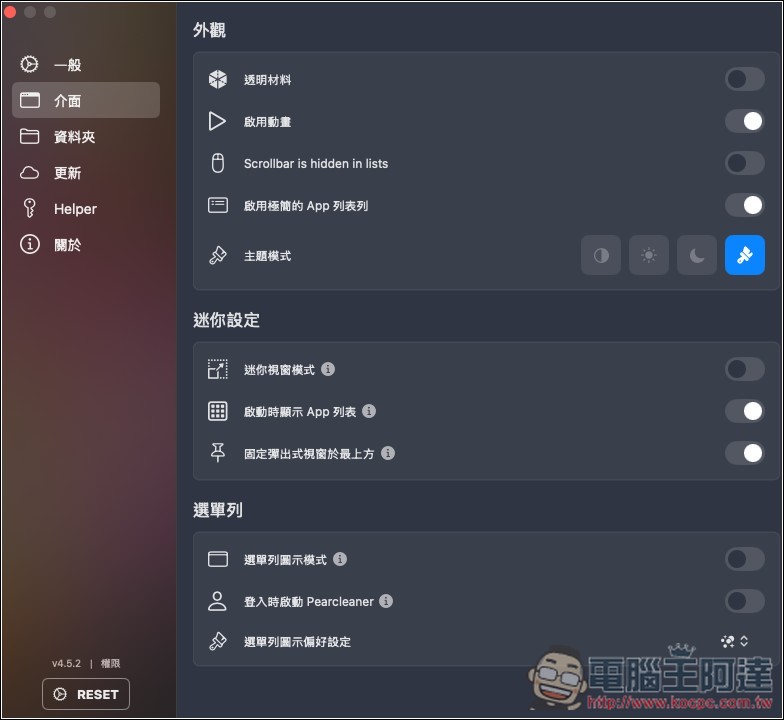
If you don’t like the appearance, you can adjust it to other styles, such as transparent materials, startup animations, minimalist App list columns, and even four theme modes. If you want this tool to stay in the menu bar in the upper right corner, you need to manually turn on the “menu bar icon mode” below:
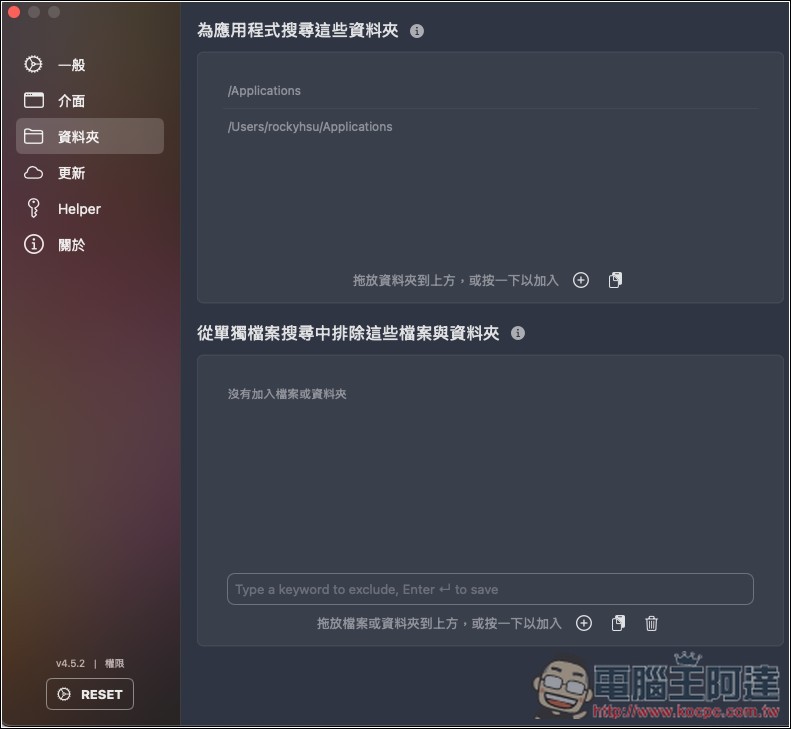
You can also set which folders the app searches and which files and folders to exclude:
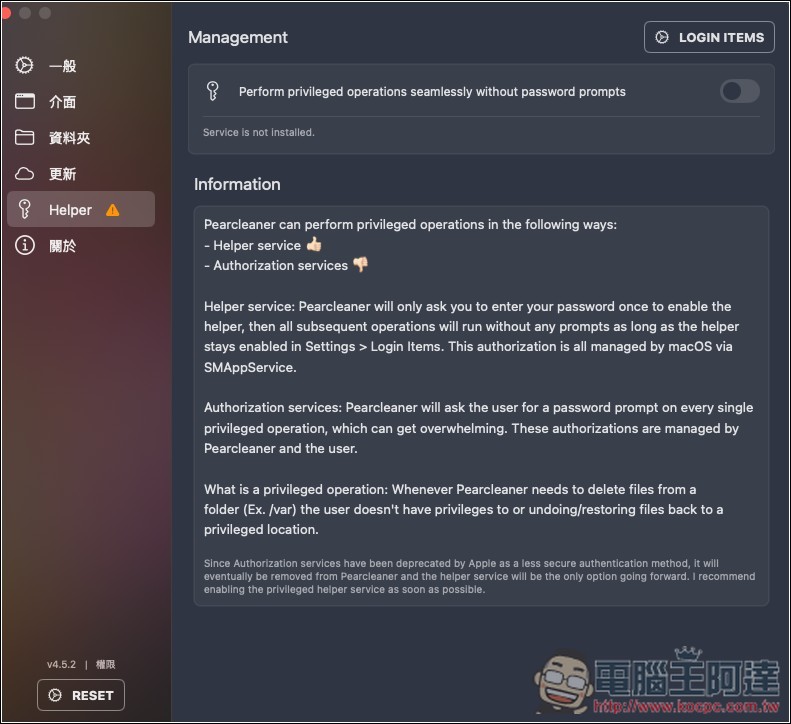
In addition, a nice Helper function is provided, allowing Pearcleaner to perform operations that require system administrator permissions. You do not need to enter a password every time:
Source: KOCPC Chinese