


While many are turning to alternatives and chatbots, Google searchIt is still ubiquitous in modern life. In addition to entering keywords and browsing the results, you may not know that Google search can do more. This time, we will tell you that in addition to the basic functions, Google search has other super practical capabilities that you may not know.
Google search is not just about entering keywords, it turns out you can do these things too!
Use commands to optimize search results
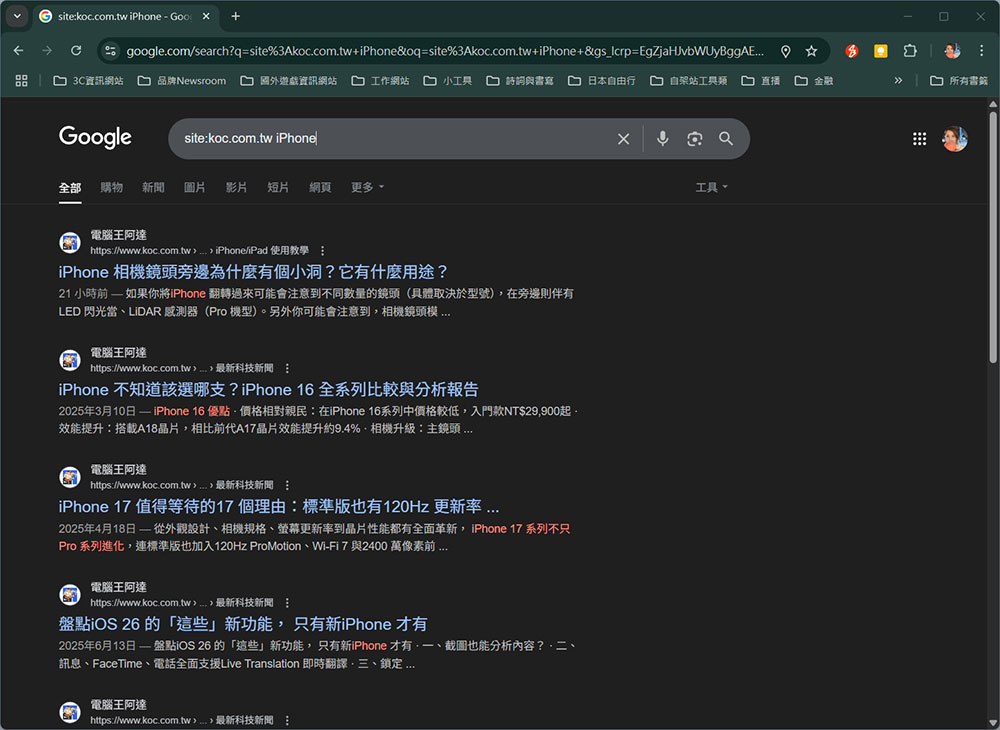
The best way to improve Google Search is to use search commands to tell it exactly the type of search results you want to find. If you’re looking for results from a specific website, enter “site: website URL” and then your search. For example, if you want to search for articles about iPhone on Computer King Ada, you can enter “site:kocpc.com.tw iPhone”.
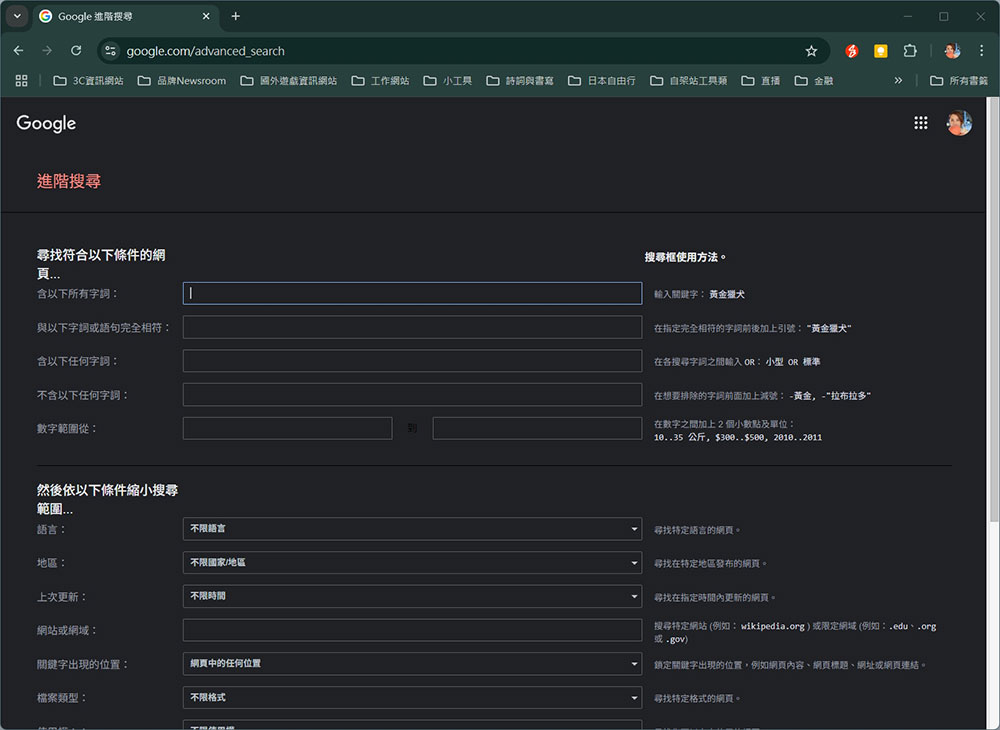
If you want your keyword to match the search results exactly, put it in quotation marks. A minus sign before a word will exclude results containing that word, using “source:site” will prioritize any results from that site. If you don’t know part of what you’re looking for (such as finding an item you’ve forgotten part of the name of), you can replace the unknown word with an asterisk and Google will fill in the gaps. To make it easier to perform searches with strict parameters, you can also use Google’s advanced searchto further optimize by language, region, etc.
Another practical way is to use “AND” or “OR” to tell Google how to search. For example, if you want to distinguish between iPhone and iPhone 16, you can enter “iPhone OR iPhone 16” in the search field to find results that match only one of the two terms. If you want to search for both keywords at the same time for comparison, you can enter “iPhone AND iPhone 16”. Note that OR and AND must be entered in all caps to work properly, and they can also be used in conjunction with the other search commands mentioned earlier.
Perform a reverse image search
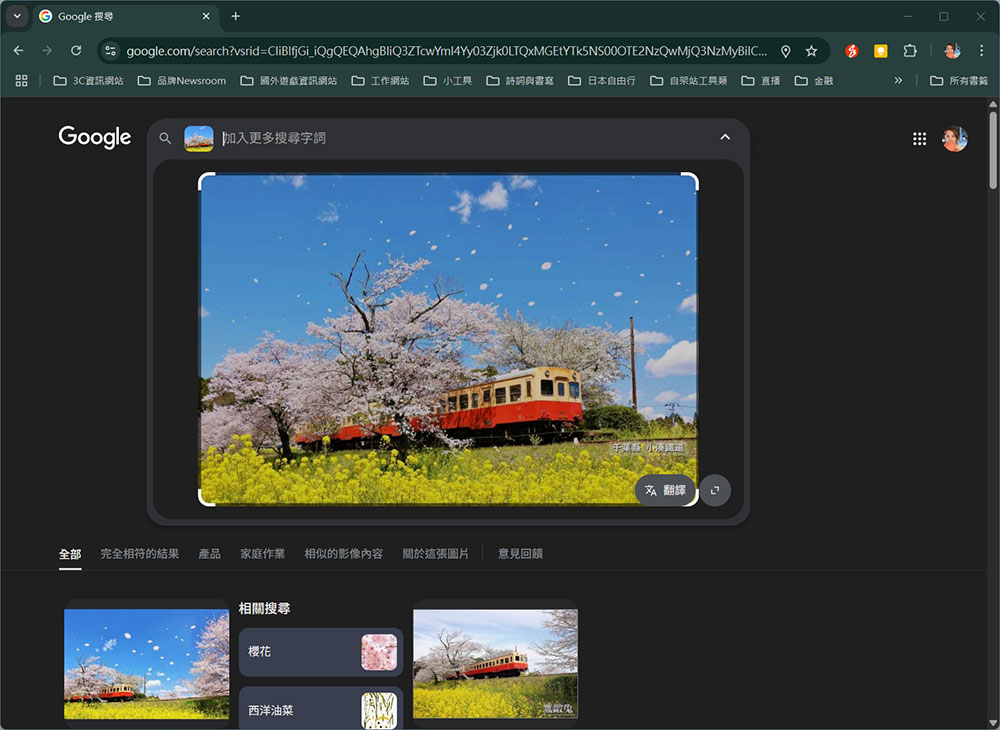
Reverse image search means you insert an image and search engines reverse search it by looking for it anywhere on the web page. This is especially helpful if you want to know where it was originally published or who uploaded it. Click the camera icon in the Google search field and you’ll see a box pop up where you can paste a link to an image or upload an image directly. Google will first look for any similar images it can find, but it can dig deeper into the earliest known published actual images. Even better, you can crop a specific part of your image and have Google search just that part.
Quickly convert, solve math problems, check time zone
Google can answer many questions without you even leaving the search page. When you want to convert currency, you can simply enter your straightforward request into Google Search and get a suggested result and answer. For example, enter “How much is 10,000 Japanese yen in Taiwan dollars?” and you can see real-time currency conversion when you press Enter. This conversion tool is not only useful for currency conversion but also for unit conversion.
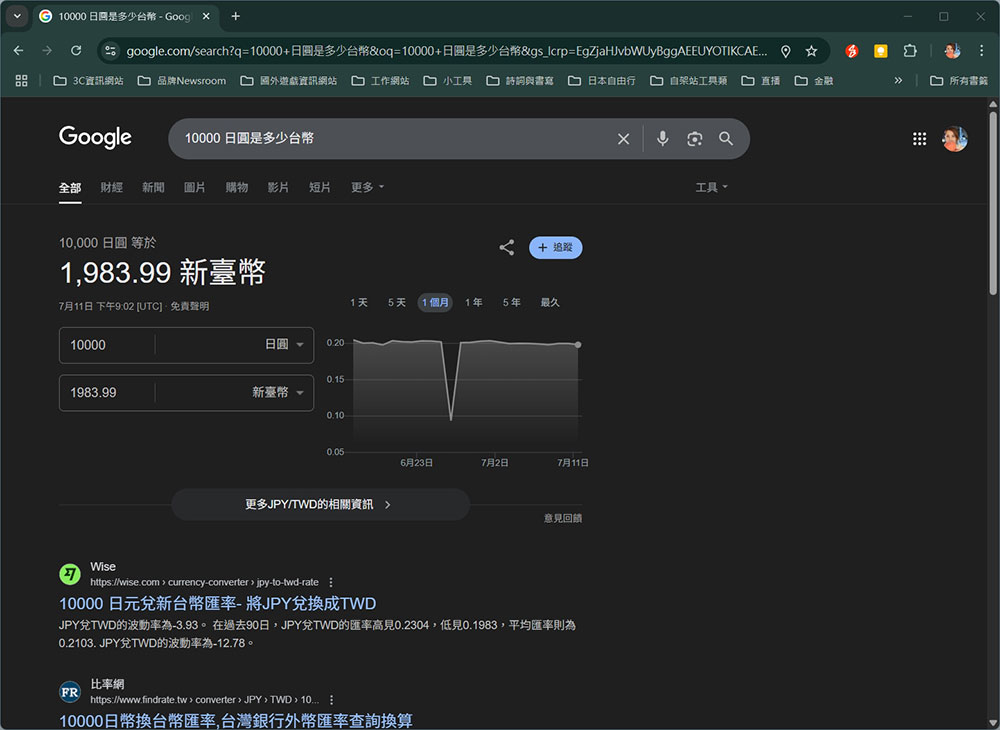
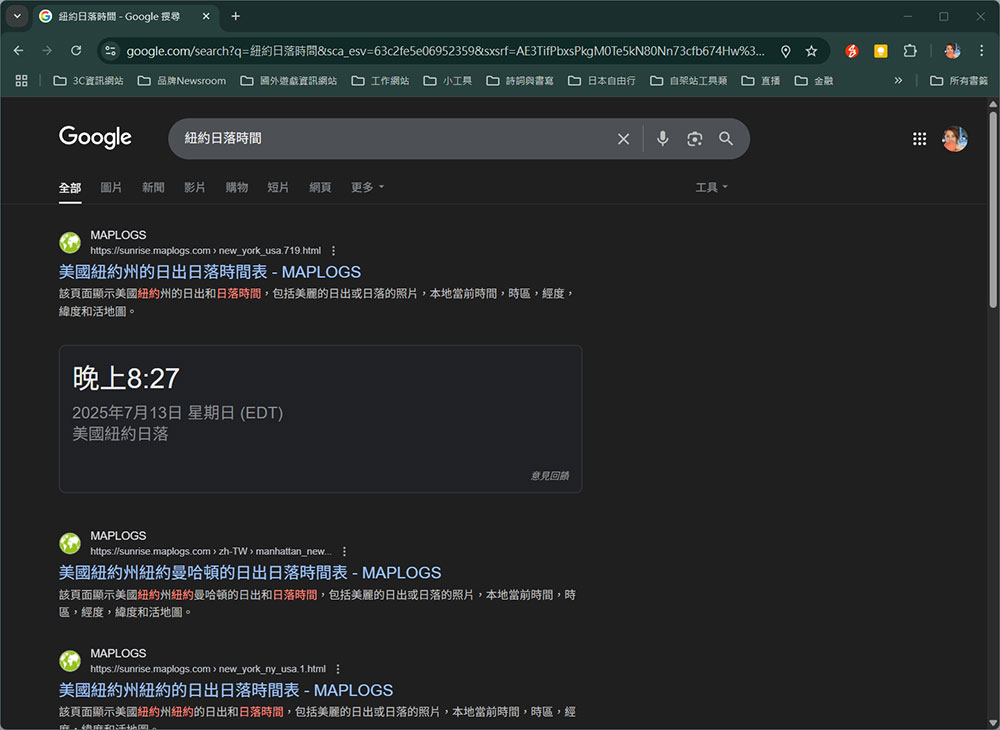
Google will also automatically solve the mathematical equations you type and provide you with a fully functional computer in the search results. Also, do you want to know what time it is in New York? Just type “New York time now” into Google search and you’ll see it; if you type “New York sunset time” you’ll know when the sun sets, or add a specific date to know when the sun sets that day. This feature is also useful for understanding the weather. The search page will tell you the eight-day forecast as well as weather issues such as excessive heat.
Track flights and packages
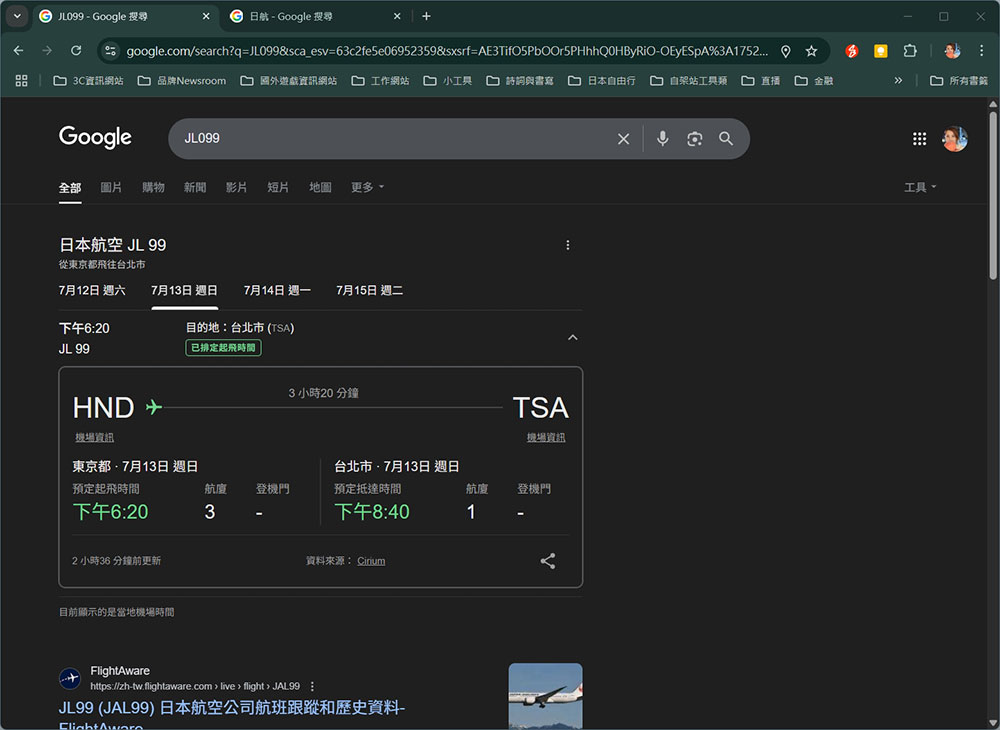
If you travel frequently, you may be troubled by the fact that many websites on the Internet are full of problematic wolf trackers, full of confusing interfaces and often inconsistent information. You can type your flight number directly into the Google search field to see information about departure and arrival times, terminals, gates and flight times, as well as helpful links to other airport information.
Google is also good at tracking packages. Just enter the shipping company and package tracking number, such as “UPS Package Tracking XXXXX (number)”, and Google can use the cleanest and most concise interface to tell you where the package is now.
Find various hidden tools
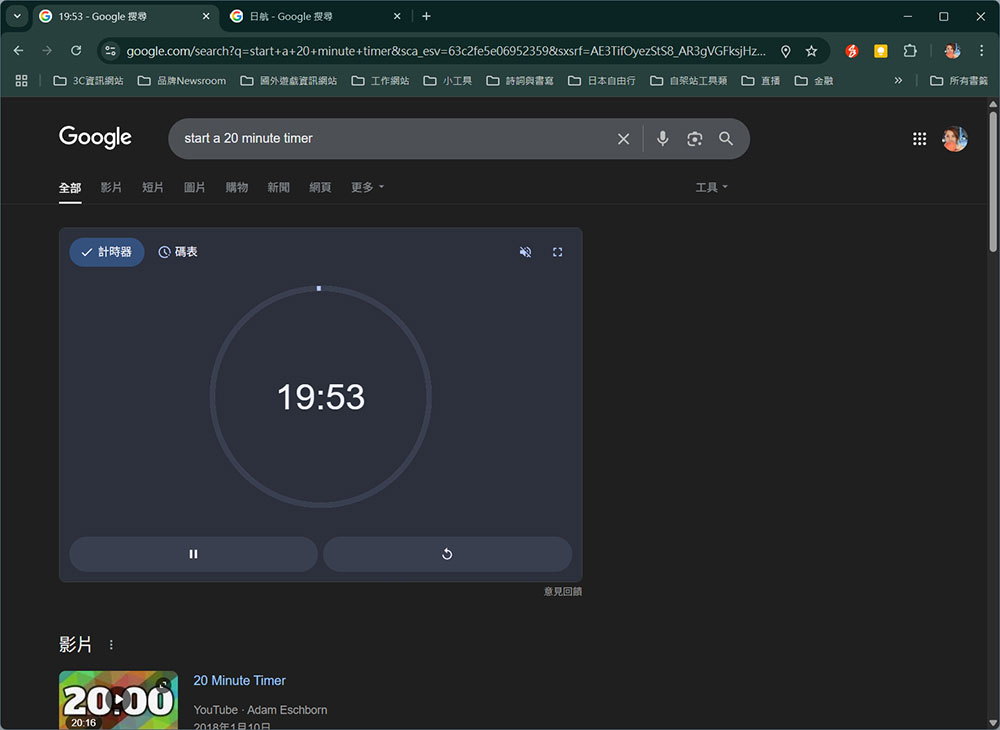
Google has a variety of random but useful Easter egg tools, but this one requires English commands. For example, enter “start a 20 minute timer” to start a fully functional 20-minute countdown timer, which can also enable sound effects, repeat timing, and other extended options.
You can also create a customizable roulette wheel by entering a “Google Spinner” party game or custom dice; use “Coin Flip” to flip coins. Enter the “Random number generator” to randomly generate numbers, and there are many other games, such as “Tic-Tac-Toe”, “Pac-Man”, etc.
Create keyword alerts
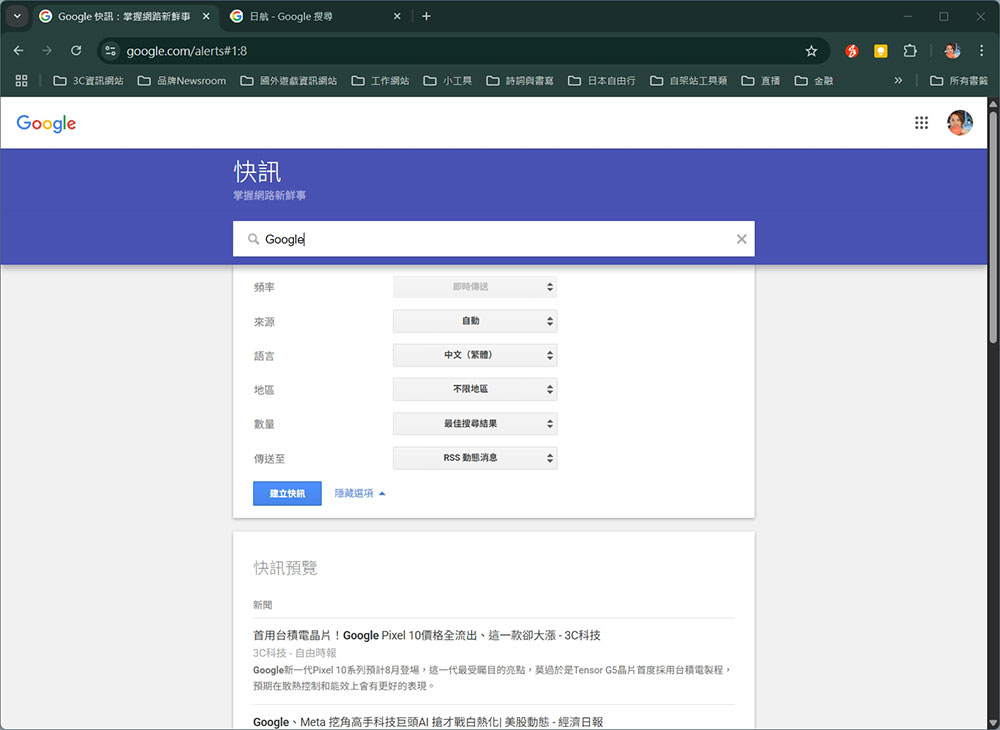
Many researchers, journalists, and fact-checkers turn to Google search, however, one of the most challenging things when it comes to conducting in-depth research is keeping up with an evolving topic. In order to keep up with recent developments, manual day-to-day searches are not only inefficient but also prone to missing information. You can use Google Search to set up keyword alerts to be notified when new content for that keyword appears in the index.
Go to “google.com/alerts” and you’ll see the most recent clicks. Expand the options section and set exactly which parameters must be met before Google will notify you of keyword alerts. You can choose how often you want to receive alerts, which sources you want to receive them from (news or blogs, etc.), which language and region you want to use, and how many results you want at one time. Finally, you can send all of these alerts to your RSS feed instead of email.
Limit search time range
Another useful feature if you want to drill down on Google Search is the ability to search for information based on when it was published. There are two ways to do this. First, click on the tool options below the search field, then change “Any time” to the past 1 hour, past 24 hours, past 1 week, past 1 month, past 1 year, or any custom time range you want. You can get search results for any time period you set.
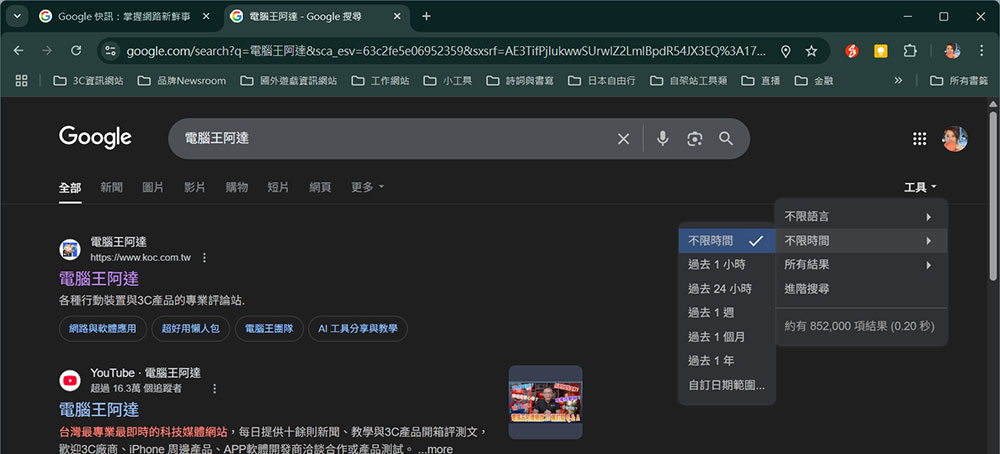
Another way is to directly use the parameters “before:” and “after:” in the search field, and then add the date after it. Like other search methods, it will filter out the results you want. For example, if you want to search for iPhone information before 2024, you only need to enter “iPhone before:2024” to filter it out.
Source: KOCPC Chinese