


If you want to present a unique brush engraving effect on stones or some objects, you can now easily achieve such visual effects through Photoshop. This tutorial will take you step by step from material preparation to final texture simulation to create a textured picture that is like hand-carving on a stone. You no longer have to rely on typing to cover the stone weakly. The effect is not natural at all. Once you learn this trick, whether you use it to create artwork or design covers, you can easily create a textured picture with this combination:
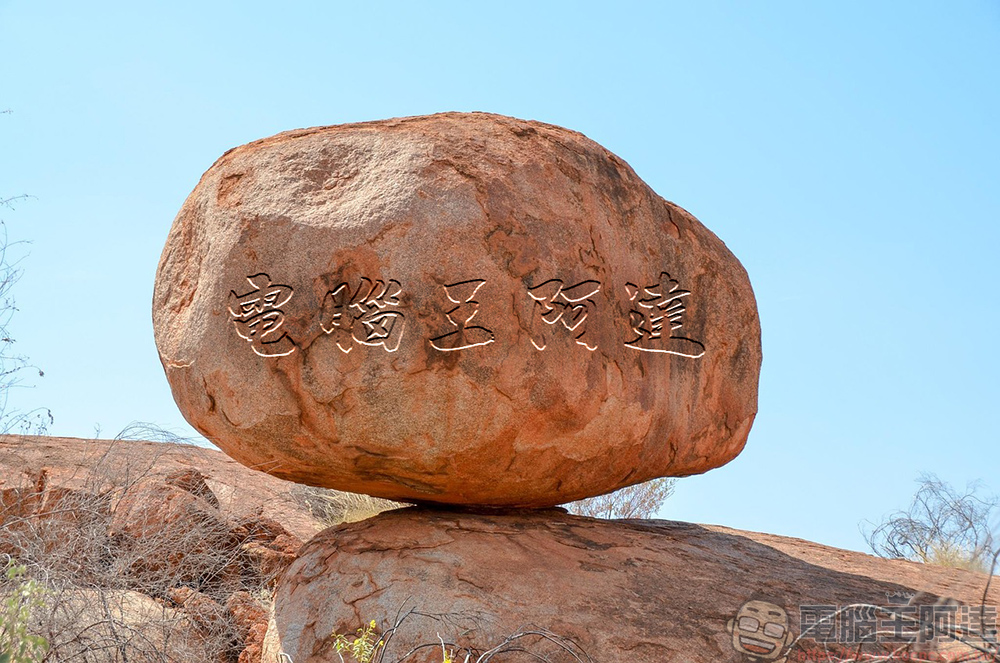
Prepare in advance
First prepare a photo of the stone you want to engrave on. You can either find the material online or take a photo yourself:
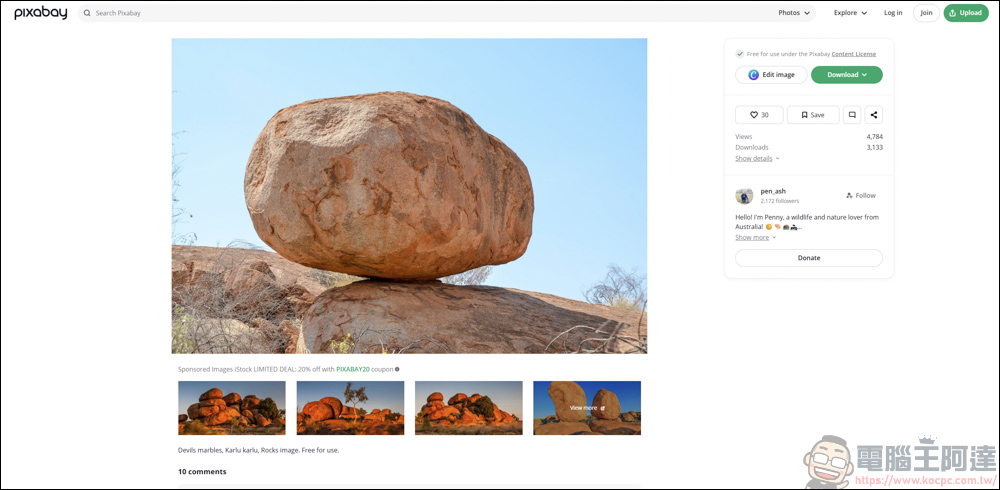
(Image source: pixabay)
Then find a picture of calligraphy, or you can use text to generate the picture yourself:
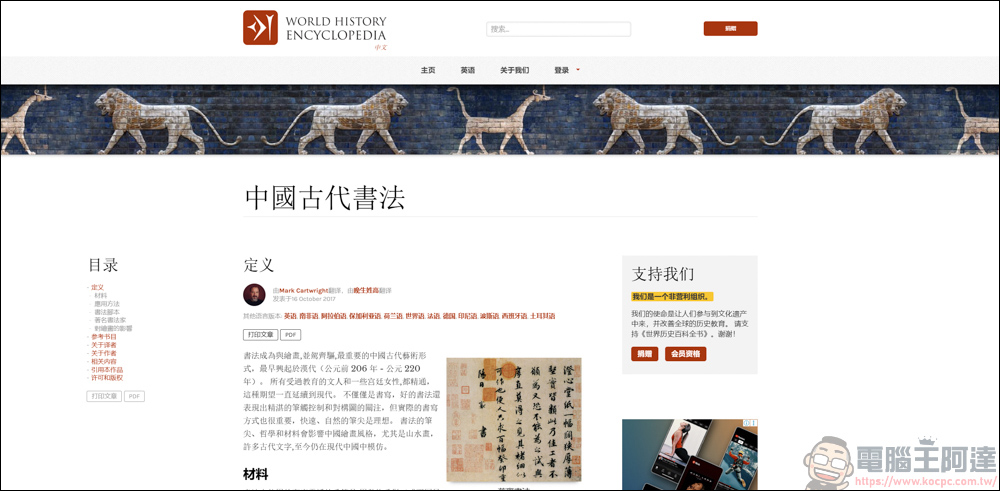
(Image source: World History Encyclopedia)
PS Teaching on carving on stones
After the pre-production work is ready, first read the poisonous pieces of the stone into Photoshop:
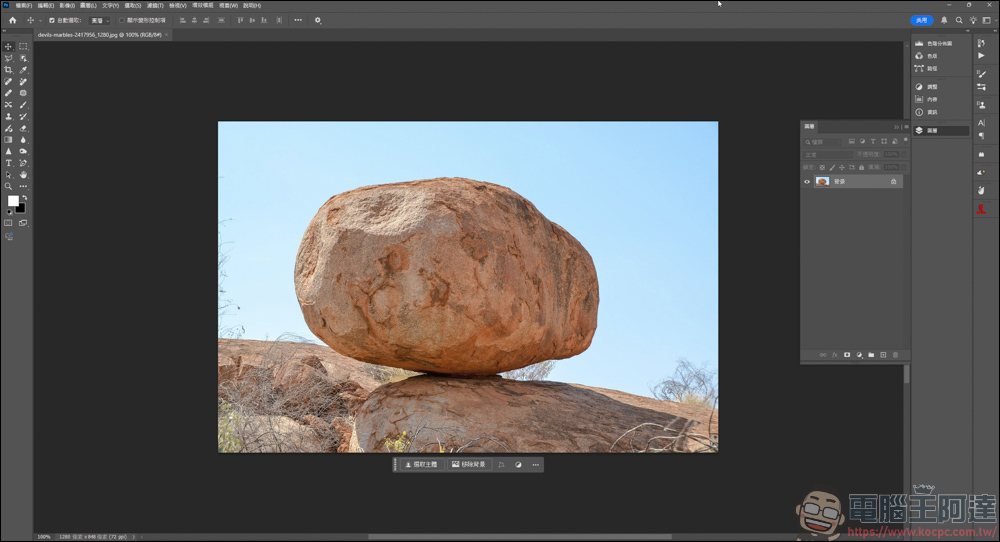
Then read the calligraphy picture into the layer, and adjust its size, angle, and position to the range you want to engrave:
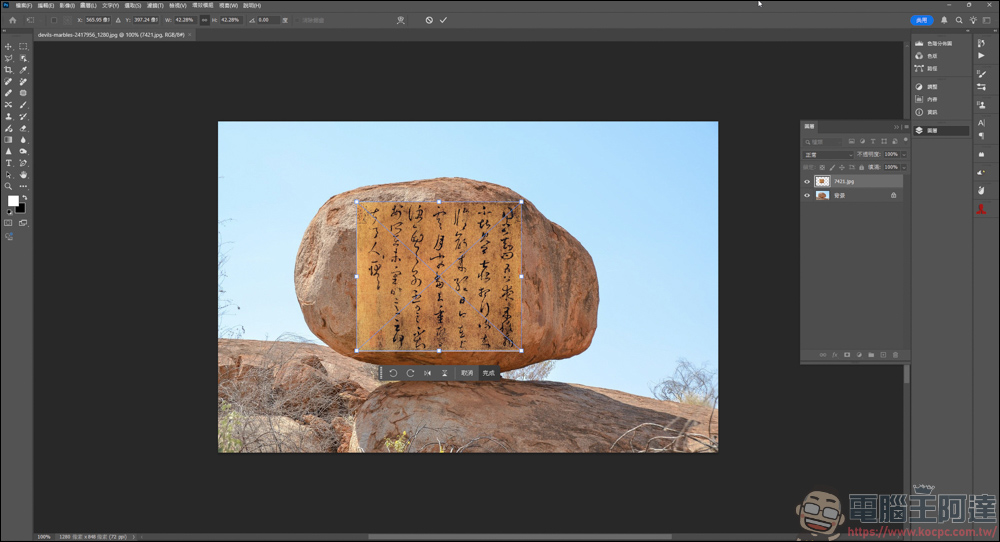
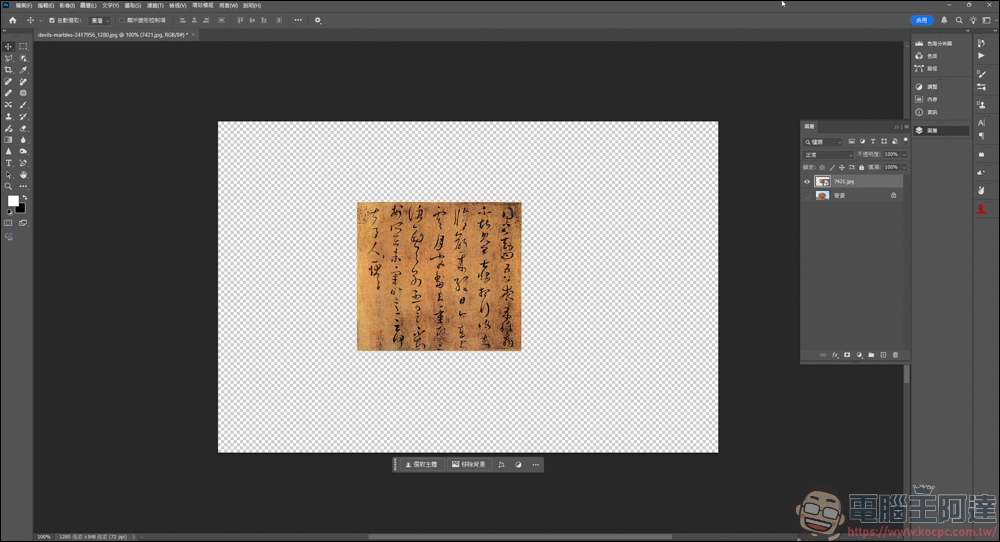
First hide the stone layer and leave the calligraphy picture:
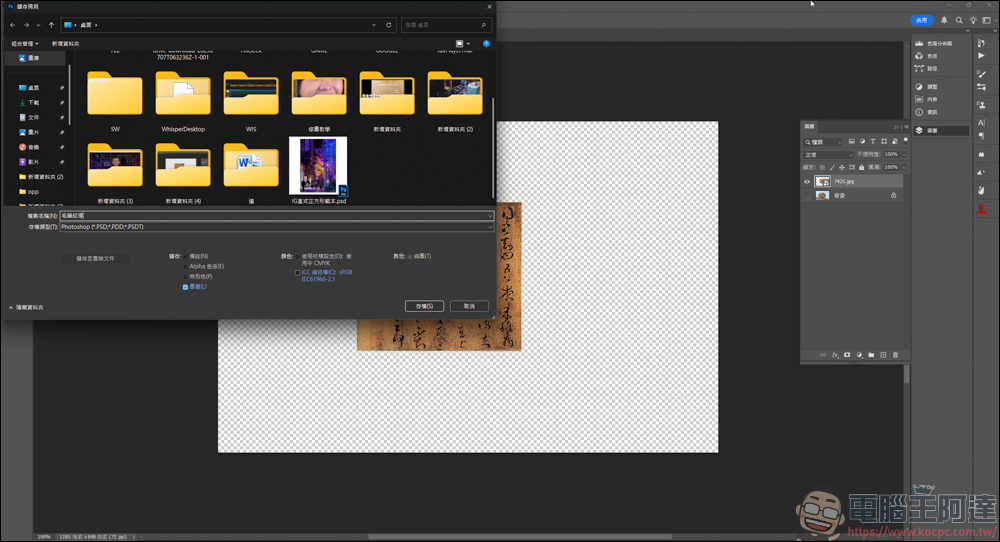
Directly save a copy of the original PSD file:
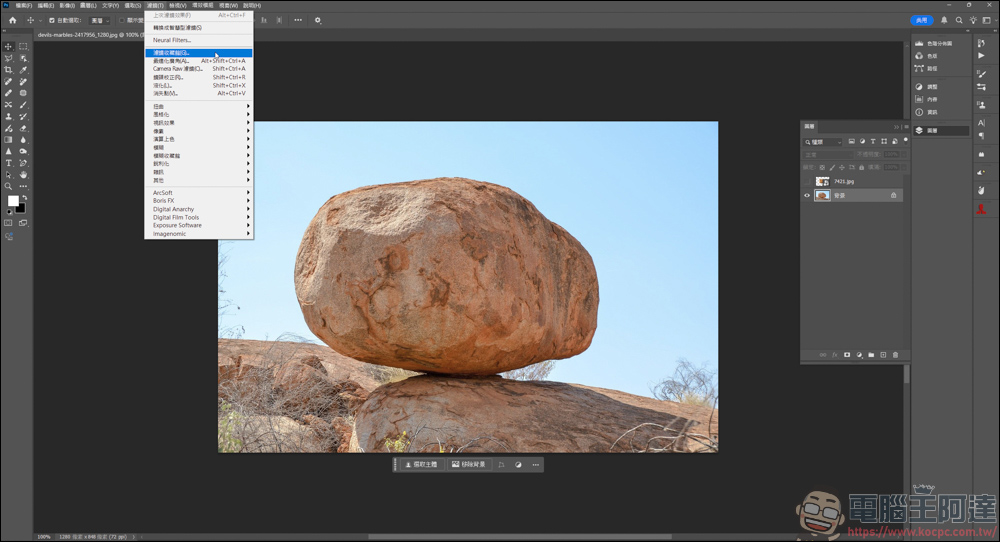
After saving, hide the calligraphy layer and open the stone layer, then Filter → Filter Collection:
In the texture options, click Texture, then the stone image will apply the texture’s pre-effect:
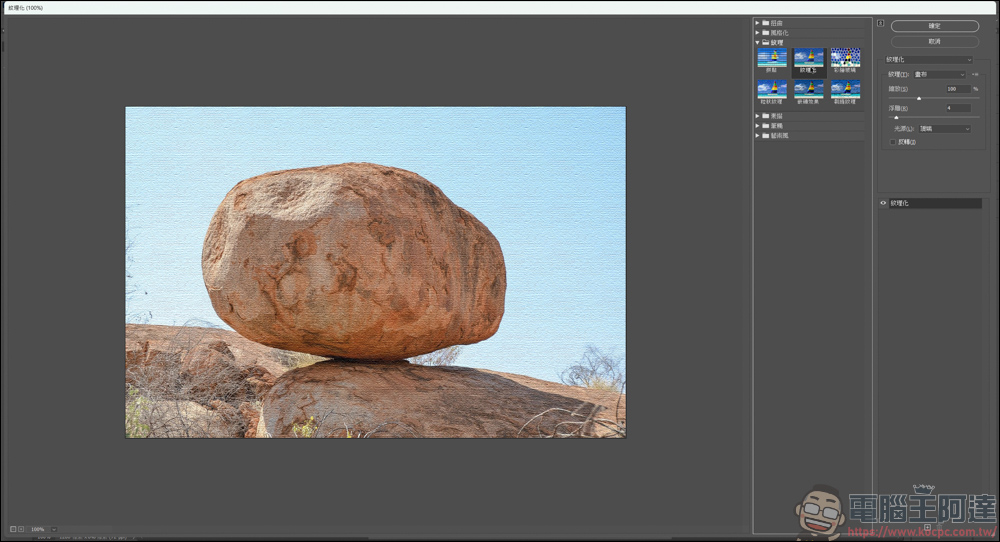
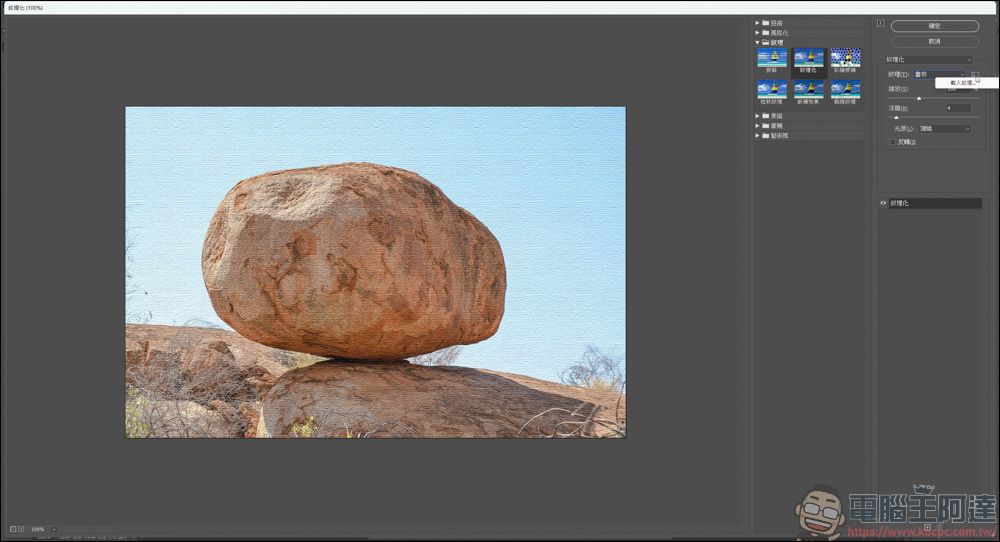
There is a drop-down menu next to the texture option. After clicking it, the load texture will appear, and you can execute it directly:
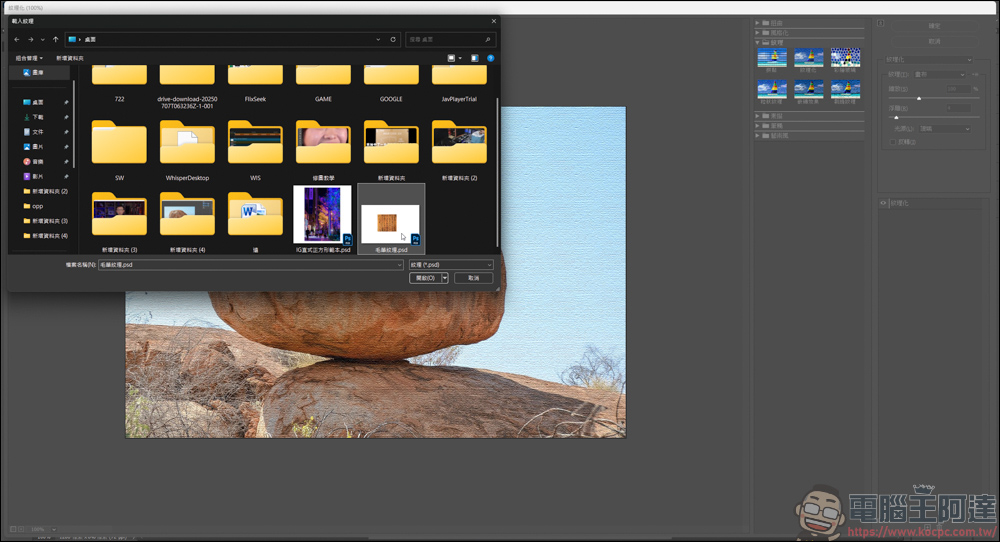
Find the texture PSD file you just saved and read it directly:
After reading it, you can see that the calligraphy words just mentioned have been engraved on the stone:
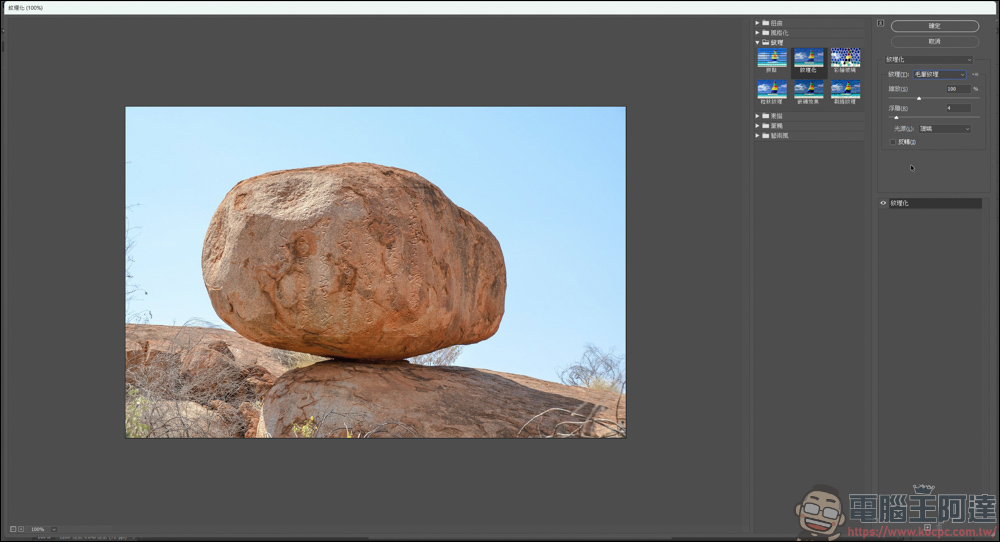
If you feel it is not too obvious, you can adjust the value of the relief. The higher the value, the more obvious the font will be, but it will also become more rough:
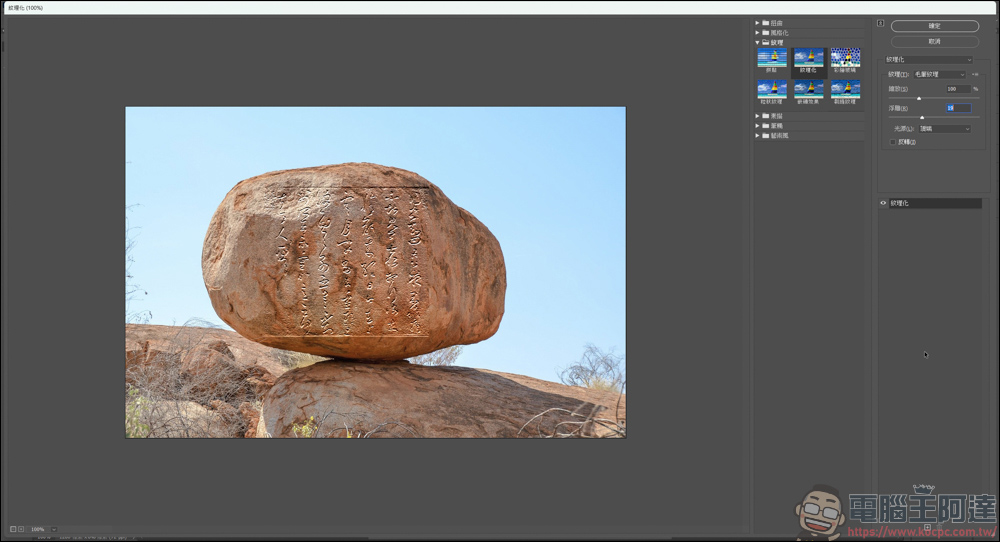
This is the effect of modifying the relief by texturing. You can see that there are edges of the original image and traces of the base map around the lettering (it is highly recommended to use brush fonts to directly generate a white background map in PS):
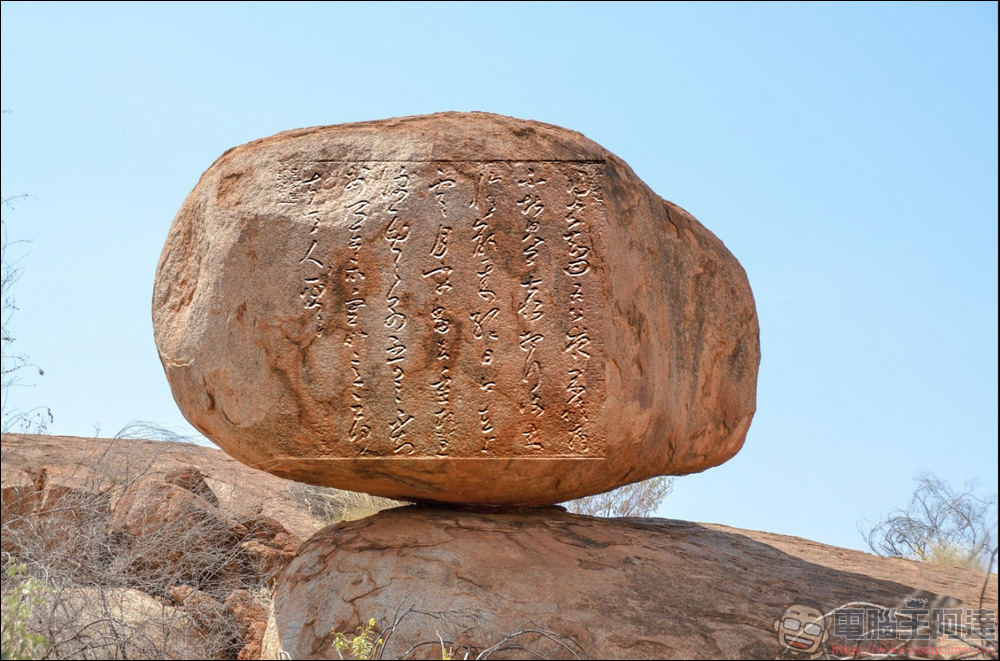
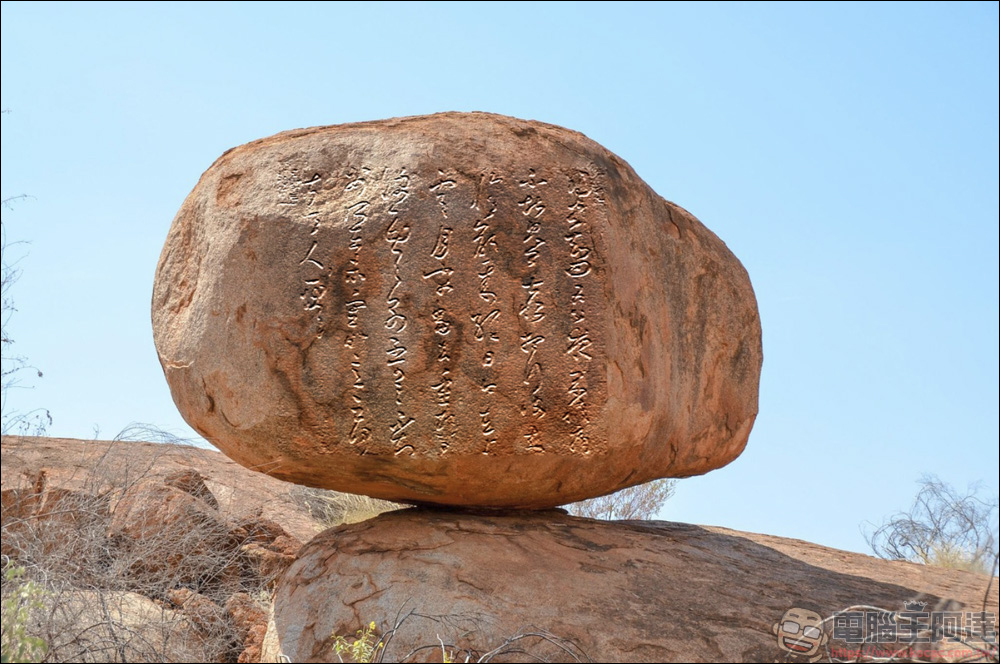
But it doesn’t matter. After all, the software used is PS, and it will be fine with a little repair. Using content-aware tools and deepening tools here, you can easily make the original abnormal lettering content much more natural. In addition to being applied to stones, this effect can also be used in buildings, desktops, coffee tables, etc. It is very simple and easy to use, and the presentation is very natural:
Source: KOCPC Chinese