


Although iOS 18.1 version iPhone Already joined AI The function of removing people and objects is only available for iPhone 15 Pro and above, and most people still cannot enjoy it.But it doesn’t matter, I found it earlier AI Magic Eraser: AiRetouch We are launching a lifetime version limited free event, only for one day.It can easily remove unwanted passers-by and objects from photos, and it also provides functions such as red-eye and teeth whitening. Don’t miss it if you need it.(Limited exemption has ended)
AI Magic Eraser: AiRetouch Lifetime version limited free! Use AI to remove passers-by and unnecessary objects from photos with one click
AI Magic Eraser: AiRetouch is a highly rated photo post-production editing app that provides various AI removal functions, including: object eraser, passerby removal, spot and blemish removal, background editor, teeth whitening, red eye correction, style filters, and skin softening. Although the operation interface is only in English, it is very simple to use. You don’t have to be very precise when deleting the selected area. AI will automatically judge it, which is very good.
Compared with the free version, Pro can enjoy unlimited photo editing functions, and the lifetime version limited free promotion has lasted for a few hours. It is not sure how long it will last. Those who need it should hurry up and get it.
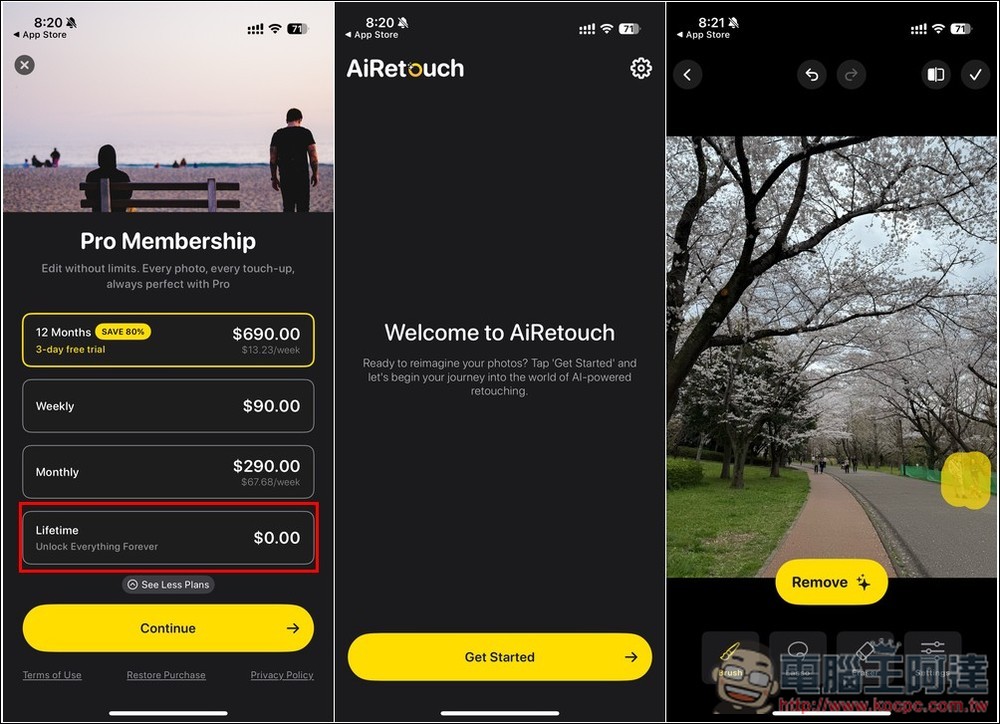
In the in-app purchase on the App Store page, there is information about the lifetime version costing 0 yuan. If you see it, there is a high chance that it is free. After getting it, open the app and the Pro membership option will appear. The lifetime version is hidden in See More Plans, and the last one is. Remember to confirm whether the price is $0. If so, click Continue. If not, it means the limited exemption has ended:

Check again to see if there is an amount in the menu below. If not, click Confirm again. If so, don’t click it. When “Your purchase has been successful” is displayed, it means it is completed and has been upgraded to the lifetime version. The operation interface of AiRetouch is very simple. After entering the main screen, press Get Started below to select the photo you want to edit:

The menu is at the bottom. Remover is the removal function. I first remove the passers-by on the right side of this photo. You can see that I roughly circled that range, but I did not circle the two people accurately. Then press Remove. After a few seconds, you will see that the passers-by have been removed, and AI will automatically fill in the content. I have to say that it has such an effect once, it is really good, no wonder the score is very high:
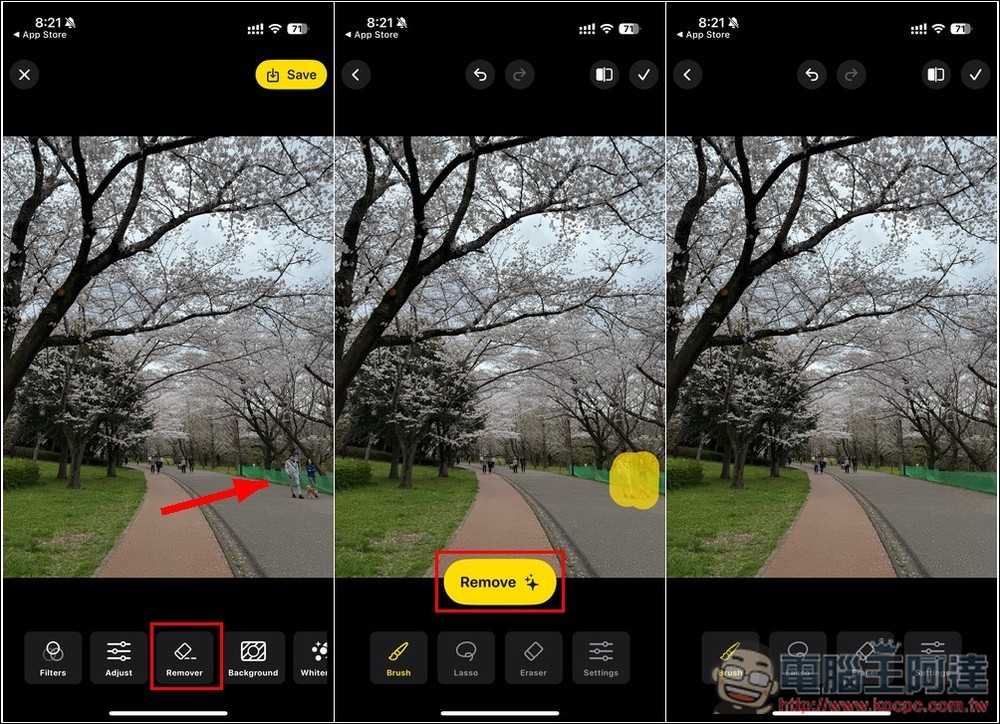
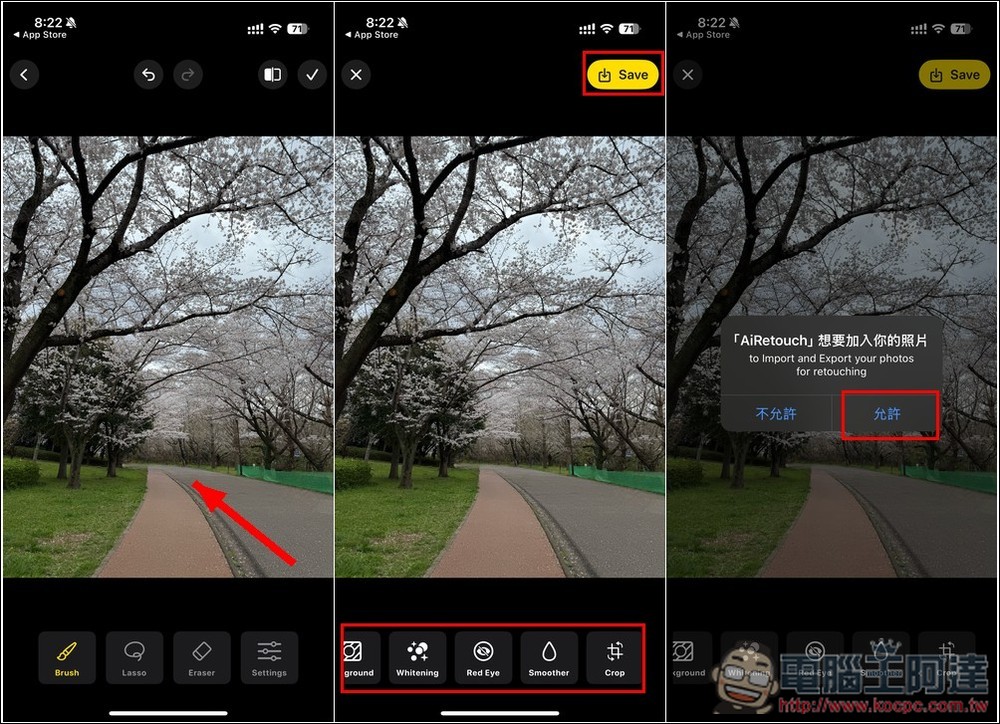
Next, I removed all the other passers-by in the distance, and the effect was very good. When finished, click the Save button above to save it to the photo. In addition, if you slide the menu below to the left, there are other good editing functions that you can play with:
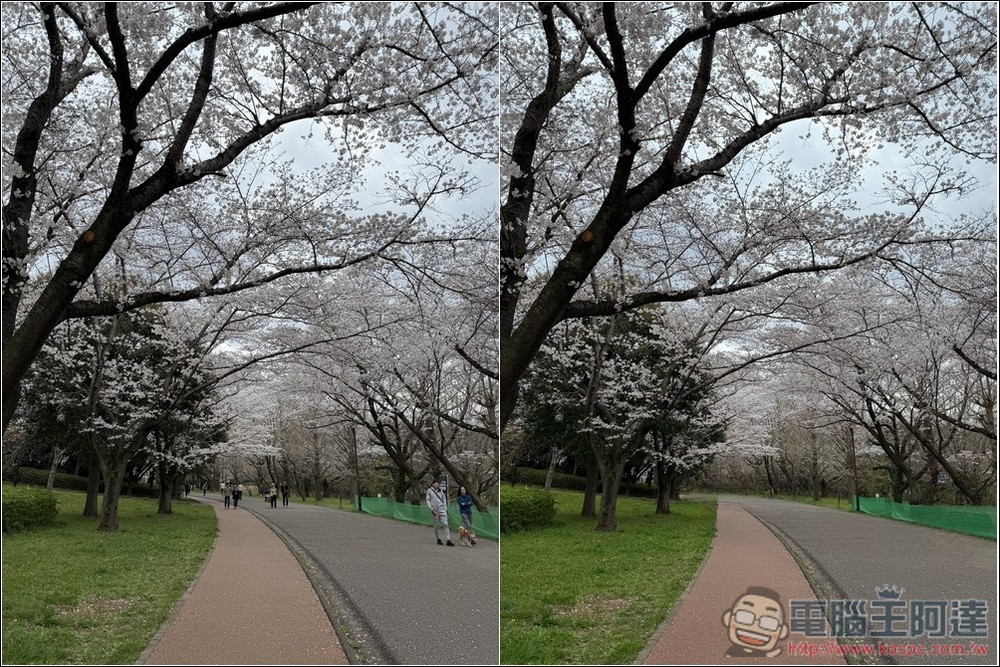
The left side of the picture below is before removal, and the right side is after removal. AiRetouch is really powerful:
If you are really unlucky that the AiRetouch lifetime version event has ended when you catch it, you can also try the free version. Judging from the description, the free version seems to be able to remove objects, but there are some restrictions.
Source: KOCPC Chinese